User manual
Ceres · field notebook
Every operation recorded, every batch traced: the farm field notebook with the checks of the official Plant Protection Products Register, harvest and packhouse by lot, sales, member settlements, traceability and compliance, explained section by section with screenshots of the app.
Getting started
Welcome
What Ceres is, how all the work of a vegetable-growing cooperative fits into the application, from the SIGPAC enclosure to the box the customer buys, and how to get the most out of this manual.
Ceres is the digital field notebook and the traceability system of a vegetable-growing cooperative. It brings together in one place what happens on each plot and what happens to the vegetables afterwards: the farms of the cooperative and its members with their plots (SIGPAC enclosures) and their crops; the farm field notebook —plant protection treatments, fertilisation, irrigation, field work, the technician's visits and lab analyses—; the harvest and the packhouse, by lot; sales to customers, purchases of produce from third parties and settlements with the members; and, above all, the traceability of every lot and the compliance of every farm.
Everything is connected. A treatment only lets you choose products that the official Plant Protection Products Register of the Spanish Ministry of Agriculture (MAPA) authorises for that crop and that pest, and it checks the rate, the sprayer's licence, the equipment inspection and the pre-harvest interval before it is saved. The pre-harvest interval stops a harvest being recorded too early. The harvest creates a lot; the lot is packed, labelled with a QR code and goes out on a delivery note. And for every box a customer buys you know which plot it came from, which treatments it received and with what interval, and which other customers got the same consignment.
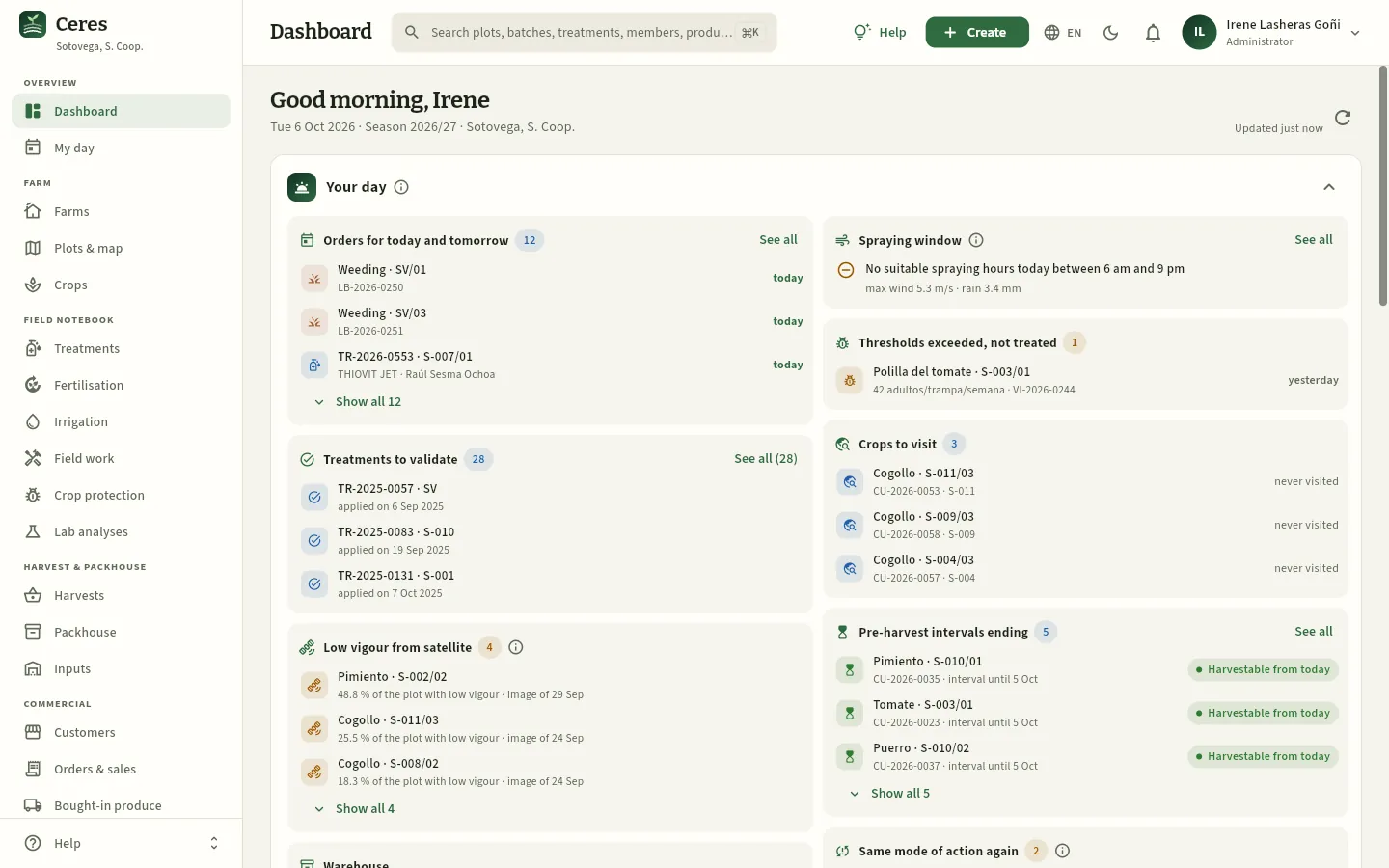 1234567
- 1The sidebar takes you to each section, grouped by area: Overview, Farm, Field notebook, Harvest & packhouse, Commercial, Traceability & control and Resources.
- 2The search box finds a plot, a lot, a treatment, a member or a product from any screen (also with ⌘K or Ctrl+K).
- 3Create adds a treatment, a field task, a visit, a harvest, an order… without leaving where you are.
- 4The bell with your notifications: the order assigned to you, the settlement issued, the licence about to expire… (see Notifications).
- 5Your user: your profile, the language and the theme, your notification settings, the connection to Claude and signing out. If you are an administrator, also Users, Settings and Audit log.
- 6Your day: what is on your plate today according to your profile, before anything else (see Dashboard).
- 7The Help menu opens this manual —at the chapter for the screen you are on— and the interactive guides.
#The journey of a box of vegetables
This is how a tomato travels through Ceres, from the plot to the customer. Each step is a section of the application and a chapter of this manual (click any of them to go to it):
- 1Plot and cropThe SIGPAC enclosure, its soil and its irrigation; the tomato planted this season, with its variety and its stage.
- 2Technician's visitThe agronomist finds Tuta above the threshold and recommends a treatment.
- 3Treatment orderA product authorised for that crop and that pest, with the rate, the sprayer operator and the equipment checked.
- 4My dayThe sprayer operator sees the order on the phone, records the application and knows from when the crop can be harvested.
- 5HarvestOnce the pre-harvest interval is over, the harvest receipt creates the field lot, which is then graded.
- 6PackhouseThe sales lot is packed and labelled with a QR code that leads to its public page.
- 7Order and saleThe delivery note takes the lots by date (FEFO) and the customer is invoiced.
- 8Member settlementWhat was delivered is paid to the member at the prices for each week and grade.
#What is new in this version
| New | What it does | Where it is explained |
|---|---|---|
| Residues by customer and real MRLs | Each customer can have its own residue requirements (how many active substances it accepts, what share of the maximum residue limit or MRL, which substances it refuses and how many days beyond the pre-harvest interval). Ceres tells you which lots are fit for each customer, the delivery note by FEFO skips those that are not and says why, and residue analyses carry the real EU MRL of each substance | Lab analyses, Customers, Packhouse, Orders & sales |
| Mode of action rotation | Each active substance with its IRAC, FRAC or HRAC group. The treatment warns if it repeats the group more than recommended, and the solutions finder lists first the products that alternate | Treatments, Crop protection, Catalogues |
| Tamper-evident field log | Every field-log entry and every change are chained together with a digital fingerprint: a change made outside Ceres is detected. Every export carries its seal, and Verify record book tells you whether a file is intact | Compliance |
| Official CUE format | The field log can also be exported in the format of the FEGA's Single Farm Record Book (CUE), and the submission to SIEX is left prepared (Ceres does not send it) | Compliance |
| Real weather | Real daily and hourly weather data, with its source, for the spraying window, the water balance and the irrigation plan | Weather, Irrigation |
| Satellite vigour | The Sentinel-2 NDVI of each plot: a layer on the map, the Vigour tab on the plot and the crop, and a warning when part of the plot falls behind | Plots & map, Crops |
| Notifications | The bell with what is meant for you (your orders, your settlements, what is expiring, pest thresholds…) and your settings: in the app and by email | The screen and what is common |
| Your day | What is on your plate today according to your profile, at the top of the Dashboard, in My day and in Claude | Dashboard, Connect to Claude |
| Dictation | In My day, you say what you have done («I treated S-003/02 with Sanagrícola…») and Ceres fills in the form; you always confirm it | My day |
#Where to start, depending on your job
Everyone sees in Ceres what their access profile allows, and only for the farms assigned to them (see Profiles, permissions and farms). These are the chapters you will use most, depending on your work:
| If you are… | Start with | And then |
|---|---|---|
| Technical director (app administration) | Dashboard, Compliance | Users, Settings, Traceability |
| General manager | Dashboard, Reports | Orders & sales, Member settlements, Compliance |
| Field agronomist (IPM adviser) | Crop protection, Treatments | Fertilisation, Crops, Compliance |
| Farm foreman | My day, Field work | Treatments, Irrigation, Harvests, People, Machinery |
| Sprayer operator | My day | — |
| Member | Farms (yours) | Plots & map, Field work, Irrigation, Member settlements |
| Packhouse and quality | Harvests, Packhouse | Inputs, Lab analyses, Traceability |
| Sales | Orders & sales, Customers | Bought-in produce, Packhouse |
| Finance | Member settlements, Orders & sales (invoices) | Bought-in produce, Suppliers, Reports |
| External auditor | Compliance, Traceability | Treatments, Audit log |
If this is your first time, read Signing in to Ceres and The screen and what is common first: they explain what works the same way in every section (searching, filtering, opening a record, filling in a form).
#How to read this manual
- Annotated screenshots. Every screenshot is of the real application. The numbers 1 point to the parts explained below, in the legend. Hover over a marker or its line in the legend and the area is highlighted in the screenshot; click the screenshot to see it full screen.
- On-screen labels. What you see written on a button, a tab or a field appears like this: Create, Save. Keys, like this: ⌘K.
- Steps. Tasks are explained step by step in numbered boxes, with what happens at the end.
- Coloured boxes. Tips are in green, important points in amber, regulations (the digital field notebook, pre-harvest intervals, sprayer licence, sustainable nutrition…) with a green stripe on the left, how a figure is calculated in light green, and what changes depending on your access profile with a padlock.
- Abbreviations. The trade ones (PHI, BBCH, IPM, ROPO, ITEAF, SIGPAC, UF, ET₀, MRL, FEFO…) are explained the first time they appear and are all in the Glossary.
- Search. The search box on the left (or the / key) finds any word anywhere in the manual.
- Print. Print or save as PDF, at the bottom left, prints the manual on paper or as a PDF, each chapter starting on its own page.
#How this manual is organised
After these first steps, each chapter matches a section of the application's sidebar, in the same order and with the same icon. At the end come the appendices: profiles and permissions, glossary and frequently asked questions.
Overview
DashboardThe cooperative at a glanceMy dayThe day's work, in your pocketConnect to ClaudeCeres from a chat with ClaudeFarm
FarmsEach member, with their field logPlots & mapEvery parcel, in its placeCropsEvery crop, with its full recordField notebook
TreatmentsRecommendation, order, application and signatureFertilisationEvery kilo of nitrogen, recordedIrrigationEvery cubic metre, on its cropField workWho did what, and for how many hoursCrop protectionLook, count and decide whether to sprayLab analysesThe lab report, at handHarvest & packhouse
HarvestsEvery harvest, with its batchPackhouseEvery box, with its lot and its QRInputsEvery container, with its batchCommercial
CustomersRequirements, terms and paymentsOrders & salesOrders, delivery notes and collectionsBought-in produceThird-party produce, traceableSuppliersApproved and with certificates up to dateMember settlementsWhat each member is paidTraceability & control
TraceabilityOne step back, one step forwardComplianceWhat is missing, before the inspector finds itReportsHow the season has goneResources
PeopleLicences, ROPO and hoursMachineryROMA, ITEAF and calibrationCataloguesMAPA Register and cataloguesWeatherSpraying windows and degree-daysGetting started
Signing in to Ceres
How to sign in with your account, the demo accounts, the video and documents on the sign-in screen, your profile (language and theme) and how to sign out.
Everyone at the cooperative signs in to Ceres with their own user: an email and a password. What they see afterwards depends on two things an administrator decides:
- their access profile (general manager, field agronomist, farm foreman, sprayer operator, member, packhouse, sales, finance or auditor): the sections in the sidebar, the figures they can look at and what they can create or change;
- their farms: the agronomist sees those of the members she advises; the foreman, the cooperative's own farm; each member, only their own.
Accounts are created by an administrator in Users; there is no self-registration.
- 1The administrator creates your userWith your email, your name, your job title and a password.
- 2They assign you a profile and farmsWhich sections and figures you see, what you can do and for which farms.
- 3You sign in with your emailOn the sign-in screen, with your password.
- 4You start on the DashboardWith the blocks for your profile (the sprayer operator goes straight to My day).
#The sign-in screen
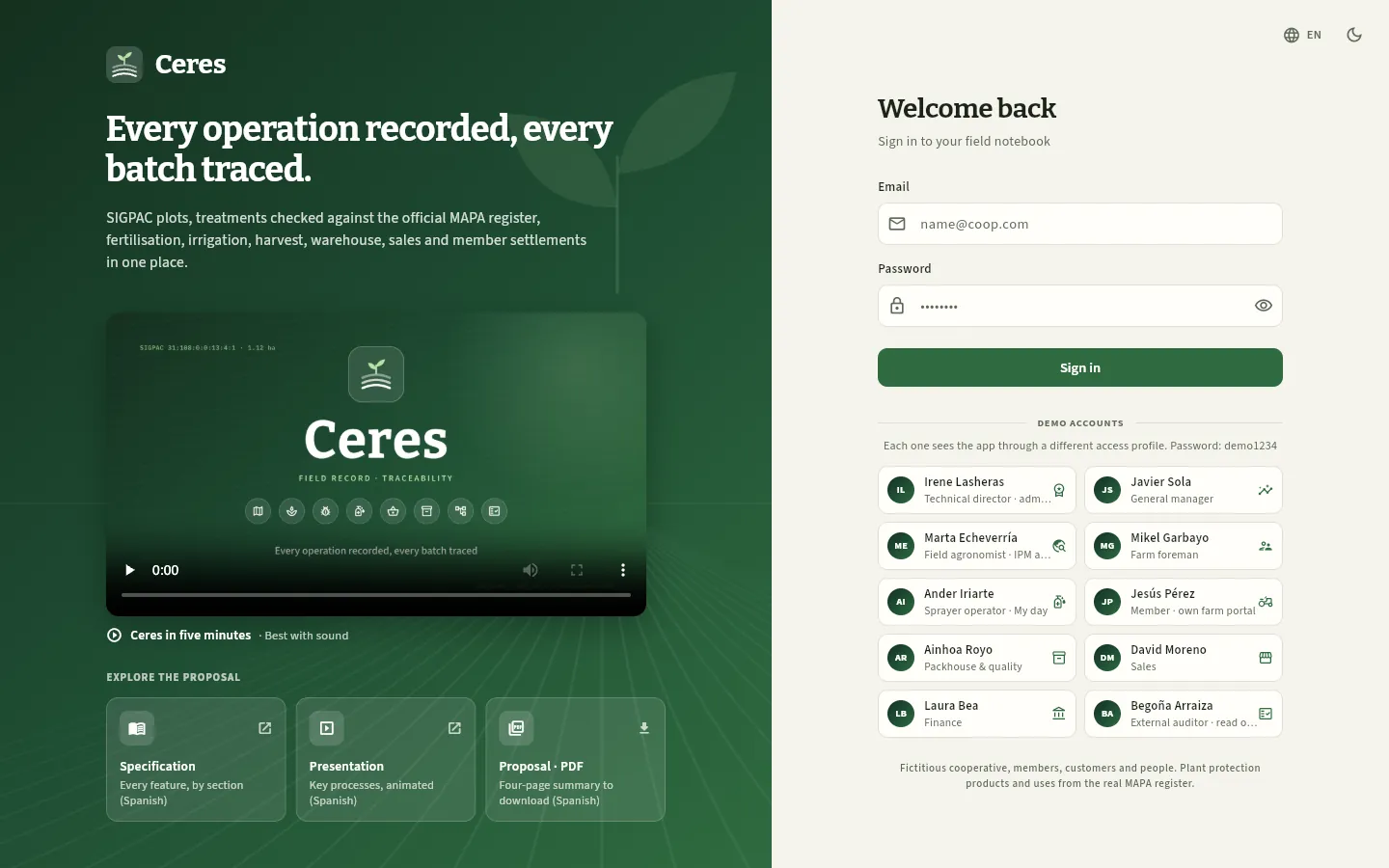 12345678
- 1Email: the address the administrator registered you with.
- 2Password. The eye on the right shows or hides it while you type.
- 3Sign in (or the Enter key in the password field) opens your field notebook.
- 4Demo accounts: in the demo, one click on a person signs you straight in with their account.
- 5The presentation video: about five minutes on what Ceres does. Press ▶ to watch it (best with sound; it is in Spanish).
- 6Explore the proposal: the specification, the presentation and the PDF summary of Ceres.
- 7The application's language (Spanish, English or Galician), right from the sign-in screen.
- 8Switches between light and dark mode.
On narrow screens (a phone or a small window) the presentation on the left disappears and only the form remains, with the logo at the top and, below the demo accounts, the video and the proposal documents. In both, clicking the Ceres logo opens its presentation website.
Type your email in the Email field.
Type your password in Password. If you want to check what you have typed, press the eye on the right.
Press Sign in or the Enter key.
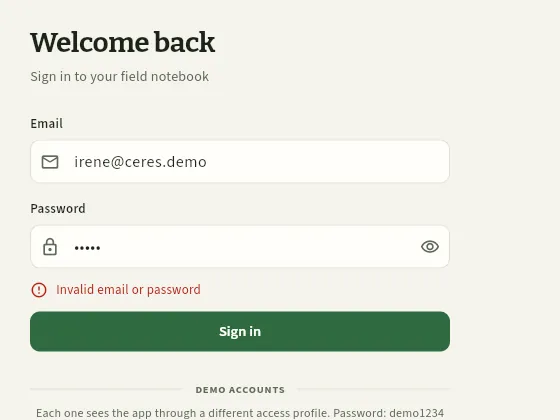 1
- 1Invalid email or password: check both fields (capital letters matter in the password). If the message is «Could not reach the server», the problem is the connection, not your details.
#The demo accounts
In the demo version, ten fictitious people from the sample cooperative («Sotovega, S. Coop.») appear below the form. Each one
has a different access profile and some assigned farms, so you see the same application as each job would see it. They
all use the password demo1234.
| Person | Job (profile) | What they see, in short |
|---|---|---|
| Irene Lasheras | Technical director · administrator | Everything, and she also manages users, profiles, the settings and the audit log |
| Javier Sola | General manager | Every section and farm, with costs, prices and settlements; he does not edit the day-to-day work |
| Marta Echeverría | Field agronomist · IPM adviser | The cooperative's farm and members S-001 to S-010: the full field notebook, crop protection, recommendations and validation; no prices or costs |
| Mikel Garbayo | Farm foreman | The cooperative's own farm (SV): crops, field work, irrigation, harvests, treatment orders, people and machinery |
| Ander Iriarte | Sprayer operator | Only My day, full screen: his treatments, field tasks and irrigations |
| Jesús Pérez | Member (S-003) | His farm, his plots and his field notebook (read only), his deliveries and his settlements; he records field work, irrigation and fertiliser applications |
| Ainhoa Royo | Packhouse & quality | Harvests, packhouse, packing, inputs, lab analyses and traceability, with mock recalls |
| David Moreno | Sales | Customers, orders, delivery notes, harvest forecast and bought-in produce; prices yes, costs no |
| Laura Bea | Finance | Invoices, settlements, purchases and reports with every amount |
| Begoña Arraiza | External auditor | Read-only access to the field notebook, traceability and compliance of every farm, with export |
The chapter The screen and what is common explains how you can tell on screen what a profile cannot see (a padlock instead of the figure), and Profiles, permissions and farms what exactly each profile allows.
#The proposal video and documents
In the presentation on the left there is a video of about five minutes that tells what Ceres does. Press ▶ to watch it, best with sound (it is in Spanish); the full-screen button enlarges it.
Below it, the Explore the proposal block brings together three documents about Ceres, intended for whoever is evaluating it (in Spanish):
- Specification — every feature, section by section. It opens in another tab.
- Presentation — the key processes, animated. It opens in another tab.
- Proposal · PDF — a four-page summary that is downloaded to your computer.
If the browser blocks the new tab, Ceres warns you with «Could not open the document»: allow pop-up windows for the page and click again.
#If you forget your password
Ceres does not send emails to recover your password: accounts are managed by an administrator. Ask them to go to Users (in their user menu), open your record and give you a new password with Reset (at least 8 characters; Ceres can generate one): they have to pass it on to you securely. The old one stops working straight away.
#Your user menu and «My profile»
At the top right is your user button: your initials, your name and your access (the name of your profile or «Administrator»). Clicking it opens your menu. To its left, the bell with your notifications (see Notifications).
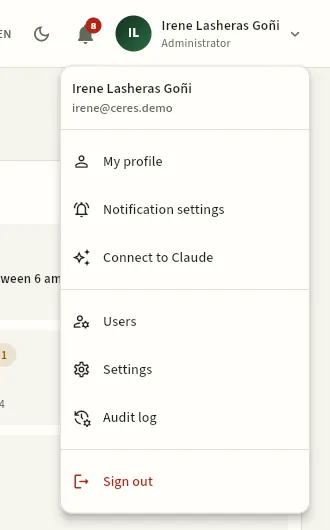 12345
- 1My profile: your details, the language and the theme.
- 2Notification settings: which notifications reach your bell and which also arrive by email (see Notifications).
- 3Connect to Claude: work with Ceres from a chat with Claude (see Connect to Claude).
- 4Only administrators see Users and Settings here; the Audit log, whoever has its permission.
- 5Sign out takes you back to the sign-in screen.
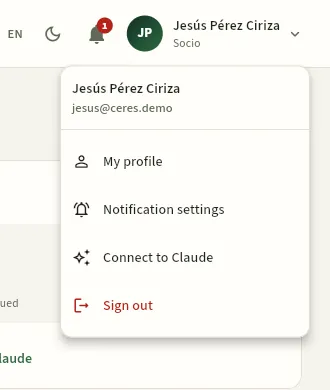 1
- 1Everyone else has My profile, Notification settings, Connect to Claude and Sign out; the Audit log, only whoever has its permission (in the demo, the general manager).
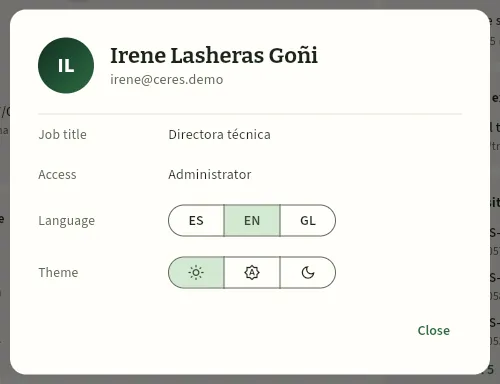 12345
- 1Job title: your job at the cooperative, as the administrator entered it.
- 2Access: «Administrator» or your access profiles. If you have several, they are joined with «+».
- 3Language: ES (Spanish) or EN (English). It switches the whole application instantly.
- 4Theme: light, «System» (whatever your computer or phone uses) or dark.
- 5Close the dialog: the changes are already applied.
Click your user button, at the top right, and choose My profile.
Under Language, click ES or EN.
Under Theme, click the sun (light), the automatic icon («System») or the moon (dark).
Click Close.
#My day in full screen
The Sprayer operator profile (in the demo, Ander Iriarte) only has My day, so Ceres opens it in full screen, without the sidebar, designed for a phone or a tablet in the field: the weather right now and whether spraying is possible, and, on large cards, today's and tomorrow's treatments, field tasks and irrigations, with a button to record each one.
If your profile has My day and other sections (the foreman, the agronomist), you open it from the sidebar like any other section; on a phone it also opens in full screen, with a button to go back to the rest of the application.
#Signing out
Click your user button, at the top right.
Choose Sign out (at the end of the menu).
#If your user has no access profile
A user who is not an administrator needs at least one access profile to see anything. If an administrator creates your account without a profile (or removes all of them), when you sign in you will see the No access profile screen: «Your user has no access profile assigned yet, so nothing can be shown. Ask an administrator to assign one.», with the Sign out button. Once the administrator has assigned you a profile, sign in again.
#Signing in from a phone or tablet
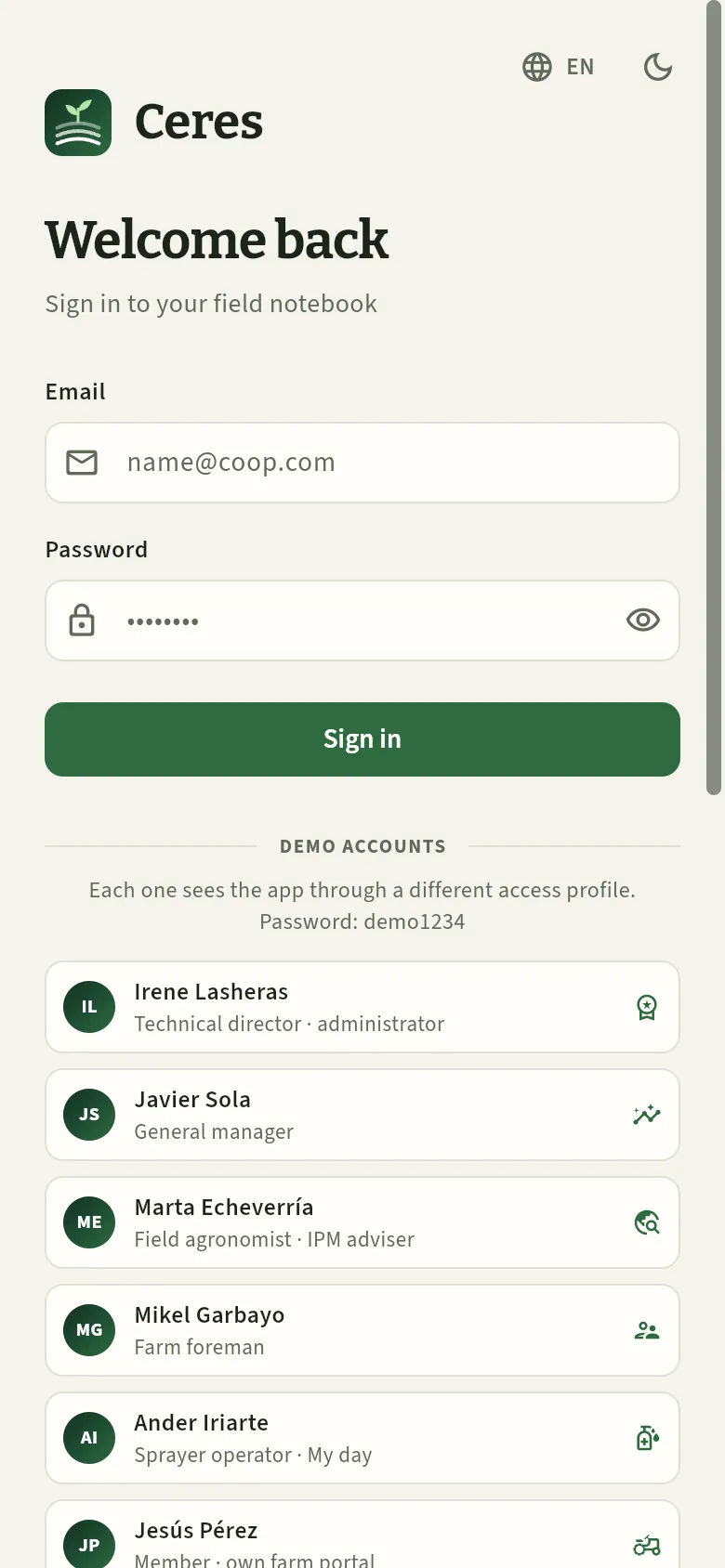 12
- 1The same form: email, password and Sign in.
- 2The demo accounts. Scroll down to see the others, the video and the proposal documents.
Ceres works the same way in the browser on a phone or a tablet. If you are going to use it often —the sprayer operator on the tractor, the foreman on the farm—, add it to the home screen from the browser menu («Add to Home Screen»): it will open like any other app. It needs an internet connection: the version that works without coverage will come later.
Getting started
The screen and what is common
The parts of the screen and everything that works the same in every section: the sidebar, search, the Create button, help, the notifications bell, lists, records with their documents and their changes, forms, the ⓘ buttons, what your profile hides, and the phone and tablet layout.
Every section of Ceres shares the same structure and the same building blocks: the sidebar to move around, the top bar with search and the button to create things, lists that are searched and filtered the same way, records that open on the right with their documents and their changes, and forms with the same buttons. What you learn here works on any screen.
The only exception is the sprayer operator's My day: it opens in full screen, without the sidebar, to be used on a phone or a tablet in the field (see My day).
#The parts of the screen
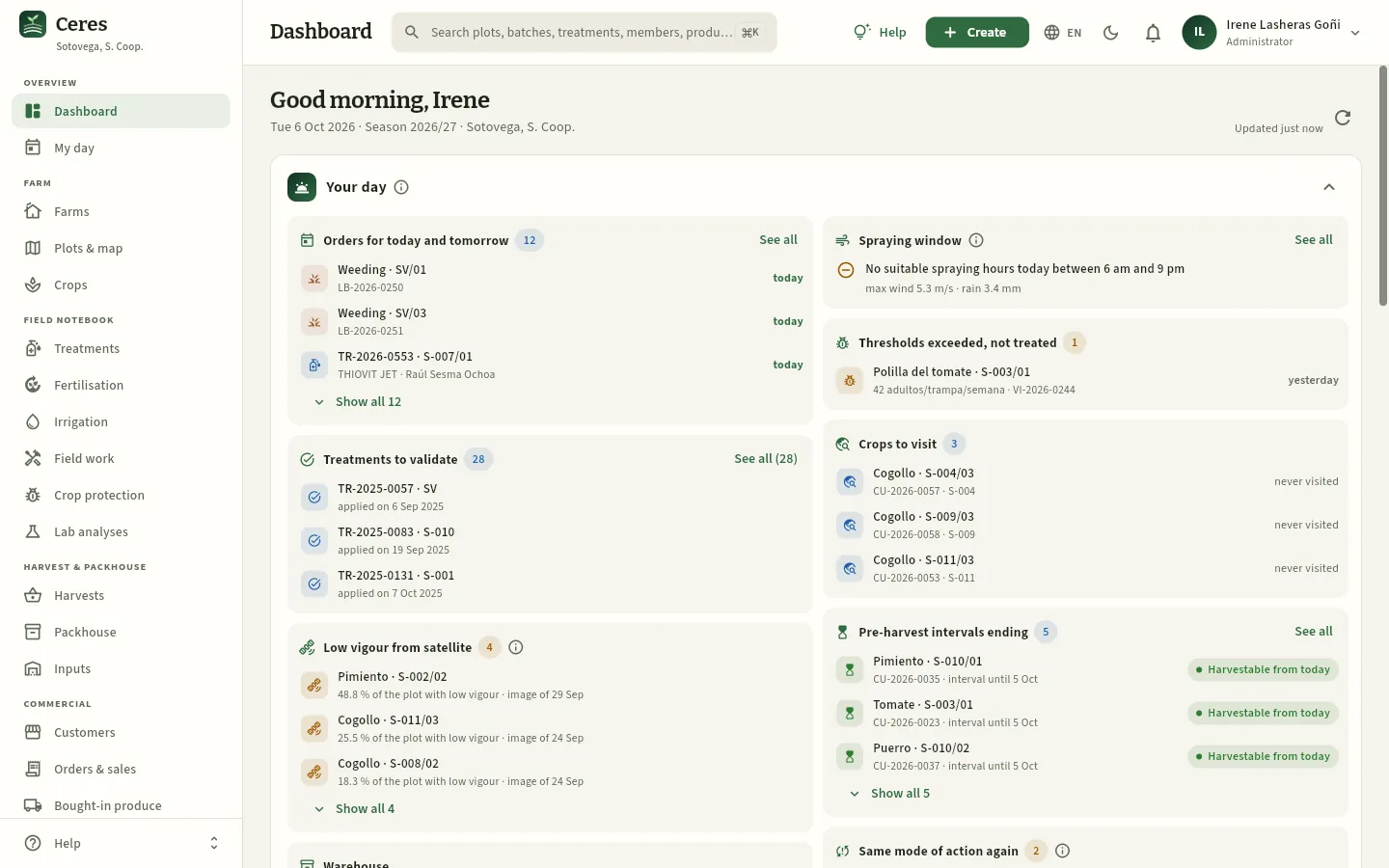 1234
- 1Sidebar: the sections, grouped by area. The section you are in is highlighted.
- 2Help menu, fixed at the foot: this manual and the interactive guides.
- 3Top bar: the title of the section and the tools that work on any screen (details below).
- 4The content of the section; it changes when you choose another one in the sidebar.
 12
- 1The title of the section you are in.
- 2The global search: click it or press ⌘K (Mac) / Ctrl+K (Windows).
 123456
- 1Help for the screen you are on, with its guides (also with the F1 key).
- 2Create: adds a treatment, a field task, a harvest, an order… from any screen.
- 3Language: Spanish, English or Galician.
- 4Theme: the moon switches to dark mode; in dark mode, the sun goes back to light.
- 5The bell with your notifications; if any are unread, a red number on top (see Notifications).
- 6Your user menu, with your name and your access profile below it (see Signing in to Ceres).
#The sidebar
The sections are grouped by area, in the order the cooperative works: from the field to the customer. You only see the ones your access profile allows: a member does not get Customers or Inputs, for example, and the sprayer operator only has My day.
| Area | Sections |
|---|---|
| Overview | Dashboard · My day |
| Farm | Farms · Plots & map · Crops |
| Field notebook | Treatments · Fertilisation · Irrigation · Field work · Crop protection · Lab analyses |
| Harvest & packhouse | Harvests · Packhouse · Inputs |
| Commercial | Customers · Orders & sales · Bought-in produce · Suppliers · Member settlements |
| Traceability & control | Traceability · Compliance · Reports |
| Resources | People · Machinery · Catalogues · Weather |
| Administration | Users · Settings · Audit log (on a computer, in the user menu) |
If the list does not fit, the sidebar scrolls; the Help menu always stays at the foot. When you change section, the screen you leave goes back to its initial state: if you had searched or filtered something, you will find it unfiltered when you come back.
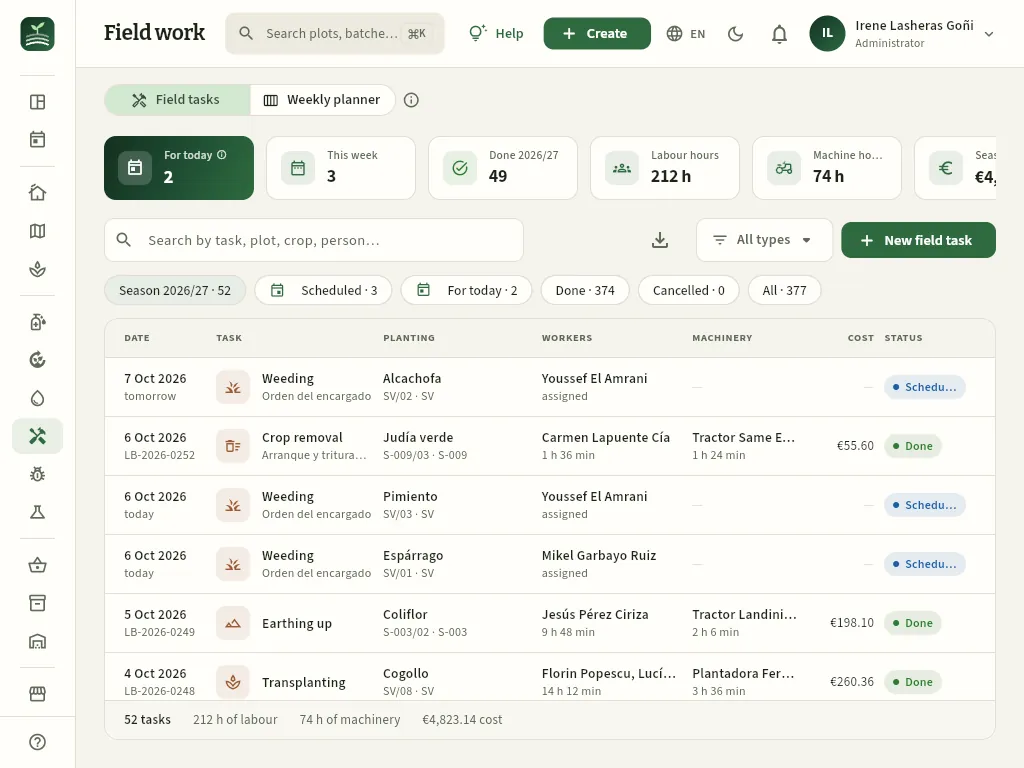 123
- 1Each icon is a section (hover over it to see its name); the areas are separated by a line.
- 2The Help menu stays at the foot.
- 3The search box narrows to make room for the title (and still opens with ⌘K / Ctrl+K).
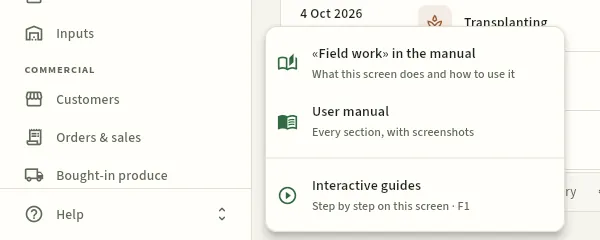 123
- 1Opens this manual at the chapter for the screen you are on (here, Field work), in another tab.
- 2Opens the full manual, from the cover page.
- 3Opens the help for the screen with its interactive guides (the same as the Help button at the top or F1).
#Help: interactive guides and this manual
There are two kinds of help inside Ceres:
- This manual, which opens from the Help menu at the foot of the sidebar, straight at the chapter for the screen you are on, in your language.
- The help for the screen: the Help button in the top bar (or the F1 key) opens a panel on the right with what the section is, the link to its chapter in the manual and the interactive guides for the tasks you can do there. Each guide plays on real screenshots of the app: a pointer goes to the spot, highlights it and performs the action while each step is explained. In My day in full screen, the button is in its header.
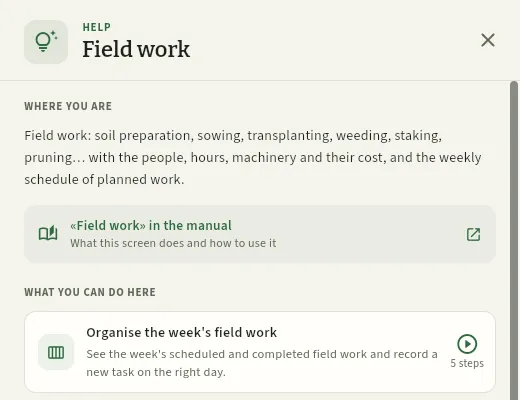 123
- 1Where you are: what this section is and what it is for.
- 2Link to this section's chapter in the manual.
- 3The section's interactive guides («What you can do here») and, below, those that work on any screen. Click one to follow it step by step. The F1 shortcut opens this panel.
#Finding anything
The global search in the top bar finds, from any screen, farms, plots, crops, treatments, harvests, lots, products from the Register, inputs, people, machines, customers, orders and delivery notes, purchases, suppliers, settlements and documents (by their name or their note). It searches by name and also by number or code: a SIGPAC enclosure, «S-003/01», «TR-2026-0558», a lot «LV-261003-002» or a product's registration number. It only shows what your profile can see and from your farms.
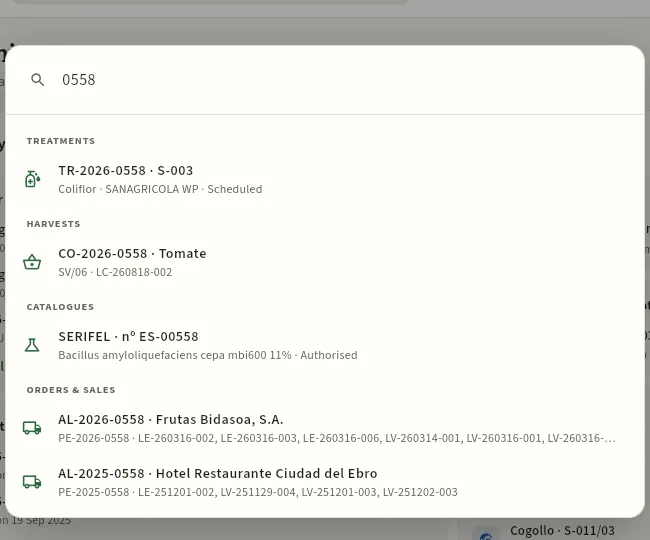 123
- 1Type at least two letters or digits; the results appear by themselves as you type.
- 2Each result with the details that identify it (farm, crop, product, status…). Click it to go to its section with the record open.
- 3The results are grouped by section, each with its icon: here a product from the Register with no. ES-00558.
Click the search box in the top bar, or press ⌘K (Mac) / Ctrl+K (Windows).
Type part of the name, the number or the code (for example «Recuenco», «Ciriza» or «0558»).
Click the result you are looking for.
#Creating something new
The Create button in the top bar adds, without leaving where you are, any record your profile can create: it opens the same form as the «New…» button in its section. When you save it, Ceres takes you to that section.
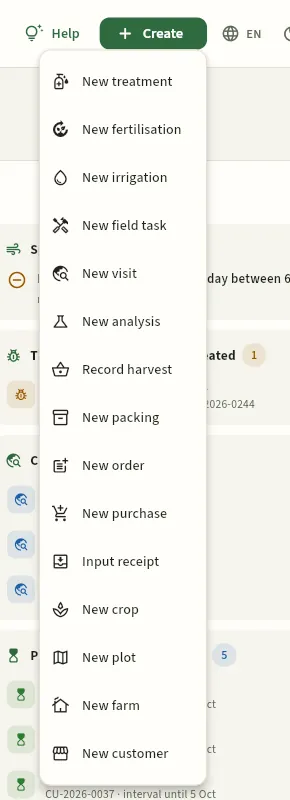 1234
- 1The field notebook: treatment, fertilisation, irrigation, field task, visit and lab analysis.
- 2Harvest and packhouse: record a harvest and a packing run.
- 3Commercial: a customer order and a purchase of produce from third parties; and an input receipt into the store.
- 4The farm: a crop, a plot and a farm; and a customer.
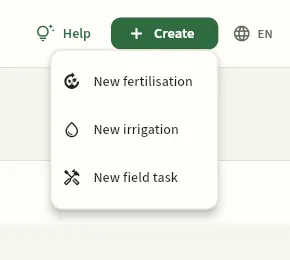 1
- 1Only the entries the profile allows appear: the member records his fertiliser applications, his irrigations and his field work.
| Option | Takes you to | Who sees it |
|---|---|---|
| New treatment | Treatments | whoever can schedule treatments |
| New fertilisation · New irrigation · New field task | Fertilisation · Irrigation · Field work | whoever can edit the field notebook |
| New visit · New analysis | Crop protection · Lab analyses | whoever edits crop protection or lab analyses |
| Record harvest | Harvests | whoever can record harvests |
| New packing · Input receipt | Packhouse · Inputs | whoever edits the packhouse or inputs |
| New order · New purchase · New customer | Orders & sales · Bought-in produce · Customers | whoever edits sales, purchases or customers |
| New crop · New plot · New farm | Crops · Plots & map · Farms | whoever edits crops or farms |
If you cancel the form, nothing is created and you stay where you were. If your profile cannot create anything (the auditor, for example), the button does not appear.
#Language and theme
The globe in the top bar switches the whole application between Spanish (ES) and English (EN), instantly; the moon switches to dark mode, easier on the eyes at night or in low light, and the sun goes back to light. Both are remembered in your browser; on a phone you change them from My profile (see Signing in to Ceres). The data (names of plots, products, members) is not translated: only the application.
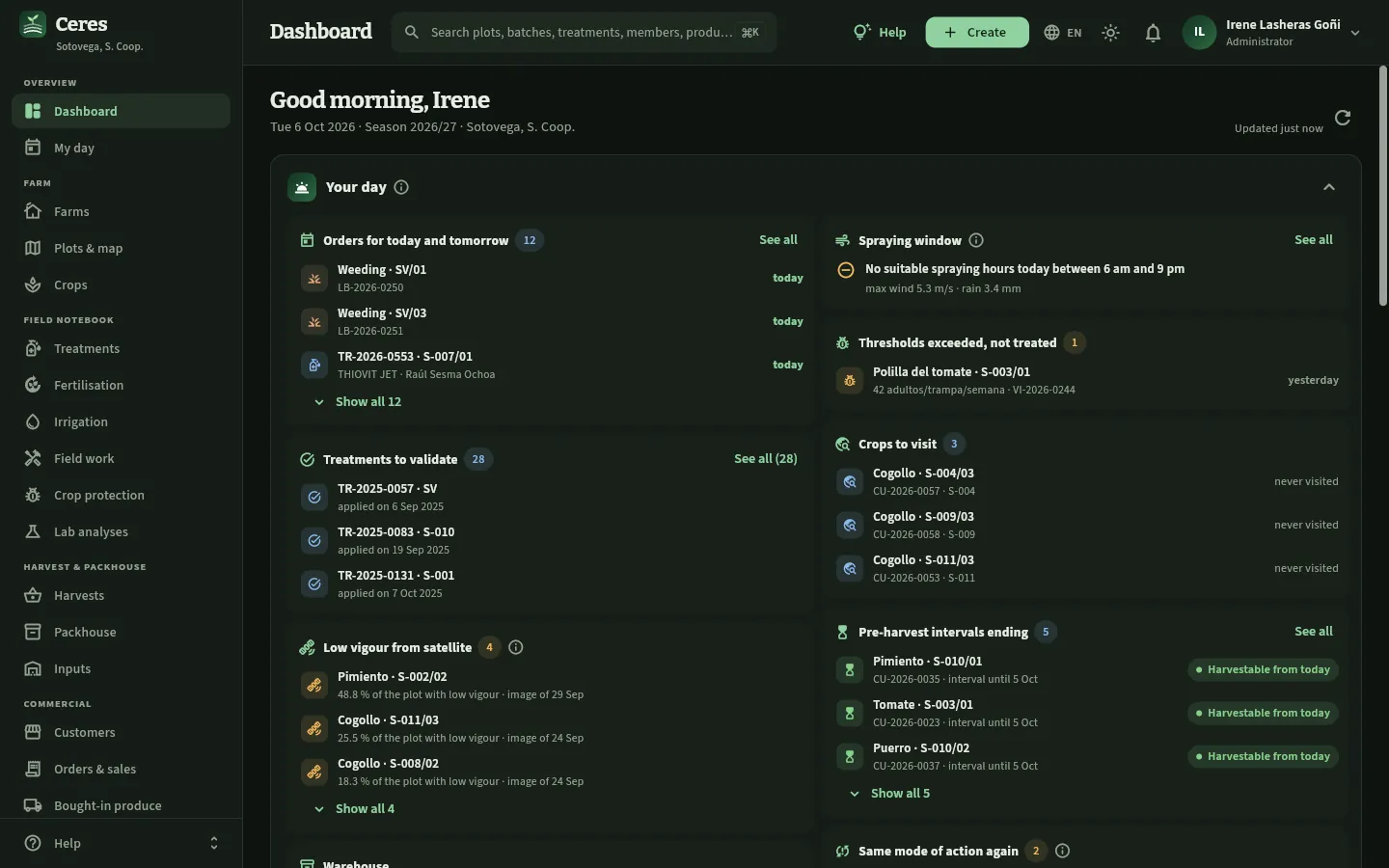 1
- 1In dark mode, the sun goes back to light.
#Notifications (the bell)
The bell in the top bar, to the left of your name, gathers the notifications meant for you. It is not everything that happens in the cooperative (that is in the Dashboard alerts), but what concerns you according to your profile and your farms:
| Notification | Who receives it |
|---|---|
| Order assigned (a treatment or a field task) | The person it is assigned to: the operator or the worker |
| Settlement issued | The member who owns that farm (the amounts are in the settlement record) |
| Expiring licences, ITEAF and certificates | Whoever looks after staff, machinery, farms or suppliers, and the person themselves for their licence |
| Pest threshold exceeded on a visit | Whoever recommends treatments on that farm (the adviser) |
| Lot on hold, mock recall or real recall | Warehouse and quality staff |
A red number on the bell tells you how many are unread. Nobody sees anyone else's notifications, not even the administrator.
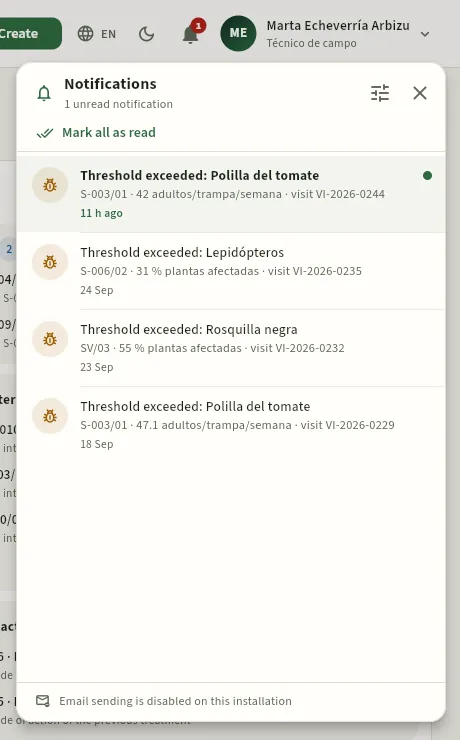 123456
- 1The bell, with the number of unread notifications.
- 2Mark all as read marks them all as seen in one go.
- 3The settings: which notifications you want and whether also by email (further down).
- 4A new notification (the green dot): tomato leafminer above the threshold in S-003/01, on visit VI-2026-0244. Click it to open the visit.
- 5Those already read stay in the list, newest first, each with its icon, what happened and when.
- 6At the bottom, whether email is active on this installation (in the demo, it is not).
Click a notification to open its record —the visit, the order, the settlement, the lot— and it is marked as read. If your profile cannot open that record, the notification says so («Your profile cannot open this record»). Notifications are created when the thing they report happens (when the order is assigned, the settlement issued, the visit saved or the lot put on hold); expiry notifications once a day, when the bell is opened, with the days of notice set in Settings.
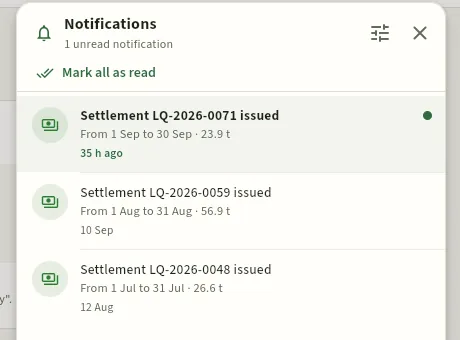 1
- 1Settlement LQ-2026-0071 for September, just issued, with the kilos it covers; the amounts are in its record.
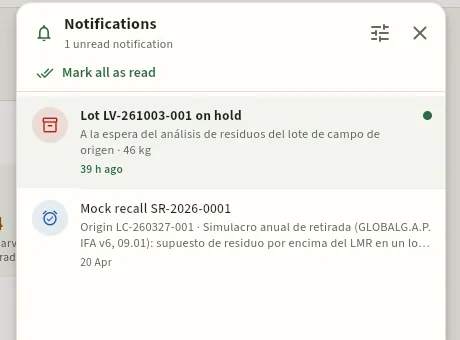 12
- 1A lot on hold awaiting its residue analysis, with the reason and the kilos.
- 2This year's mock recall, with its origin lot.
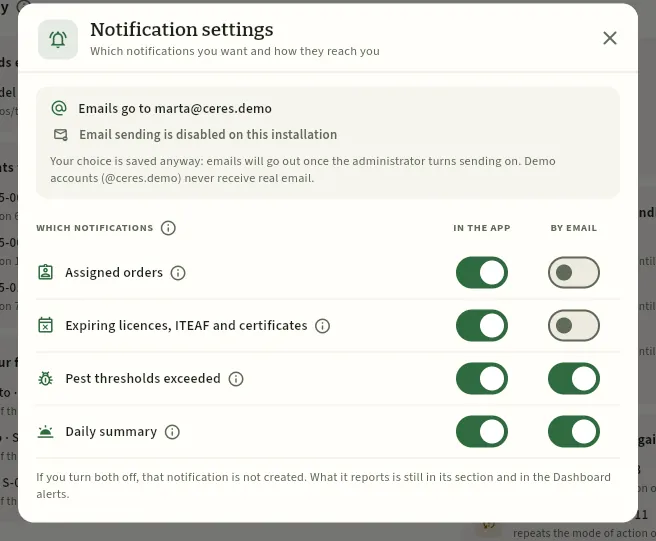 123456
- 1Which address your emails go to and whether sending is active on this installation. In the demo it is not: your choice is saved and will apply once it is turned on.
- 2Each type of notification that makes sense for your profile, with its ⓘ: what it is, who receives it and what is left out.
- 3In the app: the notification appears in the bell.
- 4By email: you also get an email.
- 5Daily summary: the same as «Your day» on the Dashboard, every morning by email if you ask for it.
- 6If you turn both off, that notification is not created; what it reports is still in its section and in the Dashboard alerts.
Open your user menu and choose Notification settings (or click the settings icon in the notifications list).
For each type of notification, switch In the app (the bell) and By email on or off.
Close the window.
#Lists
Almost every section starts with a list: treatments, field work, harvests, lots, orders, customers… They all work the same way. This is the Field work list.
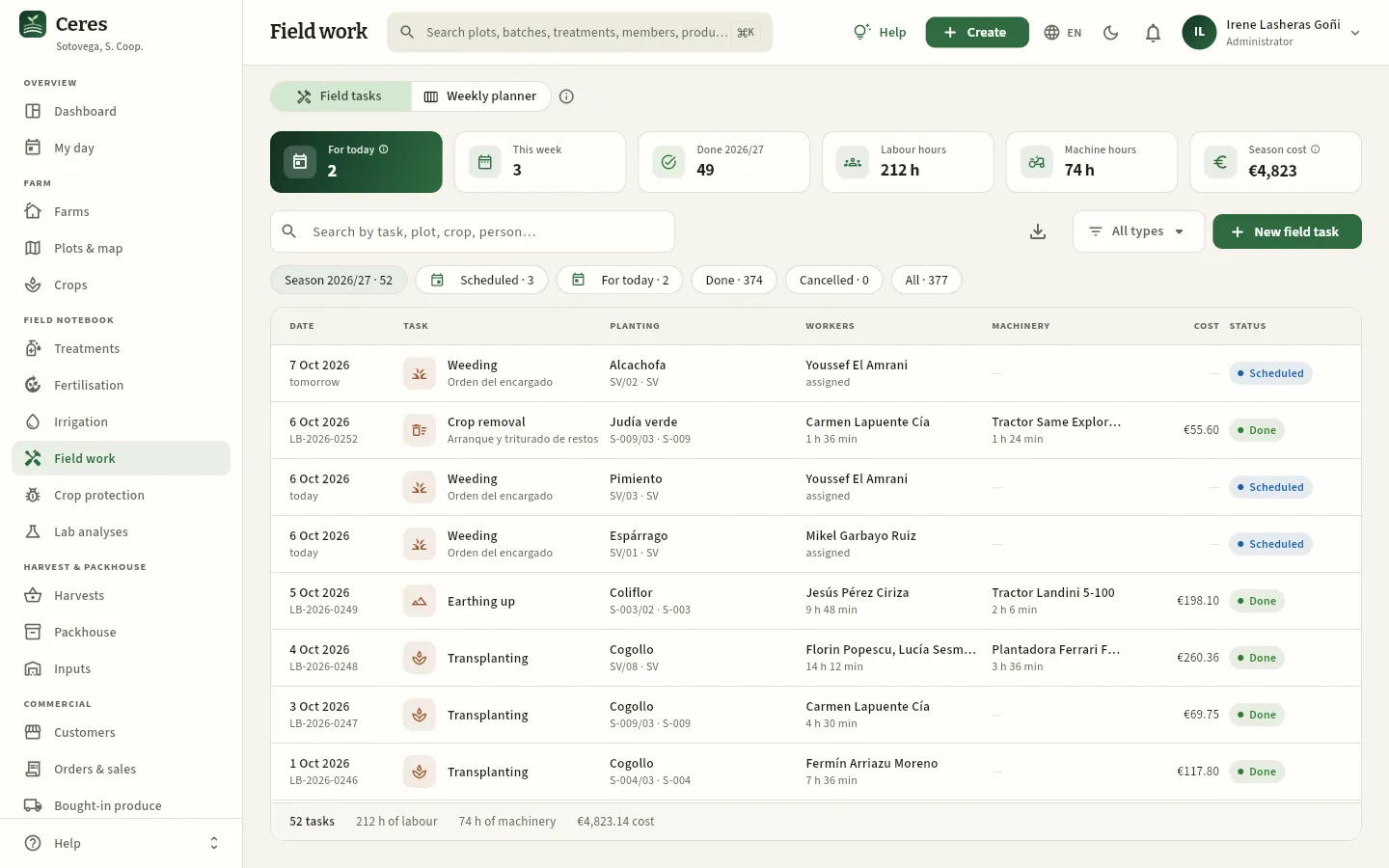 12345678
- 1Some sections have several views in tabs: here the list of field tasks and the weekly planner.
- 2The section's indicators. Those with an ⓘ are explained when you click it; some filter the list when you click them.
- 3List search: filters by any word in the columns.
- 4Export CSV: downloads what you see so you can open it in a spreadsheet (if your profile allows it).
- 5The button to add a record to the section.
- 6Quick filters with their count. Click one to see only those rows.
- 7Headers: click one to sort by that column; click again to reverse the order.
- 8Footer with the number of rows and the totals of what is shown.
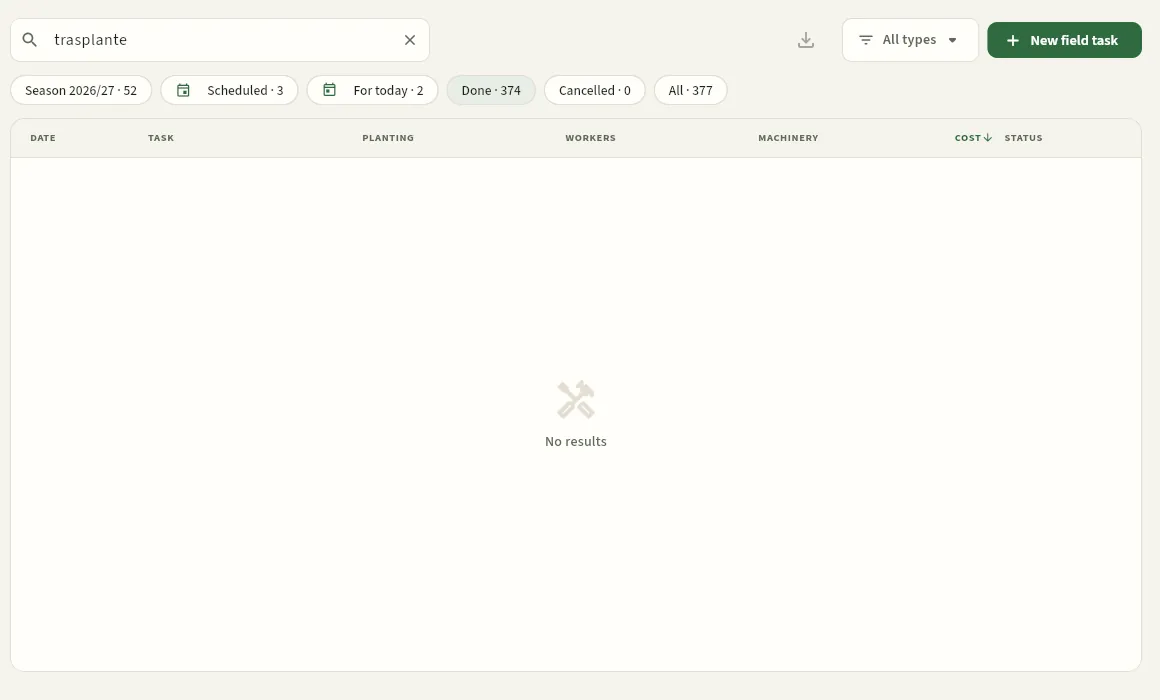 123
- 1What you type in the search box…
- 2…is combined with the chosen filter…
- 3…and with the sort order: the arrow shows the column and the direction.
Choose a quick filter (for example Scheduled). The number next to each filter tells you how many records it has.
Type one or more words in the list search: the rows that contain all of them are shown, regardless of accents or case.
Click a column header to sort by it; click again to reverse the order.
If your profile allows it, click Export CSV (the download icon) to take those rows to a spreadsheet.
Click a row to open its record.
#Records
Clicking a row opens its record in a panel that slides in from the right, without losing the list behind it. They all follow the same layout: a header with the name and the actions, and tabs with the information grouped.
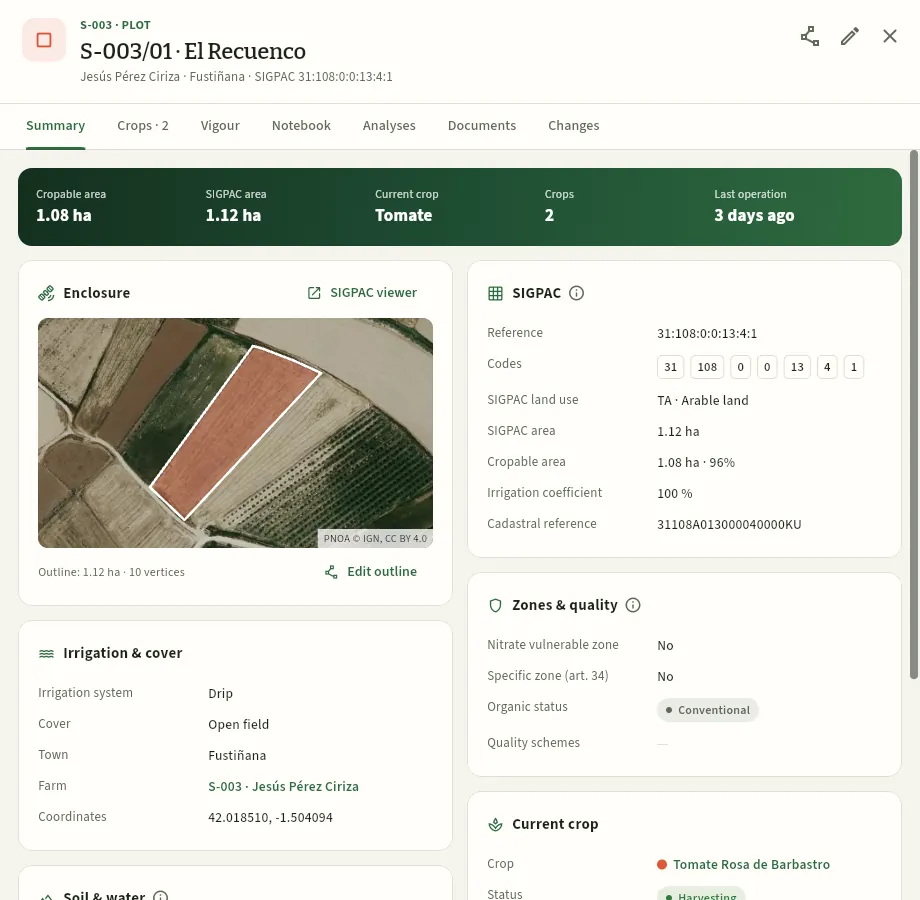 123456
- 1The header: the code and the name, and below them the details that identify it (holder, municipality, SIGPAC reference).
- 2The record's actions: edit, and the ones specific to each record (here, editing the outline on the map). They only appear if your profile can do them.
- 3Close the record (also with Esc or by clicking outside it).
- 4Tabs: each one groups part of the information; the number tells you how many records are inside.
- 5The ⓘ buttons explain the block or the figure they accompany.
- 6Links open the related record (here, the farm) on top of this one.
If you change something in a record, the list behind it updates by itself when you close it. Records you open from another one (the farm from its plot, a treatment from its crop) open on top and, when you close them, you go back to the previous one. On a phone, records take up the whole screen.
#The documents of each record
Almost every record has the Documents tab: photos of a pest, lab reports, certificates (GLOBALG.A.P., organic, a plant's plant passport), delivery notes, maps or plot outlines in KML, stored alongside what they document. The number on the tab tells you how many there are.
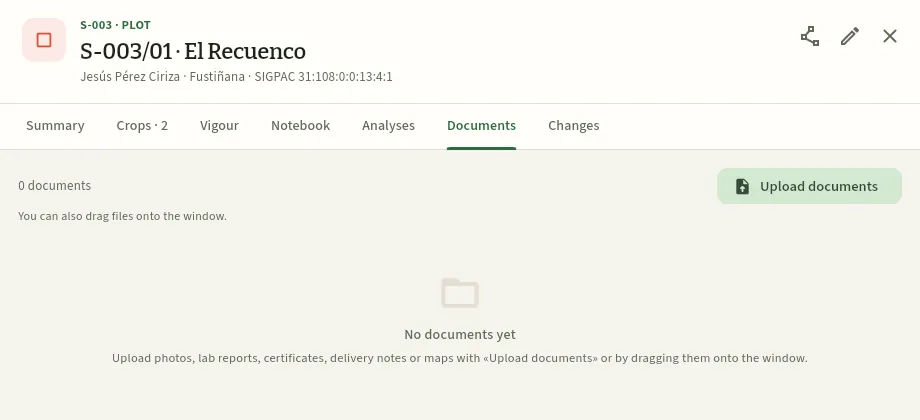 12
- 1The record's Documents tab.
- 2Upload documents opens the window to choose the files; you can also drag them onto the window.
Open the record (a plot, a visit, a lab analysis, a lot, a supplier…) and click the Documents tab.
Click Upload documents and choose the files, or drag them onto the window.
Check the name and the type of each one (photo, lab report, certificate, delivery note…), and add a note if needed.
Click the upload button.
#The Changes tab
With the See the change audit permission, records also have the Changes tab: who created or changed that record, when and which fields, most recent first, from the app or from Claude. Click a line to see each field before and after the change. If nobody has touched it since the data was loaded, you will see «No changes recorded».
All the changes to every record, together with sign-ins and sign-outs, are in one place in Audit log.
#Forms
To create or change a record you use a form in a window. They are all filled in and saved the same way.
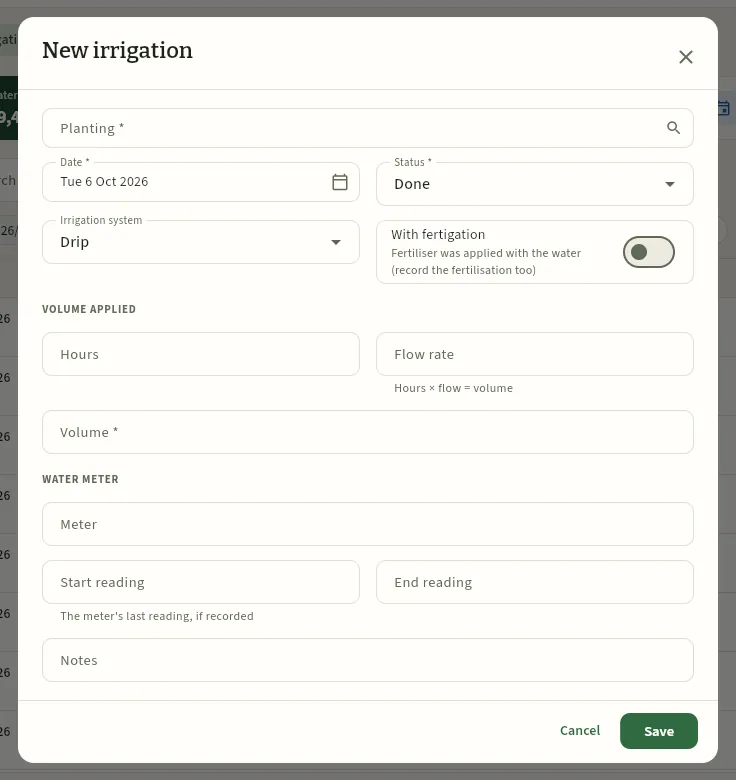 123456
- 1Fields with an asterisk are required. Those that choose another record (here, the crop) open a selector with a search box.
- 2Dates are chosen on a calendar; they come with today's date.
- 3Lists drop down. Ceres suggests the most usual value.
- 4Switches, with their explanation underneath.
- 5Below some fields, a hint on how to fill them in or what Ceres calculates with them.
- 6Save (or Cancel, which closes without saving anything).
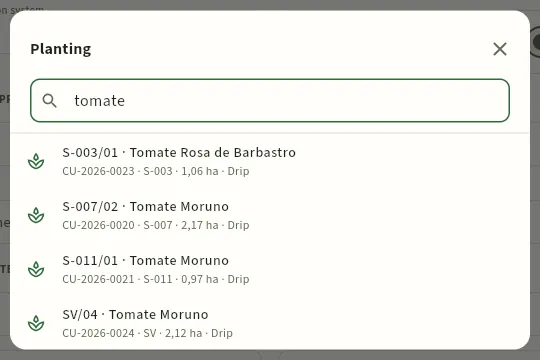 12
- 1Type part of the name or the code: the list is filtered instantly.
- 2Each option with what identifies it (here, plot, variety, crop number, farm, area and irrigation). Click the one you want.
Fill in at least the fields with an asterisk (*). If any is missing, it is marked in red with «Required» when you save.
Dates are chosen on a calendar and times on a 24-hour clock; lists, by opening them; related records, with the selector and its search. Numbers accept a comma or a point as the decimal separator.
Click Save.
#The ⓘ help on figures and acronyms
Next to many indicators, blocks, abbreviations (PHI, BBCH, IPM, ITEAF…) and permissions there is a small ⓘ. Clicking it opens a three-part explanation: what it shows, how it is calculated and how to read it. It is the quickest way to find out where a figure comes from.
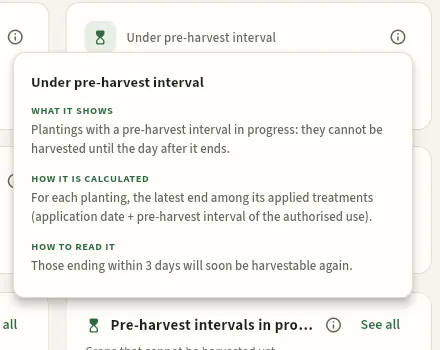 123
- 1What it shows.
- 2How it is calculated, with the data it uses.
- 3How to read it: what to do with it. Click outside to close it.
#What your profile does not let you see
Each access profile decides which sections you see, which data you can look at and what you can create or change, and each user has their farms. What is not for you shows up like this:
- Sections: those your profile does not allow do not appear in the sidebar, nor do their results in the search.
- Farms: you only see the data of yours. A member sees their own farm; the agronomist, those of the members she advises. Counts, totals and reports are calculated with those farms only.
- Figures: a cost, a price or a settlement amount you cannot see does not appear (the column or the indicator disappears, like the cost in Field work for the agronomist) or shows as a grey padlock (hover over it: «Hidden by your access profile»).
- Contact details: phone numbers, emails, addresses, tax IDs and IBANs, the same.
- Buttons and tabs: the ones to create, edit, validate or cancel do not appear if you do not have that permission, nor do the tabs for what you cannot see.
- Export: the button to export to CSV only appears if your profile allows it.
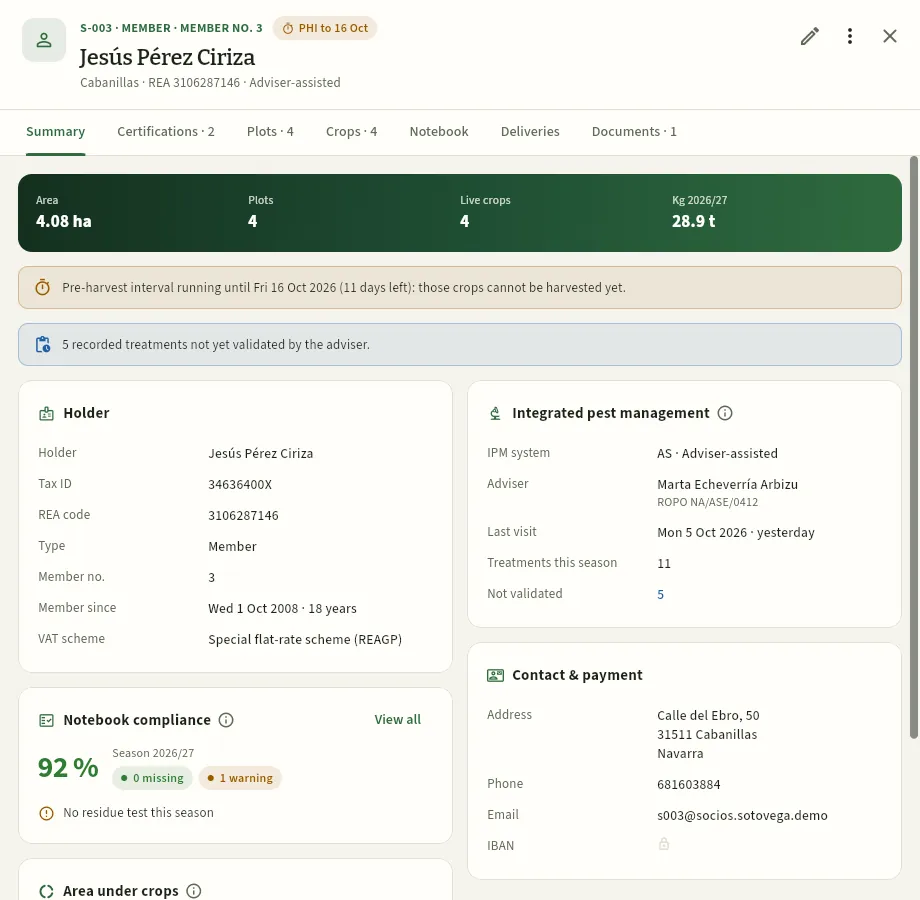 123
- 1Marta sees the member's deliveries (the kilos), but she does not have the Settlements or Changes tabs: her profile does not have «See settlements» or «See the change audit».
- 2What belongs to her work, in full: the member's integrated pest management, with her as adviser.
- 3The padlock: the member's IBAN is not for her profile. The database does not even send it.
#Ceres on a phone or tablet
On a phone (or a narrow window) Ceres rearranges the screen: the sidebar is tucked into a drawer, the indicators and filters scroll sideways, lists become cards (one per record, without columns) and records and forms take up the whole screen. On a tablet, the sidebar shows icons only (see above).
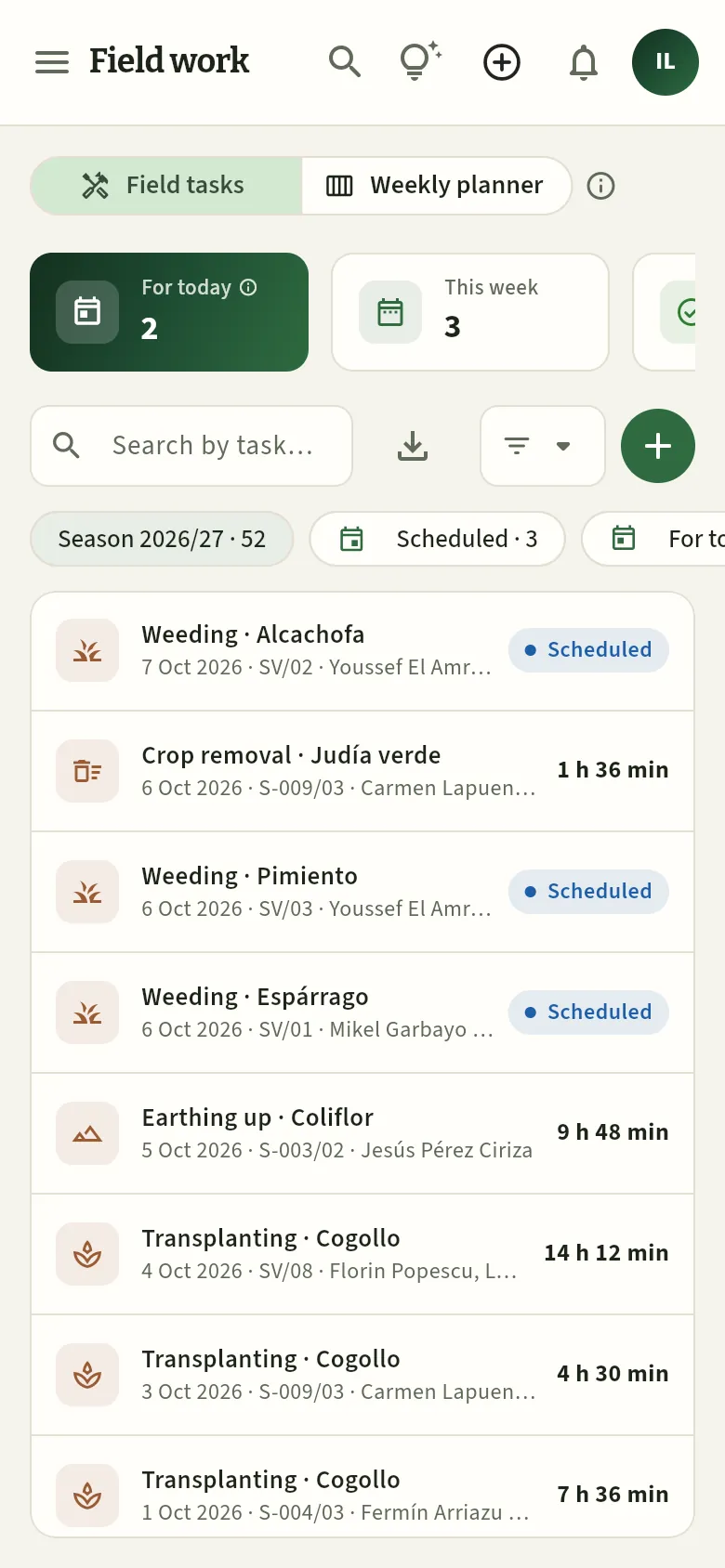 1234
- 1The menu opens the drawer with the sections.
- 2Search, help, Create, the notifications bell and your menu, as icons.
- 3The indicators and filters scroll sideways.
- 4Each record is a card; tap it to open its record in full screen.
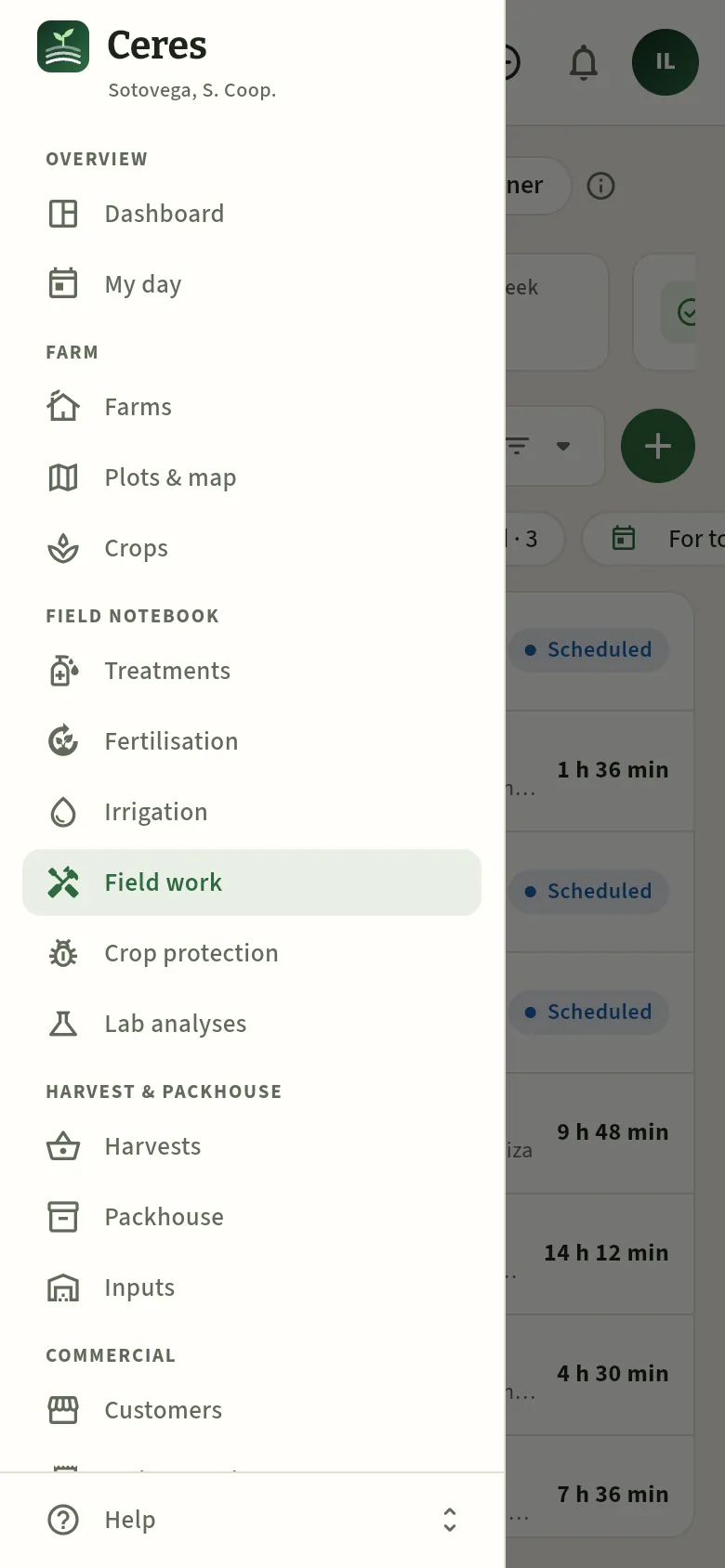 1
- 1The same sections as on a computer, with the current one highlighted. Tap outside the drawer to close it.
#Keyboard shortcuts
| Key | What it does |
|---|---|
| ⌘K (Mac) · Ctrl+K (Windows) | Opens the global search from any screen |
| F1 | Opens the help for the screen you are on, with its guides |
| Esc | Closes the open record, a menu or the search |
| Enter | On the sign-in screen, from the password field, signs you in |
#Direct links
The Ceres address accepts a few parameters that open a screen directly, handy for saving a bookmark or sending a link to a colleague (who will have to sign in with their own user and will only see what their profile allows):
?seccion=tratamientosopens that section (the key of each section is the last part of the address of its chapter in this manual:#tratamientos,#cosechas,#trazabilidad…).&lang=es,&lang=enor&lang=glchooses the language, and&tema=darkor&tema=lightthe theme.?lote=<code>opens, without signing in, the public page of a lot: it is where the QR code on the labels leads (see Packhouse).
Overview
Dashboard
The cooperative at a glance: «Your day» with what is on each person's plate today, today's tasks, alerts, crops within a pre-harvest interval, season, harvest and forecast, packhouse, sales, weather and spraying window, field-log compliance and settlements. Each profile sees its own blocks and every figure leads to the section where it is dealt with.
The Dashboard is the first screen when you open Ceres. It brings together on one page what needs attention in the cooperative today: the treatments, field work and irrigation due today or left behind, the crops that cannot be harvested yet because of a pre-harvest interval, the alerts (an expired spraying licence, equipment with an overdue inspection, a withdrawn product still in the store…), what has been harvested and what is coming, the packhouse, sales, the weather for spraying, how each farm's field log is doing and what has been settled to members. At the very top, Your day picks out of all that what is on your plate today, according to your profile.
It is not a report to read from top to bottom, but a board of warnings: every figure is a shortcut that opens the section (with the filter already set when there is one) and every row opens its record. That way you go from «10 crops within a pre-harvest interval» to the specific crop in two clicks.
The dashboard refreshes itself every 5 minutes (and when you press Refresh). What you see depends on your profile: each block has its permission, the database only calculates the blocks you can see and only with the farms assigned to you (a member sees their own; the adviser, the ones she advises). If your profile does not see prices, you get kilos instead of amounts.
- 1DashboardA figure in red or amber: something needs attention.
- 2Filtered sectionPressing it opens the section with that filter set.
- 3RecordA row in the block opens the treatment, the crop, the person or the lot.
- 4ResolveFrom the record: record, validate, renew, reschedule…
#Your day
The first thing under the greeting is Your day: what is on your plate today, set apart from everything else. It is not the same for everyone: it tells the adviser what to visit and what to validate; the foreman, the orders and whether spraying is possible today; sales, the orders to be served. Each part has its count and its rows, and each row opens its record. This is how Marta, the field adviser, sees it:
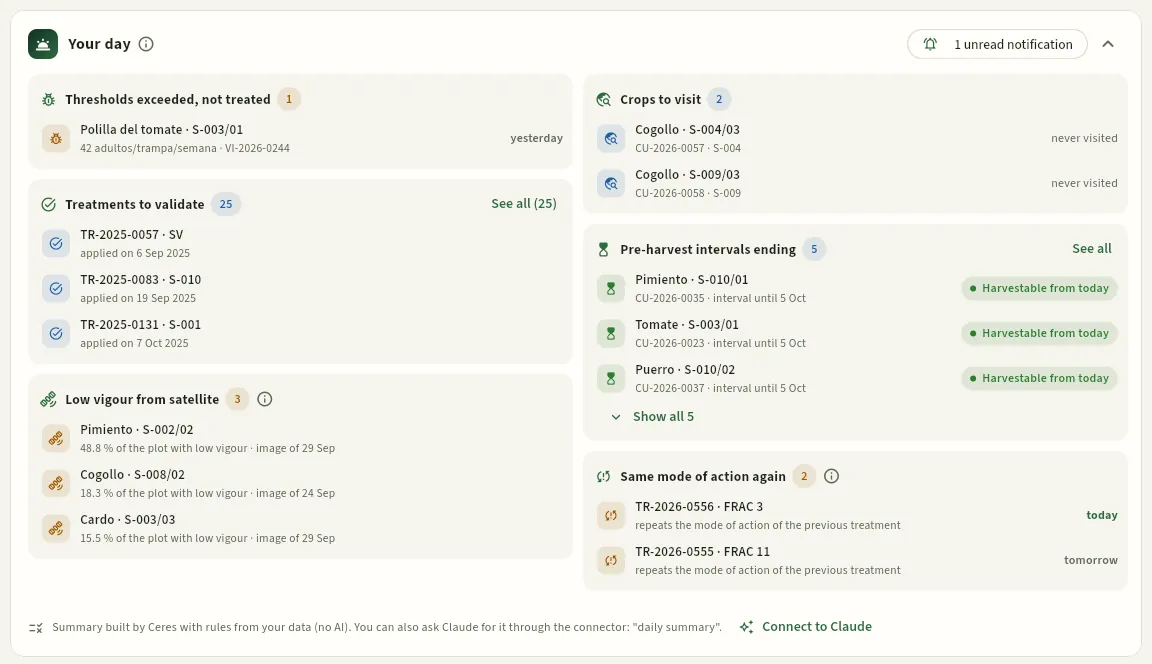 12345678
- 1Thresholds exceeded, not treated: pests that a visit has found above their threshold and that have no treatment yet. Here, tomato leafminer in S-003/01 (visit VI-2026-0244, yesterday).
- 2Treatments to validate: those applied that are waiting for the adviser's review and signature, oldest first; See all (25) opens Treatments with that filter.
- 3Low vigour from satellite: plots where part of the crop has fallen below its own average, with the Sentinel-2 image (see Plots & map).
- 4Crops to visit: those with no visit for more than 14 days, or never visited.
- 5Pre-harvest intervals ending: what can be harvested again today or in the next few days.
- 6Same mode of action again: orders that repeat the FRAC, IRAC or HRAC group of the previous treatment on the same crop (here, TR-2026-0556 today and TR-2026-0555 tomorrow; see Treatments).
- 7Your unread notifications (they open the bell, see The screen) and, on the right, the button to collapse the block.
- 8Ceres builds it with rules, from your data (no AI). Claude tells you the same through the connector if you ask for the «daily summary» (Connect to Claude).
Each profile has its own Your day:
| Profile (demo account) | What «Your day» shows |
|---|---|
| Field adviser (Marta) | Thresholds exceeded and not treated, treatments to validate, low vigour from satellite, crops to visit, pre-harvest intervals ending and treatments repeating a mode of action |
| Farm foreman (Mikel) | Orders for today and tomorrow (treatments and field tasks), today's spraying window and the intervals ending |
| Sprayer operator (Ander) | His orders for today and whether there are hours suitable for spraying, in My day |
| Packhouse & quality (Ainhoa) | Pre-harvest intervals ending and the packhouse: lots on hold, harvests not graded, lots expiring, crops being harvested and lots unfit for some customer |
| Sales (David) | Orders due today and tomorrow, and the last 7 days: harvested, shipped, sold, open orders and serious alerts |
| Management (Javier) and Finance (Laura) | The last 7 days: harvested, shipped, sold, open orders and serious alerts (each one, what their profile allows) |
| Member (Jesús) | His farm: what he delivered in 7 days, his plots under a pre-harvest interval and his settlements issued |
| Administrator (Irene) | All of the above together |
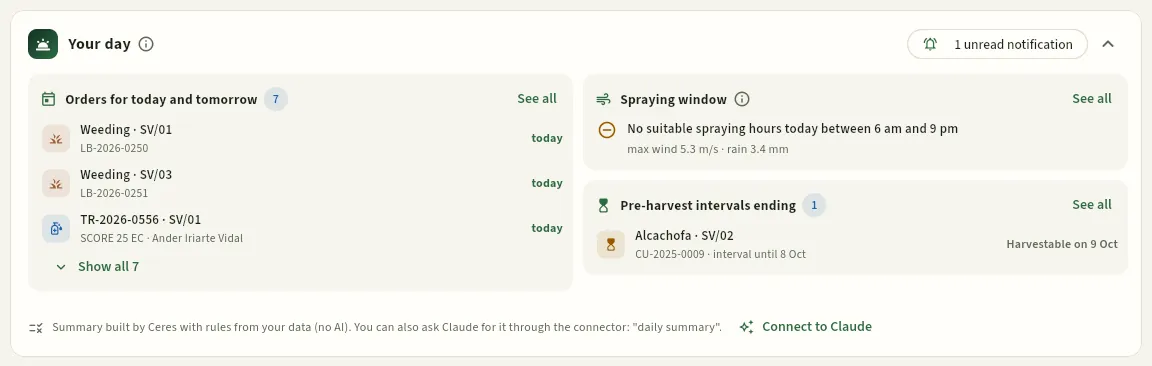 12
- 1Orders for today and tomorrow, with the operator: order TR-2026-0556 for the asparagus of SV/01 is for today.
- 2Spraying window: the hours today, from 6 am to 9 pm, in which spraying will be possible according to the forecast (today, none: wind and rain).
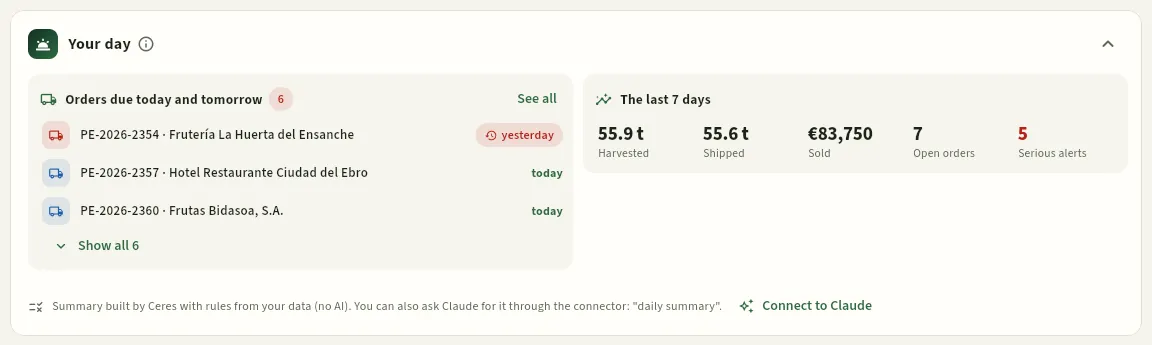 12
- 1Orders due today and tomorrow (and overdue ones): here, one from yesterday not yet served.
- 2The last 7 days: what has been harvested, shipped and sold, the open orders and the serious alerts.
Once you have read it, press the arrow on the right to collapse it: a strip remains with the titles and their counts, and pressing one expands it again. Ceres remembers how you left it. «Your day» does not replace the blocks below: it is the part that concerns you, drawn from them and from your notifications.
#The key figures
Below «Your day» are the key figures in large cards. Those of your profile's blocks appear, up to six; with all the blocks (administration and management) they are these:
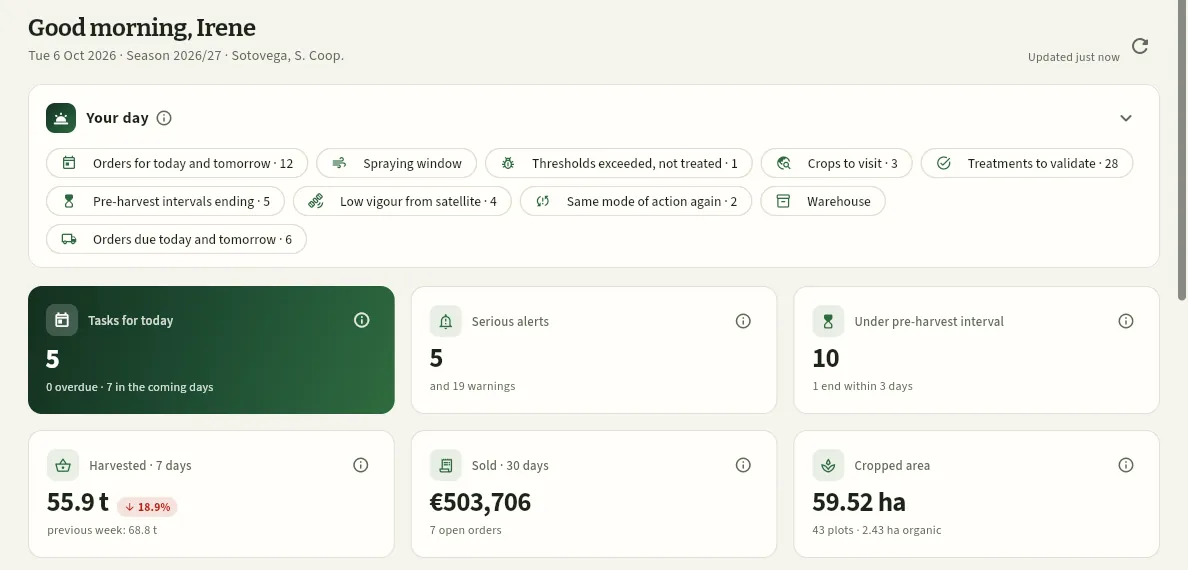 123456789
- 1The dashboard reloads itself every 5 minutes; on the left, when it was last updated. This button reloads it at once.
- 2Your day, collapsed: the title of each part with its count. Press one (or the arrow) to expand it.
- 3Tasks for today: treatments, field work and irrigation planned for today; below, the overdue ones and those for the coming days.
- 4Serious alerts: something expired or forbidden (licences, ITEAF, withdrawn products in stock, certificates); below, the warnings.
- 5Within PHI: crops that cannot be harvested yet; below, how many end within 3 days.
- 6Harvested · 7 days and, in the pill, the difference from the previous 7 days.
- 7Sold · 30 days (excluding VAT) and the open orders. Without the prices permission you get Shipped · 7 days, in kilos.
- 8Cropped area: hectares with a crop established or being harvested; below, plots and organic hectares.
- 9Each card and each block has its ⓘ: what it shows, how it is calculated and how to read it.
The whole card is a shortcut:
| Card | What it counts | When pressed |
|---|---|---|
| Tasks for today | Recommended or scheduled treatments, and scheduled field work and irrigation dated today or earlier | My day (or Treatments if your profile does not have it) |
| Serious alerts | Open high-severity alerts on the farms you see | Compliance |
| Within PHI | Crops with a treatment whose pre-harvest interval has not ended yet | Crops, Within PHI filter |
| Harvested · 7 days | Kilos from the (not cancelled) harvests of the last 7 days | Harvests |
| Sold · 30 days | Delivery notes dispatched or invoiced in 30 days, with each customer's discount | Orders & sales |
| Cropped area | Area of the crops established or being harvested | Crops |
| Logbook compliance | Average score (0-100) of the farms you see | Compliance |
| Settled this season | Net amount settled to members (issued or paid) since the start of the season | Member settlements |
The last two appear for those who have those blocks and fewer than six cards, like the member (further down, in What each profile sees).
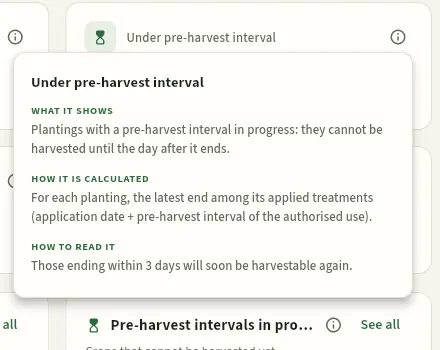 123
- 1What it shows.
- 2How it is calculated.
- 3How to read it and what to do. It closes with Esc or by clicking outside.
#Today's tasks and alerts
Below, the blocks in three columns (two on a tablet, one on a phone). The first two answer the morning question: what has to be done in the field today, and what has expired or been left unresolved?
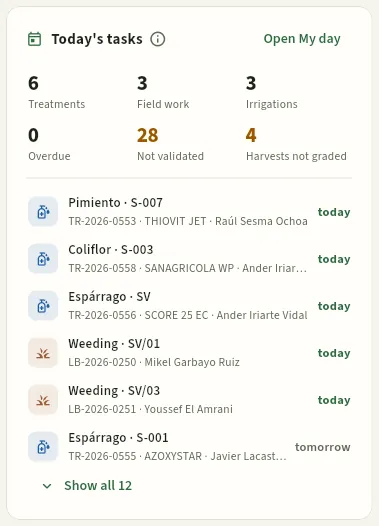 123456
- 1Open My day: the same in large cards, designed for the field (My day).
- 2Treatments, Field work and Irrigation planned up to 3 days ahead. Each figure opens its section with what is scheduled.
- 3Not validated: applied treatments that the adviser has not yet reviewed and signed.
- 4Harvests not graded: intakes waiting to be graded in the packhouse.
- 5Each task: crop and farm, number, product and operator (or «unassigned») and when it is due. Press it to open its record.
- 6The first six are shown; Show all 12 expands the rest.
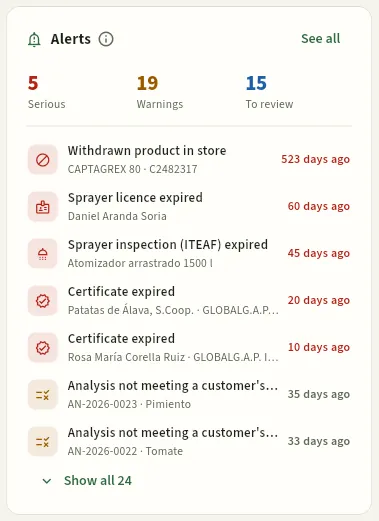 1234567
- 1Serious (red: something expired or forbidden), Warnings (amber: about to expire or needs action) and To review (blue: office tasks).
- 2A plant protection product withdrawn from the MAPA Register that is still in stock: it cannot be applied.
- 3Daniel Aranda's licence has expired: the database will not let him record treatments.
- 4The AT-07 sprayer, with its ITEAF overdue. On the right, since when.
- 5A residue analysis that does not meet a customer's requirements: AN-2026-0023, for pepper (see Analyses).
- 6Alerts go from the most serious to the oldest; Show all 24 expands the rest.
- 7View all opens Compliance.
Today's tasks shows the treatments (recommended or scheduled), field work and irrigation scheduled up to 3 days ahead, and anything overdue. A recommended treatment has a purple icon: the adviser has proposed it but it has no date or operator yet. For example, order TR-2026-0558 (cauliflower of S-003 with SANAGRICOLA WP, operator Ander Iriarte) appears here today and in Ander's My day.
Alerts gathers what Ceres watches on its own: spraying licences and equipment inspections (ITEAF), withdrawn products in stock, member and supplier certificates, expired or nearly expired inputs, pest thresholds exceeded in a visit, lots on hold, orders past their delivery date and treatments not validated. Each row opens the record where it is resolved (the person, the machine, the input, the lot…). When a type has more than three cases, they are grouped into one row with their count.
This version brings three new alerts, which appear when you expand the list:
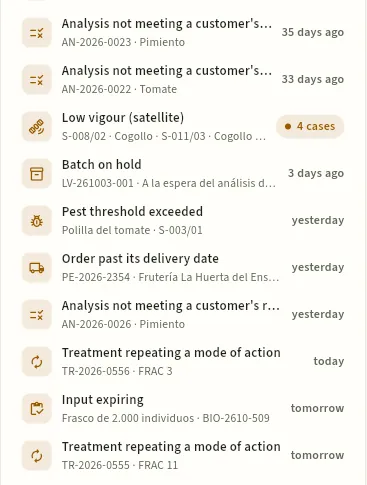 123
- 1Low vigour (satellite): plots with part of the crop below its own average; as there are four, they share one row with their count (see Plots & map).
- 2Analysis not meeting a customer's requirements: in AN-2026-0026, for pepper, bupirimate is at 45 % of its maximum residue limit (MRL), more than Frutas Bidasoa and the school canteen accept (see Analyses).
- 3Treatment repeating a mode of action: today's order on the asparagus of SV/01 repeats FRAC group 3 from the previous treatment (see Treatments).
#Pre-harvest intervals and weather
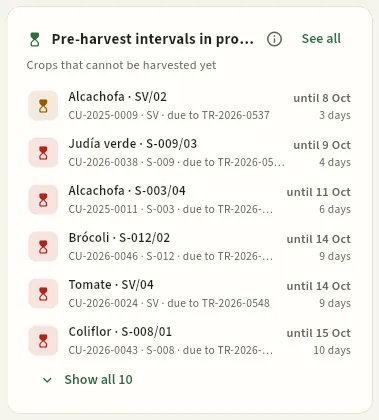 123
- 1The one that ends first at the top: the artichoke of SV/02, within its interval until 8 October (3 days left, today included).
- 2Each crop with its plot, its number, the farm and the treatment that started the interval (here, the tomato of SV/04 because of TR-2026-0548); on the right, until when and the days left. Press it to open the crop.
- 3
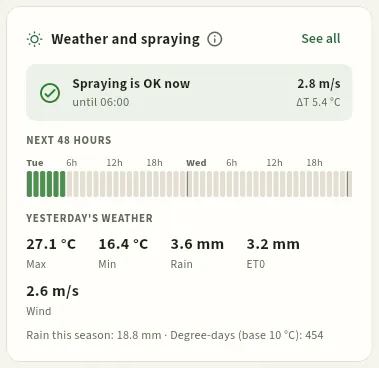 1234
- 1Whether spraying is OK now and until what time; on the right, this hour's wind and delta T.
- 2Next 48 hours: each small bar is an hour, green if it is suitable for spraying and grey if not.
- 3Yesterday's weather: maximum, minimum, rain, ET₀ and wind, from real data; the season's rainfall and degree-days.
- 4View all opens Weather, with the hour-by-hour detail and the week's forecast.
The pre-harvest interval is the number of days that must pass between the last treatment with a product and the harvest. It is set by the product's authorised use on that crop (the MAPA Plant Protection Products Register) and Ceres calculates it when each application is recorded. While it lasts, the database will not record a harvest from that crop: the block tells you which are on hold and when they are released. For example, broccoli CU-2026-0051 of S-007 is within its interval until 16 October because of treatment TR-2026-0544: it can be harvested from the 17th.
Weather and spraying uses real weather data for the cooperative's location: the hourly forecast and, for past days, the daily data from Open-Meteo (the ERA5 reanalysis and the ECMWF model), with its source in Weather. An hour is suitable for spraying if it is not raining (and the chance of rain is under 40 %), the mean wind does not exceed the maximum set in Settings and the delta T is between 2 and 8 °C. Delta T is the difference between the air temperature and the wet-bulb temperature: below 2 °C droplets do not dry and run off; above 8 °C they evaporate and drift.
#Season, harvest and forecast
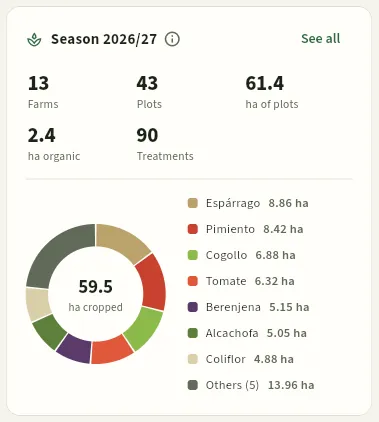 1234
- 1Farms, Plots and ha of plots you see; each figure opens its section.
- 2ha organic: opens Plots & map with the Organic filter.
- 3Treatments applied since the start of the season (1 September).
- 4The cropped area split by species, each with its colour (the same on the map, the planner and the reports).
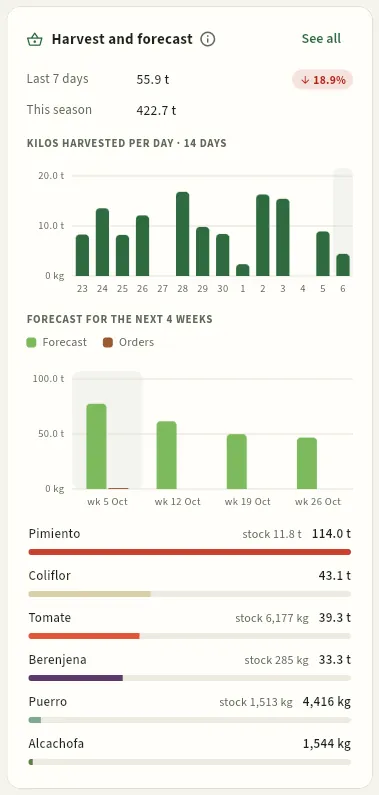 1234
- 1What was harvested in the last 7 days (with the difference from the previous week) and this season.
- 2Kilos harvested per day over the last two weeks.
- 3Forecast for the next 4 weeks (light green) against the open orders for those weeks (earth brown).
- 4By species: what is left to harvest from the crops under way and the stock already in the packhouse.
Season is the snapshot of the season (in Ceres, from 1 September to 31 August, unless Settings says otherwise). Harvest & forecast is for planning sales: the sales team sees what is coming in over the next few weeks and how much has already been ordered. If a crop's forecast drifts, correct its expected yield in the crop record.
#Packhouse and sales
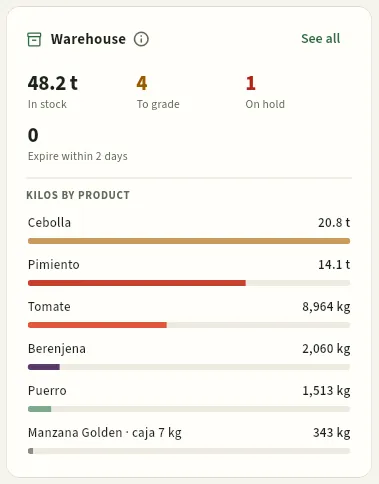 12345
- 1In stock: kilos of pending or available lots.
- 2To grade: field lots waiting to be graded into extra, I, II and waste.
- 3On hold: lots held pending an analysis or a decision.
- 4Expire within 2 days: they should go out first (FEFO).
- 5Kilos by product, from most to least.
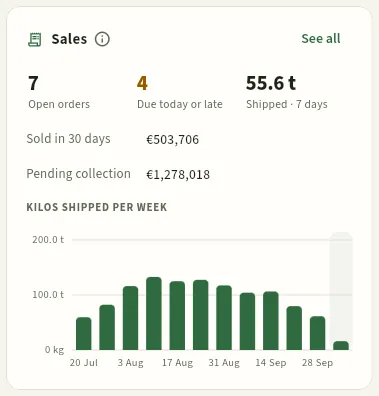 12345
- 1Customers' open orders.
- 2Due today or late: orders that have to be served now.
- 3Shipped · 7 days: kilos that have gone out on delivery notes.
- 4Sold in 30 days and receivables, only with the «See prices» permission.
- 5Kilos shipped per week over the last 12; the highlighted bar is the current week, still incomplete.
Packhouse opens Packhouse with the filter of each figure; Sales, Orders & sales. FEFO is the outgoing order «first expired, first out», which Ceres follows when assigning lots to a delivery note.
#Compliance and settlements
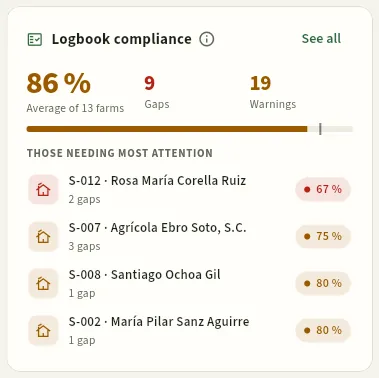 123
- 1The average score of the field log of the farms you see, from 0 to 100: green from 90, amber from 75.
- 2Gaps (something the rules require that is missing) and Warnings (something worth reviewing).
- 3Those needing most attention: the farms with the lowest score, with their gaps. Press one to see what is missing.
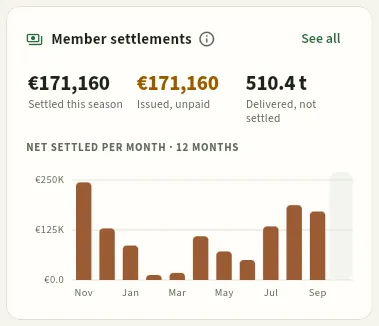 1234
- 1Settled this season (net, issued or paid). At the start of the season it is zero.
- 2Issued, unpaid: settlements delivered to the member and waiting to be paid.
- 3Delivered, not settled: graded kilos not yet in any settlement.
- 4Net settled per month over the last 12 months.
The Logbook compliance score comes from each farm's checklist (treatments recorded on time and validated, integrated pest management justification, adviser, licences, ITEAF, fertiliser plan, analyses, certificates, pre-harvest intervals…), which is in Compliance. Ceres helps you comply and keeps a record: it does not certify anything.
Member settlements summarises what the cooperative pays its members for their deliveries. Amounts are only shown with the «See settlements» permission; the detail is in Member settlements.
#Every figure, back to its source
Look for figures in red (something is already wrong: serious alerts, overdue tasks, lots on hold) and in amber (something will go wrong if no action is taken: warnings, treatments not validated, harvests not graded).
Press the figure: for example, Not validated in Today's tasks opens Treatments with the filter for applied, unvalidated treatments.
Or press a row directly: Sprayer licence expired · Daniel Aranda Soria opens his record in People, where the renewed licence is entered.
Resolve it from the record and go back to the Dashboard from the sidebar: when you close the record the dashboard reloads, and otherwise within 5 minutes at most (or with Refresh).
#What each profile sees
Each block has its own permission and everything is calculated only with the farms assigned to you. With the demo profiles, the dashboard looks like this:
| Profile (demo account) | Blocks (besides «Your day») |
|---|---|
| Administrator (Irene) and Management (Javier) | All, with prices and settlement amounts |
| Field adviser (Marta) | Today's tasks, Alerts, Pre-harvest intervals, Season, Weather and Compliance, for the farm and members S-001 to S-010 |
| Farm foreman (Mikel) | Today's tasks, Alerts, Pre-harvest intervals, Harvest & forecast, Season and Weather, for the SV farm only |
| Member (Jesús, S-003) | Alerts, Pre-harvest intervals, Season, Weather, Compliance and Settlements, for his farm only |
| Packhouse & quality (Ainhoa) | Alerts, Pre-harvest intervals, Harvest & forecast and Packhouse |
| Sales (David) | Alerts, Harvest & forecast, Packhouse and Sales |
| Finance (Laura) | Alerts, Sales and Settlements |
The sprayer operator (Ander) has no dashboard: he only sees My day. The external auditor (Begoña) does not either: she goes straight into the field-log sections she can look at. Alerts are also filtered by section: each profile sees the ones it can resolve (sales, for example, does not see spraying licences).
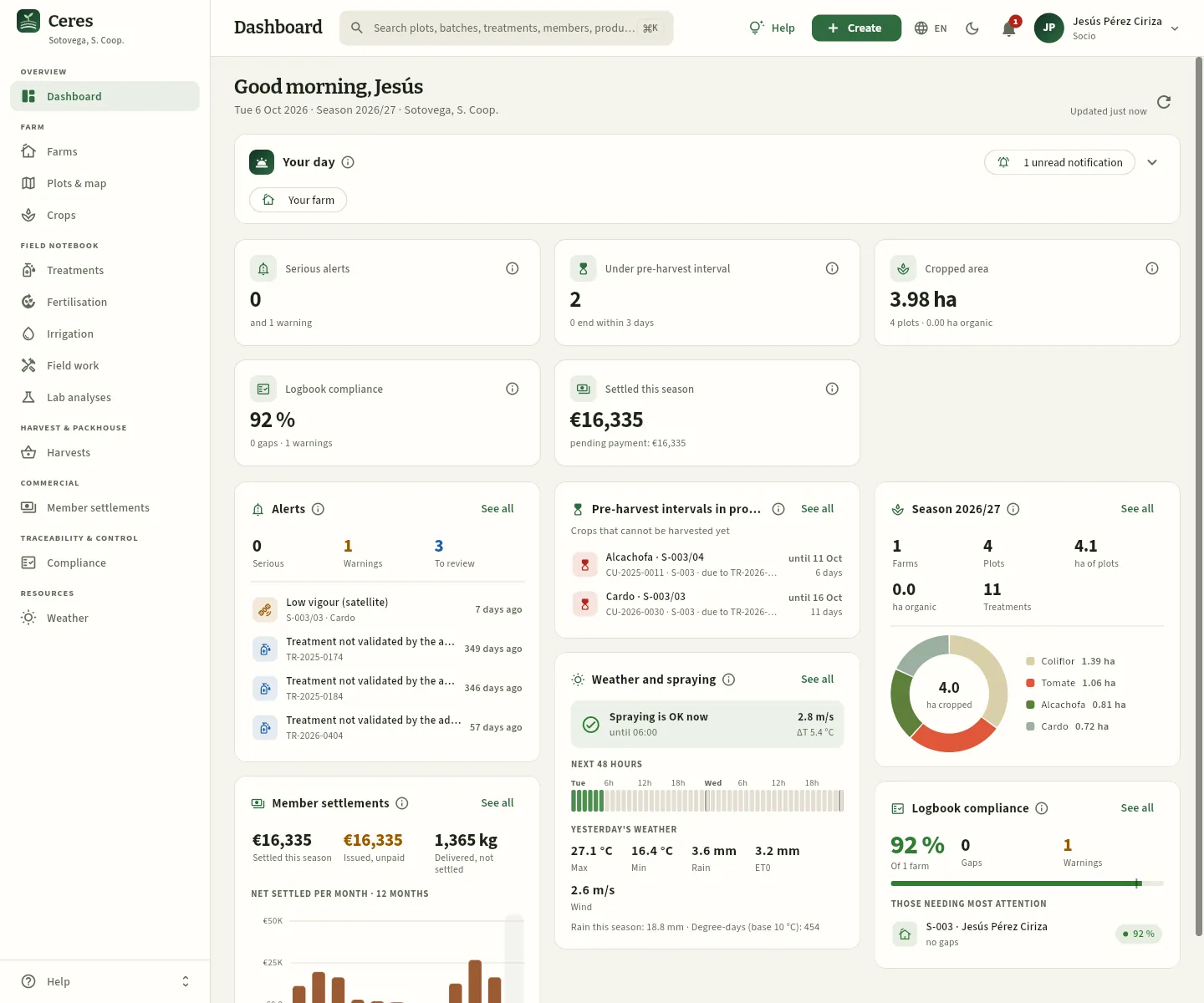 1234567
- 1His Your day: what he delivered in 7 days, his plots under a pre-harvest interval and his settlements issued.
- 2With fewer blocks, Logbook compliance and Settled this season also appear among the key figures.
- 3His alerts: the low vigour of the cardoon on S-003/03 and three treatments on his farm not yet validated by the adviser.
- 4His cardoon on S-003/03 is within its pre-harvest interval until 16 October: he cannot harvest it yet.
- 5His settlements: what has been settled this season, what has been issued but not paid and the kilos delivered that have not been settled yet.
- 6His compliance score: no gaps and one warning.
- 7The sidebar has no more than that: his farm, his plots and crops, his field log, his harvests and settlements, compliance and weather.
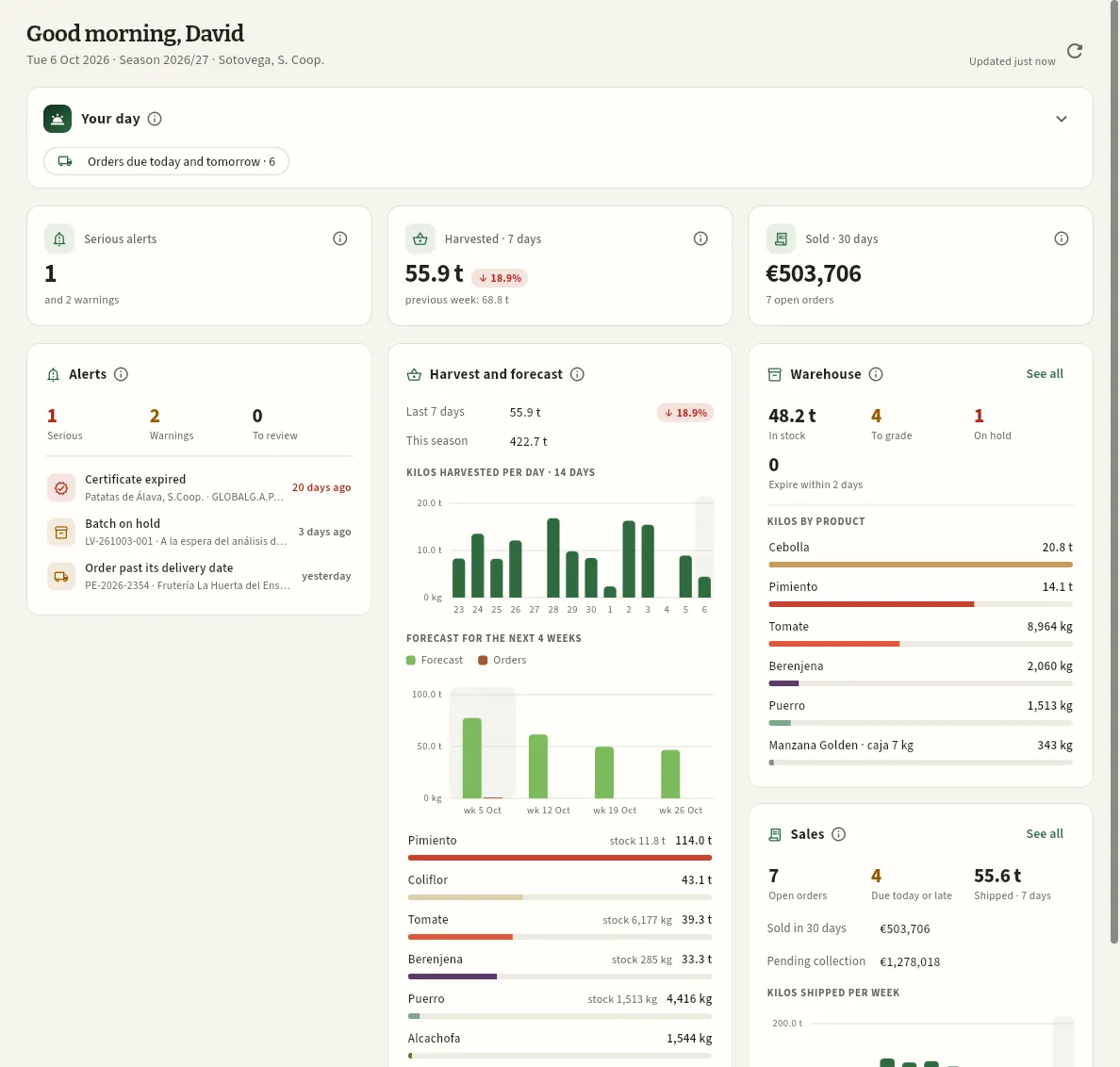 1234
- 1He sees prices: sales appear in euros.
- 2His alerts are those of his job: supplier certificates, expired or held lots and orders past their delivery date.
- 3The harvest forecast against his orders: with it he plans sales for the coming weeks.
- 4The packhouse and sales: what he can serve today and the receivables.
#Tips
Overview
My day
Field mode, for the phone or the tablet: «Your day» and your notifications, the weather right now (whether you can spray, with wind, delta T and rain) and, in large cards, the treatments with their products, doses and quantity to prepare, the field work, irrigation and expected harvests for today and tomorrow, with a button to record each one; and voice dictation to record it without typing.
My day is the screen for people working in the field. It is designed for the phone or the tablet: large text, finger-sized buttons and only what is needed. It answers three questions: what do I have to do today?, can I spray now? and how do I record it when I finish?
- The sprayer operator (in the demo, Ander Iriarte) only has this section: Ceres opens straight into My day for him, full screen and without a sidebar (field mode). He sees what is assigned to his name.
- The farm foreman (Mikel Garbayo) and the field adviser have it in the sidebar, among the other sections, and can see their own tasks or those of the whole team. On a phone it also opens full screen.
What is recorded here goes into the field log with the same checks as in the office: the operator's licence, the equipment inspection (ITEAF), the product's authorised use, the dose, the number of applications, the interval and the pre-harvest interval. And if your hands are busy, you can dictate it: you say what you have done and Ceres fills in the form for you to confirm. It works in the phone's or tablet's browser, with a connection.
- 1Open My dayToday: yours and anything overdue.
- 2Can I spray?This hour's wind, delta T and rain.
- 3Prepare the spray mixProduct, dose and total quantity on the card.
- 4ApplyWith the equipment and on the plot of the order.
- 5Record«Record application»: it goes into the field log with the «harvest from» date.
#Your day on the phone
This is how Ander sees his day of 6 October on his phone. At the top, the day, his Your day and the weather; below, the cards with what he has to do. Today he has two orders: TR-2026-0556, the farm's asparagus (SV/01), and TR-2026-0558, the cauliflower of Jesús Pérez Ciriza on S-003/02.
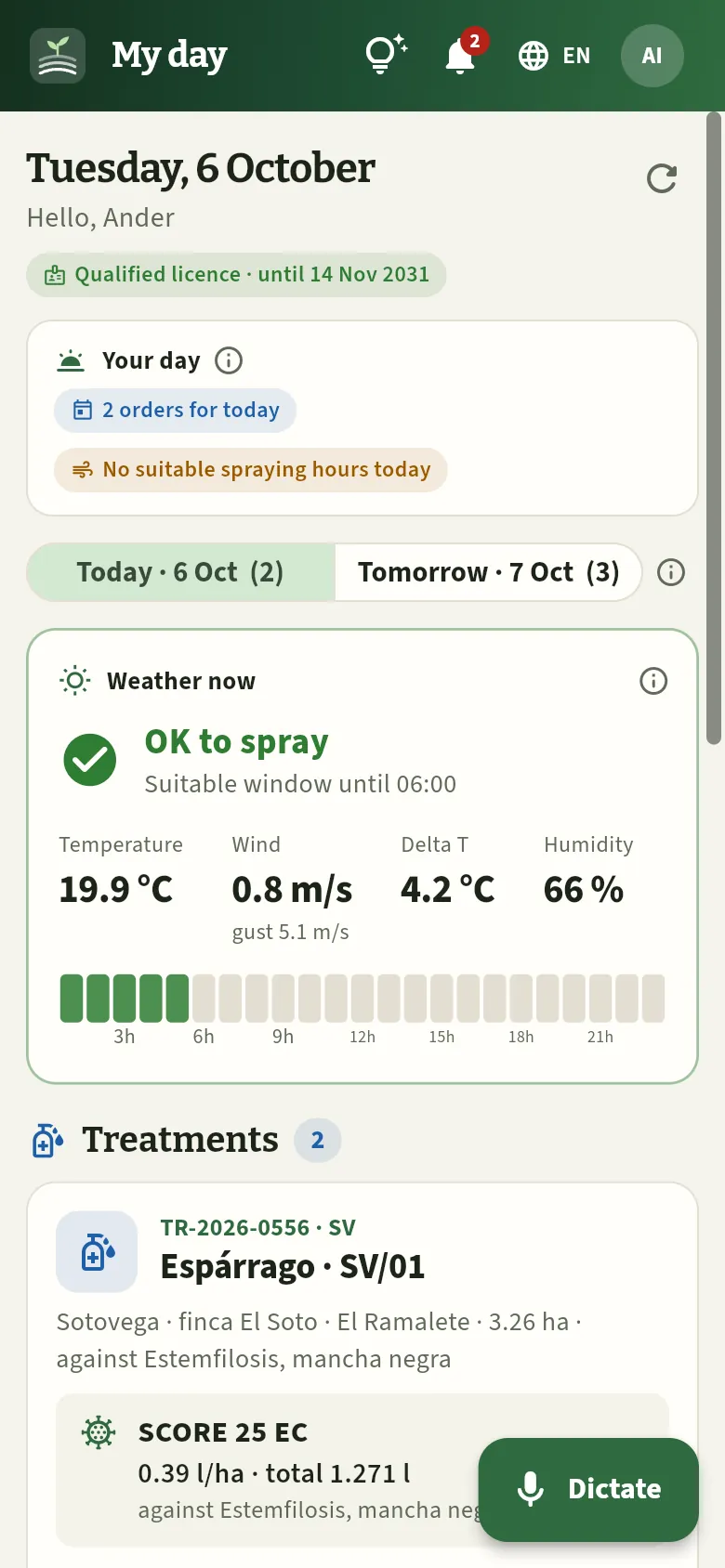 12345678
- 1The day, your name and your spraying licence with its expiry date (in red if it has expired: then you cannot record treatments).
- 2Your day: how many orders you have today (and the overdue ones) and whether there will be suitable spraying hours today. Its ⓘ explains where it comes from.
- 3Today and Tomorrow, with the number of tasks for each day. Today also includes anything overdue.
- 4Weather now: whether you can spray and until what time, the temperature, the wind (and gusts), the delta T and the humidity; below, the coming hours in a strip (green: suitable).
- 5The tasks, by group: treatments, field work, irrigation and expected harvests, each group with its number.
- 6Dictate: you say what you have done and Ceres fills in the form (further down).
- 7The bell with your notifications: the orders assigned to you, with a red number if any are unread.
- 8Your user menu (language, dark mode, notification settings, sign out). To the left of the bell, Help.
 123456
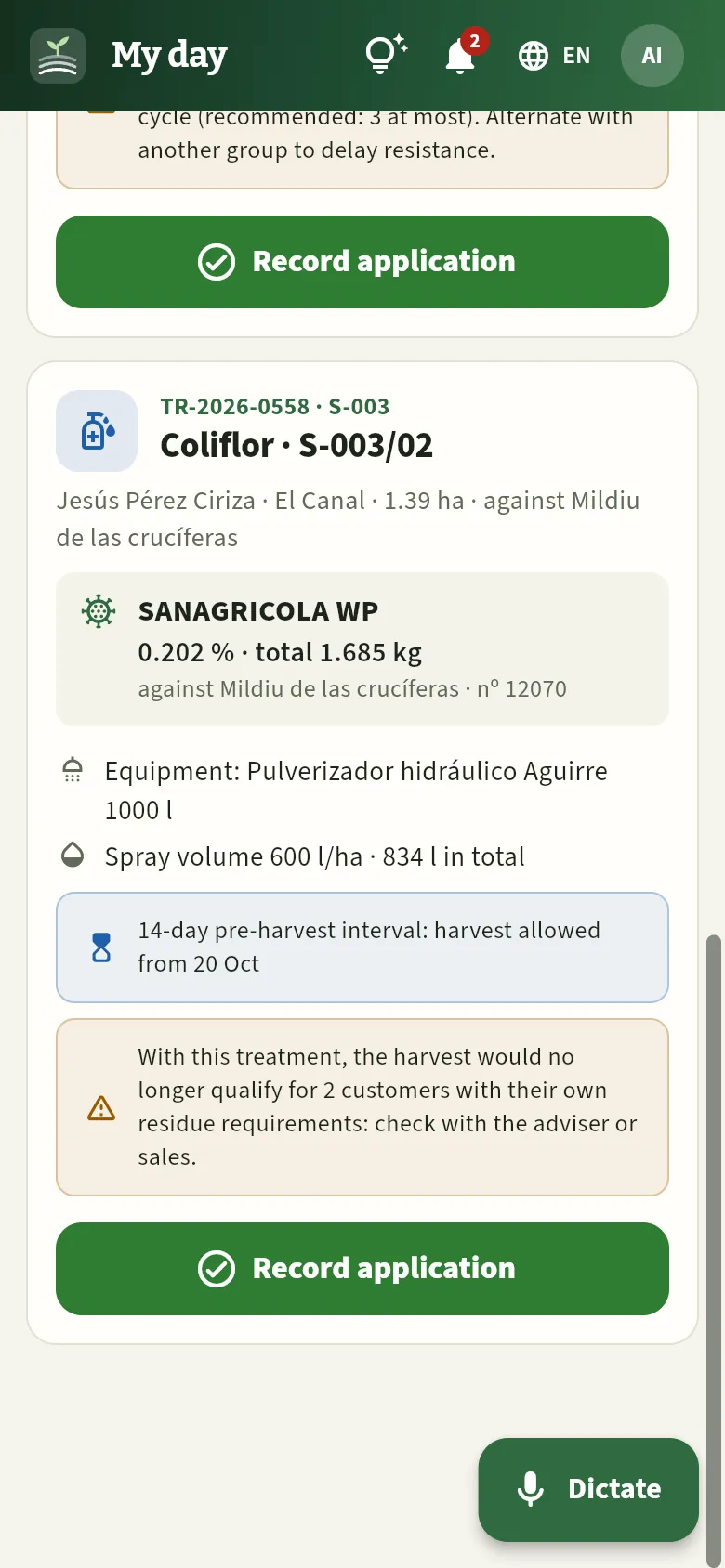
- 1The order: number and farm; crop and plot; member, location, area and the pest or disease to control.
- 2Each product: name, dose and total to prepare for the whole area; below, what it is against and its registration number (and the store batch if there is one).
- 3The equipment used to apply it and the spray volume: litres per hectare and litres in total.
- 4The pre-harvest interval it will start and from when the crop can be harvested (in blue: the cauliflower is not being harvested yet).
- 5A warning from the check: some customers would not accept the harvest so soon. Check it with the adviser or with sales.
- 6Record application when you finish.
The card gives you everything you need to prepare the spray mix without doing any sums: the cauliflower order is SANAGRICOLA WP at 0.202 % with 600 litres of spray per hectare on 1.39 ha, so you need to prepare 834 litres of spray with 1.685 kg of product. If the order has several products, they appear one below the other, each with its quantity.
Below, warnings from the check the database runs with the order's data may appear:
- The pre-harvest interval: in blue if the crop is not being harvested («14-day pre-harvest interval: it can be harvested from 20 Oct»); in amber if it is, because it interrupts the harvest already under way.
- In amber, the warnings: that the harvest would no longer be fit for some customer with residue requirements, or that the product repeats the mode of action of the previous treatment (in the asparagus order, FRAC group 3). They do not prevent spraying, but it is worth discussing them with the adviser.
- In red, the errors that would prevent recording it: an expired operator's licence, an expired equipment ITEAF, a dose above the authorised one, a withdrawn product… If you see one, do not apply: tell the foreman or the adviser.
- «Not suitable for spraying right now: …» if it is raining this hour, it is too windy or the delta T is out of range.
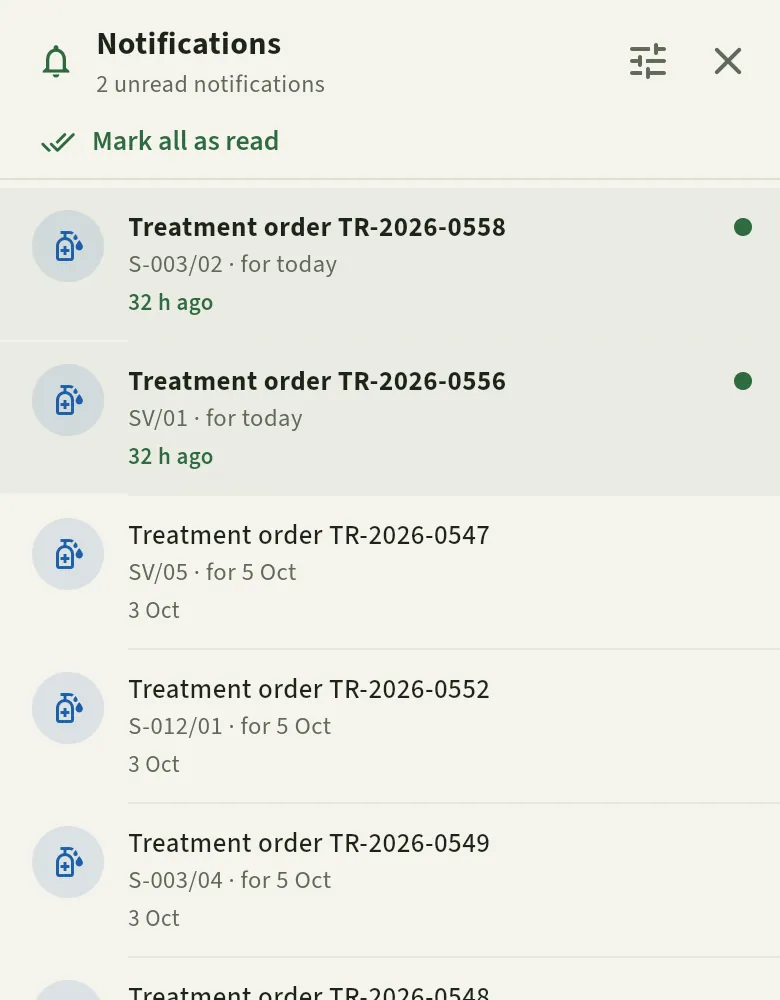
The bell at the top tells you about every new order assigned to you, with its plot and when it is due: press it to see the list and press a notification to go to its card. From your menu, Notification settings decides whether they also reach you by email (see Notifications).
 12
- 1Today's two orders, new (unread): TR-2026-0558 and TR-2026-0556, each with its plot.
- 2Those from previous days, already read.
 1
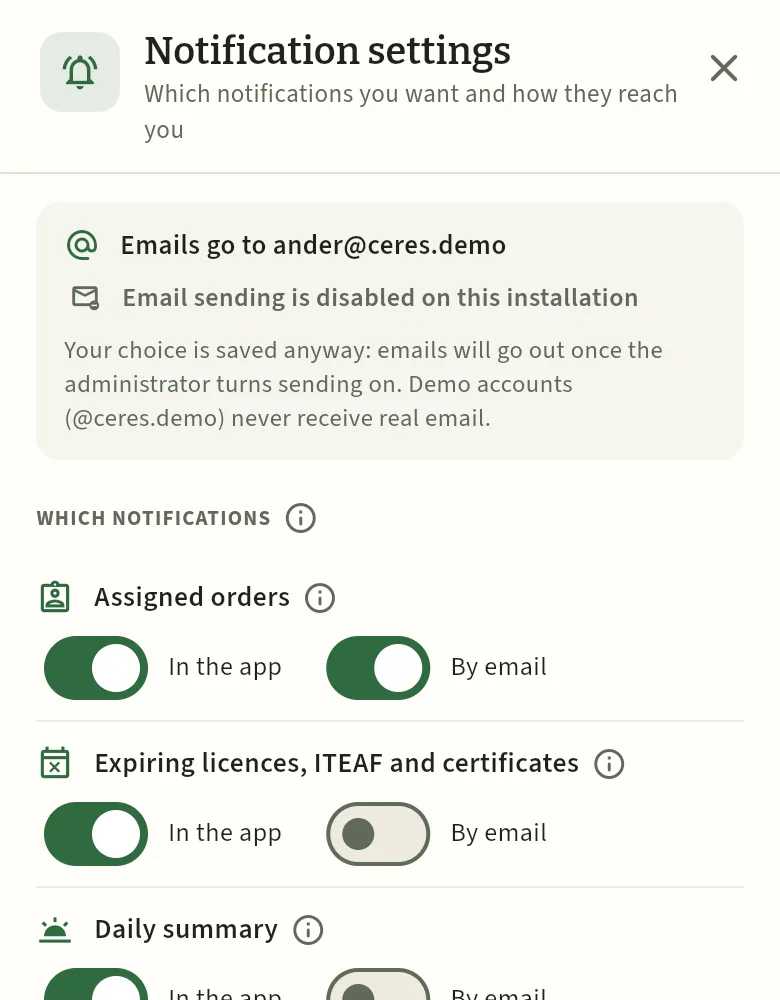
- 1The operator receives his assigned orders, his licence expiry and the daily summary: each one in the app and, if he wants, by email.
#The weather: can I spray now?
The Weather now card uses the hour-by-hour weather forecast for the cooperative's location (real data; see Weather). At the top it tells you, in big letters:
- OK to spray (green), with «Suitable window until …»: until what time the good conditions last.
- Not a good time to spray (amber), with the reason: «raining», «wind above 3 m/s», «low delta T: droplets do not dry and run off» or «high delta T: the spray evaporates and drifts»; and «Next window: …» or «No suitable window for the rest of the day».
Below, the temperature, the mean wind and gusts, the delta T and the humidity (and the rain, if it is raining), and a strip with the hours left in the day: each box is an hour, green if suitable for spraying. With Tomorrow, the card switches to Tomorrow and says which suitable windows there are the next day («Suitable windows tomorrow: 07:00–13:00», or «No suitable spraying hours tomorrow»): useful for planning when to go out.
#Recording the application
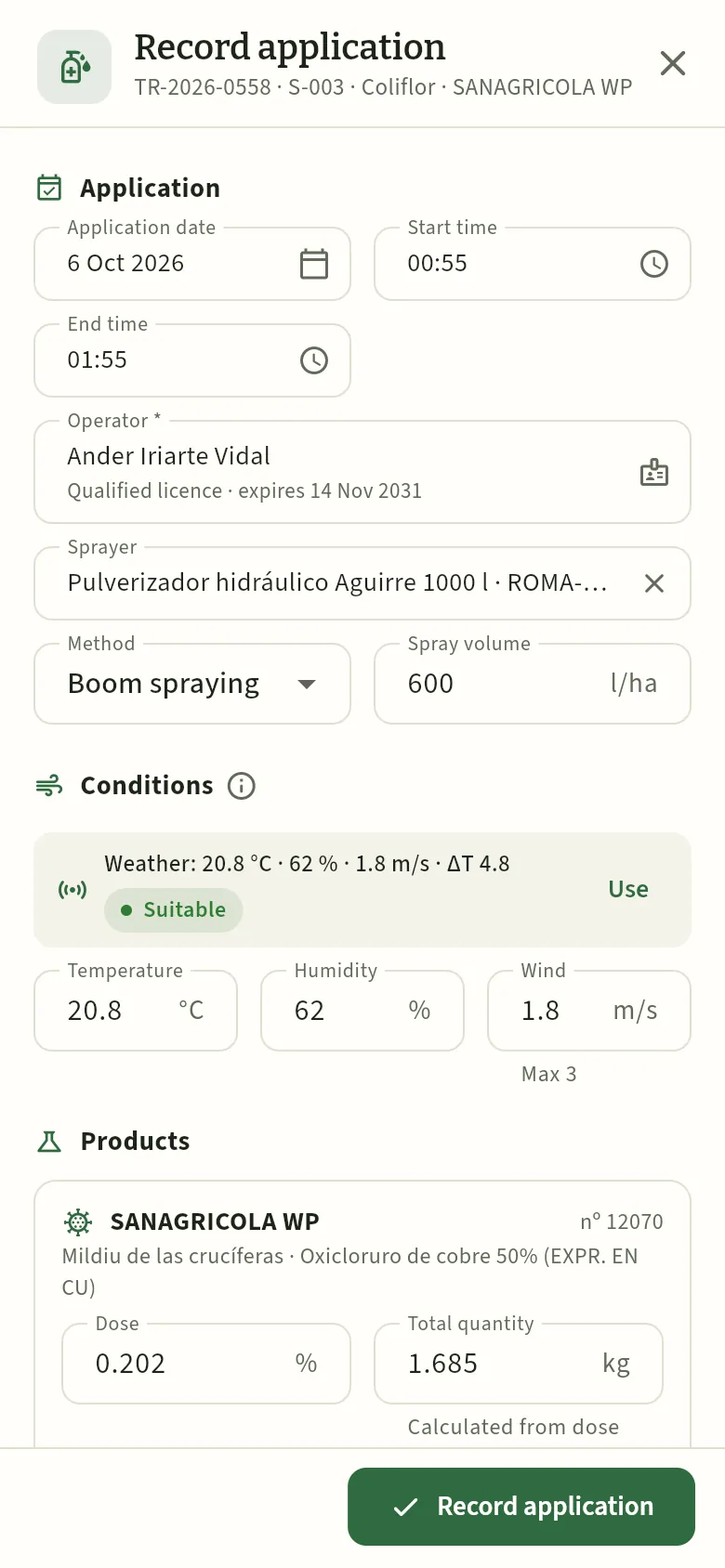
When you finish the treatment, press Record application on its card. On a phone it opens full screen with almost everything already filled in from the order: you just check and correct anything that changed.
 1234567
- 1Date and hours: today, from an hour ago until now. Change them if you applied earlier (never in the future).
- 2The operator, with their licence and its expiry.
- 3The equipment, with its ROMA number; the method and the spray volume per hectare.
- 4Conditions: the weather in those hours and whether it was suitable for spraying. Use copies them into the fields below.
- 5Temperature, humidity and wind; below, the maximum wind allowed.
- 6Each product with its dose and the total quantity, calculated from the dose and the area. If you used a different amount, type it.
- 7Record application saves it (if there are no errors).
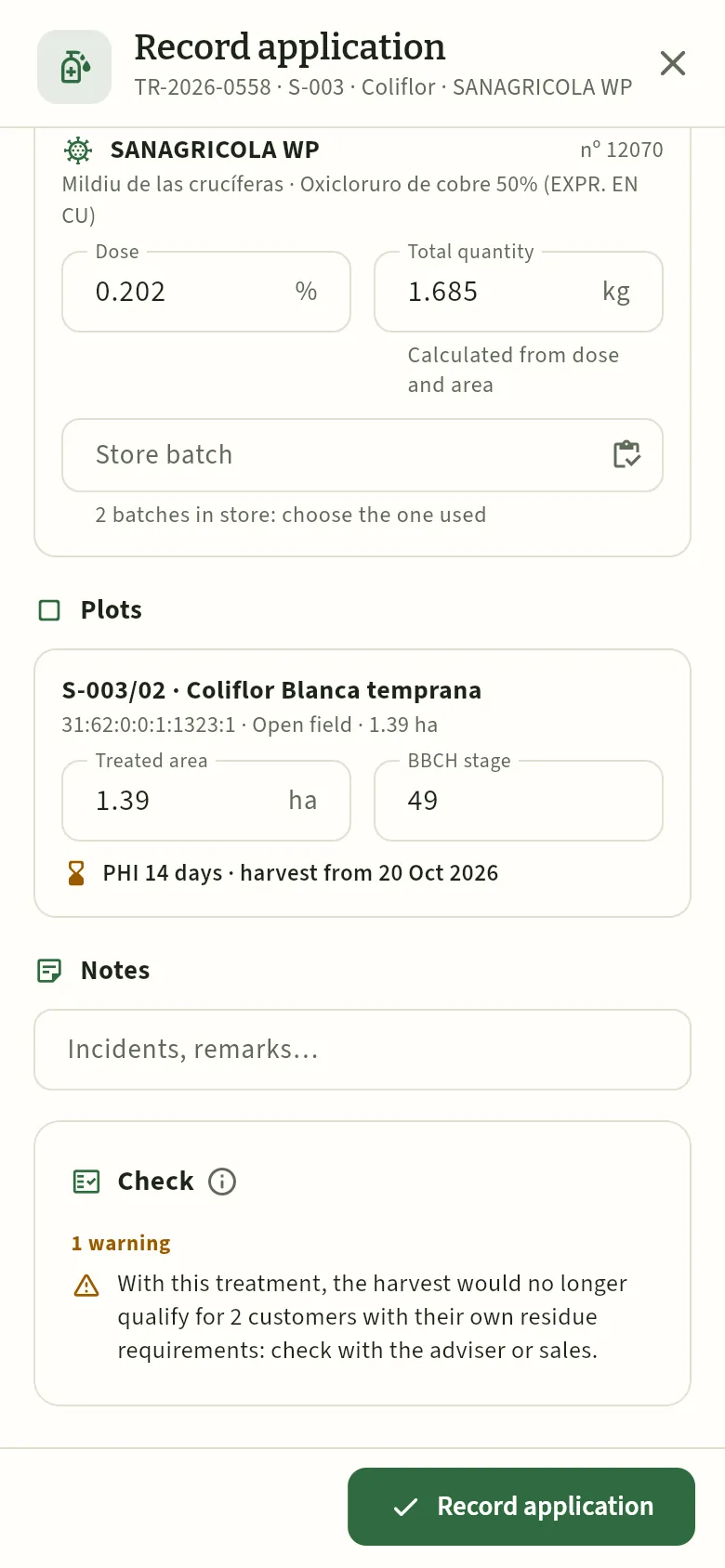 12345
- 1Store batch: choose the batch used so that it is deducted from stock (the cooperative has two SANAGRICOLA WP batches).
- 2Each plot: the treated area (if you did not treat it all) and the crop's BBCH stage.
- 3Harvest from: the pre-harvest interval and the first day that plot can be harvested.
- 4The live check: authorised use, dose, applications, interval, licence and ITEAF. If there are errors, they appear here in red and it will not record.
- 5Record application: with errors, the footer says how many are blocking it.
In My day, look at Weather now: if it says Not a good time to spray, wait for the next window or tell the foreman.
Prepare the spray mix with what the card says (product, dose and total to prepare) and apply it on the plot of the order.
When you finish, press Record application. Check the Application date, Start time and End time: by default, from an hour ago until now.
Check the Operator (you) and the Equipment. If you used other equipment, tap it and choose it: the check will look at its ITEAF.
In Conditions, press Use to copy the weather for those hours (or type what you measured yourself).
In Products, if you used a different amount, type it in Total quantity; if the product came from the cooperative's store, choose the Store batch.
In Plots, correct the Treated area if you did not treat it all and enter the BBCH stage. Note the «harvest from» date.
Look at the Check: if it is green («No issues»), press Record application.
#Dictating what you did
With gloves on or the phone in a tractor pocket, typing is hard. That is why My day has the Dictate button (bottom right): you press it, say what you have just done and Ceres fills in the usual form —the application record, the irrigation or the field task— for you to check and confirm. For example:
- «I treated S-003/02 with Sanagrícola at 0.2 percent»
- «Irrigated SV/03 for three hours»
- «Weeding in SV/01, two and a half hours»
Ceres reads the sentence against your plots and crops (with or without the slash), the products in the Register by trade name and your orders for the day; it understands numbers in digits or in words and rate units. This is how Ander does it after finishing the cauliflower:
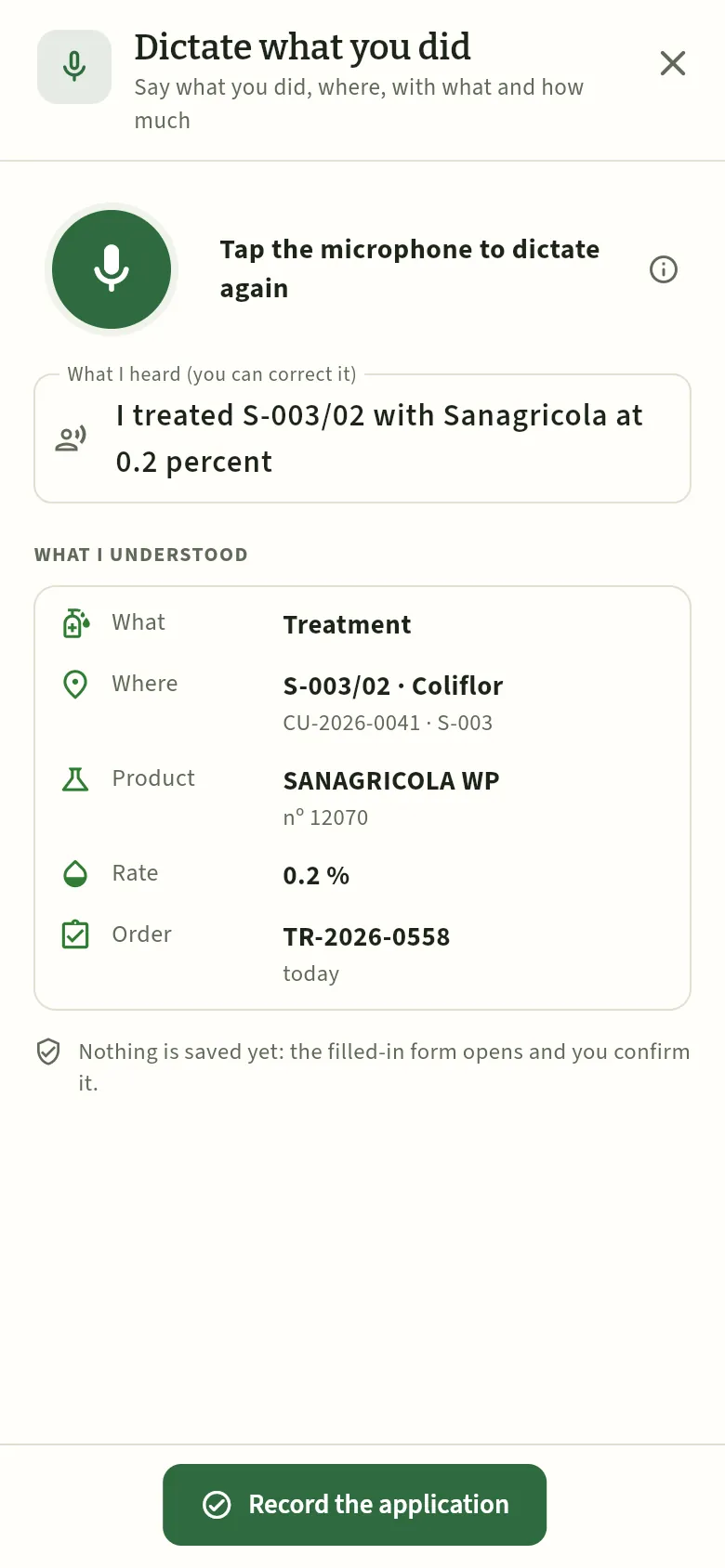 12345
- 1The microphone: it listens while you speak; press it again to dictate once more. Its ⓘ explains what it understands.
- 2What I heard: the sentence, as heard. If the recognition gets it wrong, correct it here by typing.
- 3What I understood: what (a treatment), where (the cauliflower on S-003/02), the product, the rate and the order it belongs to (TR-2026-0558, today's). Anything it does not understand is listed separately.
- 4Nothing is saved yet.
- 5Record the application opens the form filled in with what you dictated.
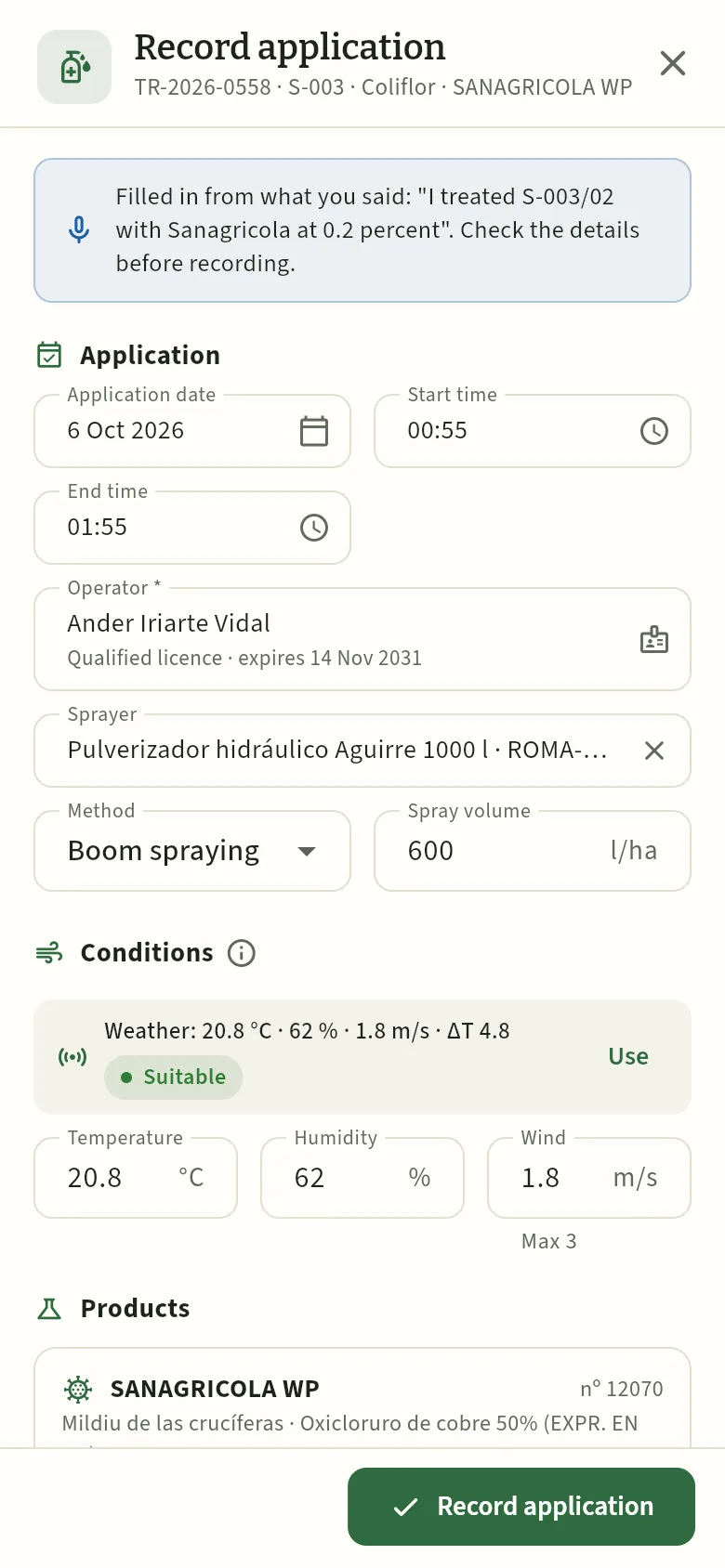 1234
- 1The notice: it has been filled in from what you dictated, and you have to check it before recording.
- 2What you did not say comes from the order: the operator, the equipment, the method and the spray volume.
- 3The order's product; further down, the dictated rate (0.2 %), in the order's unit, and the total quantity.
- 4Record application: with the same checks as if you had typed it.
#Tomorrow, and on the tablet
On a tablet (or a computer) the cards go in two columns. With Tomorrow you see the next day: Ander has three scheduled irrigations on the farm waiting for him, and the weather card tells him that tomorrow there will be no suitable hour for spraying.
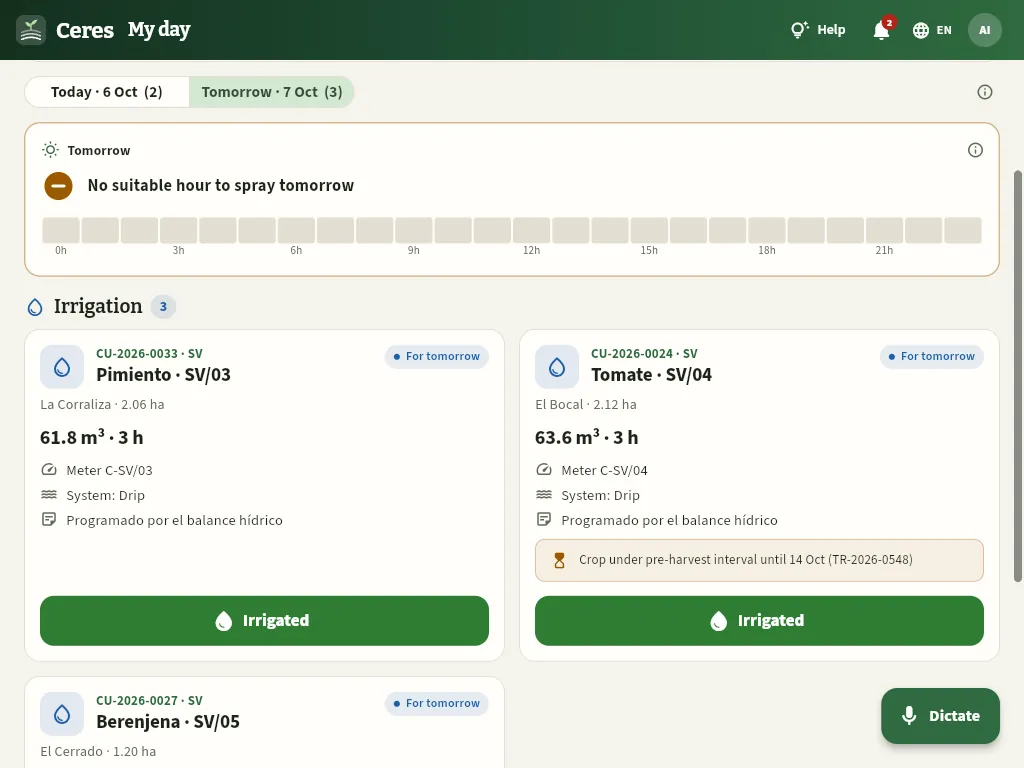 1234
- 1Tomorrow: what is planned for the next day (without the overdue tasks).
- 2Tomorrow's suitable windows and the 24-hour strip (green, suitable for spraying). Tomorrow there are none.
- 3An irrigation: crop and plot, volume and hours, meter and system; the note says the water balance scheduled it (Irrigation).
- 4Irrigated records it as done: date, hours, actual volume (or meter reading) and whether it included fertigation.
#The foreman's day
The foreman opens My day from the sidebar. As well as his own tasks, he can see the whole team: the field work assigned to each person, the irrigation and the scheduled treatments on his farms, and the expected harvests (crops being harvested). That way he shares out the morning's work and checks what is left.
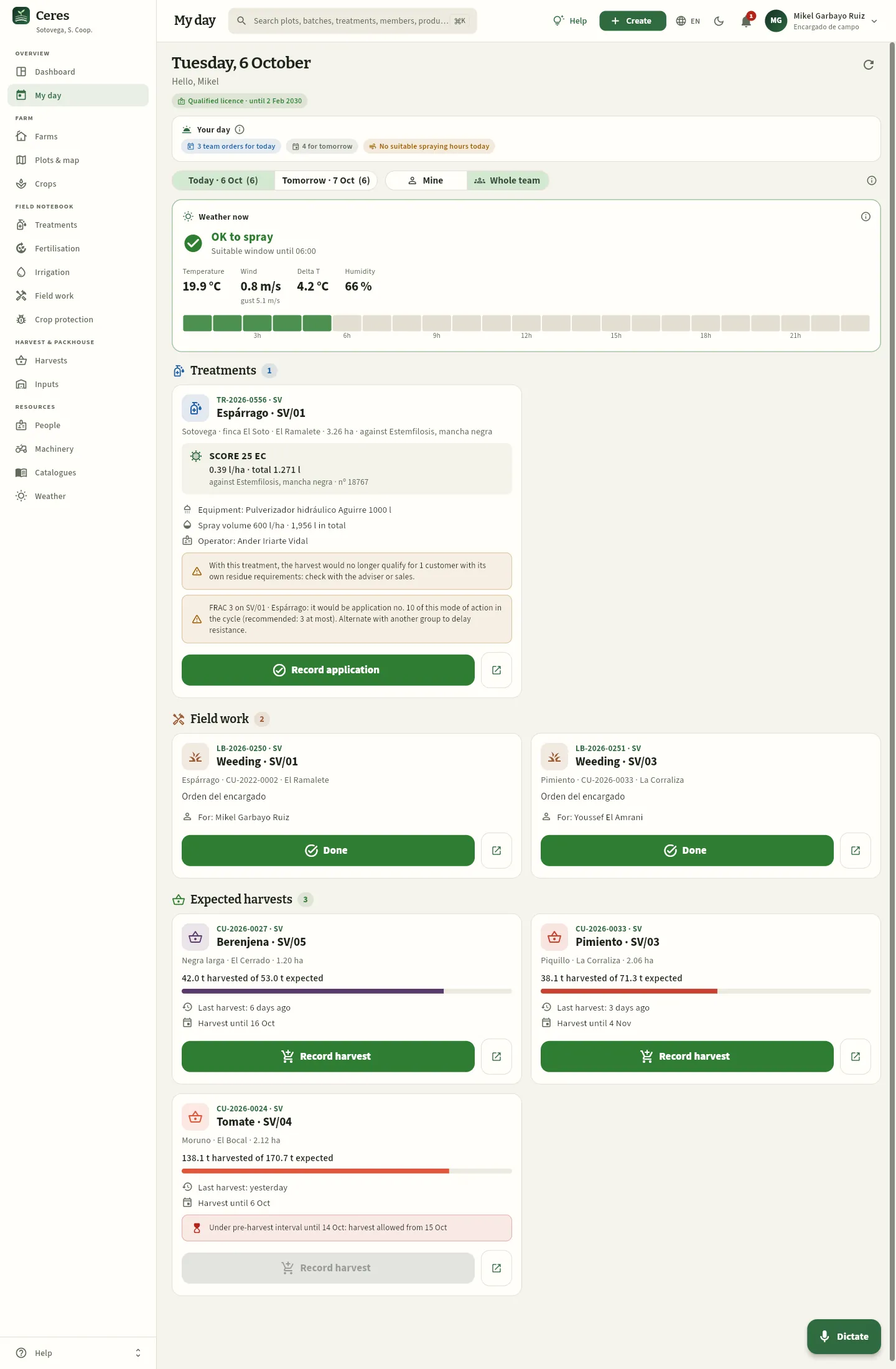 123456789
- 1For the foreman, My day is just another section in the sidebar.
- 2Your day: the team's orders for today and tomorrow, and whether there will be suitable spraying hours today.
- 3Mine (what is assigned to you) or Whole team (everyone's, with who it is assigned to). Ceres remembers your choice.
- 4The asparagus order on SV/01, assigned to Ander, with its warnings: it repeats FRAC group 3 and is not fit for one customer.
- 5Done records the field task as done, with each person's hours.
- 6Open record opens the treatment (or the field task, or the crop) in its section.
- 7Each expected harvest: what has been harvested against the forecast, the last harvest and until when it lasts. Record harvest records a harvest intake (Harvests).
- 8The tomato on SV/04 is within its pre-harvest interval until 14 October: Record harvest stays disabled until the 15th.
- 9Dictate is on the computer too.
- A field task (earthing up, weeding, staking…) has its number, crop and plot, the description, the machine and who it is assigned to. Done marks it as done.
- A scheduled irrigation has the volume, the hours, the meter and the system. Irrigated records it.
- An expected harvest is a crop being harvested. If the crop is within a pre-harvest interval, the card says so in red («Within the pre-harvest interval until …: it can be harvested from …») and Record harvest is disabled.
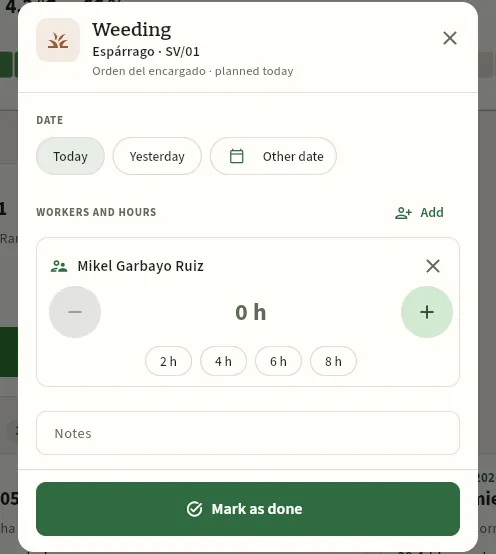 12345
- 1Date: Today, Yesterday or Other date.
- 2Workers and hours: who worked. Add adds more people.
- 3Each person's hours: with − and +, or with the 2, 4, 6 and 8-hour shortcuts. They count towards the crop's cost.
- 4Notes: incidents or observations.
- 5Mark as done saves it in the field log.
#Tips
Overview
Connect to Claude
Work with Ceres from a chat with Claude, Anthropic's AI assistant: ask it for your daily summary, ask it about pre-harvest intervals, authorised products, residues and customers, harvests, lots, traceability or compliance, give it a field log to verify and, if your profile allows it, ask it to record things. Always with your own permissions, your own farms and keys you can revoke.
Claude is Anthropic's artificial intelligence assistant. Ceres comes with a connector for Claude: a secure connection that lets Claude work with your Ceres data from a chat, in claude.ai (in the browser), in the desktop and mobile apps and in Claude Code. Instead of going screen by screen, you ask in your own words:
- «What have I got on today?»
- «Which plots are within a pre-harvest interval, and until when?»
- «What can I use against aphids on organic lettuce without repeating a group, and with what pre-harvest interval?»
- «Is this lot fit for Frutas Bidasoa?»
- «Trace lot LV-261003-002: which plot does it come from, what treatments has it had and which customers has it gone to?»
- «Verify this field log» (with the exported file or the seal code on its PDF).
- «Record today's harvest: 1,250 kg of pepper from plot S-001/03.»
Claude enters Ceres as you: it sees the same as you see in the app —your sections, your farms, your figures— and can only change what you can change.
#What you can ask it
- Look things up: search for anything (like the app's ⌘K search); open the full record of a farm, a plot, a crop, a treatment, a visit, a harvest, a lot, an order, a customer or a product, with everything that hangs from it; get any list with filters, sorting and totals; the Dashboard; the current pre-harvest intervals; the authorised products for a crop and a pest (the solution finder on the official MAPA Register, with the crop and pest hierarchy); the traceability of a lot, backwards and forwards; the compliance and the farm field log of a farm (also in the CUE format); the harvest forecast; the irrigation balance and the fertilisation plan; the weather windows for spraying; and the reports (including the mass balance and third-party operations).
- What is new: the daily summary (the same as «Your day» on the Dashboard); your notifications; residues: a customer's requirements and its lots that are not fit, whether a lot is fit for a customer, an analysis against the EU MRL and the customers, or the MRL of a substance on a crop; the mode of action of authorised products and, for a crop, which ones alternate group; a plot's satellite vigour (NDVI) and its series; and verifying an exported field log (the file, the fingerprint of a PDF or its seal code) or the state of the whole fingerprint chain.
- Make changes, if your profile allows it: add, change or delete plots, crops, field tasks, irrigations, visits, traps, lab analyses, customers, suppliers, certifications, orders and purchases with their lines, people, machinery and thresholds; recommend or schedule a treatment (with the same check as in the app: authorised use, rate, applications, interval, product still authorised, organic, licence, ITEAF, wind and stock), record its application, note its efficacy or cancel it; record a harvest (also blocked if the crop is within its pre-harvest interval), grade it or cancel it; record a fertilisation; put a lot on hold, move it, adjust it or withdraw it; pack; receive or adjust inputs; prepare the delivery note for an order (with the lots by FEFO), ship it, invoice and collect payment; receive a purchase; prepare a settlement; run a mock recall; and save or remove a customer's residue requirements.
Claude fills in the same things as the app: the plot's area, the crop's harvest calendar and expected yield, the scheduled or applied status depending on the date, the visit's technician… An order or a purchase is created with all its lines at once, and if anything fails nothing is created. You can name things the way you know them («Jesús's tomatoes», «the El Recuenco plot») or by their code (S-003, S-003/01, CU-…, TR-…, LC-…, LV-…, a product's registration number).
Ceres also comes with six ready-made prompts that Claude offers alongside the connector (with their Spanish titles): Resumen del día (summary of the day), ¿Qué puedo aplicar? (what can I apply?), Estado de una explotación (status of a farm), Preparar un tratamiento (prepare a treatment), Verificar un cuaderno exportado (verify an exported field log) and Simulacro de retirada (mock recall).
#Why it is safe
- Claude enters as you, never with more permissions. The connector has no permissions of its own: every request from Claude carries your identity, and the Ceres database applies your access profiles and your farms to it exactly as in the app: the sections, the sensitive data (costs, prices, settlements, contact details) and the actions. What your profile does not see, Claude does not see either.
- Never My day, signatures or administration. My day is not used from Claude (it is each sprayer operator's field mode), a treatment is not validated with a signature (the signature belongs to the person), and users, profiles, keys or Settings are not administered: that is only done in the app.
- With a personal key you can revoke. Claude identifies itself with an access key of yours (it starts with
ceres_). Ceres does not store the key, only a fingerprint to recognise it, so it is shown only once. It is revoked with a button and access is cut on the next request; it is also cut if it expires, if an administrator disables your user or if your profile loses the permission. - Everything is logged. Every time Claude looks something up or changes something, it goes into the key's activity: what it did, on what, and whether it could be done. What changes is also recorded in the Audit log and in the Changes tab of each record, flagged «from Claude».
- Without the «Export CSV» permission, Claude receives at most 50 rows per query (500 with it).
- Your password is not stored in Claude. When you connect, you type your user and password on a Ceres page, not in Claude; Claude only receives a key you can revoke.
The connector follows MCP (Model Context Protocol), the open standard for connecting AI assistants to applications.
#What Claude asks you first
Claude always asks you to confirm before:
- deleting something (it cannot be undone; and anything in use cannot be deleted);
- recording the application of a treatment or cancelling a field notebook entry;
- shipping a delivery note, invoicing or settling with a member;
- putting a lot on hold;
- and creating or changing anything you have not explicitly asked for.
Afterwards it sums up what it did with the codes (TR-…, CO-…, LC-…, PE-…, AL-…), so you can find it in the app.
#Where it is in Ceres
Everything to do with the connector is in your user menu, at the top right: Connect to Claude. Everyone who works in the app has it; if your profile does not allow it, the panel tells you so.
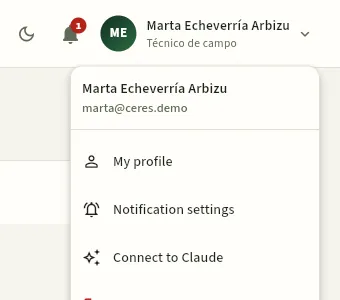 12
- 1Press your name to open the menu.
- 2Connect to Claude opens the connector panel.
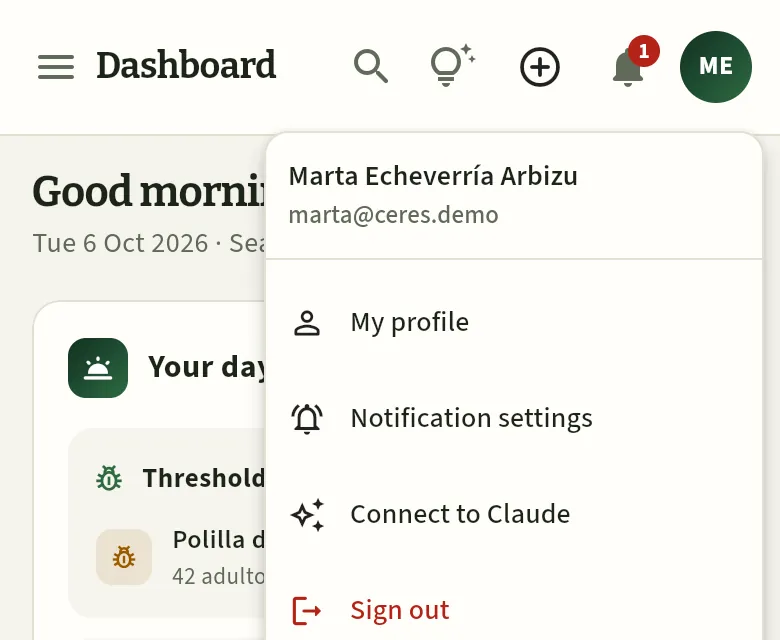 12
- 1Your initials, at the top right.
- 2Connect to Claude.
#The «Connect to Claude» panel
The panel opens on the right and has four parts: what Claude can do for you, how to connect it, your access keys and the recent activity.
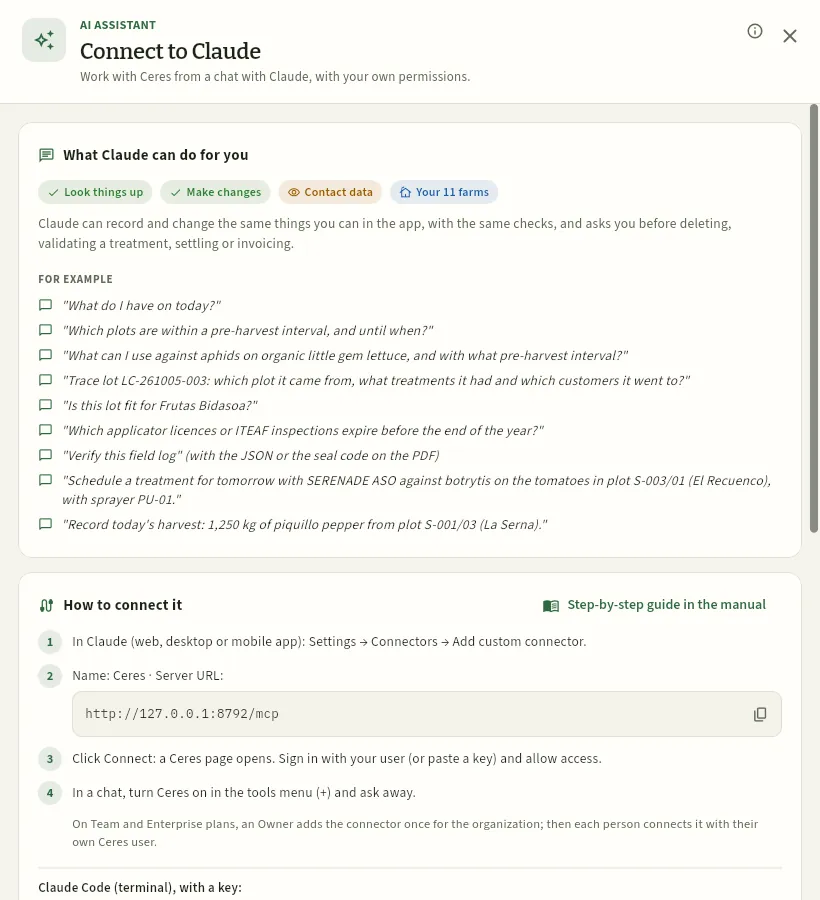 123456
- 1What your profile allows: looking things up, making changes and seeing contact details.
- 2The farms Claude will work with: yours (for Marta, the cooperative's farm and the members she advises).
- 3What Claude will do and when it will ask you first.
- 4Examples of questions and tasks to get started; among them, the new ones: «What do I have on today?» (your daily summary), «Is this lot fit for Frutas Bidasoa?» and «Verify this field log».
- 5Opens this chapter of the manual.
- 6The connector address of your Ceres, with the button to copy it.
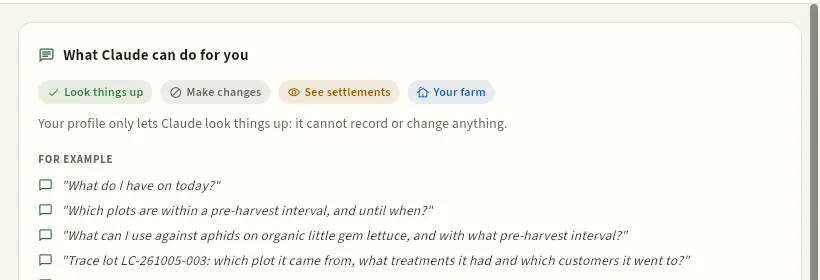 12
- 1Look things up yes, Make changes crossed out: Claude only looks things up. Jesús records his field work and irrigation in the app.
- 2Only his farm, S-003. And since he sees his settlements, Claude does too.
 1
- 1Without «Use from Claude», the panel explains that the profile does not allow it and whom to ask.
#Connecting Claude with your user
The simplest way: add Ceres as a connector in Claude and sign in with your Ceres user. Ceres then creates a «Claude» key valid for 90 days, which you will see in your list of keys. The steps are summed up in the panel itself, under How to connect it, with your Ceres connector address and the button to copy it.
In Claude, open Settings → Connectors and click Add custom connector.
Name it Ceres and paste the server URL the Ceres panel gives you (in the public demo,
https://cuadernoceres.com/mcp). Click Add.Click Connect: a Ceres page opens. Sign in with your Ceres email and password (or paste a key you have created) and click Allow access.
In a chat, turn Ceres on in the tools menu (+) and ask away.
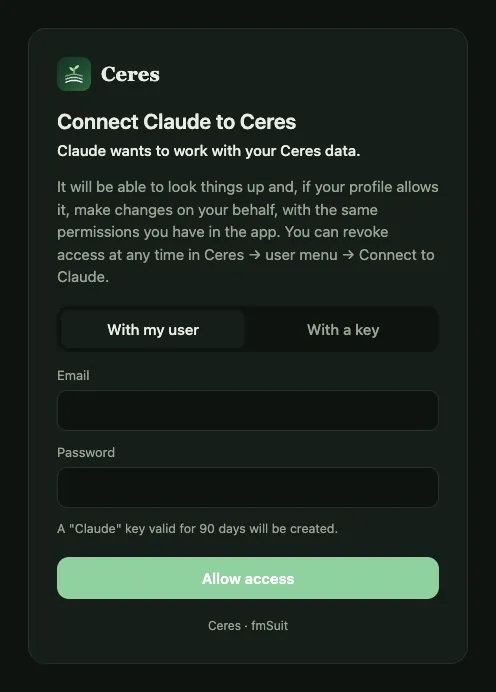 1234
- 1Connect Claude to Ceres: who is asking for access and what it will be able to do.
- 2With my user (your Ceres email and password) or with a key you have already created.
- 3With your user, Ceres creates a «Claude» key valid for 90 days.
- 4Allow access and you go back to Claude, now connected.
#Your access keys
Further down the panel is the list of your keys: those created when you connected Claude and those you create by hand (for Claude Code, for example). For each one you can see where it comes from, when it expires, when it was last used and how many calls it has made.
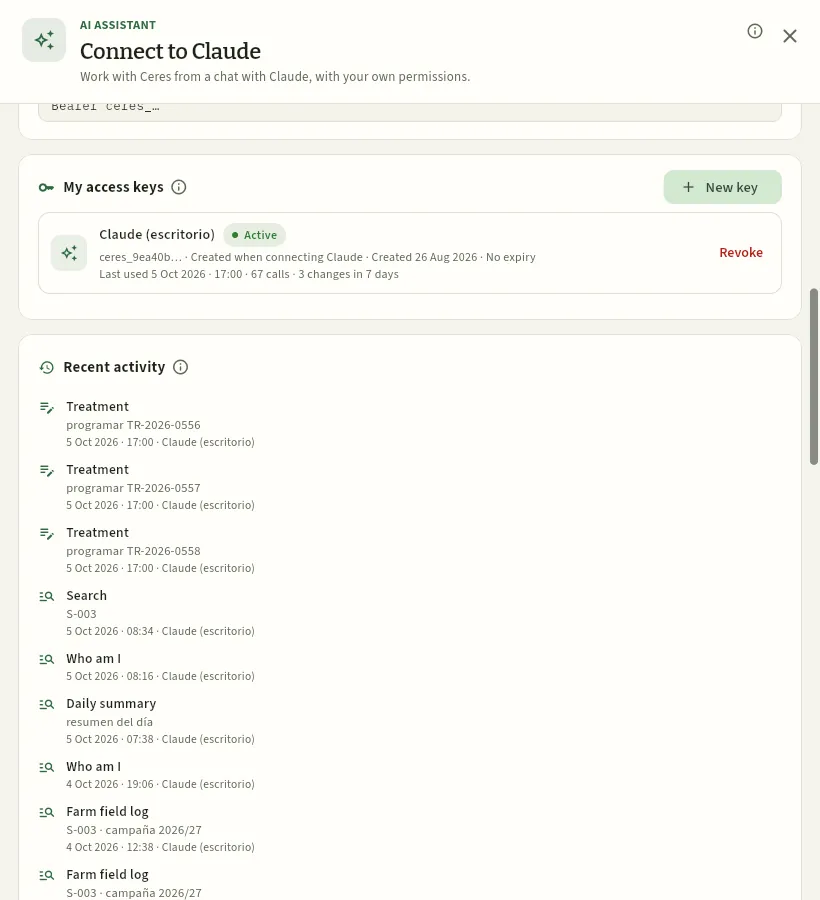 1234
- 1New key: creates a key by hand.
- 2My access keys: each with its status (active, expired or revoked) and the Revoke button.
- 3Recent activity: what Claude has looked up or changed with your keys, with its result (Done, Denied or Error).
- 4A daily summary that Marta asked Claude for in the morning: the same as «Your day» on the Dashboard.
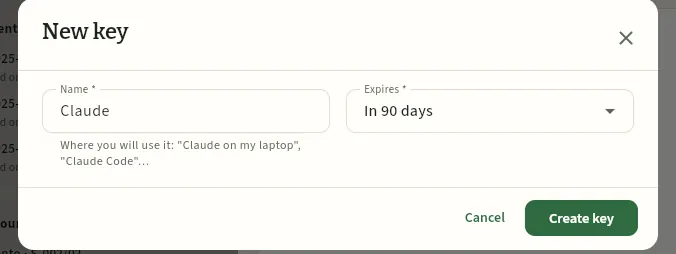 123
- 1Name: where you are going to use it («Claude on my laptop», «Claude Code»…).
- 2Expires: in 30 days, in 90 days, in a year or never.
- 3Create key: the key is shown only once; copy it then.
Claude Code (the terminal) connects with a key:
claude mcp add --transport http ceres <connector address> --header "Authorization: Bearer ceres_…"
or without the header and, inside Claude Code, /mcp → Authenticate, which opens the same Ceres page.
The panel gives you the command ready-made with your Ceres address. Keep the key as you would a password: whoever has it gets in as you.
Open your user menu → Connect to Claude and scroll down to My access keys.
Click Revoke on the key you want to cut off and confirm.
Farm
Farms
The cooperative's farm and those of its members: holder, REA, integrated pest management and adviser with ROPO, certifications with their expiry, plots, crops, the field log as a timeline, deliveries, settlements and the compliance score.
A farm is each unit that keeps its own field log: the cooperative's own farm (Sotovega · finca El Soto, code SV) and that of each member (S-001 to S-012). Everything else hangs from it: its plots, its crops, its treatments, its deliveries and its settlements.
Its record holds the details the farm field log requires: the holder and their tax ID, the REA code (regional register of agricultural holdings), how it complies with integrated pest management (IPM) and who its adviser is, registered in the ROPO (official register of producers and operators of plant protection means), and its certifications (GLOBALG.A.P., integrated production, organic, PGI…) with their expiry dates. And, at a glance, how its field log is doing this season.
#The list of farms
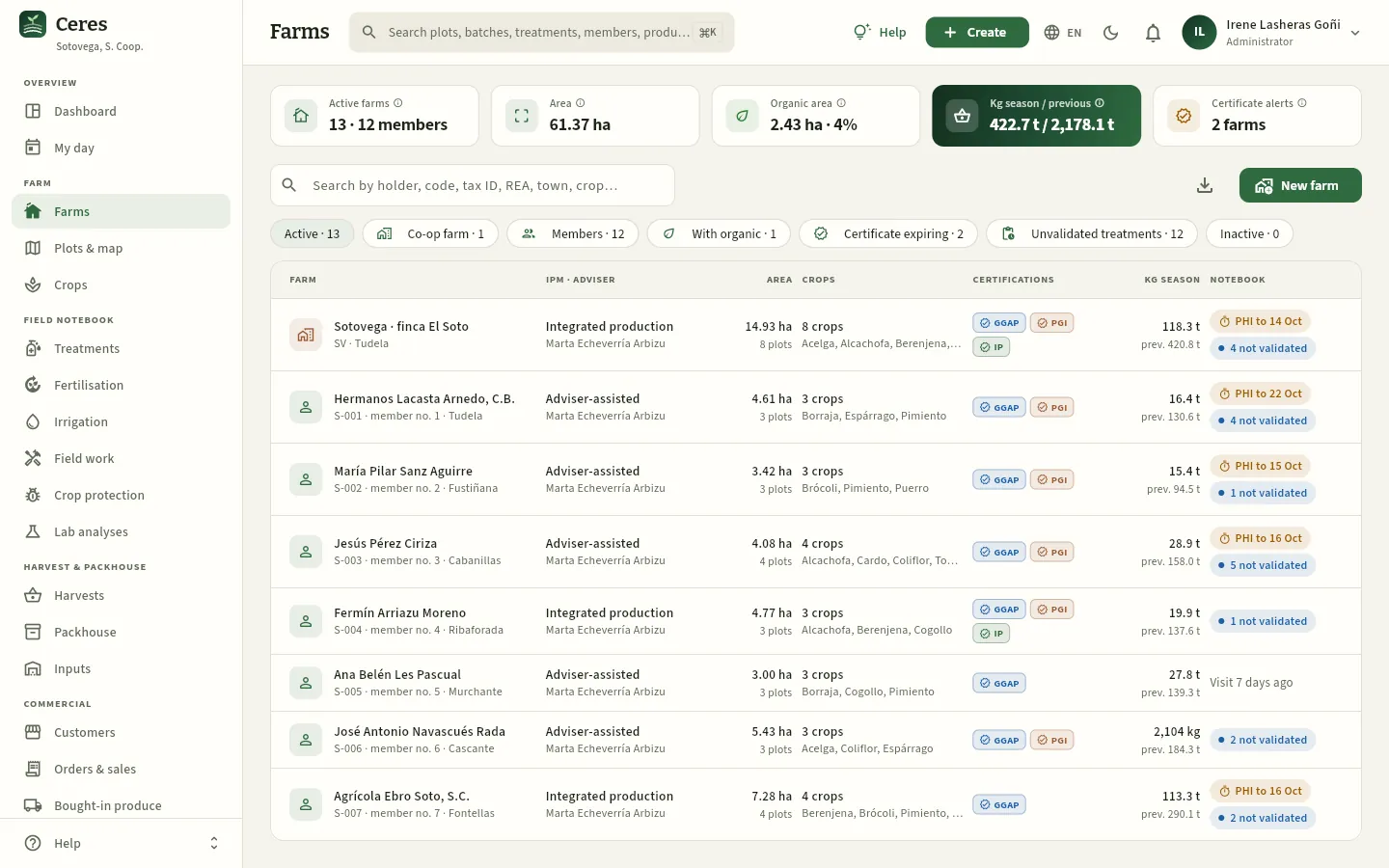 12345678
- 1Active farms and how many belong to members; to the right, the area, the organic area, the season's kilos against the previous one and the certification warnings.
- 2Search by holder, code, tax ID, REA, municipality or crop.
- 3Filters: the own farm, the members, those with organic land, those with a certification about to expire, those with treatments not validated and the inactive ones, with their count.
- 4The own farm (house icon, in earth brown) comes first; then the members by code, with their member number and municipality. Press a row to open the record.
- 5How it complies with integrated pest management and its adviser.
- 6The valid certifications (GGAP, PGI, IP, ORG…); with an amber warning if any expires soon or has expired.
- 7Field log: whether there is a pre-harvest interval running and how many treatments are waiting for the adviser's validation. If everything is up to date, the date of the last visit.
- 8New farm: add a new member or the own farm.
The Area column (with the plots or the organic part below), Crops (how many live ones and which) and Kg season (with the previous season below, «prev.») complete each member's picture. You can sort by any column by pressing its title and download the list with the export button (see The screen).
#A farm's record
Pressing a farm opens its record on the right. For example, that of S-003, Jesús Pérez Ciriza, member no. 3 from Cabanillas:
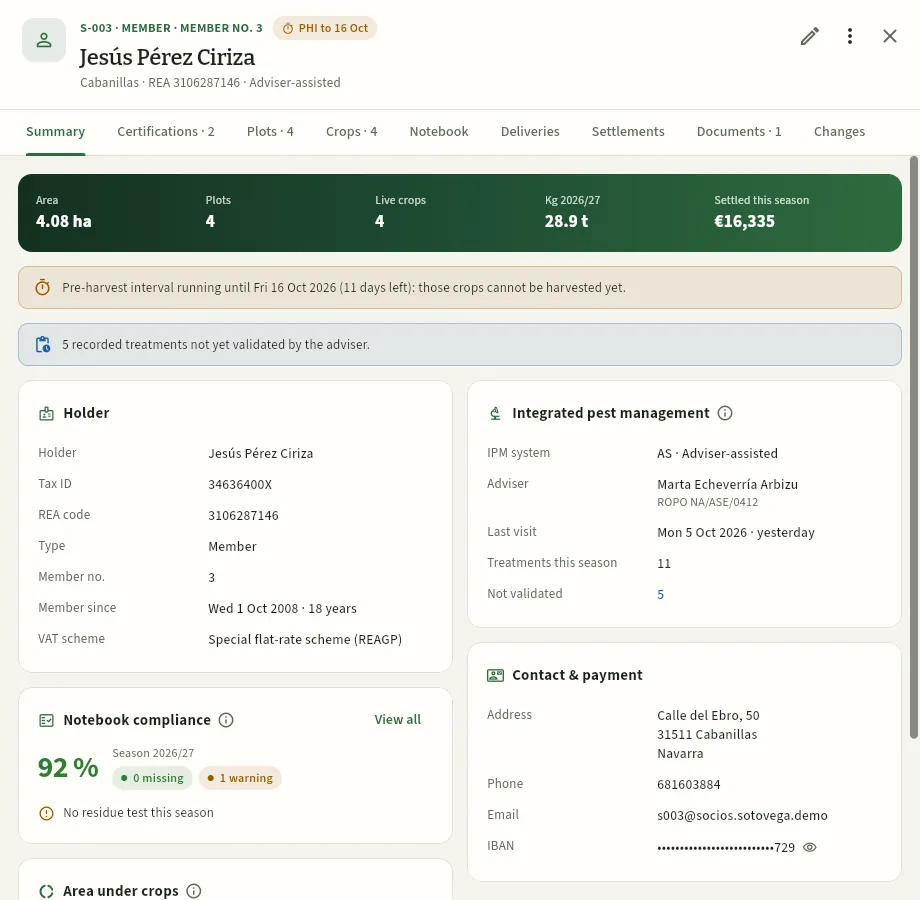 12345678
- 1Code, type and member number, the holder, the municipality, the REA and the IPM system. The amber pill warns of a pre-harvest interval in progress.
- 2The tabs: Summary, Certifications, Plots, Crops, Field log, Deliveries, Settlements, Documents and Changes.
- 3Area, plots, live crops, kilos delivered in the season and the amount settled.
- 4The warnings: crops that cannot be harvested yet, certificates about to expire, treatments not validated…
- 5Holder: tax ID, REA code, type, member number, years of membership and VAT scheme (the special farming scheme, REAGP, changes the settlement).
- 6Integrated pest management: the system, the adviser with their ROPO number, the last visit and the season's treatments (those not validated, in blue).
- 7Logbook compliance: the season's score, the gaps and the warnings, with what is missing. View all opens Compliance.
- 8Contact and payment: address, phone, email and the IBAN for settlements (hidden; the eye shows it).
At the top right, Edit (the pencil) opens the farm's details and More options (the three dots) gives shortcuts to create a New plot or a New crop on it, or to View on the map its plots.
Below the summary there is also the split of the cropped area by species (a ring with each one's colour).
#Certifications
The Certifications tab lists the farm's certifications with their certification body, their code (the GLOBALG.A.P. GGN, the operator number…), the scope and the expiry. Jesús has the PGI Alcachofa de Tudela (covering the artichoke on S-003/04) and GLOBALG.A.P. IFA v6 under option 2, the cooperative's producer group option.
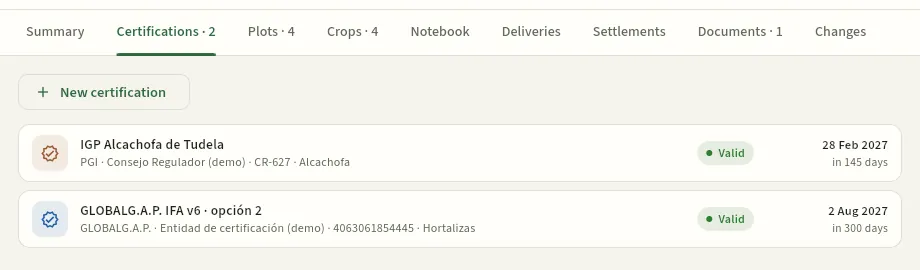 12
- 1New certification: type, name, body, code, scope, issue date and expiry date.
- 2Each certification with its body, code and scope; on the right, whether it is valid, its expiry and the days left (amber if it expires soon, red if it has expired).
#Plots, crops, deliveries and settlements
- Plots: the farm's parcels with their SIGPAC reference, the current crop and its area; New plot and View on the map. Each row opens the plot's record (Plots & map).
- Crops: all those it has had, newest first, with their season, planting date, kilos harvested, the pre-harvest interval if any and their status; New crop (Crops).
- Deliveries: what was delivered this season (kilos and harvests, by species) and each harvest with its field lot, the waste and whether it has been graded (Harvests).
- Settlements: the member's settlements, newest first, with their period, kilos, status (draft, issued, paid) and net amount (Member settlements). Amounts only with the «See settlements» permission.
- Documents and Changes: the farm's files (the scanned certificate, the REA…) and who changed what and when (see The screen).
#The field log, as a timeline
The Field log tab brings together everything recorded on the farm, newest first and grouped by month: treatments, fertilising, irrigation, field work, harvests, technical visits and analyses. It is the quickest way to see what has been done on a member's farm before visiting them or before an audit.
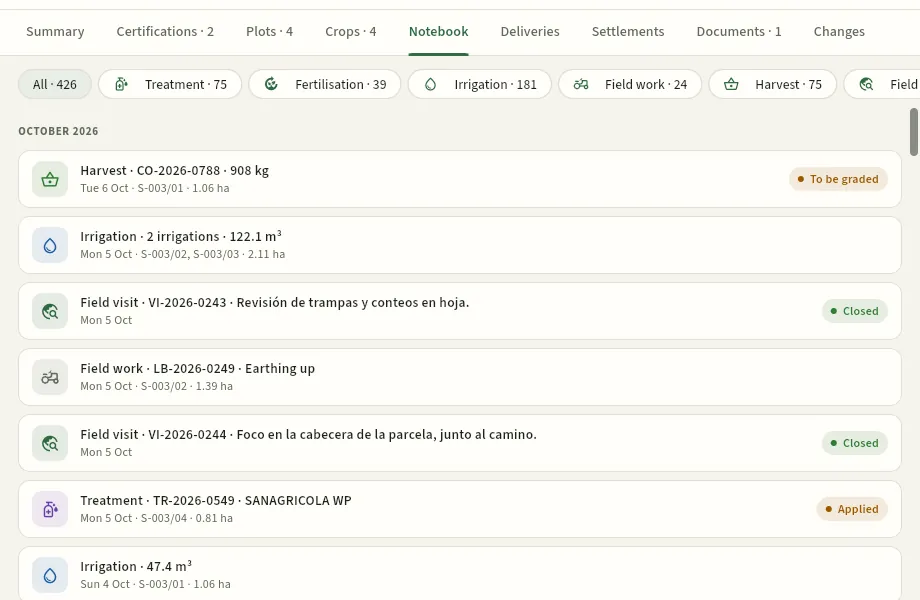 1234
- 1Filter by type of operation, with its count: treatments, fertilising, irrigation, field work, harvests, technical visits and analyses.
- 2Grouped by month, latest at the top.
- 3Each operation with its number, date, plot and status. Marta's visit VI-2026-0244 found Tuta in the tomato above the threshold. Press it to open its record.
- 4Irrigations on the same day are grouped in one line with the total volume.
If something was recorded late, the line says so («recorded after 40 days»): the field log has a deadline for recording each operation (one month for treatments and fertilising) and Compliance counts it as a gap.
#Adding or changing a farm
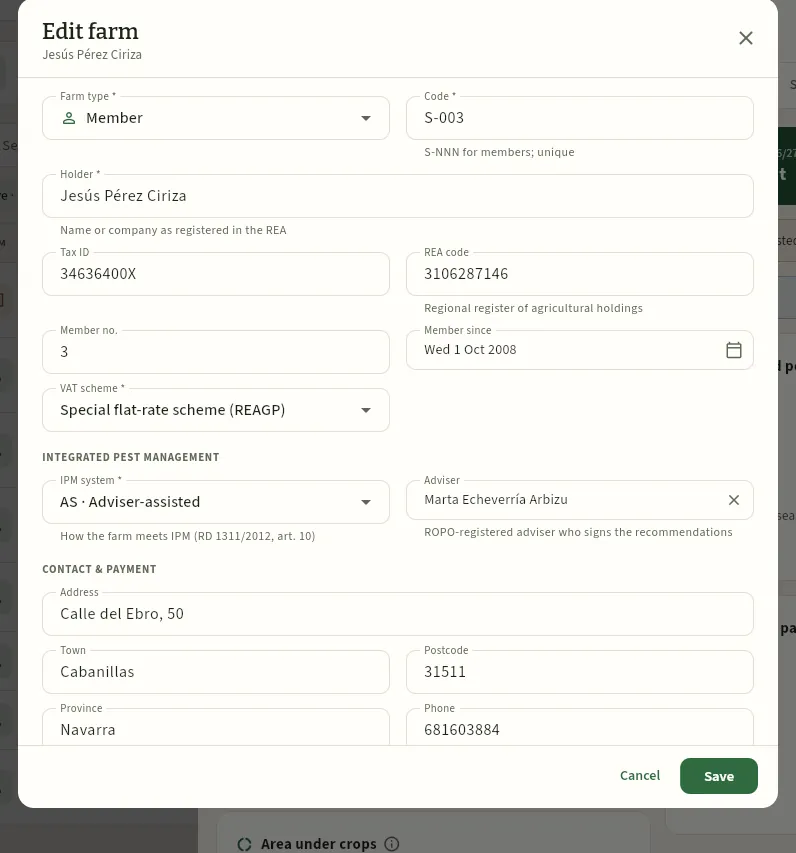 1234567
- 1Type: member or own farm.
- 2Code: S-NNN for members; unique in the cooperative.
- 3Holder: the name or company name as it appears in the REA.
- 4REA code and tax ID (Ceres checks the control letter or digit).
- 5VAT scheme: the general one or the special farming scheme (REAGP), which adds the compensation to the settlement.
- 6IPM system and adviser. With assisted IPM or ATRIA, an adviser registered in the ROPO is required.
- 7Save. Further down: contact details, settlement IBAN and whether it is active.
In Farms, press New farm.
Choose Farm type «Member». Ceres proposes the next Code (for example, S-013) and the Member no..
Enter the Holder as it appears in the REA, their tax ID and their REA code; the Member since date and the VAT scheme.
Under Integrated pest management, choose the IPM system and, if it is assisted, the Adviser (a person from People with their ROPO number).
Fill in Contact and payment: address, phone, email and IBAN, which is where their settlements are paid. Ceres warns if the IBAN fails the check digit.
Press Save. Then, from their record, add their plots (More options → New plot) and their certifications.
#What the member sees
A member signs in to Ceres and only sees their own farm: the list shows a single row, theirs, with their figures. They can open its record and look at their field log, deliveries and settlements, but cannot change its details.
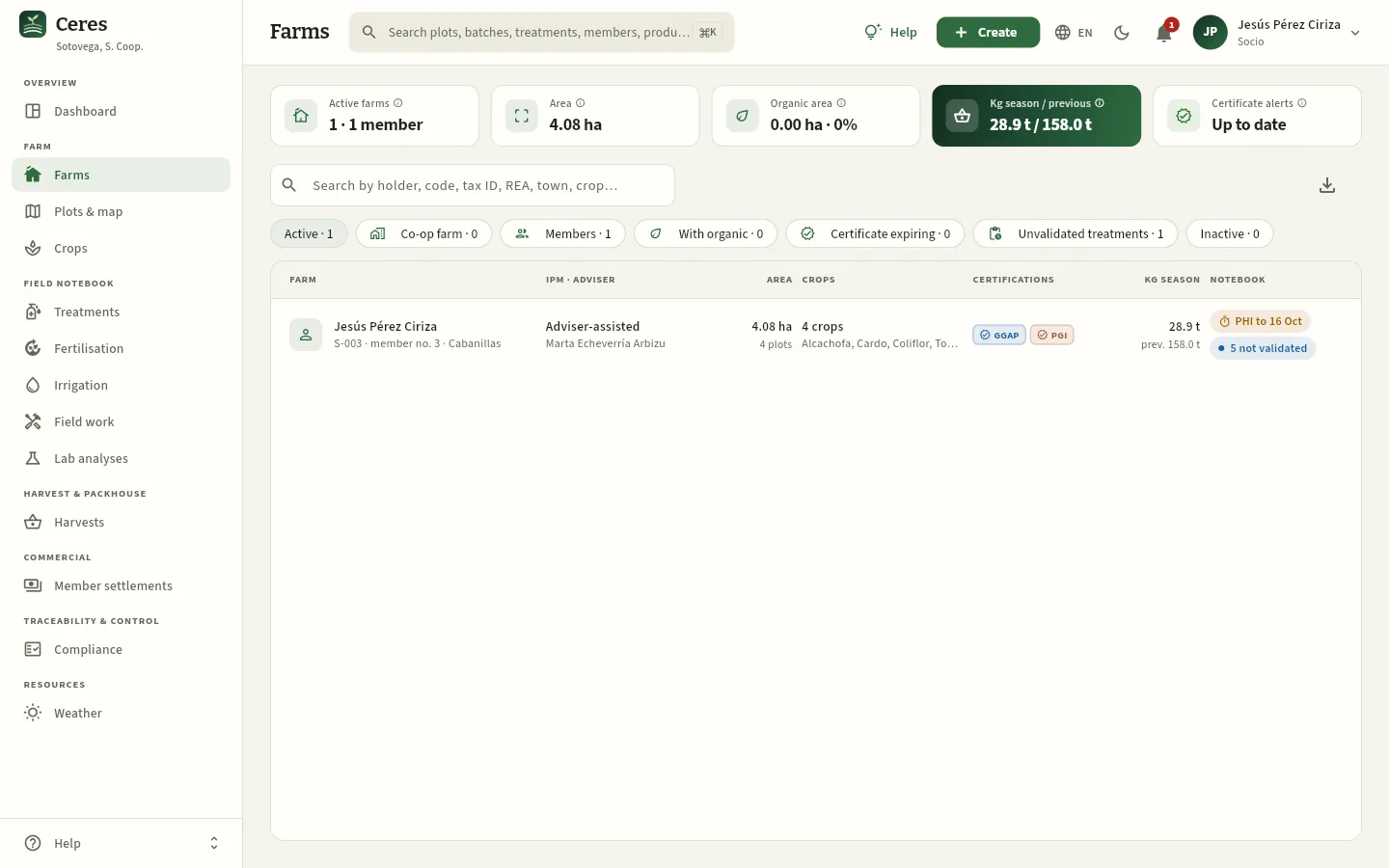 1234
- 1The figures are only his: 1 farm, 4.08 ha and his kilos for the season.
- 2His only row: that of S-003. Pressing it shows his record, his field log, his deliveries and his settlements.
- 3He can download his own data, but has no New farm and cannot edit.
- 4His sidebar: his farm, his plots and crops, his field log, his harvests, his settlements, compliance and weather.
#Tips
Farm
Plots & map
Each farm's SIGPAC parcels with their area, land use, irrigation, protection, zones (nitrate vulnerable, specific, organic, PGI or PDO) and soil; the map over the PNOA aerial photo with the SIGPAC layer, each crop's colour and the pre-harvest interval warning; each plot's vigour as seen by the Sentinel-2 satellite; and the outline editor.
A plot is a piece of a farm's land that is cropped as a unit. In Ceres each plot is a SIGPAC parcel (or part of one): the Geographic Information System for Agricultural Parcels, the same one the CAP and the digital field log use to identify land with seven numbers: province, municipality, aggregate, zone, polygon, parcel and enclosure. Plot S-003/01 · El Recuenco of Jesús Pérez Ciriza is SIGPAC parcel 31:108:0:0:13:4:1 (Navarre, Fustiñana, polygon 13, parcel 4, enclosure 1).
Each plot carries what determines what can be done on it: the cultivable area, the irrigation and whether it is open-field or protected, whether it is in a nitrate vulnerable zone or a specific zone, whether it is organic, whether it is registered in a PGI or PDO, and its soil data. With them Ceres checks treatments and fertilising and passes the quality labels on to the lots. And from space, the Sentinel-2 satellite measures its vigour every few days.
#The list of plots
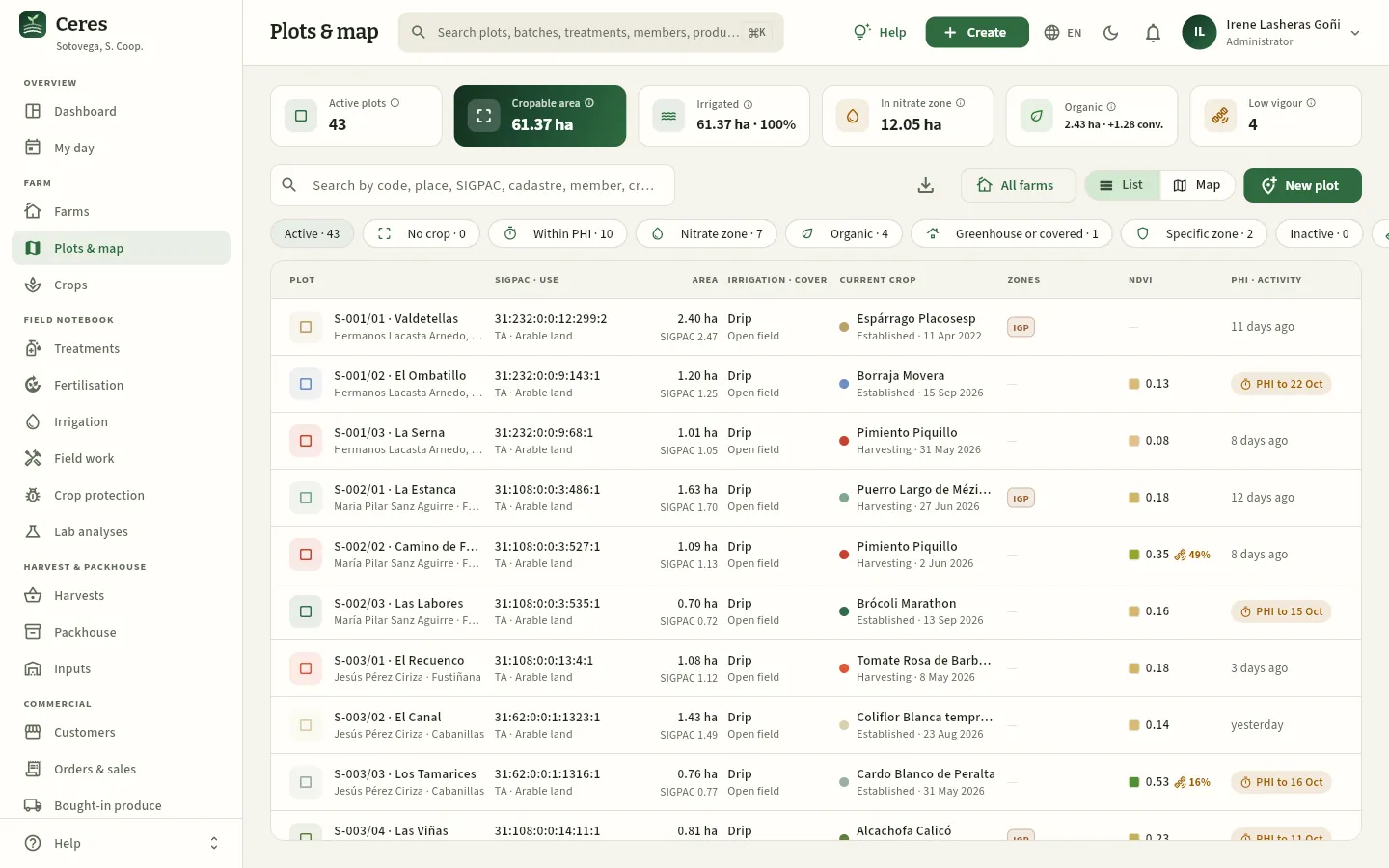 12345678
- 1Cultivable area of the active plots; on either side, how many there are, the irrigated land, the area in a vulnerable zone and the organic area (separately, the area in conversion).
- 2Low vigour: plots where the satellite sees part of the crop below its average. Click it to see only those (further down, Satellite vigour).
- 3Choose a farm to see only its plots, in the list or on the map (on the right, List or Map: Ceres remembers the last one you used).
- 4Filters: no crop, within pre-harvest interval, vulnerable zone, organic, greenhouse or protected, specific zone, inactive and low vigour.
- 5The SIGPAC reference and the land use (TA, arable land); under Area, the cultivable area and, below, that of the SIGPAC parcel.
- 6Zones: PGI or PDO, vulnerable zone, specific zone, organic.
- 7NDVI: the mean vigour in the latest satellite image; with the icon and the percentage, the part of the plot with low vigour (on S-002/02, 49 %).
- 8PHI · activity: the pre-harvest interval in progress or, if there is none, when the last operation took place.
The Current crop column says what is on the plot now (with the dot in the species' colour), its status and its planting date; Irrigation · protection, the irrigation system and whether it is open-field, greenhouse, net or tunnel. Press a row to open the record.
#The map
With Map the plots are shown over the PNOA aerial photo (the aerial photographs of Spain's National Geographic Institute, IGN), each in its crop's colour, the same as on the dashboard, the planner and the reports. Zoomed out, each plot is a dot; as you zoom in, you see its outline.
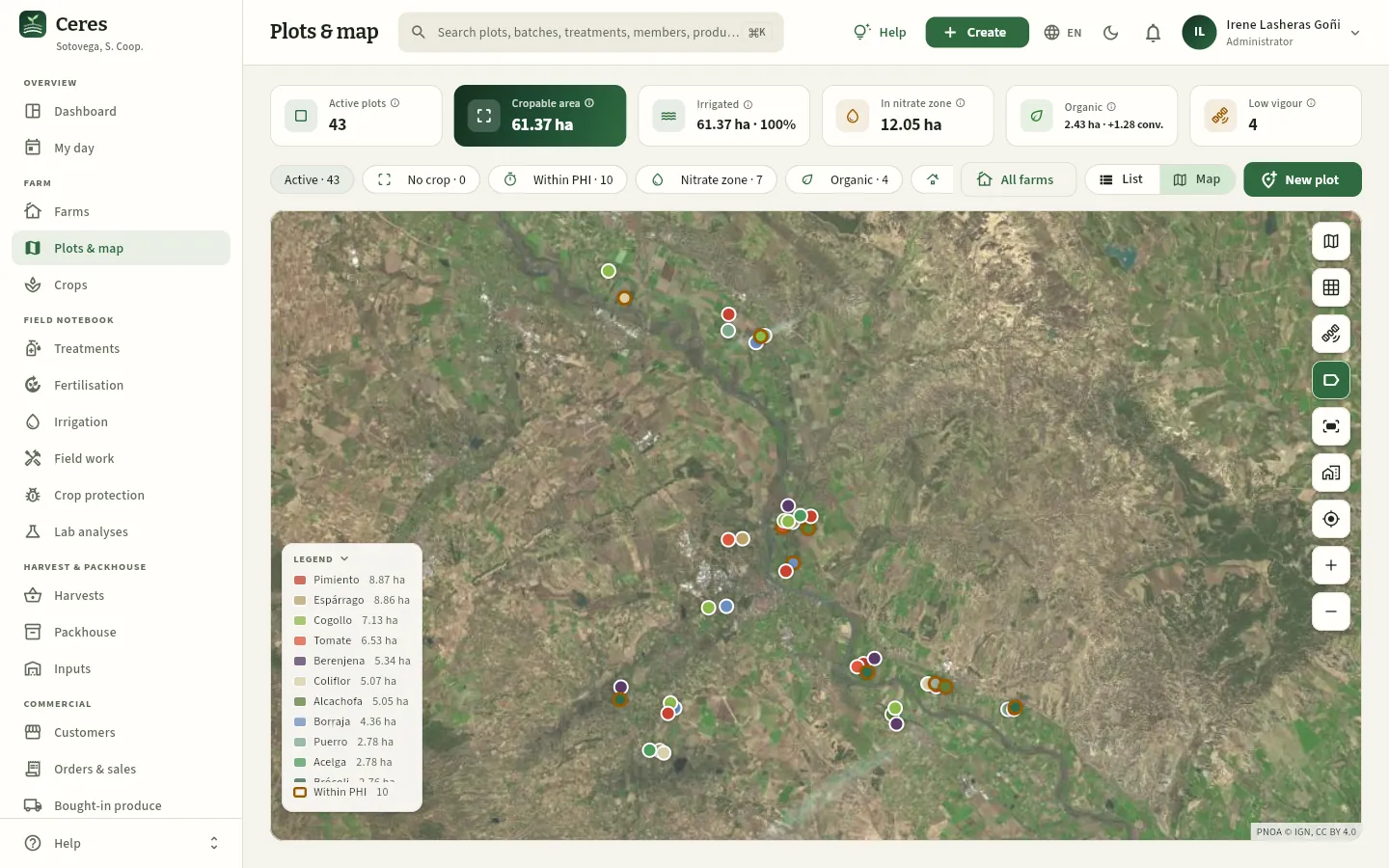 12345678
- 1The farm filter: the map zooms to its plots.
- 2Switch between the aerial photo and the street map (OpenStreetMap), to find your way to the plot.
- 3SIGPAC parcels: draws the official parcels on top (as you zoom in).
- 4Vigour layer (NDVI): each plot's vigour as seen by the satellite (further down).
- 5Plot codes: shows or hides the code of each one.
- 6Fit the plots, go to the cooperative and go to my location (on a phone, with GPS); below, zoom in and out.
- 7The legend: hectares per crop and how many plots are within a pre-harvest interval (amber border). It folds with its arrow.
- 8Each plot, in its crop's colour. Press one to open its record.
Choose a farm in the filter to zoom to its plots. For example, the four of Jesús Pérez Ciriza between Fustiñana and Cabanillas, with the SIGPAC parcels layer turned on:
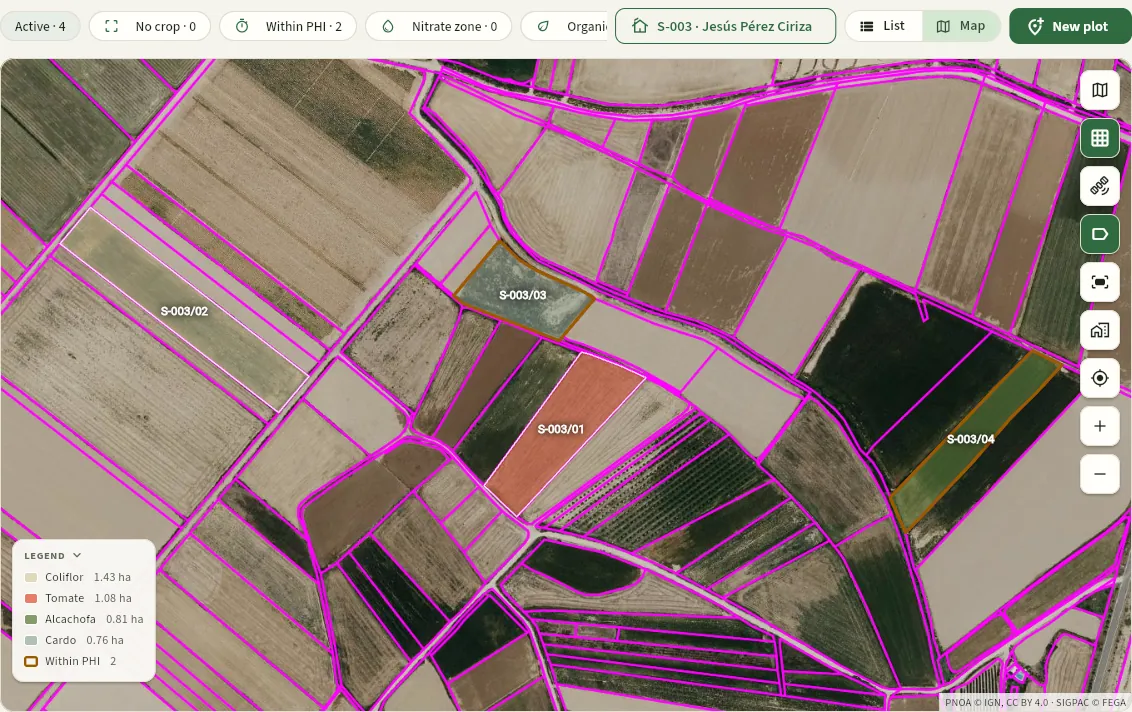 123456
- 1Only the plots of S-003; the figures at the top are also his only.
- 2S-003/03, with the amber border: the cardoon is within its pre-harvest interval and cannot be harvested yet.
- 3S-003/01, in tomato red: its outline drawn, with its code.
- 4The magenta lines are the official SIGPAC parcels: they let you check that the plot is drawn correctly.
- 5The SIGPAC layer, turned on.
- 6Where the maps come from: PNOA (© IGN) and SIGPAC (© FEGA).
#A plot's record
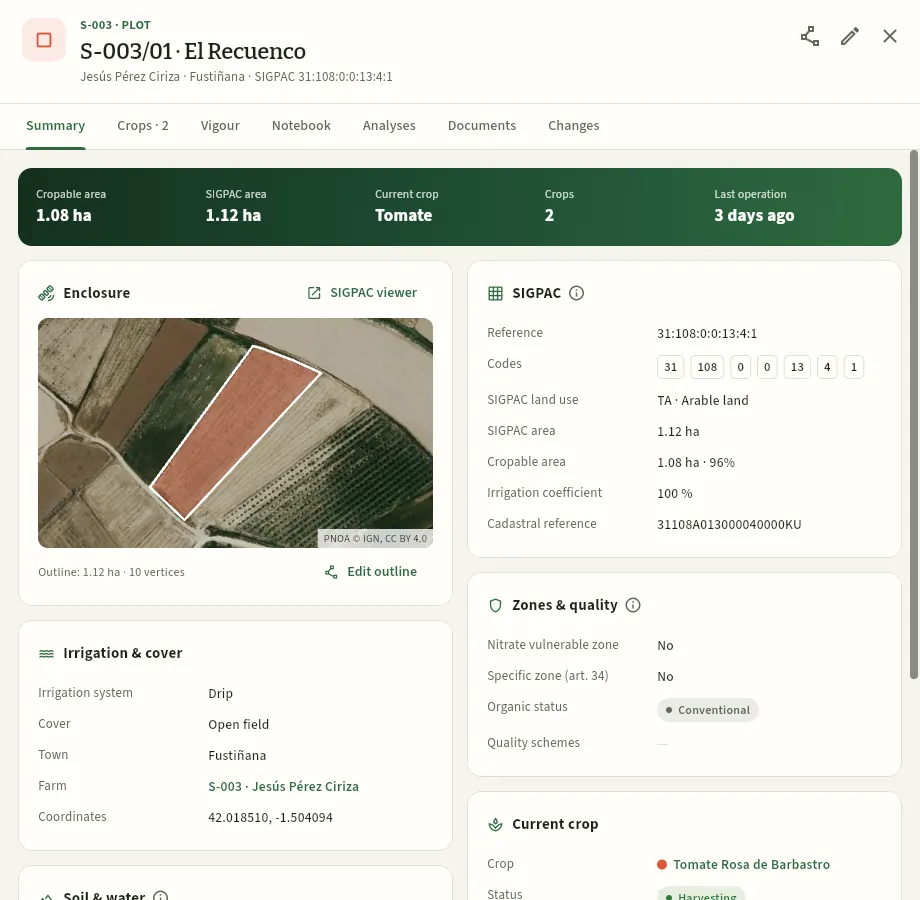 12345678
- 1Farm, code and location name; the member, the municipality and the SIGPAC reference.
- 2Edit outline (draw it on the map) and, to its right, Edit the plot's details.
- 3Cultivable and SIGPAC area, the current crop, how many crops it has had and the last operation.
- 4The outline drawn over the aerial photo, with its area and vertices.
- 5SIGPAC viewer: opens that parcel in FEGA's official viewer.
- 6SIGPAC: the reference and its seven codes, the land use, the parcel area, the cultivable area (and what share it is), the irrigation coefficient and the cadastral reference.
- 7Zones and quality: vulnerable zone, specific zone, organic status and quality labels (PGI, PDO).
- 8Irrigation and protection: irrigation system, open-field or protected, municipality, farm and coordinates.
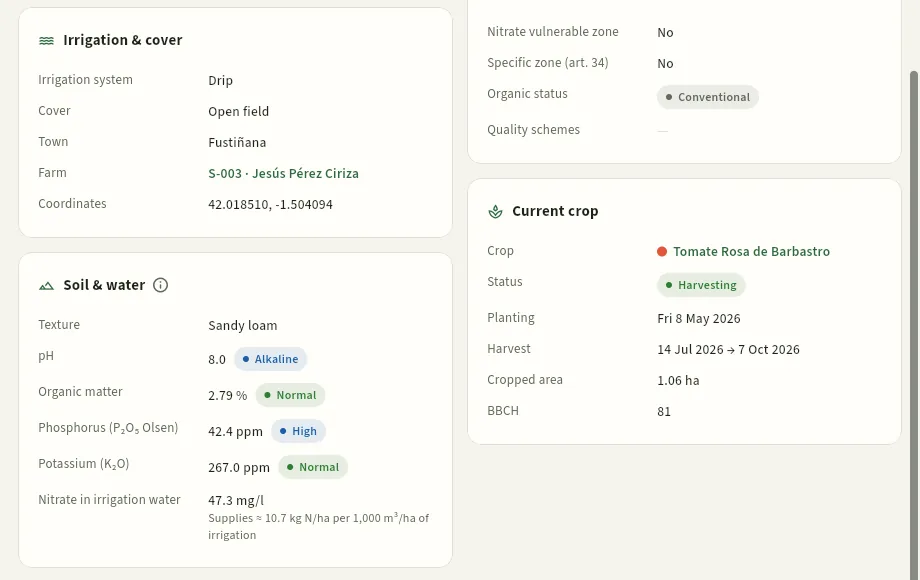 12
- 1Soil and water: texture, pH, organic matter, phosphorus and potassium from the last soil analysis, and the nitrates in the irrigation water, with the nitrogen they supply.
- 2Current crop: species and variety (opens its record), status, planting, harvest dates, area and BBCH.
The Soil and water values come from the last soil analysis and the last irrigation water analysis recorded in Lab analyses: when a new one is recorded, they come through here and into the fertiliser plan. If a plot has no soil analysis from the last five years, Compliance warns about it. If the plot is within a pre-harvest interval, an amber warning above the record says until when.
#The plot's rotation
The Crops tab of the record tells the plot's history: at the top, the crop sequence with its botanical family; below, each crop by season with its dates, area and yield. For example, the one for SV/04 · El Bocal, on the cooperative's farm:
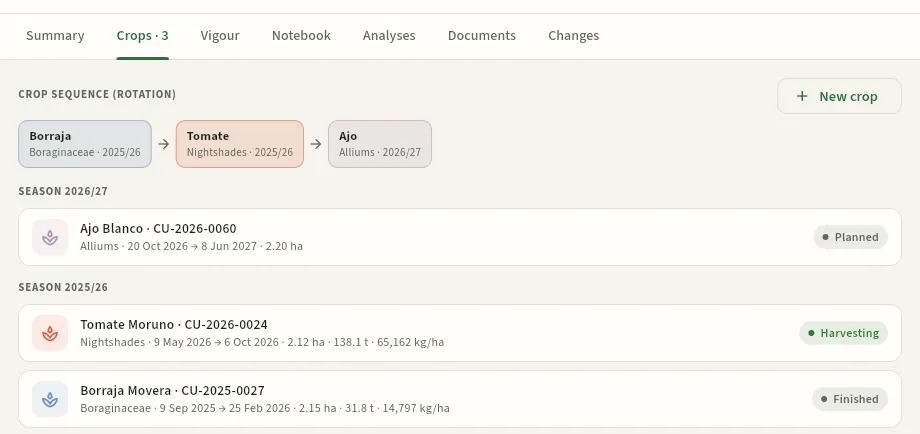 1234
- 1The rotation: each crop with its botanical family. If one repeats the family of the previous crop, it is flagged and a warning suggests alternating.
- 2New crop on this plot.
- 3The crops by season: the garlic is already planned for when the tomato finishes.
- 4Each crop with its number, family, dates, area, kilos and kilos per hectare. Press to open it.
Alternating families (here borage, a Boraginaceae; tomato, a Solanaceae; garlic, an Alliaceae) breaks the cycle of soil-borne pests and diseases. The Vigour tab (further down), Notebook (everything recorded on the plot, as for the farm), Analyses, Documents and Changes complete the record.
#Satellite vigour
Every few days, the Sentinel-2 satellite of the European Copernicus programme photographs the Ribera with 10-metre detail. From those images Ceres calculates each plot's NDVI (normalised difference vegetation index) over its SIGPAC parcel: a number from 0 (bare soil) to 0.8-0.9 (a dense, healthy crop) that tells you how much green, active vegetation there is. Only clear passes count: clouds, their shadows and haze are discarded.
It does not replace a visit, but it tells you where to look. If part of the plot falls behind the rest, Ceres warns of low vigour —on the record, in the list, on the dashboard and in the adviser's «Your day»—, and whoever visits finds the cause: irrigation, a pest, a disease, weeds, waterlogging…
On the map, the satellite button turns on the vigour layer. This is how María Pilar Sanz's three plots (S-002) look:
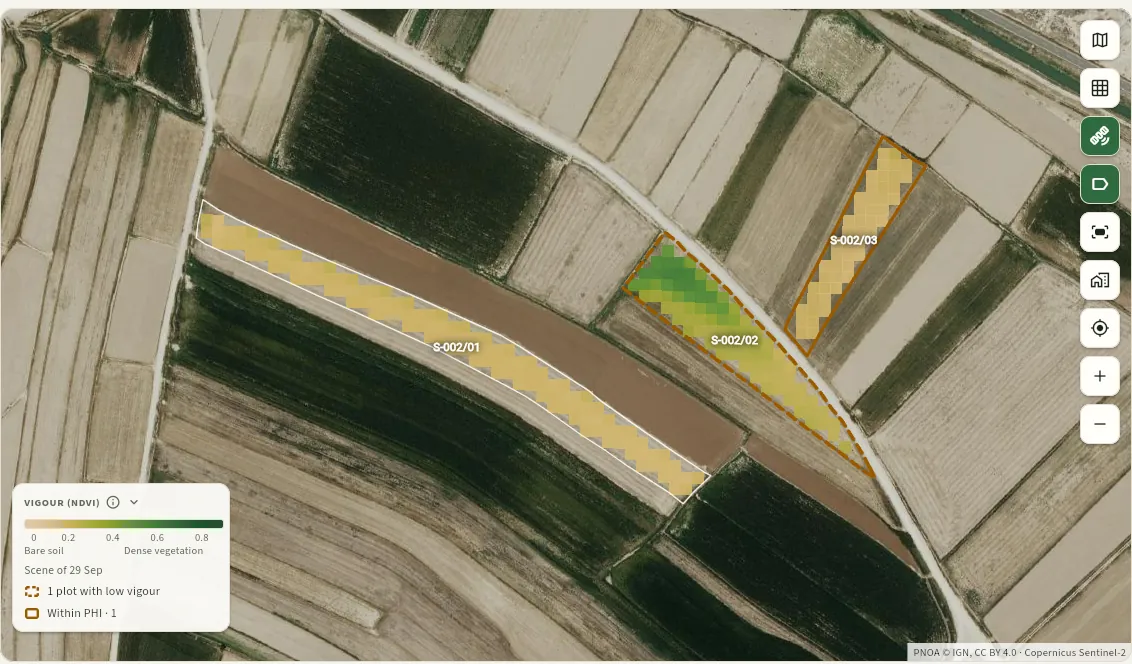 123456
- 1The vigour layer, turned on.
- 2S-002/02, the pepper, with a dashed border: it has low vigour. The yellow area in the south-east is the part that has fallen behind.
- 3S-002/03, with a solid amber border: it is within a pre-harvest interval.
- 4Each square is a 10 m pixel, coloured by its NDVI: from sand (soil) to dark green (dense vegetation).
- 5The legend: the NDVI scale, the image shown and how many plots have low vigour. Its ⓘ explains how it is calculated.
- 6The imagery: PNOA (© IGN) and Copernicus Sentinel-2.
With the map zoomed out, each plot is a dot coloured by its mean NDVI; as you zoom in, you see its pixels. Hover over it (or tap it on a phone) to see the plot, its NDVI and its low zone.
On the plot's record, the low-vigour warning appears in the Summary, with the View vigour button:
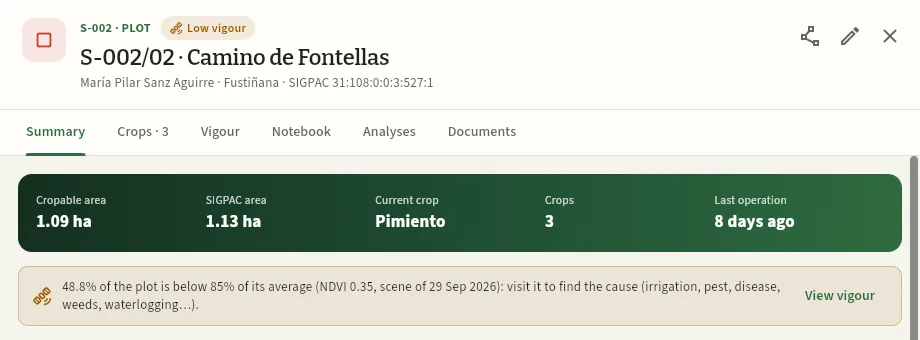 123
- 1The Low vigour tag in the header.
- 2The warning: 48.8 % of the plot is below 85 % of its average (NDVI 0.35 in the image of 29 September). Visit it to find the cause.
- 3View vigour opens the Vigour tab.
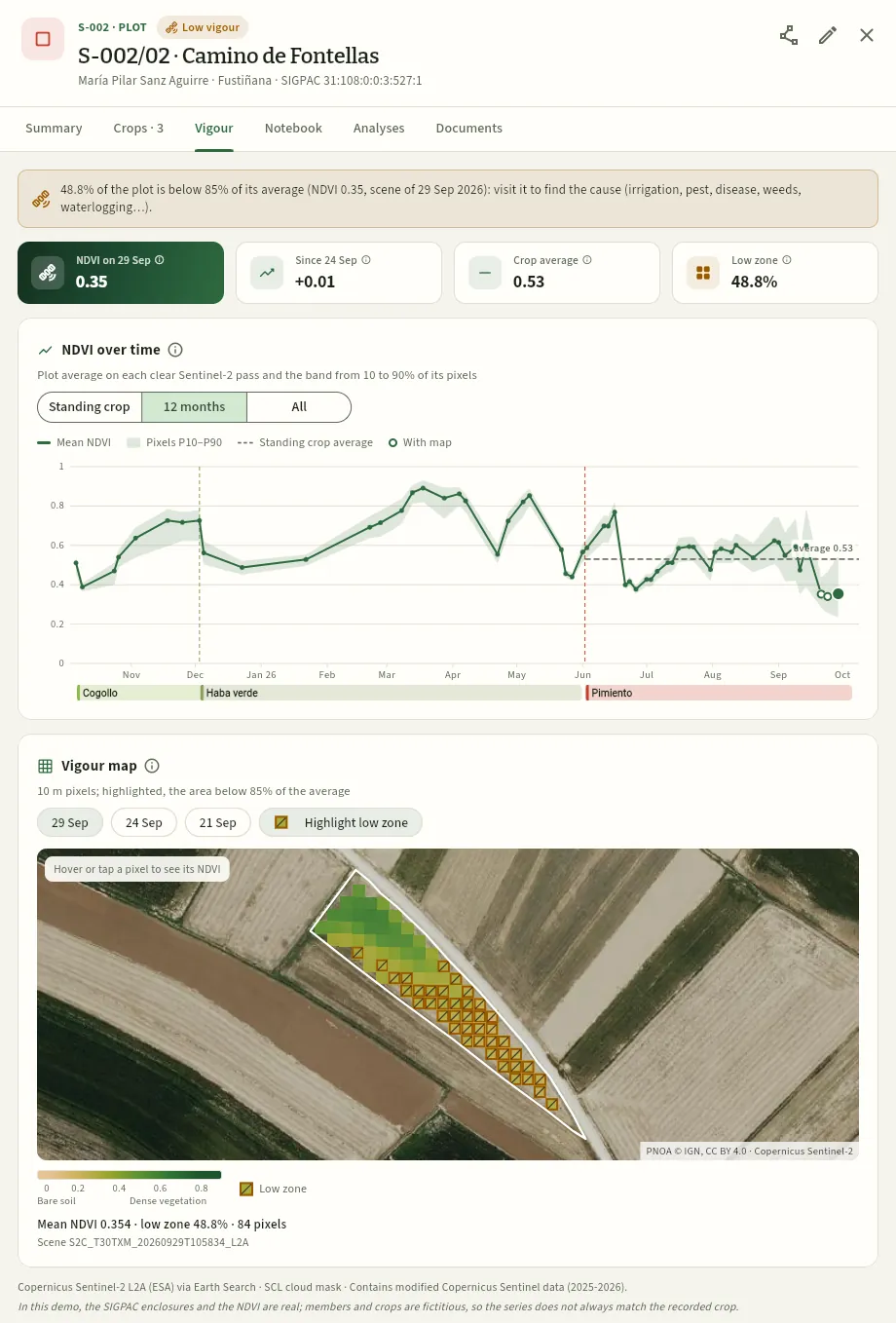 12345678
- 1The low-vigour warning, with the image in which it shows.
- 2The mean NDVI in the latest image (0.35)…
- 3…how much it has changed since the previous one and the crop average since it was planted (0.53)…
- 4…and the low zone: the part of the plot below 85 % of its average (48.8 %).
- 5The evolution: the standing crop, the last 12 months or everything.
- 6The mean NDVI of each clear pass, with the band of its pixels and the crop average; below, the plot's crops (little gem lettuce, broad beans and the pepper, which drops at the end of September).
- 7The last three images with a map and Highlight low zone.
- 8The vigour map: each 10 m pixel in its colour; hover over one to see its NDVI and what share of the average it is.
If the mean NDVI is very low, there is no warning even if the low zone is large: nearly bare soil or a crop with little cover gives differences that mean nothing. That is what happens with the tomato on SV/04, and the record explains it:
 1
- 1Why there is no warning: its mean NDVI (0.23) is that of nearly bare soil or a crop with little cover; the warning needs 0.30 or more.
#Drawing or importing the outline
The outline is the plot's boundary on the map. Without it, the plot does not appear on the map (the record warns «The plot has no outline drawn»). It opens with Edit outline in the record (or when adding a plot) and there are three ways to do it:
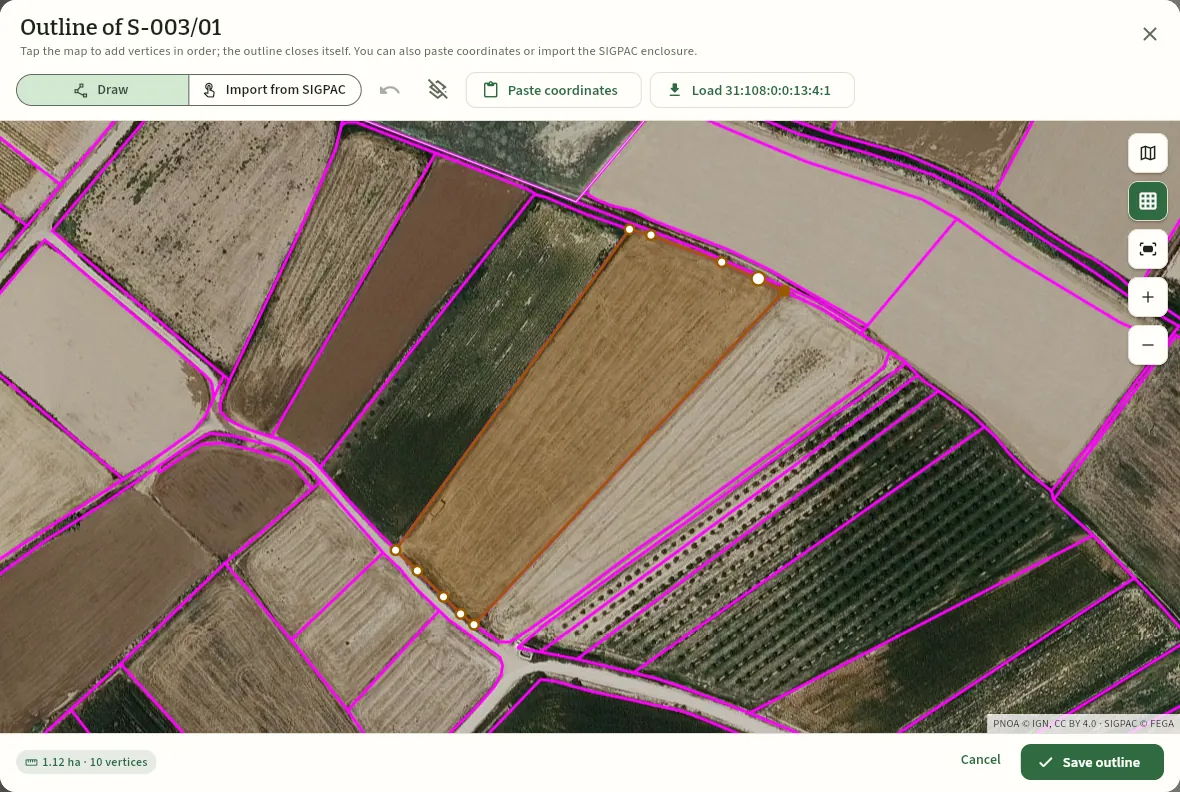 12345678
- 1Draw: tap the map to add vertices in order; the outline closes by itself.
- 2Import from SIGPAC: tap inside the official parcel and its boundary is copied.
- 3Undo the last vertex or clear them all.
- 4Paste coordinates: «lat, lon» per line, GeoJSON or WKT.
- 5Load the SIGPAC parcel of the plot's reference, in one tap.
- 6The outline, with its vertices. The magenta lines are the SIGPAC parcels.
- 7The outline's area and vertices, updated instantly.
- 8Save outline. If it measures differently from the cultivable area, Ceres warns you so that you check it.
Open the plot's record and press Edit outline (or, on a new plot, «New plot · place the outline»).
If the plot has its SIGPAC reference, press Load 31:108:0:0:13:4:1 (its reference): Ceres brings in the official parcel.
If it does not, choose Import from SIGPAC, zoom in with the mouse or your fingers and tap inside the parcel: its boundary and reference are copied.
If the plot is only part of the parcel, choose Draw and mark the vertices in order around the cropped part. Undo removes the last one.
Check the area at the bottom left and press Save outline.
#Adding a plot
New plot (in the list, or in More options of the farm record) starts by placing the outline and continues with the plot form, in blocks:
| Block | What is entered |
|---|---|
| Plot | Farm, code (S-003/05), location name and municipality |
| SIGPAC | Province, municipality, aggregate, zone, polygon, parcel and enclosure; cadastral reference, SIGPAC land use, irrigation coefficient and SIGPAC area |
| Area | The cultivable area, which cannot exceed the parcel's |
| Irrigation and protection | Irrigation system (drip, sprinkler, gravity, rain-fed…) and protection (open-field, greenhouse, net, tunnel) |
| Zones and quality | Nitrate vulnerable zone, specific zone (art. 34), organic status and since when, quality labels |
| Soil and water | Texture, pH, organic matter, phosphorus, potassium and water nitrates (an analysis also fills them in) |
| Location | Latitude and longitude, or the pasted outline |
Ceres warns you as you type: if the cultivable area is much smaller than the parcel («check margins, tracks or landscape features»), if the SIGPAC land use is not a cropping one, if the date of conversion to organic is missing, or what a vulnerable or specific zone implies.
#Tips
Farm
Crops
Each season's plantings: species, variety, planting material with its plant passport, dates, BBCH growth stage, expected against actual yield, costs and satellite vigour, with their whole field log; and the season planner, with each plot's occupancy week by week, the free gaps and the rotations.
A crop (in the database, a planting) is a species and a variety on a plot for a period of time: from sowing or transplanting until the harvest finishes or it is pulled out. Each one has its number (CU-2026-0051) and the whole field log hangs from it: treatments, fertilising, irrigation, field work and harvests.
A crop goes through these statuses:
- 1PlannedNot in the field yet: it does not accept treatments or harvests.
- 2EstablishedSown or transplanted: it is growing. It can already be treated, fertilised and irrigated.
- 3HarvestingIt is being harvested: it goes into the forecast and into My day.
- 4FinishedHarvest finished: the plot becomes free.
Crops are grouped by season, which in Ceres runs from 1 September to 31 August. Those that last several seasons (asparagus, artichoke) or cross September also appear in the following seasons while they are still alive.
#The list of crops
The list shows the crops of the chosen season. Here, with the Within PHI filter, the ten that cannot be harvested yet:
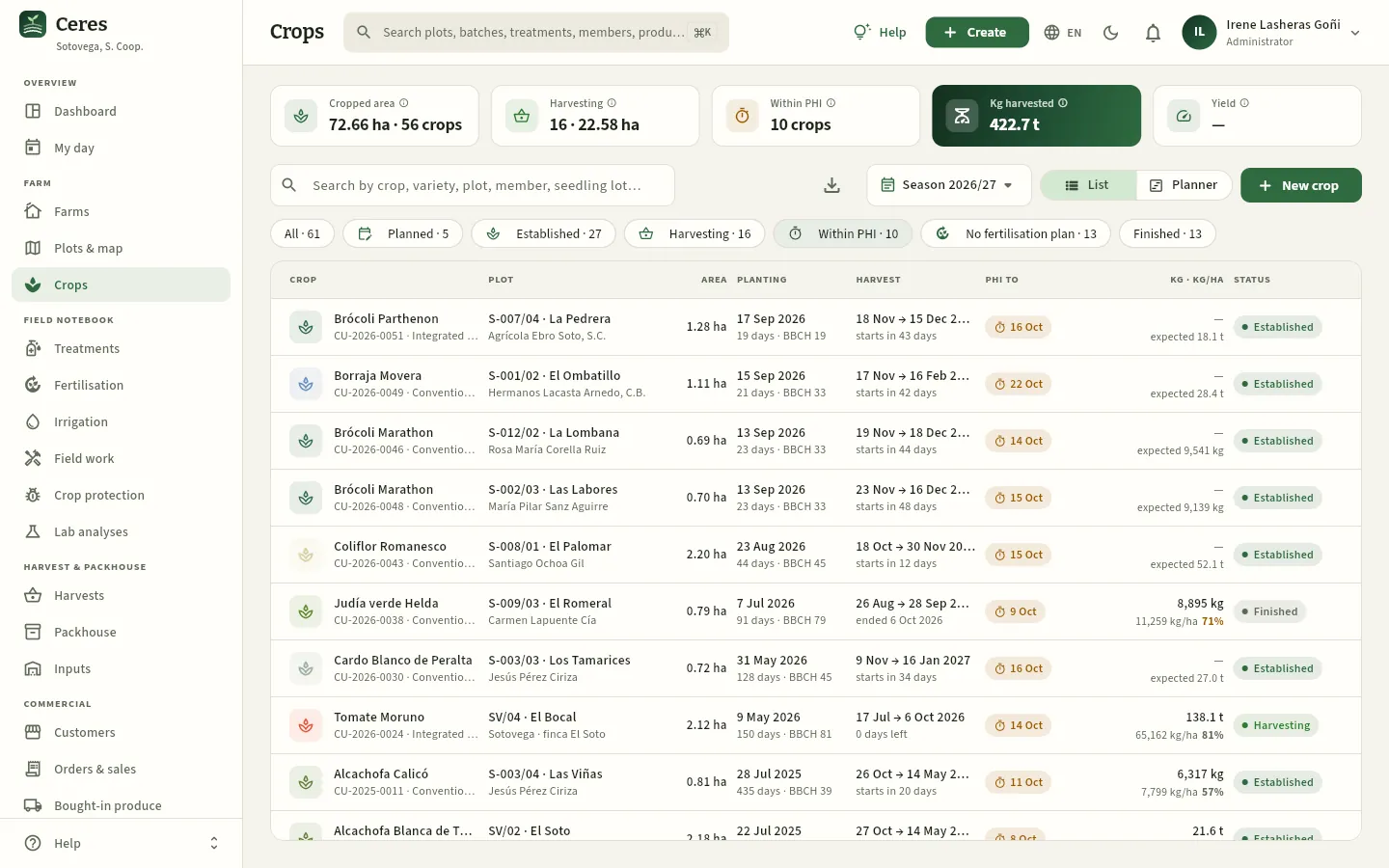 12345678
- 1Cropped area and number of crops; on the right, those being harvested, within a pre-harvest interval, the kilos harvested this season and the yield.
- 2The season you are looking at (the current one, by default).
- 3The season's List or Planner (further down).
- 4Filters by status, within pre-harvest interval, without fertilisation plan and finished.
- 5Each crop with its variety, number and system (integrated production, conventional or organic); its plot and the member. Press it to open the record.
- 6Establishment: the date, the days in the field and the last BBCH; Harvest: the planned dates and when it starts or ends.
- 7PHI until: the last day of the pre-harvest interval. Until then it cannot be harvested.
- 8Kg · kg/ha: what has been harvested, the yield and the percentage against the expected yield; if there is no harvest yet, the forecast.
#A crop's record
The record brings together everything about the crop. That of broccoli CU-2026-0051 of Agrícola Ebro Soto (S-007/04 · La Pedrera), transplanted on 17 September and treated on 3 October with TR-2026-0544:
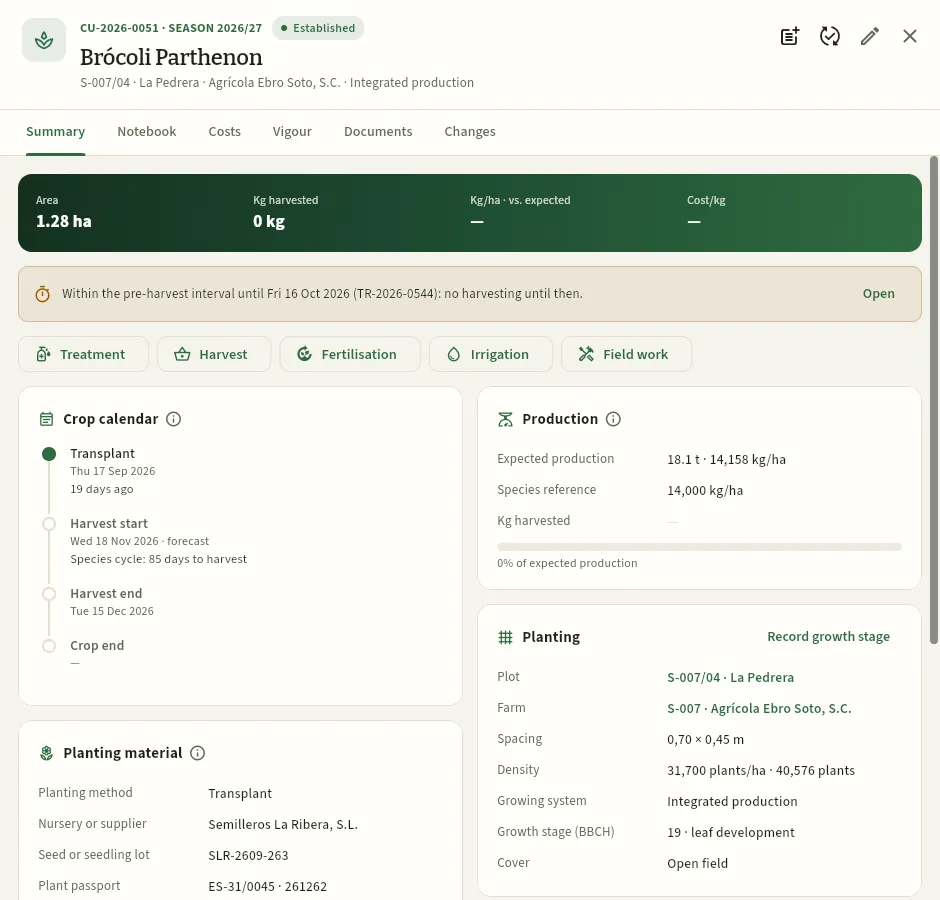 12345678
- 1Number and season, status, species and variety; the plot, the farm and the growing system.
- 2Record in notebook, Change status and Edit.
- 3Area, kilos harvested, kilos per hectare against the expected yield and cost per kilo (only with the costs permission).
- 4The pre-harvest interval: until when and because of which treatment. Open takes you to that treatment.
- 5Shortcuts to record a treatment, a harvest, a fertiliser application, an irrigation or a field task on this crop, with everything already filled in.
- 6The calendar: transplanting, start and end of harvest and end of the crop. Filled dots have already happened; empty ones are the forecast.
- 7Expected yield against the species reference and what has been harvested.
- 8Planting: plot, farm, spacing, density, system, growth stage (BBCH) and protection. Record growth stage updates it.
With the pre-harvest interval in progress, the database will not record a harvest of this broccoli until 17 October (the warning says until when and the treatment that started it). Further down the summary are the planting material and the crop notebook, which are better seen on a crop already being harvested.
#Expected against actual yield
The tomato CU-2026-0023 of Jesús Pérez Ciriza (S-003/01) was transplanted on 8 May and has been harvested since 14 July:
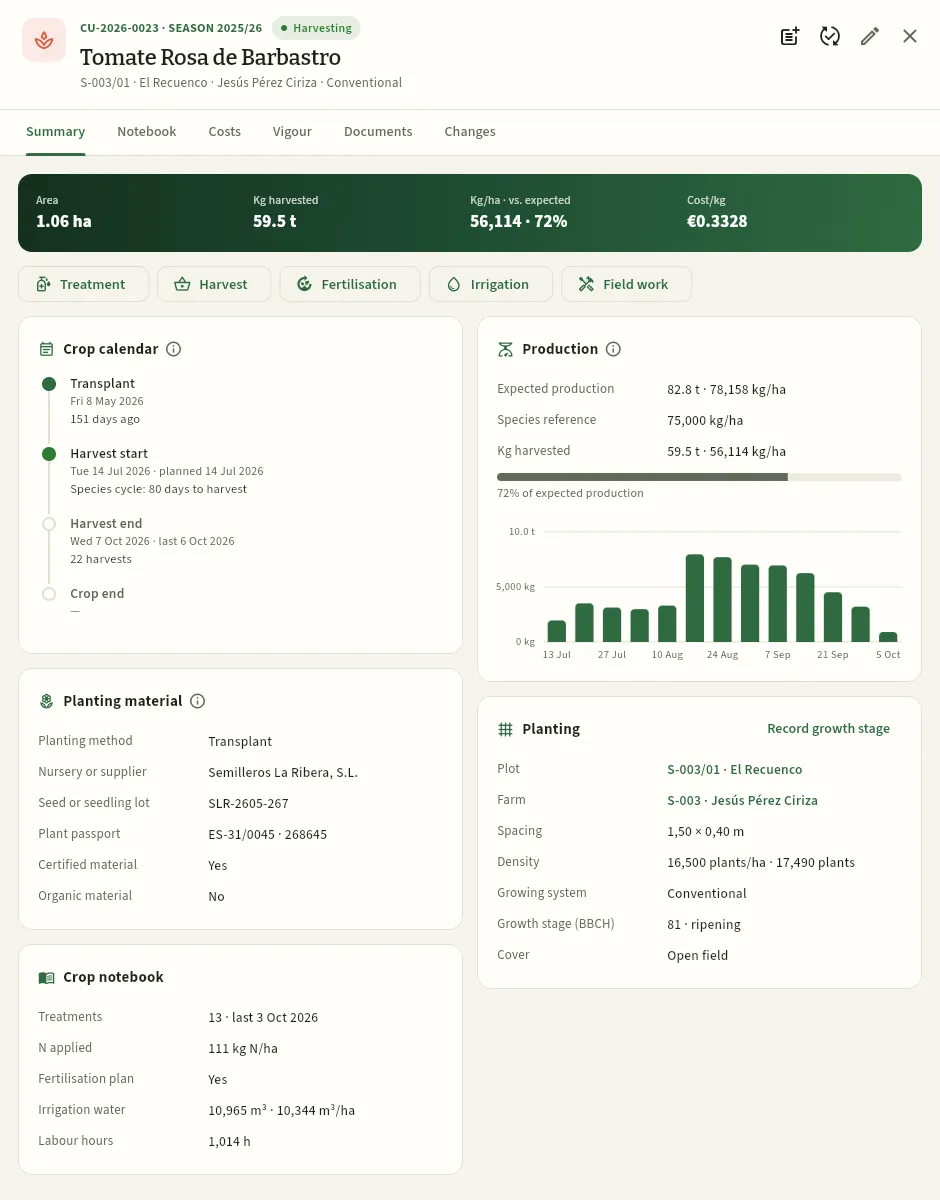 123456
- 159.5 t harvested: 56,114 kg/ha, 72 % of what was expected; and the cost per kilo.
- 2The actual start of the harvest (the first recorded one) next to the planned one, and the planned end with the last harvest and how many there have been.
- 3Production: the expected one (82.8 t), the species reference, what has been harvested with its progress bar and the kilos per week.
- 4Planting material: establishment, nursery, plant batch, plant passport and whether it is certified or organic material.
- 5Crop notebook: treatments and the last one, nitrogen applied, whether it has a fertilisation plan, irrigation water and hours of work.
- 6The Costs tab: what the crop has cost by item (plant protection products, fertilisers, plants, labour, machinery and water).
#The crop notebook
The record's Field log tab separates what has been recorded on the crop by type, each block with its button to add. For example, that of cauliflower CU-2026-0041 of Jesús Pérez Ciriza (S-003/02), which has a treatment order for today:
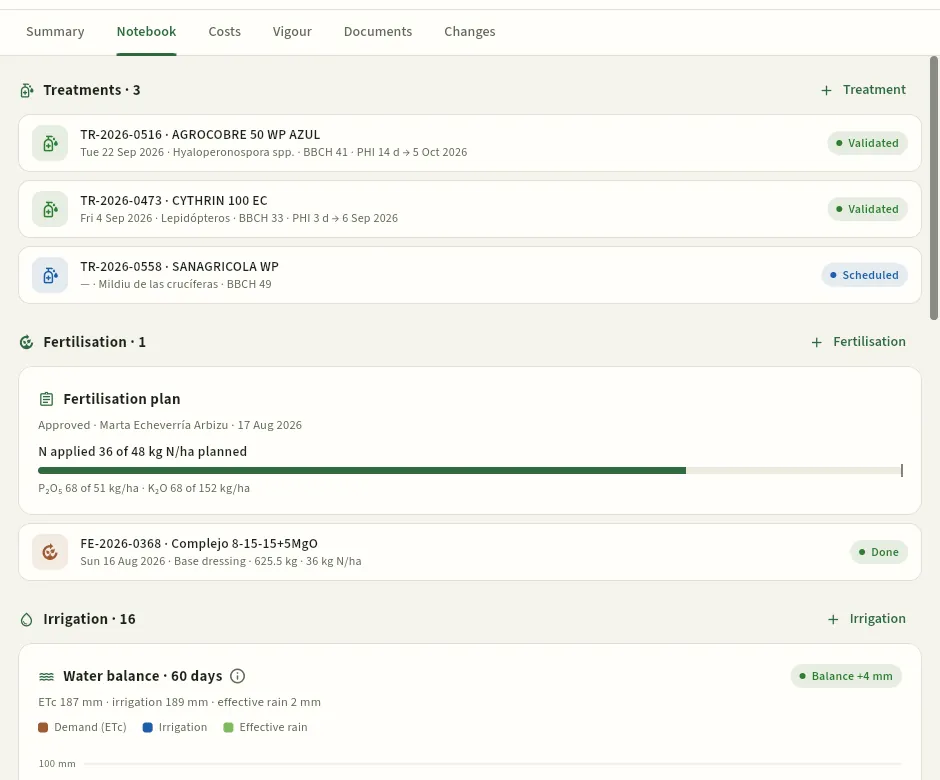 1234
- 1The crop's Treatments, newest first; below come fertilisation (with the fertilisation plan), irrigation with the water balance, field work and harvests.
- 2Adds a treatment to this crop.
- 3Each treatment: product, date, pest, BBCH and its pre-harvest interval («PHI 14 d → 5 Oct 2026»: within the interval until 5 October); on the right, its status.
- 4Today's order, still scheduled: it does not start a pre-harvest interval until the application is recorded.
#The crop's vigour
The Vigour tab shows what the Sentinel-2 satellite sees on the plot while the crop lasts, from planting to today: how it grows, when it peaks and whether part of it falls behind. It is the same information as the plot's Vigour tab, but only for this crop's cycle. This is how pepper CU-2026-0034 of María Pilar Sanz (S-002/02) is doing, with a low-vigour warning:
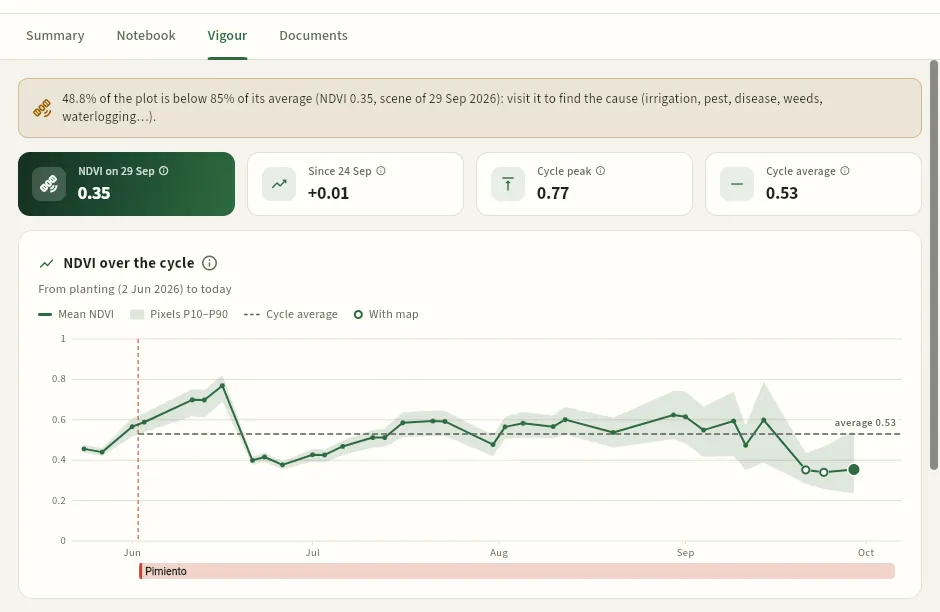 12345
- 1The crop's Vigour tab.
- 2The low-vigour warning for its plot: almost half of it below 85 % of its average.
- 3The NDVI in the latest image and how much it has changed since the previous one.
- 4The cycle's maximum and average: the pepper reached 0.77 and today it is at 0.35.
- 5NDVI over the cycle: from planting (2 June) to today, with the band of its pixels and the cycle average. Below, the vigour map of the last three images.
#Changing the status and recording the BBCH
The growth stage says at what point in its development the crop is, on the BBCH scale: a code from 0 to 99 whose first digit is the principal stage (0 germination, 1 leaves, 4 harvestable parts, 6 flowering, 7 fruit, 8 ripening, 9 senescence…). It matters because many authorised uses of a product only apply at certain stages, and each treatment record includes it.
 123
- 1Finish the crop: the harvest is over. It asks for the end date: from that day the plot is free.
- 2Remove the crop: it was pulled out early (a frost, a pest).
- 3Record growth stage: today's BBCH.
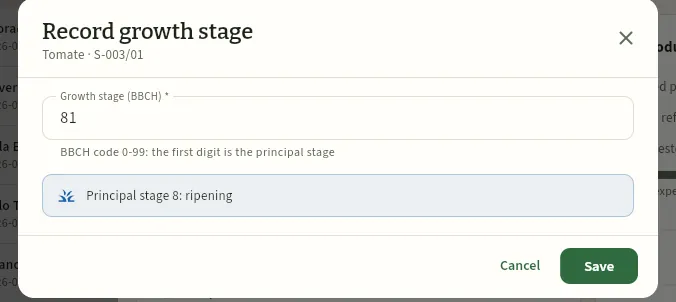 123
- 1The BBCH code, from 0 to 99.
- 2Ceres says which principal stage it belongs to (8: ripening).
- 3Save.
Depending on the status, Change status offers one thing or another: for a planned crop, Plant (now in the field); for an established one, Start harvesting (from then on it appears in the harvest forecast and in My day); for one being harvested, finish it or remove it; and for a finished one, Reopen (back to harvesting) in case it was closed too early. Ceres warns you on the record when the harvest should have started or ended according to the calendar, and if you try to finish a crop that still has a pre-harvest interval or has no harvest at all.
#Creating a crop
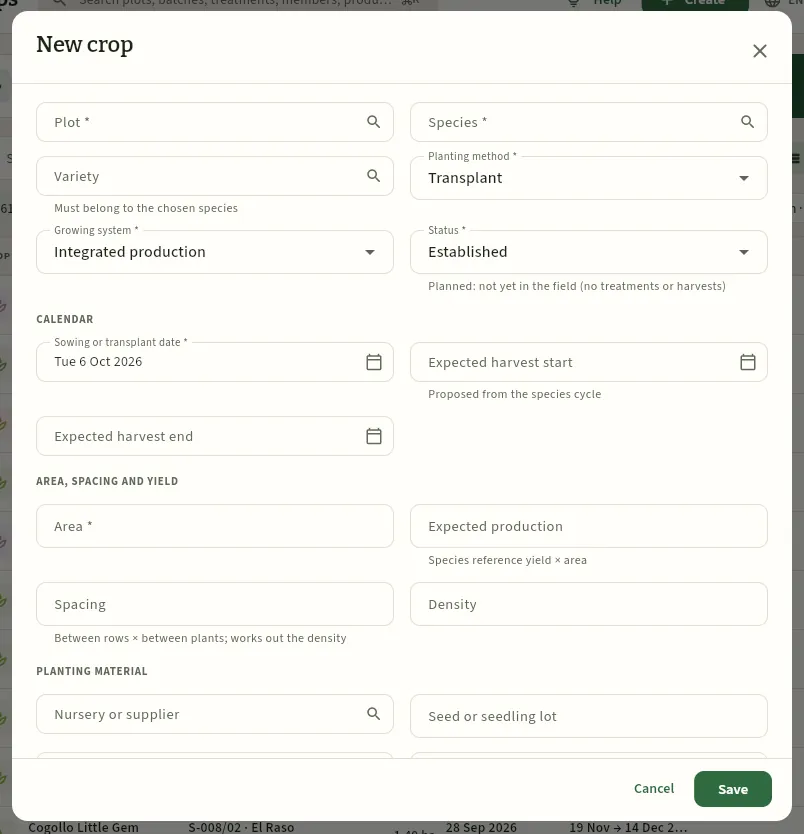 1234567
- 1The plot (with its farm).
- 2Species and variety (of that species); establishment (sowing or transplanting).
- 3Status: «Planned» if it is not in the field yet.
- 4The sowing or transplanting date; the start of harvest is proposed from the species' cycle.
- 5Expected yield: proposed from the reference yield × the area.
- 6Spacing (between rows × between plants): it calculates the density.
- 7Planting material: nursery, batch, plant passport and whether it is certified or organic.
In Crops, press New crop (or do it from the plot's or the farm's record, with the plot already set).
Choose the Plot, the Species and the Variety, the Establishment (sowing, transplanting or perennial) and the Growing system (conventional, integrated production or organic).
If it is not in the field yet, leave the Status as «Planned»; if it is, «Established».
Enter the Sowing or transplanting date. Ceres proposes the Planned harvest start from the species' cycle; adjust the Planned harvest end too.
Check the Area (by default, the plot's free area) and the Expected yield. Enter the Spacing if you know it.
Under Planting material, record the nursery, the seed or plant batch and the plant passport.
Click Save.
#The season planner
Planner shows each plot's season on a timeline, week by week: what occupies it, what gaps remain and where a family is repeated. It is the tool for deciding what is planted, where and when.
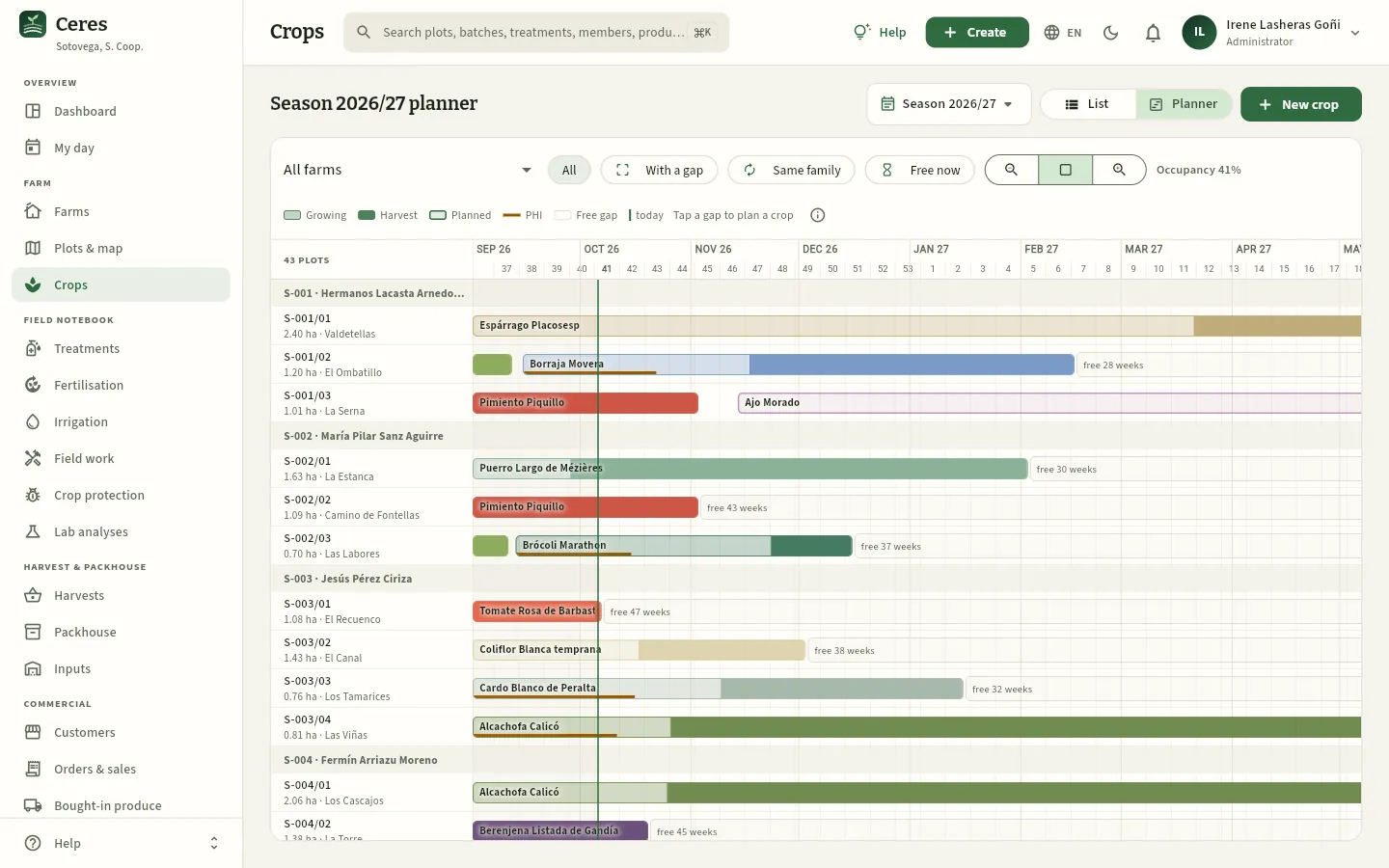 12345678
- 1The season you are planning.
- 2One farm or all of them.
- 3With a gap, Same family or Free now: only those plots.
- 4Zoom out, see the whole season and zoom in.
- 5Occupancy: what share of the season's area and time has a crop.
- 6Today.
- 7Each bar is a crop, in its species' colour: faint from transplanting to the start of harvest, solid during the harvest; with a border, planned. The amber stripe, the pre-harvest interval.
- 8A free gap: tap it to plan a new crop there.
On the left are the plots grouped by farm, with their area and location name. Press a bar to open the crop or a gap in a row to create a planned crop there, with the plot and the dates already filled in. Bars with a rotation warning repeat the family of the previous crop on that plot.
#Tips
Field notebook
Treatments
The cooperative's plant protection treatment record: the adviser's recommendation with its integrated pest management justification, the treatment order (date, operator and equipment), the application with its conditions and the adviser's validation with their signature. Products are chosen from the uses authorised in the MAPA Register and the database checks everything live: dose, number of applications, interval, valid product, organic, specific zones, licence, ITEAF, wind, stock and pre-harvest interval; and it warns if the treatment clashes with customers' residue requirements or repeats the mode of action.
Treatments is the heart of the field log: every plant protection product applied on the plots of the cooperative's farm and its members is recorded here, who recommended it and why, who applied it, with what equipment and in what conditions, and when the crop can be harvested. It is the record the regulations require in electronic form from 1 January 2027, and Ceres keeps it from the recommendation to the adviser's signature.
Some trade terms used in this chapter (all of them are in the Glossary):
- Recommendation: the adviser's integrated pest management proposal: what to treat, why (threshold exceeded, official pest warning, symptoms, preventive) and which non-chemical alternatives were considered.
- Treatment order: what is going to be applied, when, who (the operator) and with what equipment. It appears in the operator's My day on the planned day.
- Application: the treatment once done, with its date and time, the conditions (temperature, humidity, wind) and the product batch used. From then on it counts in the field log and the pre-harvest interval runs.
- Pre-harvest interval (PHI, plazo de seguridad): the days that must pass from applying a product until the crop can be harvested. The product label sets it for each crop.
- Authorised use: each combination of product, crop (or crop group) and pest (or pest group) that the official Plant Protection Products Register of the MAPA allows, with its dose, its PHI, its maximum number of applications and the interval between them.
- IPM (integrated pest management, GIP): spraying only when needed and giving priority to non-chemical methods. The adviser who signs it is registered in the ROPO (official register of producers and operators).
- Spraying licence: the professional user's licence for plant protection products (basic, qualified…), valid for 10 years. ITEAF: the compulsory technical inspection of application equipment, every 3 years.
- BBCH: the crop's growth stage on the BBCH scale (81, for example, is the start of ripening in tomato).
- 1RecommendationThe adviser justifies the treatment (IPM) and proposes the product and dose, often from a field visit.
- 2OrderIt is scheduled with a date, operator and equipment. The database already checks the authorised use, the dose, the licence and the ITEAF.
- 3ApplicationThe operator records it when finished (in My day): conditions, batch used and «harvest from».
- 4ValidationThe adviser assesses the efficacy and signs on screen: the record is closed.
| Status | What it means |
|---|---|
| Recommended | The adviser's proposal, with no date or operator yet. It does not count in the field log. |
| Scheduled | An order with a planned date, operator and equipment. It shows in My day; if the date passes without recording it, it is overdue. |
| Applied | The application is recorded: it counts in the field log, took the product out of the store and set the pre-harvest interval. The adviser's validation is still missing. |
| Validated | The adviser has validated it with their signature and their efficacy assessment. It can no longer be cancelled. |
| Cancelled | It was cancelled with a reason (a recommendation that is not applied, an order that is called off or an application recorded by mistake). |
#The list of treatments
When you open it you see all the treatments of the farms assigned to you, newest first: the orders for the coming days at the top and, below, the applications already recorded. Marta, the field adviser, sees the cooperative's farm and members S-001 to S-010.
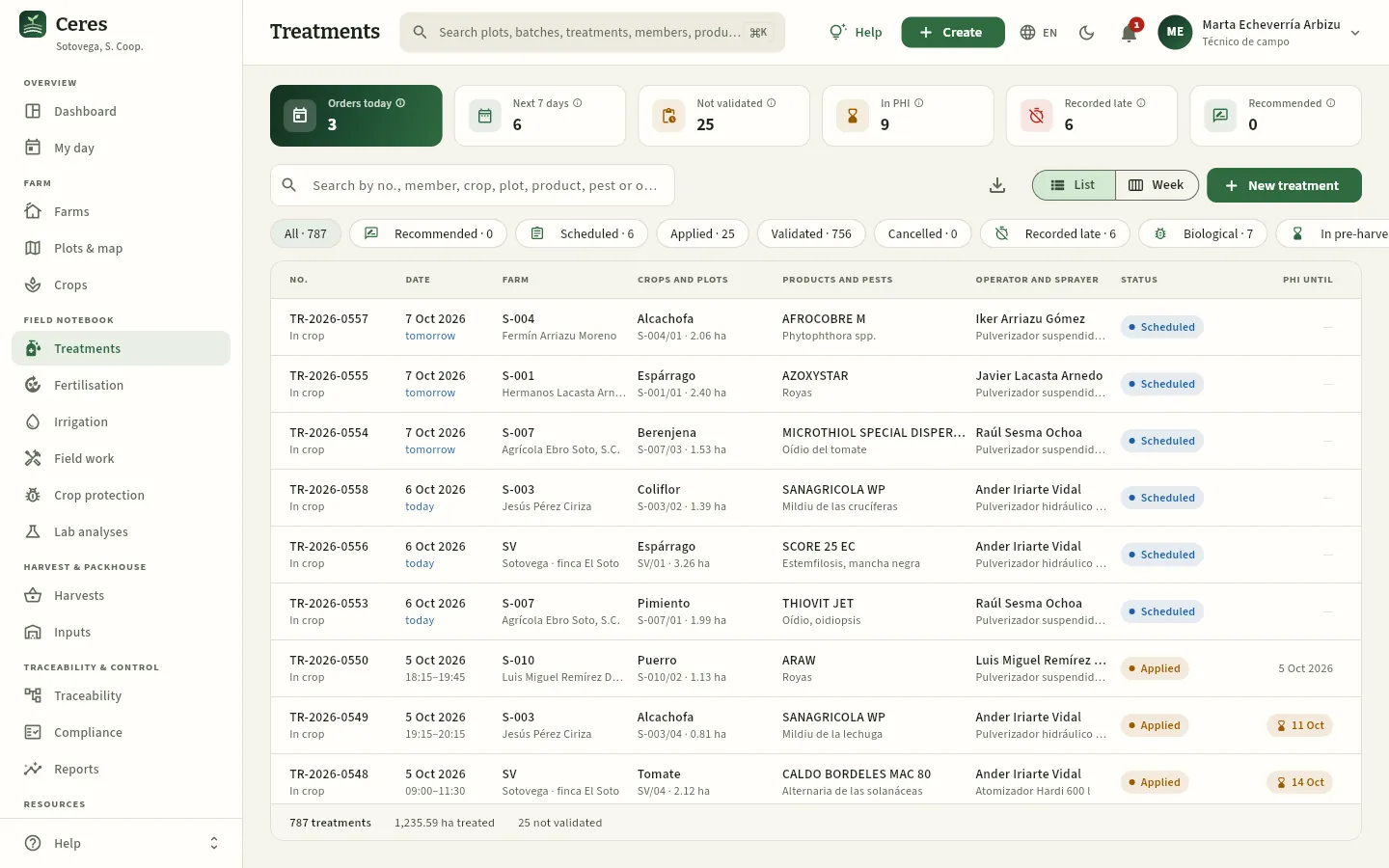 12345678
- 1The indicators: orders today (and overdue ones), orders in the next 7 days, applications not validated, treatments with a plot within the pre-harvest interval, those recorded late and pending recommendations. Each one filters the list when pressed and its ⓘ explains the calculation.
- 2The search box: by number, member, crop, plot, product, pest or operator.
- 3List or Week: the week shows the orders on a calendar (you see it further down). To its left, Export CSV.
- 4New treatment: a recommendation or an order (with «Recommend treatments» or «Schedule treatments»).
- 5The filters, with their count. Swipe the row to see the last ones: Within PHI and This season.
- 6Each row: number and scope, date (the planned one, with «today», «tomorrow»…, or the application date with its hours), farm, crops and plots with their area, products and pests, and operator and equipment. This is today's order for the cauliflower of S-003.
- 7The status. Next to it, a red clock if it was recorded late and a pen if it is validated with a signature.
- 8PHI until: the last day without harvesting. In amber while it lasts (hover for «Can be harvested from…»); «Not applicable» if the product has no interval.
| Filter | What it shows |
|---|---|
| All | Everything except cancelled ones. |
| Recommended | The adviser's recommendations not yet scheduled or applied. |
| Scheduled | Orders waiting to be applied. Overdue ones (date already passed) are tinted amber. |
| Applied | Recorded applications waiting for the adviser's validation. |
| Validated · Cancelled | The closed history. |
| Recorded late | Applications entered in Ceres after the recording deadline (30 days by default). |
| Biological | Those that include biological control (releases of beneficials). |
| Within PHI | Those with a plot that cannot be harvested yet. |
| This season | Those of the current season (from 1 September). |
#The week of orders
With Week (or by pressing the Next 7 days indicator) you see the orders on a Monday-to-Sunday calendar: what has to be applied each day, by whom and with what. It is the foreman's and the adviser's view for sharing out the work.
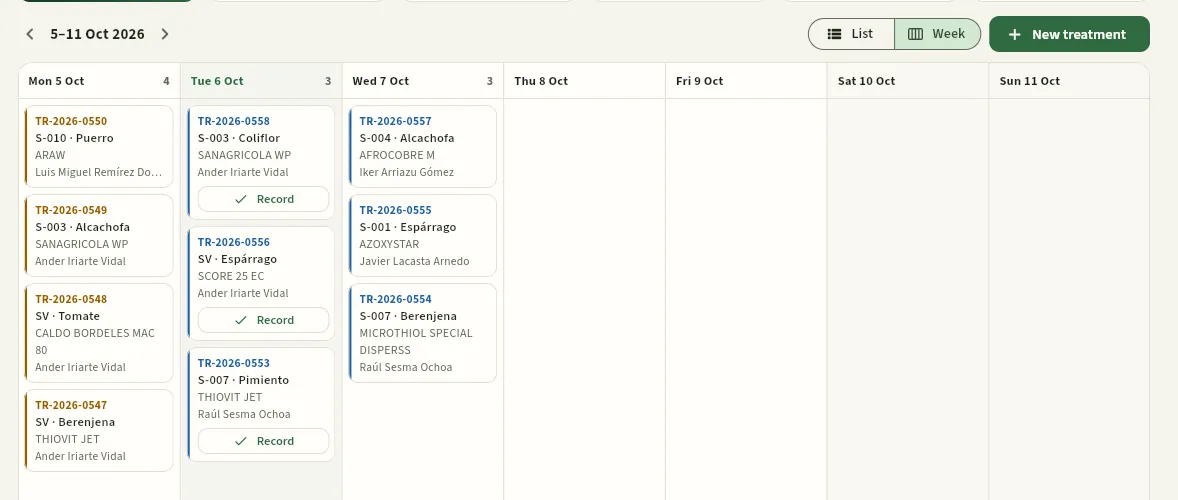 1234
- 1Previous and next week; Today takes you back to the current week.
- 2Each day, with how many orders it has. Today is highlighted.
- 3An order: number, farm and crop, products and operator. Press it to open its record.
- 4Record: on today's or overdue orders, opens the application record (with the «Apply treatments» permission).
#The treatment record
Press a treatment to open its record. At the top, the number, the farm, the status and the products; below, the tabs Summary, Recommendation, Traceability and Documents (and Changes, with the audit permission). Order TR-2026-0558 is for today: SANAGRICOLA WP against downy mildew on the cauliflower of S-003/02, to be applied by Ander with the PU-01 sprayer.
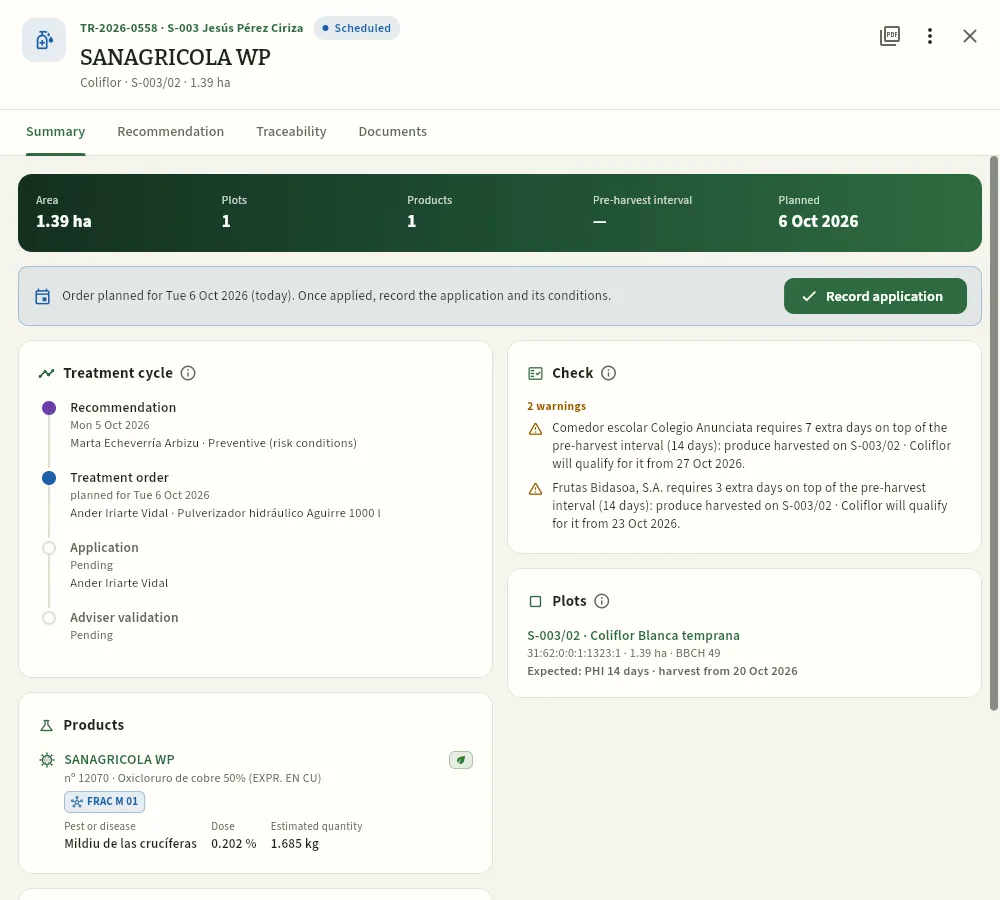 12345678
- 1Number, farm, status, products and, below, crops, plots and area.
- 2The PDF: the treatment order while it is pending, or the treatment record once applied.
- 3The actions the status and your profile allow: edit, schedule, record the application, validate, assess efficacy or cancel.
- 4The figures: area, plots, products, pre-harvest interval (once applied) and the planned or application date.
- 5The next step in the cycle with its button: here, Record application.
- 6The cycle: recommendation, order, application and validation, each step with its date and its person.
- 7The check against the Register: green if there are no issues; otherwise, the errors (red) and warnings (amber). Here, two customers who ask for extra days on top of the pre-harvest interval (further down, Customer residues and mode of action).
- 8Each plot with its SIGPAC parcel, area and BBCH, and the expected interval if applied on the planned date: «PHI 14 days · harvest from 20 Oct 2026».
Further down, the Summary continues with the products and the application.
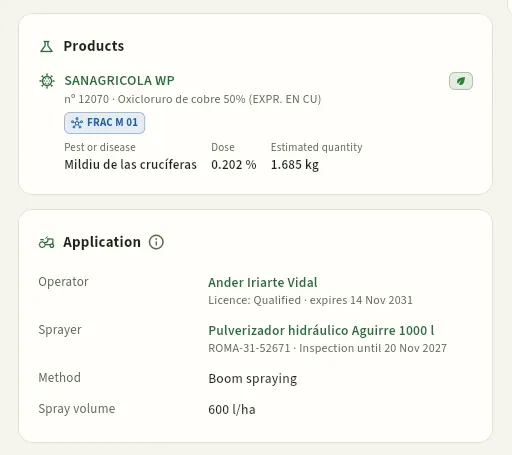 123456
- 1The product with its registration number, its active substance and the badge if it is suitable for organic (opens its record in Catalogues).
- 2The mode of action of its active substance: FRAC M 01, that of copper. Hover over it to see the group's name.
- 3Pest, dose and quantity: the estimate while it is an order, the amount used once recorded (with the store batch, if one was chosen).
- 4The operator, with their licence level and expiry (in red if it expires before the treatment date).
- 5The equipment, with its ROMA number and until when its ITEAF is valid (in red if it expires before).
- 6Method and spray volume (litres of water per hectare). Once applied, also the hours and the conditions, with «High wind» if it was above the maximum.
The ⋮ menu changes with the status. On a recorded, not yet validated application, such as TR-2026-0550 (ARAW on the leek of S-010/02, applied yesterday), these are the adviser's actions:
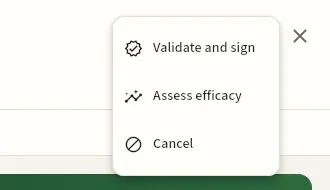 123
- 1Validate and sign (adviser).
- 2Assess efficacy without validating yet.
- 3Cancel: returns the product to its batch and removes the pre-harvest interval.
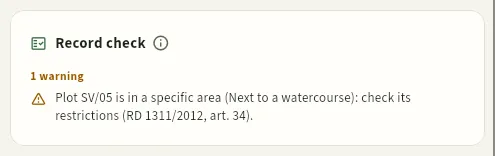 1
- 1A warning (in amber): it does not prevent the application, but asks you to check the zone's restrictions before spraying.
| Status | Actions (depending on your profile) |
|---|---|
| Recommended | Edit, Schedule (turn it into an order), Record application, Cancel. |
| Scheduled | Edit, Record application (if the planned date is today or has passed), Cancel. |
| Applied | Validate and sign, Assess efficacy, Cancel. |
| Validated | Assess efficacy (if it was left pending). It can no longer be cancelled. |
#Recommendation and traceability
The Recommendation tab gathers what justifies the treatment: the integrated pest management justification, the scope, the recommendation date, the adviser's observations and the non-chemical alternatives considered, the adviser with their ROPO number, the Crop protection visit it came from (if any) and the farm.
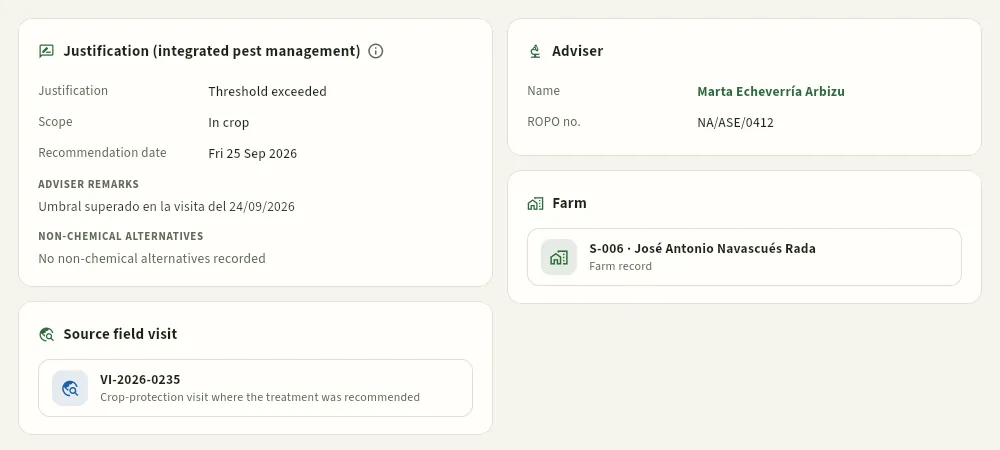 1234
- 1Justification (threshold exceeded, official pest warning, symptoms, preventive or other), scope (in crop, post-harvest, store or seed) and date.
- 2The adviser's observations and the non-chemical alternatives. If they are not recorded, the record says so: IPM asks for priority to be given to those methods.
- 3The source visit: the field report where the pest was seen above the threshold. Press it to open it.
- 4The adviser with their ROPO number. If it is missing, a warning appears: complete it in People.
The Traceability tab of an applied treatment answers the question that matters when there is a residue alert: what was harvested on those plots after the treatment and who was it sold to? TR-2026-0517 (ADINA on the pepper of S-010/01, against aphids, applied on 22 September and validated) shows it lot by lot.
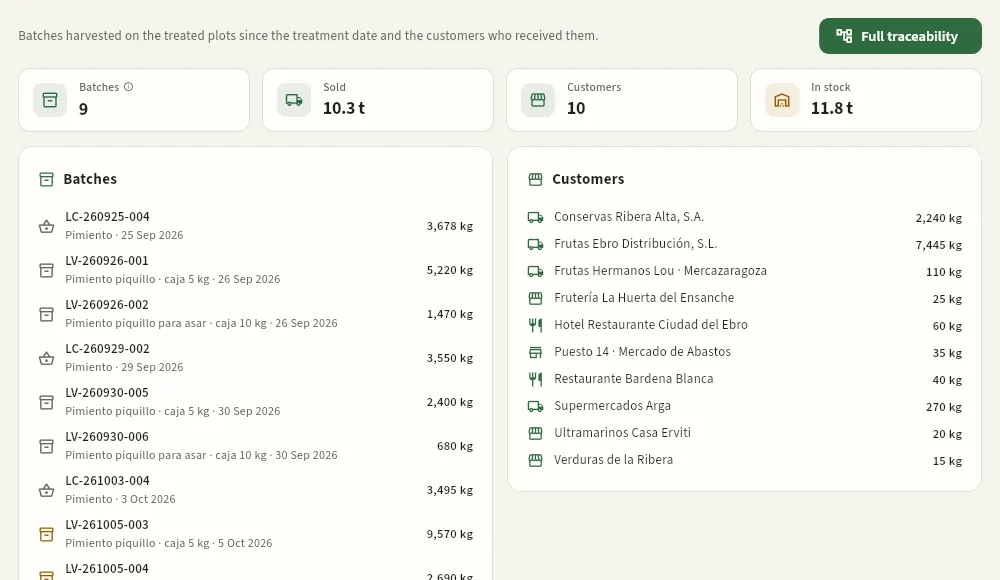 1234
- 1Full traceability: opens the Traceability graph with this treatment as the starting point.
- 2Lots harvested on the treated plots since the treatment date, kilos sold, customers and what is still in stock (in amber).
- 3The lots: field lots (LC-…, the crate) and packed lots (LV-…, the box), with their date and kilos.
- 4The customers they reached, with the kilos of each.
While the treatment has not been applied, the tab reads «Traceability available once the application is recorded». In Documents you can attach photos, the product label or the purchase delivery note (see The screen).
#Scheduling a treatment order
New treatment (or Create in the top bar) opens the form. At the top you choose whether it is a recommendation (the adviser's proposal, with a compulsory justification) or a treatment order (with a compulsory planned date). On the right, the live check fills in as you type. Recommendations are also born from a Crop protection visit with Recommend treatment.
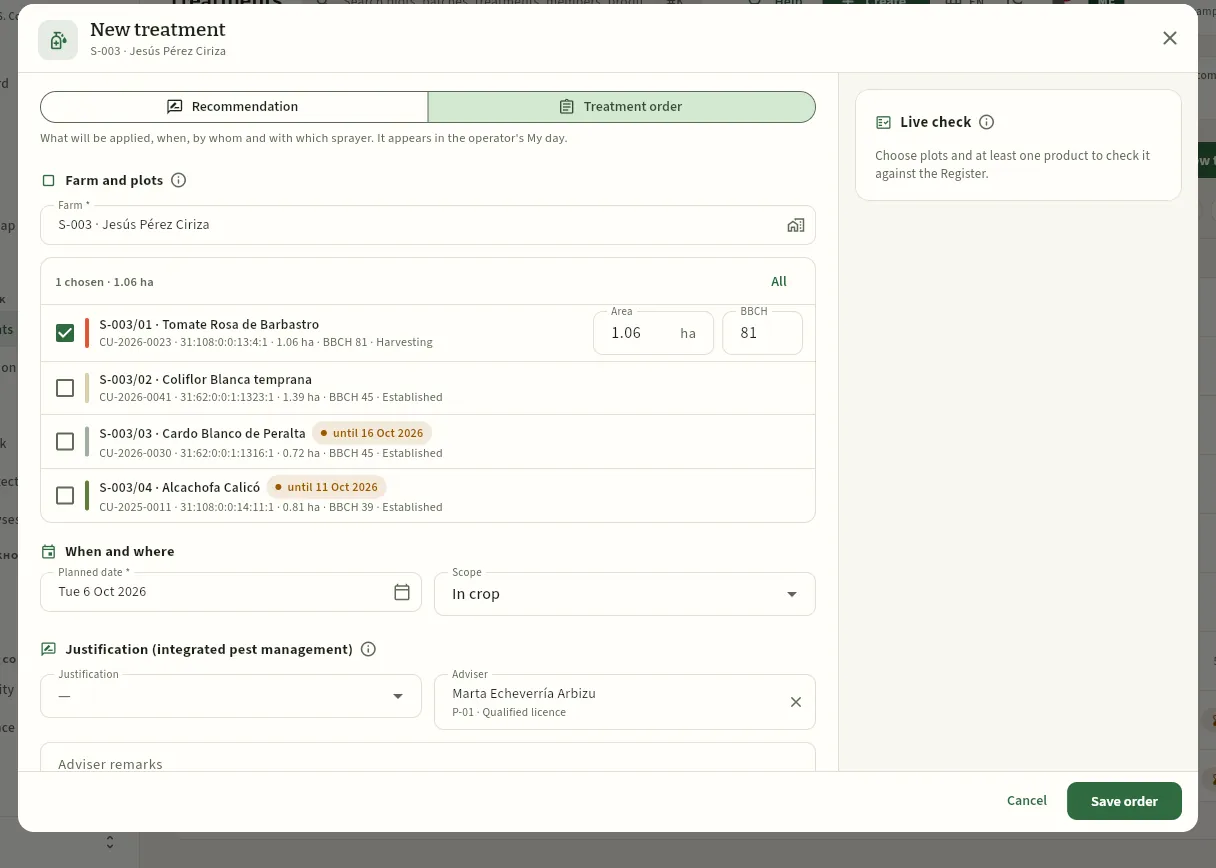 1234567
- 1Recommendation or Treatment order. Below, what each one means.
- 2The farm: the cooperative's own farm or the member's. If you only have one, it is already set.
- 3The farm's current crops: tick the ones being treated. Each with its planting, SIGPAC parcel, area, BBCH and status; organic ones carry their seal.
- 4Area (if you only treat part of it) and BBCH: the planting's values and its last observed stage are proposed.
- 5A crop within the pre-harvest interval has the date in amber: the cardoon of S-003/03 cannot be harvested until 17 October.
- 6Planned date and scope. The pre-harvest interval and the quantities are calculated for that date.
- 7The live check: it waits until there are plots and at least one product.
Below come the justification (with the adviser, who is you if you are the field adviser), the observations and the non-chemical alternatives, the products and the work order (operator, equipment, method and spray volume).
Choosing the product among the authorised uses
With the plots chosen, press Choose authorised product… (or Add product for another one). You do not choose from a list of all products, but from those the MAPA Register authorises for the crop on those plots: with its species, whether they are open-field or protected and whether any is organic. Choose the pest and you will see only the products authorised against it.
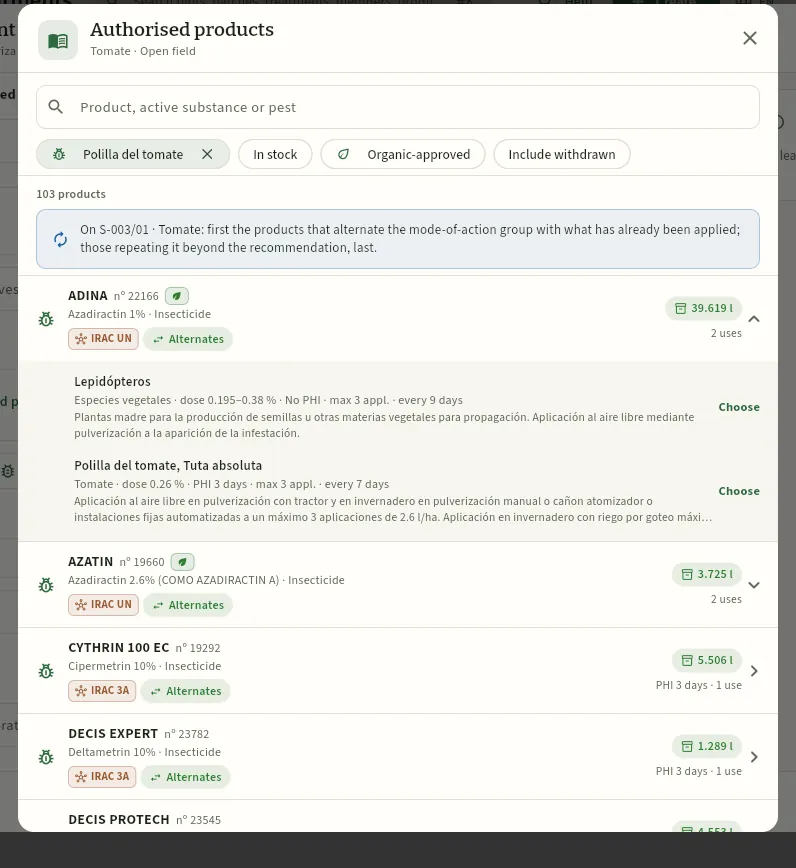 123456
- 1What it is searched for: the species on the plots, open-field or protected and, if any is, organic.
- 2Search by product, active substance or pest (at least 3 letters).
- 3The chosen pest and the filters: In stock, Organic-approved and Include withdrawn.
- 4Each product with its registration number, the organic seal if suitable, its active substance and function, the stock in the store and how many uses it has. Those in stock come first.
- 5A group use: «Lepidoptera» on «Plant species» is valid for Tuta and tomato, but its conditions restrict it to mother plants for seed. Always read the conditions.
- 6The use for tomato against Tuta: dose 0.26 %, PHI 3 days, max. 3 applications every 7 days. Choose puts it in the order.
When you choose the use, the product line fills in with the pest, the unit and the maximum authorised dose (you can lower it), and below it summarises the use: dose, pre-harvest interval, applications, interval and stock. If you like, choose the store batch it will come from now. The check calculates at once how much product to prepare and from when the crop can be harvested.
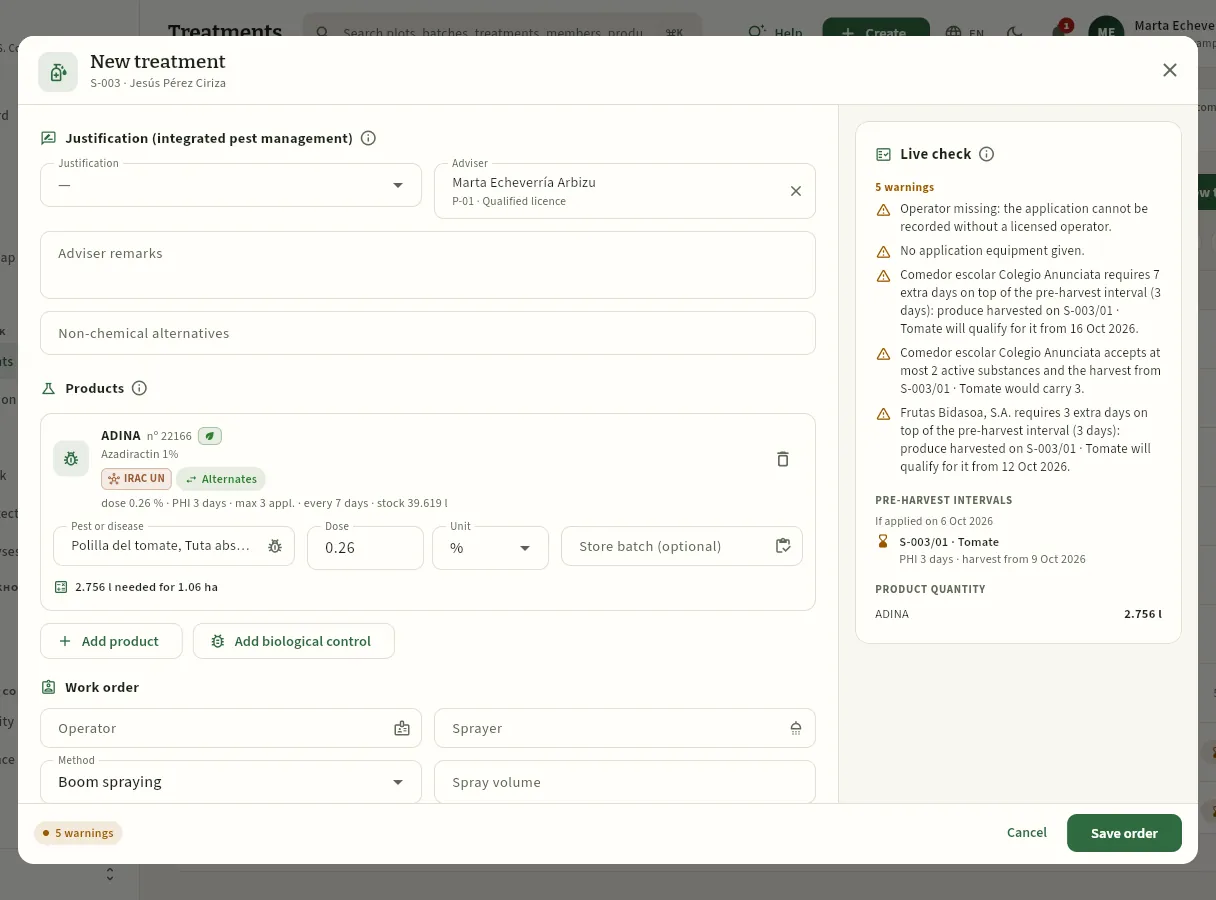 12345678
- 1The chosen product, with its registration number, the organic seal and the active substance.
- 2The chosen authorised use: dose, pre-harvest interval, maximum number of applications, interval and stock in the store.
- 3Pest, dose, unit and store batch (optional in the order).
- 4Quantity to prepare for the chosen area: 0.26 % × 1,000 l/ha × 1.06 ha = 2.756 l.
- 5Operator and equipment: without them the order can be saved, but not recorded.
- 6The warnings: the operator and the equipment are missing.
- 7The pre-harvest interval if applied on the planned date: PHI 3 days, harvest from 9 October.
- 8The product quantity for each line.
Press New treatment and leave Treatment order selected.
Choose the Farm and tick the crops being treated. Adjust the area if only part is treated and the BBCH if it has changed.
Check the Planned date (today, by default) and the Scope.
Choose the Justification and write what was observed and the non-chemical alternatives (if the order comes from a recommendation, it already has them).
Press Choose authorised product…, choose the pest and the product's use. Adjust the dose and, if you like, the store batch. Repeat with Add product for a tank mix, or Add biological control for a release of beneficials.
In Work order, choose the Operator and the Equipment; the method is proposed from the type of equipment. Enter the spray volume if the dose is in % or per hectolitre, and the instructions for the operator in Notes.
Look at the live check: with no errors in red, press Save order.
#The live check
While you fill in the form, the database tests the order as if it were about to be applied —without saving anything— and returns the errors (in red: they prevent recording the application) and the warnings (in amber: it is recorded, but worth reviewing). The same is repeated when recording the application and in the record. An example: in order TR-2026-0558, raise the SANAGRICOLA WP dose from 0.202 % to 0.5 %, set Daniel Aranda as operator and the AT-07 sprayer.
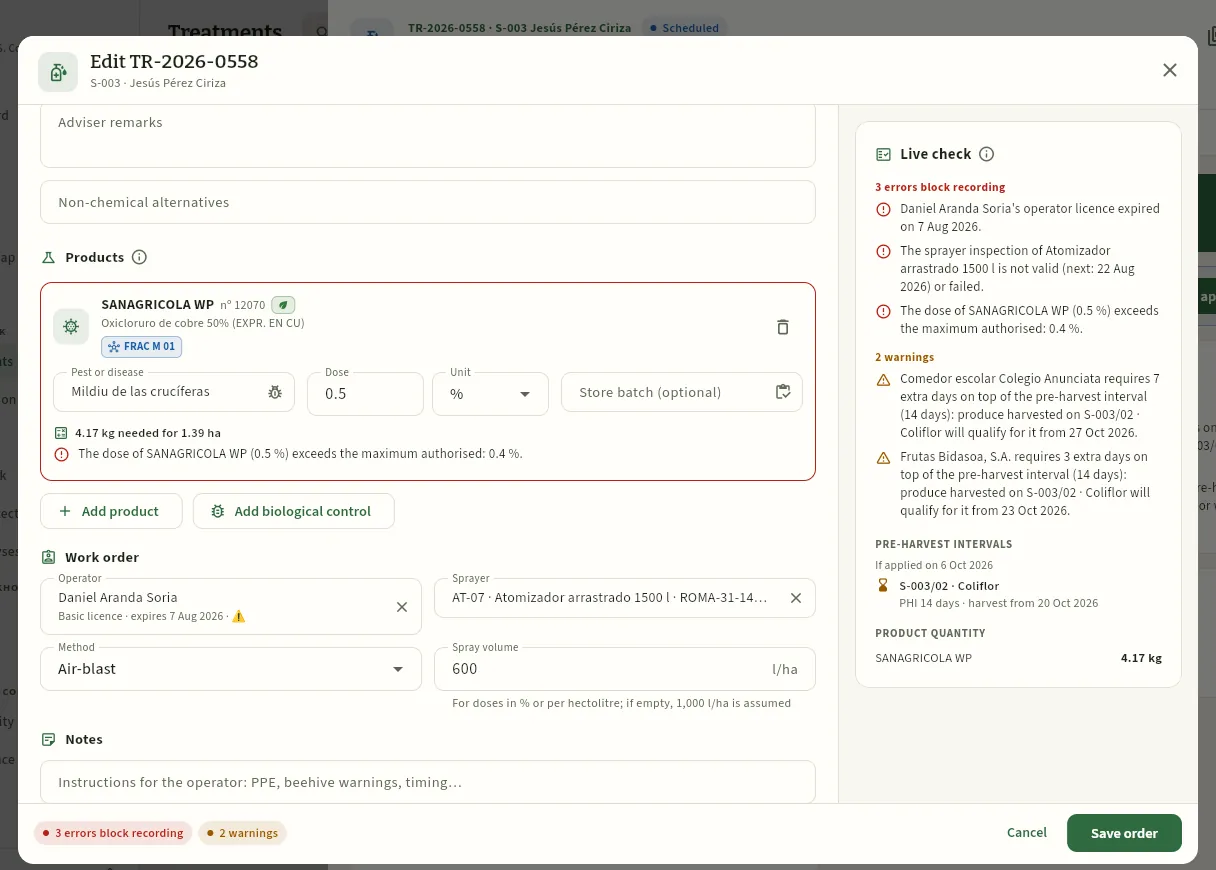 123456
- 1The dose raised to 0.5 %: the product line turns red.
- 2That line's error: above the maximum authorised on cauliflower against downy mildew (0.4 %).
- 3Daniel Aranda: his licence expired on 7 August (the selector already flags it with ⚠).
- 4The AT-07 sprayer: its ITEAF is not valid (it was due on 22 August).
- 5The three errors, explained: with any of them the database will not record the application. Below, the customers' warnings, the expected pre-harvest interval and the recalculated quantity (now 4.17 kg).
- 6The summary in the footer. You can still save the order (it asks you to confirm), but not apply it until it is fixed.
This is what is checked, always against the Register loaded in Ceres and the cooperative's data:
| What | Error (cannot be recorded) | Warning (it is recorded) |
|---|---|---|
| Authorised use | The product is not authorised on the crop, or it is but not against that pest. | The pest is missing. |
| Dose | Above the maximum authorised (or the dose is missing when recording). | Below the minimum, or in a different unit from the use. |
| Number of applications | The planting already has the maximum authorised. | — |
| Mode of action | — | It repeats the IRAC, FRAC or HRAC group of the previous treatment more times in a row, or more times in the cycle, than recommended. |
| Residue requirements | — | What is harvested would no longer be fit for a customer: a substance it does not accept, more substances than it allows or extra days on top of the pre-harvest interval. |
| Interval | The minimum days since the last application of the product on the planting have not passed. | — |
| Valid product | Withdrawn from the Register and outside the use-up period. | Withdrawn, but still within the period of use. |
| Organic | Product not suitable on an organic or in-conversion plot. | — |
| Shared plot | The treated area on a plot is larger than its crop. | A treated plot has another crop alive that day which is not in the treatment: if the sprayer also reached it, it needs its own record and pre-harvest interval. |
| Specific zones | — | The plot is in a specific zone (water abstraction, watercourse, protected area…). |
| Operator's licence | The operator is missing, has no licence or it has expired on the treatment date. | — |
| Equipment ITEAF | The inspection is not valid or was unfavourable. | The equipment or the date of its next inspection is missing. |
| Wind | — | Above the maximum in Settings (drift risk). |
| Batch and stock | The batch belongs to another product, is not available or does not have enough. | The batch has expired. |
| Pre-harvest interval | There are harvests recorded on the planting within the interval. | — |
| Dates | The application date is later than today. | Recorded after the recording deadline; the planting is already finished. |
On an order not yet assigned, a missing operator is a warning (it can be saved), but when recording it is an error.
#Customer residues and mode of action
The check also gives two warnings that do not prevent recording, but are worth looking at before spraying:
- Customers' residue requirements. Some customers ask for more than the law: a maximum number of active substances detected, a maximum percentage of the maximum residue limit (MRL), substances they do not accept or extra days on top of the pre-harvest interval (they are entered in each customer's record). If, with this treatment, what is harvested on those plots would no longer be fit for one of the customers who usually buy that crop, Ceres warns you. In today's order for the cauliflower (TR-2026-0558), the school canteen asks for 7 extra days and Frutas Bidasoa for 3: the cauliflower of S-003/02 will be fit for them from 27 and 23 October, not from the 20th.
- Mode of action. Each active substance belongs to a group according to how it acts: IRAC for insecticides, FRAC for fungicides and HRAC for herbicides. Repeating the same group over and over selects resistant pests and fungi. Ceres counts how many times in a row and how many times in the crop cycle that group has been used and warns if it exceeds the recommendation (2 in a row and 3 per cycle, unless Settings says otherwise). Low-risk groups —multi-site ones, such as copper or sulphur, and biologicals— do not count.
Order TR-2026-0556 (SCORE 25 EC, with difenoconazole, on the asparagus of SV/01) has both warnings:
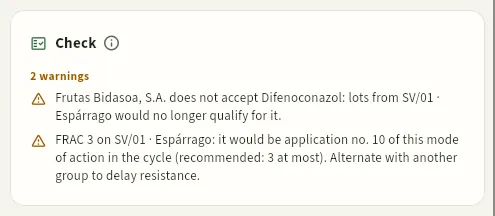 12
- 1Residue requirements: Frutas Bidasoa does not accept difenoconazole, so the lots of this asparagus would no longer be fit for it.
- 2Mode of action: it would be the tenth application of FRAC group 3 in the asparagus cycle, against a recommended maximum of 3. It is worth alternating with another group.
In the form, each product shows its group (FRAC 3, IRAC 4A, HRAC…) in a tag —hover over it for the name of the mode of action— and, below, the rotation line if it repeats:
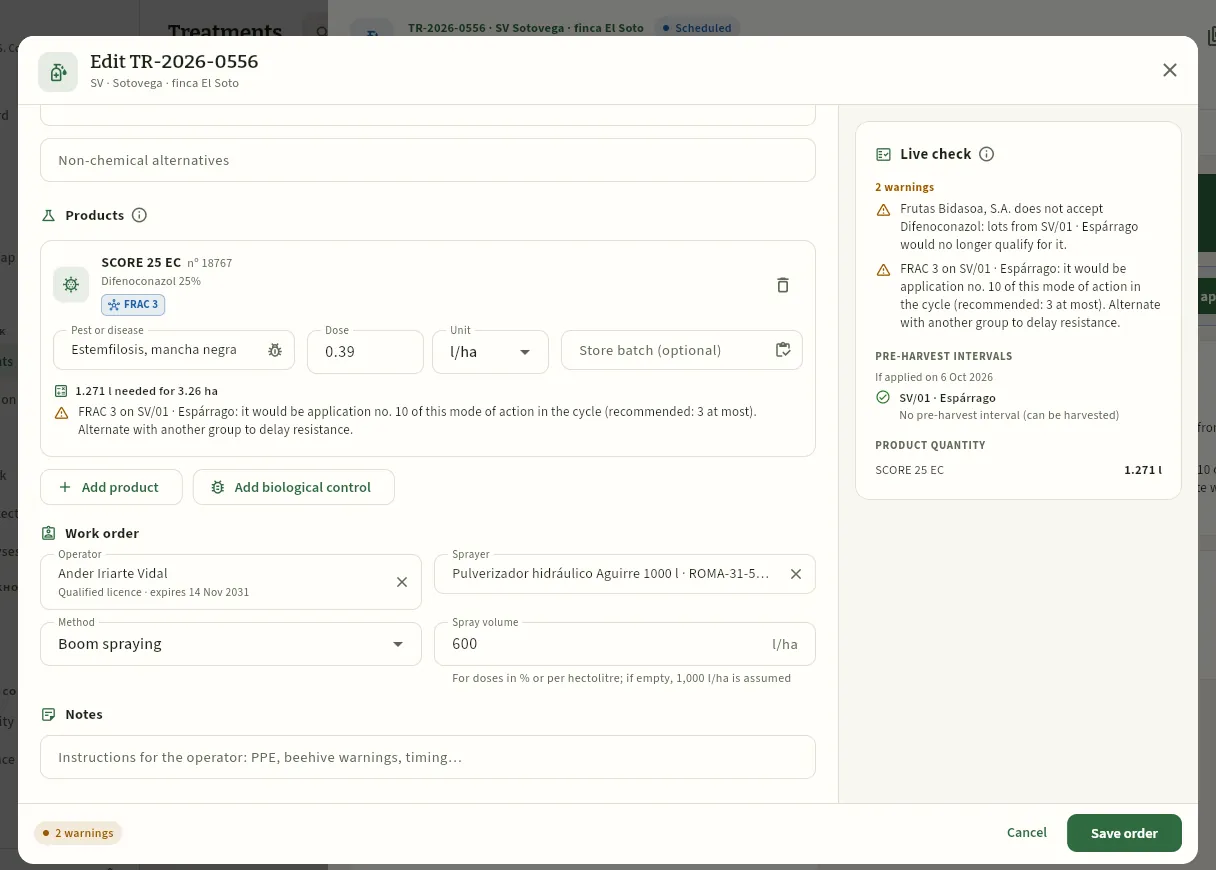 1234
- 1The active substance's mode-of-action group: FRAC 3, the sterol biosynthesis inhibitors (DMI).
- 2The rotation: how many times that group has been used on the planting and what is recommended.
- 3The same warnings in the live check: they do not prevent saving the order or recording it.
- 4Add product opens the selector, which now sorts the products by mode of action.
With a planting chosen, the authorised products selector lists first those that alternate group with what has already been applied, and last those that repeat beyond the recommendation. These are the ones authorised against Stemphylium on the asparagus of SV/01:
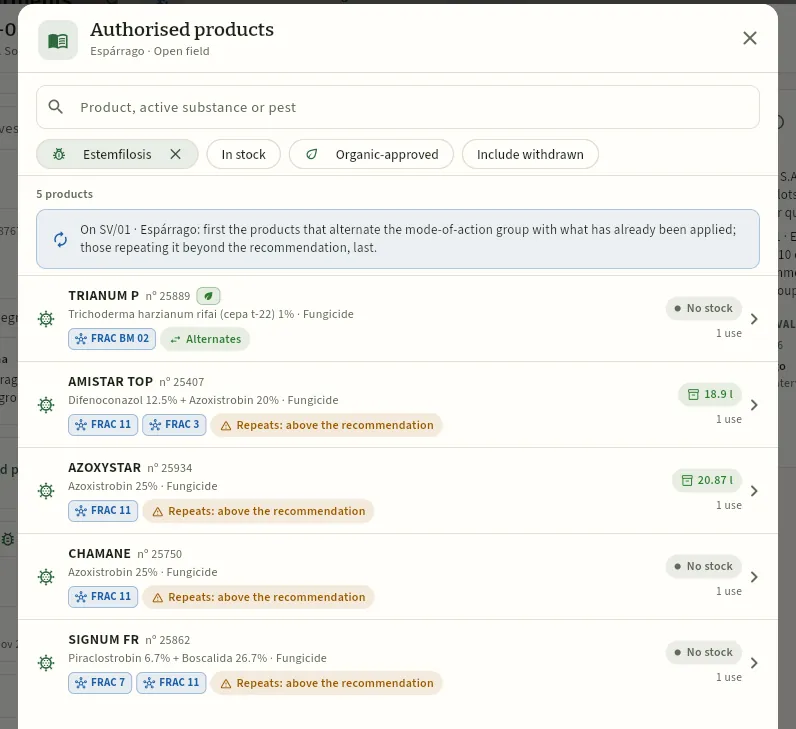 1234
- 1Which planting they are sorted for and how: those that alternate first.
- 2Alternates: its group has not been used (or does not count) on this planting. Here, a biological (FRAC BM 02).
- 3Each product with the groups of its active substances and, if it repeats beyond the recommendation, the warning in amber.
- 4The stock in the store and how many uses it has for this crop and this pest.
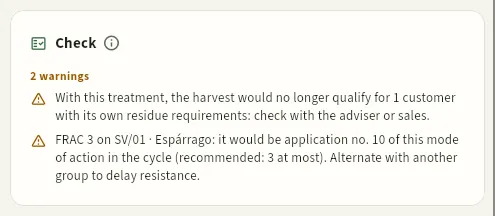 1
- 1Without the permission, the warning only says how many customers it affects and whom to ask: the adviser or sales.
#Quantities to prepare and pre-harvest interval
#Recording the application
When the treatment is done, it is recorded: usually the operator does it when finished, from My day on the phone, but it can also be done from the record or from the week of orders with Record application. The dialog brings what was in the order and proposes the weather conditions for those hours, from the cooperative's hourly weather data (see Weather).
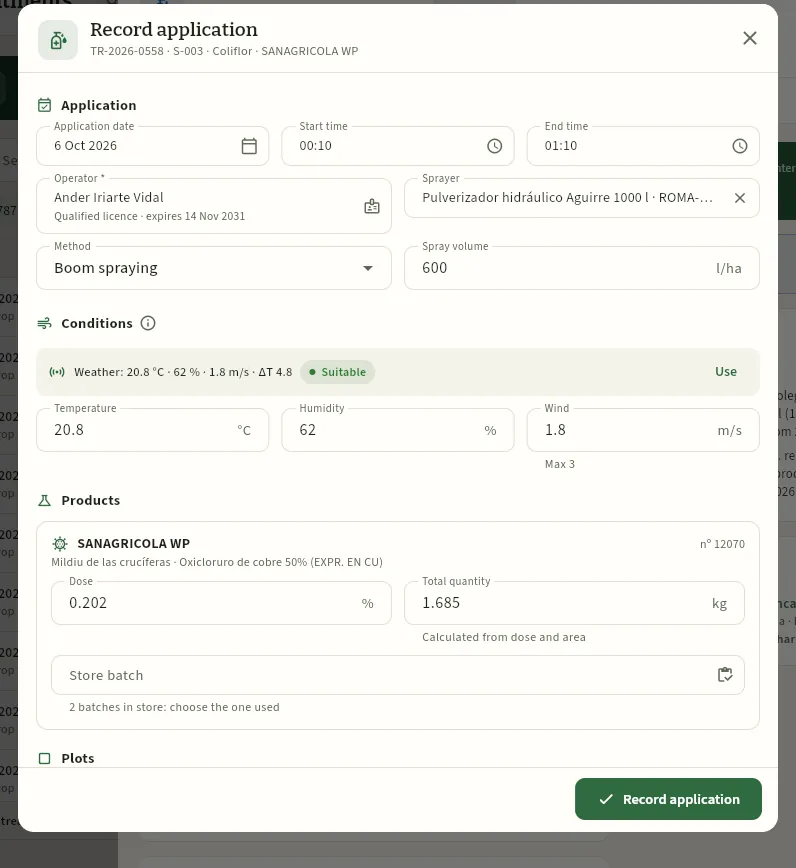 1234567
- 1Date and hours of the application: today is proposed, from an hour ago until now. It cannot be a future date.
- 2Operator (compulsory) and equipment, those of the order; you can change them if it was not so.
- 3The weather in those hours: temperature, humidity, wind and delta T, with «Suitable» if wind and delta T were fine throughout. Use copies the values into the fields.
- 4The wind, with the maximum from Settings below: above it, a drift risk warning.
- 5Dose and total quantity of each product: calculated or, if you change it, what was actually used.
- 6The store batch it came from: when recording, its stock is deducted (here there are two SANAGRICOLA WP batches; choose the one used).
- 7Record application: the database checks it again and, if there are errors, refuses it.
Open the order (from the list, the week or My day) and press Record application.
Check the date and hours, the operator and the equipment.
Press Use to copy the weather conditions for those hours, or type the ones you measured.
Check the dose of each product and choose the store batch used; if the quantity was different, type it.
Further down, adjust the treated area and the BBCH of each plot if they changed.
Press Record application.
#Validating with a signature
The last step belongs to the adviser: they check that what was applied matches their recommendation, assess the efficacy and sign on screen with a finger or the mouse. It needs the «Validate treatments» permission and the user to be linked to their People record, because the signature is in their name. Marta validates TR-2026-0550, applied yesterday against leek rust:
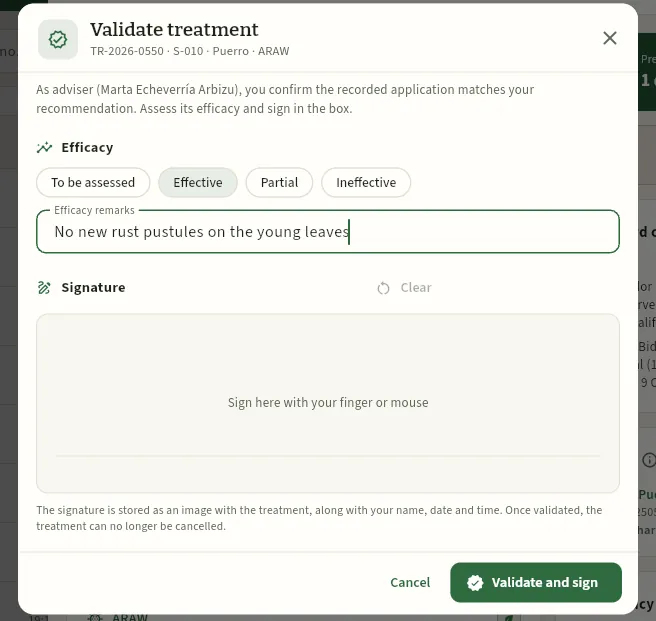 123456
- 1What you validate: that the recorded application matches your recommendation.
- 2The efficacy: effective, partial or ineffective (or pending assessment).
- 3What you saw afterwards: pest level, regrowth, damage…
- 4The signature box. Clear starts it again; without a signature it cannot be validated.
- 5The signature is saved as an image with your name, the date and the time. Once validated, it can no longer be cancelled.
- 6Validate and sign closes the cycle.
Filter Applied (or press the Not validated indicator) and open the treatment.
In the Summary, check the record's check, the products, the plots and the application conditions.
Press Validate (or Validate and sign in the ⋮ menu).
Choose the efficacy and write what you observed.
Sign in the box and press Validate and sign.
To cancel a treatment, Cancel in the ⋮ menu asks for the reason. A recommendation or an order are simply cancelled; a recorded application returns the product to its store batch and removes the pre-harvest interval from its plots. A validated treatment can no longer be cancelled.
The PDF of the order and of the record
The PDF icon in the header generates the treatment document, which opens in the browser's print dialog (from where it is printed or saved). While it is pending it is the Treatment order, with the «Recommendation» or «Pending order» stamp, to give to the operator; once applied, it is the Treatment record (with the «Not validated» stamp until the adviser signs). It contains:
- the application date and hours (or the planned one), the recommendation date and when it was recorded;
- the farm with its IPM system, the operator with their licence and its expiry, the equipment with its ROMA number and ITEAF, and the adviser with their ROPO number and the source visit;
- the treated plots: SIGPAC reference, crop, hectares, PHI in days and harvest from;
- the products: name, registration number, active substances, pest, dose and quantity;
- the application conditions, the IPM justification, the adviser's validation and the signature boxes of the operator and the adviser.
The PDF order warns in its footer that the interval and the quantities are those expected if applied on the planned date, and both remind you that Ceres helps you comply and keeps a record, without replacing the label or the adviser.
#What changes depending on the profile
Jesús, the member of S-003, sees only his treatments and read-only: no New treatment and no actions in the record. It lets him know what has been applied on his plots and when he can harvest.
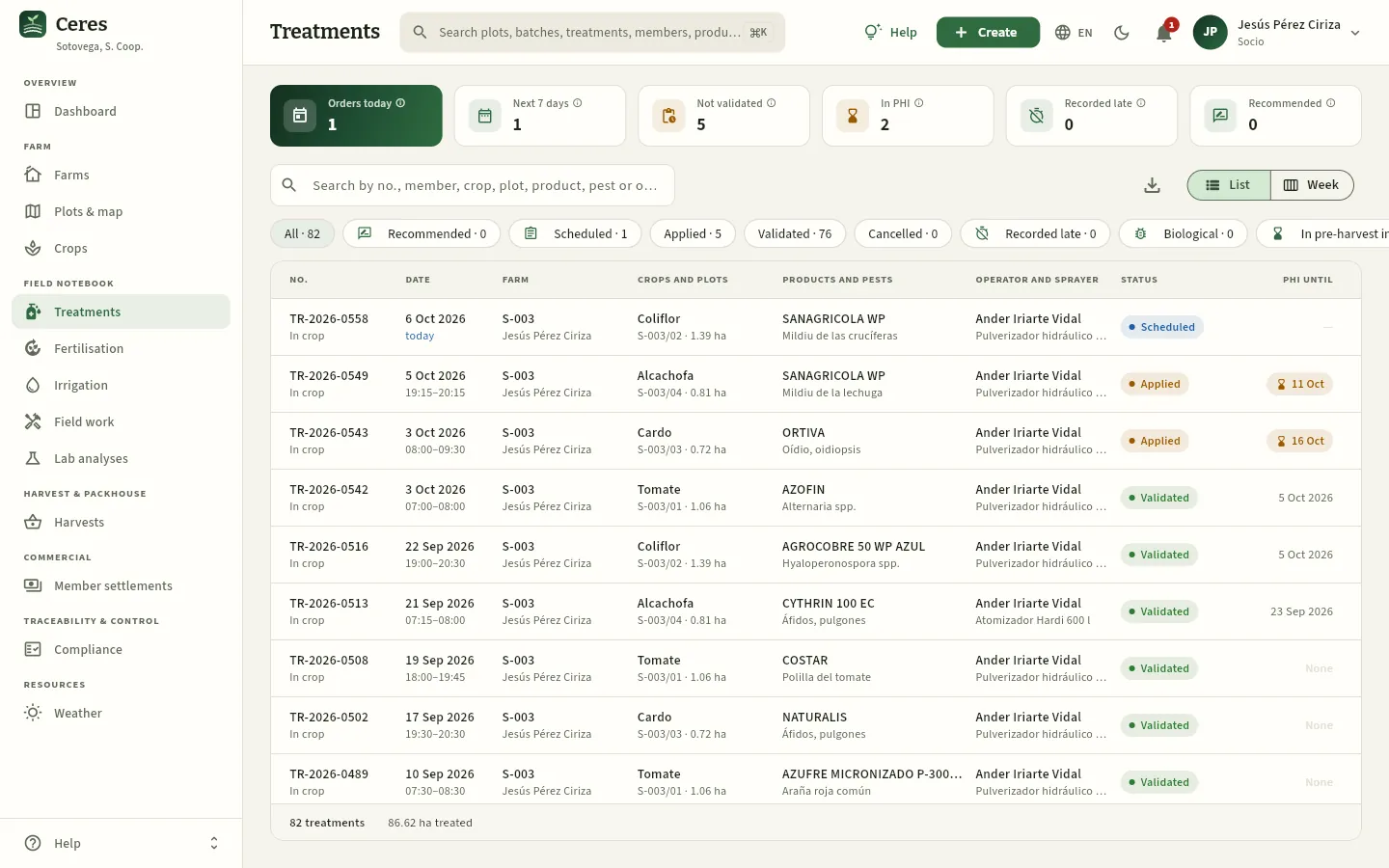 123
- 1The same filters, with the counts of his farm.
- 2List and Week, but no New treatment: the member neither recommends nor schedules.
- 3The cardoon of S-003/03 is within the interval until 16 October: it can be harvested from the 17th.
#Tips
Field notebook
Fertilisation
Each crop's fertiliser applications —base dressing, top dressing, fertigation, foliar and soil amendments— with their N-P₂O₅-K₂O fertiliser units per hectare, each crop's fertilisation plan and the warnings for the vulnerable zone (170 kg of organic N per hectare) and the one-month deadline for recording them.
Fertilisation is where you record everything that adds nutrients or organic matter to a crop's soil: the base dressing before planting, the top dressings, fertigation (fertiliser dissolved in the irrigation water), foliar feeds and soil amendments (manure, compost). Each entry is an application with its number (FE-2026-…).
For each application Ceres calculates the fertiliser units (UF): the kilos of N (nitrogen), P₂O₅ (phosphorus) and K₂O (potassium) that reach each hectare, from the amount of product and its analysis (the «15-5-30» on the bag). It also separates organic N (from manure and compost), which is what counts towards the vulnerable zone limit.
The section has two views, at the top left:
- Applications: each fertiliser application, with its units, its store batch and its warnings.
- Fertilisation plans: one plan per crop, with what it needs according to the expected yield and what has been applied so far.
Since 1 January 2026 each application is recorded within one month and since 1 September 2026 each crop needs its fertilisation plan (RD 1051/2022). Ceres warns you of both, and of the vulnerable-zone limit, as you type, before saving.
#The plan and the record
- 1Fertilisation planThe adviser starts from the proposal calculated for the crop, adjusts it and approves it.
- 2ScheduledIf the application is planned, it is recorded as scheduled; it appears in the list with its date.
- 3DoneWhoever applies it (foreman or member) records it within one month. If it comes from the store, the batch is deducted.
- 4WarningsVulnerable zone, plan exceeded, crop without a plan or entry recorded late.
- 5CompliancePlans and deadlines count in each farm's score and in the field log.
#The list of applications
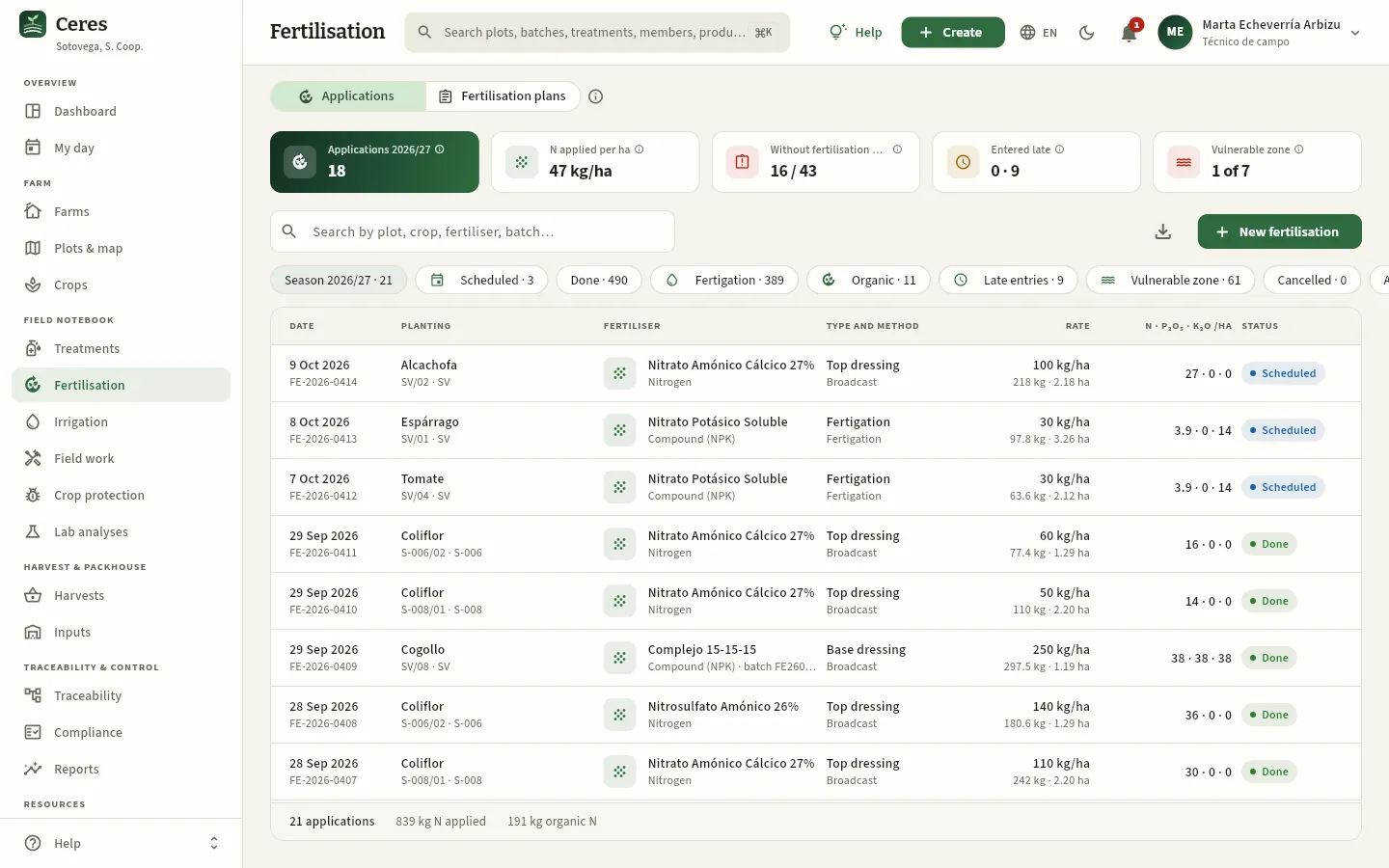 12345678
- 1The two views: Applications and Fertilisation plans. The ⓘ next to them explains the section.
- 2Applications done in the current season (since 1 September). Press it to see them.
- 3N applied per ha: kilos of nitrogen per fertilised hectare in the season, not counting that from water or soil.
- 4Without fertilisation plan: current crops that do not have a plan yet, out of all of them. Red if any is missing; press it to go to the plans.
- 5Entered late: more than a month between the application and its entry. The first figure is for the season; the second, for all history.
- 6Vulnerable zone: plots above 80 % of the organic N limit, out of all those in a vulnerable zone. Press it to see the detail.
- 7New fertilisation opens the form. To its left, Export CSV.
- 8The filters, with their count: the season, scheduled, done, fertigation, organic, recorded late, vulnerable zone, cancelled and all.
Each row is an application:
| Column | What it shows |
|---|---|
| Date | The day of the application and its number (FE-2026-…). An amber clock marks those recorded late. |
| Planting | The crop, the plot and the farm. The ZV pill marks plots in a nitrate vulnerable zone. |
| Fertiliser | The product, its type (nitrogen, NPK compound, organic…) and the store batch it came from. |
| Type and method | Base, top dressing, fertigation, foliar or amendment, and how it was applied: broadcast, placed, through the irrigation, incorporated into the soil… |
| Rate | Kilos or litres per hectare and, below, the total quantity and the fertilised area. |
| N · P₂O₅ · K₂O /ha | Fertiliser units per hectare and, if any, the organic N ones. |
| Status | Scheduled, Done or Cancelled. Scheduled ones whose date has passed are shaded amber. |
The search box finds by plot, crop, fertiliser, batch, operator or number. The footer adds up the applications you see and the kilos of N (and organic N) they carry. Press a row to open its record.
#Recording a fertiliser application
Record each application as soon as you do it, and within a month at the latest. On the cooperative's farm the foreman does it; each member records their own from their own user (they only see their crops). Press New fertilisation (or Create in the top bar). This is how Jesús, member S-003, fills it in for the fertigation of his tomato:
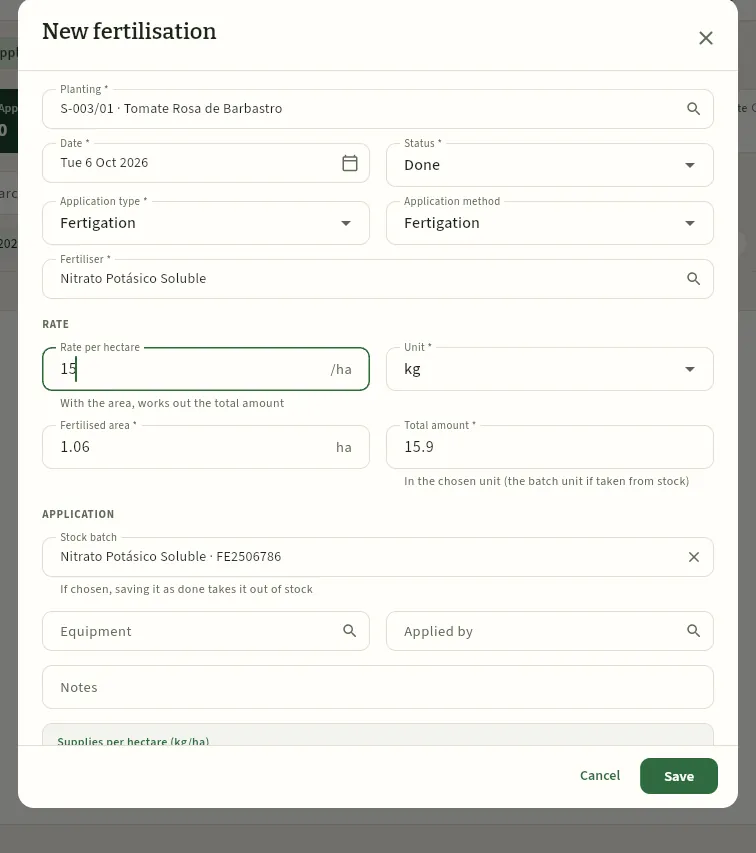 12345678
- 1The planting: the crop and its plot (with ZV if it is in a vulnerable zone). It brings in the crop's area.
- 2Done if it has already been applied (it counts in the totals and deducts the batch) or Scheduled if it is planned.
- 3The type: base, top dressing, fertigation, foliar or amendment. The application method is proposed automatically and can be changed.
- 4The fertiliser from the catalogue, with its N-P-K analysis; if you choose the batch first, it fills in by itself.
- 5Rate per hectare: with the fertilised area it calculates the total quantity, and vice versa.
- 6Fertilised area: the crop's area; change it if you only fertilise part of it.
- 7Store batch: if the fertiliser comes from an Inputs batch, saving it as done deducts it from its stock.
- 8Save records it. The database checks everything again.
Press New fertilisation and choose the planting. From a crop's record (the applications tab of its plan) it is already chosen.
Leave today's date or enter the day you applied it. If you have not done it yet, change the status to Scheduled.
Choose the application type and the fertiliser (or directly the store batch, which brings its fertiliser and its unit).
Enter the rate per hectare (or the total quantity) and check the fertilised area.
If you like, record the equipment (the spreader) and the operator, and a note.
Scroll to the end of the form: check the fertiliser units and the warnings, and press Save.
#The warnings when saving
At the end of the form, Ceres calculates what the rate supplies and warns you of anything that does not add up before saving. Here Marta tries 10 t/ha of sheep manure on the aubergine of S-007/03, a plot in a vulnerable zone that is already over the limit:
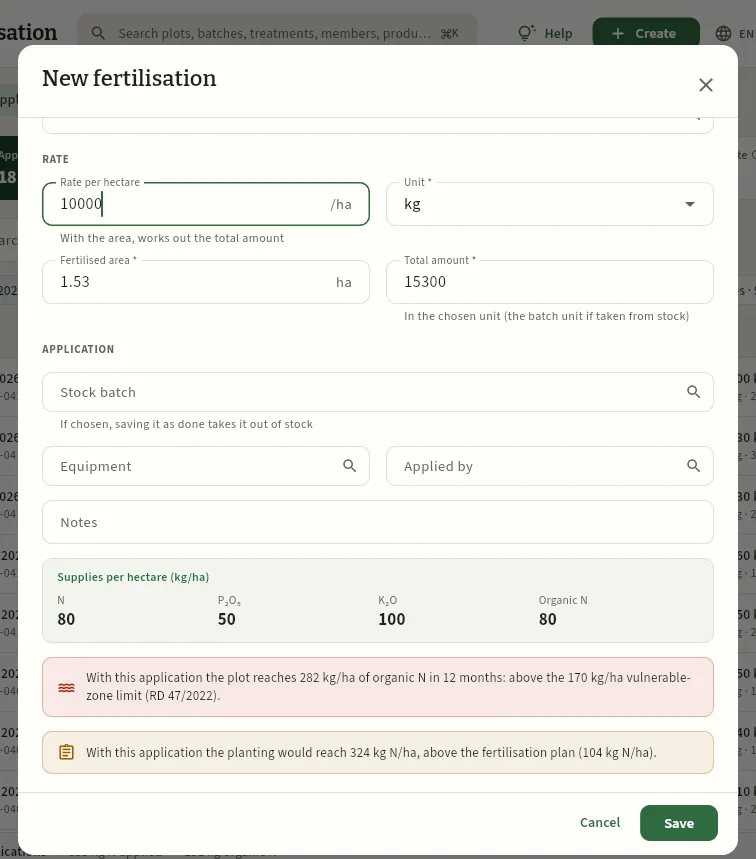 1234
- 1The total quantity resulting from the rate times the area: 15,300 kg on 1.53 ha.
- 2Supplies per hectare: the fertiliser units of this rate, N, P₂O₅, K₂O and, separately, organic N.
- 3Vulnerable zone: the plot's organic N over the last 12 months would exceed 170 kg/ha (in red; in amber if it exceeds 80 %).
- 4Fertilisation plan: the crop would reach more N than its plan allows for.
Warnings do not prevent saving, except in two cases that the database rejects:
- A fertiliser not allowed in organic farming on an organic (or in-conversion) crop or plot.
- An application done with a future date (schedule it instead) or with more quantity than is left in the chosen batch.
If you save with warnings, the «FE-… saved with warnings» window opens with what the database has detected: vulnerable zone above 170 kg/ha, more than 10 % above the plan, crop without a fertilisation plan or entry recorded late. They are the signal to talk to the adviser and, if needed, correct it.
#An application's record
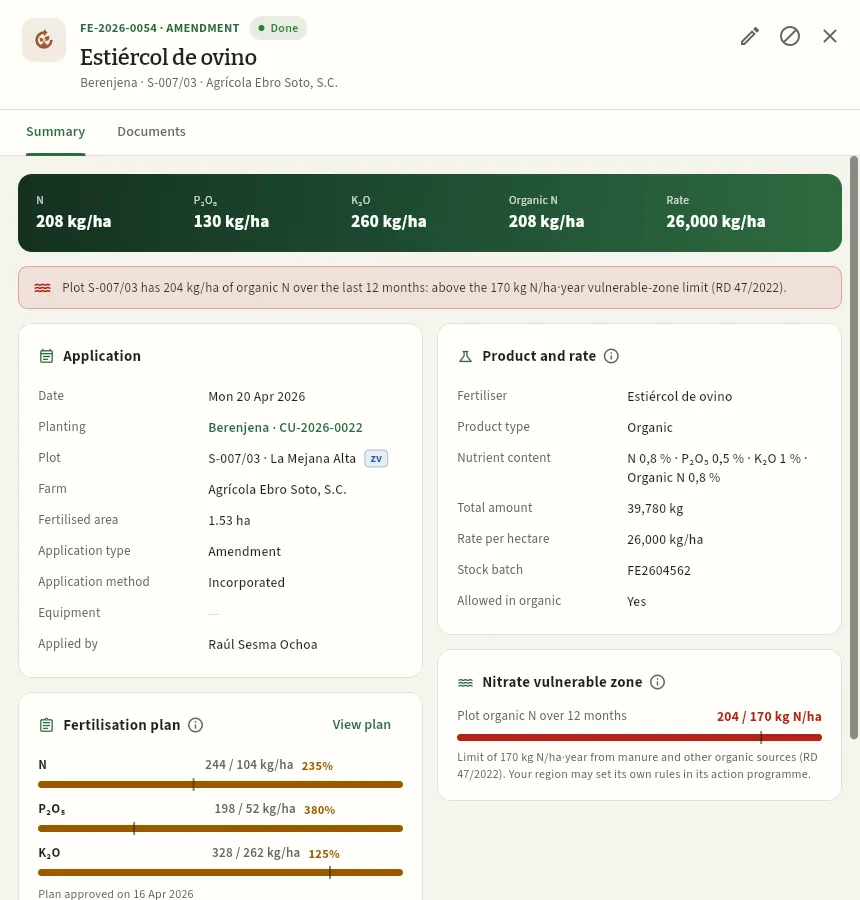 12345678
- 1The application's number and type, its status, the fertiliser and, below, the crop, the plot and the farm.
- 2Edit and Cancel. A scheduled one also has Mark as done.
- 3The band: N, P₂O₅, K₂O and organic N per hectare, and the rate.
- 4The warning: the plot already adds up to 204 kg/ha of organic N in the last 12 months and is over the vulnerable-zone limit.
- 5Application: date, crop (press it to open it), plot with its ZV, area, type, method, equipment and operator.
- 6Product and rate: the fertiliser's analysis, the quantity, the store batch and whether it is allowed in organic farming.
- 7The crop's fertilisation plan: what has been applied against the N, P₂O₅ and K₂O target. View plan opens it.
- 8Vulnerable zone: the plot's organic N in the 12 months before this application, against 170 kg/ha.
In this example the plan bars are amber: with 26 t/ha of manure, the aubergine has more N (244 of the 104 kg/ha planned), P₂O₅ and K₂O than its plan allows for, and the plot is over the vulnerable-zone limit. That is exactly what the record wants you to see in time. The Documents tab keeps the manure delivery note, the product analysis or a photo (see The screen).
Further down, Logbook entry says when it was recorded and how many days passed since the application, against the deadline. If the application is scheduled and its date has passed, the record warns you: mark it as done (if it was) or change its date.
Cancel leaves the application in the field log as cancelled, with its number: it stops counting in the plan, the vulnerable zone and the totals, and if it came from a batch, what was used goes back to the store. What is cancelled is not deleted: it is part of the record.
#Plots in a vulnerable zone
Nitrate vulnerable zones are designated by each region: they are those draining into waters polluted by nitrates or at risk of being so. In them, manure and other organic fertilisers cannot supply more than 170 kg of N per hectare per year. Each parcel's vulnerable-zone mark is in its Plots & map record. Press the Vulnerable zone indicator to see how each plot is doing:
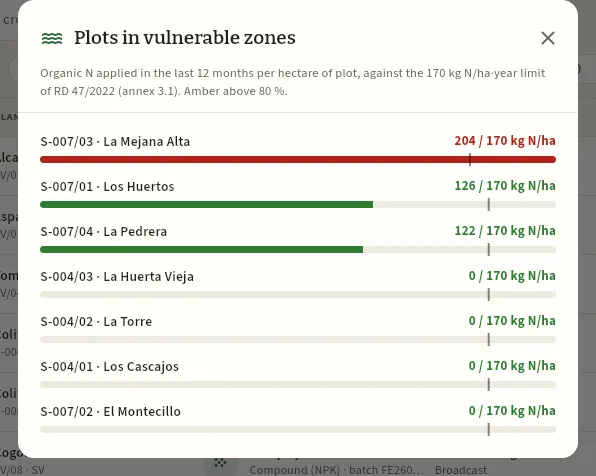 123
- 1What is measured: organic N over the last 12 months per hectare of plot, against 170 kg N/ha·year.
- 2In red, above the limit: the aubergine of S-007/03 received 26 t/ha of manure in April (204 kg/ha of organic N).
- 3In green, below 80 %. The vertical line on each bar is the limit.
#Fertilisation plans
The fertilisation plan says, before starting, how much nitrogen, phosphorus and potassium a crop needs and how much has to be supplied with fertilisers. Ceres keeps one per crop (per CU-… planting). In the Fertilisation plans view you see all the season's crops with their plan and what has been applied so far:
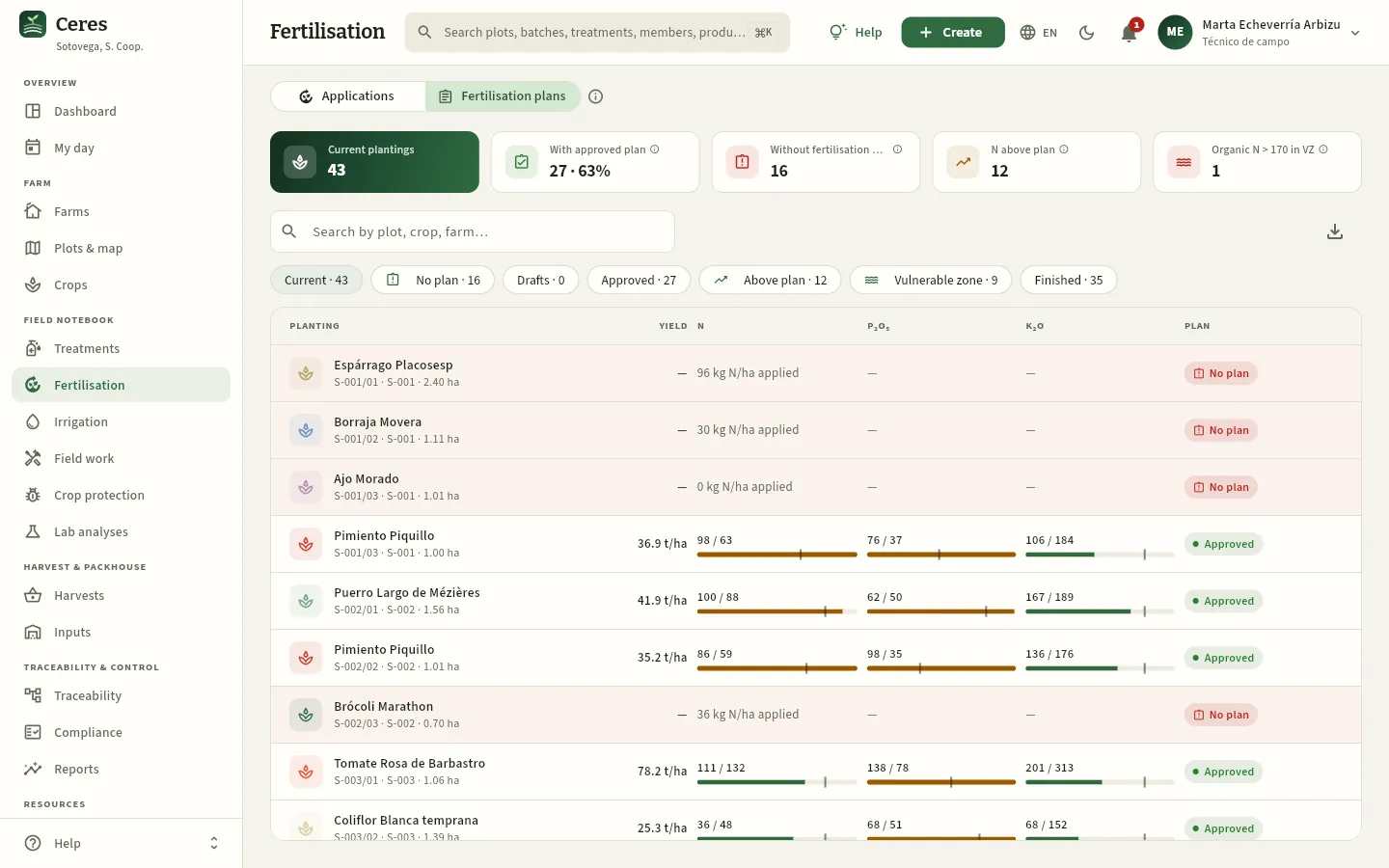 12345678
- 1With approved plan: current crops with an approved plan and what share of the total they are.
- 2Without fertilisation plan: those that do not have a plan yet. It is the first thing to sort out.
- 3N above plan: crops with more than 10 % N over what was planned.
- 4Organic N > 170 in ZV: vulnerable-zone crops over the limit.
- 5The filters: current, no plan, drafts, approved, above plan, vulnerable zone and finished.
- 6Production: the plan's expected yield, in t/ha.
- 7N, P₂O₅ and K₂O: what has been applied against the plan's target, with its bar. The line is the target; amber if it is exceeded by more than 10 %.
- 8Plan: approved, draft or No plan (in red). Without a plan, the row gives the N applied to date.
#A crop's fertilisation plan
Press a crop to open its plan (also from an application's record, with View plan). This is the one for Jesús's Rosa de Barbastro tomato on S-003/01, which Marta drew up in April:
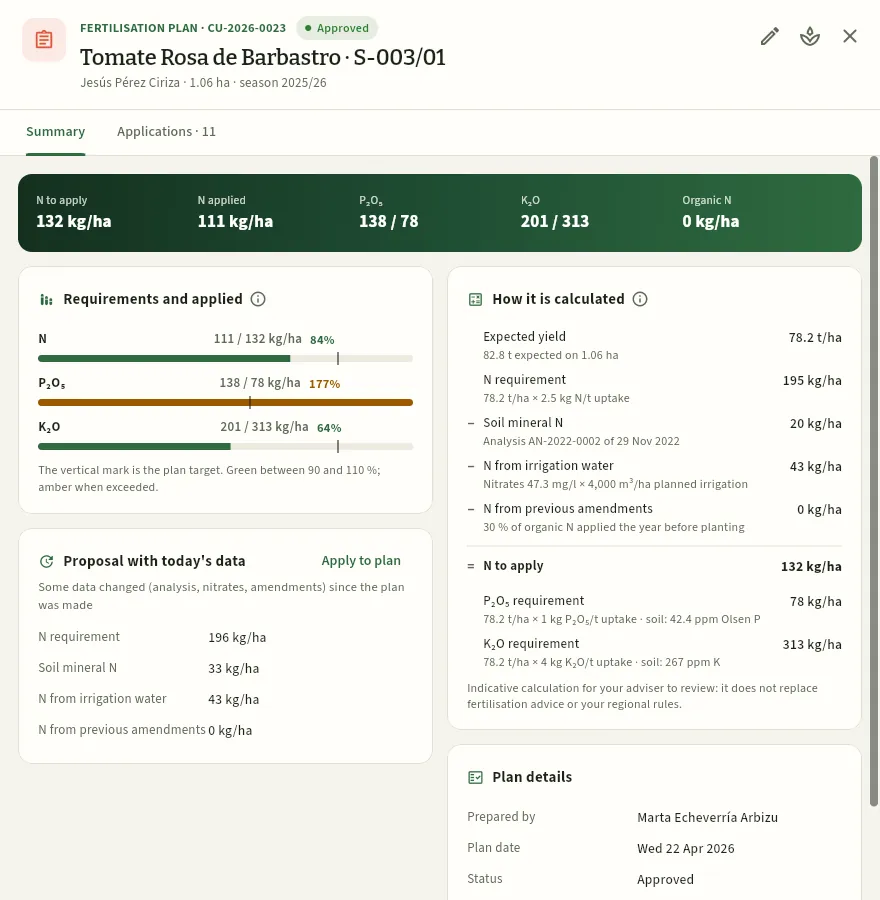 1234567
- 1The crop (CU-…), the plan's status, the plot, the member, the area and the season.
- 2Edit fertilisation plan and View planting. On a draft, also Approve plan.
- 3The band: N to apply and applied, P₂O₅ and K₂O (applied / requirement) and organic N.
- 4Requirements and applied: each nutrient against its target, with the percentage.
- 5How it is calculated: the plan step by step, from the expected yield to the N to apply.
- 6Proposal with today's data: it appears if any figure has changed since the plan was made (here, the soil mineral N, from a more recent analysis). Apply to plan updates it.
- 7The Applications tab: the crop's fertiliser applications, newest first, with New fertilisation.
Further down, Plan details says who drew it up, its date, its status, the expected yield and the soil analysis it uses (press it to open it in Lab analyses). On a vulnerable-zone plot there is also the Vulnerable zone card with the organic N applied to the crop.
#Creating a crop's plan
A crop without a plan opens its record with the warning in red and a calculated proposal with the data Ceres already has: the crop's expected yield, the plot's latest soil analysis and its water nitrates. This is Jesús's cardoon on S-003/03:
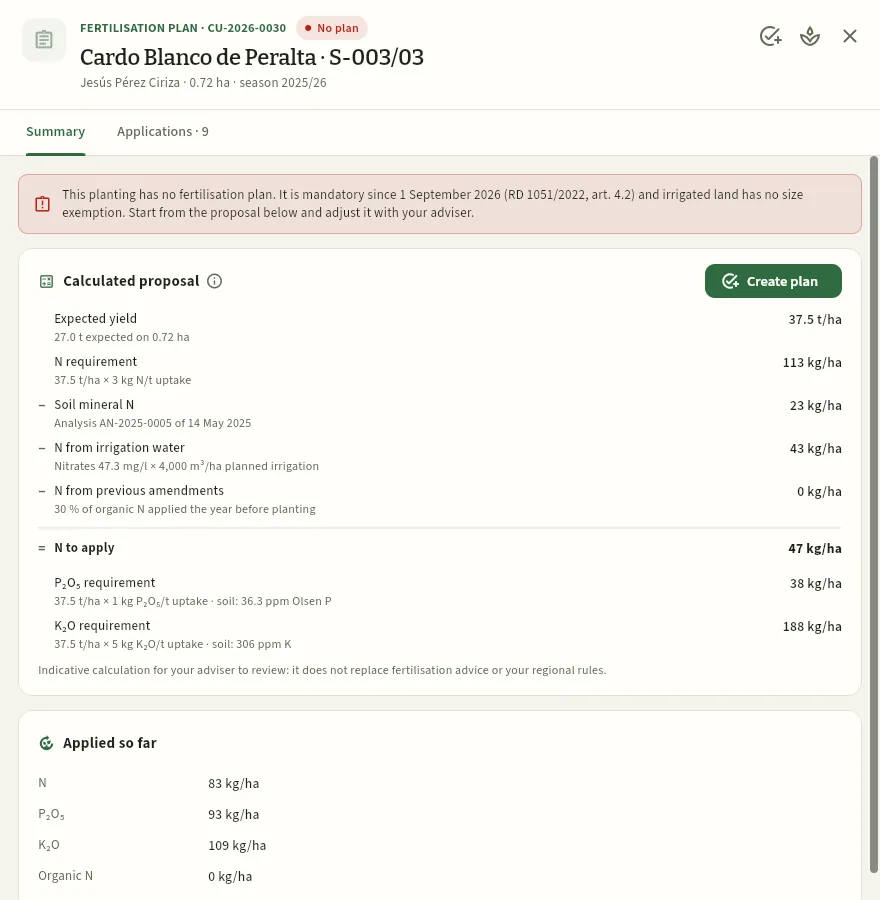 123456
- 1The warning: no plan since 1 September 2026, and on irrigated land there is no exemption for size.
- 2Expected yield: the crop's (27.0 t on 0.72 ha = 37.5 t/ha).
- 3N requirement: yield × the crop's uptake (37.5 t/ha × 3 kg N/t = 113 kg N/ha).
- 4The contributions deducted: soil mineral N (analysis AN-2025-0005), N from irrigation water (nitrates 47.3 mg/l) and amendments from the previous year.
- 5N to apply with fertilisers: 113 − 23 − 43 − 0 = 47 kg N/ha. Below, the P₂O₅ and K₂O requirements.
- 6Create plan opens the form with these values.
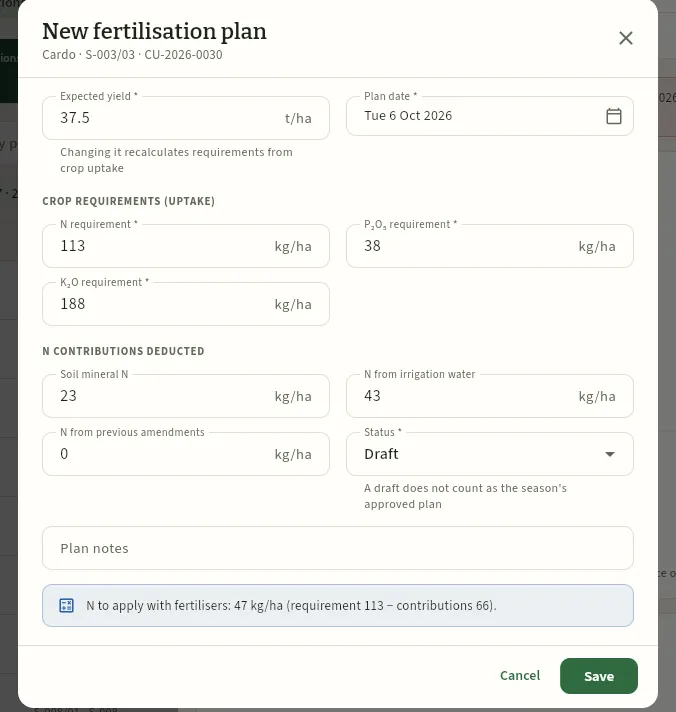 123456
- 1Expected yield: changing it recalculates the requirements with the crop's uptake.
- 2Requirements for N, P₂O₅ and K₂O in kg/ha: you can adjust them by hand.
- 3The N contributions from the soil, the irrigation water and earlier amendments.
- 4The status: as a Draft it does not count as the season's approved plan.
- 5Plan notes: previous crop, application timing and methods, measures to reduce emissions…
- 6The N to apply, recalculated as you type.
In Fertilisation plans, filter No plan and open the crop (or press the Without fertilisation plan indicator).
Check the calculated proposal: if the soil analysis or the water nitrates are missing, record them first in Lab analyses and pass them on to the plot.
Press Create plan. Adjust the expected yield and, if your adviser says so, the requirements or the contributions.
Write the previous crop and how and when you will fertilise in the notes. Save it as a Draft to review it.
When it has been reviewed, open it and press Approve plan (or change it to Approved when editing it).
#What each profile sees
#Tips
Field notebook
Irrigation
Each crop's irrigations with their volume, hours, meter and reading and whether they carried fertiliser (fertigation), and the water balance: what the crop consumes (ET₀ × Kc) against rain and irrigation, with a recommendation of how much to irrigate.
In Irrigation each irrigation of each crop is recorded: the day, the hours, the cubic metres applied and, if the plot has a meter, its reading. If the water carried dissolved fertiliser, the irrigation is marked with fertigation (and the fertiliser is also recorded in Fertilisation). With that, Ceres calculates the m³ per hectare, the water depth in millimetres (1 mm = 10 m³/ha) and the nitrogen supplied by the water, which the fertilisation plan then deducts.
The section has two views, at the top left:
- Irrigations: the list of irrigations done and scheduled.
- Water balance: how much water each crop has needed and how much it has received, day by day, with a recommendation of how much to irrigate.
Irrigations are recorded within a month of being done (RD 1051/2022). Scheduled ones also appear in My day, where whoever irrigates marks them as done from their phone.
#The list of irrigations
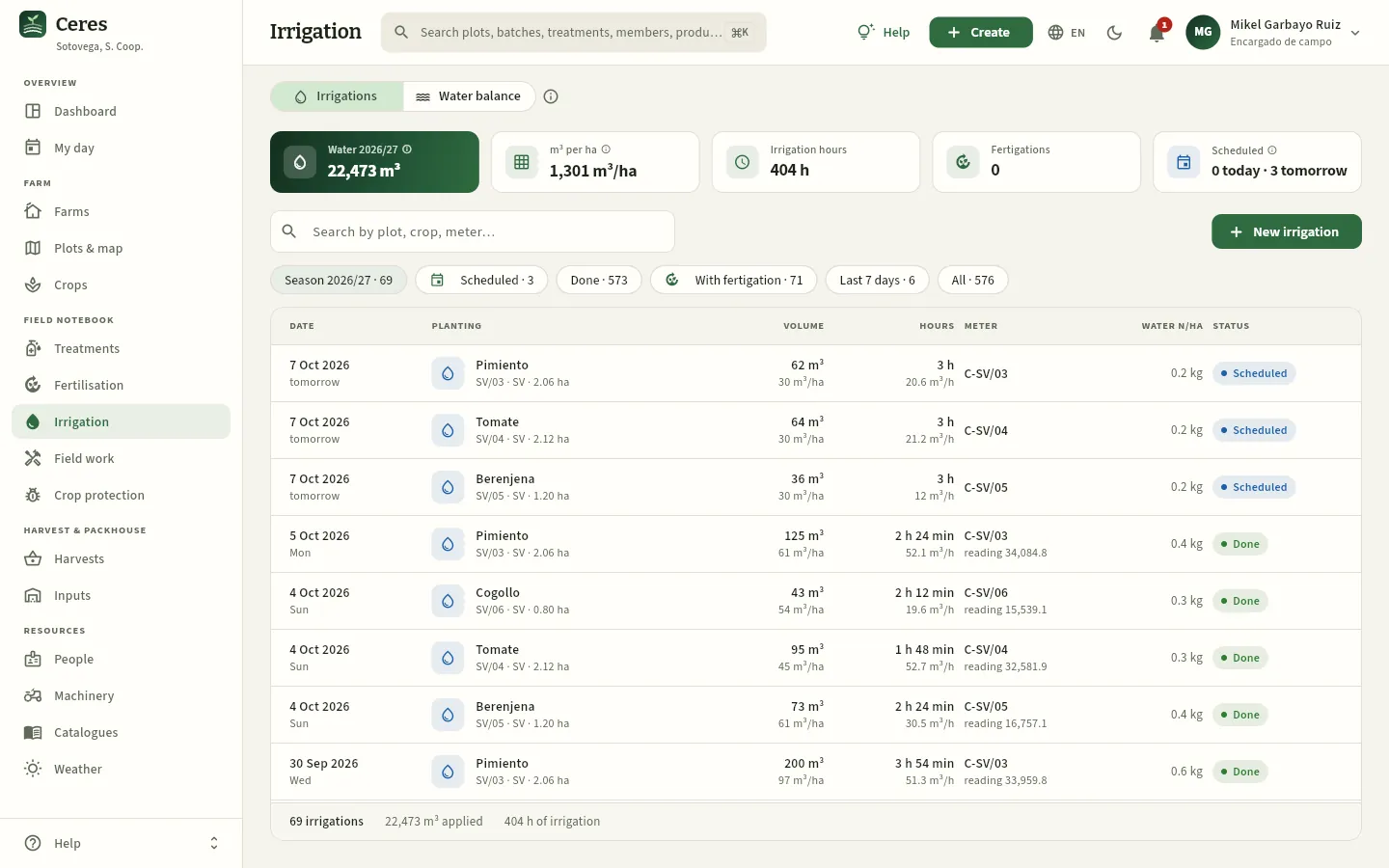 12345678
- 1The two views: Irrigations and Water balance.
- 2The season's water: the m³ of irrigations done since 1 September.
- 3m³ per ha: the season's water divided by the irrigated area.
- 4The season's irrigation hours.
- 5Fertigations: the season's irrigations with fertiliser. Press it to filter them.
- 6Scheduled: today's (or overdue, in amber) and tomorrow's. Press it to see them.
- 7New irrigation opens the form.
- 8The filters: the season, scheduled, done, with fertigation, the last 7 days and all.
Each row is an irrigation:
| Column | What it shows |
|---|---|
| Date | The day of the irrigation and the day of the week; for scheduled ones, «today», «tomorrow» or the days remaining. |
| Planting | The crop, the plot, the farm and the area. The blue drop is an irrigation with water only; the brown fertiliser icon, a fertigation. |
| Volume | The m³ applied and, below, the m³ per hectare. |
| Hours | How long the irrigation lasted and the resulting flow rate (m³/h). |
| Meter | The plot's meter (C-SV/04…) and its reading at the end. |
| Water N/ha | The kilos of nitrogen per hectare the water carried, from its nitrates. |
| Cost | The water cost (only with «See costs»). |
| Status | Scheduled or Done. Scheduled ones for today or earlier days are shaded. |
The search box finds by plot, crop or meter. The footer adds up the irrigations you see, their m³ and their hours (and the water cost, with «See costs»).
#Recording an irrigation
Press New irrigation (or Create in the top bar) and choose the planting: Ceres proposes the plot's irrigation system, the meter from the last irrigation with its reading and the usual flow rate. You only need to enter the hours, or the meter reading at the end:
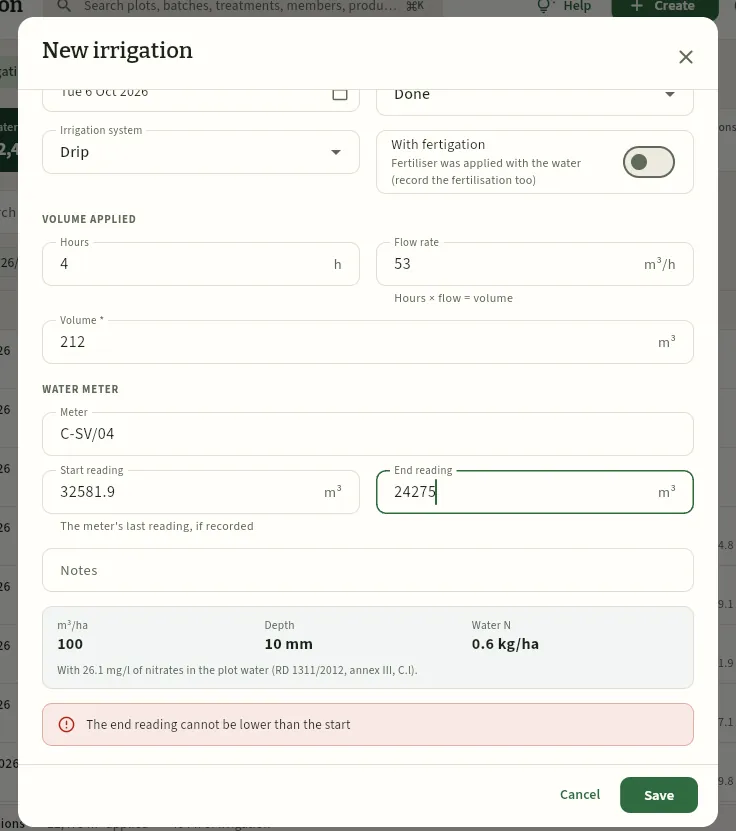 12345678
- 1The irrigation system: drip, micro-sprinkler, sprinkler or gravity. It comes from the plot.
- 2With fertigation: tick it if the water carried fertiliser, and record the fertilisation too.
- 3Irrigation hours.
- 4Flow rate: the usual one for this planting (that of its last irrigations). Hours × flow rate = volume.
- 5Volume in m³ (compulsory): it is calculated automatically, from the hours or the readings, and you can correct it.
- 6The meter and its starting reading: the last one recorded for that meter.
- 7Final reading: the difference from the starting one is the volume.
- 8What it amounts to: m³/ha, depth in mm and the water N per hectare, with the nitrates of the plot's water.
Press New irrigation and choose the planting. Leave today's date or enter the irrigation date.
If the irrigation has not been done yet, change the status to Scheduled: it will appear in My day on the right day.
Enter the hours (the volume comes from the usual flow rate) or, if you have a meter, the final reading.
If the water carried fertiliser, tick With fertigation.
Check the m³/ha and the depth in the box below and press Save.
Before saving, the form warns if the amount exceeds 400 m³/ha in a single irrigation (check the volume or the planting), if a done irrigation has a future date (schedule it), if it is recorded more than 30 days later (outside the one-month deadline) or if the final reading is lower than the starting one.
To mark a scheduled irrigation as done, open it and press Mark as done. It is the same dialog that whoever irrigates uses in My day, designed for fingers:
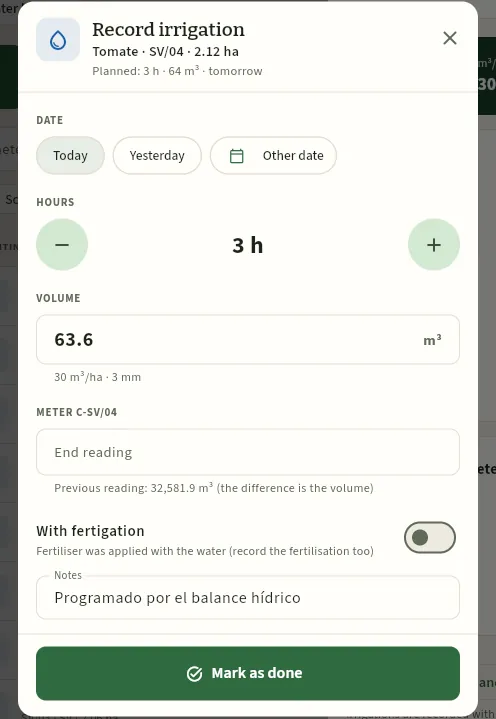 123456
- 1The planned irrigation: hours, m³ and when.
- 2The date: today, yesterday or another.
- 3The hours, with the − and + buttons.
- 4The volume, with the m³/ha and the depth it represents.
- 5The meter's final reading: below, the previous one. The difference is the volume.
- 6Mark as done: the irrigation becomes done with these details.
#An irrigation's record
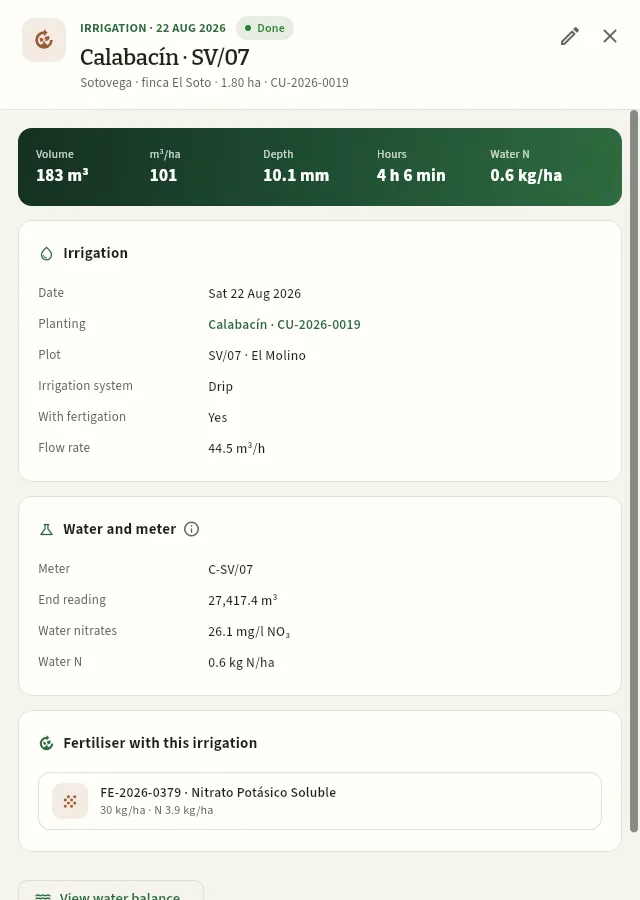 1234567
- 1The date and the status, the crop and the plot, the farm, the area and the crop number.
- 2Edit. On a scheduled irrigation, also Mark as done.
- 3The band: volume, m³/ha, depth, hours and water N.
- 4Irrigation: date, crop (press it to open it), plot, system, whether it carried fertiliser and the flow rate.
- 5Water and meter: the meter and its reading, the nitrates in the plot's water and the N they supply (and the water cost, with «See costs»).
- 6Fertiliser applied with this irrigation: the fertilisation that went with the water. Press it to open it.
- 7View water balance of the crop.
#The water balance
The water balance compares what each crop consumes with what it receives. Consumption is the crop evapotranspiration (ETc): the ET₀ —the water a reference grass surface evaporates and transpires, calculated day by day from the cooperative's weather data (Weather)— multiplied by the crop coefficient (Kc), which changes with the crop's stage. What is received is effective rainfall plus irrigation. If consumption exceeds what is received, there is a deficit and it is time to irrigate.
ET₀ and rainfall are real data, and the balance says where they come from: in the demo, from Open-Meteo (the ERA5 reanalysis of the European Copernicus service for the consolidated days and the ECMWF IFS model for the most recent ones). Ceres is also ready for the Ministry of Agriculture's SiAR network, with its agro-climatic stations.
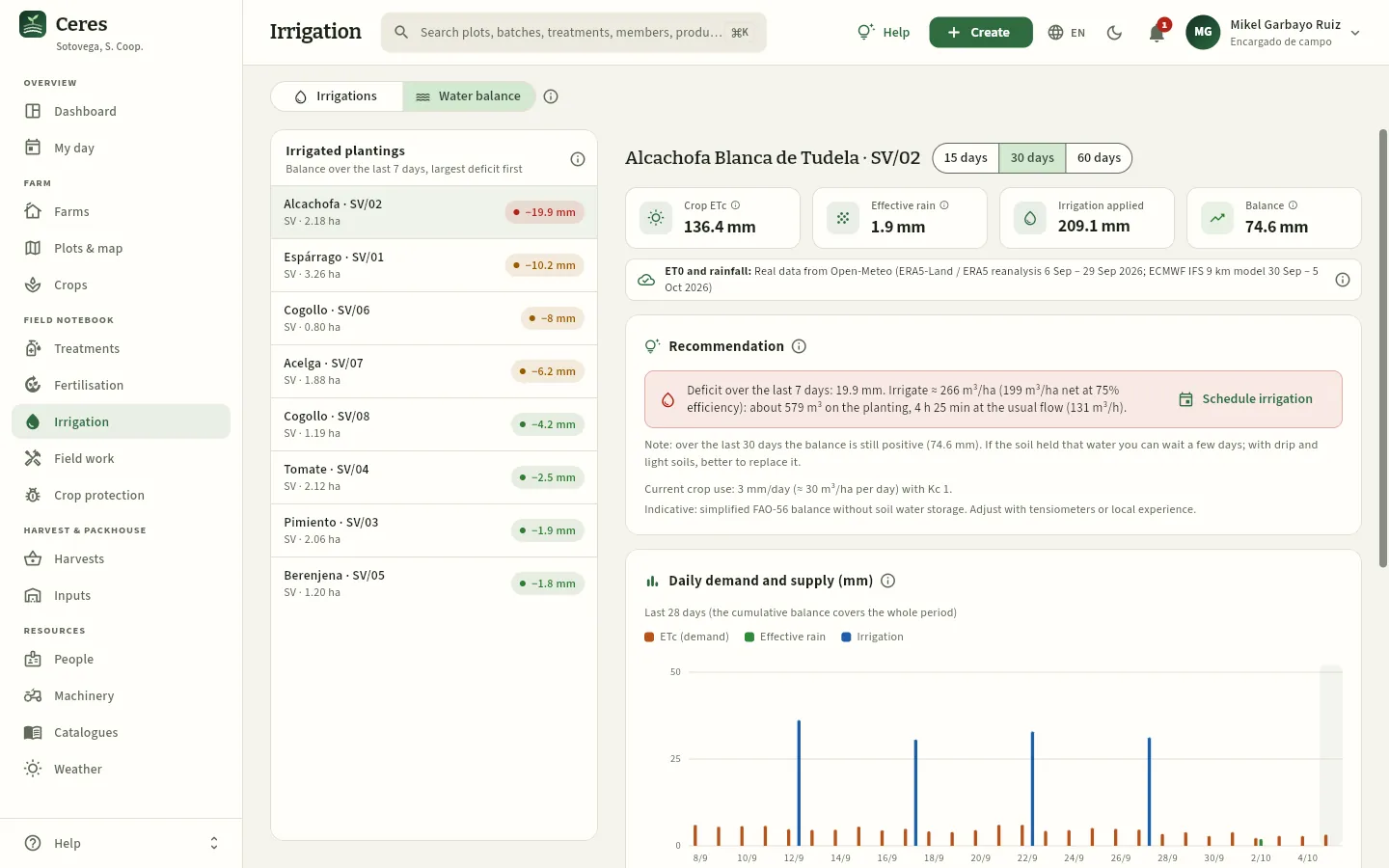 12345678
- 1Current irrigated plantings, sorted by the balance of the last 7 days: at the top, those with the largest deficit.
- 2Each crop with its balance: in red more than 15 mm of deficit, amber more than 5, green if it has enough. Press one to see its balance.
- 3Crop ETc: the water it has consumed in the chosen period (15, 30 or 60 days, at the top).
- 4Effective rainfall and, next to it, the irrigation applied, in mm.
- 5Balance for the period: what was received minus what was consumed. Negative means deficit.
- 6ET0 and rainfall: where this balance's weather data come from and for which dates (here, Open-Meteo: the ERA5-Land / ERA5 reanalysis up to 29 September and the ECMWF IFS model from the 30th).
- 7The recommendation: the deficit of the last week and how much to irrigate to make it up, in m³/ha, m³ and hours. Schedule irrigation creates an irrigation scheduled for tomorrow with that volume and those hours.
- 8Daily demand and supply: each day's ETc against rain and irrigation. Hover over a bar to see that day's ET₀, Kc and rain.
Further down, Cumulative balance draws the balance day by day since the start of the period (below zero, the crop has consumed more water than it has received) and Planting irrigations lists its irrigations over the last 60 days. The same balance for a single crop opens from an irrigation's record with View water balance.
Open the Water balance view. At the top of the list are the crops with the largest deficit.
Press one and read the recommendation. If you like, change the period (15, 30 or 60 days) to see the trend.
Press Schedule irrigation: the form opens with the irrigation scheduled for tomorrow, the volume and the hours. Adjust what is needed and save it.
Tomorrow, whoever irrigates will see it in My day and mark it as done (or you, from its record, with Mark as done).
#What each profile sees
#Tips
Field notebook
Field work
The field work on each crop —soil preparation, sowing, transplanting, weeding, earthing up, staking, pruning…— with the people and their hours, the machinery and its hours, the cost they represent and the weekly schedule of what is planned.
Field work is where you record the work on each crop that does not have its own section: soil preparation, tillage, sowing, transplanting, weeding, earthing up, staking, pruning, leaf removal, mulching, clearing, removal of crop residues, cleaning… Treatments, fertilising, irrigation and harvests go in Treatments, Fertilisation, Irrigation and Harvests.
Each field task (LB-2026-…) keeps who worked and how many hours, and the machine with its hours. With the hourly cost of each person (People) and each machine (Machinery), Ceres calculates the task's cost, which is added to the crop's cost in Crops and in Reports.
A field task can be scheduled (planned, with the person it is assigned to) or done. The Weekly schedule view lays out the week's tasks day by day, so that the foreman can share out the work.
#The list of field tasks
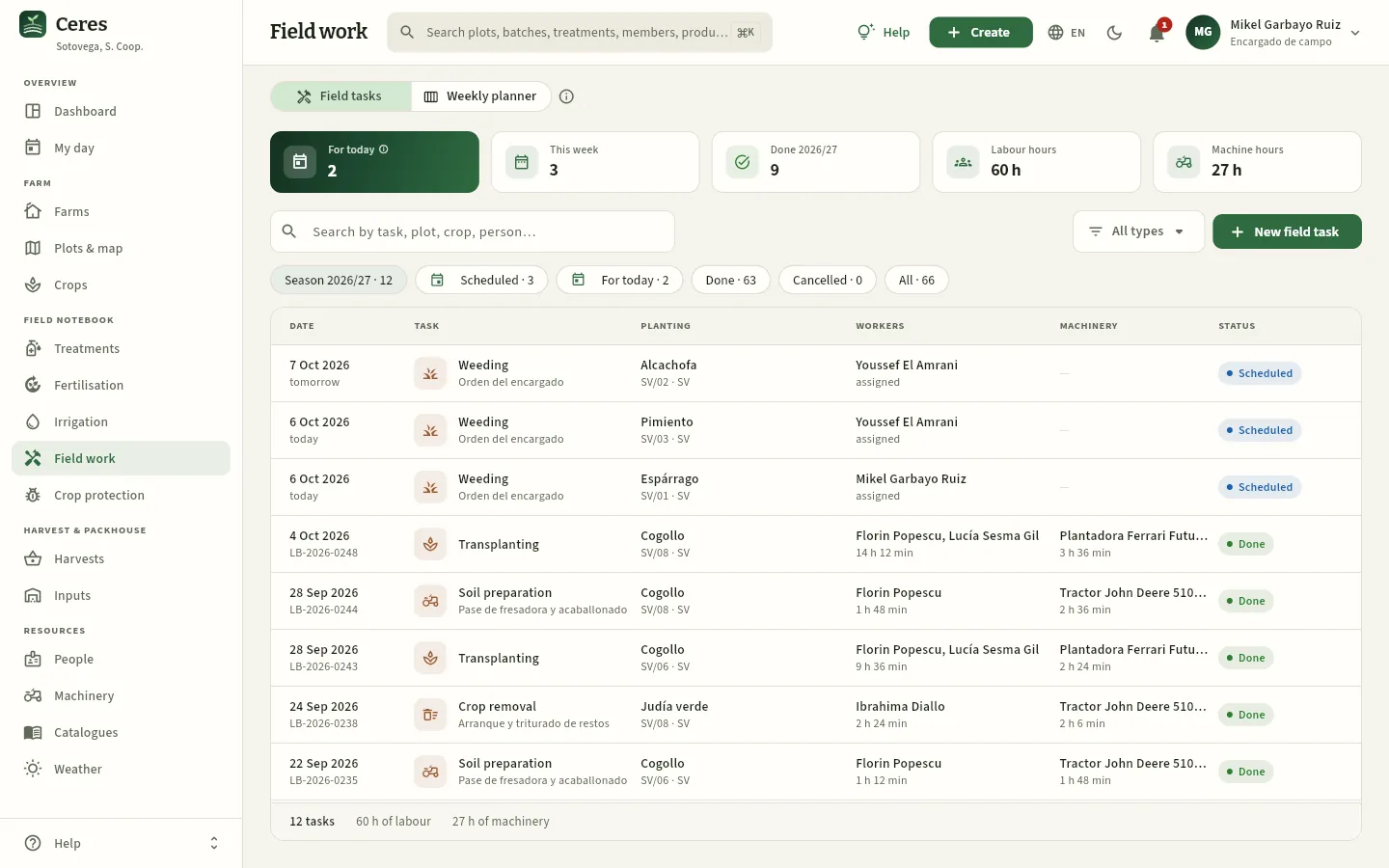 12345678
- 1The two views: Field work and Weekly schedule.
- 2For today: tasks scheduled for today or earlier days not yet marked as done (overdue ones, separately). Press it to see them.
- 3This week: those scheduled from Monday to Sunday.
- 4Done this season.
- 5The season's staff hours and machine hours. With «See costs», also the season's cost.
- 6The type of field task: keep only transplanting, weeding… It also applies to the indicators.
- 7New field task opens the form.
- 8The filters: the season, scheduled, for today, done, cancelled and all.
Each row is a field task:
| Column | What it shows |
|---|---|
| Date | The day and the number (LB-2026-…); for scheduled ones, «today», «tomorrow» or the days remaining. |
| Task | The type, with its icon, and the description: «Rotary tiller pass and ridging», «Removal and shredding of residues»… |
| Planting | The crop, the plot and the farm (or just the plot, if the task is not on a crop). |
| Staff | Who worked and everyone's hours. On a scheduled task, the person it is assigned to. |
| Machinery | The machine and its hours. |
| Cost | Labour plus machinery (only with «See costs»). |
| Status | Scheduled, Done or Cancelled. Scheduled tasks from earlier days are shaded amber. |
The search box finds by task, plot, crop or person. The footer adds up the tasks you see, the staff and machine hours (and the cost, with «See costs»).
#The weekly schedule
The Weekly schedule is the foreman's whiteboard: one column per day, from Monday to Sunday, with the scheduled tasks (blue stripe) and those already done (green stripe). With it Mikel shares out the crew's work on Monday morning:
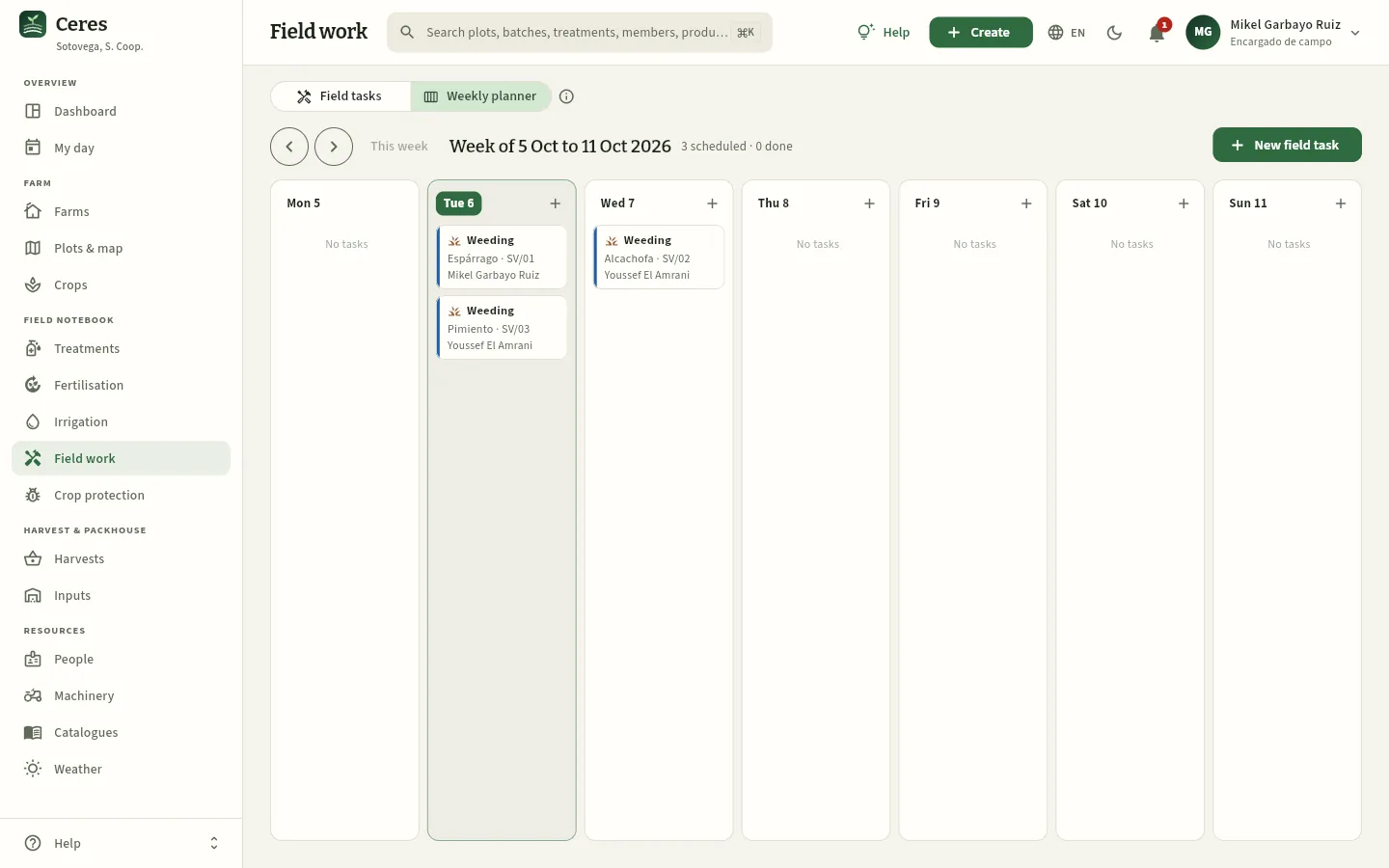 123456
- 1Previous and next week; This week takes you back to the current one.
- 2The week and how many tasks it has scheduled and done.
- 3Today, highlighted.
- 4Each task: type, crop and plot, and the person assigned (or who did it). Press it to open it.
- 5Each day's + creates a task on that date (from today onwards).
- 6New field task, for today or for the Monday of the week you are looking at.
If there are scheduled tasks from earlier days not yet marked as done, a warning at the top says so and View opens the first one. To move a task to another day, open it and change its date with Edit.
#Recording or scheduling a field task
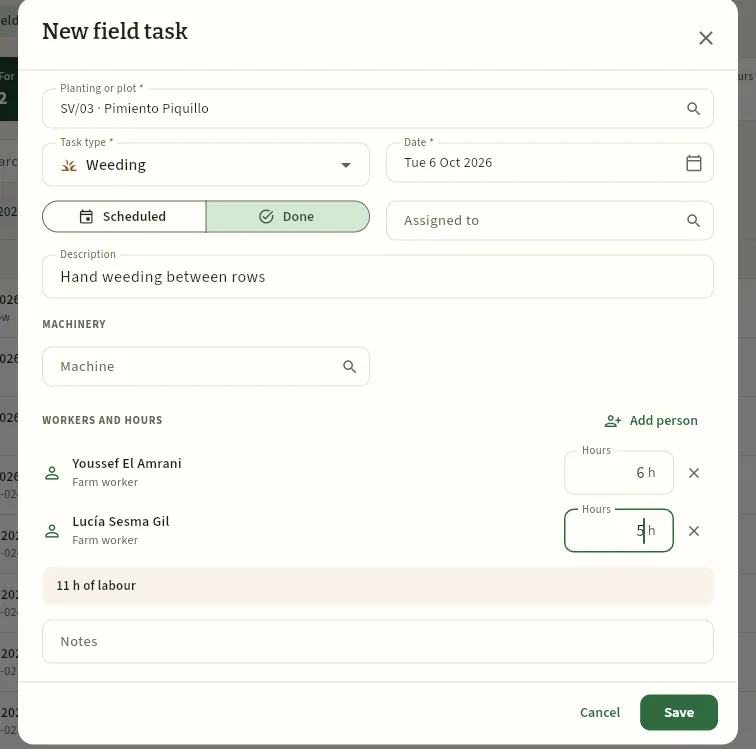 12345678
- 1The planting or, if the task is not on a crop (preparing an empty plot), the plot.
- 2The type of field task.
- 3Scheduled or Done. With a future date, scheduled is proposed.
- 4Assigned to: who will do it. They see it in My day.
- 5Description: exactly what is done.
- 6The machine (tractor, planter, brush cutter…); when you choose it, it asks for its hours.
- 7Add person: each person who worked, with their hours on the right (the ✕ removes them).
- 8A person with their job and their hours: these give the crop's labour cost. Below, the total hours (and the approximate cost, with «See costs»).
Press New field task (or a day's + in the schedule) and choose the planting or the plot.
Choose the type of field task and write a short description.
If a machine was used, choose it and enter its hours.
Press Add person for each person who worked and enter their hours.
Click Save.
To schedule a task, give it a future date (or tick Scheduled) and choose who it is assigned to; each person's hours are entered later, when it is done. Hours are compulsory on a completed task: at least those of one person or those of the machine.
#Marking a field task as done
When a scheduled task is finished, open it and press Mark as done (the ✓ icon in the header, or the warning's button if its date has passed). It is the same dialog the assigned person uses in My day on their phone:
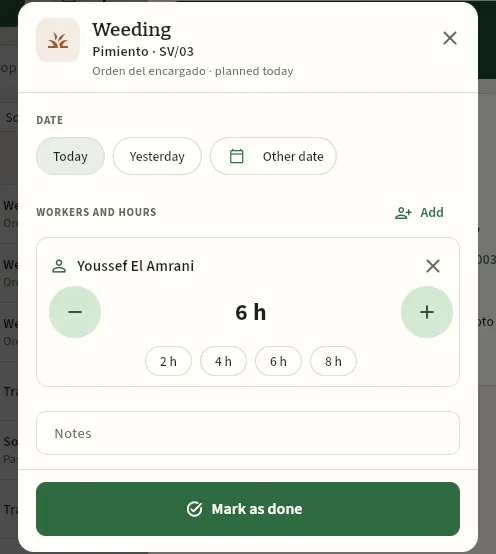 12345
- 1The task: type, crop and plot, description and when it was planned.
- 2The date it was done: today, yesterday or another.
- 3Add more people, if more than the assigned ones took part.
- 4Each person with their hours: the − and + buttons or the 2, 4, 6 and 8-hour shortcuts.
- 5Mark as done: the task becomes done with those hours.
#A field task's record
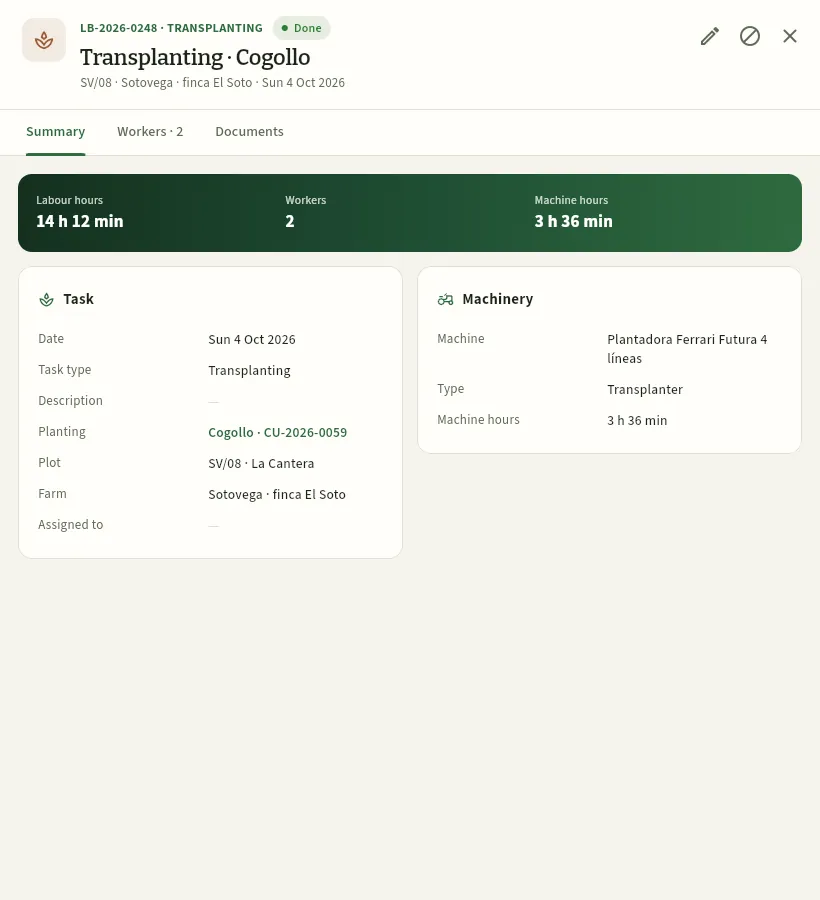 1234567
- 1The number and the type, the status, the crop, the plot, the farm and the date.
- 2Edit and Cancel. On a scheduled task, also Mark as done.
- 3The band: staff hours, people and machine hours (and the cost, with «See costs»).
- 4Task: date, type, description, the crop (press it to open it), plot, farm and who it was assigned to.
- 5Machinery: the machine, its type and its hours.
- 6The Staff tab: each person with their job and their hours.
- 7Documents: photos of the work, a timesheet… (see Documents and changes).
Cancel leaves the task in the field log as cancelled, with its number: it no longer counts in hours or cost. If a scheduled task's date has passed without it being done, the record warns you with the Mark as done button.
#The cost of field work
The cost is only visible to profiles with See costs: with the sample profiles, management and the administrator. This is how Javier, the general manager, sees the same transplanting:
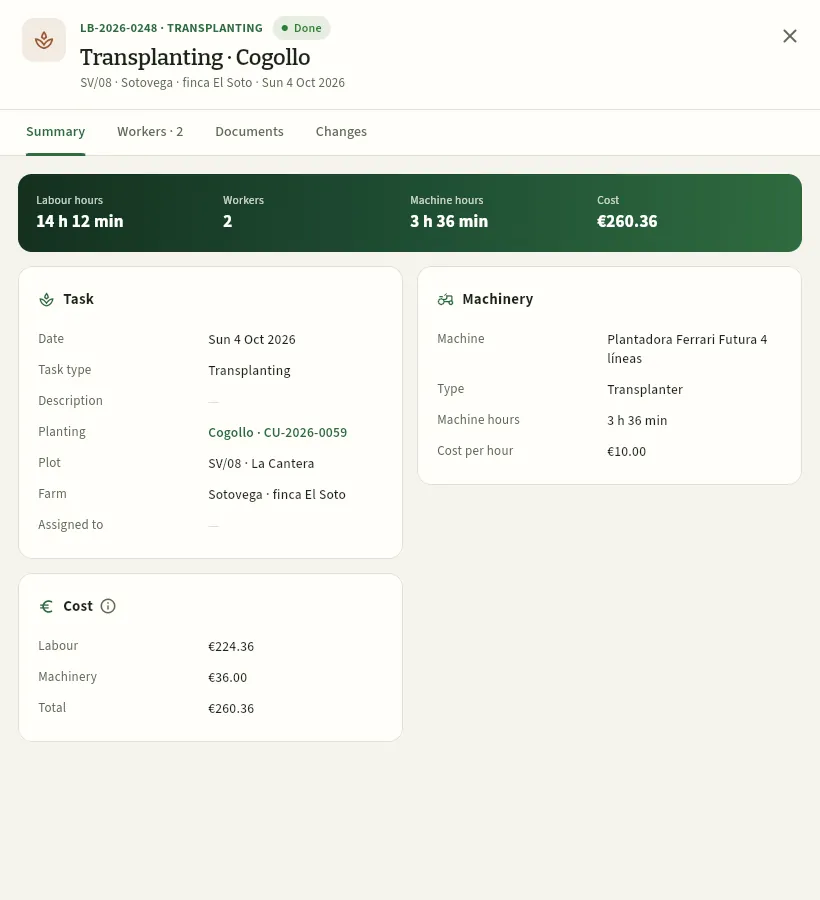 12345
- 1The task's cost in the band: €260.36.
- 2The machine with its hourly cost (from its Machinery record).
- 3The Cost card: labour, machinery and total.
- 4The Changes tab: who created and changed it, and when.
- 5Without Edit the field log, there is no Edit or Cancel: read-only.
#What each profile sees
#Tips
Field notebook
Crop protection
The adviser's field visit reports with what they see in each crop, the traps and their counts, the action thresholds and the solution finder over the official Register, with each product's mode of action and which ones alternate group: this is where every treatment recommendation comes from, with its integrated pest management justification.
Integrated pest management (IPM, GIP in Spanish) means monitoring the crops, spraying only when a pest passes its action threshold and preferring non-chemical methods first. Crop protection is where the adviser records all of that:
- Field visits: the report of each visit to a farm (VI-…), with the growth stage of each crop (BBCH), the pests seen and their level, beneficials, notes and, if needed, the treatment recommendation.
- Solution finder: choose a crop and a pest and you see every product the official Register authorises, with its dose, its pre-harvest interval, its mode of action and whether it is in stock; with a planting, which ones alternate group.
- Traps: the pheromone and sticky traps in each plot, with their counts.
- Thresholds: from what level action is justified for each crop and pest, and what alternatives there are.
- 1VisitBBCH, pests and level, beneficials, photos.
- 2ThresholdCeres flags what is above the action threshold.
- 3SolutionsProducts authorised for that crop and that pest.
- 4RecommendationWith IPM justification and alternatives; then, the order.
#Field visits
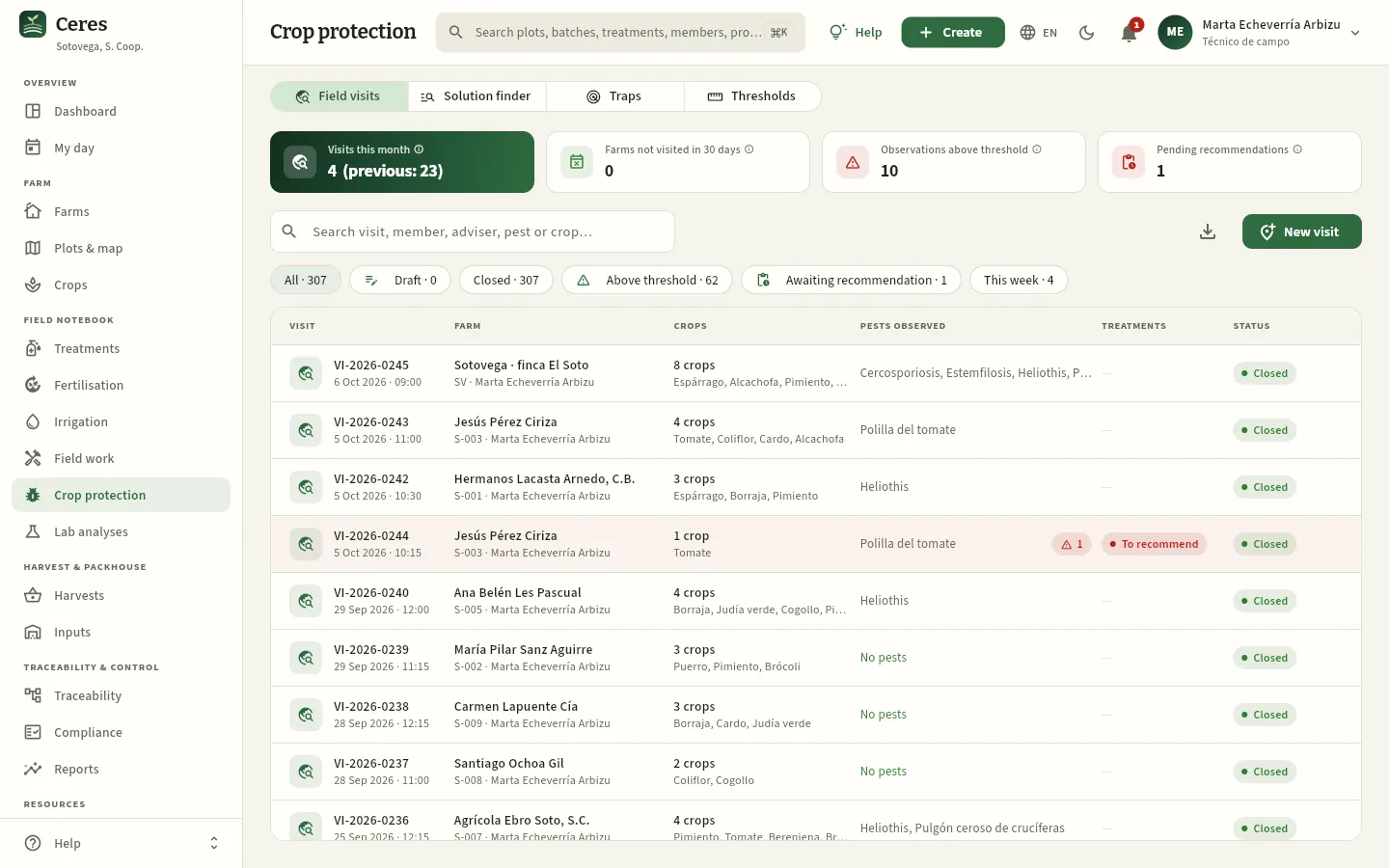 123456
- 1The four views of the section: field visits, solution finder, traps and thresholds.
- 2Farms not visited in 30 days: the ones being left without monitoring.
- 3Observations above threshold and pending recommendations: what needs a decision on whether to spray.
- 4The Awaiting recommendation filter: visits with something above the threshold and no treatment recommended.
- 5New visit opens the report (also from Create).
- 6Visit VI-2026-0244 to Jesús Pérez Ciriza: tomato leafminer above the threshold and the To recommend tag.
#A visit report
Pressing a visit opens its record. VI-2026-0244 is the one of 5 October to Jesús's tomato (S-003/01): the tomato leafminer (Tuta absoluta) pheromone trap caught 42 adults in the week, and the threshold says to act from 30.
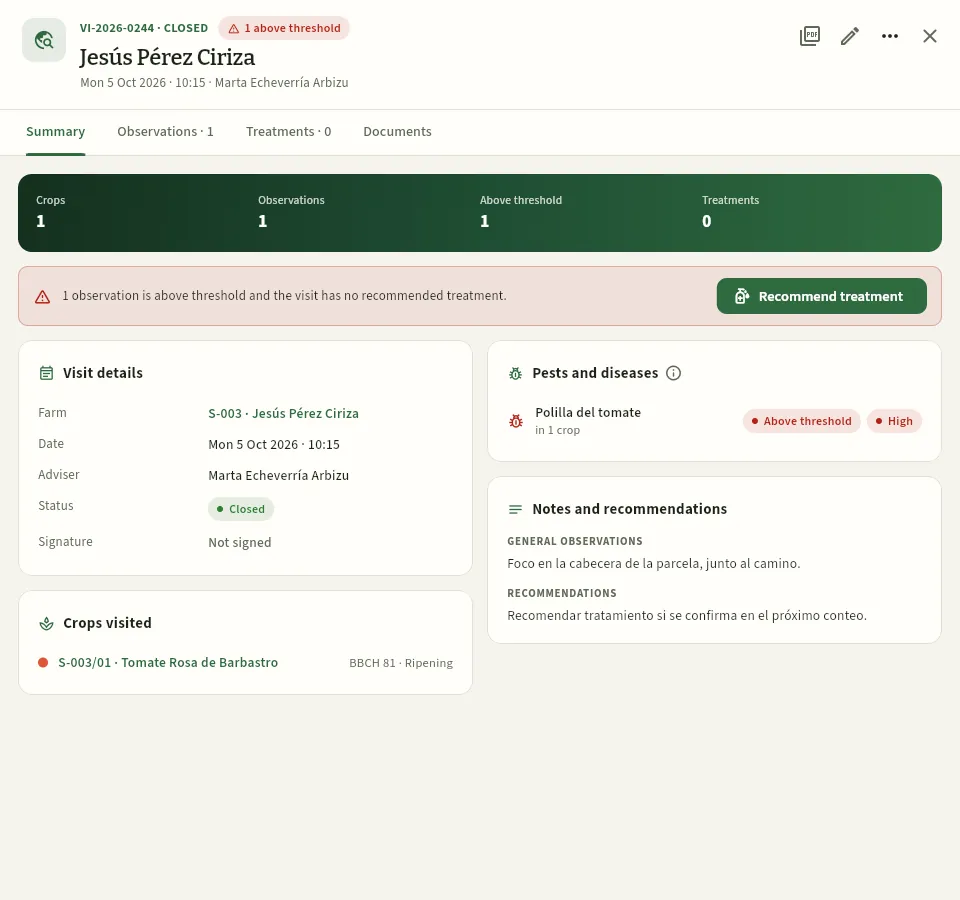 123456
- 1Number and status of the visit (draft or closed) and the 1 above threshold warning.
- 2Visit report (PDF), for the member or for an inspection.
- 3The warning that something is above the threshold without a treatment, with the Recommend treatment button.
- 4Crops visited, each with its BBCH growth stage (here 81, ripening).
- 5Pests and diseases observed, with their level and whether they exceed the threshold.
- 6What the adviser writes for the member: general observations and recommendations.
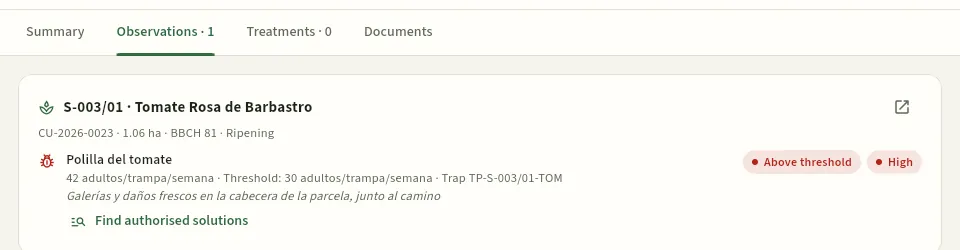 1234
- 1The crop (plot, variety, number, area and BBCH). The arrow opens its record.
- 2The pest, what was measured (42 adults per trap per week), the threshold for that crop (30), the trap and the adviser's note.
- 3Above threshold and the level (none, low, medium or high).
- 4Find authorised solutions: opens the finder with this crop, this pest and this planting (further down).
The other tabs: Treatments, those recommended or scheduled from this visit, and Documents, photos of the pest, sketches or the signed report (see The screen and what is common).
#Recording a visit
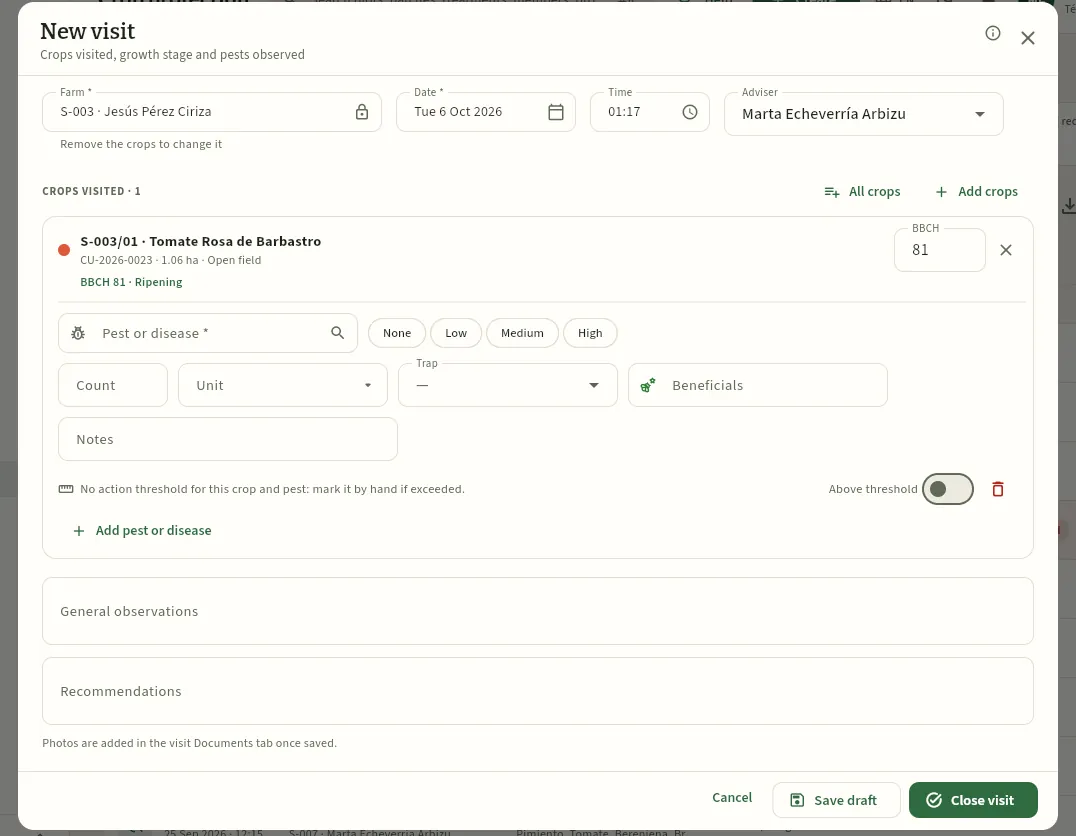 123456
- 1Farm, date, time and adviser. Choosing the farm brings up its crops.
- 2Add crops or All crops: the ones you visited.
- 3The BBCH of each crop: it is also saved on the crop.
- 4The pest or disease, with its level, the count and its unit, the trap if it comes from one, and the beneficials you saw.
- 5General observations and recommendations for the member.
- 6Save draft to carry on later or Close visit when it is complete.
In Crop protection press New visit (or Create → New visit).
Choose the farm; the date, time and adviser are already filled in.
Add the crops you visited and, for each one, its BBCH.
For each pest or disease you see, press Add pest or disease: choose it, mark the level and, if you counted it, the count and its unit (or the trap). Note any beneficials. A crop without pests just keeps its growth stage.
Write the observations and recommendations and press Close visit (or Save draft).
If you like, upload the photos in the Documents tab of the saved visit.
#Recommending a treatment from the visit
When a pest exceeds the threshold, the recommendation is made from the visit, so that it stays linked to what was observed: that is the integrated pest management justification the rules require.
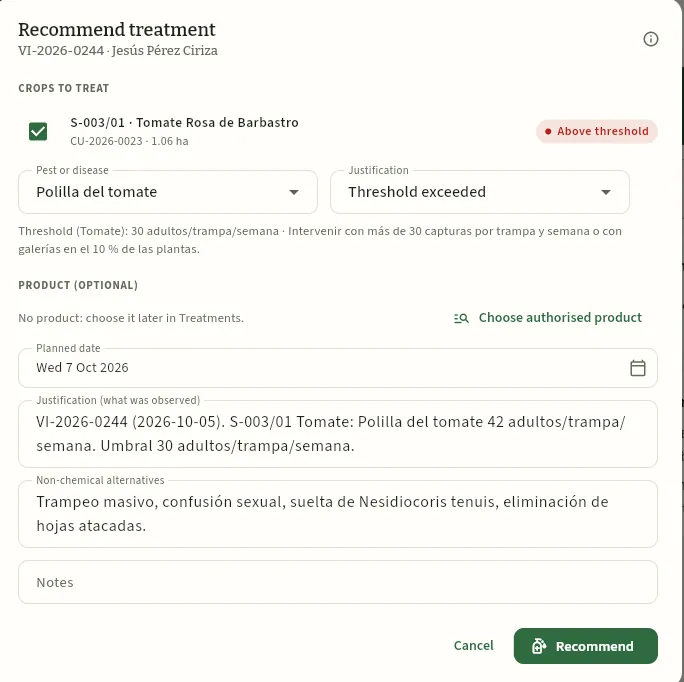 123456
- 1The crops to treat: those above the threshold, already ticked.
- 2The pest and the justification («Threshold exceeded»), with the crop's threshold below.
- 3Product (optional): Choose authorised product opens the solution finder; otherwise it is chosen later in Treatments.
- 4Justification: what was observed in the visit, written by Ceres.
- 5The threshold's non-chemical alternatives (mass trapping, mating disruption, release of Nesidiocoris tenuis…).
- 6Recommend creates the recommendation in Treatments, in the adviser's name.
#The solution finder
What can be used against this pest on this crop? The finder answers with the official Plant Protection Products Register of the Spanish Ministry of Agriculture (MAPA), which Ceres holds in full. Bear in mind the Register's hierarchy: a use authorised for a group of crops (for example, «Plant species» or «Solanaceae») is valid for tomato, and one authorised against «Lepidoptera» is valid against tomato leafminer, which is a lepidopteran. Ceres includes them and tells you why.
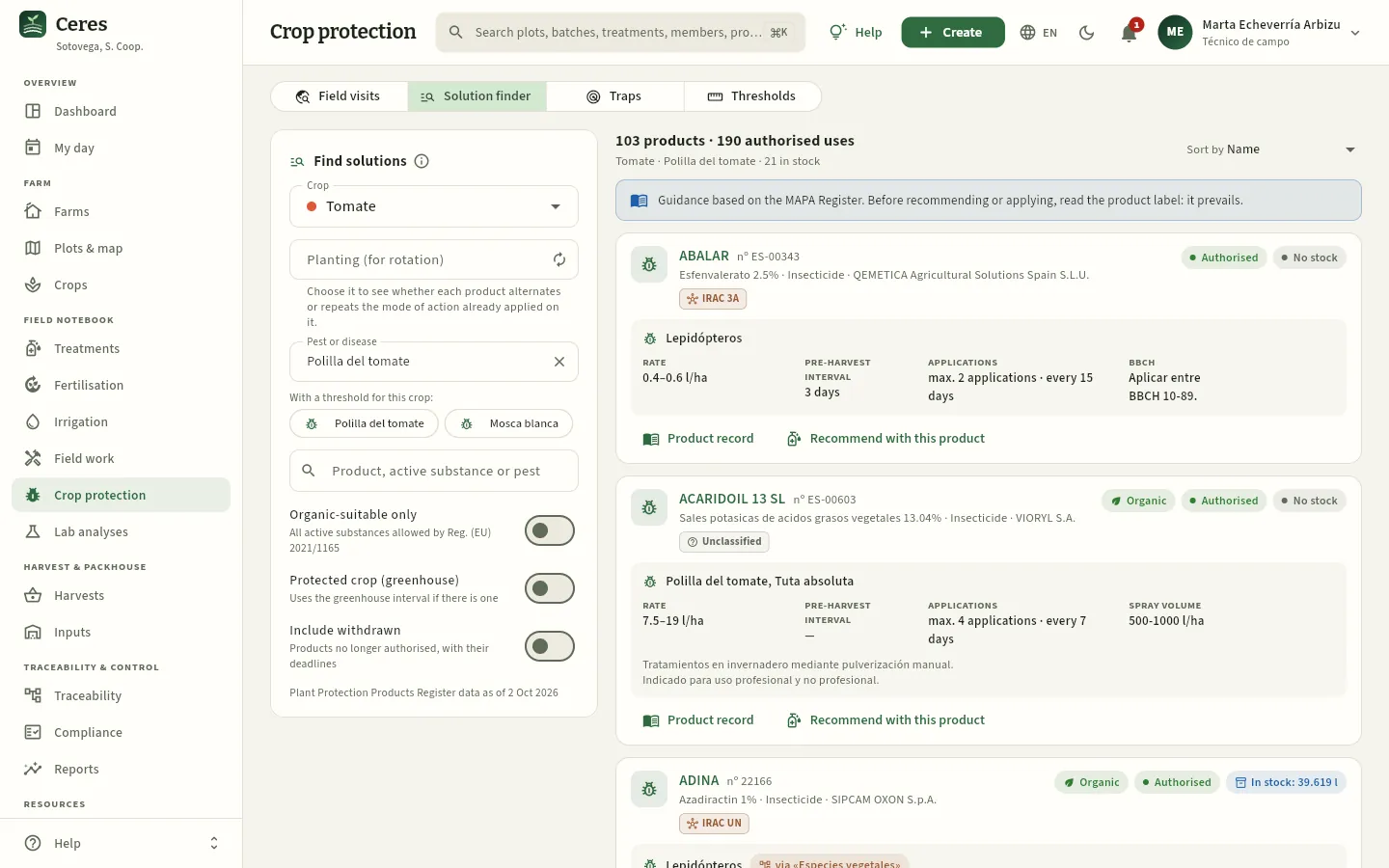 12345678
- 1Choose the crop…
- 2…and the pest or disease (below, the ones with a threshold on that crop, one click away). You can also search by product or active substance.
- 3Filters: organic-suitable only, protected crop (uses the greenhouse pre-harvest interval) and include withdrawn.
- 4How many products and authorised uses there are and how many you have in stock. They can be sorted.
- 5The reminder: it is guidance only; before recommending or applying, the label prevails.
- 6Each product: name, registration number, active substance, function and holder, and whether it is organic, authorised and in stock.
- 7Each authorised use: dose, pre-harvest interval, maximum number of applications and interval, BBCH or spray volume, and its conditions.
- 8Product record or Recommend with this product.
#Alternating the mode of action
Each product shows the mode-of-action group of its active substances: IRAC for insecticides, FRAC for fungicides and HRAC for herbicides. Using the same group over and over on a crop selects resistant pests and fungi, so integrated pest management asks you to alternate. If you also choose the planting, the finder checks which groups that crop has already had and sorts the products: first those that alternate and last those that repeat beyond the recommendation (by default, 2 applications in a row or 3 in the cycle of the same group; it is changed in Settings).
The quickest way is to open it from the visit's observation, with Find authorised solutions: it arrives with the crop, the pest and the planting already set.
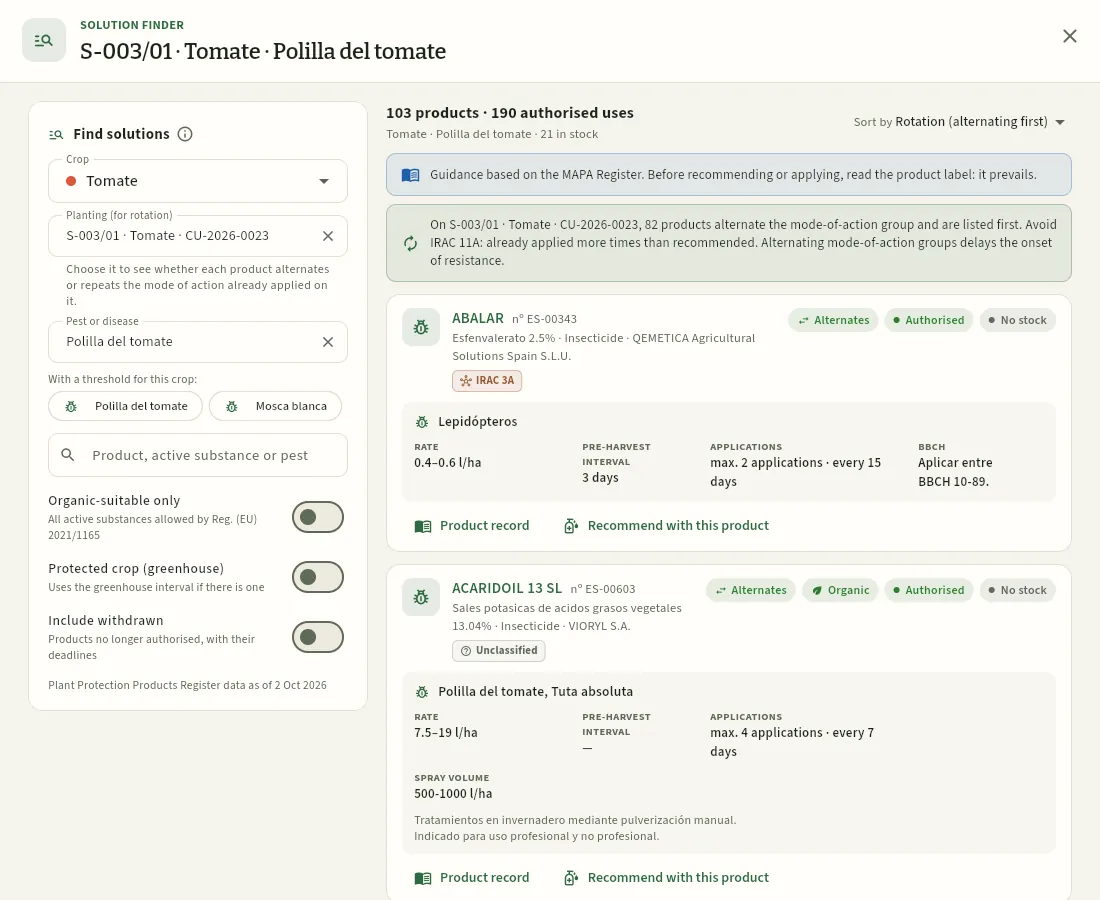 123456
- 1The planting: with it, Ceres checks which mode-of-action groups that crop has already had.
- 2The rotation: 82 products alternate group and come first; IRAC 11A should be avoided, as it has already been applied more often than recommended.
- 3Sorted by rotation (alternating first). It can also be sorted by pre-harvest interval, stock or name.
- 4The group of each active substance (here, IRAC 3A); hover over it for the name of the mode of action.
- 5Alternates: its group has not been used on this planting (or not that much). Those that repeat show Repeats in amber and come last.
- 6Unclassified: neither IRAC, FRAC nor HRAC classifies that substance (soaps, oils, pheromones…); it does not count for rotation.
#Traps
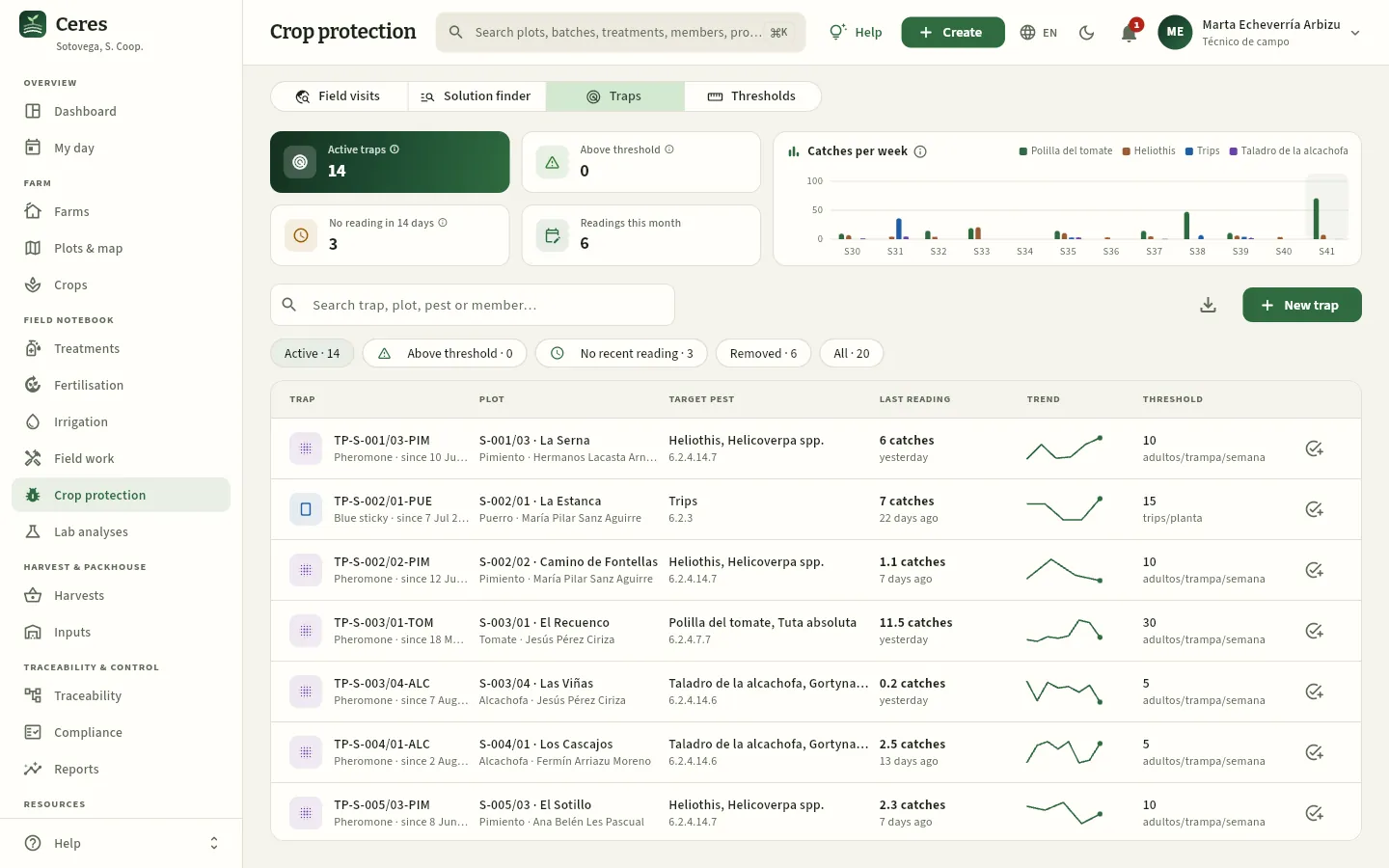 12345
- 1Traps above threshold and with no reading in 14 days (the ones to check).
- 2Catches per week for each pest, to see when the flight builds up.
- 3New trap: type (pheromone, sticky…), plot and target pest.
- 4The Tuta pheromone trap in Jesús's tomato: its last reading, the trend and the crop's threshold.
- 5Record count: enter the catches from today's check.
#Action thresholds
The thresholds say, for each crop and pest, from what level spraying is justified, how it is measured (trap, % of plants, count on flowers or leaves…) and which non-chemical alternatives exist. They come as guidance and the adviser adjusts them with New threshold or by editing them. The visit report and the traps use them to flag «above threshold», and the recommendation copies their alternatives. The magnifier icon on each row opens the solution finder for that crop and that pest.
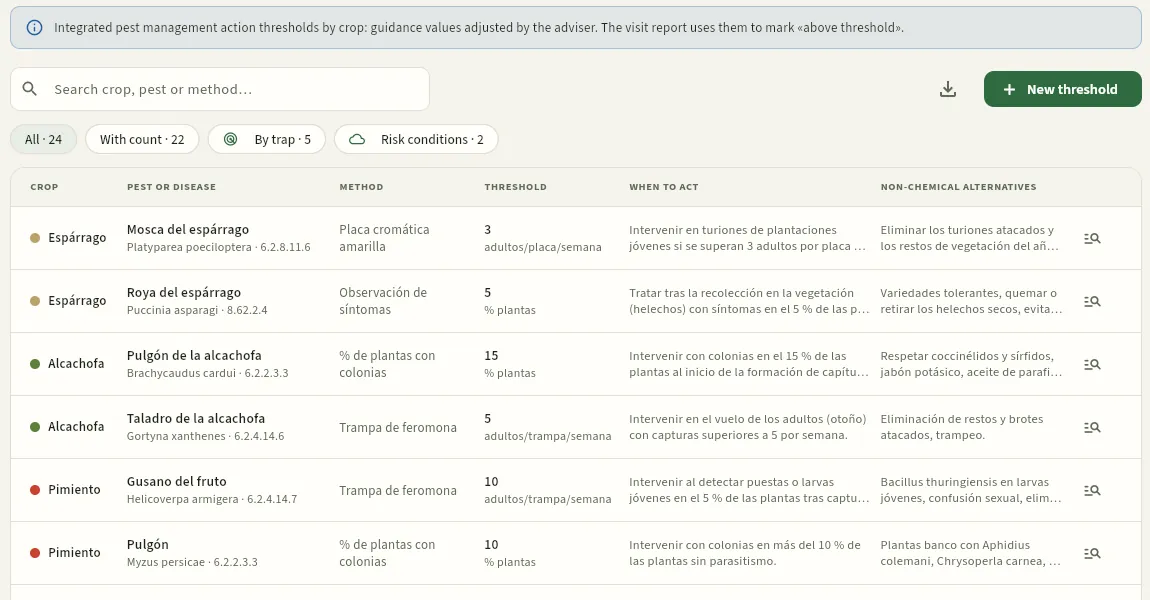 1234
- 1Filters: with count, by trap and risk conditions (diseases that depend on the weather).
- 2The monitoring method and the threshold with its unit.
- 3When to act and the non-chemical alternatives.
- 4Opens the solution finder for that crop and that pest.
Field notebook
Lab analyses
The cooperative's laboratory analyses —soil, irrigation water, leaf, plant protection residues and microbiological— with their laboratory, the lab report, the result and each parameter assessed; for residues, each active substance against its real EU maximum residue limit (MRL) and against customers' requirements.
Lab analyses keeps the analyses the cooperative orders from a laboratory, with the lab report the laboratory sends attached and its results one by one. There are five types, each with its use:
| Type | Of what | What for |
|---|---|---|
| Soil | A plot | pH, organic matter, available phosphorus and potassium, mineral N, conductivity, lime, texture. The fertilisation plan uses them. |
| Irrigation water | A plot (its water intake) | Nitrates, conductivity, pH, SAR, chlorides, E. coli. The nitrates give the N supplied by the water. |
| Leaf | A crop | N, P, K, Ca, Mg, Fe, B in the leaf: the plant's nutritional status. |
| Residues (MRL) | A crop or a lot | The plant protection active substances detected, each against its EU MRL and against customers' requirements. |
| Microbiological | A crop or a lot | E. coli, Salmonella, Listeria, enterobacteria. |
The MRL (maximum residue limit) is the maximum amount of each active substance that European rules allow in a product, in mg/kg. Ceres carries the EU MRLs in force (the European Commission's pesticides database) for each substance and crop, so there is no need to copy them from the report. On top of that, some customers ask for less than the law (a maximum percentage of the MRL, substances they do not accept, a maximum number of substances): each residue analysis tells you which customers it is fit for.
Residue analyses are required by the cooperative's sampling plan, by customers and by certifications (GLOBALG.A.P., organic); soil and water analyses, by the fertilisation plan.
#The list of analyses
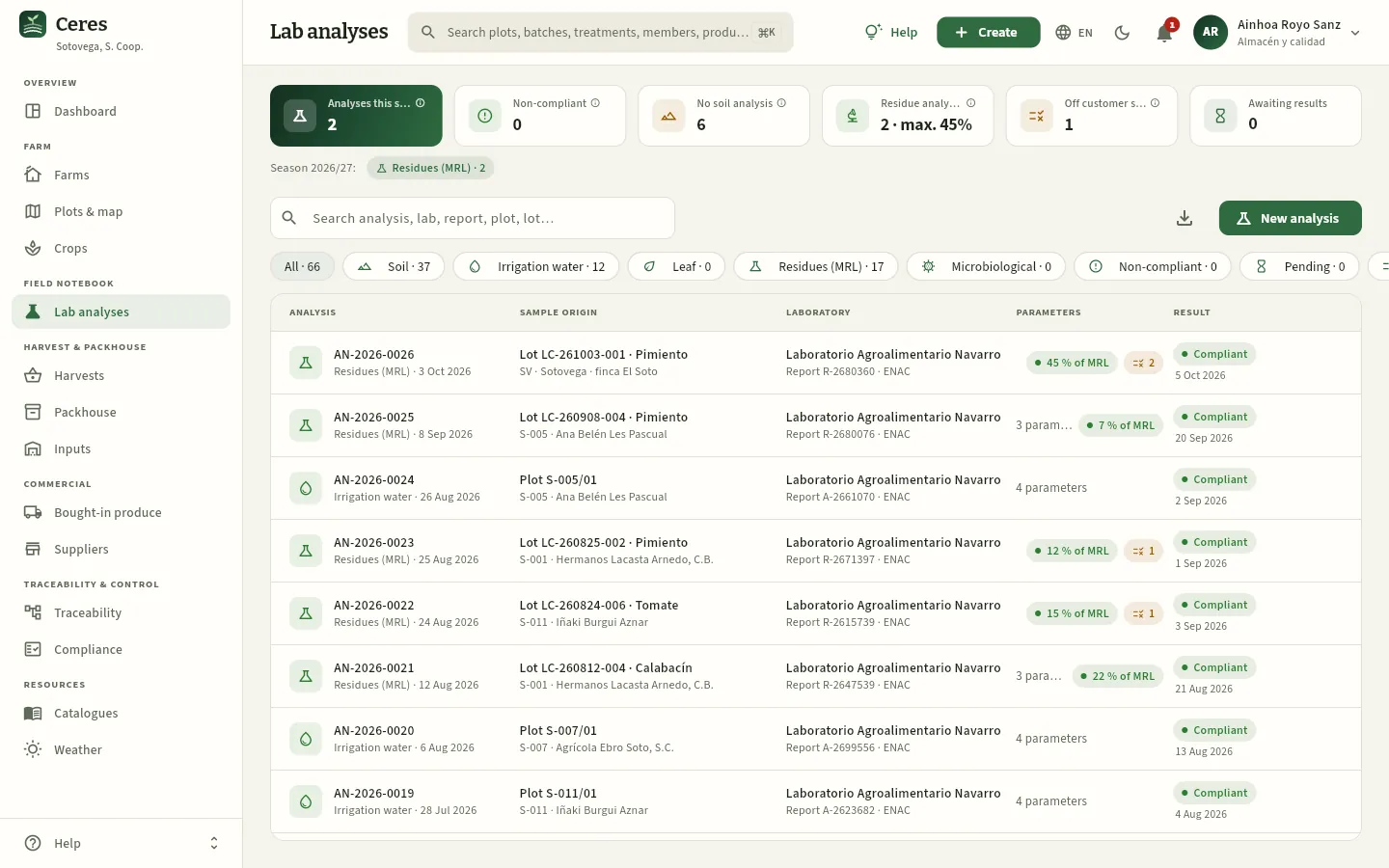 12345678
- 1Analyses this season, by sample date; below, the split by type.
- 2Non-compliant: analyses this season with a non-compliant result or a parameter above its limit. Red if there are any.
- 3No soil analysis: active plots without a soil analysis in the last 5 years (10 for rain-fed land).
- 4The season's residue analyses and the highest % of MRL they have shown (here, 45 %).
- 5Off customer spec: residue analyses this season that do not meet some customer's requirements.
- 6Awaiting result: samples sent whose lab report has not arrived yet.
- 7New analysis opens the form. To its left, Export CSV.
- 8The filters: all, one per type, Non-compliant, Pending and, scrolling along, Not meeting customer requirements.
Each row is an analysis: Analysis gives its number (AN-2026-…), the type and the sample date; Sample origin, the plot, the crop or the lot, and the farm; Laboratory, the laboratory, the report number and ENAC if it is accredited; Parameters, how many there are and, in red, how many are out of limit (for residues, with the highest % of MRL); Result, compliant, non-compliant or pending, with the report date. Non-compliant ones are shaded red. The search box finds by number, laboratory, report, plot, crop or lot.
#A residue analysis
Ainhoa takes samples from the field lots for the cooperative's annual residue plan and for the customers who ask for it. This is the one for the farm's pepper (SV/03) collected on 3 October: the laboratory looked for 512 active substances and found one, bupirimate, at 0.675 mg/kg. It complies with the law —it is at 45 % of its EU MRL—, but not with every customer:
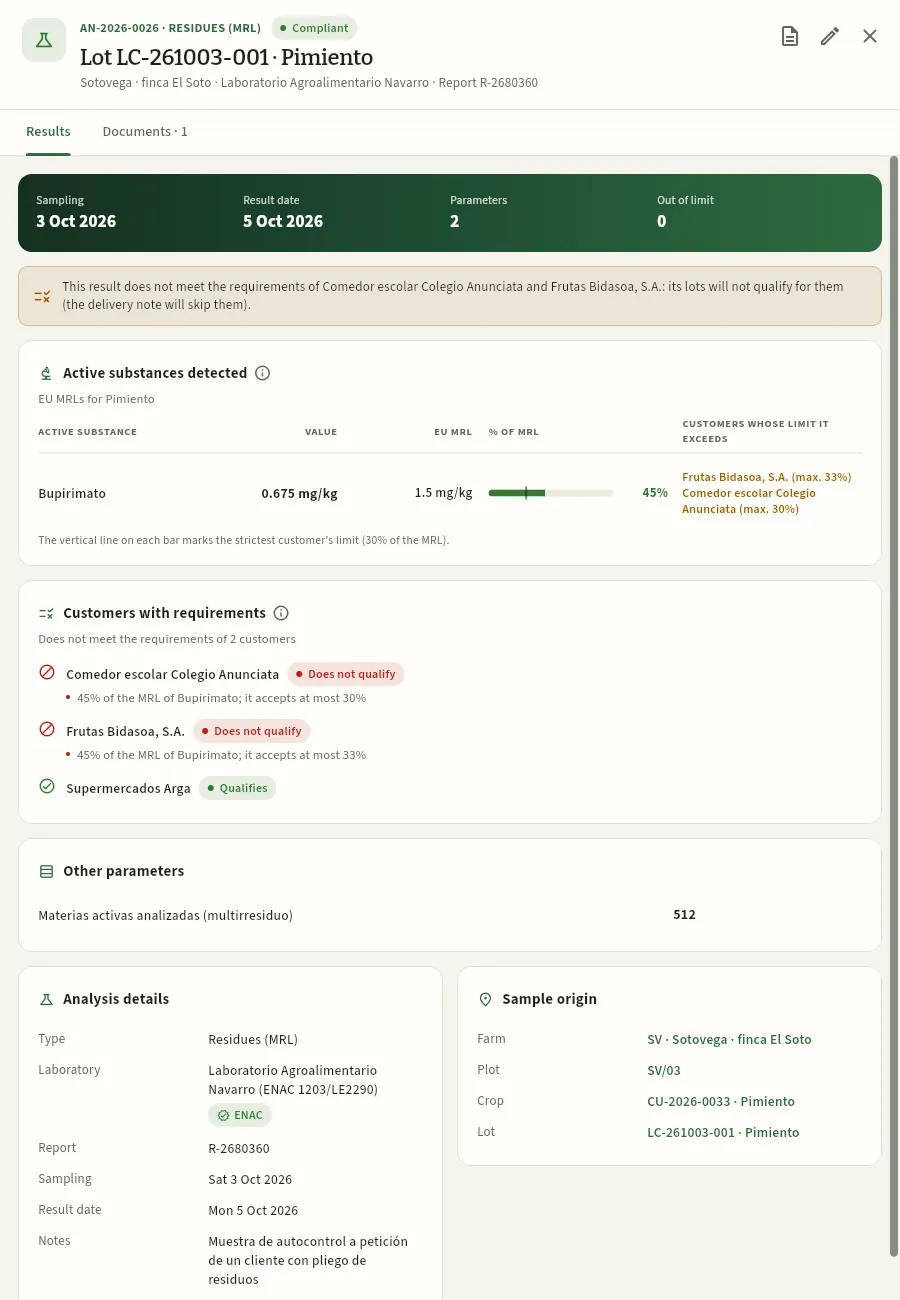 12345678
- 1The number and the type, the result, the sample origin, the laboratory and the report number.
- 2View the lab report opens the attached PDF; next to it, Edit.
- 3The band: sampling, result date, parameters and how many are out of limit.
- 4The warning: it does not meet two customers' requirements; the FEFO delivery note will skip their lots (see Orders & sales).
- 5Each active substance detected: its value, the EU MRL for pepper, the bar with its % of MRL (the line, the limit of the strictest customer) and the customers whose limit it exceeds.
- 6Customers with requirements: which ones it is fit for and which not, and why. Not for the school canteen or Frutas Bidasoa; yes for Supermercados Arga, which allows up to 50 %.
- 7Analysis details: type, laboratory (with ENAC if accredited), report, dates and notes.
- 8Sample origin: farm, plot, crop and lot. Press them to open them; from the lot you can follow its traceability.
#A soil analysis
In soil and water analyses, each parameter is compared with the limit given in the report or, if there is none, with some guidance ranges for irrigated vegetables. This is the one for María Pilar Sanz's plot S-002/02, which Marta ordered in May:
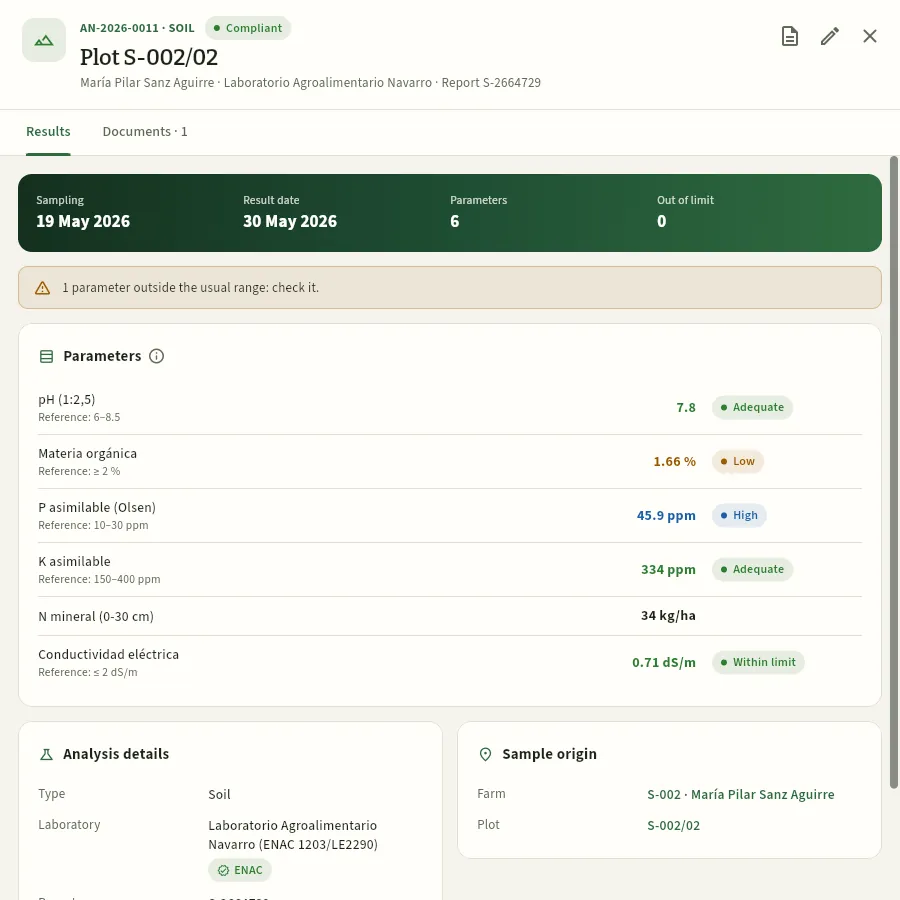 123456
- 1The warning: parameters outside the usual range (amber) or their limit (red).
- 2Each parameter with its reference below, its value and the assessment: Adequate…
- 3…Low (amber): organic matter, 1.66 % against 2 % or more…
- 4…or High (blue): Olsen phosphorus, 45.9 ppm.
- 5Mineral N has no reference: it is what the crop's fertilisation plan deducts.
- 6With a limit (conductivity ≤ 2 dS/m): Within limit or Exceeds limit.
The assessment is a help for reading the report: the agronomic interpretation is the adviser's. The ranges Ceres uses are in the ⓘ of the Parameters card.
#Recording an analysis
Press New analysis (or Create in the top bar) and choose the type: the form proposes the usual parameters for that type, with their units and, if any, their limit. This is how Marta fills it in with the soil report for Jesús's plot S-003/02:
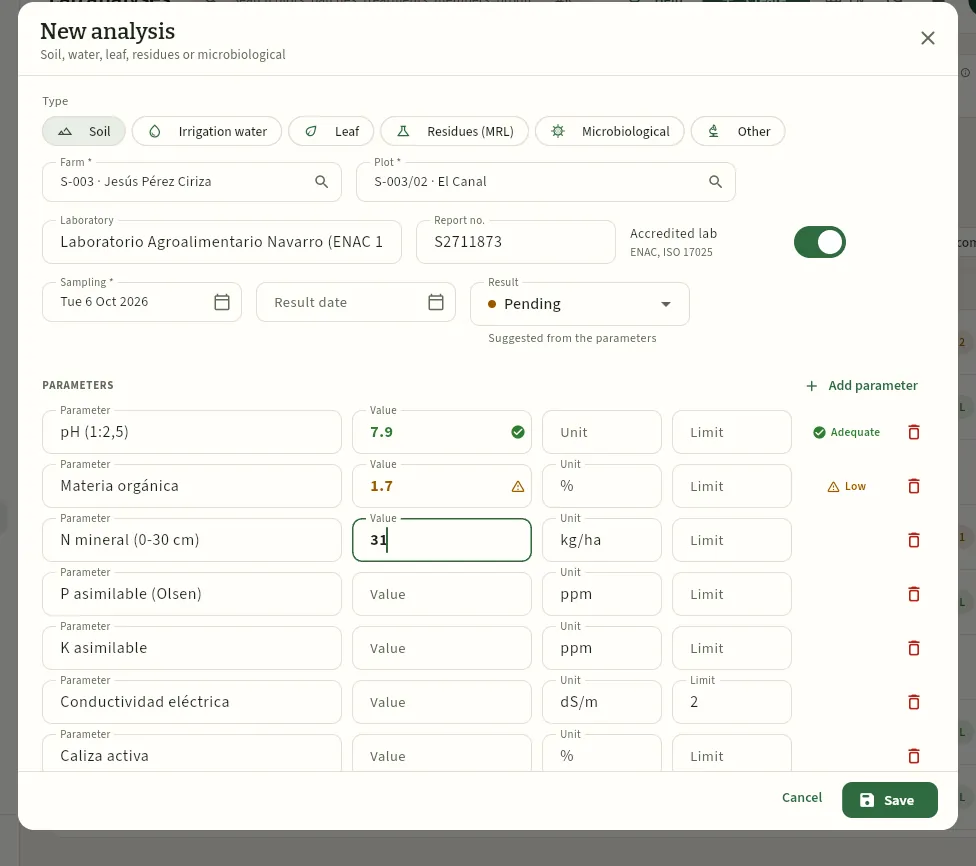 1234567
- 1The type: soil, irrigation water, leaf, residues, microbiological or other.
- 2The farm and the plot (or the crop or the lot, depending on the type).
- 3The laboratory (it autocompletes with those already used), the report no. and whether it is accredited by ENAC (ISO 17025).
- 4The sampling date (compulsory) and the result date, when the report arrives.
- 5The result: proposed from the parameters (pending, compliant or non-compliant); you can change it.
- 6The type's parameters, with their unit and their limit: as you type the value it is assessed at once (Adequate, Low…).
- 7Add parameter if the report includes others; the bin removes those that do not appear.
At the end of the form are the notes, Attach the lab report (PDF or photo) and, for a plot's soil and water analyses, the Pass the soil data on to the plot box (or Pass the water nitrates on to the plot): it copies the pH, organic matter, available phosphorus and potassium and texture (or the nitrates) to the plot's record, which is where the fertilisation plan reads them from.
In a residue analysis, choose whether the sample is from a crop or from a lot and enter each substance detected with Add detected substance. This is how Ainhoa records the one for Jesús's tomato that came in on 3 October:
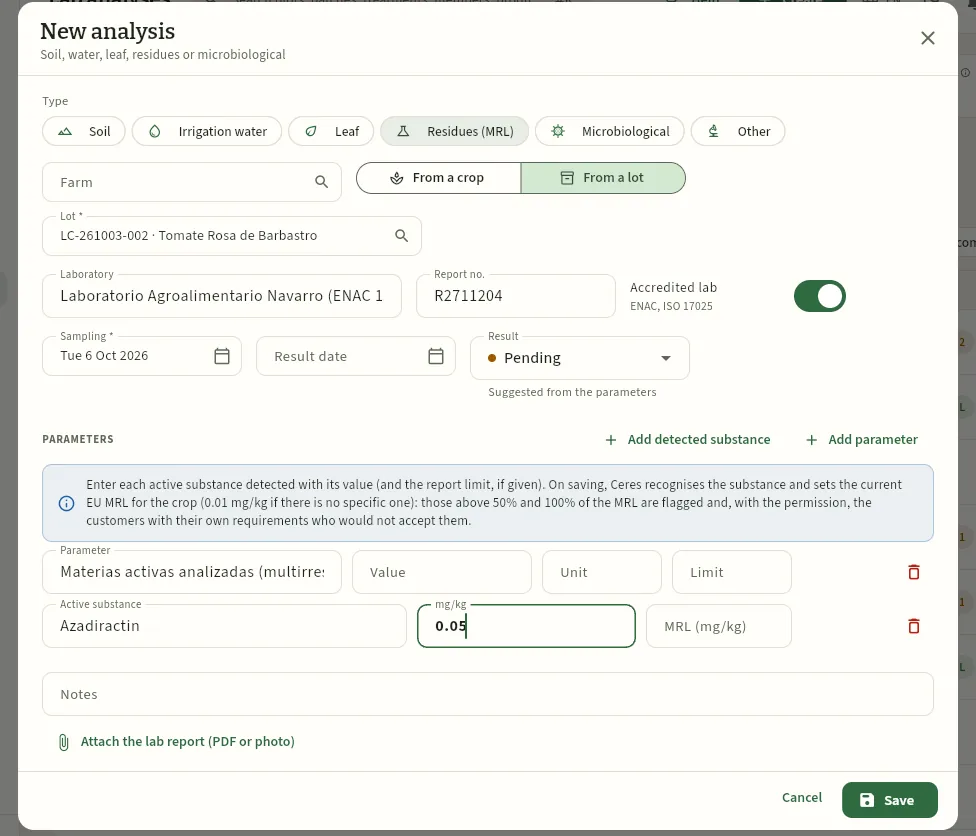 12345678
- 1Residues (MRL).
- 2From a crop (sample in the field, before harvesting) or from a lot (from the packhouse).
- 3The lot: the analysis is linked to its traceability.
- 4Laboratory, report no. and ENAC.
- 5Add detected substance: one line for each active substance in the report.
- 6When saving, Ceres recognises each substance and sets the EU MRL in force for the crop; it flags those above 50 % and 100 % and, with the permission, the customers who would not accept them.
- 7The active substance and its value in mg/kg. The MRL, only if the report gives a different one.
- 8Attach the report (PDF or photo): it is kept in the analysis's documents and View the lab report opens it.
Press New analysis and choose the type.
Choose the farm and the plot, or the sample's crop or lot.
Check the laboratory, enter the report no. and the sampling and result dates.
Fill in the value of each parameter (remove those that do not appear). For residues, add each substance detected with its value (Ceres sets the MRL).
Attach the report and, if it is a plot's soil or water analysis, tick Pass the data… on to the plot.
Check the proposed result and press Save.
If you send the sample and do not have the report yet, record it anyway with the sampling date and the result Pending: that way you know what is still to come. When it arrives, open it, press Edit and complete the values.
#What each profile sees
#Tips
Harvest & packhouse
Harvests
Harvest intakes from the farm and the members: each one creates its field lot, the database will not record it if the crop is within a pre-harvest interval, and the packhouse grades it into extra, class I, class II and culls.
Harvests is the doorway through which vegetables enter the cooperative. Every time a trailer arrives from the farm or a member, someone weighs what was picked and records it here: which crop it comes from, how many kilos, in how many crates and how many hours the crew put in. When you save it, Ceres creates that harvest's field lot (for example, LC-261006-001: harvest of 6 October 2026, the first of the day), which already knows which member, SIGPAC parcel and crop it comes from.
Before letting you record it, the database checks the pre-harvest interval of the crop's treatments: the minimum time the plant protection product's label requires between application and harvest. If it has not passed yet, the harvest cannot be recorded. Then, in the packhouse, the harvest is graded: the kilos are split into the commercial classes (Extra, I and II) and culls (what cannot be sold), and the lot is stored in a cold room.
#How the harvest reaches the packhouse
- 1PickingThe crew picks into field crates or bins. The crop must be out of its pre-harvest interval.
- 2Recording and lotThe harvest is weighed and recorded: field lot LC-… is born, «To be graded», at the receiving dock.
- 3GradingThe packhouse splits the kilos into Extra, I, II and culls, and takes the lot to its cold room.
- 4PackingGraded lots are packed into LV-… sales lots with their label and QR code.
- 5SaleDelivery notes serve lots by FEFO: first those closest to their best-before date.
#The list of harvests
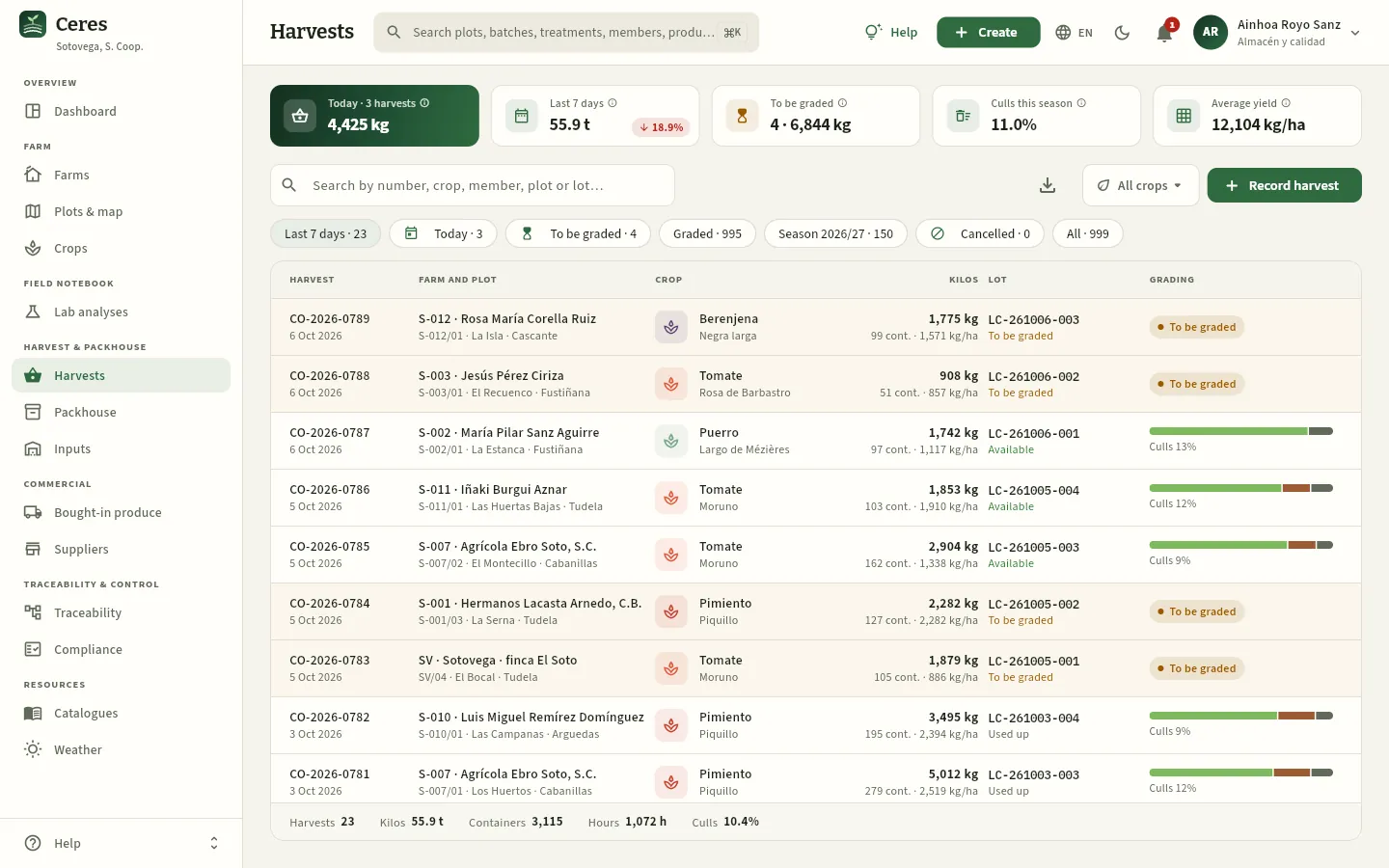 12345678
- 1Today: how many harvests have come in today and how many kilos they add up to.
- 2Last 7 days, with the arrow showing whether it is up or down on the previous week.
- 3To be graded: harvests that have arrived and the packhouse has not yet split into classes. It turns amber if there are any.
- 4Culls this season and Average yield (kg per hectare of crops already harvested). Culls turn amber above 15 %.
- 5The species filter: keep only tomato, pepper… It also applies to the indicators above.
- 6Record harvest opens the intake form.
- 7The filters, with their count: last 7 days, today, to be graded, graded, the season, cancelled and all.
- 8Grading: the bar with the split into classes and the percentage of culls, or the To be graded pill.
Each row is a harvest. Harvest gives its number (CO-2026-…) and the date; Farm and plot, the member or the own farm and the parcel; Crop, the species and variety; Kilos, what was weighed, the containers and the yield in kg/ha of that harvest; and Lot, the field lot it created and its status. Rows waiting to be graded are shaded amber. Hover over the grading bar to see the kilos in each class.
The footer adds up what you see: harvests, kilos, containers, crew hours and the average culls. Press a row to open its record, and Export CSV (the download icon) to take the list to a spreadsheet.
#Recording a harvest
Record the harvest as soon as it reaches the packhouse, with the weight from the scales. You can do it from Record harvest, from the Create button in the top bar or, in the field, from the expected harvest card in My day, which already has the crop selected. In the example, Mikel, the farm foreman, records the peppers from SV/03.
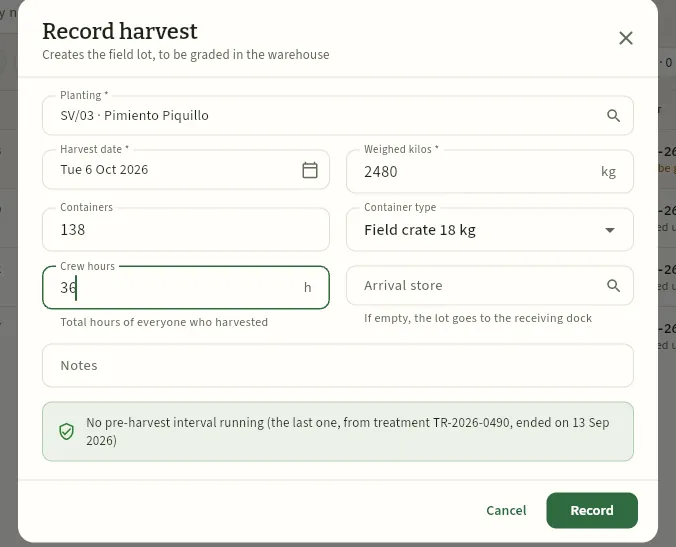 12345678
- 1The crop (the planting): only established or harvesting crops on the farms you see appear. The search box finds by plot, species, member or CU-… number.
- 2The harvest date: today, by default. It cannot be later than today.
- 3The weighed kilos from the scales, compulsory.
- 4Containers and Container type (field crate of 18, 10 or 5 kg, 300 kg bin or bulk). If there are more kilos per container than fit, Ceres warns you to check the weight.
- 5Crew hours: the sum of the hours of everyone who picked. They are used for the cost and the kg per hour.
- 6Arrival store: if you leave it empty, the lot goes to the receiving dock until it is graded.
- 7The pre-harvest interval check, instantly: here, in green, the last treatment (TR-2026-0490) finished its interval on 13 September.
- 8Record saves the harvest and creates its field lot.
Press Record harvest and, in Planting, type the plot or the species and choose the crop.
Check the pre-harvest interval warning: in green, you can go on; in red, the harvest cannot be recorded (see the next section).
Enter the weighed kilos, the containers and their type and, if you have them, the crew hours.
If the lot goes straight into a cold room, choose it in Arrival store; otherwise it stays at the dock.
Press Record.
#A harvest blocked by the pre-harvest interval
The pre-harvest interval (PHI) is the number of days a plant protection product's label requires you to wait between its application and the harvest, so that residues stay below the maximum residue limits (MRL). Ceres calculates it for each applied treatment: the last day without harvesting is the application date + interval − 1.
Example from the demo: broccoli CU-2026-0051 on plot S-007/04 (Agrícola Ebro Soto) was treated on 3 October with TR-2026-0544, which has a 14-day interval. It cannot be harvested until 16 October inclusive. Ainhoa, in the packhouse, already sees it when choosing the crop.
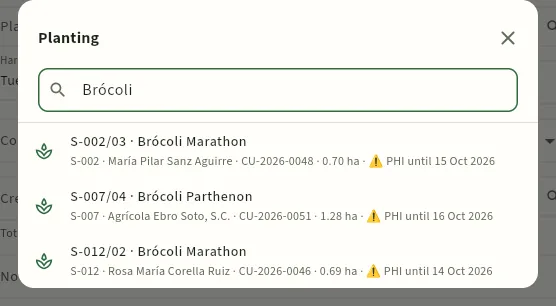 123
- 1The selector's search box: here, «Broccoli».
- 2The broccoli on S-007/04, with ⚠ PHI until 16 Oct 2026: it is within its pre-harvest interval.
- 3The one on S-012/02, within its interval until 14 October: it cannot be harvested yet either.
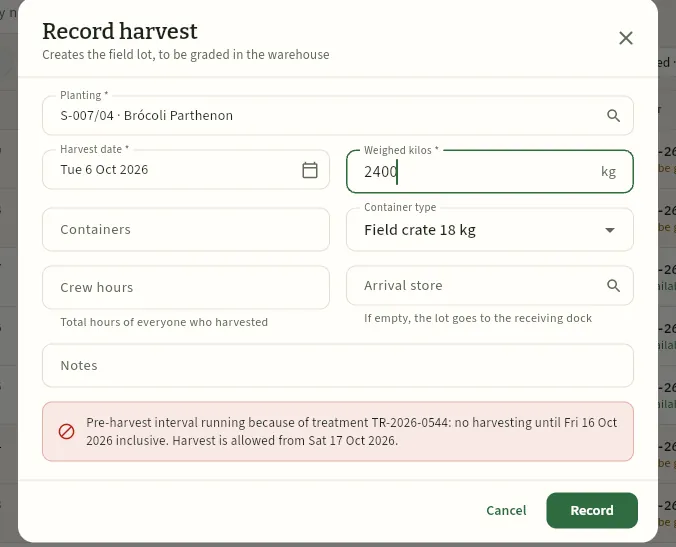 123
- 1The chosen crop: S-007/04 · Broccoli Parthenon.
- 2The warning: which treatment prevents it (TR-2026-0544), the last day without harvesting (16 October, inclusive) and from when it will be allowed (the 17th).
- 3If you press Record anyway, the database rejects the harvest: nothing is saved.
The form's warning is a help: the check that counts is done by the database when saving, with the treatments as they are at that moment (also if someone records the application while you are typing). If you try to record the harvest, Ceres does not save it and opens the Pre-harvest interval running dialog, which explains:
- which harvest cannot be recorded (S-007/04 · Broccoli) and why: the produce could exceed the residue limits;
- the treatment preventing it (TR-2026-0544), with its application date, its products and its interval days;
- No harvesting until 16 October inclusive and, large and in green, Harvest allowed from 17 October.
From that dialog, View treatment opens the order (if your profile sees Treatments) and OK goes back to the form. The harvest date cannot be moved into the future to get round the interval either.
#The harvest record
Press a harvest to open its record. It has the Summary and Documents tabs (the intake delivery note, a photo of the crates…; see The screen). In the example, harvest CO-2026-0780: Rosa de Barbastro tomato from Jesús Pérez (S-003), already graded.
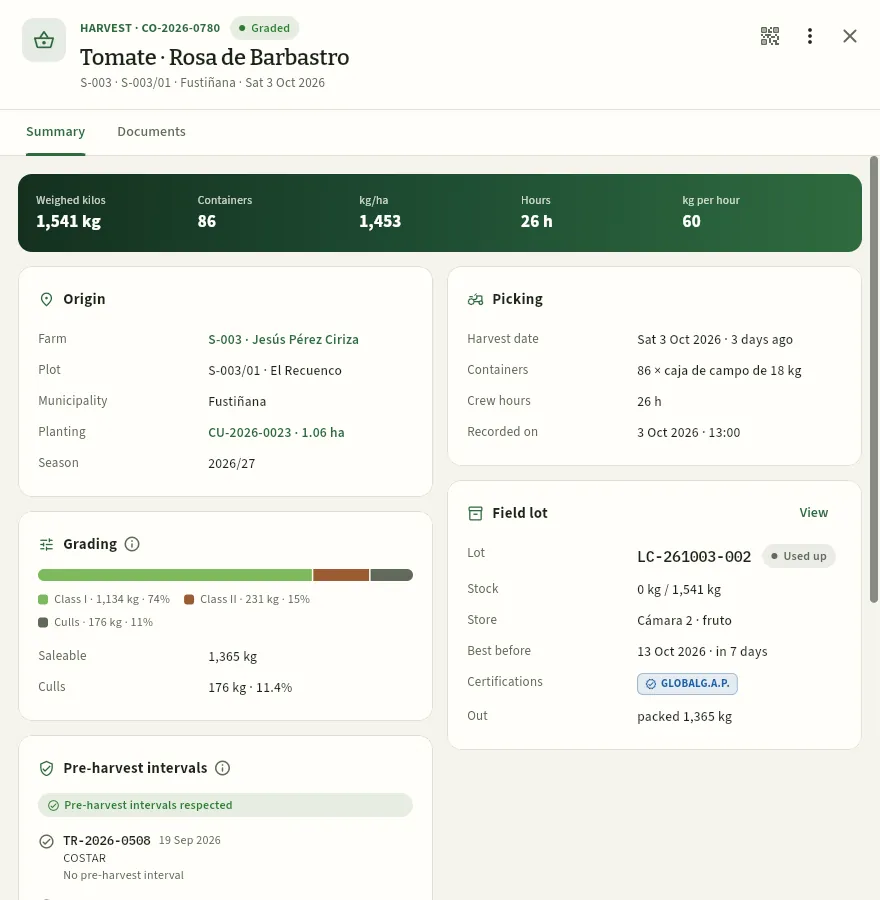 12345678
- 1The crop, the harvest status (To be graded, Graded or Cancelled) and, below, the member, the plot, the municipality and the date.
- 2Print label: the field lot's label, with its QR code (see Packhouse).
- 3More options: View lot, the lot's Traceability and Cancel harvest.
- 4The band: weighed kilos, containers, kg/ha, crew hours and kg per hour.
- 5Origin: the farm, the plot, the municipality, the crop (CU-2026-0023, with its area) and the season. The links open their records.
- 6Picking: the date, the containers, the hours and when it was recorded.
- 7Grading: the split into classes and culls, what is marketable and, if there was any, the receiving loss.
- 8Field lot: LC-261003-002, its status, its stock against what came in, the cold room, the best-before date and the certifications. View opens the lot.
Further down, the Pre-harvest intervals card reviews the treatments applied to the crop in the 90 days before the harvest and says whether they were respected. It is what you would show in an audit to prove that the harvest was made outside the interval.
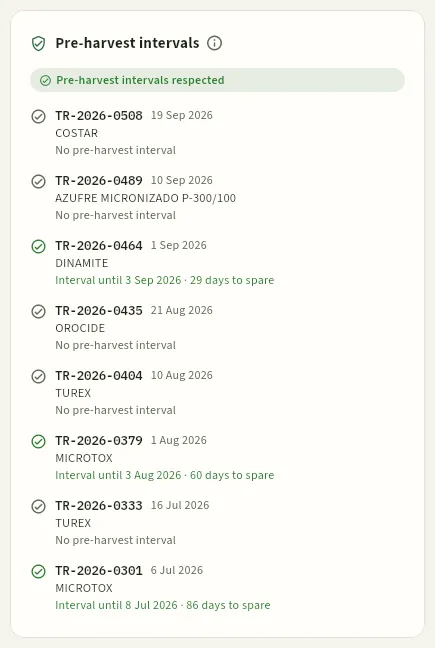 123
- 1The result: Pre-harvest intervals respected, in green, or in red the treatments that were within their interval.
- 2Each treatment with its number (with the Treatments permission, it opens when pressed), the date and the product. Below, until when the interval lasted and how many days of margin there were before the harvest.
- 3No pre-harvest interval: the product has none (here, COSTAR, a Bacillus thuringiensis).
#Grading in the packhouse
Grading means splitting the harvest's kilos into the commercial classes and culls when it is received in the packhouse:
| Class | What it is |
|---|---|
| Extra | The best quality: no defects, with the variety's shape and colour. |
| Class I | Good quality, with slight defects of shape, colour or skin. |
| Class II | Marketable, with defects that do not affect its keeping quality or essential quality. |
| Culls | What cannot be sold: rotten, damaged or out of size. |
Packhouse & quality does it, from the Grade button on the harvest record (or the field lot's), or from the To be graded in the packhouse warning. In the example, Ainhoa grades the farm's Moruno tomato (CO-2026-0783), which came in at 1,879 kg.
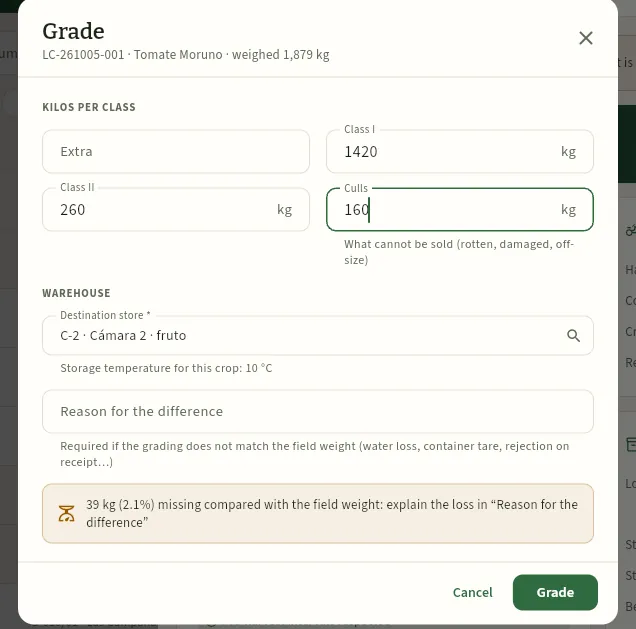 1234567
- 1The field lot, the crop and the weight in the field: the reference the grading is compared with.
- 2Kilos per class: Extra, Class I and Class II, what can be sold.
- 3The culls. If they exceed 15 %, Ceres suggests discussing it with the member's adviser.
- 4The destination store, compulsory. Ceres proposes the cold room closest to the species' storage temperature (tomato: 10 °C) and warns if the chosen room is more than 4 °C away.
- 5Reason for the difference: compulsory if the grading does not match what was weighed (water loss, container tare, rejection at intake…).
- 6The reconciliation, instantly: here 39 kg are missing (2.1 %). When you write the reason, the warning changes to Receiving loss.
- 7Grade saves the split and leaves the lot Available in its cold room.
In Harvests, press the To be graded filter and open the harvest (or the lot in Packhouse).
Press Grade.
Enter the kilos of Extra, Class I, Class II and Culls that came off the grading line.
Choose the destination store (check the temperature warning, if it appears).
If the total does not match what was weighed in the field, explain the difference in Reason for the difference.
Press Grade.
#Cancelling a harvest
If a harvest was recorded by mistake (another crop, the kilos of another trailer…), open it and press More options → Cancel harvest. Ceres asks for the reason and warns you of what will happen: the field lot is withdrawn with 0 kg and the harvest becomes Cancelled. It is not deleted: it is kept, with its reason, for traceability.
A harvest whose lot has already been packed, sold or settled cannot be cancelled: in that case, the option does not appear. Correct the difference on the lot from Packhouse (adjustment or loss).
#What each profile sees
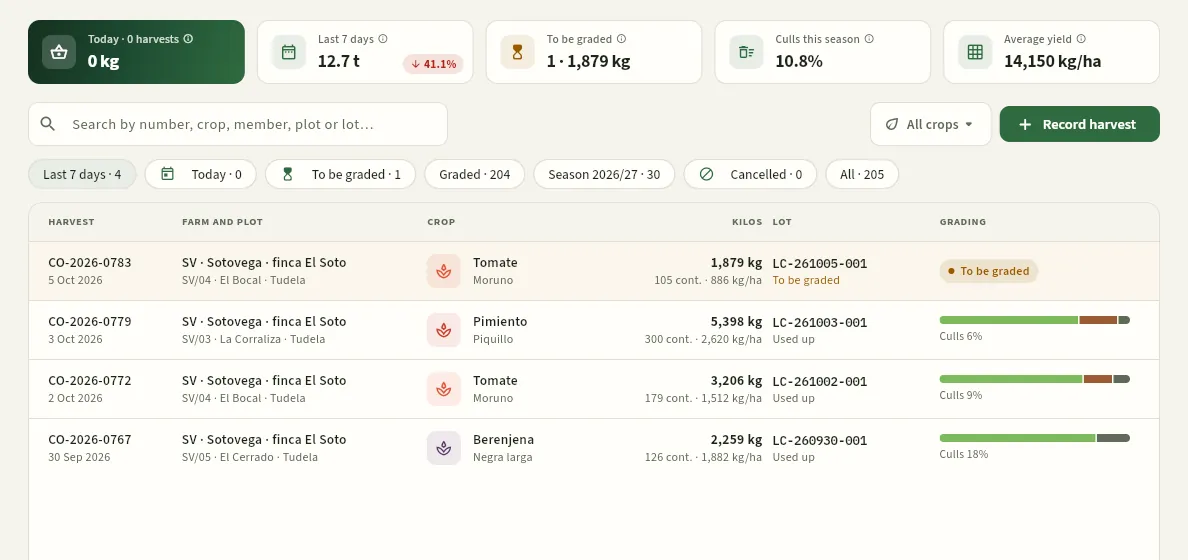 123
- 1The indicators only count the harvests of his farm.
- 2He can record harvests (he has «Record harvests»)…
- 3…and the list only brings the SV farm. His records do not show the Grade button: the packhouse does that.
#Tips
Harvest & packhouse
Packhouse
Produce lots (field lots, bought-in lots and packed lots), cold rooms, packing of sales lots without mixing organic and conventional, holds, losses and labels with a QR code leading to each lot's public page.
Packhouse is where you know, at any moment, what produce there is, which lot it belongs to, where it comes from, which cold room it is in and whether it can be sold. Everything in the cooperative's shed is in a lot, and each lot has its code:
| Lot | Code | Where it comes from |
|---|---|---|
| Field | LC-261005-001 | From a harvest on the farm or a member's farm (see Harvests). It is born to be graded. |
| Bought-in | LE-261005-002 | From a purchase from a third party: fruit, eggs, pulses, honey… (see Bought-in produce). |
| Packed | LV-261003-002 | From a packing run: one or more field or bought-in lots packed into a sales product (5 kg box, bunch…). |
The six digits in the code are the date (YYMMDD) and the last three, the order within the day. A lot's stock only changes with the harvest or purchase that creates it, grading, packing, sales and adjustments with a reason; each change is kept as a movement, with its date, its time and who made it.
The section has four views, chosen at the top: Lots, Stores, Packing and Movements.
#How produce moves through the packhouse
- 1IntakeA harvest creates an LC-… field lot and a received purchase, an LE-… bought-in lot.
- 2GradingThe field lot is split into Extra, I, II and culls, and becomes Available in its cold room.
- 3Cold roomEach lot waits in the cold room for its temperature, with its best-before date.
- 4PackingIt is packed into a sales product: the LV-… lot is born, with its label and QR code.
- 5SaleThe delivery note serves lots by FEFO and each customer is linked to their lots.
Each lot has a status, with the same colour throughout the app:
| Status | Colour | What it means |
|---|---|---|
| To be graded | Amber | Field lot just arrived. It cannot be packed or sold until it is graded. |
| Available | Green | It can be packed and sold. |
| On hold | Red | Held because of a doubt (a pending analysis, a complaint, a mock recall). It cannot be packed or served until it is released. |
| Used up | Grey | No kilos left: everything has been packed, sold or written off. |
| Withdrawn | Earth | Written off for good with 0 kg (residues above the MRL, produce in poor condition, market withdrawal). |
#The Lots view
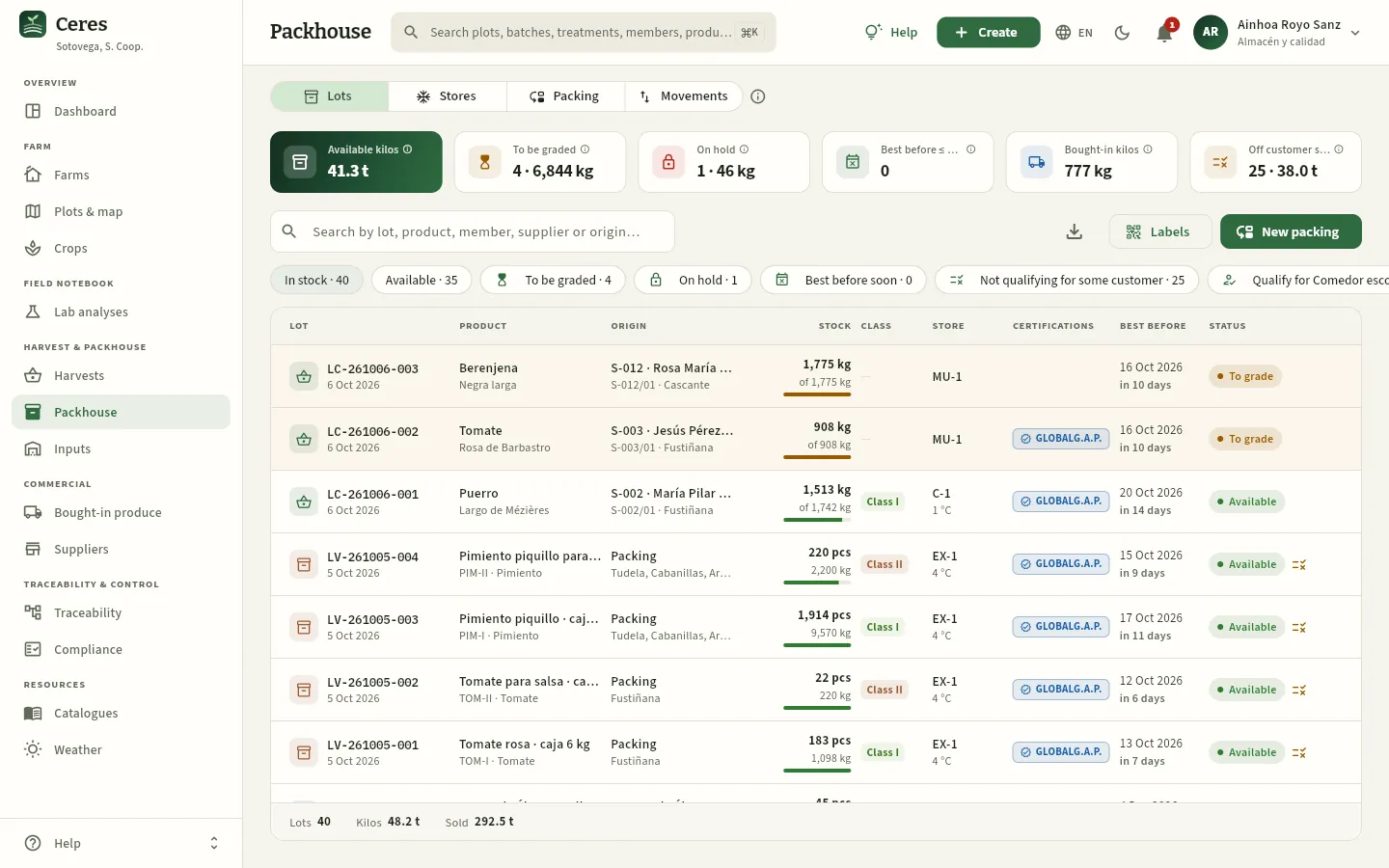 12345678
- 1The packhouse's four views. To their right, the ⓘ explains how stock moves.
- 2Available kilos: what can be packed or sold now (graded lots not on hold).
- 3To be graded and On hold: how many lots and how many kilos are waiting. Pressing them filters the list.
- 4Best before ≤ 3 days: lots whose best-before date is 3 days or less away, or has already passed. They must go out first.
- 5Bought-in kilos: the bought-in produce available. It is used to keep an eye on the weight of operations with third parties.
- 6Labels: prints the labels of several lots in stock in one go.
- 7New packing: packs lots into a sales product.
- 8The filters: in stock (by default), available, to be graded, on hold, best before soon, those not qualifying for some customer and those qualifying for each customer with residue specifications, field, bought-in, packed, organic, used up, withdrawn and all.
The search box finds a lot by its code, the product, the member, the supplier, the origin or the cold room. The footer adds up the lots in the list, their kilos and how much of them has been sold. The column headers sort the list when pressed and Export CSV (the download icon) takes it to a spreadsheet.
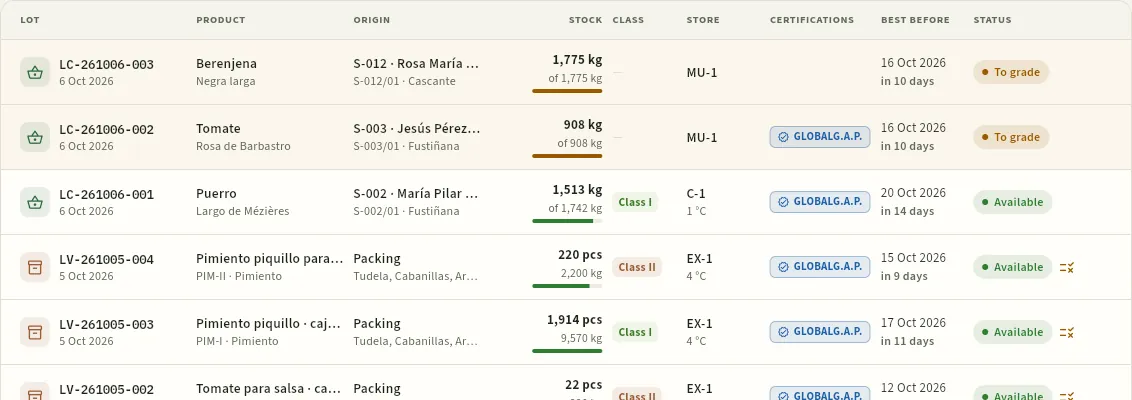 12345678
- 1The lot: the icon says whether it is a field lot (basket), bought-in (lorry) or packed (box); below, its date.
- 2The origin: the member and the plot, the supplier and their lot, or «Packing» with the municipalities of origin.
- 3The stock: kilos (and units, if it is a packed product) against what came in, with the bar showing what is left.
- 4The commercial class (Extra, Class I, Class II).
- 5The cold room and its temperature.
- 6The certifications the lot inherits: ORG, GLOBALG.A.P., IP (integrated production), PGI or PDO.
- 7The best-before date and how long is left: amber at 3 days or less; red, past.
- 8The lot's status. To be graded, in amber, is a pending field lot.
#The lot record
Press a lot to open its record. It has the tabs Summary, Movements, Packings (for a field or bought-in lot: which sales lots it has been packed into) or Source lots (for a packed one: which lots it comes from), Sales and Documents. This is field lot LC-261005-003: Moruno tomato from Agrícola Ebro Soto (S-007), harvested on 5 October.
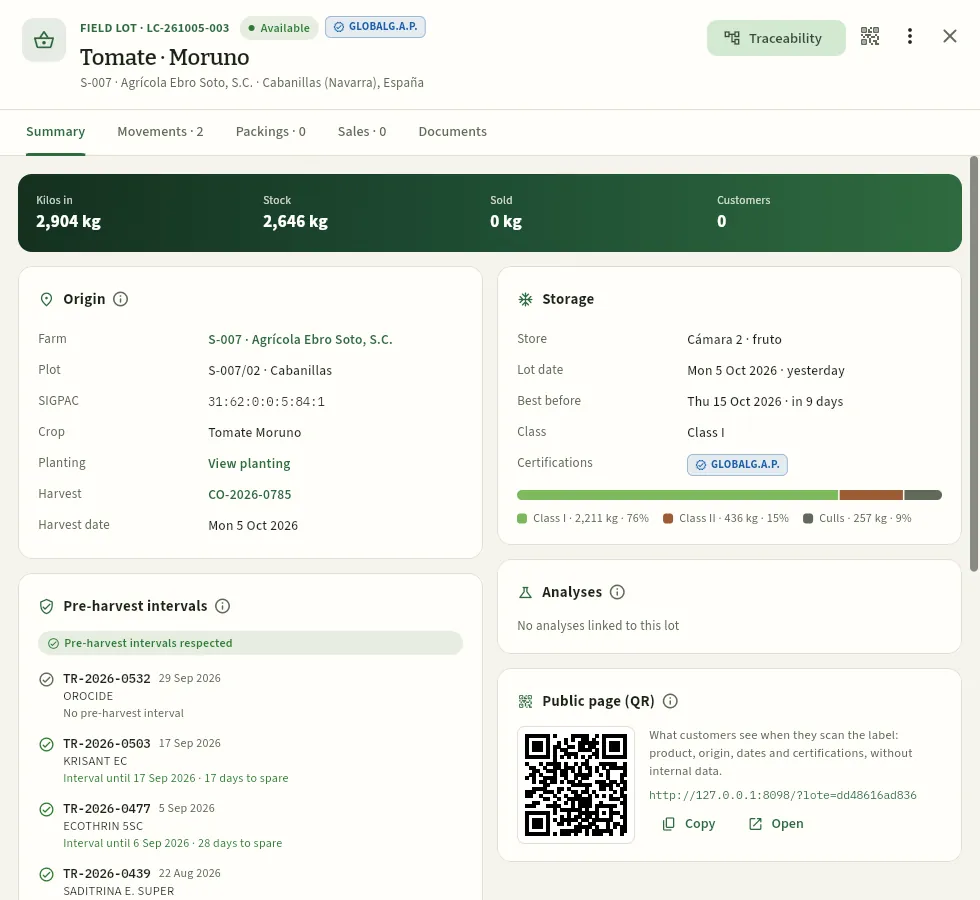 12345678
- 1The type and the lot code, its status and its certifications; below, the product and its origin.
- 2Traceability: the lot in the graph, one step back (plot, treatments) and one step forward (packings, customers). See Traceability.
- 3More options: put on hold, adjust or record loss, move to another store and withdraw. To its left, Print label.
- 4The tabs: movements (with the stock after each one), packings, sales and documents.
- 5The band: kilos in, stock, sold and customers who have received it.
- 6Origin: the member, the plot with its SIGPAC reference, the crop, the planting, the harvest (CO-2026-0785) and its date. It is the «step back» of traceability.
- 7Storage: the cold room, the lot date, the best-before date, the class, the certifications and the grading bar.
- 8Pre-harvest intervals: the treatments in the 90 days before the harvest and whether they were respected, as in the harvest record.
Further down are the Analyses cards (the residue or microbiological analyses done on this lot, see Lab analyses) and Public page (QR), with the lot's QR code.
A packed lot has the same record, with what is specific to it: the units left, the packing run it comes from, its source lots and its growers. This is sales lot LV-261003-002: 300 boxes of 5 kg of organic tomato from Iñaki Burgui (S-011), packed on 3 October.
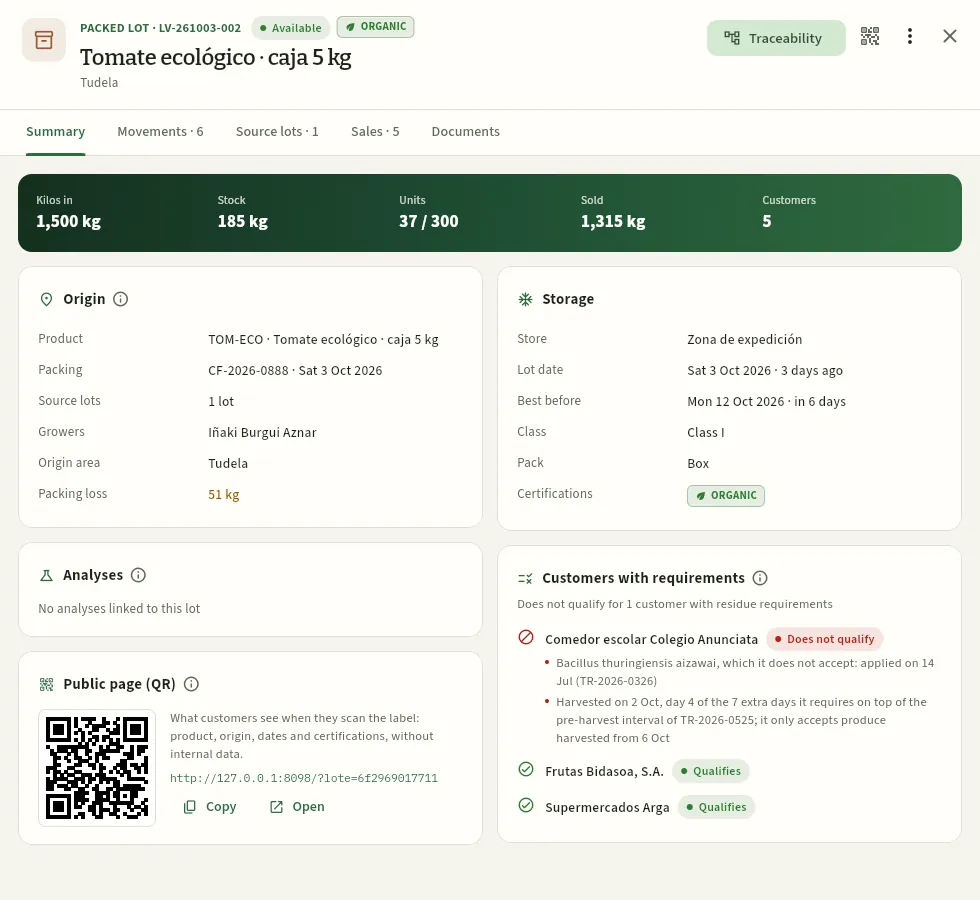 1234567
- 1The sales product and, at the top, the status and the ORG certification it has inherited from its source lot.
- 2Source lots: the field or bought-in lots that were packed, with their kilos (here, LC-261002-006). At the top, the packing run: units, kilos in, packed and loss.
- 3Sales: each delivery note that has served this lot, with the customer and the kilos. It is the «step forward».
- 4The band: units left out of those packed (37 of 300), kilos, sold and customers.
- 5Origin: the product, the packing run (CF-2026-0888), the source lots, the growers and the area of origin, and the packing loss.
- 6Storage: the dispatch area, the best-before date (the shortest of its source lots), the class and the format.
- 7Public page (QR): the QR code that goes on the label and its link. Copy copies it and Open opens the public page.
The Movements tab lists each movement of the lot with the stock left afterwards: the intake (the harvest, the purchase or the packing run), the grading, each packing and each sale (with its delivery note and customer; press it to open the delivery note), losses, holds and releases. Movements are never deleted or edited: if something is wrong, it is corrected with another movement.
#Lots that do not qualify for a customer
Some customers have residue specifications stricter than the law: a maximum number of active substances, a maximum % of the MRL, substances they do not accept or extra days on the pre-harvest interval (see Customers). Ceres checks every lot in the warehouse against those specifications using its crop's treatments and its residue analyses, and tells you which customers it qualifies for and which it does not, before you prepare their order.
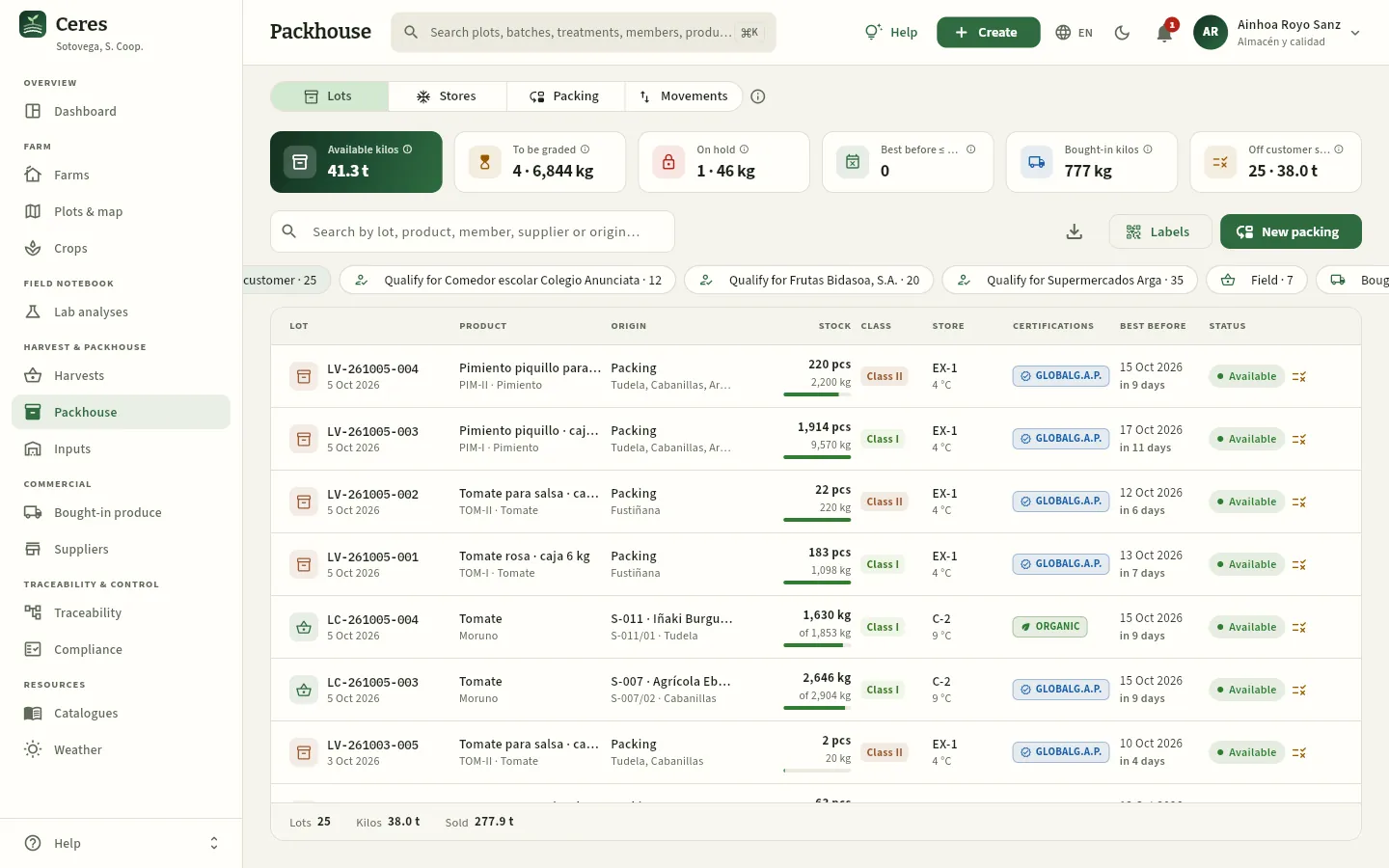 1234
- 1Off customer spec: how many lots in stock (and how many kilos) do not qualify for some customer with residue requirements. Click it to filter the list.
- 2The Not qualifying for some customer filter, selected here.
- 3A Qualify for … filter for each customer with specifications: the lots you can ship to them.
- 4The specification icon at the end of the row: the lot does not qualify for some customer. Hover over it to read which ones.
In the lot record, the Customers with requirements card tells you, for each customer with specifications, whether the lot qualifies or does not qualify and, if not, why: the substance they do not accept with the date and the treatment, the margin on the pre-harvest interval that is not met, how many active substances it carries or what % of the MRL it reaches. This is onion lot LV-260729-005:
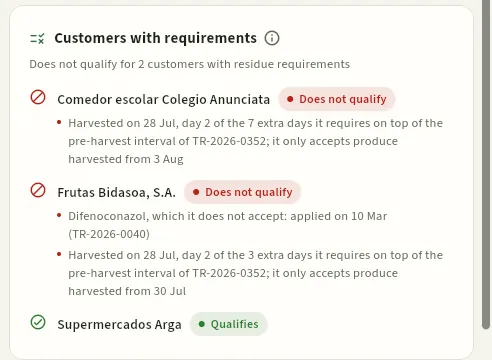 1234
- 1Customers with requirements: for how many customers with specifications it does not qualify, with the ⓘ explaining how it is calculated.
- 2Each customer it does not qualify for, with the reason: here, harvested on the second of the 7 days of margin the canteen asks for on top of the pre-harvest interval.
- 3Frutas Bidasoa: besides the margin, difenoconazole, which it does not accept, applied on its crop on 10 March.
- 4And the customers it qualifies for.
#Holding, adjusting, moving and withdrawing
The actions on a lot are in More options (the three dots in the record's header). They all ask for a reason and are kept as a movement of the lot with your user.
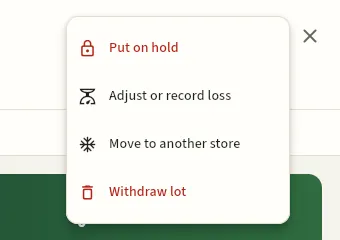 1234
- 1Put on hold: holds the lot while a doubt is cleared up. It cannot be packed or served until it is released.
- 2Adjust or record loss: sets the stock to what there really is (downwards only), with its cause.
- 3Move to another store: takes it to another cold room. It warns if the temperature does not suit it or if the room is filling up.
- 4Withdraw lot: writes it off for good, with 0 kg. It cannot be undone.
Putting on hold is the first reaction to a doubt: a residue analysis that has not arrived yet, a customer complaint, an alert about a product applied. It does not change the kilos: it just prevents the lot from being used.
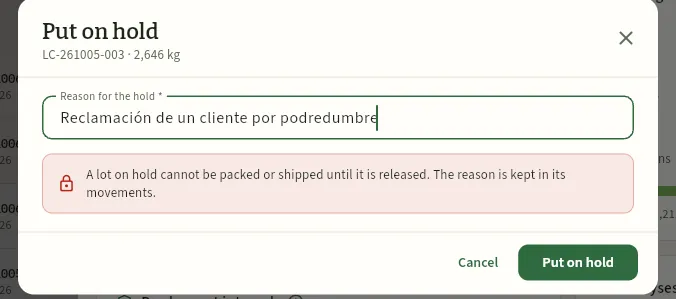 123
- 1The reason, compulsory: it stays in the lot's movement and can be seen in its record and in the list (hovering over the status).
- 2What will happen: the lot cannot be packed or served until it is released.
- 3Put on hold holds it.
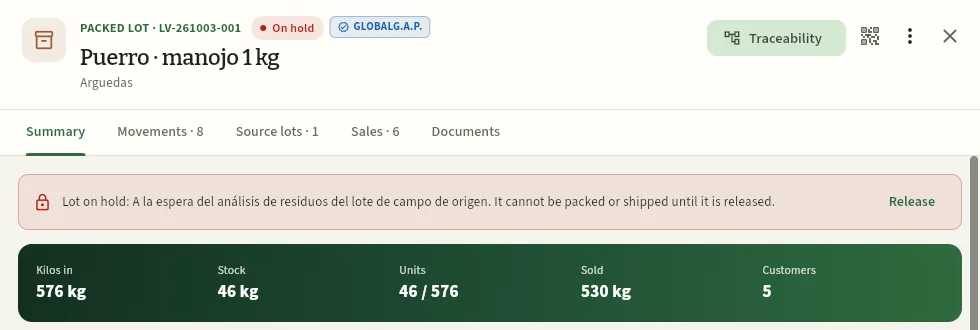 1234
- 1The On hold status, in red.
- 2The warning with the reason.
- 3Release: when the doubt is cleared up (compliant analysis, complaint resolved), the lot becomes available again. It also asks for a reason.
- 4Meanwhile, its 46 kg (46 bunches) do not count as available and cannot be put on a delivery note.
Adjust or record loss corrects the stock when what is in the cold room does not match what Ceres says: produce loses water, a box rots, a container breaks when handled or a sample is taken for the laboratory. It can only reduce: new stock always comes from a harvest or a purchase.
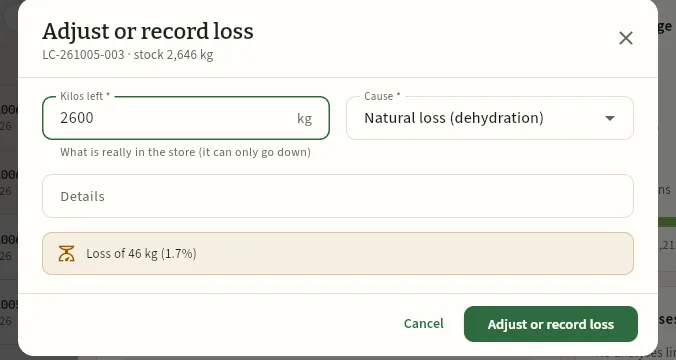 12345
- 1The lot and its stock according to Ceres (2,646 kg).
- 2Kilos remaining: what there really is in the cold room.
- 3The cause: natural loss (water loss), rot, handling damage, stock count, sample for analysis or other.
- 4The detail, if needed (which cold room, which pallet…).
- 5How much is written off and what share of the lot it is (here, 46 kg, 1.7 %).
Move to another store proposes the active cold rooms with their temperature and occupancy, and warns if the new one is more than 4 °C away from the species' storage temperature or if this lot would exceed its capacity.
Withdraw lot is final: the lot becomes Withdrawn with 0 kg and all its stock is written off, with the reason (residues above the MRL, produce in poor condition, market withdrawal). Lots already packed with it are not withdrawn automatically: find them in Traceability, which tells you which sales lots and which customers it reached.
Find the lot in Lots (or from the search box in the top bar) and open its record.
Press More options → Put on hold.
Write the reason: what has happened and who is asking (for example, «Complaint from La Cesta about rot»).
Press Put on hold. If the lot has already been packed, check its sales lots in Traceability and put them on hold too.
When the result arrives, open the lot and press Release (with the reason) or, if it is not fit, Withdraw lot.
#Cold rooms
The Stores view shows each cold room, store, dock or dispatch area with its set temperature, its occupancy and what it holds.
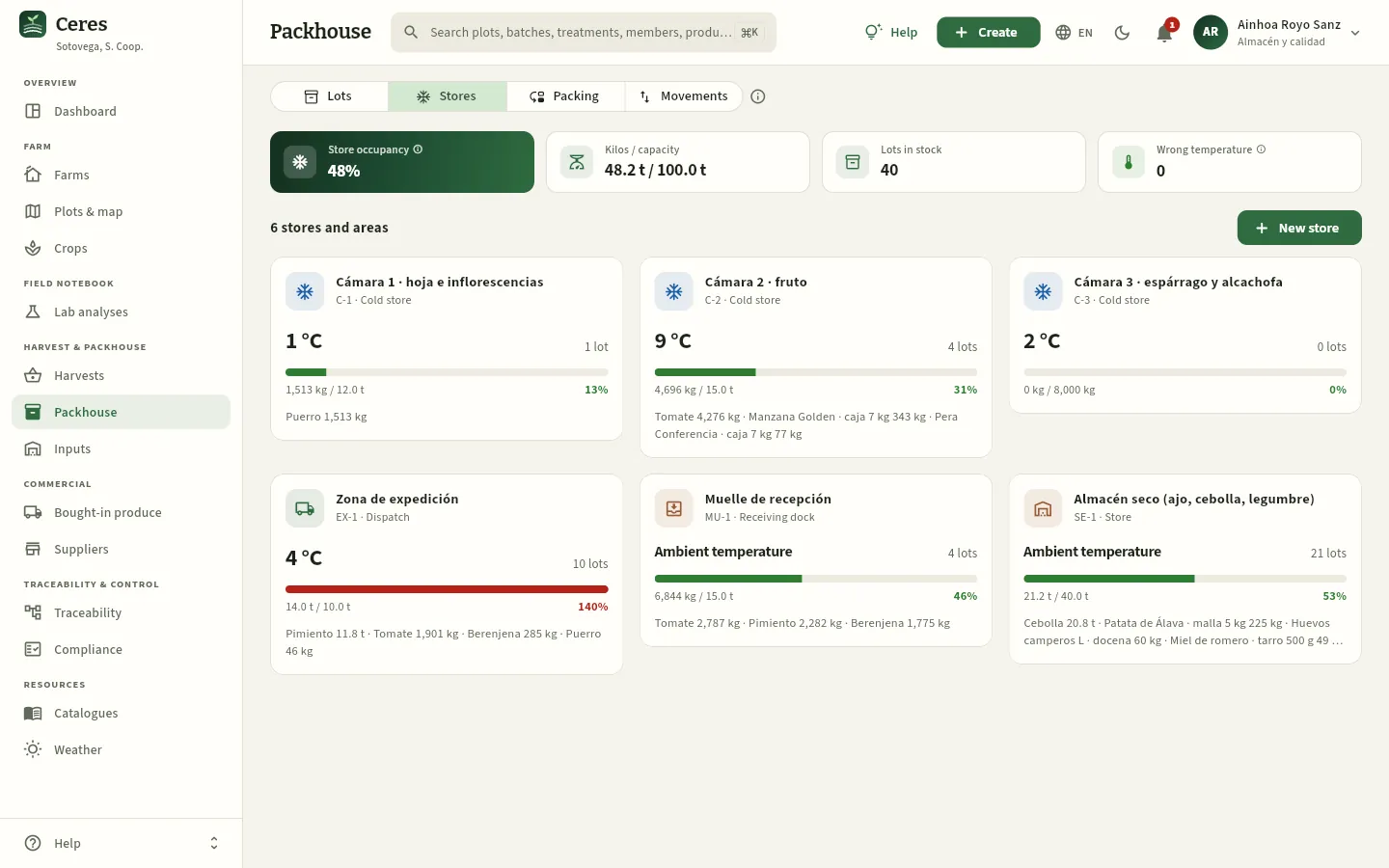 123456
- 1Store occupancy: kilos stored against the capacity of all active cold rooms. Next to it, the kilos and lots in stock.
- 2Wrong temperature: lots in a cold room more than 4 °C away from their species' storage temperature.
- 3New store: adds a cold room (code, type, name, temperature and capacity).
- 4Each cold room: its name and type, the temperature (or «Ambient temperature»), how many lots it holds and the occupancy bar: green, amber above 80 % and red above 95 %.
- 5Below, the kilos per species or product, from most to least. Press the card to see its lots.
- 6The receiving dock: newly arrived field lots wait here until they are graded.
Pressing a cold room opens its record: the occupancy and the list of its lots, those closest to their best-before date first, with a ⚠ on those that need another temperature. Press a lot to open it. The pencil in the header edits the cold room (with «Edit warehouse»); a cold room without lots can be deleted, and one no longer in use is marked as inactive.
#Packing a sales lot
Packing means packing the graded produce in the format it is sold in: 5 kg boxes of organic tomato, bunches of leeks, boxes of piquillo peppers for roasting… Each packing run takes kilos from one or more field lots of the same species (or bought-in lots of the same product) and creates an LV-… sales lot with its units. The Packing view lists the packing runs.
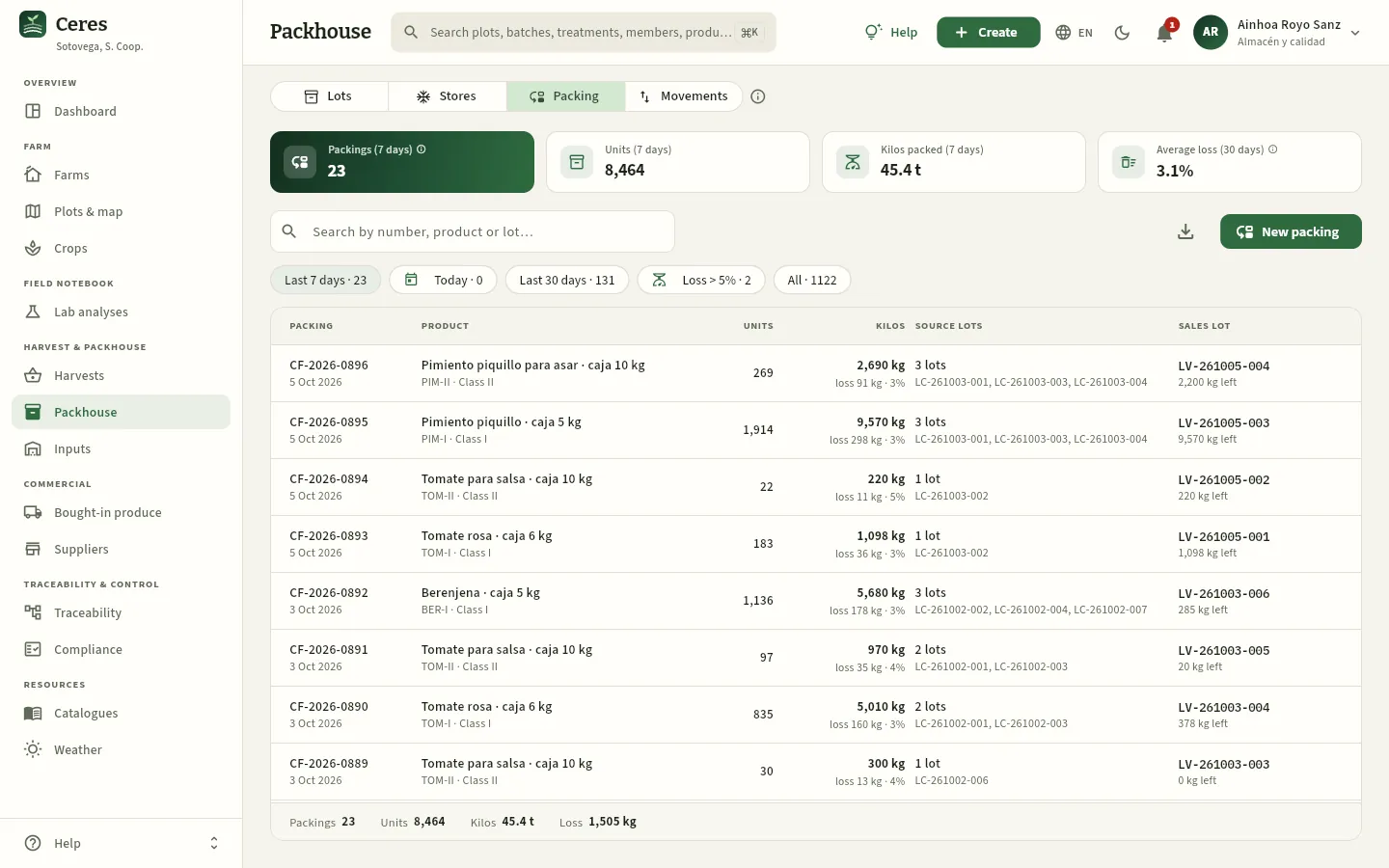 1234567
- 1Packings (7 days) and, next to it, the week's units and kilos packed.
- 2Average loss (30 days): the share of what goes into packing that does not end up packed. Amber above 5 %.
- 3The Loss > 5 % filter: the last month's packing runs that lost more than normal.
- 4Kilos packed and, below, the loss in kilos and as a percentage.
- 5The source lots used.
- 6The sales lot that was born and the kilos left of it. Press the row to open it.
- 7New packing opens the packing dialog.
In the example, Ainhoa is going to pack 320 boxes of 5 kg of organic tomato (product TOM-ECO). As the product is organic, Ceres only allows organic lots: the tomato from Agrícola Ebro Soto (LC-261005-003, GLOBALG.A.P. but conventional) appears greyed out, marked Not organic, and accepts no kilos.
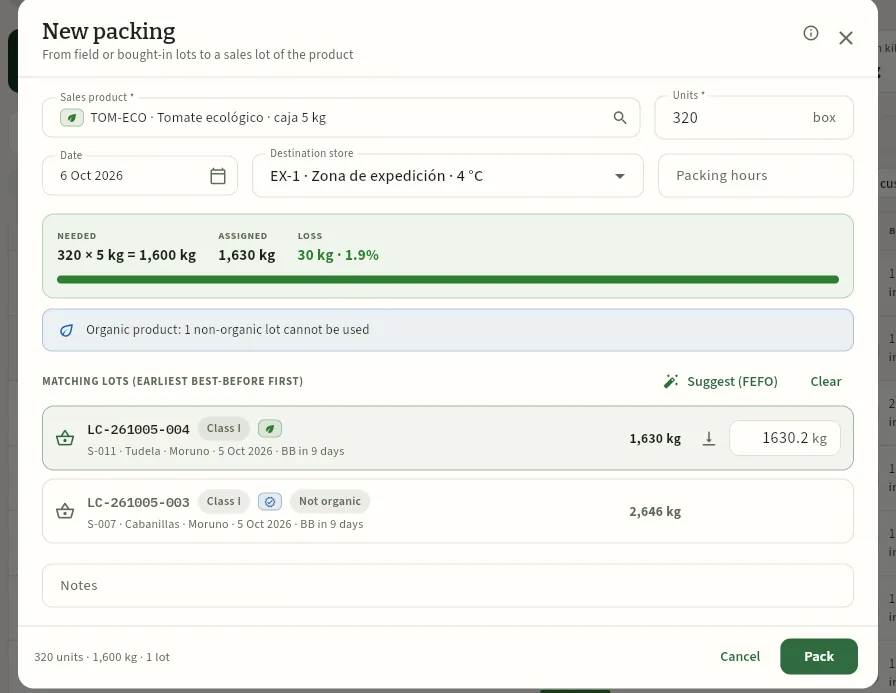 12345678
- 1The sales product (TOM-ECO · Organic tomato · 5 kg box), with its ORG mark.
- 2The units being packed (boxes). Below, the date, the destination store (the dispatch area, by default) and the packing hours.
- 3Needed (320 × 5 kg = 1,600 kg), assigned from the lots and the resulting loss (what is left over: here, 30 kg, 1.9 %).
- 4The organic segregation warning: a non-organic lot cannot be used.
- 5Suggest (FEFO) shares out the kilos needed starting with the lot that reaches its best-before date first.
- 6Each compatible lot, with its class, its certifications, its origin and its best-before date. On the right, its available kilos, Use the whole lot and the kilos taken.
- 7The conventional lot, greyed out: Not organic.
- 8Pack creates the sales lot. It is only enabled if the kilos assigned cover those needed.
Press New packing (in Lots or in Packing) and choose the sales product.
Enter the units. Ceres calculates the kilos needed (units × format weight).
Press Suggest (FEFO) or assign the kilos from each lot yourself (Use the whole lot takes the whole lot). Anything you assign in excess will be the loss.
Check the warnings: organic, another class, a lot past its best-before date, more kilos than a lot has.
Check the destination store and, if you record them, the packing hours. Press Pack.
#Labels with a QR code
Each lot has its label: the cooperative (with its Health Register number, RGSEAA), the product with its class and net weight, the origin (country and area), the grower or supplier, the lot code in large print, the harvest or packing dates and the best-before date, the certifications (ORG with the control body's code, the GLOBALG.A.P. GGN, PGI or PDO) and a QR code that leads to the lot's public page. It is printed from Print label in the lot's or the harvest's record, at the end of a packing run, or for several lots at once with Labels in the Lots view.
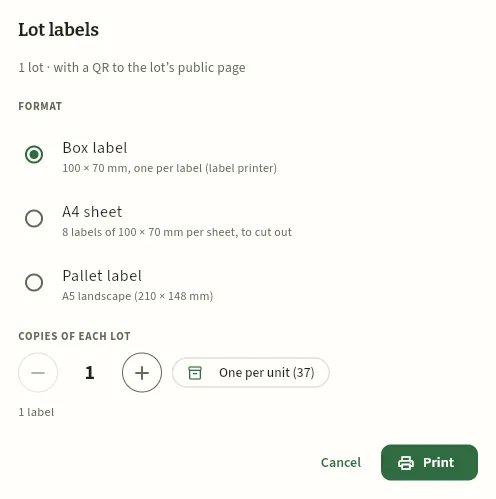 12345
- 1Box label: 100 × 70 mm, one per label, for the label printer.
- 2A4 sheet: eight 100 × 70 mm labels per sheet, to cut out.
- 3Pallet label: A5 landscape, for the whole pallet.
- 4Copies of each lot: with − and +, or One per unit to print a label for each box left (37).
- 5Print opens the labels PDF, ready for the printer.
With Labels, in the Lots view, you choose several lots in stock (with its search box, Select all and Clear) and print all their labels in one go: for example, those for everything leaving on today's lorry.
#The lot's public page
Whoever scans the QR code on a box (the customer, the shop, the consumer) sees the lot's public page on their phone, without signing in: the product, where it comes from (the municipality, never the plot or the member), its journey (harvest, packing, best-before date), whether the treatments respected the pre-harvest intervals, the latest residue analysis if there is one, the certifications and who markets it. The link uses a random code for the lot (not its number), so the codes of other lots cannot be guessed. If the lot has been withdrawn, the page says so first.
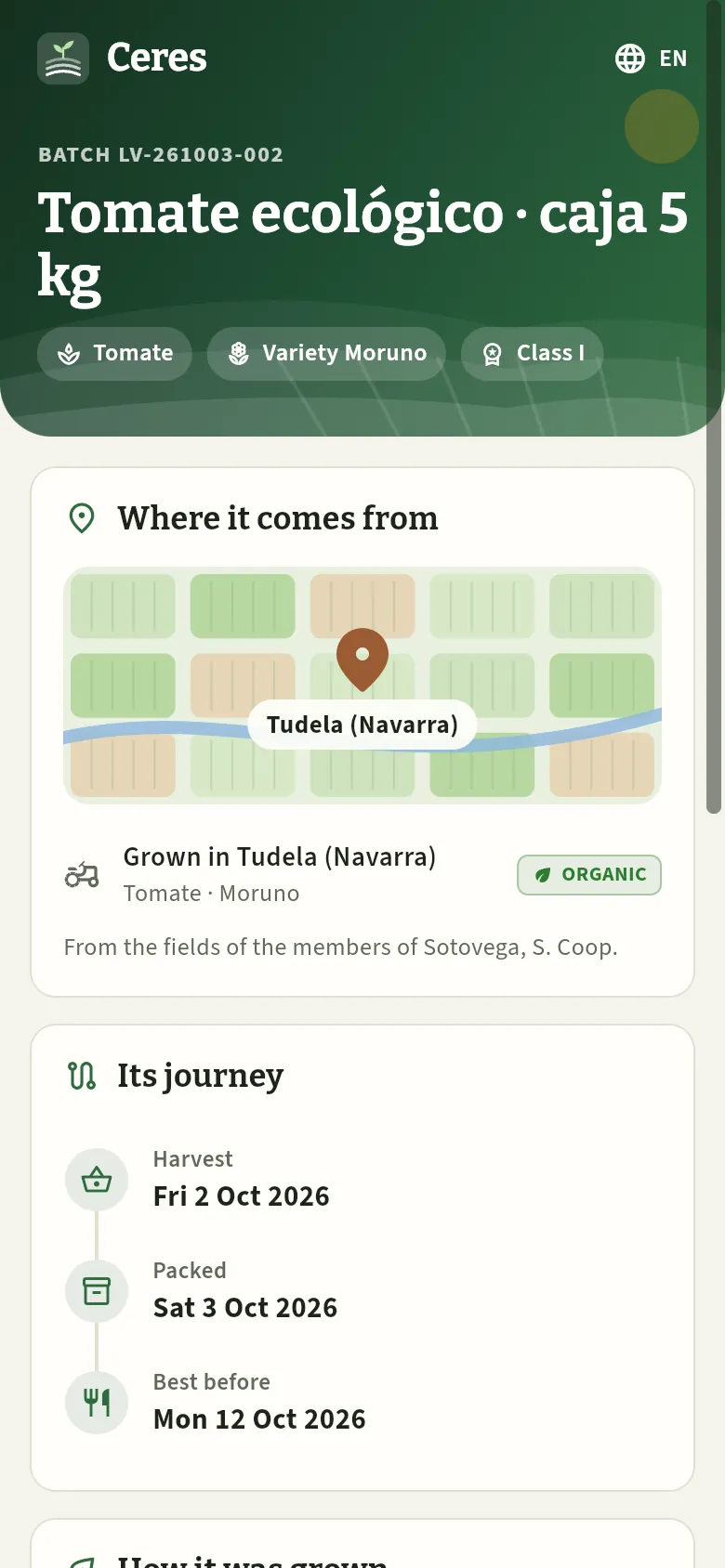 1234
- 1The lot and the product, with the species, the variety and the class.
- 2The language: Spanish, English or Galician.
- 3Where it comes from: the municipality where it was grown, the species, the variety, ORG and whose it is (the cooperative's members or a trusted grower).
- 4Its journey: harvest, packing and best-before date.
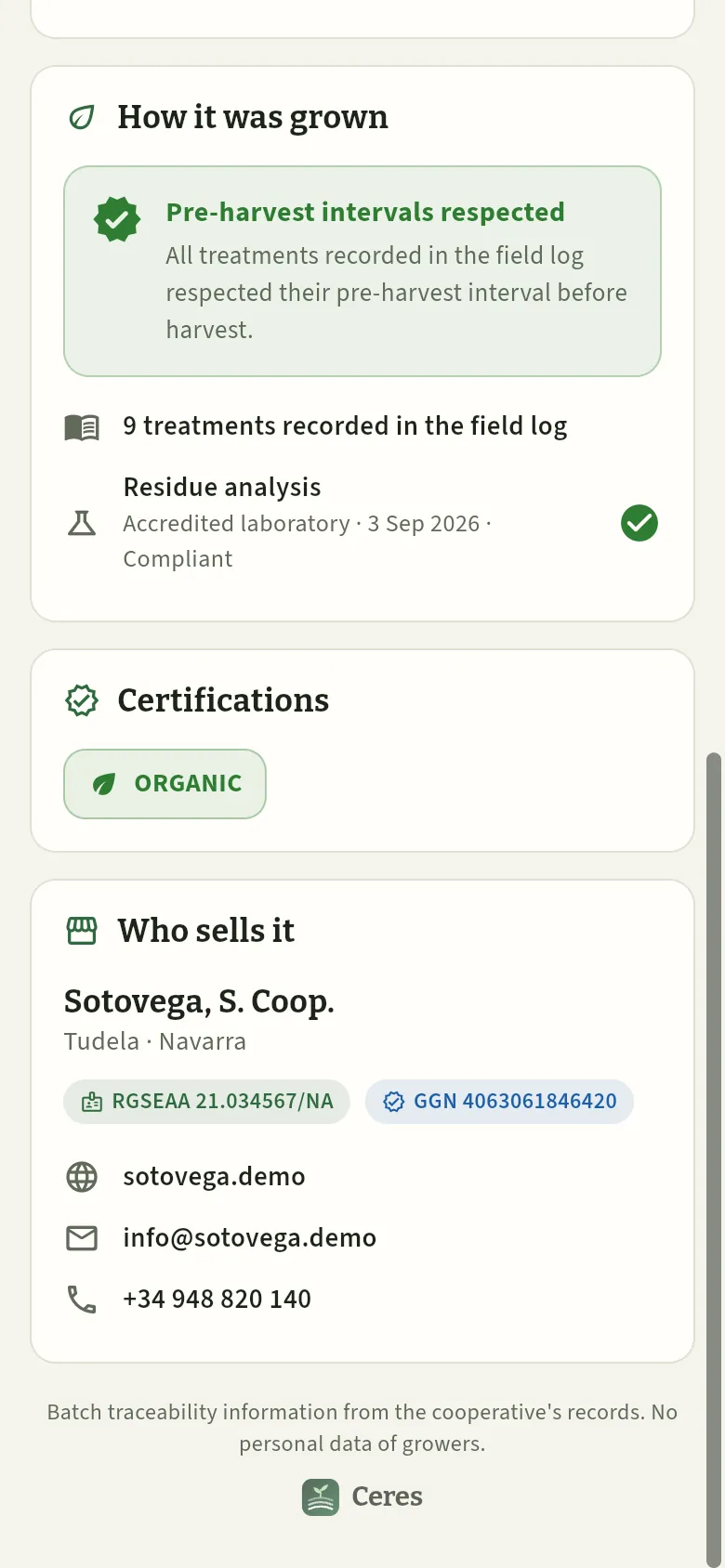 123
- 1How it was grown: pre-harvest intervals respected and how many treatments are in the field log (and the residue analysis, if any).
- 2The lot's certifications.
- 3Who markets it: the cooperative, its RGSEAA, its GGN and its contact details.
#Movements
The Movements view is the record of everything that has come in, gone out or changed in the lots over the last 60 days, newest first.
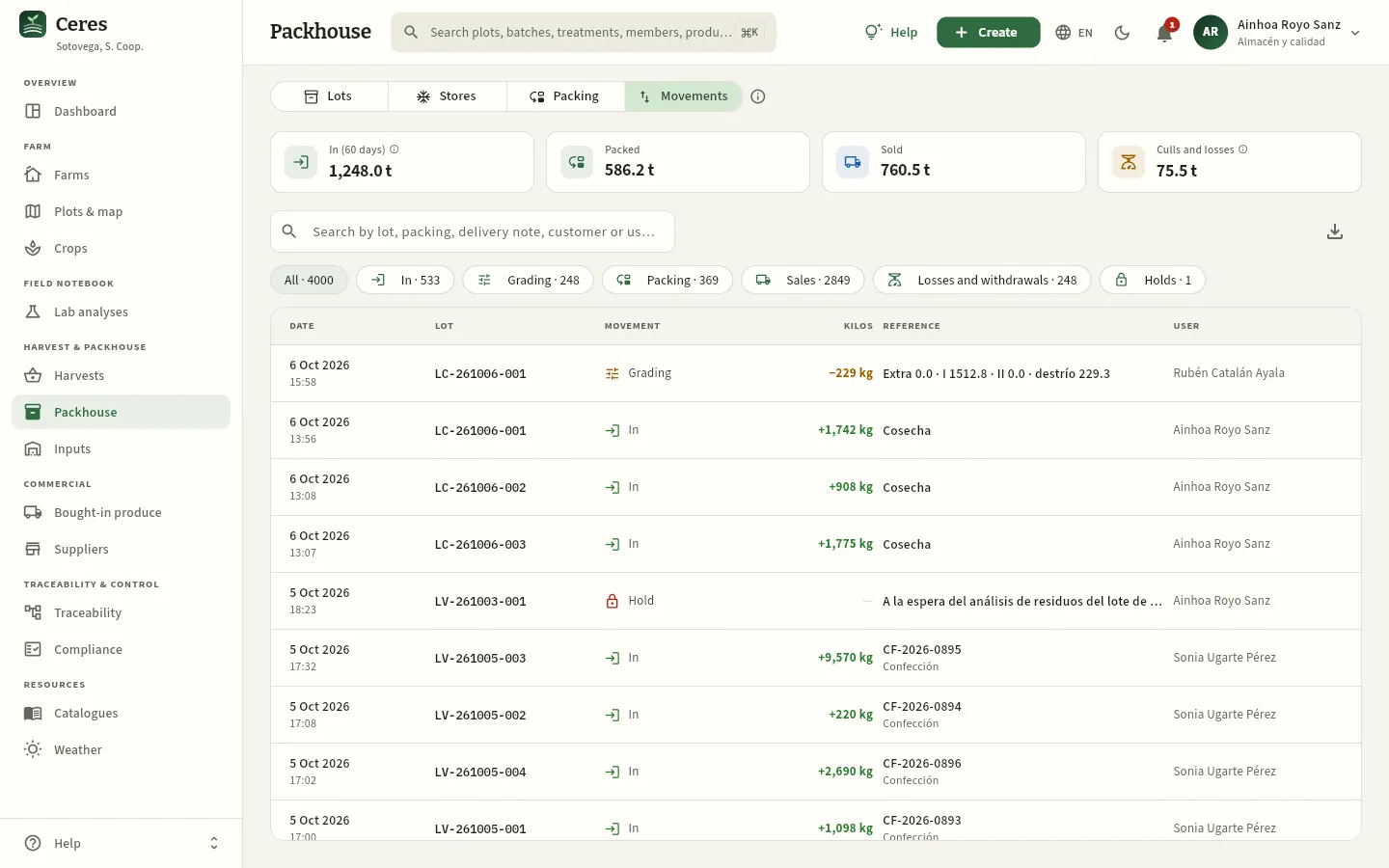 1234567
- 1Intakes (60 days): kilos that have come in (harvests, purchases and packing runs). Next to it, what has been packed and sold.
- 2Culls and losses: what was lost in grading, losses, adjustments and withdrawals (without the packing loss).
- 3The filters by type: intakes, grading, packing, sales, losses and withdrawals, holds.
- 4The movement type, with its icon and colour.
- 5The kilos: in green with + if they come in and in amber with − if they go out.
- 6The reference: the delivery note and the customer, the packing run, the purchase or the note (the split of a grading, the reason for a loss).
- 7Who did it. Press a row to open the lot.
#What each profile sees
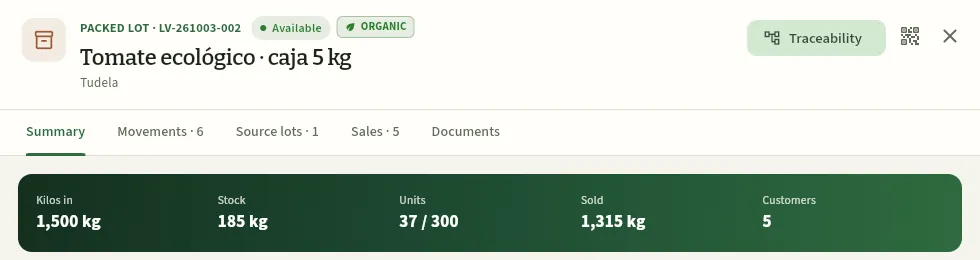 12
- 1Traceability, to answer a customer: where it comes from and who else it has been sold to.
- 2Print label. Without «Edit warehouse», there is no More options menu: he cannot hold, adjust, move or withdraw.
#Tips
Harvest & packhouse
Inputs
The store of plant protection products, fertilisers, seeds and beneficials, batch by batch: receipts, use in treatments and fertiliser applications, expiry dates, products cancelled in the MAPA Register and deliveries of empty containers.
Inputs is the store of what is applied in the field: plant protection products, fertilisers, seeds and transplants and biological control organisms (the beneficials released into the crop, such as the predatory mite against red spider mite). Ceres keeps their stock batch by batch: each receipt creates an EI-YYYY-NNNN input batch with the manufacturer's batch printed on the container.
When a treatment or a fertiliser application is recorded with an input batch (in Treatments or in Fertilisation), its use is deducted automatically, and it is recorded which manufacturer's batch was applied on each plot. If one day a manufacturer recalls a batch, Traceability tells you which crops it went to and which customers received their harvest. And before applying, the treatment check warns if there is not enough stock in the chosen batch.
The section has three views: Stock, Movements and Empty containers.
#The Stock view
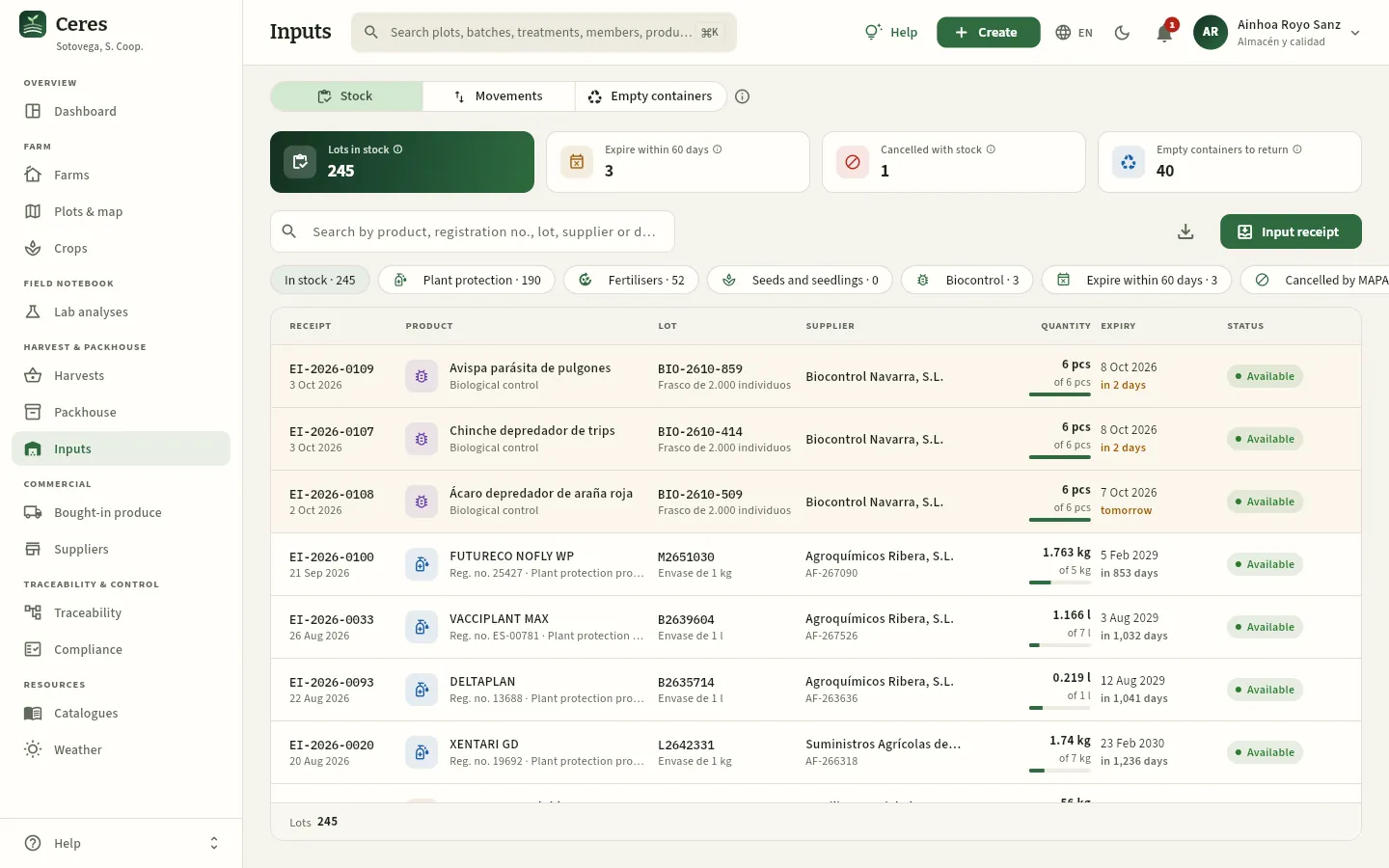 12345678
- 1Batches in stock. With the «See costs» permission, the Stock value at purchase price appears instead.
- 2Expire within 60 days: batches in stock that expire soon or have already expired (here, 3: the beneficials that expire this week).
- 3Cancelled with stock: plant protection products the MAPA has cancelled in its Register and of which product is still left.
- 4Empty containers to deliver: the plant protection containers emptied since the last delivery to the collection point (an estimate).
- 5Input receipt: records what arrives from the supplier.
- 6The filters: in stock, by type (plant protection products, fertilisers, seeds and transplants, biological control), expire within 60 days, cancelled by MAPA, on hold or expired, used up and all.
- 7The quantity left, how much came in and the bar showing what is left.
- 8The expiry date of the manufacturer's batch and how long is left: amber at 60 days or less; red, expired. The row is shaded the same way.
Each row is an input batch: Receipt (the EI-… number and the date), Product (with its MAPA registration number, if it is a plant protection product, and the red Cancelled pill if the MAPA has cancelled it), Batch (the manufacturer's and the container), Supplier (with their delivery note), Quantity, Expiry and Status. The search box finds by product, registration number, batch, supplier or delivery note, and Export CSV takes the list to a spreadsheet.
#Products cancelled in the Register
The Ministry cancels the authorisation of a plant protection product from time to time. From the cancellation there is a sale deadline (after which it can no longer be sold or bought) and a use deadline (after which it can no longer be applied). Ceres imports the status of each product from the MAPA Plant Protection Products Register and warns if there is stock of a cancelled one: in the Cancelled with stock indicator, in the Cancelled by MAPA filter and in the Dashboard alerts.
In the demo, the cooperative still has 4 kg of CAPTAGREX 80 (captan), cancelled on 20 February 2025.
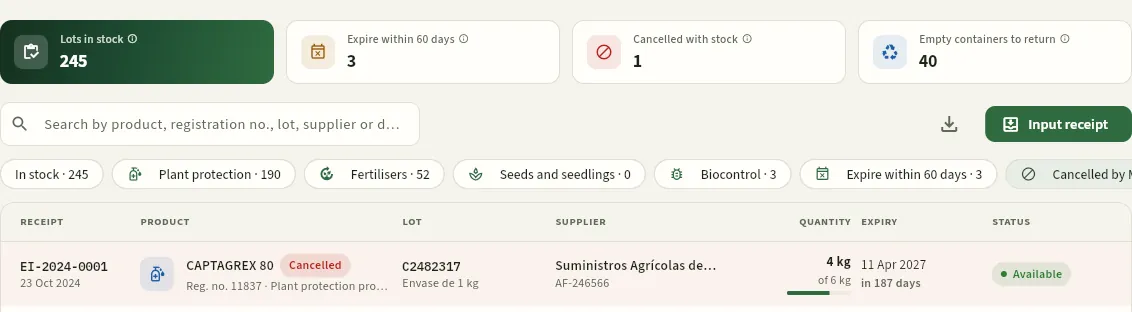 123
- 1The indicator, in red because there is one.
- 2The Cancelled by MAPA filter.
- 3The row, shaded red: CAPTAGREX 80, registration number 11837, with the Cancelled pill. 4 kg are left of the 6 that came in in 2024.
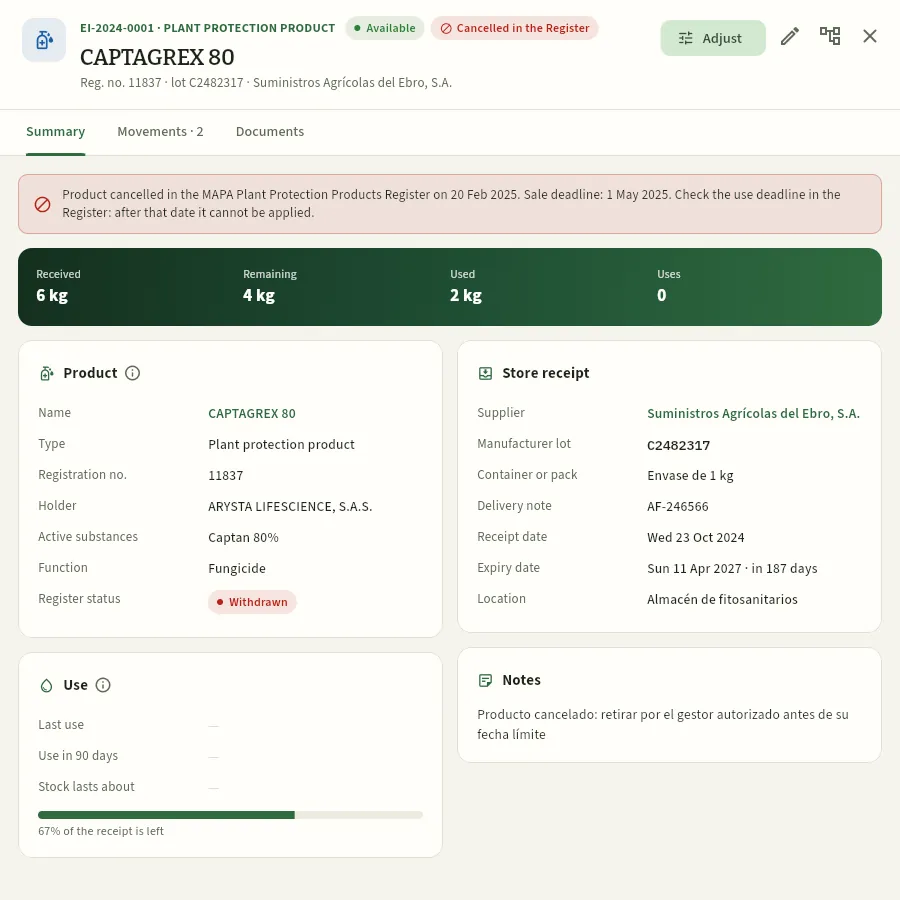 1234567
- 1The batch number and type, the batch status (Available) and, in red, Cancelled in the Register. Below, the registration number, the manufacturer's batch and the supplier.
- 2Adjust corrects the batch's quantity or status. To its right, Edit (the data that are not quantities) and Forward traceability (which treatments, crops and customers it has gone to).
- 3The warning: when it was cancelled, the sale deadline and the use deadline (if the Register does not give it, it asks you to check it). Once passed, it cannot be applied.
- 4The band: what came in, what is left, what has been used (uses and adjustments) and how many treatment uses it has.
- 5Product: the Register data: registration number, holder, active substances, function, status and, if so, «Suitable for organic». The name opens its record in Catalogues.
- 6Store receipt: the supplier, the manufacturer's batch, the container, the delivery note, the receipt date, the expiry date and the location.
- 7Use: the last use, the amount used in 90 days and how many days it will last at that rate.
The record's Movements tab lists the receipt, each use (with its treatment or fertiliser application and the planting; press it to open it) and each adjustment, with what was left after each one.
A cancelled product, once its use deadline has passed, cannot be applied: the treatment check rejects it (if the Register does not give that date, it takes the sale deadline) and, until then, it warns. An expired batch also triggers a warning. What is left is returned to the supplier or handed to an authorised waste manager, and written off with an adjustment.
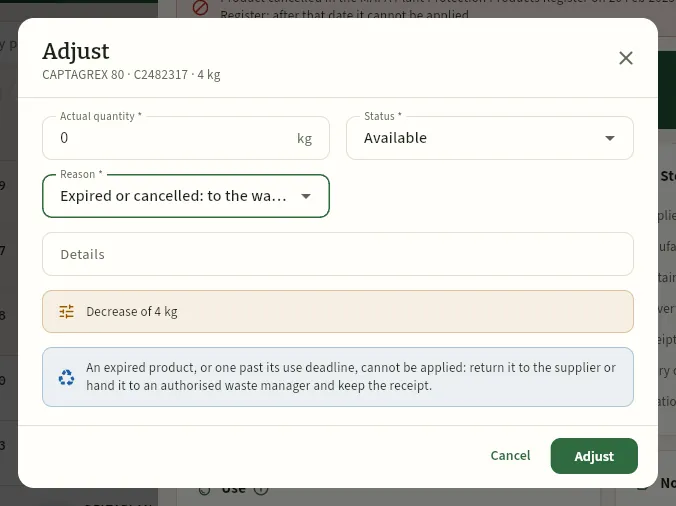 12345
- 1The actual quantity left: here, 0, because everything is handed over.
- 2The batch status: available, used up, on hold or expired.
- 3The reason: stock count, breakage or spill, return to supplier, expired or cancelled: to the waste manager or other. Below, the detail (the waste manager, their certificate number…).
- 4How much is written off.
- 5The reminder: return it or hand it to an authorised manager and keep the certificate.
In Stock, press the Cancelled by MAPA filter and open the batch.
Read the warning: if the use deadline has not passed, you can still apply it in an authorised use; if it has passed (or you do not know it and the Register does not give it), do not apply it.
Return it to the supplier or hand it to an authorised waste manager, and ask for the certificate.
Press Adjust, set the actual quantity to 0, choose the reason Expired or cancelled: to the waste manager (or Return to supplier) and enter the waste manager and the certificate number in the detail.
Press Adjust and attach the certificate in the batch's Documents tab.
#Recording a receipt
When an order arrives from the supplier, record it with Input receipt (or from the Create button in the top bar). First, Ceres asks What is coming into the store?: a plant protection product (from the MAPA Register, with its registration number), a fertiliser (fertilisers, amendments, correctors and biostimulants), seed or transplants (of a species and variety) or biological control (beneficials). Then, the form for that type. In the example, 14 kg of SANAGRICOLA BM WG come in.
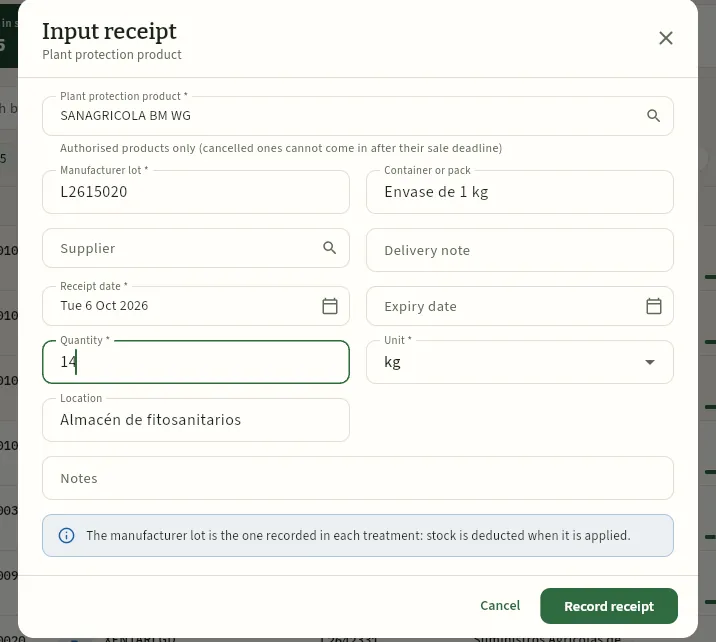 12345678
- 1The product, from the MAPA Register (with its registration number and active substances). Only authorised ones appear: a cancelled one cannot come in after its sale deadline.
- 2The manufacturer's batch, compulsory: the one printed on the container.
- 3The container: «1 kg container» proposes the unit (kg) and is used to estimate the empty containers.
- 4The supplier and their delivery note.
- 5The batch's expiry date. If it has passed, or is 60 days away, Ceres warns you.
- 6The quantity and its unit (l, kg, units…). With «See costs», also the unit price excluding VAT, for the cost of treatments.
- 7The reminder: this batch is the one recorded in each treatment, and the stock is deducted when it is applied.
- 8Record receipt creates the EI-… input batch with its receipt movement.
The location is proposed according to the type (plant protection store, fertiliser store, seed store; beneficials, in a cold room). Later, Edit in the batch record changes the data that are not quantities (container, delivery note, expiry date, location, price and notes); quantities only change with uses and Adjust.
#Movements
The Movements view lists what has happened to the input batches over the last 120 days: the receipts, the uses (each treatment or fertiliser application done with its batch, with the TR-… or FE-… number and the planting) and the adjustments and write-offs. At the top, how many there are of each type; the filters separate receipts, uses, adjustments and write-offs, plant protection products and fertilisers. Quantities appear in green with + if they come in and in amber with − if they go out. Press a row to open its batch.
#Empty containers
Empty plant protection containers do not go in the bin: they are triple rinsed (the water goes into the spray tank), kept in a bag in the store and taken to a collection point (the best-known scheme is SIGFITO), which gives a certificate for each delivery. The Empty containers view is the record of those deliveries.
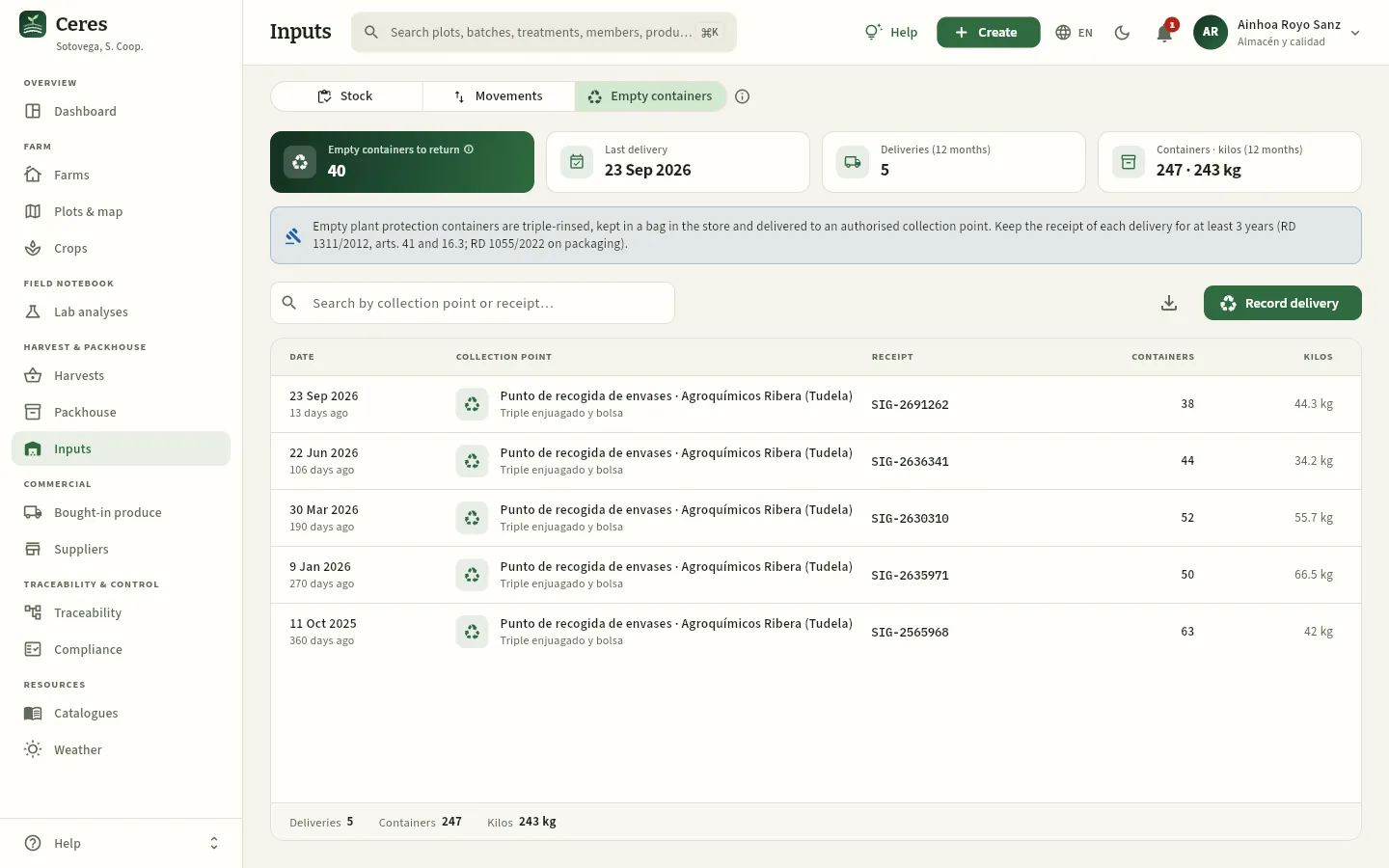 12345
- 1Empty containers to deliver: the estimate of those emptied since the last delivery.
- 2The last delivery, the deliveries in the last 12 months and how many containers and kilos they added up to.
- 3What to do with the containers and how long to keep the certificate (3 years).
- 4Record delivery records a new delivery.
- 5The certificate for each delivery (in amber, No certificate, if missing), with the containers and the kilos.
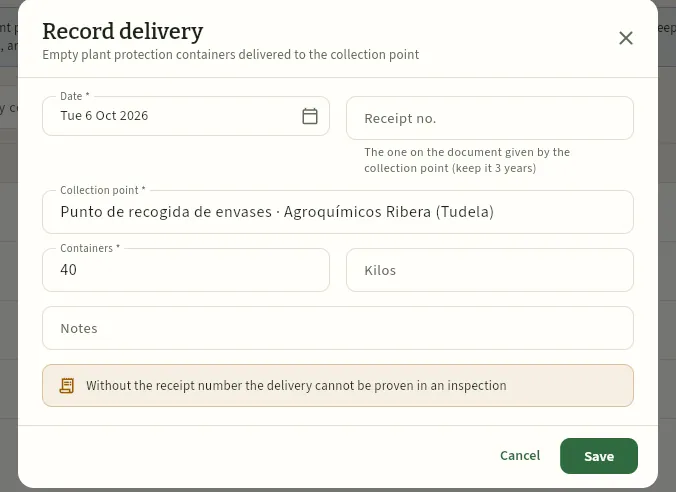 12345
- 1The delivery date (it cannot be later than today).
- 2The certificate no. of the document given by the collection point.
- 3The collection point: the one from the last delivery is proposed.
- 4The containers (the estimate of those pending is proposed) and the kilos.
- 5Without a certificate, the delivery cannot be proven in an inspection.
Take the rinsed and bagged containers to the collection point and keep the certificate they give you.
In Empty containers, press Record delivery.
Check the date and the collection point, and enter the certificate no., the containers and, if you know them, the kilos.
Press Save and attach the scanned certificate to the delivery or to the farm's documents.
#What each profile sees
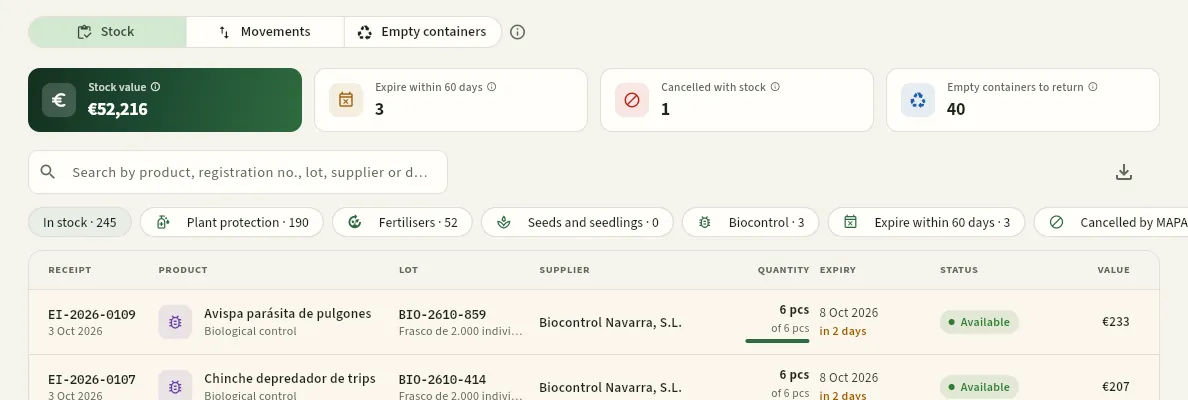 123
- 1With «See costs», the first indicator is the Stock value at purchase price (excluding VAT).
- 2And the list has the Value column for each batch (and its total, in the footer).
- 3Without «Edit inputs», Input receipt does not appear: read-only.
#Tips
Commercial
Customers
The shops, restaurants, buying groups, distributors and market stalls the cooperative sells to: what each one requires (organic produce only, GLOBALG.A.P. and their residue specifications), their payment terms and discount, what they buy, which batches they were shipped and what they owe.
Customers holds everyone who buys from the cooperative: shops and greengrocers, restaurants (restaurants, hotels, school canteens), buying groups, distribution (wholesalers and supermarkets) and market (market stalls). For each customer Ceres keeps three things that are then applied automatically in Orders & sales:
- Their requirements: whether they accept organic produce only or require GLOBALG.A.P.. A customer who only accepts organic produce cannot be sent a delivery note with a conventional batch: the database refuses it. One who requires GLOBALG.A.P. can be shipped to, but a warning is kept. And, if they have them, their residue specifications: requirements stricter than the law on the plant protection residues of what they buy (see The residue specifications).
- Their terms: the payment terms (each invoice falls due on its date plus these days) and the discount on the price list, deducted on every order, delivery note and invoice.
- Their history: what they bought in the last 12 months, in euros and kilos, with the batches shipped to them («one step forward» traceability) and their unpaid and overdue invoices.
In the demo three customers are organic only: Grupo de consumo La Cesta (CL-05, Pamplona), Grupo de consumo Ekoizpena (CL-06, Donostia) and Tienda La Rueda Ecológica (CL-14, Zaragoza); three distributors require GLOBALG.A.P.: Frutas Ebro Distribución, Supermercados Arga and Frutas Bidasoa; and three customers have residue specifications: Frutas Bidasoa, Supermercados Arga and Comedor escolar Colegio Anunciata.
#The customer list
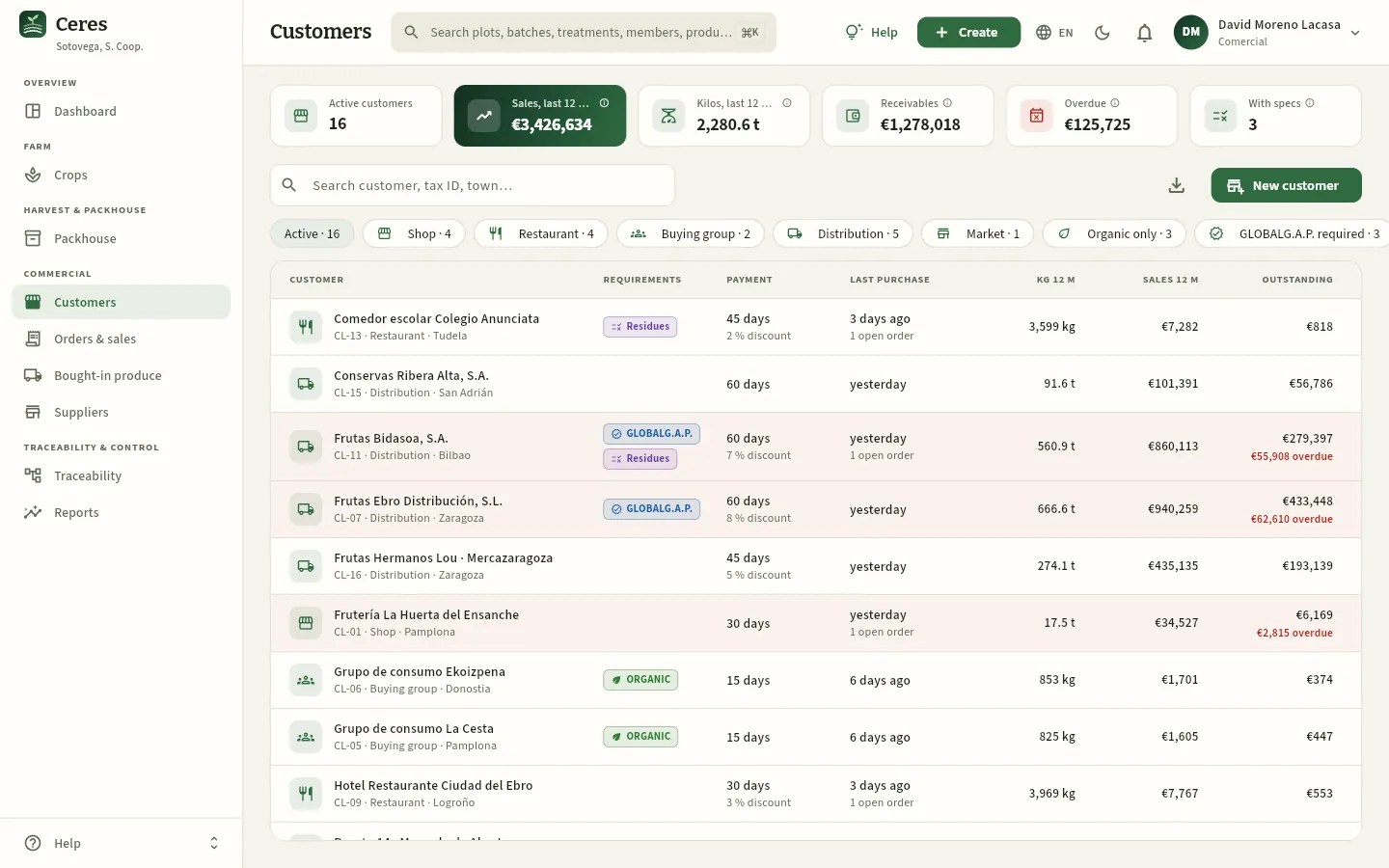 123456789
- 1Sales, last 12 months and, to its right, Kilos, last 12 months: what was sold to all customers over the past year (before VAT), counted from dispatch, invoiced or not.
- 2Receivables: issued invoices not yet collected, VAT included.
- 3Overdue: the part of receivables already past due. If it grows, chase payment before shipping more.
- 4With specs: active customers with their own residue requirements (with the «See residue requirements» permission).
- 5The search box: by name, code (CL-…), tax ID or town.
- 6New customer opens the form. To its left, Export CSV downloads the list you are viewing.
- 7The filters, with their counts: by customer type, Organic only, GLOBALG.A.P. required, With residue specs, With open orders, Overdue and Inactive (scroll the row to see the last ones).
- 8The requirements: the organic badge, GLOBALG.A.P. or Residues (has residue specifications). Hover to read what is required.
- 9The customer's outstanding amount and, in red, what is already overdue.
Each row shows the name with its code, type and town; the requirements; the payment terms (days and discount); the last purchase and how many open orders they have; kilos and sales over the last 12 months; and the outstanding amount. Click a column header to sort by it and a row to open the record.
| Filter | What it shows |
|---|---|
| Active | All active customers (the default) |
| Shop · Restaurant · Buying group · Distribution · Market | Active customers of that type |
| Organic only | Those who only accept organic produce: La Cesta, Ekoizpena and La Rueda Ecológica |
| GLOBALG.A.P. required | Those who require batches with GLOBALG.A.P. certification |
| With residue specs | Those with their own residue requirements (with the «See residue requirements» permission) |
| With open orders | Those with orders not yet fully served |
| Overdue | Those with an overdue invoice (only if you can see prices) |
| Inactive | Deactivated customers: they no longer appear when creating orders |
#The customer record
Click a customer to open their record on the right. At the top are their code and type, their requirements, name and tax ID; on the right, New order (with the customer already filled in) and the pencil to edit them. Below are the tabs Summary, Orders, Delivery notes, Invoices, Products, Residues (their residue specifications, with the «See residue requirements» permission) and Documents (contracts, customer forms or the scanned food business registration: see The screen).
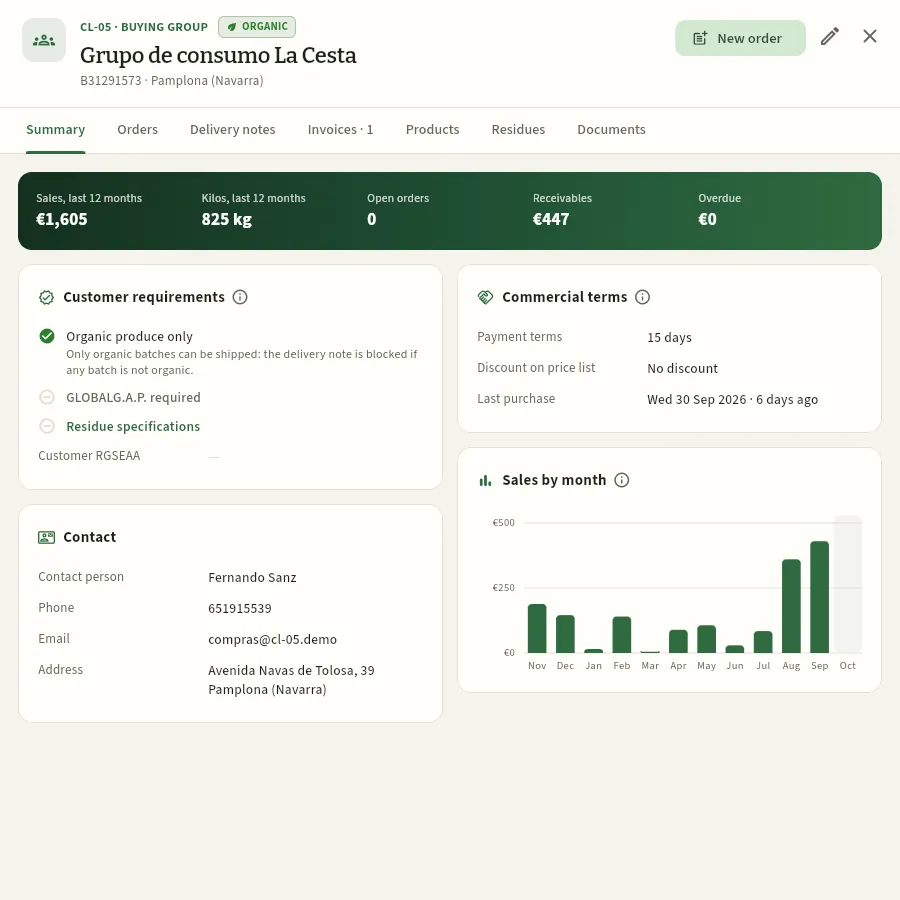 12345678
- 1Code and type (CL-05 · Buying group), the organic badge of their requirements, the name, tax ID and town.
- 2New order for this customer; the pencil, to its right, opens Edit customer.
- 3The tabs: the number shows open orders or unpaid invoices.
- 4The summary band: 12-month sales and kilos, open orders, receivables and overdue.
- 5Customer requirements: the green ✓ marks what they require; here, Organic produce only. And their food business registration number (RGSEAA), if they are a food business.
- 6Commercial terms: payment terms, discount on the price list and the last purchase.
- 7Contact: person, phone, email and address (with the «Contact data» permission).
- 8Sales by month over the last 12 months: in euros if you can see prices, in kilos if not. The current month is highlighted and incomplete.
If the customer has overdue invoices, the summary warns in red («… overdue across … invoices») with a link to View invoices; if they are inactive, a grey notice reminds you that they do not appear when creating orders.
The Orders, Delivery notes and Invoices tabs list the customer's most recent documents with their status; click one to open it on top. From Orders you can create another with New order; from Delivery notes, whoever invoices has Invoice for the dispatched ones not yet invoiced.
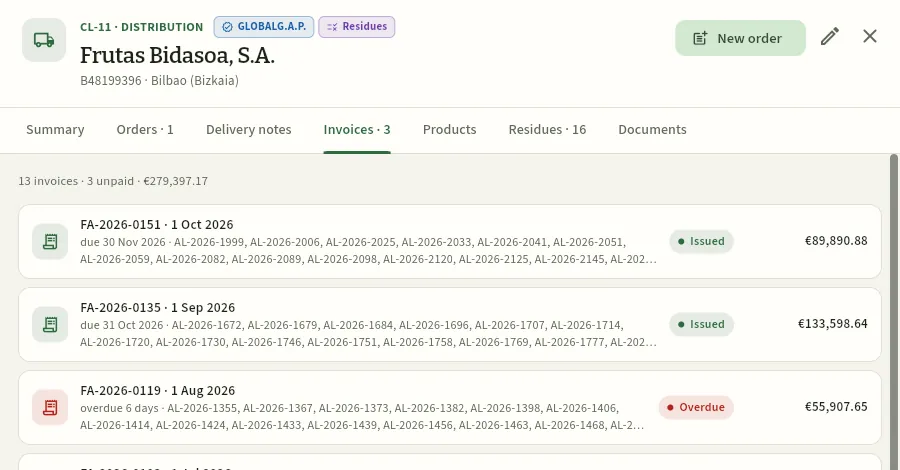 1234
- 1Frutas Bidasoa requires GLOBALG.A.P. on every delivery.
- 2The Invoices tab, with the unpaid ones.
- 3The summary: invoices, how many are unpaid and their amount.
- 4An overdue invoice («overdue … days»), with the delivery notes it groups. Click it to open it.
#What they buy and with which batches
The Products tab groups what the customer bought in the last 12 months, from most to fewest kilos: how many units, how many deliveries, the last one, kilos, amount and the batches shipped. This is the «one step forward» traceability required by Regulation (EC) 178/2002: if a batch has to be recalled tomorrow, this is where you see who received it.
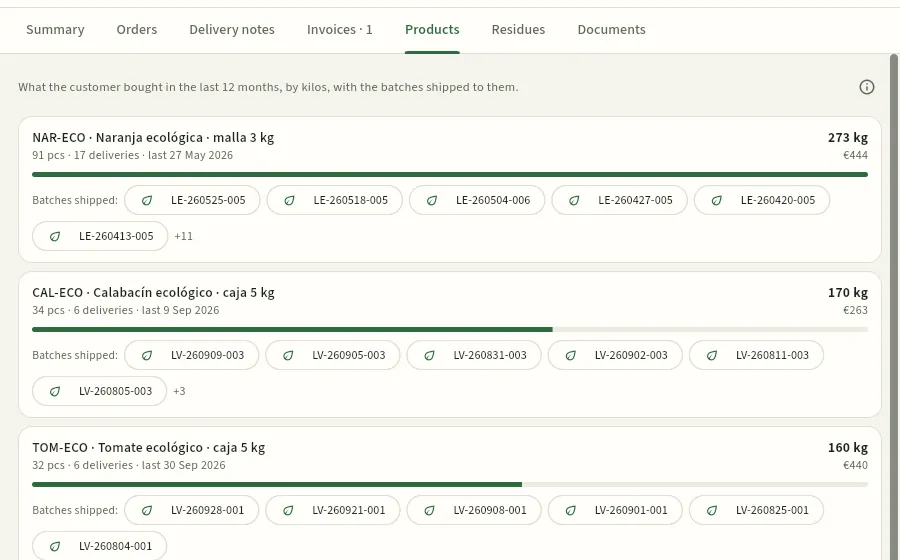 1234
- 1What this list is; the ⓘ explains how it is grouped.
- 2Each product (code, name and pack), with units, deliveries, the last one, kilos and amount; the bar compares its kilos with those of the customer's top product.
- 3The batches shipped, with their origin: click one to open its record and, from there, its Traceability back to the plot.
- 4A bought-in batch (LE-…): organic oranges bought from a supplier in Valencia (see Bought-in produce).
#The residue specifications
Many retail chains and canteens ask for fewer plant protection residues than the law allows: produce can meet the MRL (the maximum residue limit the EU sets for each active substance and crop) and still not qualify for that customer. What each one asks for is in their specifications (quality protocol), and Ceres keeps it in the customer's Residues tab with four requirements:
| Requirement | What it means |
|---|---|
| Max. number of active substances | How many different active substances it accepts in a lot: those detected in its residue analysis or, without one, those applied on its crop in the days before harvest. |
| Max. % of the MRL | No detected substance may exceed that percentage of its EU MRL (for example, 33 %). |
| Substances it does not accept | A lot from a crop treated with any of them in the year before harvest, or in which they are detected, does not qualify. |
| Extra days on the pre-harvest interval | Days it asks for on top of the label pre-harvest interval. |
With those requirements Ceres works out, for every lot in the warehouse, whether it qualifies for that customer and why not (see Packhouse), and the FEFO delivery note skips the lots that do not qualify (see Orders & sales). These are Frutas Bidasoa's specifications:
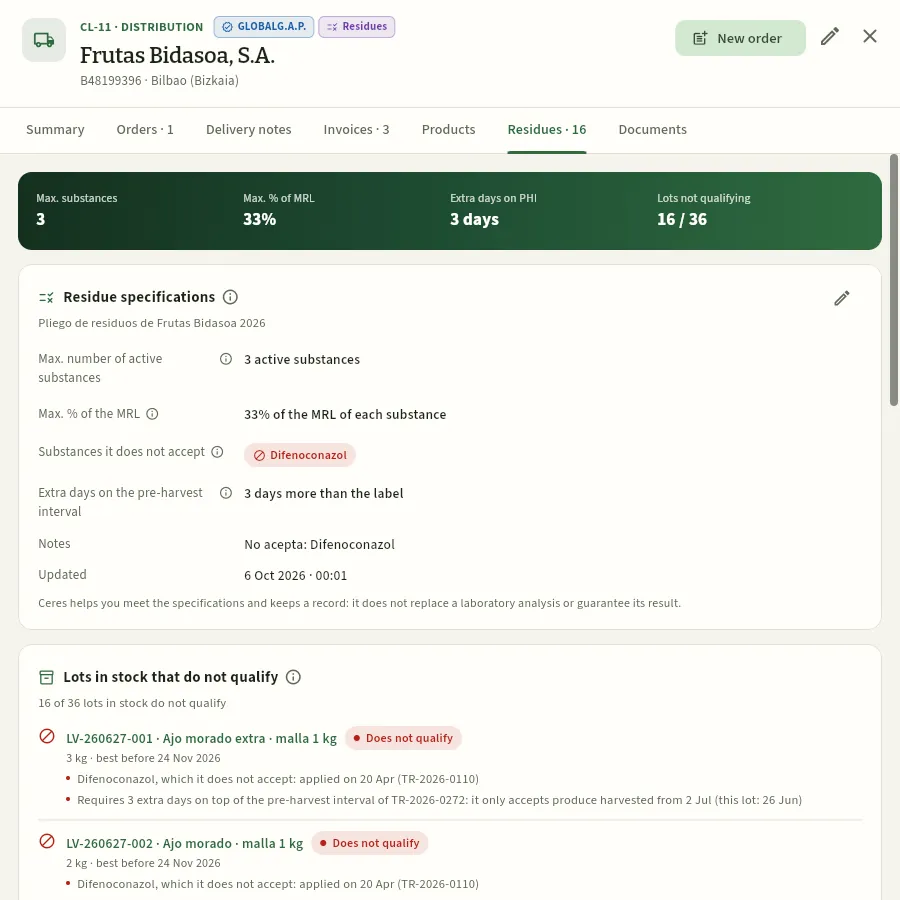 123456
- 1The Residues badge: the customer has residue specifications.
- 2The Residues tab, with how many lots in stock do not qualify.
- 3The band: its requirements in short and how many of the lots in stock do not qualify.
- 4The specifications: here, at most 3 active substances, 33 % of the MRL of each one, no difenoconazole and 3 days more than the label pre-harvest interval. Each line with its ⓘ.
- 5The pencil opens Residue requirements to change them (with «Edit customers»).
- 6Lots in stock that do not qualify, with their kilos, their best-before date and the reason: the substance it does not accept, with the date and the treatment, or the margin on the pre-harvest interval that is not met.
Open the customer record and its Residues tab. If there are none, click Add residue requirements; if there are, the pencil of Residue specifications.
Enter what their specifications ask for: the max. number of active substances, the max. % of the MRL and the extra days on the pre-harvest interval. Whatever you leave empty is not limited.
Add the substances it does not accept with Add substance (search them by name).
Enter the protocol or specification (name and version) and upload the customer's document in Documents.
Click Save.
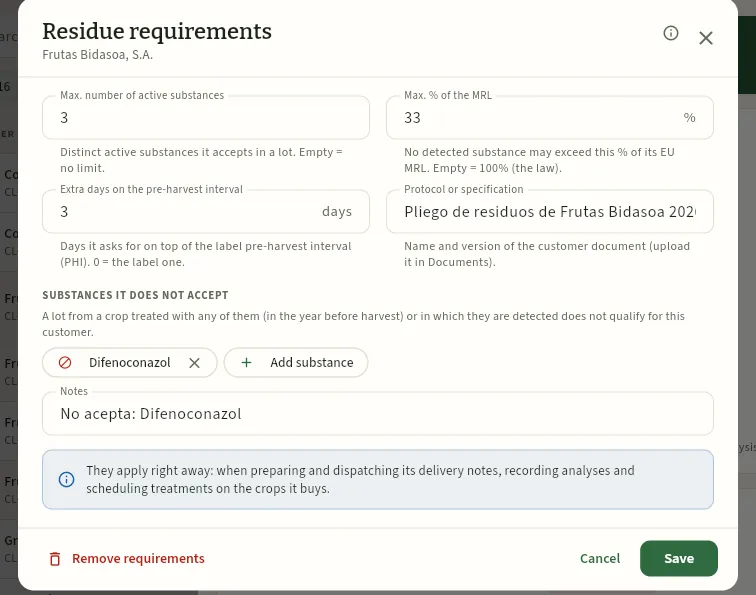 123456
- 1Max. number of active substances it accepts in a lot. Empty = no limit.
- 2Max. % of the MRL: no detected substance may exceed that % of its EU MRL. Empty = 100 % (the law).
- 3Extra days on the pre-harvest interval: days on top of the label one.
- 4The customer's protocol or specification, with its version.
- 5The substances it does not accept: here, difenoconazole; the ✕ removes it and Add substance looks for another.
- 6Remove requirements: the customer goes back to following the law only.
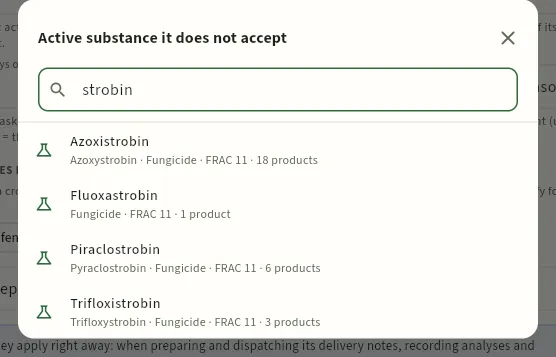 12
- 1Search the active substance by name.
- 2Each substance with its English name, its function (insecticide, fungicide…), its mode-of-action group (IRAC, FRAC or HRAC) and how many products contain it. Click it to add it.
#Adding a customer
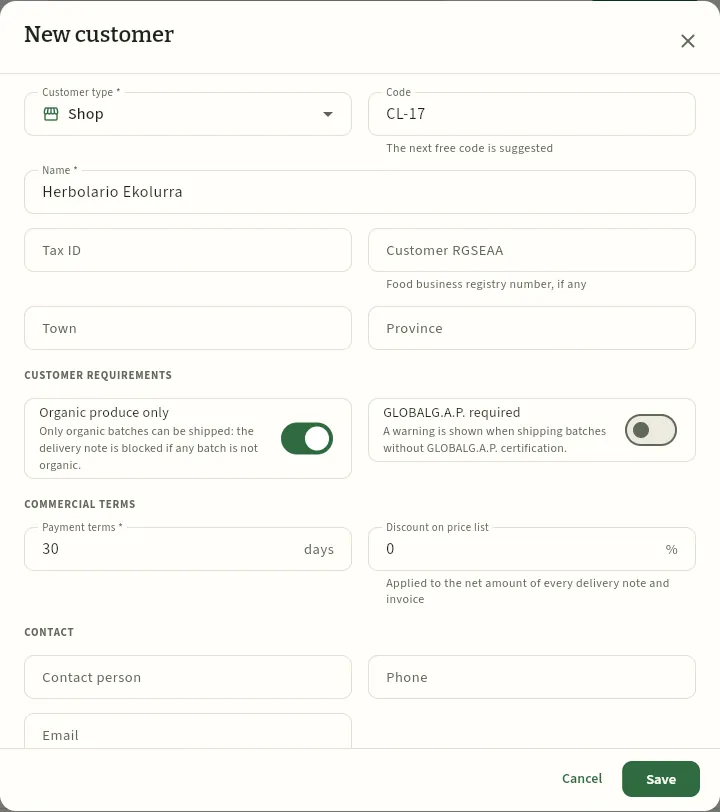 12345678
- 1Customer type: shop, restaurant, buying group, distribution or market.
- 2Code: Ceres suggests the next free one (CL-17).
- 3Customer RGSEAA: their Food Business Registry number, if they are a food business.
- 4Organic produce only: the delivery note is blocked if any batch is not organic.
- 5GLOBALG.A.P. required: a warning is shown when shipping batches without that certification.
- 6Payment terms in days (0 = cash).
- 7Discount on price list: deducted from the net amount of every order, delivery note and invoice.
- 8Save adds the customer. Below what you can see are the contact details, Active and the notes.
In Customers, click New customer (or Create in the top bar → New customer).
Choose the type and enter the name, tax ID, town and province. If they are a food business, their RGSEAA.
Tick their requirements: Organic produce only for a buying group or an organic shop; GLOBALG.A.P. required for a retail chain that asks for it.
Enter the payment terms and, if agreed, the discount on price list.
Fill in the contact details (person, phone, email and address) and click Save.
#Tips
Commercial
Orders & sales
The whole sales cycle: customer orders at their list price, the harvest forecast against demand for the coming weeks, delivery notes with batches assigned first-expiry-first-out and each batch's QR code, the check of what the customer requires (organic only, GLOBALG.A.P.) before dispatch, and invoices with VAT by rate and their collection.
Orders & sales covers what the cooperative sells, from the customer's call to their payment. It has four views, at the top left:
- Orders: what customers order, with the delivery date and the price (the product's list price, unless the salesperson sets another).
- Forecast: the harvest expected over the next 8 weeks against demand (firm orders and last year's sales), crop by crop: where there will be shortfalls and what needs to be sold.
- Delivery notes: what leaves the packhouse. Ceres assigns each line the available batches first-expiry-first-out (FEFO: the one that expires first goes first) and, on dispatch, deducts the kilos from each batch.
- Invoices: a customer's dispatched delivery notes are invoiced together, with each product's VAT and the customer's discount, and the invoice is collected.
An order can be served by one or several delivery notes, and an invoice can group delivery notes from several orders of the same customer. Trade terms (FEFO, batch, RGSEAA…) are in the Glossary.
- 1OrderCustomer, delivery date and products at list price. Warns if the customer requires organic produce.
- 2Delivery noteFrom the order: batches are assigned FEFO; anything missing stays pending.
- 3DispatchChecks batches and customer requirements and deducts the kilos.
- 4InvoiceA customer's dispatched delivery notes, with each product's VAT.
- 5PaymentThe payment date is recorded; past the due date, it shows as overdue.
#The order list
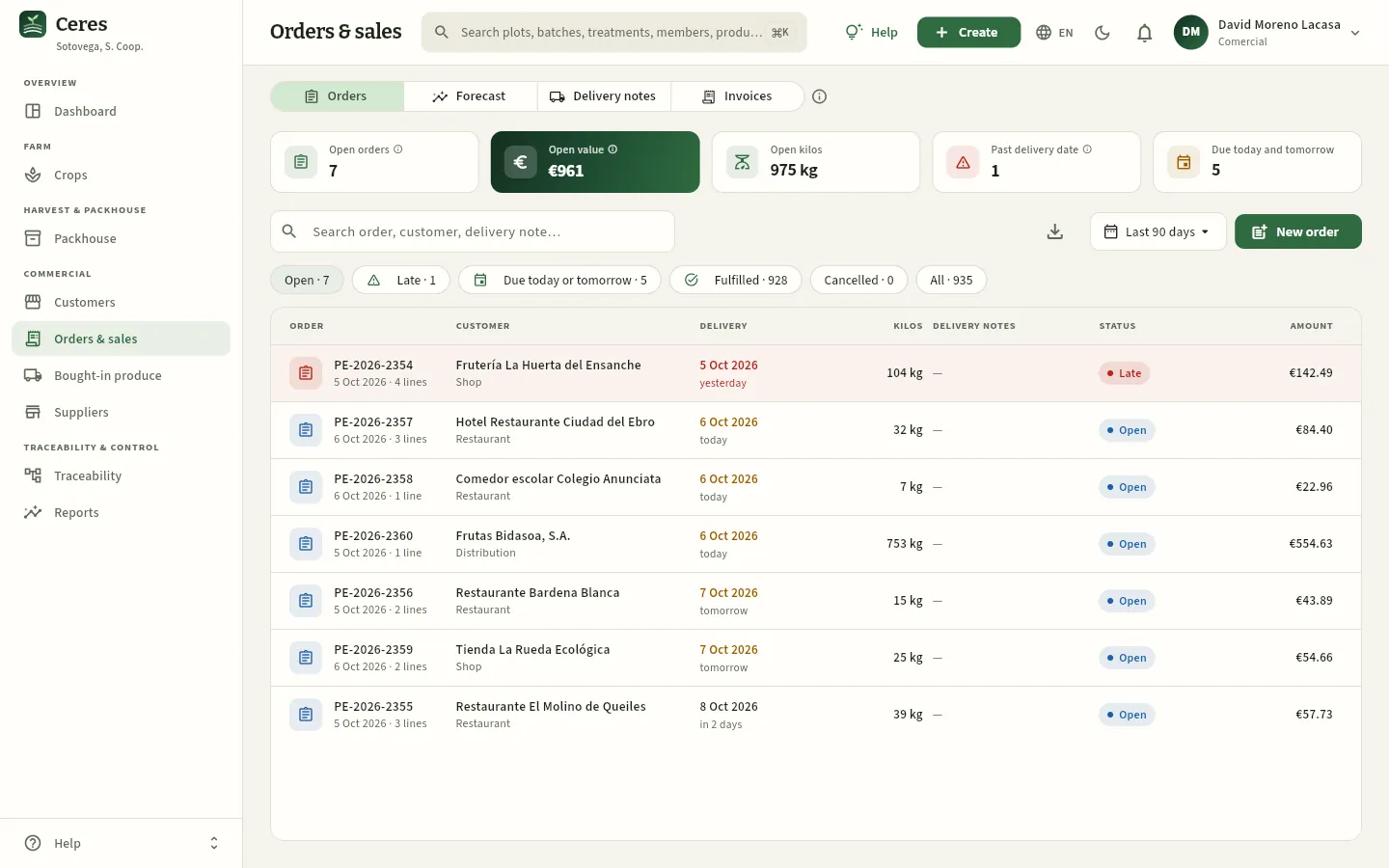 12345678
- 1The four views: Orders, Forecast, Delivery notes and Invoices. The ⓘ sums up the cycle.
- 2Open orders and their open value (before VAT, less each customer's discount); to the right, their kilos.
- 3Past delivery date: open orders whose delivery date has passed.
- 4Due today and tomorrow: what needs preparing now.
- 5The period loaded (30 or 90 days, the season, 12 months or all); anything still open is always shown.
- 6New order. To the left of the period, Export CSV.
- 7The filters: Open, Late, Due today or tomorrow, Fulfilled, Cancelled and All.
- 8A late order: delivery was due yesterday and it is still open. The row is shaded light red.
Each row shows the number (PE-year-number) with its date and lines, the customer and their type, the delivery (amber if today or tomorrow, red if past), the kilos, the delivery notes serving it, the status and the amount.
| Status | What it means |
|---|---|
| Open (blue) | Some line is still to be served. Delivery notes can be prepared for it. |
| Late (red) | Open and past its delivery date. |
| Fulfilled (green) | Dispatched delivery notes cover all its lines: it becomes fulfilled on its own. |
| Cancelled (grey) | No longer expected. It does not count as demand in the forecast. It can be reopened. |
#Creating an order
Click New order (here, in the customer record or in Create in the top bar). Choose the customer: their requirements and terms appear below. Add the products: the picker shows for each one what is available in the packhouse, the list price and whether it is ORGANIC or bought-in; for a customer who requires organic produce, organic products come first.
If you add a conventional product for a customer who only accepts organic produce, Ceres flags it straight away:
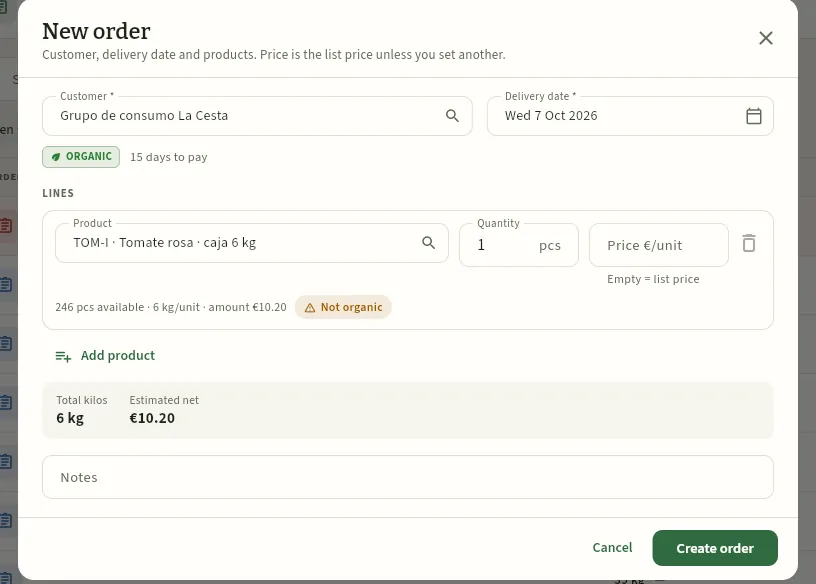 12345678
- 1The customer (active ones only). To the right, the delivery date: by default, the next working day.
- 2Their requirements (organic) and payment terms; their discount too, if they have one.
- 3The product: code, name and pack (6 kg box, 2 kg net, bunch…).
- 4Price €/unit: if empty, the product's list price on the order date. Enter another only if you have agreed one.
- 5What is available, the weight per unit, the line amount and the Not organic warning: it cannot be shipped to this customer.
- 6Add product adds another line.
- 7Total kilos and estimated net (before VAT, less the customer's discount).
- 8Create order saves it as open and opens its record.
The warning does not stop you saving the order (sometimes a change is agreed with the customer), but the conventional product cannot be shipped to them: the order record will remind you in red and, on dispatch, the database will refuse it. The right thing is to swap the line for its organic equivalent (TOM-ECO, in this case). If you order more units than there are, the Only … available warning appears too: the order is saved, but the delivery note can only serve what there is.
Click New order and choose the customer. Check their requirements and the delivery date.
In the line, click Product and search by code or name. Enter the quantity in sales units (boxes, nets, bunches…).
Leave the price empty to use the list price, or enter the agreed one.
Add the rest with Add product and review the warnings (Not organic, Only … available).
Click Create order.
#The order record
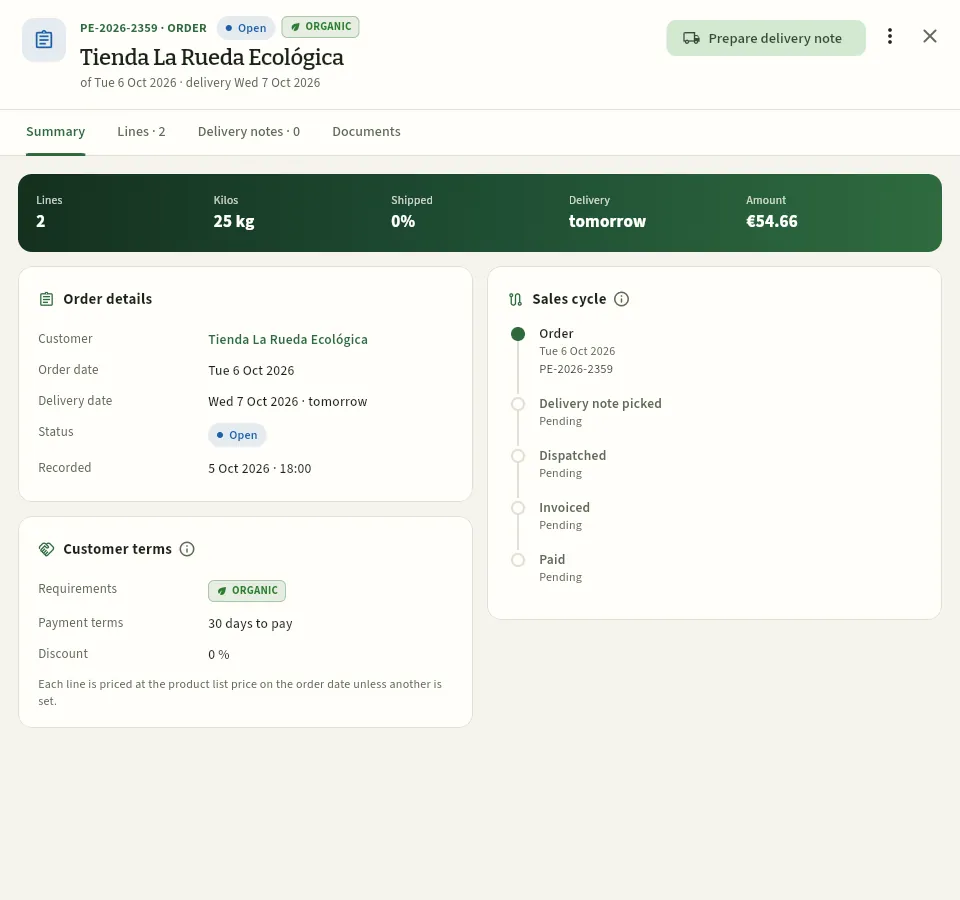 1234567
- 1Number, status, the customer's organic badge, the customer and the order and delivery dates.
- 2Prepare delivery note: the main action of an open order.
- 3The ⋮ menu: Add line, Edit order (delivery date and notes), View customer and Cancel order (if it has no delivery notes).
- 4The tabs: Lines, Delivery notes and Documents.
- 5The summary band: lines, kilos, % shipped, when delivery is due and amount.
- 6Customer terms: requirements, payment terms and discount. If a line does not meet a requirement, the warning appears here.
- 7Sales cycle: order, delivery note picked, dispatched, invoiced and paid, each step with its date and document.
Above the cards, the order's warnings appear: Delivery was due on … and the order is still open, The customer only accepts organic produce and these lines are not: …, Not enough stock to serve it in full (with what is pending and what is available for each product) or Delivery note being picked: ….
The Lines tab shows, product by product, what has been shipped against what was ordered, what is available in the packhouse and the price; while the order is open, click a line to change the quantity or price (if part of it has already been shipped, the form says so).
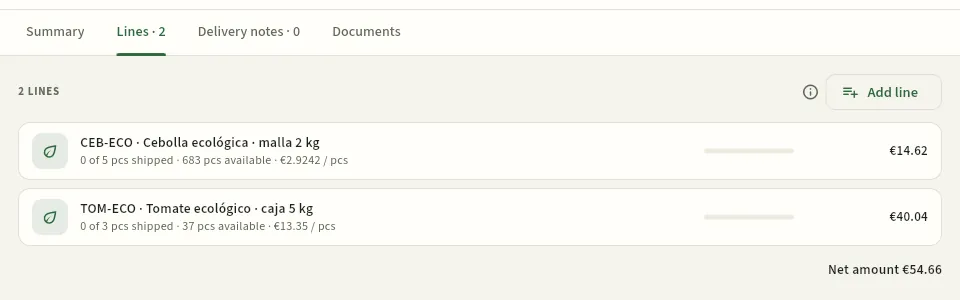 123
- 1Each line: product, shipped out of ordered, available in the packhouse and price per unit; on the right, its amount.
- 2Add line while the order is still open.
- 3The net amount, less the customer's discount if they have one.
#Preparing the delivery note: FEFO batches
When an order is due to be served, click Prepare delivery note in its record (or in the Delivery notes view, which lets you choose among the open orders, earliest delivery first). Only the delivery note date is asked for: Ceres does the rest.
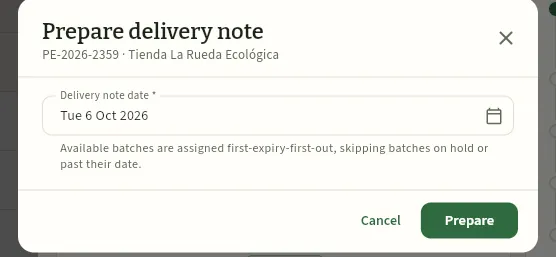 123
- 1The delivery note date: today, by default.
- 2How batches are chosen: the product's available ones, first-expiry-first-out, skipping those on hold and those past their best-before date.
- 3Prepare creates the delivery note being picked and opens it.
When you click Prepare, Ceres spreads what is pending on each line over that product's batches, starting with the one that expires first; if a batch is not enough, it moves on to the next. If there is not enough in total, the delivery note is prepared with what there is and a notice says what is short («Organic tomato: 2 short»): that stays pending on the order for another delivery note.
A delivery note being picked does not deduct stock yet: it only holds the batches. Meanwhile, in its Lines tab you can change a line's batch (the list is sorted first-expiry-first-out, with each batch's best-before date) or the quantity, and with Edit delivery note enter the carrier and the loading temperature (of the produce or the truck at loading, for the cold chain).
#Customers with residue specifications: FEFO skips the lots that do not qualify
If the customer has residue specifications (see Customers), the order reminds you («This customer has residue specifications…») and, when the delivery note is prepared, FEFO skips the lots that do not qualify and ships from the next ones that do. Ceres shows you the ones it skipped and why. This is today's order from Frutas Bidasoa (PE-2026-2360): onions in 3 kg nets.
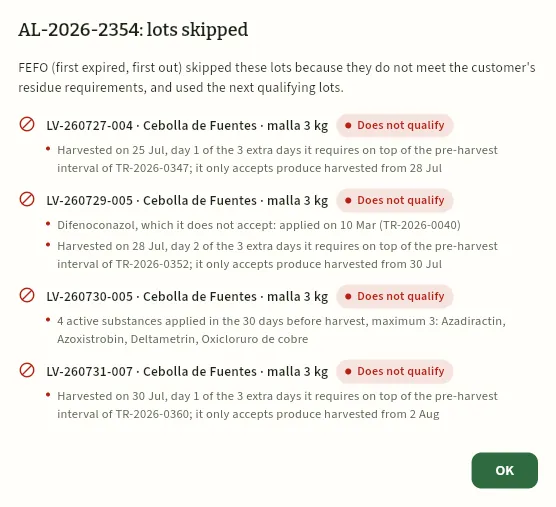 12345
- 1The delivery note that has been prepared and how many lots FEFO skipped.
- 2The first by FEFO, LV-260727-004: harvested before the 3 extra days the customer asks for on top of the pre-harvest interval.
- 3LV-260729-005: also, from a crop treated with difenoconazole, which the customer does not accept.
- 4LV-260730-005: it carries 4 active substances and the customer accepts 3 at most.
- 5OK opens the delivery note, shipped from the first lot that does qualify.
The delivery note has been shipped from the first lot that meets the specifications (here, LV-260801-004). If you want another, change it in its Lines tab: when choosing the lot, the list says for each one whether it qualifies or does NOT qualify for the customer, and proposes the first qualifying one by FEFO.
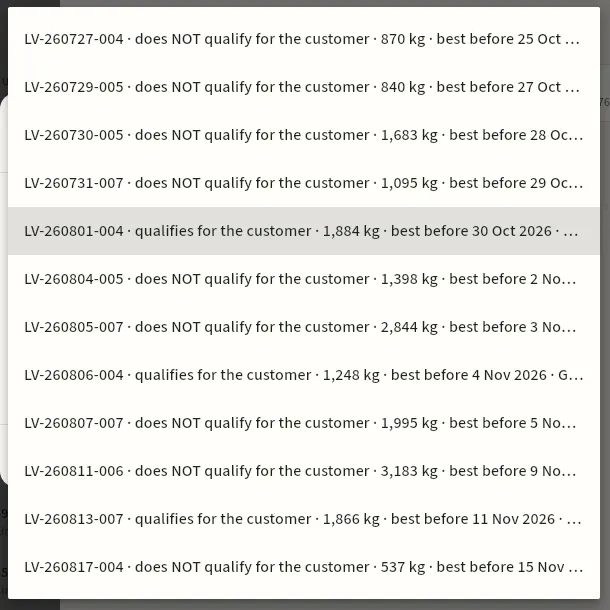 123
- 1The lots by FEFO (first expired, first out), with their kilos, their best-before date and their certifications. This one does NOT qualify for the customer.
- 2The one FEFO proposed: the first that qualifies for the customer.
- 3Another one that also qualifies, in case you prefer to ship from it.
#Dispatching: what is checked
A delivery note being picked shows the Checks before dispatch card in its summary: the same checks the database will run when you click Dispatch, so you can see them before loading the truck. In red, what blocks dispatch; in amber, warnings that do not.
| Check | If it fails |
|---|---|
| Each line has a batch, and the batch is of that product | Red: «line without a batch» or «batch … is not …» |
| The batch is available (not on hold, used up or withdrawn) | Red: «batch … is on hold» |
| The batch has enough kilos | Red: «batch … has … and the note needs …» |
| Its best-before date has not passed | Red: «batch … was best before …» |
| If the customer only accepts organic produce: every batch is organic | Red: «the customer is organic only and batch … is not organic» |
| If the customer requires GLOBALG.A.P.: every batch has it | Amber: it can be dispatched, but the delivery note keeps the warning |
| If the customer has residue specifications: every lot qualifies | Red: «… does not qualify for this customer: …», with the reason |
If everything is fine, All good: ready to dispatch appears in green. When you click Dispatch, Ceres asks «Dispatch delivery note …?» with the kilos and batches to be deducted; on confirming, the kilos leave each batch (recorded in its movements in the Packhouse), the delivery note becomes Dispatched and the order Fulfilled if complete.
#The delivery note list
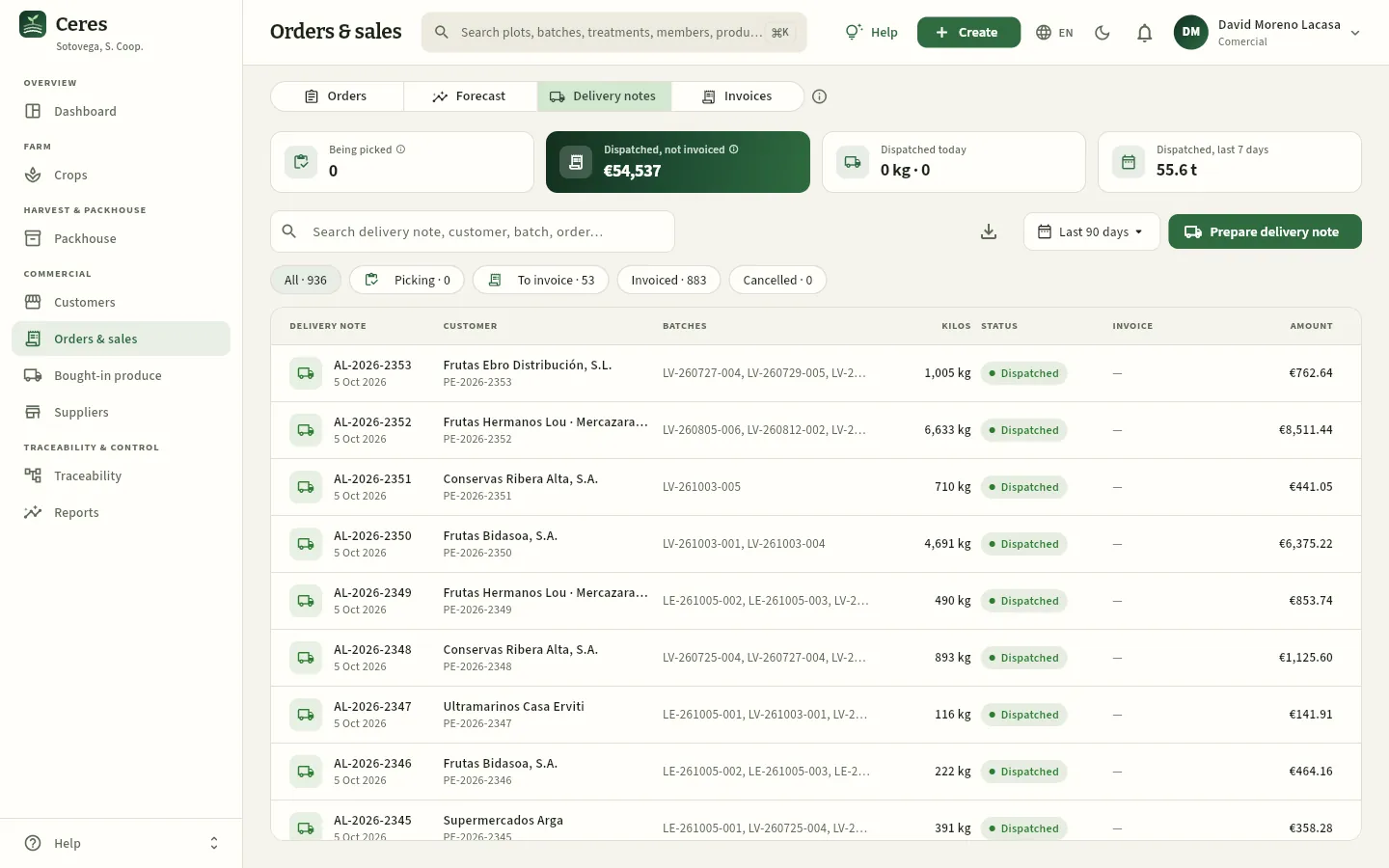 123456
- 1Being picked: delivery notes with batches assigned that have not left yet or deducted stock.
- 2Dispatched, not invoiced: what has left and still needs invoicing (as a number of delivery notes if you cannot see prices).
- 3Dispatched today (kilos and delivery notes) and dispatched in the last 7 days.
- 4Prepare delivery note: choose the open order and Ceres assigns the batches. Whoever invoices also has Invoice delivery notes here.
- 5The filters: Picking, To invoice, Invoiced and Cancelled. The search box also finds by batch.
- 6Each delivery note with its order and the batches it carries: the «one step forward» traceability of each batch.
#The delivery note record and each batch's QR code
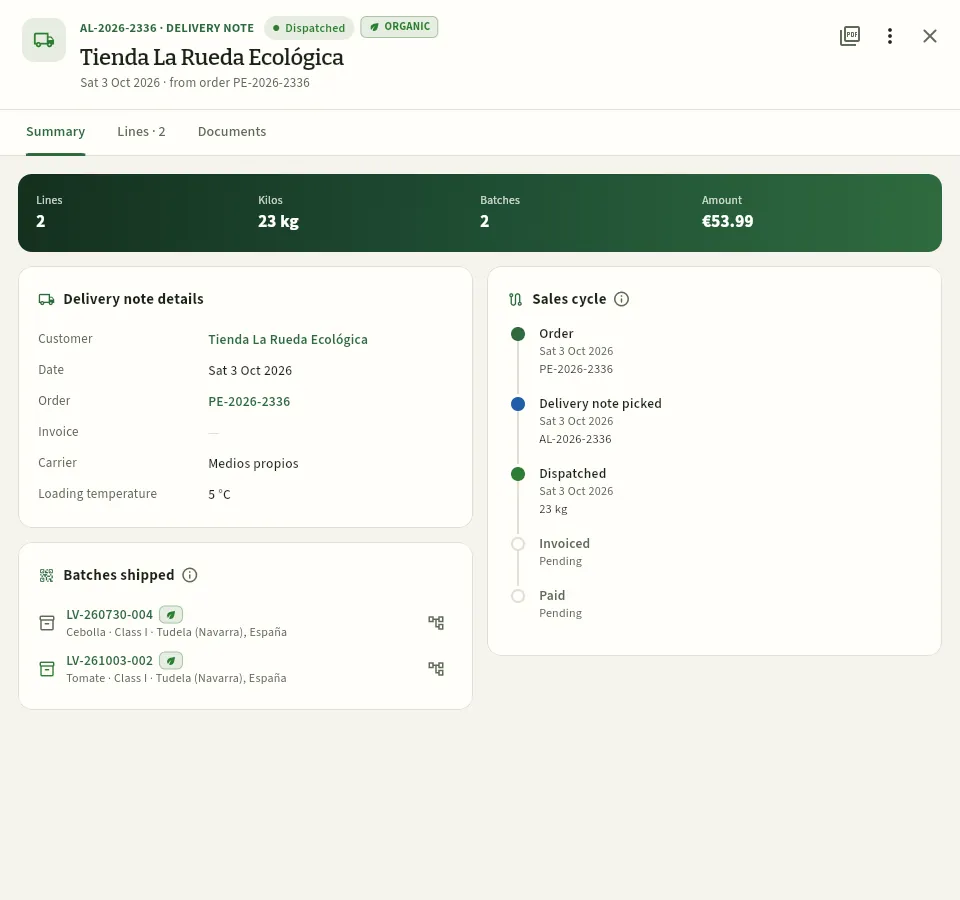 12345678
- 1Number, status (Dispatched), the customer's organic badge, the date and the order it comes from.
- 2The delivery note PDF; on a delivery note being picked, Dispatch is here, and on a dispatched one, for whoever invoices, Invoice.
- 3The ⋮ menu: Priced delivery note (PDF), Edit delivery note, View customer and Cancel delivery note.
- 4Lines, kilos, batches and amount.
- 5Delivery note details: customer, date, order, invoice, carrier and loading temperature.
- 6Each batch shipped, with its certification (the green leaf: organic), product, class and origin. Click it to open the batch.
- 7Batch traceability: opens its full chain, back to the plot and its treatments (see Traceability).
- 8The sales cycle: this delivery note is dispatched and awaiting invoice.
The delivery note PDF shows the customer, transport and temperature, and a table with each lot: product, class, country of origin, batch, certification and quantity. Below it, Batch traceability, with each batch's contents, provenance, best-before date and lookup code; if the delivery note carries a single batch, its QR code is printed too («Scan to see its origin»), which opens the batch's public page without needing a user account. At the foot, the mandatory statements and the «Received in good order» box for the customer to sign. The Priced delivery note (PDF) adds prices and amounts.
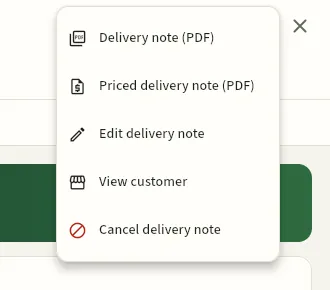 123
- 1Delivery note (PDF) and Priced delivery note (PDF), with prices (only if you can see prices).
- 2Edit delivery note: carrier and loading temperature (and the date, while it is being picked).
- 3Cancel delivery note, with a reason: if it was already dispatched, the kilos go back to their batches and the order reopens.
#The harvest forecast against demand
The Forecast view answers the salesperson's question every Monday: what will reach the packhouse in the coming weeks and who will buy it? It compares, crop by crop and week by week, supply (the forecast harvest of active plantings and, in the first week, stock) with demand (the higher of firm orders due that week and sales in the same week last year).
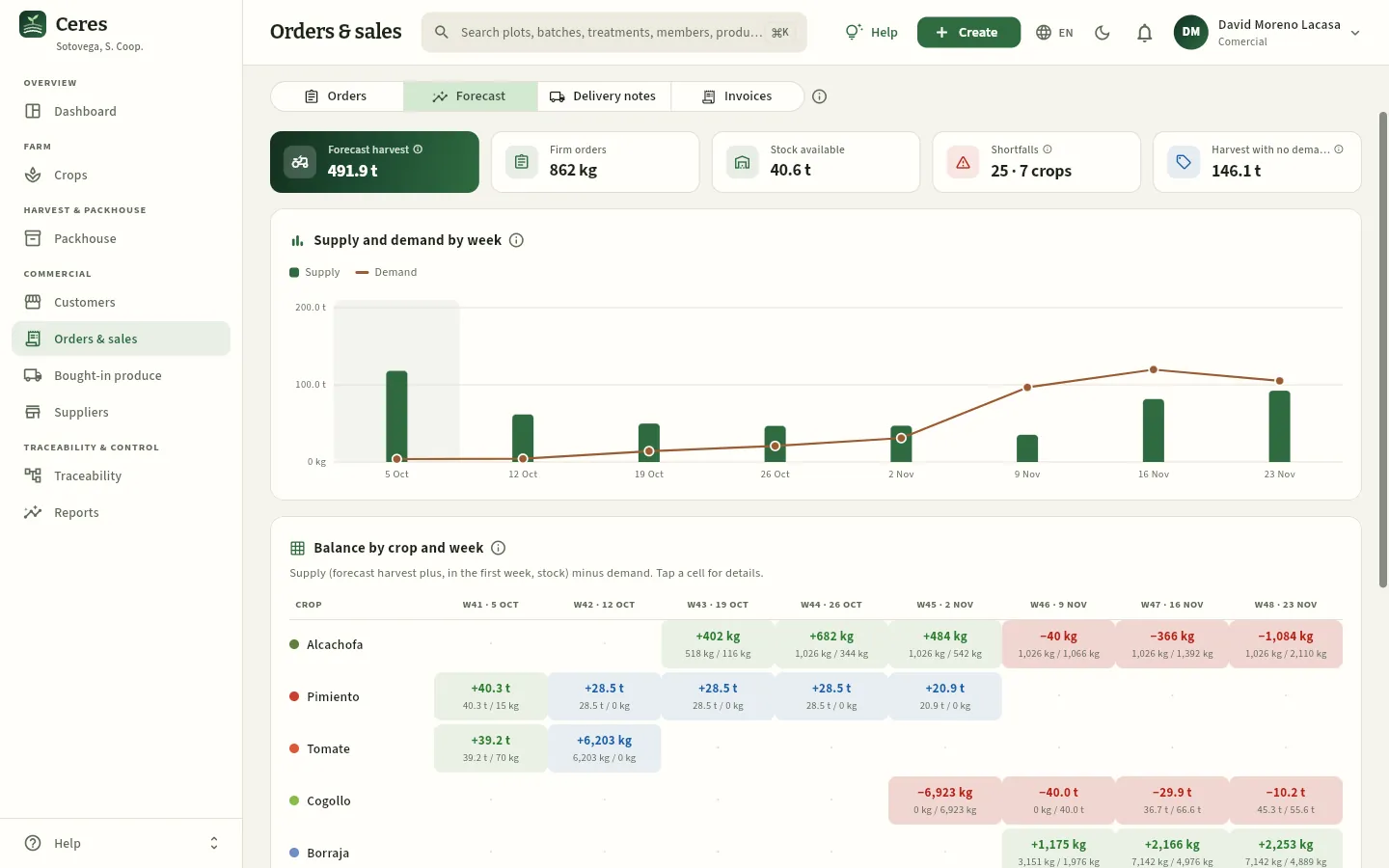 1234567
- 1Forecast harvest over the next 8 weeks, from the farms you can see.
- 2Firm orders (the open ones) and stock available today.
- 3Shortfalls: weeks and crops where demand exceeds supply (likely supply gaps).
- 4Harvest with no demand: what is forecast with no orders and no sales that week last year; it is what needs to be sold.
- 5The chart: supply bars and the demand line, all crops together. A balanced total can hide a shortfall in one crop.
- 6A red cell: shortfall. On top, the balance (supply − demand); below, supply / demand.
- 7A blue cell: harvest with no demand, to be sold.
The table colours: red, shortfall (not enough); amber, tight (under 15 % margin); green, covered with surplus; blue, harvest with no demand. Click a cell to see its details and what to do:
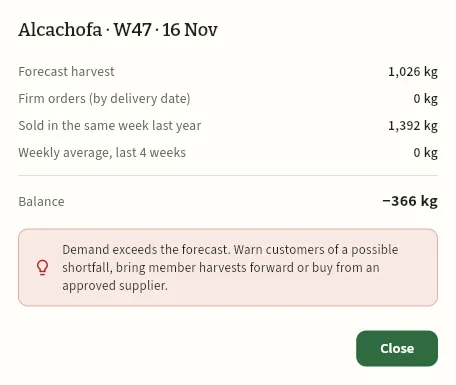 12345
- 1Forecast harvest that week (and stock available, if it is the first one).
- 2Firm orders due that week.
- 3Sold in the same week last year and, below, the weekly average of the last 4 weeks, for reference.
- 4The balance: supply minus the higher of the two demands.
- 5The advice: warn customers, bring member harvests forward or buy from an approved supplier (see Bought-in produce).
#Invoicing the delivery notes
Invoicing is a job for Finance (the «Invoice» permission). In the demo, the cooperative invoices each customer once a month, on the 1st, for everything dispatched the previous month; but you can invoice whenever you like. From the Delivery notes or Invoices view with Invoice delivery notes, or from a dispatched delivery note with Invoice: the dialog opens with all that customer's dispatched, uninvoiced delivery notes.
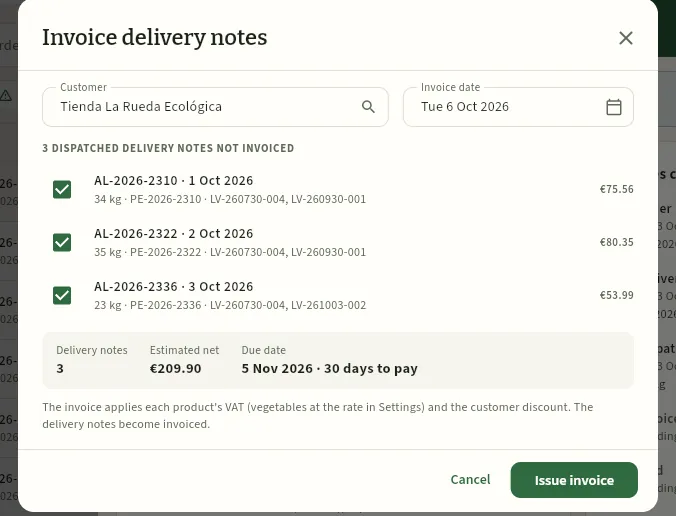 12345
- 1The customer and the invoice date (today, by default). An invoice is for a single customer.
- 2The customer's dispatched delivery notes not invoiced, with their kilos, order, batches and amount. Tick the ones that go on the invoice.
- 3How many are included, the estimated net and the due date (date + the customer's payment terms).
- 4VAT goes by product (vegetables at the rate in Settings) and the customer's discount is deducted.
- 5Issue invoice: creates the invoice (FA-year-number), the delivery notes become Invoiced and its record opens.
#The invoice and VAT by rate
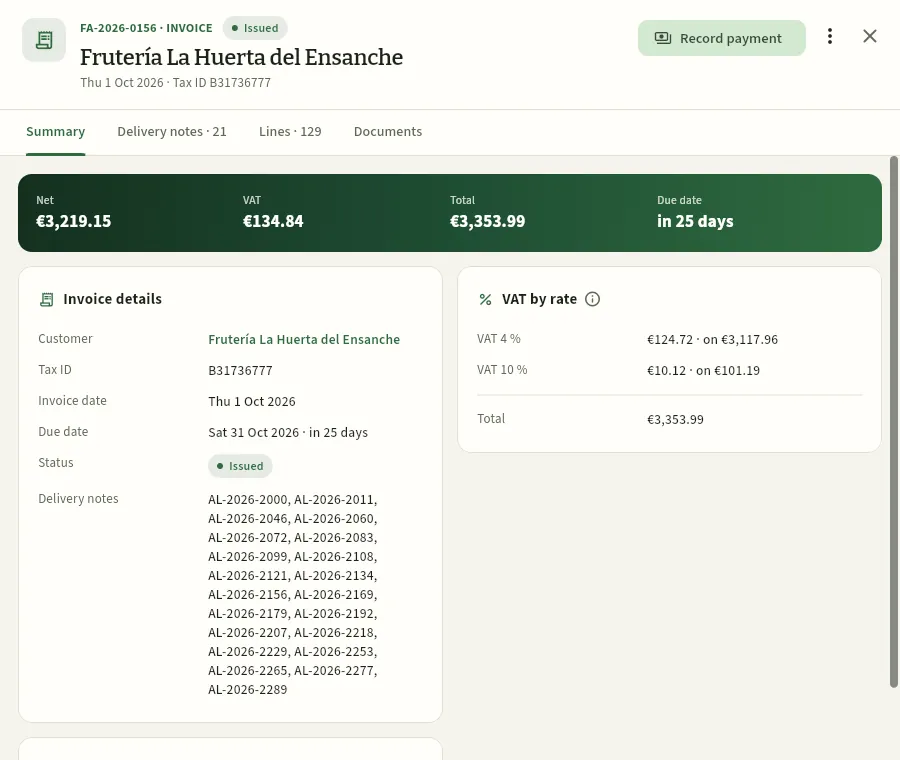 1234567
- 1Number, status (Issued), customer, date and tax ID.
- 2Record payment: the date the payment came in. The invoice becomes Paid.
- 3The ⋮ menu: Invoice (PDF), View customer and Cancel invoice (it keeps its number and its delivery notes go back to be invoiced).
- 4The Delivery notes tab (those it groups) and Lines (each product, with its batch and VAT).
- 5Net, VAT, total and when it falls due.
- 6VAT by rate: each rate with its taxable base. Fresh vegetables at 4 %; bought-in products at their own rate (honey, 10 %).
- 7Invoice details: customer, tax ID, dates, status and the delivery notes it groups.
The Invoices view brings them all together, with receivables, what is overdue, what was invoiced this month and collected this month, and the filters Unpaid, Overdue, Due within 15 days, Paid, Cancelled and All; at the foot, the sum of the net amounts, VAT and totals of what you are viewing.
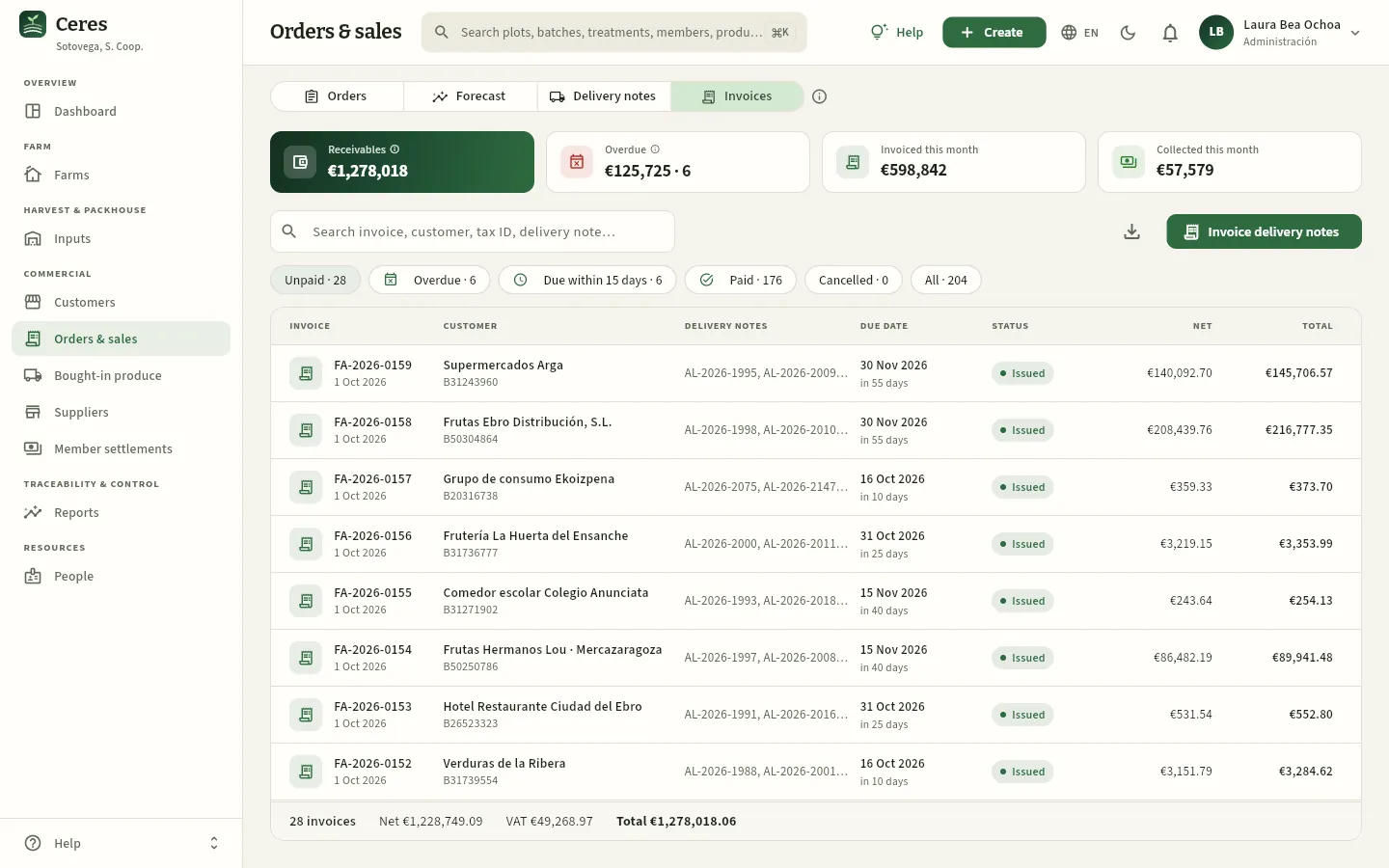 1234567
- 1Receivables: issued invoices not yet collected, VAT included.
- 2Overdue: amount and number of invoices already past their due date.
- 3Invoiced this month and collected this month.
- 4Invoice delivery notes: choose the customer and their dispatched delivery notes.
- 5The filters: Overdue is the list to chase.
- 6Each invoice: customer and tax ID, delivery notes, due date (red if past), status, net and total.
- 7The footer: how many invoices, the sum of net amounts, VAT and the total.
In Invoices (or Delivery notes) click Invoice delivery notes and choose the customer; or open a dispatched delivery note and click Invoice.
Tick the delivery notes that go on the invoice and check the date and the due date.
Click Issue invoice. Download the Invoice (PDF) from the ⋮ menu and send it to the customer.
When the payment comes in, open the invoice and click Record payment with the payment date.
#What each profile sees
| Sales (David) | Finance (Laura) | Management (Javier) | Field agronomist (Marta) | |
|---|---|---|---|---|
| Sees the section | Yes | Yes | Yes | No |
| Creates orders, prepares and dispatches delivery notes | Yes | No | No | — |
| Invoices, records payments, cancels invoices | No | Yes | No | — |
| Amounts, list price and discount | Yes | Yes | Yes | — |
| Purchase price of bought-in batches | No | Yes | Yes | — |
Marta, the agronomist, does not have the Commercial group in her sidebar: she sees no prices or costs anywhere. What she does see of sales is what she needs for traceability: from Traceability, which customers a batch reached and how many kilos, without amounts.
#Tips
Commercial
Bought-in produce
The produce the cooperative buys from third parties to complete its range (fruit, potatoes, pulses, eggs, honey…), with its origin, the supplier batch and the certificate covering it; on receipt a traceable bought-in batch is created. And the weight of bought-in sales against the 50 % limit on third-party trade.
Besides what the farm and the members harvest, the cooperative sells third-party produce: what it does not grow in the Ribera (apples and pears from Lleida, potatoes from Álava, beans from Tierra de Campos, organic oranges from Valencia) or what rounds off the shops' range (free-range eggs, honey). Bought-in produce is where that produce is ordered from the supplier and, when it arrives, received: each line becomes a bought-in batch (LE-year-month-day-number) with what regulations require to sell it:
- its origin (area and country), which travels with the produce on delivery notes and invoices;
- the supplier batch, to know who it was bought from if it has to be recalled;
- the class and the supplier certificate covering the lot (GLOBALG.A.P., organic…), valid on the receipt date.
From then on, the bought-in batch is sold like any other: it goes into the Packhouse, is served on delivery notes first-expiry-first-out and is traced in Traceability back to the supplier.
- 1OrderedSupplier, products and quantities; the origin, if already known.
- 2ReceivedSupplier delivery note, origin, batch, class and certificate of each line.
- 3Bought-in batchesOne LE-… batch per line, available in the packhouse.
- 4SoldIt ships on delivery notes like any other batch, with its origin.
#The purchase list
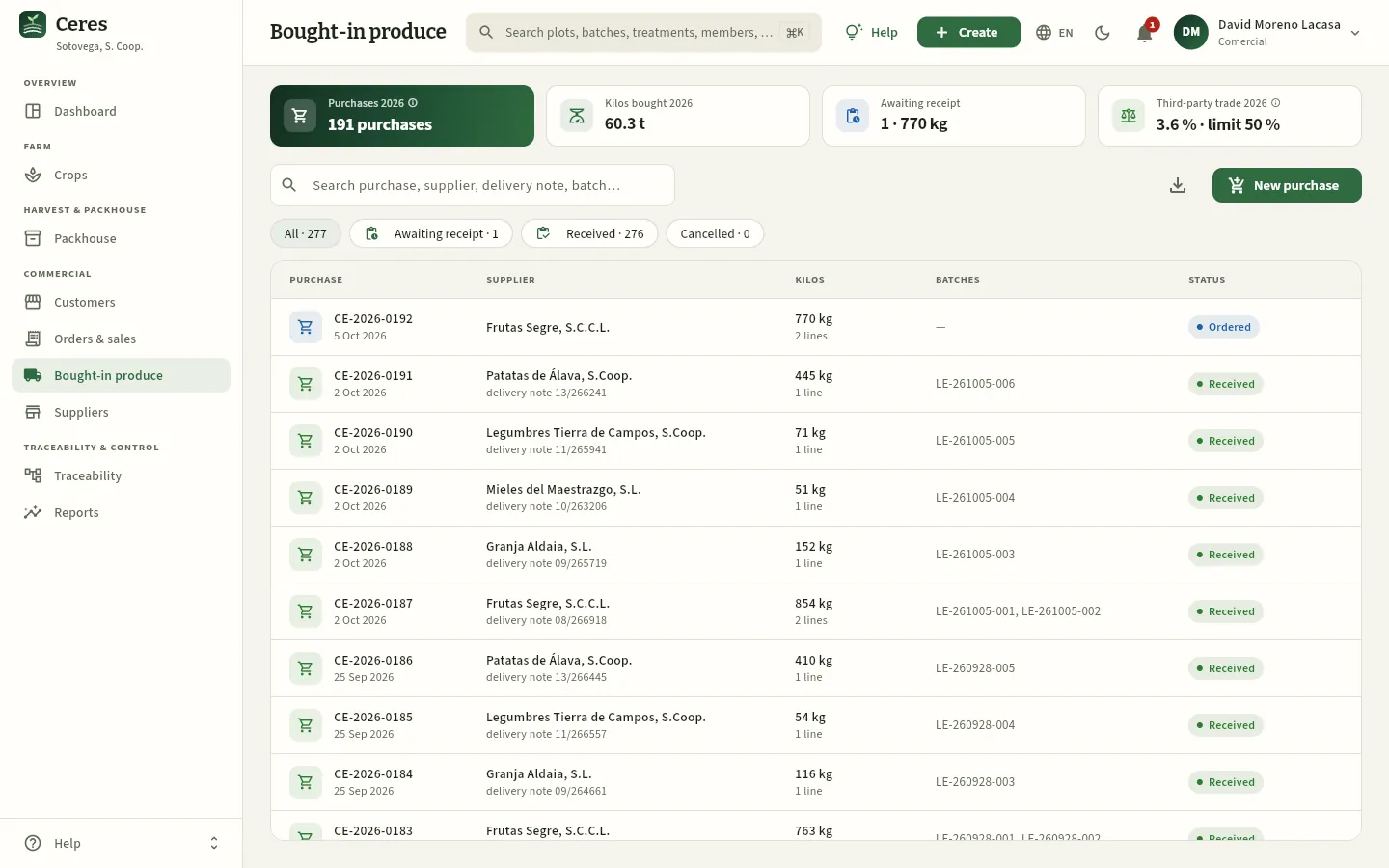 12345678
- 1Purchases this year: the amount received with «See costs»; without it, like David, the number of purchases.
- 2Kilos bought this year.
- 3Awaiting receipt: purchases and kilos that have not arrived yet.
- 4Third-party trade: the weight of bought-in sales against the 50 % limit. Click it to see the details.
- 5The search box: by number, supplier, supplier delivery note or batch.
- 6New purchase. To its left, Export CSV.
- 7The filters: All, Awaiting receipt, Received and Cancelled.
- 8Each received purchase, with its delivery note and its bought-in batches. Purchases awaiting receipt (status Ordered) always appear at the top.
Each row shows the number (CE-year-number) and date, the supplier and their delivery note number, the kilos and lines, the bought-in batches it created and the status: Ordered (blue), Received (green) or Cancelled (grey). Click a row to open its record.
#The 50 % limit on third-party trade
An agri-food cooperative may market third-party produce, but within a limit. The Third-party trade indicator in the header keeps an eye on it through the year; click it to see the details:
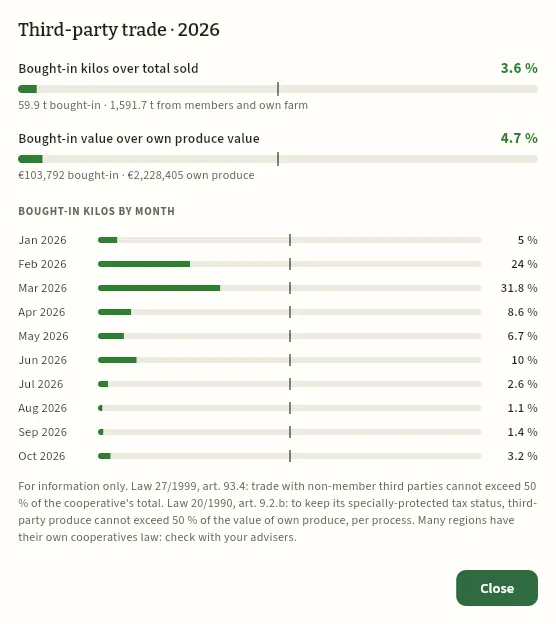 123
- 1In kilos: bought-in sales over all sales. The tick on the bar marks 50 %.
- 2In value: bought-in sales over sales of own produce (members and farm), as in the cooperatives tax law.
- 3By month: in the months when the market garden yields little (February, March) the bought-in share rises; what counts is the year.
#Ordering from a supplier
Click New purchase (or Create → New purchase). Choose the supplier and add the bought-in products (catalogue products whose origin is «bought-in»: see Catalogues), with the quantity and, if you know it, the origin. If the supplier is not approved, the form warns you straight away:
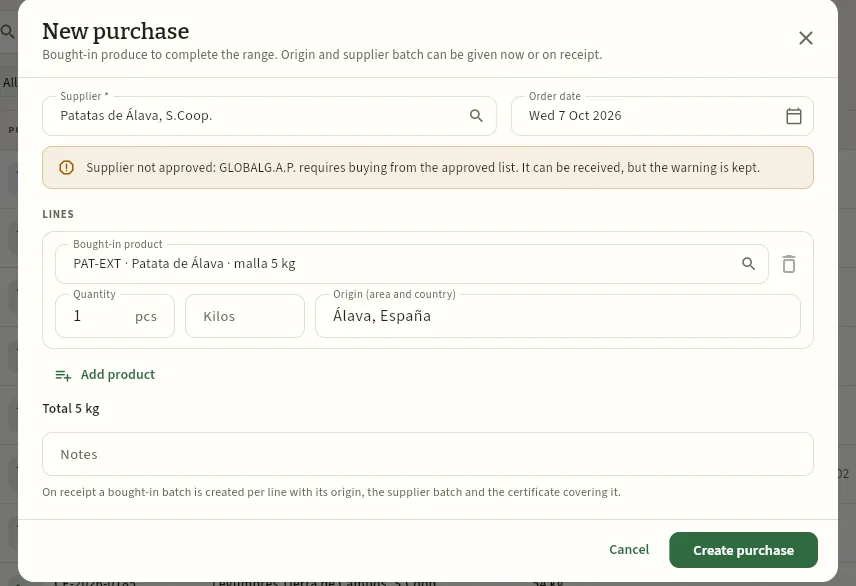 1234567
- 1The supplier. To its right, the order date.
- 2The warning: supplier not approved. GLOBALG.A.P. requires buying from the approved list; it can be received, but the warning is kept.
- 3The bought-in product, with its pack.
- 4Quantity in units and kilos (empty = units × pack weight). With «See costs», the purchase price too.
- 5Origin (area and country): Ceres suggests one based on the supplier; correct it if needed. It can be given now or on receipt.
- 6What will happen on receipt: one bought-in batch per line with its origin, the supplier batch and its certificate.
- 7Create purchase leaves it Ordered.
If the product is organic and the supplier has no valid organic certificate, the warning is shown in red: that product cannot be received. The supplier batch is entered on receipt (or before, by editing the line in the purchase record).
#Receiving the purchase
When the truck arrives, open the purchase (Awaiting receipt filter) and click Receive. The dialog asks, line by line, for what the bought-in batch will carry; it already brings what was given when ordering and the supplier's previous origins to pick from a list.
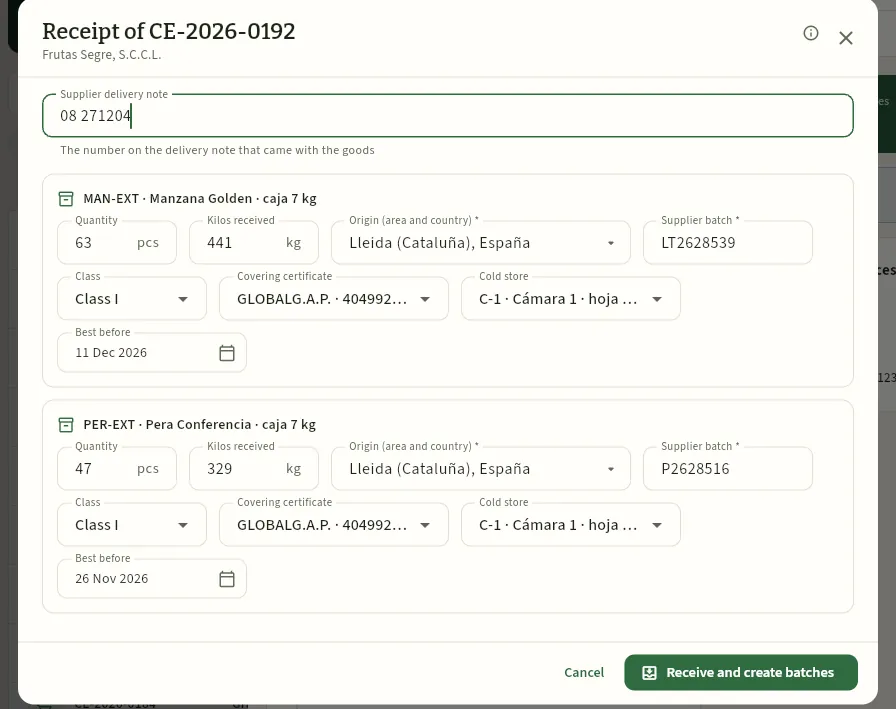 12345678
- 1The number of the supplier delivery note that came with the goods.
- 2Each line becomes a bought-in batch.
- 3Quantity and kilos received: those on the delivery note.
- 4Origin (required), with the list of the supplier's previous origins.
- 5Supplier batch (required): the one on the boxes or on their delivery note.
- 6Class and covering certificate: the supplier's valid one today (here, their GLOBALG.A.P.), or None.
- 7Cold store and best before: they can be changed later in the packhouse.
- 8Receive and create batches records everything.
Filter Awaiting receipt, open the purchase and click Receive.
Enter the number of the supplier delivery note.
On each line, check the quantity and kilos, the origin and the supplier batch. Choose the class and the certificate covering the lot.
Choose the cold store and check the best-before date.
Click Receive and create batches.
#The purchase record
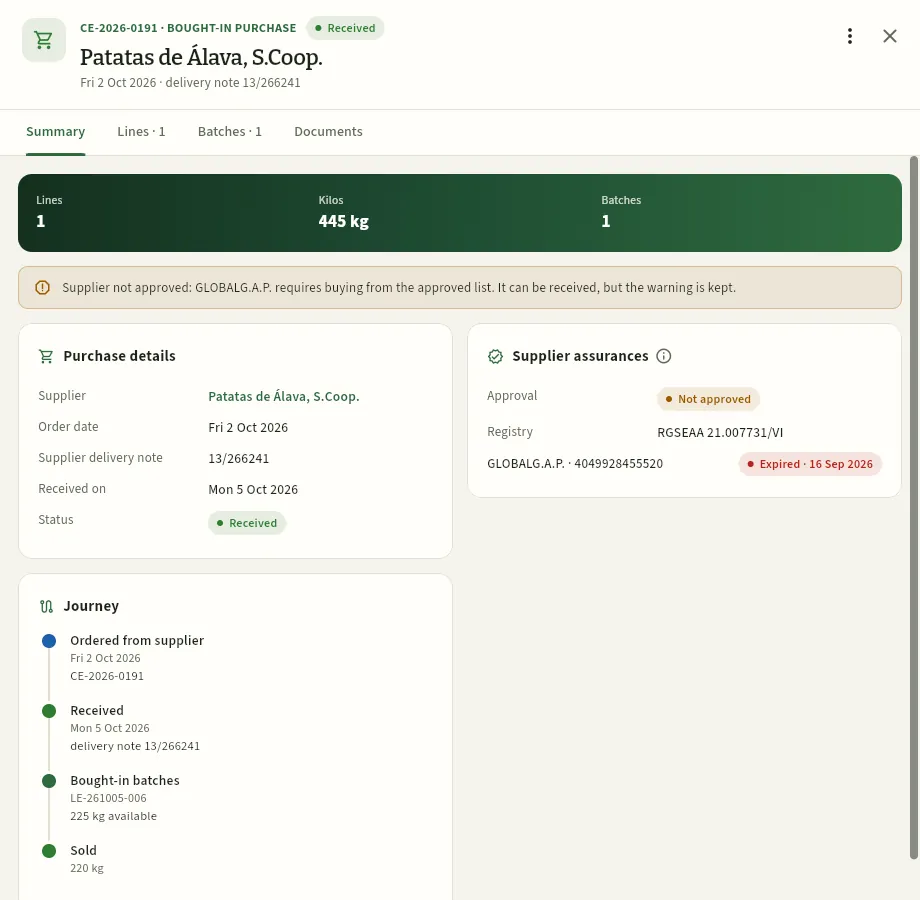 1234567
- 1Number, status (Received), supplier, date and supplier delivery note.
- 2The ⋮ menu: Edit purchase, View supplier and, on an ordered purchase, Add line and Cancel purchase.
- 3The Lines tab (product, quantity, kilos, origin and supplier batch) and Batches (the bought-in batches created and how much is left of each).
- 4The warning: the supplier is not on the approved list.
- 5Purchase details: supplier, dates, delivery note and status.
- 6Supplier assurances: their approval, their food business registration and their certificates; here, the GLOBALG.A.P. that expired on 16 September.
- 7Journey: ordered, received, bought-in batches (with what is available) and sold (kilos and to how many customers).
This purchase's batch (LE-261005-006) comes in without GLOBALG.A.P. certification: the supplier's certificate had already expired when it was received. If it is served to a customer who requires it (such as Frutas Bidasoa), the delivery note can be dispatched, but with the GLOBALG.A.P. warning (see Orders & sales). What to do about it is in Suppliers: ask them for the renewed certificate and, if appropriate, approve them.
#What each profile sees
The purchase price is a cost: it is seen by whoever has «See costs» (Finance and Management), not by the salesperson. The same purchase line, as seen by David and by Laura:
 1
- 1Units, kilos, origin, supplier batch and the bought-in batch created; no price.
 1
- 1The same with the purchase price (€ per net) and, in the list, the amount of each purchase.
#Tips
Commercial
Suppliers
Whoever sells to the cooperative: plant protection products, fertilisers, seeds and seedlings, bought-in produce and services, with their official registration, their approval on the approved supplier list and their certificates (GLOBALG.A.P., organic…) with expiry dates; and what has been bought from them, with the batches they supplied.
Suppliers holds everyone who sells to the cooperative, of six types: plant protection products (distributors registered in the ROPO), fertilisers (with their REGFER, or the REGA of the livestock farm that sells the manure), seeds and seedlings (nurseries with their ROPVEG), bought-in produce (what is bought from third parties to sell; see Bought-in produce), services (the analysis laboratory) and machinery.
Two things about each one matter for quality:
- Their approval: whether they are on the cooperative's approved supplier list. GLOBALG.A.P. requires suppliers of inputs and produce to be assessed and approved. You can buy from an unapproved one, but every receipt flags it.
- Their certificates (GLOBALG.A.P., organic production, integrated production, PGI…), with their number, issuing body and Valid until date. Those valid on the receipt date pass to the batches bought from them, and from there to delivery notes. An expired organic certificate blocks receiving organic produce from that supplier.
In the demo, Patatas de Álava, S.Coop. is not approved and its GLOBALG.A.P. certificate expired on 16 September: it is the example in this chapter.
#The supplier list
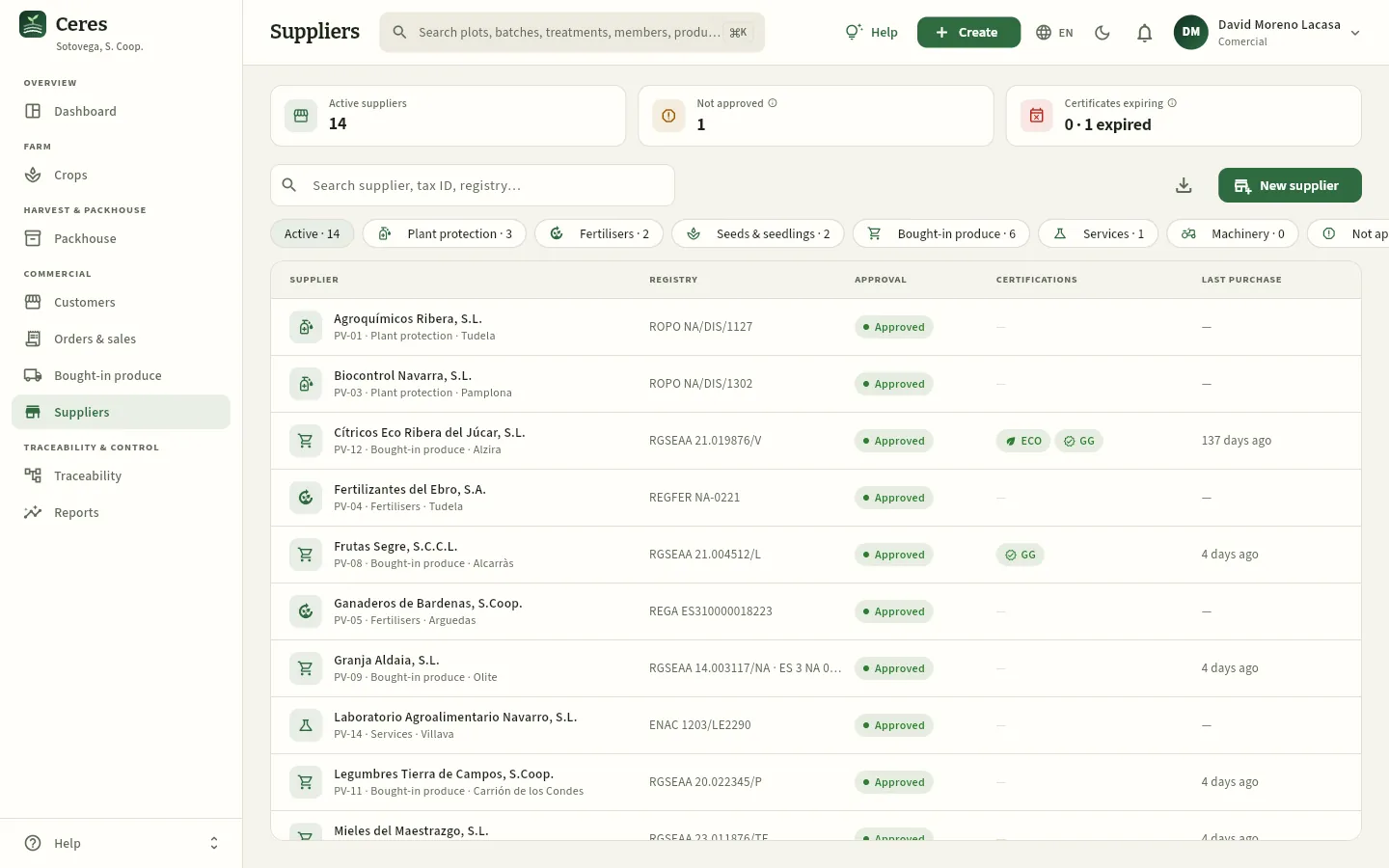 1234567
- 1Active suppliers.
- 2Not approved: those not on the approved supplier list.
- 3Certificates expiring in the coming days (the warning days in Settings) and, after the dot, those already expired.
- 4The search box: by name, code (PV-…), tax ID or registration number.
- 5New supplier. To its left, Export CSV.
- 6The filters: by type, Not approved and Certificate expiring (scroll the row to see them).
- 7Each supplier: name, code, type and town; their registration, their approval, their certifications (hover for their status) and the last purchase.
The Certifications column shows a badge for each certificate (ORG, GG…): green if valid, amber if it expires soon and red if it has expired. Last purchase is the date of the latest bought-in purchase from that supplier.
#The supplier record
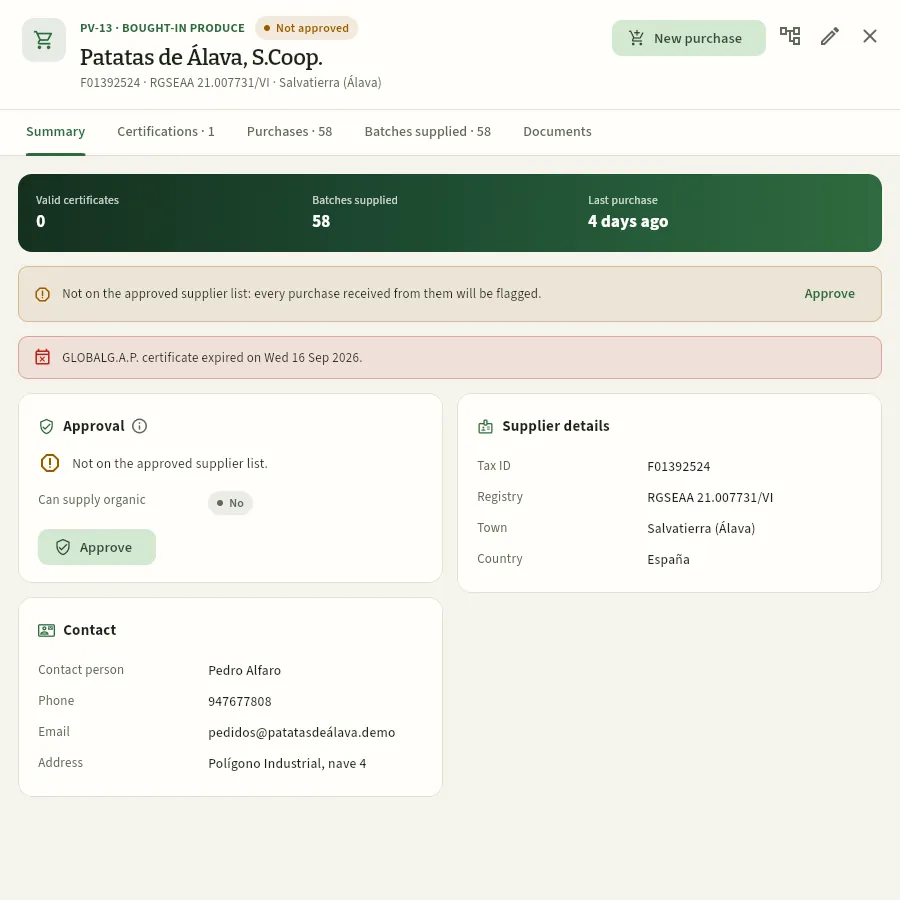 12345678
- 1Code and type, the approval (Not approved), the name, tax ID, food business registration and town.
- 2New purchase from this supplier.
- 3Supplier traceability: everything they supplied and where it went (see Traceability). Next to it, the pencil to edit them.
- 4The tabs Certifications, Purchases, Batches supplied (or Input lots, if they sell inputs) and Documents.
- 5Valid certificates, batches supplied and last purchase (and, with «See costs», what was bought in 12 months).
- 6The warning: not on the approved supplier list; every purchase received from them will be flagged. On the right, Approve.
- 7The red warning: certificate expired and since when. If it expires soon, it is amber: «ask for the renewal».
- 8Approval: whether they are approved and whether they can supply organic (they have a valid organic certificate).
#Certificates and their expiry
The Certifications tab lists each of the supplier's certificates with its type and name, the number (the GLOBALG.A.P. GGN, the organic operator number…), the issuing body, the scope and its Valid until date, with its status. Click one to correct it; Add certificate adds another (for example, the renewed one).
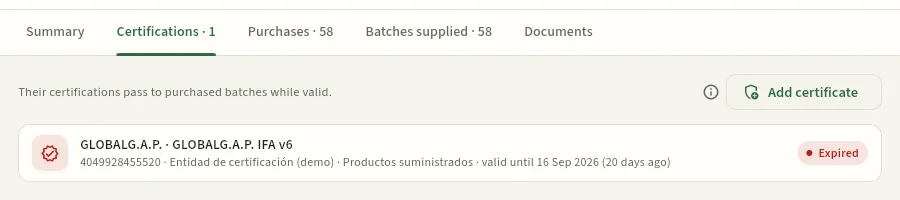 123
- 1Reminder: their certificates pass to the batches bought from them while they are valid.
- 2Add certificate.
- 3The certificate: type and name, GGN, issuing body, scope and Valid until, with its status.
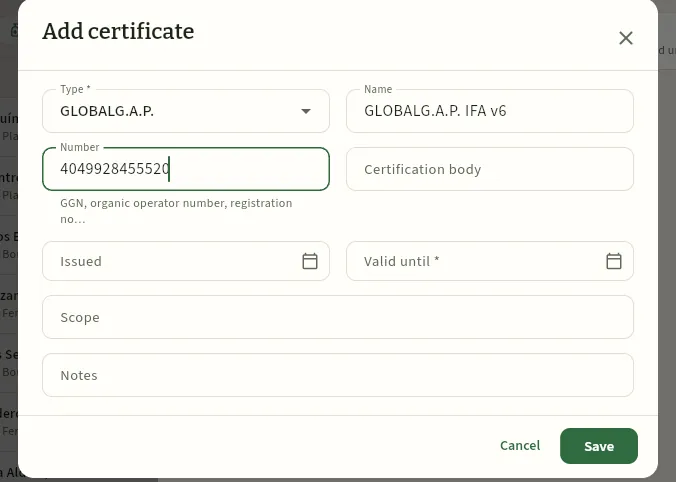 123456
- 1Type: GLOBALG.A.P., organic, integrated production, PGI, PDO, GRASP, zero residue or other.
- 2Name of the certificate or standard.
- 3Number: the GGN, the organic operator number or the registration number.
- 4Certification body.
- 5Issued and Valid until (required): the warnings are calculated from it. If it has already passed, the form says so.
- 6Scope: the products or crops covered.
Ask the supplier for the new certificate (or download it from the certification body's database, for GLOBALG.A.P.).
Open their record, Certifications tab, and click Add certificate.
Choose the type, enter the name, number, issuing body, the Issued and Valid until dates and the scope. Click Save.
Attach the certificate PDF in the Documents tab.
#Approving a supplier
Approving means deciding that a supplier goes on the approved supplier list. The cooperative decides after assessing them: their health or ministry registration, their certificates and their incidents. In the record, click Approve; to take them off the list, Withdraw approval (you can still buy from them, with a warning). The change is recorded, with who and when (see Audit log).
The Batches supplied tab shows each bought-in batch received from that supplier (or, for an inputs supplier, each lot of plant protection product, fertiliser or seed), with its date, the kilos left, the supplier batch, the origin and how many customers it was sold to: it is the basis of «one step back» traceability for third-party produce.
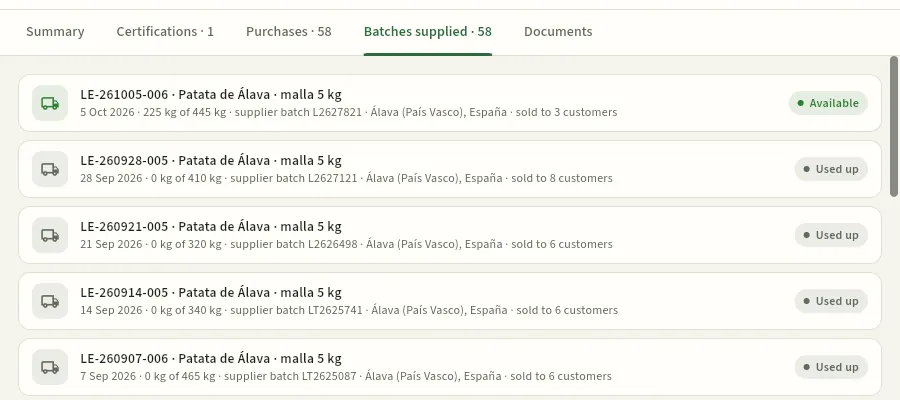 12
- 1The latest batch received: 225 kg of 445 kg, its supplier batch and its origin. Click it to open its record in the Packhouse.
- 2A batch already fully sold (Used up: 0 kg of 410 kg) and how many customers it reached.
#Tips
Commercial
Member settlements
What the cooperative pays each member for what they delivered: settlement prices by week, product and class, the calculation of each settlement (gross, management fee, compensation under the special agricultural scheme and income tax withholding), issuing it, payment and the PDF for the member; and how members see them.
Members deliver their harvest to the cooperative; the cooperative grades it, sells it and settles with them: it pays them what they are owed. In Ceres the settlement follows automatically from what has been recorded:
- Each harvest entry from a member creates a field batch, which the packhouse grades into extra, class I, class II and waste (see Harvests).
- Every week the cooperative sets the settlement price per kilo for each product and class.
- When a period (a month, say) is settled, each of the member's graded batches is paid on the marketable kilos of each class at the price for its week. Waste is not paid.
- From that gross amount the cooperative's management fee is deducted, the compensation under the special agricultural scheme (REAGP) is added if the member is under it, and income tax withholding is deducted.
Settlements start as drafts (they can be reviewed, deleted and recalculated), are issued to the member and are marked paid with the transfer date. Members see theirs in Ceres and download the PDF.
- 1PricesBy week, product and class.
- 2DraftA period is settled: one settlement per member with deliveries.
- 3IssuedReviewed and sent to the member. It can no longer be deleted.
- 4PaidWith the transfer date.
#The settlement list
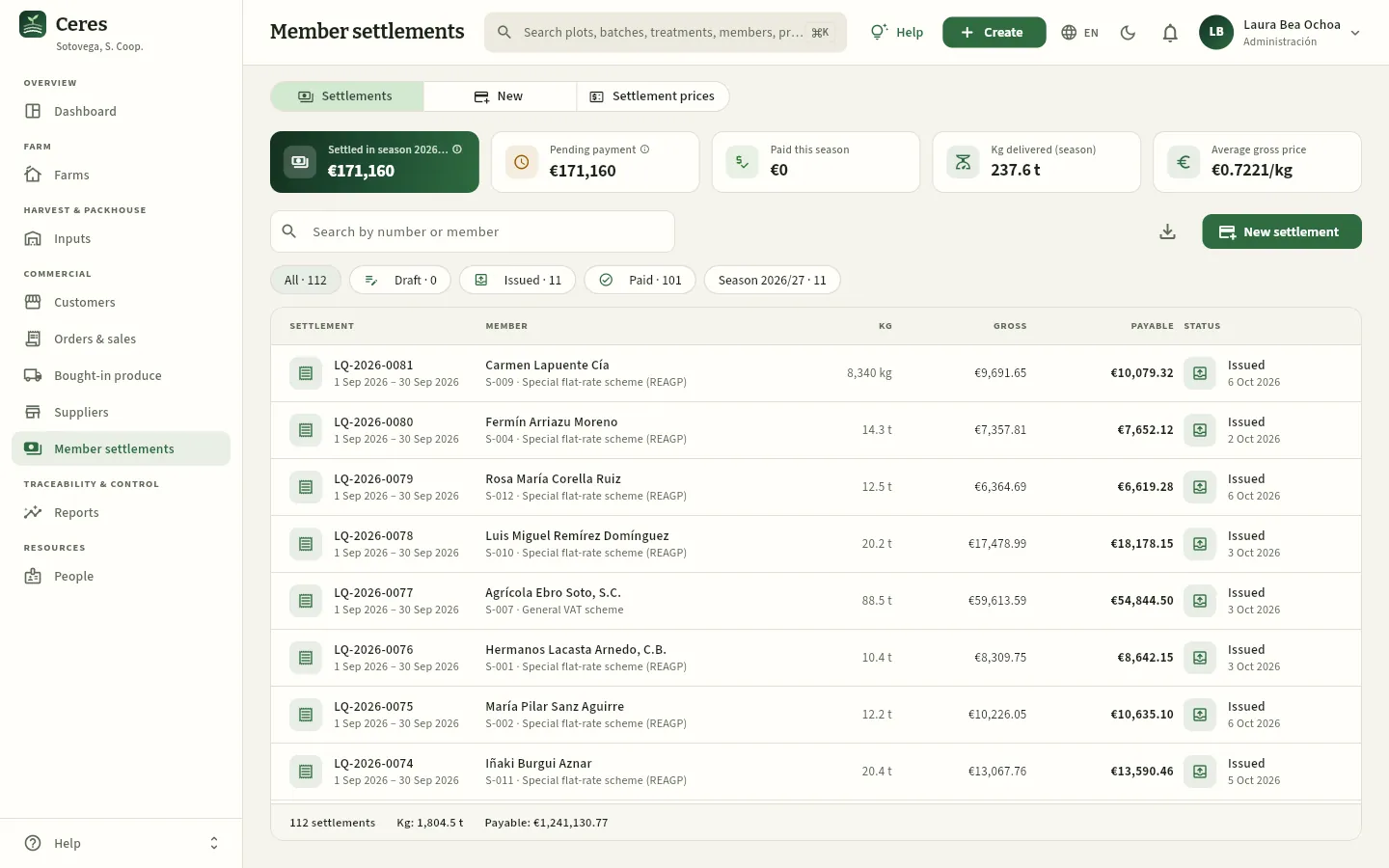 12345678
- 1The three views: Settlements, New (settle a period) and Settlement prices.
- 2Settled this season: the amount payable of settlements whose period starts in the season, in any status.
- 3Pending payment: drafts and issued settlements from any season not yet recorded as paid.
- 4Paid this season, kilos delivered and average gross price (€/kg).
- 5New settlement takes you to the New view. To its left, Export CSV.
- 6The filters: by status (Draft, Issued, Paid) and the current season.
- 7Each settlement: number and period, the member with their VAT scheme, kilos, gross, amount payable and status.
- 8The footer: number of settlements, kilos and amount payable for what you are viewing.
#Settlement prices
The price per kilo paid to the member is set by the cooperative (its Governing Board) based on what it sells, for each product, each class and each week (Monday to Sunday). Each batch is settled at the price for the week of its date. The Settlement prices view is a table with products in rows and weeks in columns:
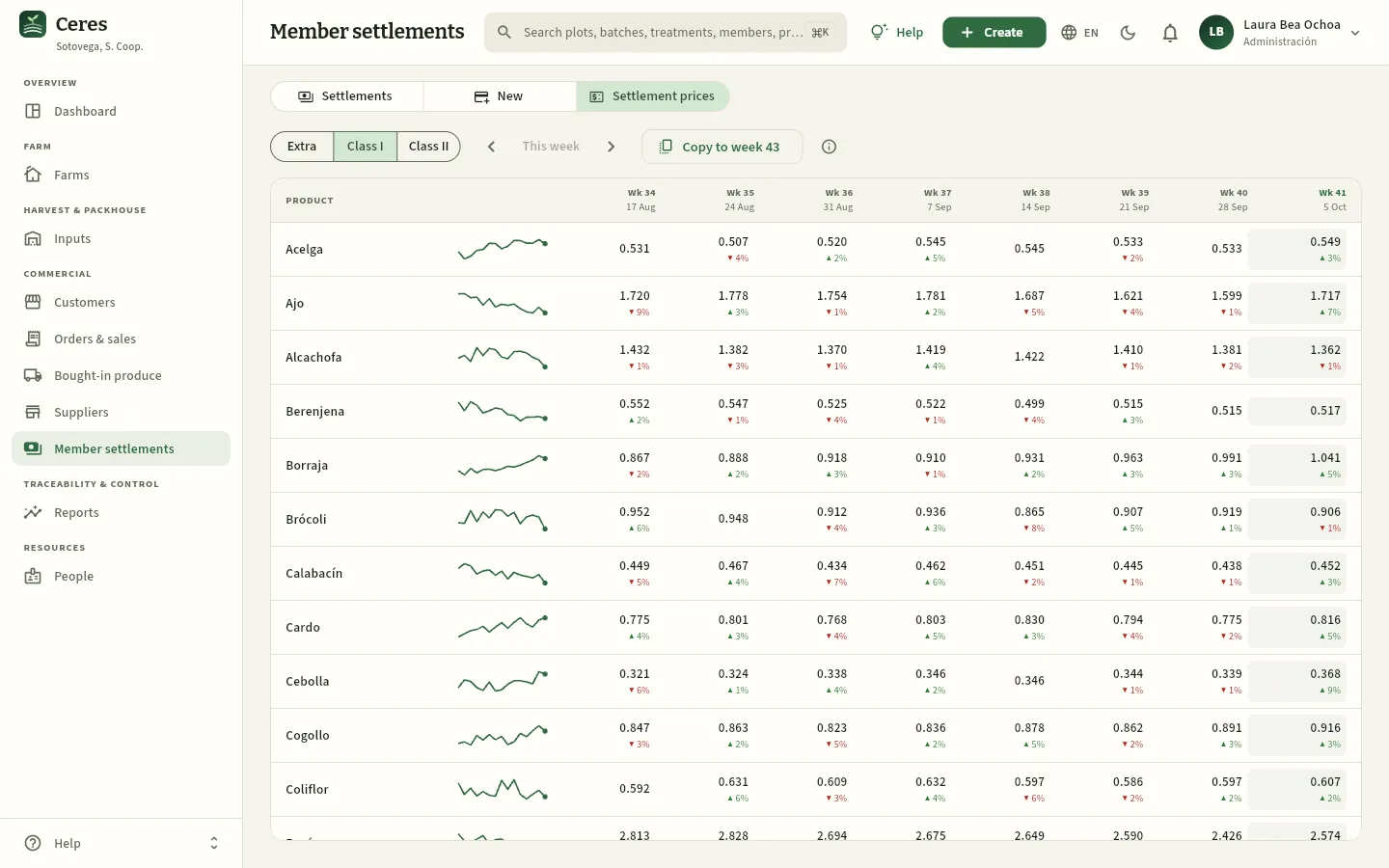 12345
- 1The class you are viewing: Extra, Class I or Class II.
- 2The arrows move the table to previous or next weeks; This week goes back to the current one.
- 3Copy to week …: prepares the next week with the latest prices, without touching any that already exist.
- 4The trend of that product over recent weeks.
- 5The current week, highlighted. Each cell: the price in €/kg and the arrow with the change from the previous week. Click a cell to change the price.
Clicking a cell opens Settlement price in €/kg, with Save and Delete. Changing a price does not alter settlements already created: only new ones. If a draft needs correcting, delete it, correct the price and settle again.
#Settling a period
The New view works out, without creating anything yet, what each member is owed for the graded batches of the period that are not already in another settlement.
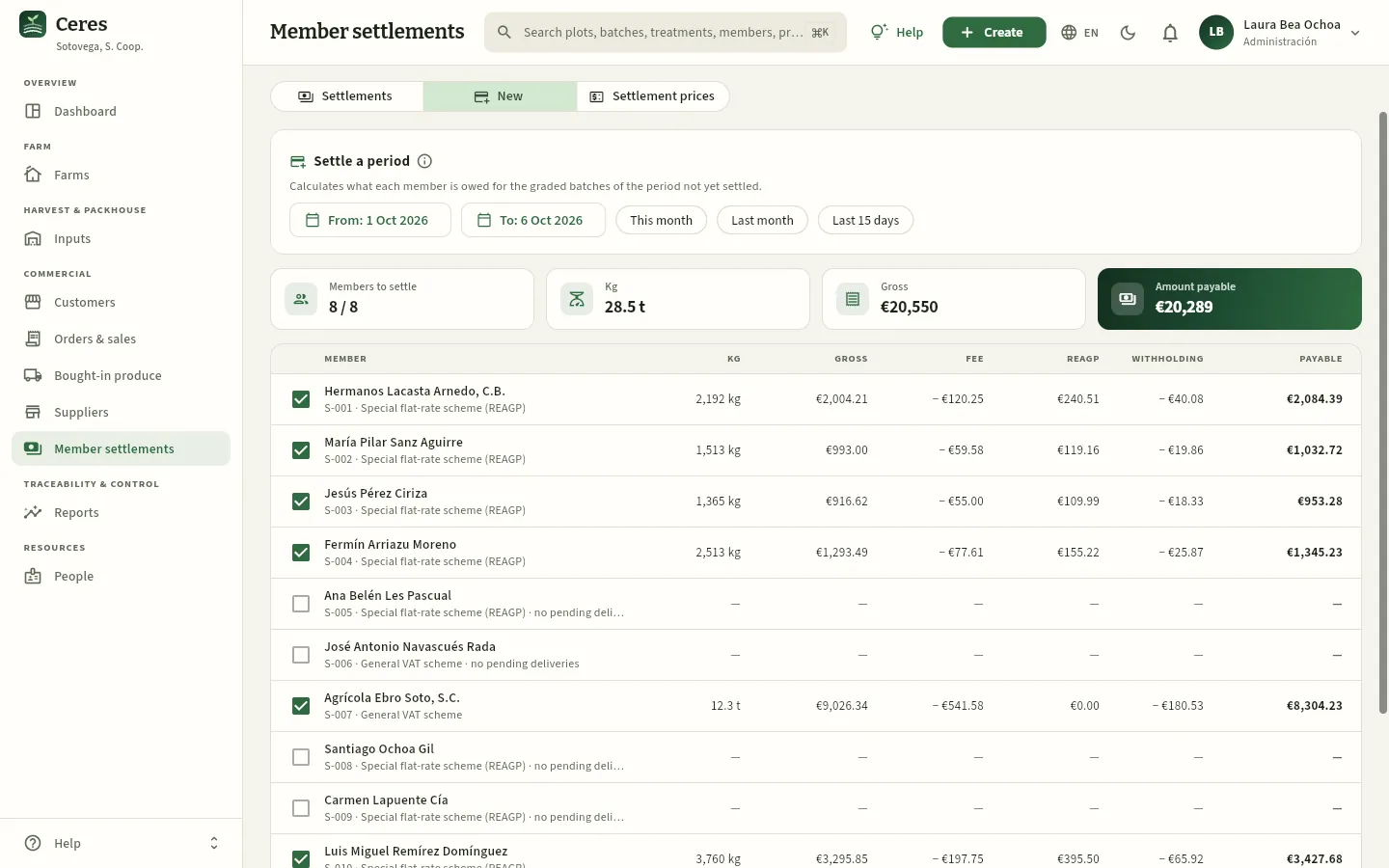 123456
- 1The period: From and To.
- 2Shortcuts: This month, Last month and Last 15 days.
- 3Members to settle (those ticked out of those with deliveries), kilos, gross and amount payable of those ticked.
- 4Each member: kilos, gross, fee, REAGP compensation, withholding and amount payable. The tick box decides whether they are settled; click the row to see the breakdown by product.
- 5A member with no pending deliveries in the period: they cannot be ticked.
- 6A member under the general VAT scheme: REAGP compensation of 0.00 €.
First check the Settlement prices for the weeks of the month: a batch from a week with no price for its class is left out of the settlement (it stays pending until it has one).
Go to New and click Last month (or choose From and To).
Go through the table: kilos, gross and total for each member. Untick anyone who should not be settled now.
Click Create N settlements, at the foot of the table, and confirm.
#A member's settlement
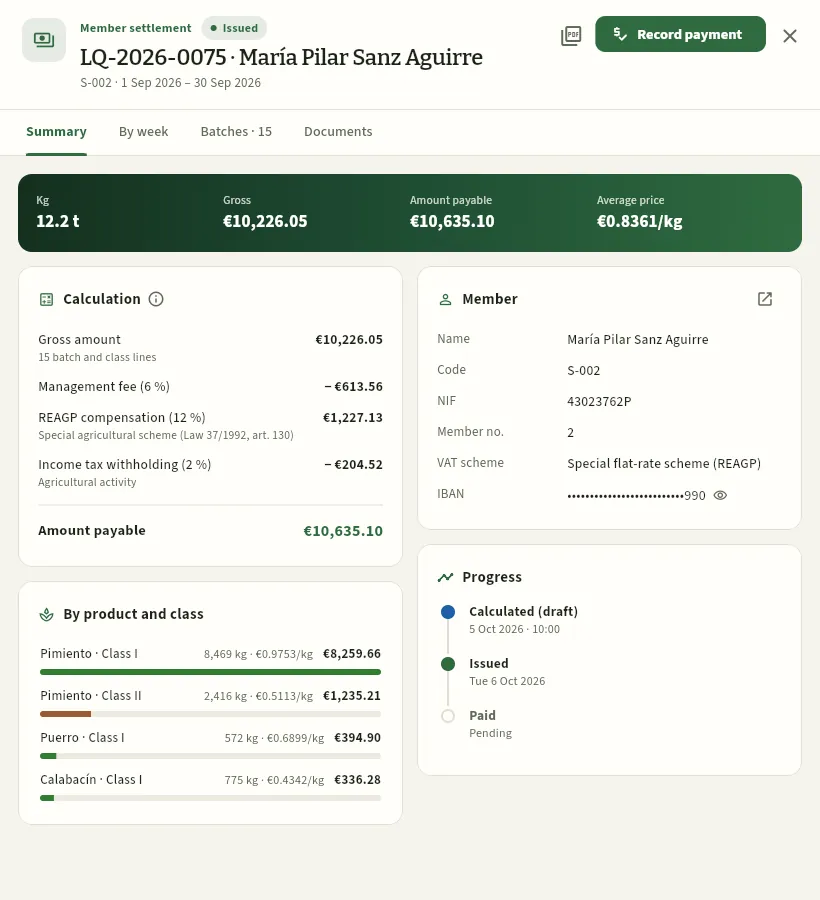 12345678
- 1The status (Issued), the number, the member and the period.
- 2Settlement PDF and, on a draft, Delete (its batches become pending settlement again).
- 3Record payment: with the transfer date, it becomes Paid. In a draft, Issue appears here instead, which sends it to the member (from then on it can no longer be deleted).
- 4The tabs By week (each week with its products, classes, kilos and price) and Batches (each batch settled).
- 5Kilos, gross, amount payable and average price per kilo.
- 6The calculation: gross, management fee, REAGP compensation (if the member is under that scheme), income tax withholding and amount payable.
- 7By product and class: kilos, average price and amount of each.
- 8The member: tax ID, number, VAT scheme and IBAN (hidden; the eye shows it). The icon in the corner opens their farm.
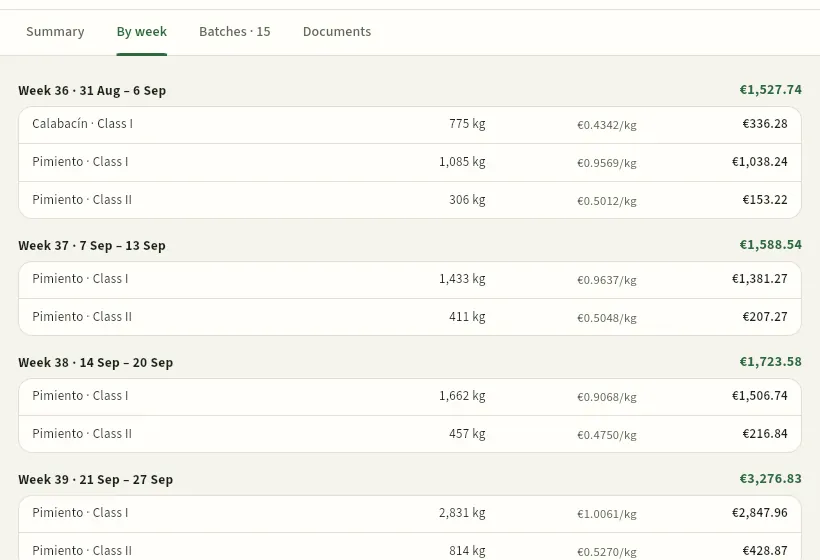 12
- 1The week (Monday to Sunday) and its total.
- 2Each product and class that week: kilos, settlement price (€/kg) and amount.
When the settlement has been reviewed, click Issue: Ceres asks «Issue settlement …?» and reminds you it can no longer be deleted. When the cooperative makes the transfer, open the issued settlement and click Record payment with the payment date: it becomes Paid. The record's Progress shows the three dates: calculated, issued and paid.
The settlement PDF is the document for the member: their details (tax ID, code, member number and IBAN), the period and the issue and payment dates; deliveries by week, product and class with kilos, €/kg and amount; the summary by product; the calculation (gross, fee, REAGP compensation, withholding and amount payable); a note with the member's VAT scheme and the law that applies; and the signatures «For the cooperative» and «Agreed, the member». At the foot: «Keep this document for tax purposes».
#What members see
Each member logs in to Ceres with their own user and sees only their own settlements: the section appears in the Commercial group of their sidebar, with the Settlements and Settlement prices views (without New). This is how Jesús Pérez Ciriza (S-003) sees his:
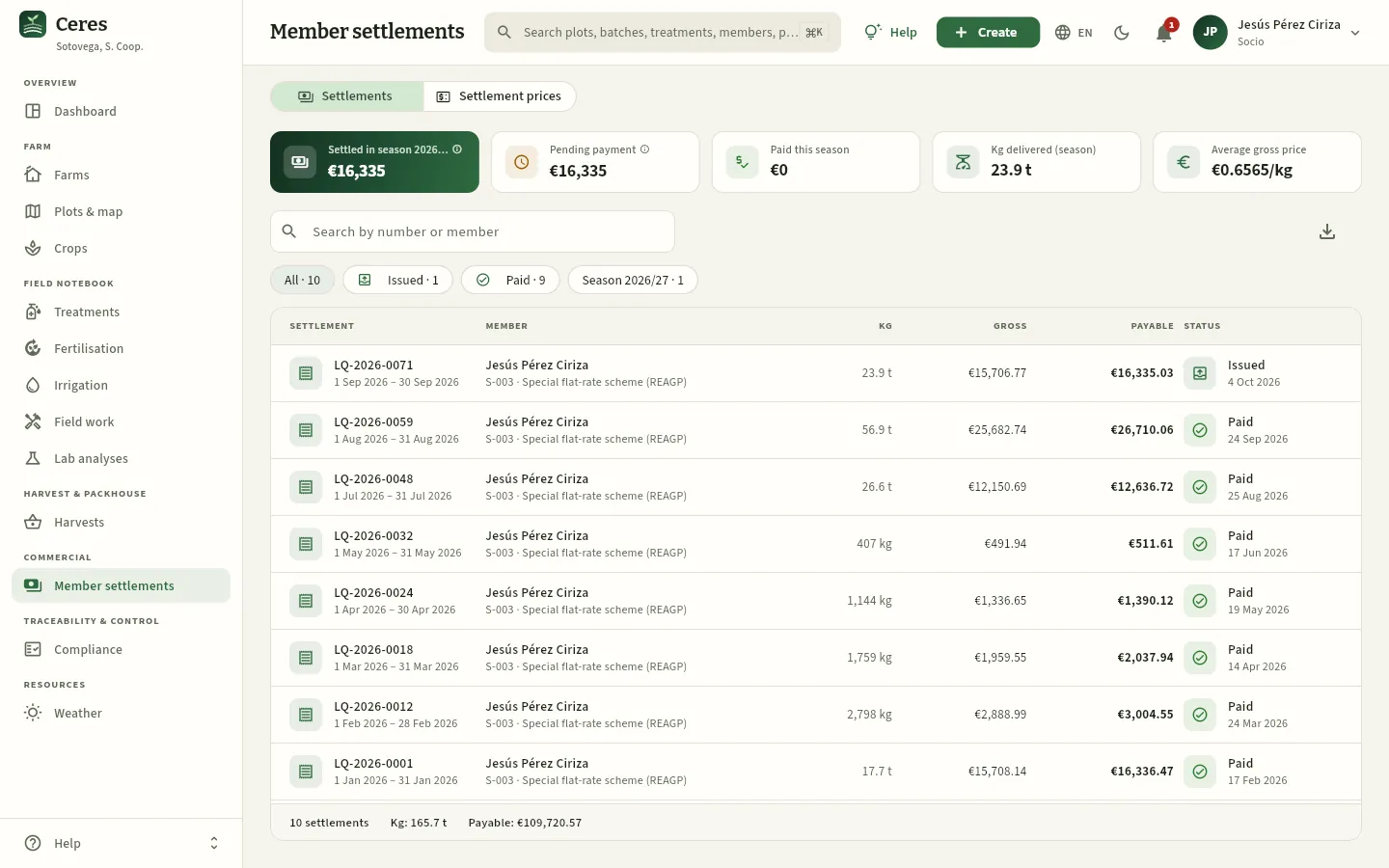 1234
- 1In his sidebar, only what is his: his farm, his field notebook, his harvests and his settlements.
- 2He can check the settlement prices for each week, but not change them or settle.
- 3His figures: settled this season, pending payment, paid, his kilos and his average price.
- 4Each of his settlements: period, kilos, gross, total and status. Click it to see the details and download the PDF.
The member also sees their draft settlements, which the cooperative can still review, delete and recalculate: the amount that counts is that of the issued settlement (like September's, about which a notification reaches the bell).
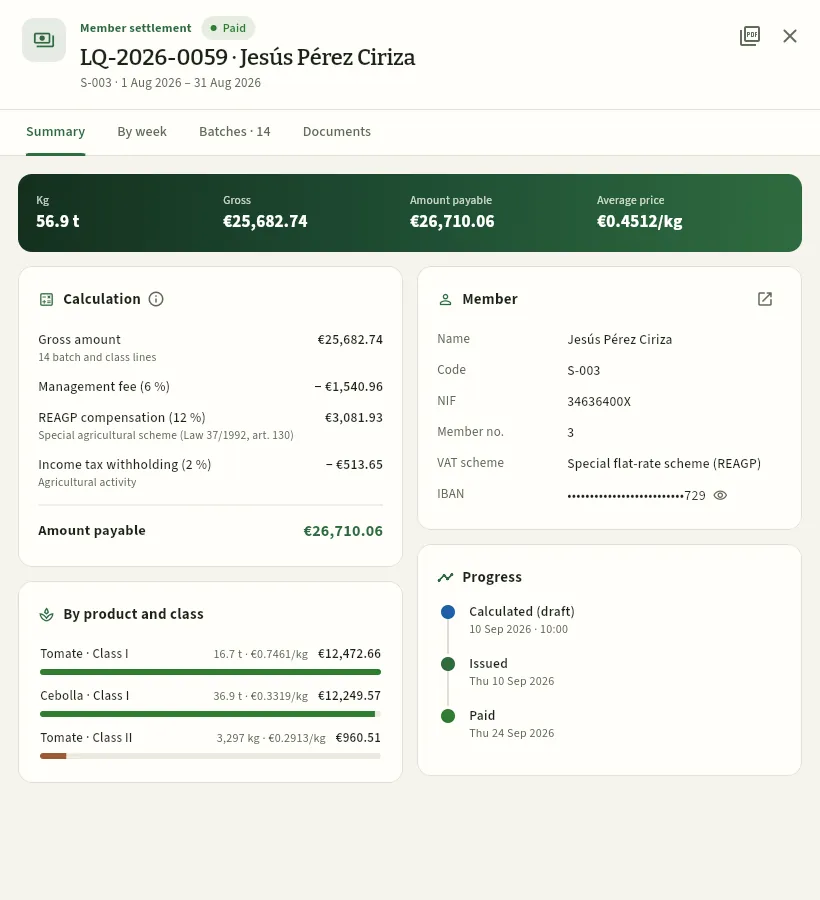 1234
- 1Only Settlement PDF: members do not issue, delete or record payments.
- 2The full calculation of what he is paid.
- 3What he delivered in August: onions and tomatoes, by class, with their average price.
- 4Progress: when it was calculated, issued and paid.
#What each profile sees
| Finance (Laura) | Management (Javier) | Member (Jesús) | Sales (David) | Agronomist (Marta) | |
|---|---|---|---|---|---|
| Sees the section | Yes, all members | Yes, all members | Only his own | No | No |
| Sets prices, settles, issues and records payments | Yes | Yes | No | — | — |
| Settlement amounts | Yes | Yes | His own | — | — |
| Member's IBAN | Yes (hidden, with the eye) | Yes | His own | — | — |
The salesperson sees sale prices (list prices, orders, invoices) but not settlements; the field agronomist sees no prices, costs or settlements; and members, only their own. What each one sees of sales is in Orders & sales.
#Tips
Traceability & control
Traceability
Where each product comes from and where it went: from a batch, a delivery note, a plot, a crop, a treatment, an input lot, a plant protection product or a supplier, one step back (member, SIGPAC plot, crop, treatments with their pre-harvest interval, fertilisation, analyses and inputs) and one step forward (packed batches, delivery notes, customers and kilos). With timed mock recalls and their report.
Traceability answers two questions that, when an alert comes in, have to be answered in minutes, not days:
- Where does this come from and what was done to it? That is the step back: from a box of tomatoes to the field batch it came from, to the member and their SIGPAC plot, to the crop, to every treatment with its pre-harvest interval, to the fertilisation, the analyses and the lot and supplier of every product applied.
- Who did we sell it to? That is the step forward: from a batch (or a plot, a treatment or an input pack) to every packed batch made from it, the delivery notes that carried them and the customers, with their kilos and what is still in the cold room.
Ceres needs nothing special to provide it: it comes from what is recorded as you work. The harvest creates the field batch and links it to the crop; the field log stores which lot of each plant protection product or fertiliser was applied; packing says which field batches go into each sales batch; and the delivery note stores which batch went to which customer. That is why the chain is only as complete as the records: an unrecorded treatment or a paper delivery note does not appear.
This section is used mainly by packhouse and quality (Ainhoa, in the demo), who runs the mock recalls; also by the field technician, management, sales (to answer a customer) and the external auditor, who consults and exports it. Trade terms (SIGPAC, pre-harvest interval, MRL, FEFO, GLOBALG.A.P.…) are in the Glossary.
- 1PlotThe member's SIGPAC enclosure, with its municipality, area and whether it is organic.
- 2CropSpecies, variety, EPPO code, planting date and plant material with its passport.
- 3Field logTreatments with their pre-harvest interval, fertilisation, irrigation and analyses up to harvest.
- 4Field batchThe graded harvest (extra, I, II): the LC-… batch
- 5PackingThe boxes, nets or bunches made from it: the LV-… sales batch
- 6Delivery note and customerEach shipment with its kilos and who received it.
#Searching for what to trace
On entering, the Trace tab shows the search box and, below it, what you will see in each direction. You do not need to say what kind of thing you are looking for: Ceres guesses it from the format (LC-, LV- or LE- is a batch; AL-, a delivery note; TR-, a treatment; CU-, a crop; EI-, an input entry; S-003/01 or a SIGPAC reference, a plot; a number of 4 to 6 digits or ES-…, the registration no. of a plant protection product). If it does not recognise it, it searches everything at once.
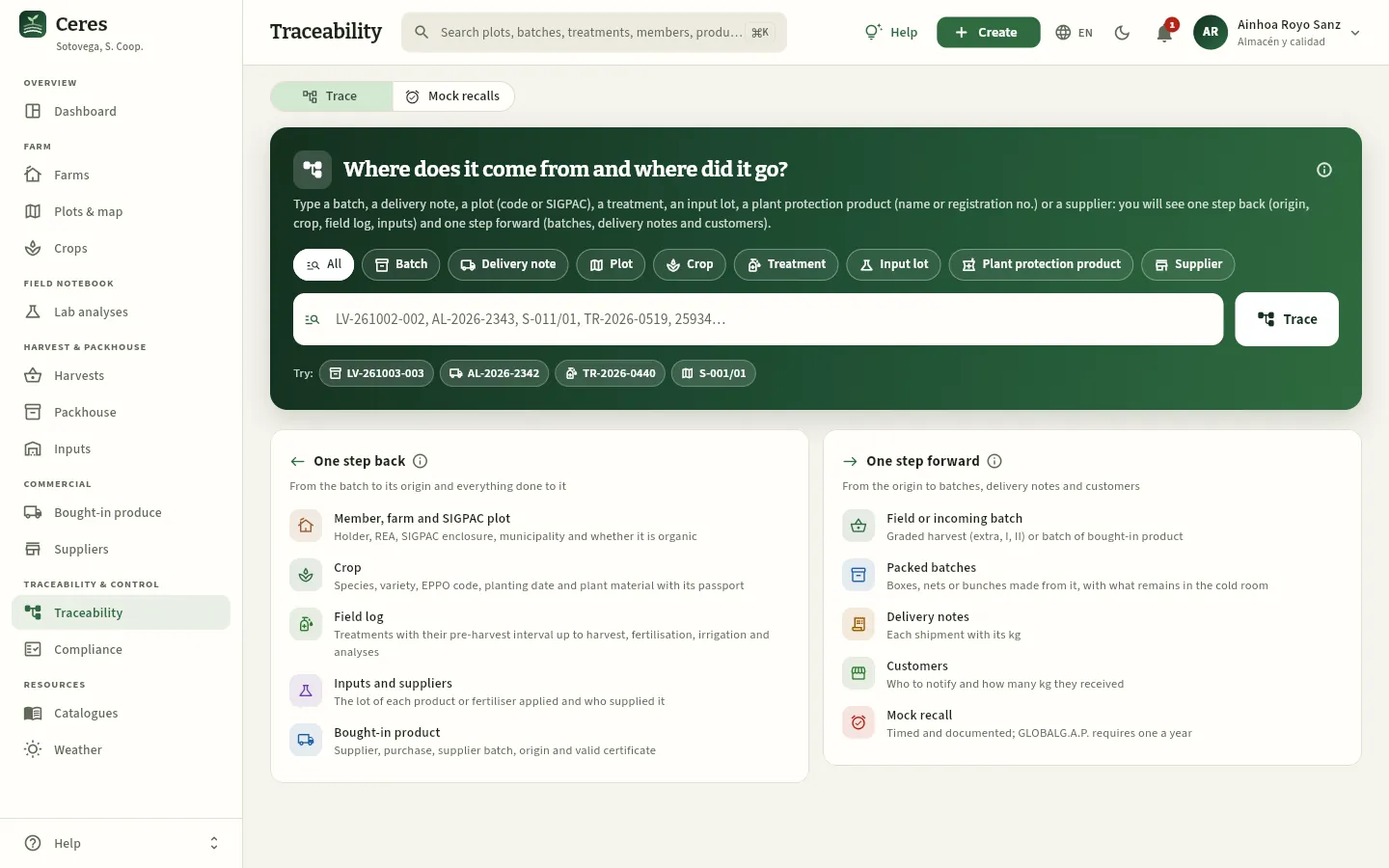 12345678
- 1The two tabs: Trace (this one) and Mock recalls (further down).
- 2The search type: All or only Batch, Delivery note, Plot, Crop, Treatment, Input lot, Plant protection product or Supplier. It narrows the suggestions and changes the example in the field.
- 3The field: type a code, a name or part of one. From two characters, matches appear; pick one or press Enter.
- 4Trace: traces what you typed (same as Enter).
- 5Try: real examples of the day (a sales batch with several customers, the latest shipped delivery note, a validated treatment and a plot). Once you have searched for something, your recent searches appear here.
- 6One step back: the links you will see towards the origin, with their ⓘ.
- 7One step forward: towards batches, delivery notes and customers, and the mock recall.
- 8The ⓘ explains what traceability is, where each link comes from and its limits.
You also get here from many records, which open the same traceability in a side panel (see below): the Traceability button of a batch in the Packhouse and in Harvests, Batch traceability on each line of a delivery note in Orders & sales, Full traceability in a treatment, Forward traceability in an Inputs lot and Supplier traceability in Suppliers. The global search in the top bar (⌘K / Ctrl+K) also finds batches and delivery notes (see The screen).
#The result: batch LV-261003-002
The demo example is sales batch LV-261003-002: organic tomato in 5 kg boxes, packed on 3 October from the Moruno tomatoes that member S-011 (Iñaki Burgui Aznar) harvested on his plot S-011/01 · Las Huertas Bajas. Type it in the field and press Enter. The summary appears at the top:
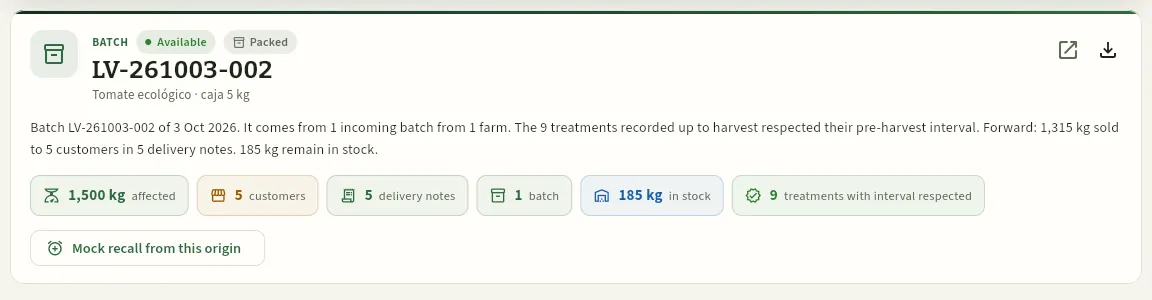 1234567
- 1What is being traced (Batch), its status (Available, Blocked, Sold out…) and its type (field, bought-in or packed).
- 2The reference and the product.
- 3Open record of the batch (in the Packhouse, if your profile can see it).
- 4Export the report: as a PDF or the data as CSV.
- 5The story in one sentence: where it comes from, whether the treatments respected their pre-harvest interval, how much has been sold, to how many customers and how much is left.
- 6The figures: kg affected, customers, delivery notes, batches, kg in stock and treatments that respected the interval (in red, those that did not).
- 7Mock recall from this origin: starts a mock recall from here (with the «Run mock recalls» permission).
In this case the sentence says the batch comes from 1 incoming batch from 1 farm, that the 9 treatments recorded up to harvest respected their pre-harvest interval and that 1,315 kg have been sold to 5 customers on 5 delivery notes; 185 kg remain in stock. These are the figures on the day of the screenshot: they change as it is sold.
#The traceability map
Below the summary is the map: the full route in columns. On the left, where it comes from (back); in the centre, in dark green, the traced item; on the right, where it went (forward). Lines link each step to the next.
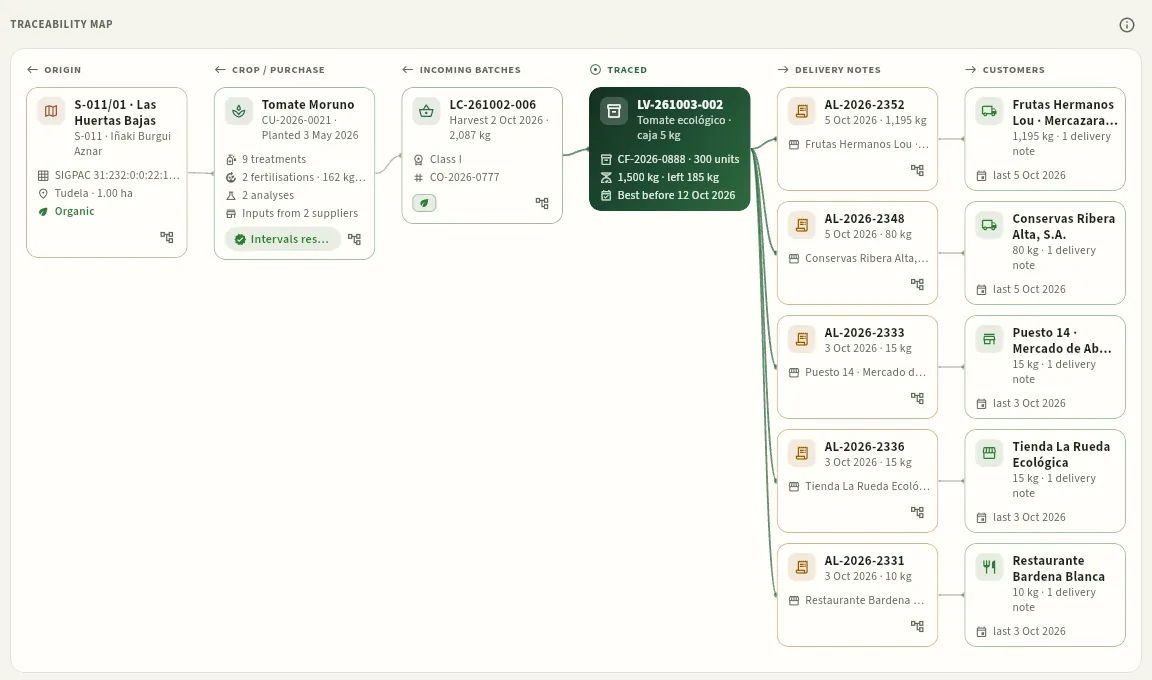 12345678
- 1The columns: with the ← arrow, what lies behind (origin, crop, incoming batches), ◎ the traced item and with → what lies ahead (delivery notes, customers).
- 2The origin: the plot with its member, the SIGPAC reference, the municipality, the area and whether it is organic.
- 3The crop (CU-2026-0021), when it was planted, how many treatments, fertilisations and analyses it has and the Intervals respected badge (red if any interval was not respected).
- 4The field batch that went into the packing: harvest date, kilos, class and the CO-… harvest. The green leaf marks it as organic.
- 5The traced item: the packing (CF-…) with its units, the kilos, what is left and the best before date.
- 6The delivery notes that carried it, with the date, the kilos and the customer.
- 7The customers: kilos, number of delivery notes and the last delivery. It is the list of who to notify.
- 8The tree icon traces from that step (here, the plot). Clicking the card opens its record, if your profile can see that section.
Each column shows the 6 steps with most kilos; if there are more, the last card says + n more and, when clicked, scrolls to the full step-forward list. The colour flags what to look at: in red, a pre-harvest interval not respected, a non-compliant analysis or a supplier certificate that was not valid.
The columns change with what you trace:
| You trace… | Behind | Ahead |
|---|---|---|
| A batch (field, bought-in or sales) | Plot, crop and field batch; or supplier, purchase and bought-in batch | Packed batches, delivery notes and customers |
| A delivery note | Its packed batches and the incoming batches | The other delivery notes with the same batches and their customers |
| A plot or a crop | Farm (and plot) | All harvested batches, their packed batches, delivery notes and customers |
| A treatment | The products applied, with their lot and supplier | The treated crops (with their pre-harvest interval) and what was harvested afterwards |
| An input lot | The supplier, its delivery note and the date received | What was harvested afterwards in the crops where it was applied |
| A plant protection product | Its input lots | What was harvested afterwards in the crops treated with it |
| A supplier | Its certificates | Its input lots, or its batches of produce sold to the cooperative |
#One step back: the origin and the field log
Below the map, One step back details each incoming batch the traced item comes from, one per card (a sales batch can combine several field batches from different members, or packs of packs). The first card is open; click the header of the others to open them.
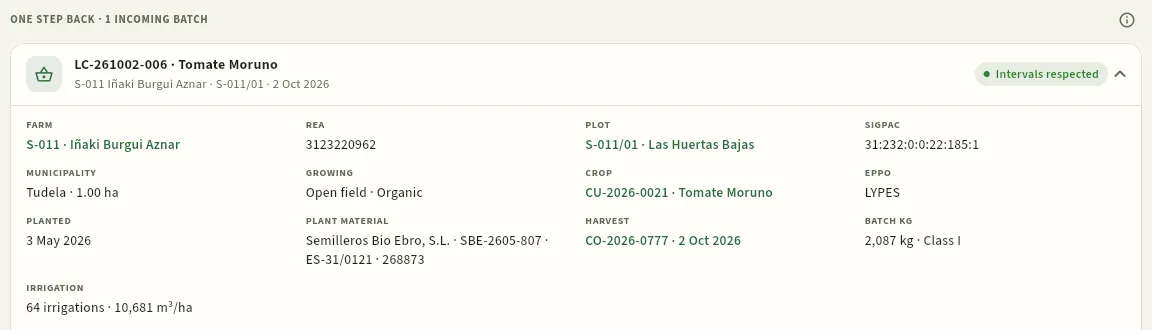 12345678
- 1The header of the incoming batch: code, species and variety, member, plot and harvest date. Click it to open or close it.
- 2Intervals respected: all treatments up to harvest respected their pre-harvest interval (if not, in red: «n not respecting interval»).
- 3The farm (link to its record) and its REA number.
- 4The plot and its SIGPAC reference; below, the municipality with the area and whether it is open field or protected and organic.
- 5The crop with its EPPO code and the planting date.
- 6The plant material: nursery, lot and plant passport.
- 7The harvest that created the batch, and the kilos and class of the batch.
- 8The crop's irrigation: number of irrigations and m³/ha.
Further down, on the same card, is the crop's field log up to harvest day: treatments, fertilisation and analyses. It is what a customer or an auditor will ask for if a residue turns up: what was applied, when, from which lot and whether the interval was respected.
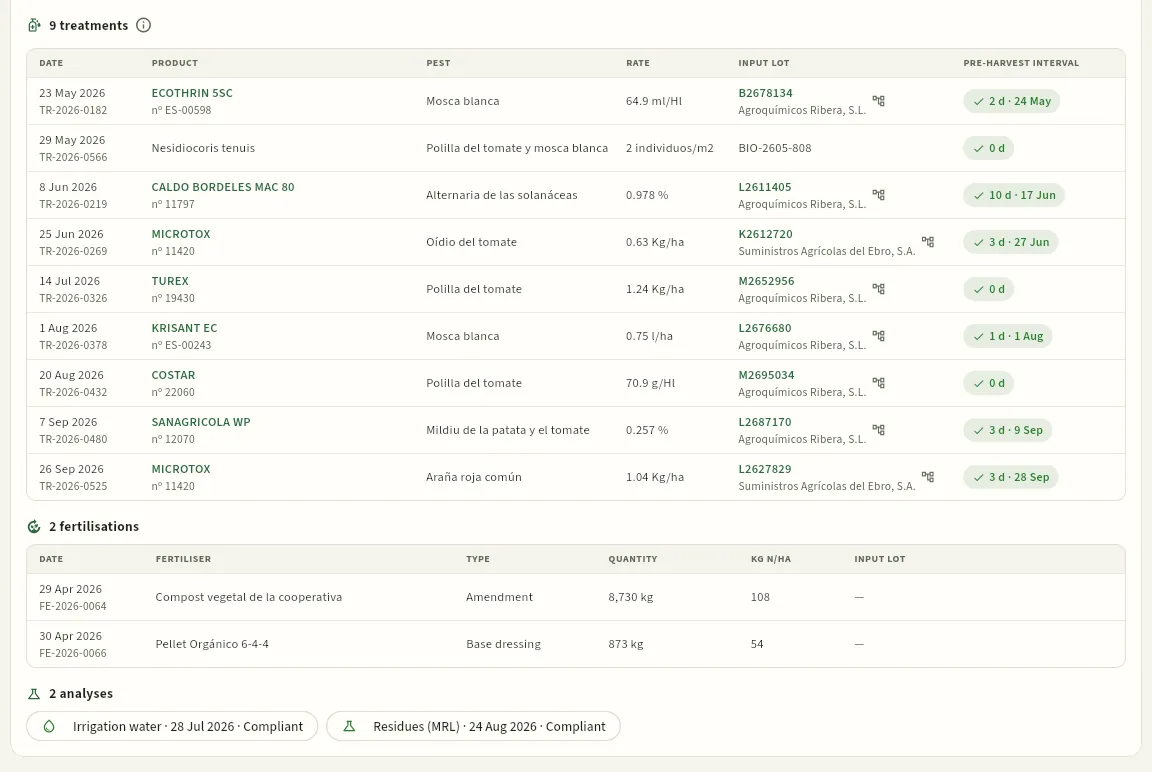 12345678
- 1The ⓘ explains what the pre-harvest interval is and when it counts as respected.
- 2The treatment date and its number (TR-…), which opens the order if your profile can see Treatments.
- 3The product with its MAPA registration no. (opens its Register record); to the right, the pest and the rate.
- 4The input lot of the pack used and who supplied it.
- 5Traces that input lot forward: what else was treated with it and where it ended up (see below).
- 6The pre-harvest interval: days and until when. Green with ✓ if it ended before the harvest; red with ✕ if not.
- 7The fertilisation up to harvest: fertiliser, type, quantity, kg N per hectare and its lot.
- 8The analyses of the crop or the batch, and the soil and water analyses of the plot in the previous two years. Click one to open the report.
A treatment with a 0-day interval (biologicals and many organic products, such as the Nesidiocoris of 29 May) shows 0 d in green. If the batch were bought-in produce from a third party, the card would show instead the supplier (tax ID, health registration and whether it is approved), the purchase with the supplier delivery note, the supplier batch, the product origin and its certificates, in green if they were valid on the purchase date and in red if not.
#One step forward: who received it
At the end, One step forward gathers everything that came out of the traced item in three lists: the customers (from most to fewest kilos), the delivery notes and the batches. It is the list used to notify people in a recall.
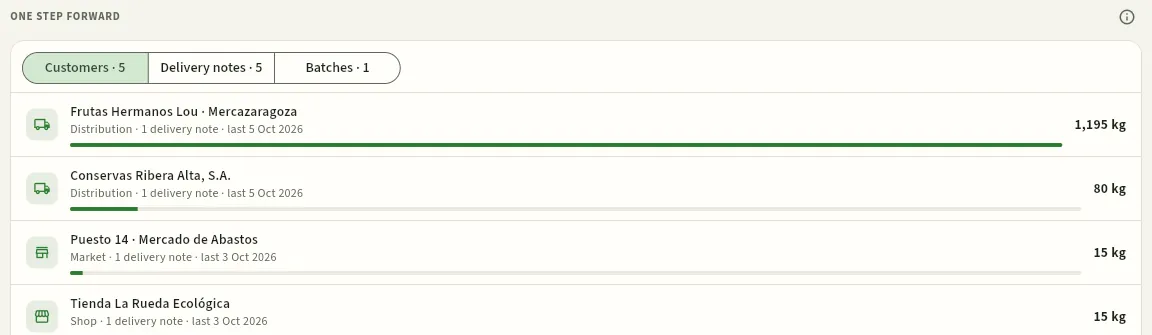 123
- 1The three lists: Customers (type, delivery notes, last delivery and kilos, with a bar to compare), Delivery notes (date, product, batch and kilos) and Batches (the packed ones, with their status and what is left in stock).
- 2Click a row to open the customer (if your profile can see Customers); in delivery notes and batches, the tree icon traces from that step.
- 3The ⓘ explains where the kilos come from: non-cancelled delivery note lines with a batch.
Each list shows 60 rows; with more, See all … shows them all. The kilos are those on the lines of non-cancelled delivery notes that carry that batch.
#From an input lot: where a pack ended up
Traceability can also be followed the other way round: from an input lot (a pack of plant protection product or a bag of fertiliser with its manufacturer lot). That is what to do if the manufacturer warns of a faulty or mislabelled lot: which crops was it applied to and which customers received what was harvested afterwards?
In the treatment table of batch LV-261003-002, the treatment of 25 June (TR-2026-0269) used MICROTOX, lot K2612720. Click the tree icon next to that lot:
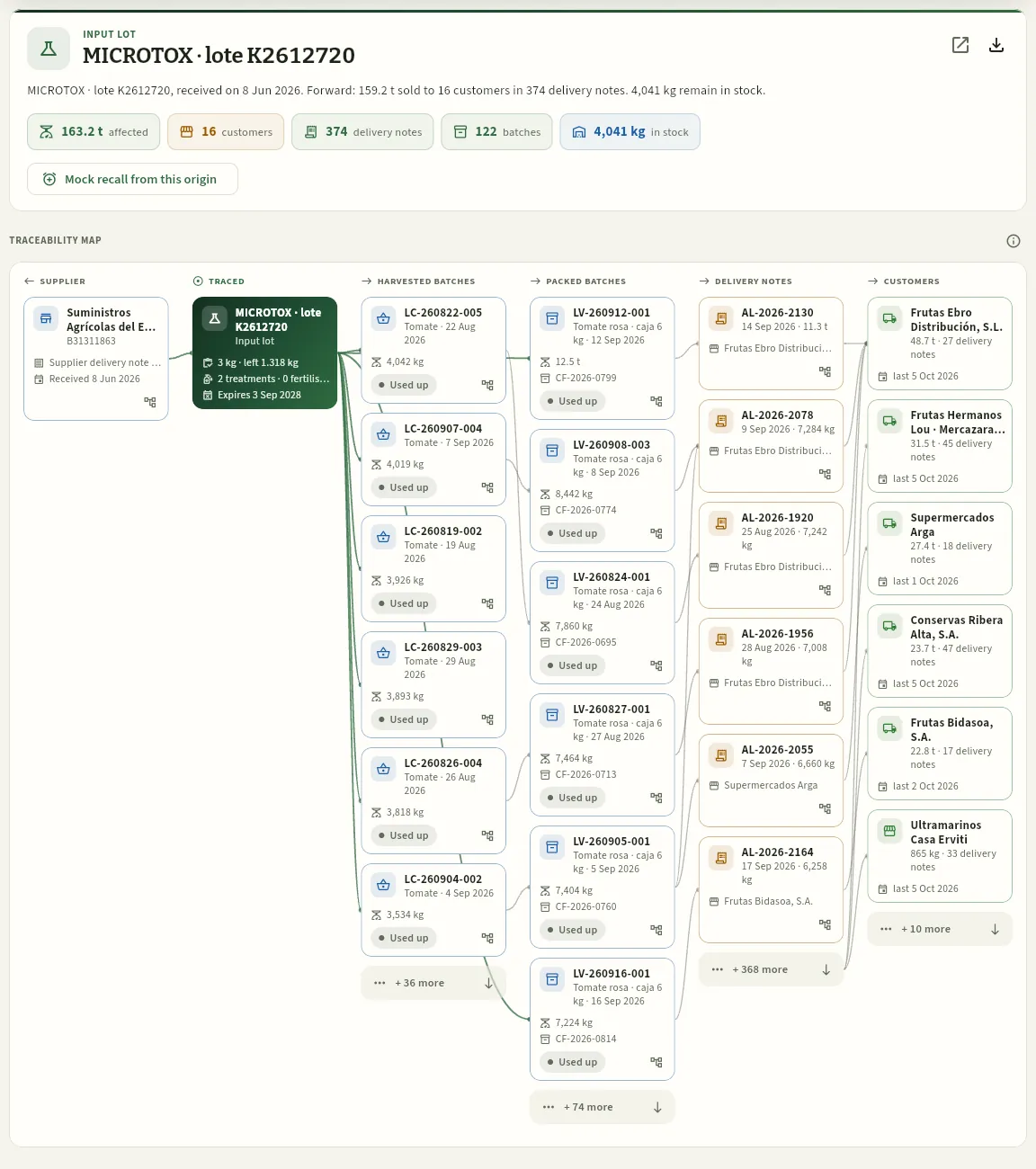 12345678
- 1Now the traced item is an Input lot: the product and the manufacturer's lot.
- 2The sentence and the figures: kilos affected, customers, delivery notes, batches and what is left in stock.
- 3Behind, the supplier of the pack, with its delivery note and the date received.
- 4The input lot: quantity received and quantity left, how many treatments and fertilisations used it and its expiry date.
- 5The batches harvested after it was applied on those crops, from most to fewest kilos.
- 6The packed batches made from them (here already sold: «Sold out»).
- 7The customers who received them.
- 8+ n more: there are more batches than fit; click it to scroll to the full list.
The answer is broad because the step forward of an input includes everything harvested afterwards in the crops where it was applied (a tomato crop is harvested for weeks). To see the specific crops, trace from the treatment: its map adds the Treated crops column, with the plot and pre-harvest interval of each. And if the alert concerns the product rather than a lot, trace the plant protection product by its name or registration no.: all its input lots will appear.
Choose Input lot, type the manufacturer's lot from the warning (or the EI-… entry no.) and pick the match.
Read the summary: how many kilos, customers and delivery notes lie behind it, and how much is still in the cold room.
Scroll to One step forward → Batches: those with stock are the ones to locate and block in the Packhouse.
Under Customers you have who to notify, with the kilos of each. Export the PDF report to keep a record.
If the alert is confirmed, open it as a real alert from Mock recall from this origin: when it is closed, whatever is left in stock is blocked.
#Exporting the report
 12
- 1PDF report: the full report to send or print.
- 2CSV data: one row per link, for a spreadsheet («Export CSV» permission).
The PDF report includes the origin, the summary, one step back (plant protection treatments up to harvest with their registration no. and interval, fertilisation, analyses with the laboratory and report, and certificates) and one step forward (batches, customers and delivery notes with their kilos). It is the document you attach to a reply to a customer or an inspection.
The CSV has one row per link with the direction (origin, back or forward), the type, the reference, the date, the details, the kilos and what it relates to.
#Traceability from any record
From the record of a batch, a harvest, a delivery note line, a treatment, an input lot or a supplier, the traceability button opens the same thing in a wide side panel, without leaving where you are. This is how Begoña, the external auditor, sees it when she opens the traceability of batch LV-261003-002 from the Packhouse:
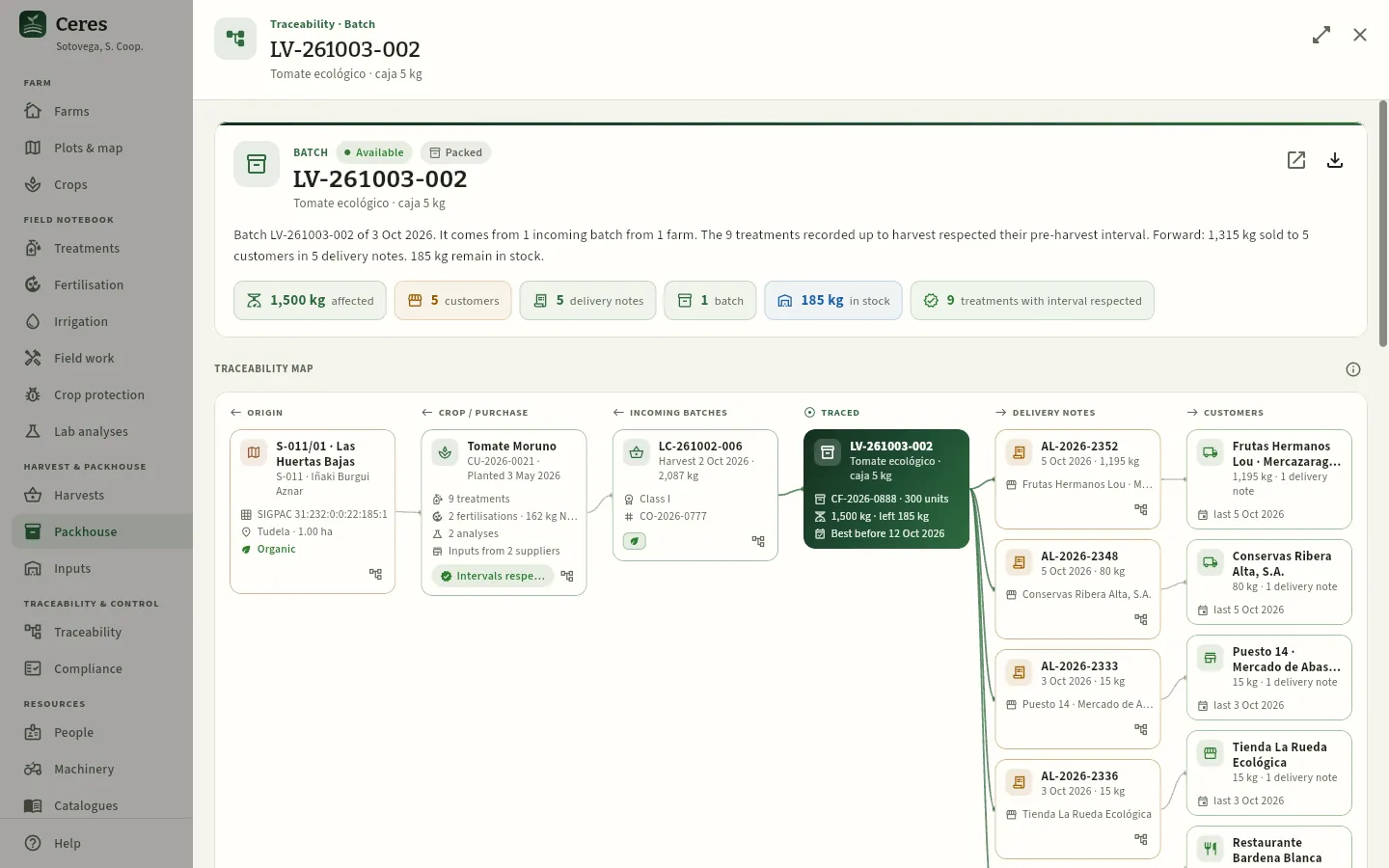 1234
- 1What is being traced: Traceability · Batch and its reference.
- 2Open in Traceability: takes it to the section, full screen.
- 3You can also export from the panel. Begoña does not have «Run mock recalls»: she does not see the mock recall button.
- 4Tracing from another step stays inside the panel; an arrow appears to go Back to previous trace.
The panel shows the same as the section (summary, map, step back and step forward), but without the mock recall button: to start one, click Open in Traceability.
#Mock recalls
A mock recall is a rehearsal: you pick a real batch, assume there is a problem (a residue above the MRL, a foreign body, a customer alert) and time how long the cooperative takes to locate all the affected batches, delivery notes and customers. GLOBALG.A.P. requires the recall procedure to be verified at least once a year, with a real recall or a recorded mock recall; each farm's Compliance checks there is one. The Mock recalls tab keeps the history. A real alert follows the same path, but when it is closed it blocks the produce.
- 1StartOrigin (a batch, an input…) and reason. The timer starts.
- 2LocateTick each customer notified and each batch in stock located.
- 3CloseConclusions and, if needed, block what is left.
- 4ReportDuration, batches, delivery notes, customers and kilos, with signatures.
- 5ComplianceCounts as each farm's annual mock recall.
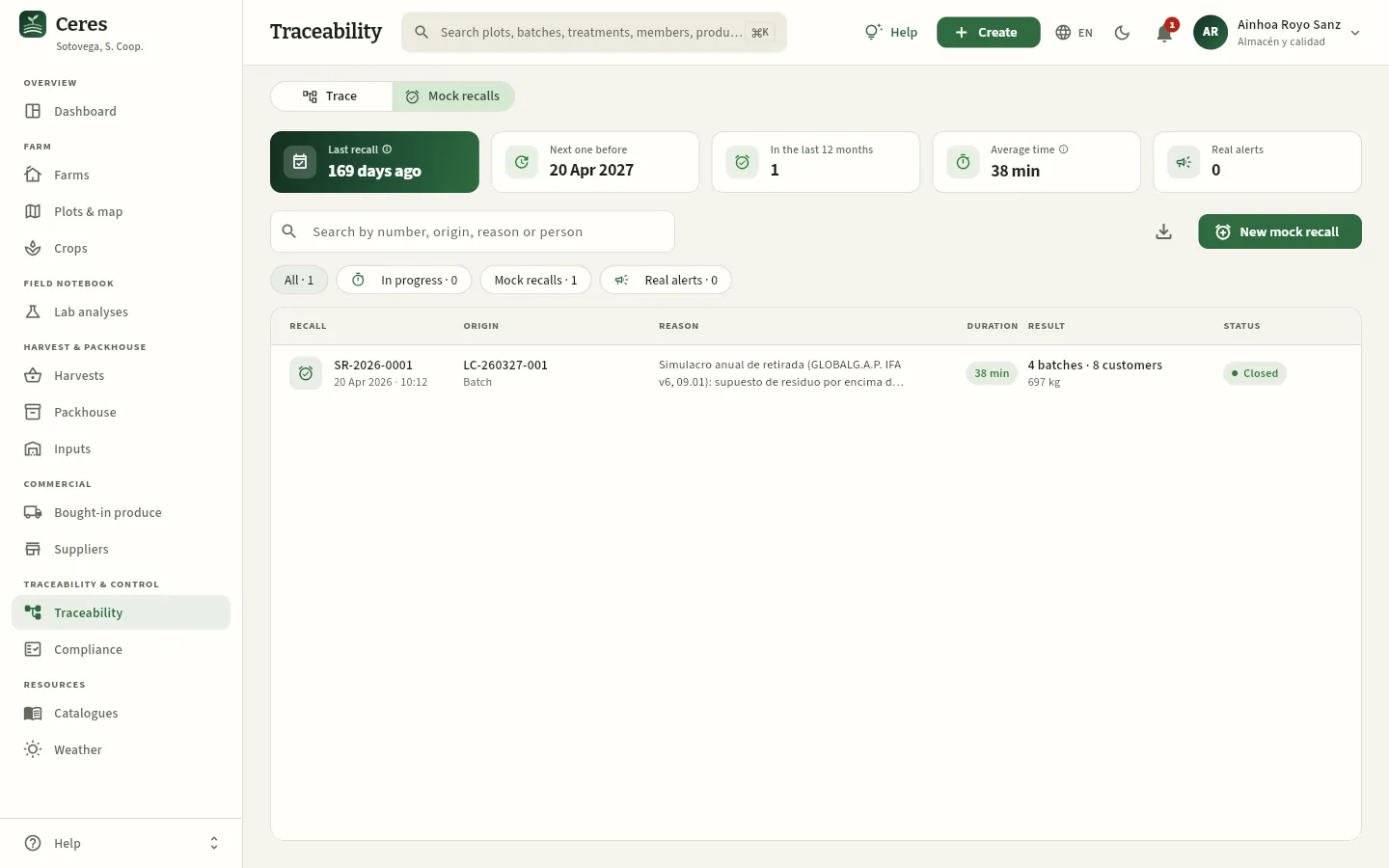 12345678
- 1Last recall closed, with its ⓘ: what GLOBALG.A.P. requires and how it counts in Compliance.
- 2Next one before: one year after the last. Green; amber from 300 days; red once the year has passed.
- 3How many have been done in the last 12 months.
- 4Average time of closed recalls, with its ⓘ.
- 5Real alerts ever opened.
- 6The filters: All, In progress, Mock recalls and Real alerts; above, the search box.
- 7New mock recall (with the «Run mock recalls» permission).
- 8Each recall: number and start time, origin, reason, duration (in colour), result (batches, customers, kilos and blocked) and status.
While a recall is in progress, a banner at the top shows its number, the reason, the running timer and the Continue button, so you can get back to it even if you have changed screen or device.
#Starting a mock recall
There are two ways to start: with New mock recall in this tab, choosing the origin in the dialog, or from a trace result with Mock recall from this origin, which brings it already chosen. Starting it already saves the record and starts the timer: do it when you are really about to begin.
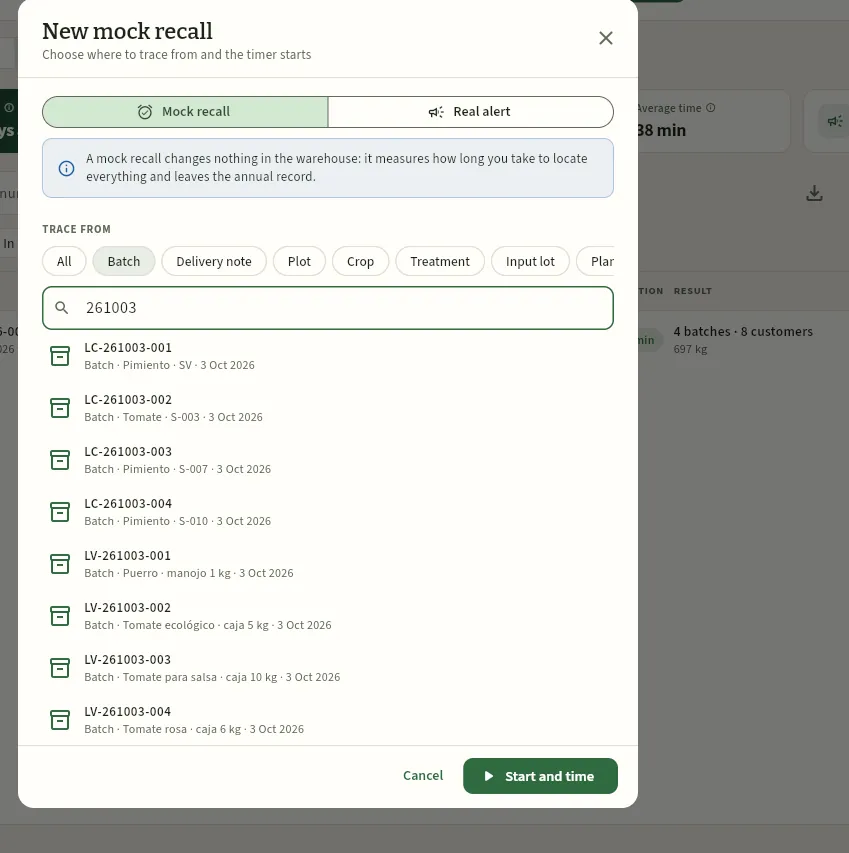 12345
- 1Mock recall (a rehearsal) or Real alert. The notice below explains what each one does when closed.
- 2Trace from: the type, as in the search box. With All, a number of 4 to 6 digits is taken as a plant protection product registration no.: to find a batch by its digits, choose Batch first.
- 3Type the code or part of it and pick from the list.
- 4The chosen batch becomes the origin of the recall.
- 5Start and time saves the recall and opens its record with the timer running.
Below the origin is the Reason: the mock scenario or the alert received (who warns and about what). For a mock recall, Ceres suggests «Annual mock recall (GLOBALG.A.P. IFA v6, 09.01): residue above MRL scenario»; change it if the scenario is different. If you choose Real alert, the reason is cleared and becomes mandatory:
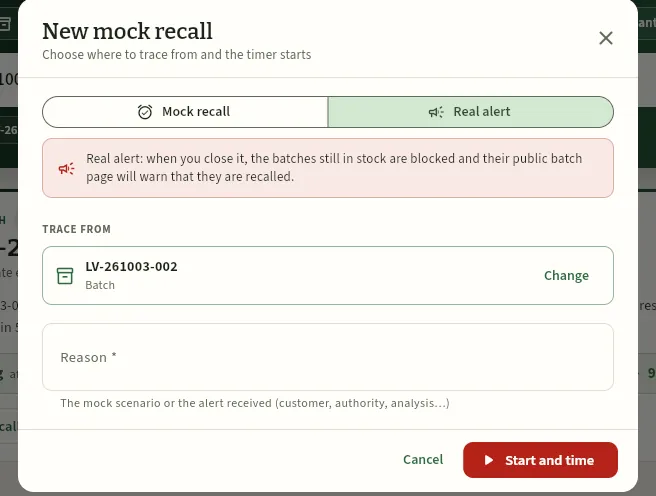 12345
- 1Real alert: a real recall (a warning from the authority, a customer or an analysis).
- 2The red notice: when it is closed, the batches still in stock are blocked and their public page will say they are recalled.
- 3The origin, which comes from the trace; Change to pick another.
- 4The reason, mandatory: what has happened and who is warning.
- 5The button turns red as a reminder that it is not a rehearsal.
#During the mock recall
Starting it opens the record of the recall in progress. At the top, the big timer (green up to 2 hours, amber up to 4 and red after that), the Located n of t counter with its bar and the Close button. Below, two tabs:
- Locate: the reason and two lists to tick off. Customers to notify (from most to fewest kilos, with their delivery notes and last delivery; the icon opens the customer with their contact details) and Batches in stock to locate (those still in the cold room, with their kilos and status). Tick each customer once notified and each batch once located.
- Traceability: the full map and details of the origin, as in a trace, in case you need to check something.
The ticks are saved to your user: you can close the record, change device and come back with Continue from the banner of the recall in progress. If you started it by mistake, the bin icon discards it without leaving a record (it asks for confirmation).
With the quality manager, choose a recent real batch that has already been sold (a sales batch with several customers is the most demanding).
Click New mock recall, leave Mock recall, choose the batch and check the reason. Click Start and time.
In Locate, tick each customer as you confirm you could notify them (phone, email) and each batch in stock once you have found it in its cold room.
When they are all done, click Close: write the conclusions (what worked, what was missing and what to improve) and decide whether to block the batches in stock (in a mock recall, usually not).
Open the closed record and download the PDF report; sign it and keep it with the supporting documents (or upload them under Documents).
Clicking Close opens Close and save the result: the timer stops and what was located (batches, delivery notes, customers and kilos) is saved with your Conclusions. The Block the batches in stock switch sets the batches still in the cold room to «Blocked»; in a real alert they are always blocked and their public QR page warns the consumer that the batch has been recalled.
#The report of a mock recall
A closed recall opens from its row. The demo one is SR-2026-0001, the annual mock recall Ainhoa ran on 20 April 2026 from field batch LC-260327-001: she located everything in 38 minutes.
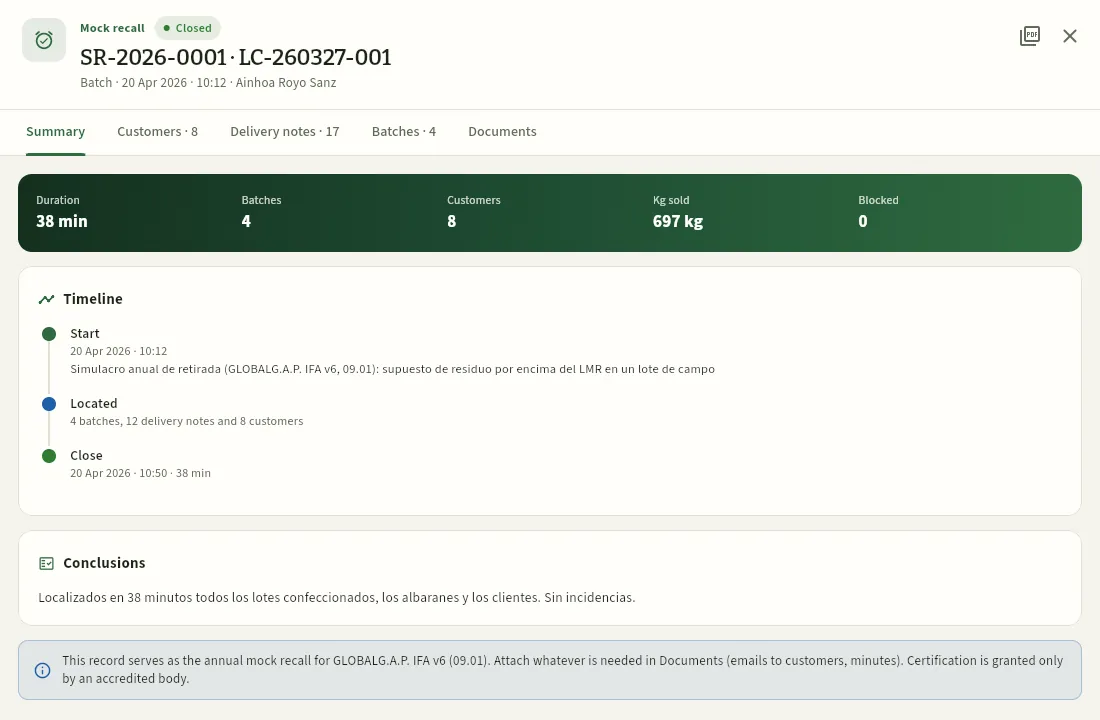 1234567
- 1Whether it is a mock recall or a real alert, its status, the number with the origin, the type of origin, the start time and who ran it.
- 2PDF report: the record for the auditor, with the summary, what was located and the signatures of the person in charge and the reviewer.
- 3The tabs: the Summary, the Customers, Delivery notes and Batches located, and the Documents (emails to customers, minutes).
- 4The result in figures: duration, batches, customers, kg sold and blocked.
- 5The timeline: start with the reason, what was located and the close with the duration.
- 6The conclusions written when closing.
- 7What the record is for and what to attach.
#What each profile sees
#Tips
Traceability & control
Compliance
How well each farm keeps its records: a score with its checklist (recording on time, validation, justification, advisor, licences, sprayer inspection, fertilisation plan, vulnerable zone, analyses, certificates, pre-harvest intervals, annual mock recall and empty containers); the farm record book as PDF, as the official CUE JSON and as Ceres JSON, each one with its seal; verifying an exported record book and the fingerprint chain; the prepared SIEX upload; the mass balance, third-party trade and the regulatory calendar.
Compliance checks what is recorded in Ceres against what the field log and traceability rules require, and tells you what is missing on each farm before an inspector, the certification body or the customer's auditor finds it. There is nothing to fill in: everything comes from what is already recorded in Treatments, Fertilisation, Lab analyses, People, Machinery, Inputs, Farms and Traceability.
It has six tabs:
| Tab | What it is for |
|---|---|
| Farms | Each farm's score for the season and its checklist: what is fine, what needs reviewing and what is missing, with the regulation and how to fix it. |
| Farm record book | The record book of a farm and a season with the official structure: as a PDF to print or hand over, as the CUE JSON (the official FEGA format) and as the full Ceres JSON. Every export carries its seal. The SIEX upload is also prepared here. |
| Verify record book | Checks whether an exported record book is intact (uploading the file or with its seal code), the state of the fingerprint chain and the issued seals. |
| Mass balance | Per product: what came in, what went out and what is left; it must balance. |
| Third-party trade | How much of what was sold is produce bought from other growers, against the 50 % guideline limit. |
| Regulatory calendar | The regulatory dates affecting the field log and what Ceres does for each one. |
On a screen narrower than about 1,600 px the tabs show their short names: Record book, Verify, Mass balance, Third parties and Calendar.
It is used by technical management and the field technician to review the farms every month, by the external auditor or the certification body to review, export and verify the record book, by management for the mass balance and third-party trade, and by each member to see how their own farm is doing. Trade terms (IPM, ROPO, ITEAF, SIGPAC, SIEX, CUE, REA, vulnerable zone, SHA-256…) are in the Glossary.
#Each farm's score
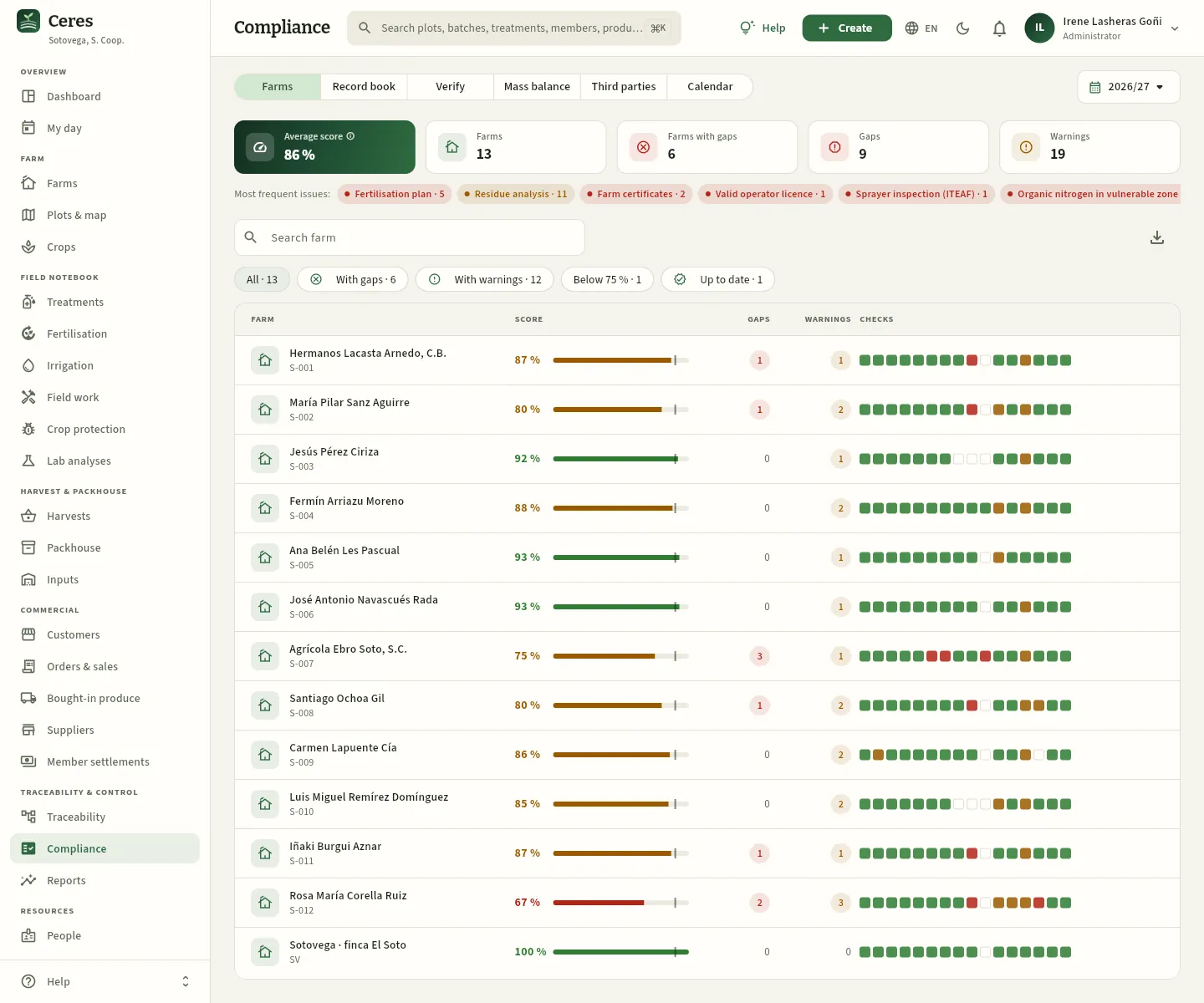 12345678
- 1The six tabs of the section (here, with their short names).
- 2The season being reviewed: the current one or one of the two previous ones (September to August).
- 3Average score of the farms you can see, with its ⓘ.
- 4How many farms there are, how many have gaps and the total gaps and warnings.
- 5Most frequent issues: the checks with most gaps or warnings and on how many farms (hover to read what is checked).
- 6The filters: All, With gaps, With warnings, Below 75 % and Up to date; above, the search box.
- 7Each farm's score, in green, amber or red, with a tick at 90 %. S-012 is at 67 %.
- 8One small square per check: green OK, amber review, red missing and blank not applicable. Click the row to open its checklist.
The Gaps column counts the checks in red and Warnings those to review. Click a column header to sort (by Score, to have the weakest at the top) and the download button to export the list as CSV.
#The checklist
Click a farm to open its checklist. The one for S-012 · Rosa María Corella Ruiz is the lowest in the cooperative: it is missing the fertilisation plan for a crop and has a certificate that has expired or is about to.
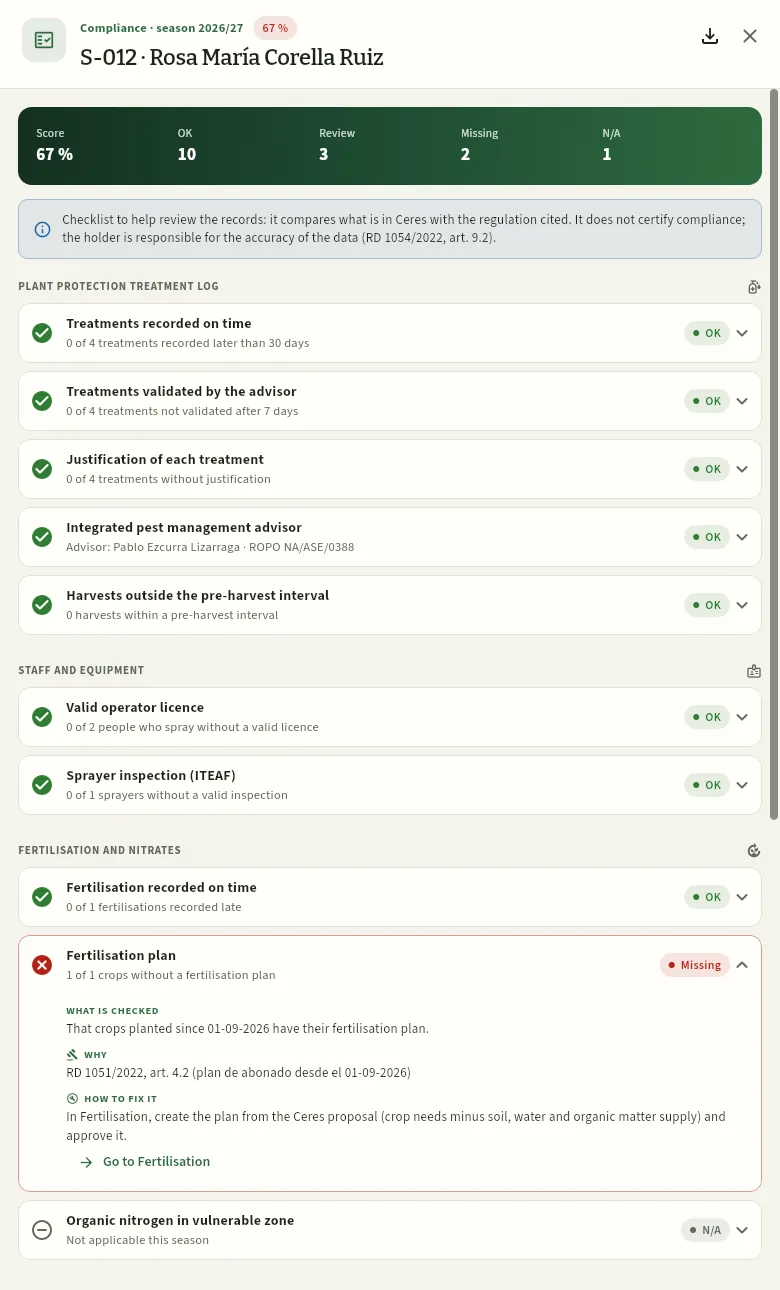 12345678
- 1The farm, the season and its score.
- 2The record book for this farm and season: as PDF, as CUE JSON or as full Ceres JSON, each one with its seal (with the «Export CSV» permission).
- 3The count: score and checks that are OK, to review, missing and not applicable.
- 4A reminder that it is a checklist to help you: it does not certify.
- 5Each check: what it is, the farm's figure («0 of 4 treatments recorded later than 30 days») and its status. OK checks are closed; click to open them.
- 6Those missing or to review are open: what is checked, why (the regulation) and how to fix it.
- 7Go to … takes you to the section where it is fixed, already filtered by this farm.
- 8N/A: S-012 has no plots in a vulnerable zone; it does not count in the score.
The 16 checks are grouped like the official record book:
| Block | Check | What Ceres looks at |
|---|---|---|
| Plant protection treatment log | Treatments recorded on time | That each treatment carried out was recorded within the deadline set in Settings (one month at most). |
| Treatments validated by the advisor | That the technician or advisor has validated (signed) treatments carried out more than a week ago. | |
| Justification of each treatment | That each treatment has its integrated pest management justification (threshold exceeded, official warning, symptoms…). | |
| Integrated pest management advisor | That a farm using advisory services has an advisor assigned and registered in the ROPO. | |
| Harvests outside the pre-harvest interval | That no harvest of the season was made within the pre-harvest interval of an earlier treatment. | |
| Staff and equipment | Valid operator licence | That everyone who sprays on the farm holds a valid professional user licence. |
| Sprayer inspection (ITEAF) | That the application equipment used has a favourable, valid inspection. | |
| Fertilisation and nitrates | Fertilisation recorded on time | That each fertiliser application was recorded within the deadline in Settings (one month at most). |
| Fertilisation plan | That crops planted since 01-09-2026 have their fertilisation plan. | |
| Organic nitrogen in vulnerable zone | That no vulnerable-zone plot exceeds 170 kg N per ha from manure in the last 12 months. | |
| Analyses | Soil analysis | That each active plot has a soil analysis from the last 5 years. |
| Irrigation water analysis | That there is an irrigation water analysis from the last 12 months. | |
| Residue analysis | That at least one residue analysis was done in the season. | |
| Certification, traceability and containers | Farm certificates | That the certificates (organic, GLOBALG.A.P., integrated production, PGI…) are valid and do not expire in the coming days. |
| Annual mock recall | That the cooperative has closed a mock recall (or a real recall) in the last 12 months. | |
| Empty container return | That there is a receipt for empty plant protection containers returned in the last 12 months. |
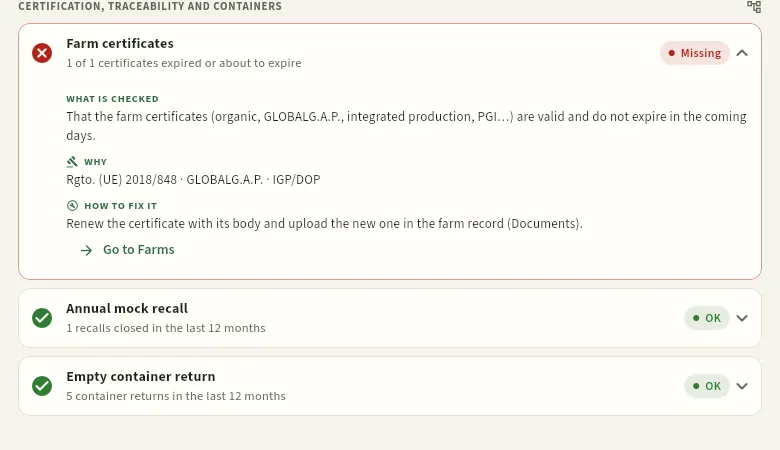 1234
- 1A certificate expired or about to expire: Missing. It is renewed with the certifying body and the new one is uploaded to the farm record.
- 2Go to Farms opens S-012's record.
- 3The annual mock recall belongs to the cooperative and counts for all its farms: SR-2026-0001 in Traceability satisfies it.
- 4The receipts for empty containers returned, recorded in Inputs.
In Farms, filter With gaps (or sort by Score) and open the first one.
Read the open checks: what is checked, why and how to fix it.
Click Go to … on each one: it takes you to the section (Fertilisation, Lab analyses, People, Machinery…) already filtered by that farm. Fix it there (create the fertilisation plan, record the lab report, renew the licence).
Go back to Compliance: the check turns OK and the score goes up as soon as the data is saved.
#The farm record book: PDF, CUE JSON and Ceres JSON
The Farm record book tab prepares the record book of a farm for a season with the structure of annex III, part I, of RD 1311/2012 and the fields of Regulation (EU) 2023/564 (crop EPPO code, BBCH stage, product registration no., rate and area). It is what you hand over to the authorities when they ask for it, to the certification body or to the customer's auditor. It is exported in three formats, and every export is sealed: Ceres keeps the fingerprint of what went out so that you can later check that nobody has tampered with it. This is how Begoña, the external auditor, exports it for member S-003:
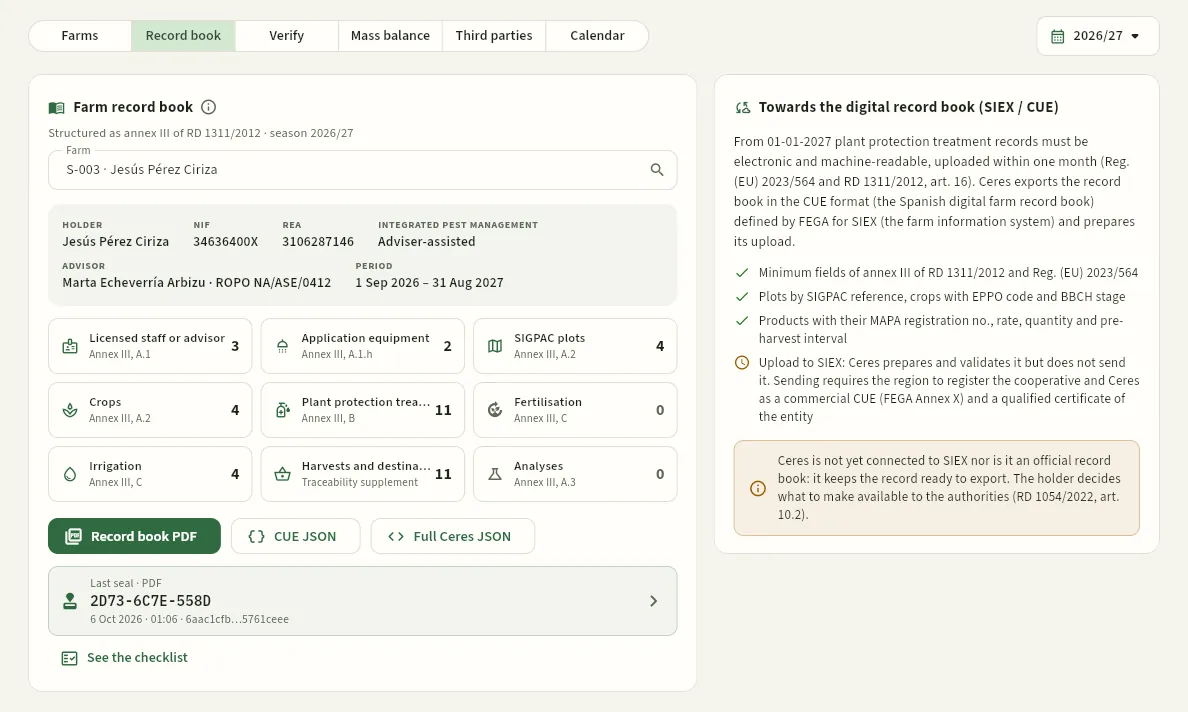 12345678
- 1The farm: click it to choose another (only those assigned to you appear).
- 2The season (September to August).
- 3The general data: holder, tax ID, REA, integrated pest management system, advisor with their ROPO and the period.
- 4What each section of the record book contains, with its annex III paragraph and how many records it has: licensed staff, equipment, SIGPAC plots, crops, treatments, fertilisation, irrigation, harvests and analyses.
- 5Record book PDF: the record book to print, sign or hand over. It is downloaded as is, with the seal at the foot of every page.
- 6CUE JSON: the official format of the digital record book defined by FEGA for SIEX.
- 7Full Ceres JSON: the whole record book as is, for other software.
- 8Last seal: the code of the export you have just made, when, and the beginning of its fingerprint. Click it to open its record.
The three formats carry the same records, for different uses:
| Format | What it is | What for |
|---|---|---|
| Record book PDF | The laid-out record book, with the seal at the foot of every page and a last section with its fingerprints. | Printing it, signing it or handing it to the authorities, the certification body or the customer's auditor. |
| CUE JSON | The record book in the official CUE format (the Spanish digital farm record book), the schema published by FEGA for SIEX. It carries its seal inside («SelloCeres»). | Loading it into the region's digital record book or into other software that reads the CUE. |
| Full Ceres JSON | The whole record book as it is in Ceres («ceres-cuaderno/1»), with its «seal» object. | Taking it to other software or archiving it. |
Exporting the record book requires the Export CSV permission; without it, a notice appears instead of the buttons. The same menu is in each farm's compliance record, with the download icon (More formats):
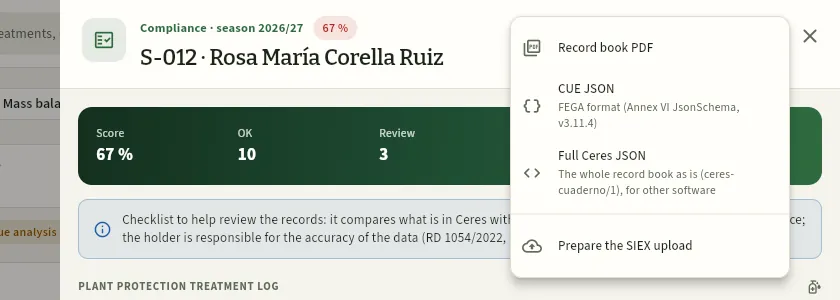 1234
- 1The record book as PDF.
- 2The CUE JSON, in the FEGA format (Annex VI JsonSchema).
- 3The full Ceres JSON, for other software.
- 4Prepare the SIEX upload: only for those who can also edit the field log (see below).
The PDF contains, in this order: A.1 farm and holder, advice, the staff with a professional user licence (level, number and expiry) and the application equipment with its ROMA and its last and next ITEAF inspection; A.2 the plots (SIGPAC reference, area, use, dry or irrigated, open field or protected, certification, vulnerable zone and specific zones); A.3 the soil; the crops of the season with their plant material; B the plant protection treatments (date, plot, crop, pest, product with its registration no., rate and quantity, operator and equipment, advisor, justification and efficacy); C fertilisation and irrigation; the harvests with their destination (batch) and the analyses. At the foot, spaces for the signatures of the holder and the advisor, and the reminder to keep it for at least 3 years. The last page is the integrity seal of that export:
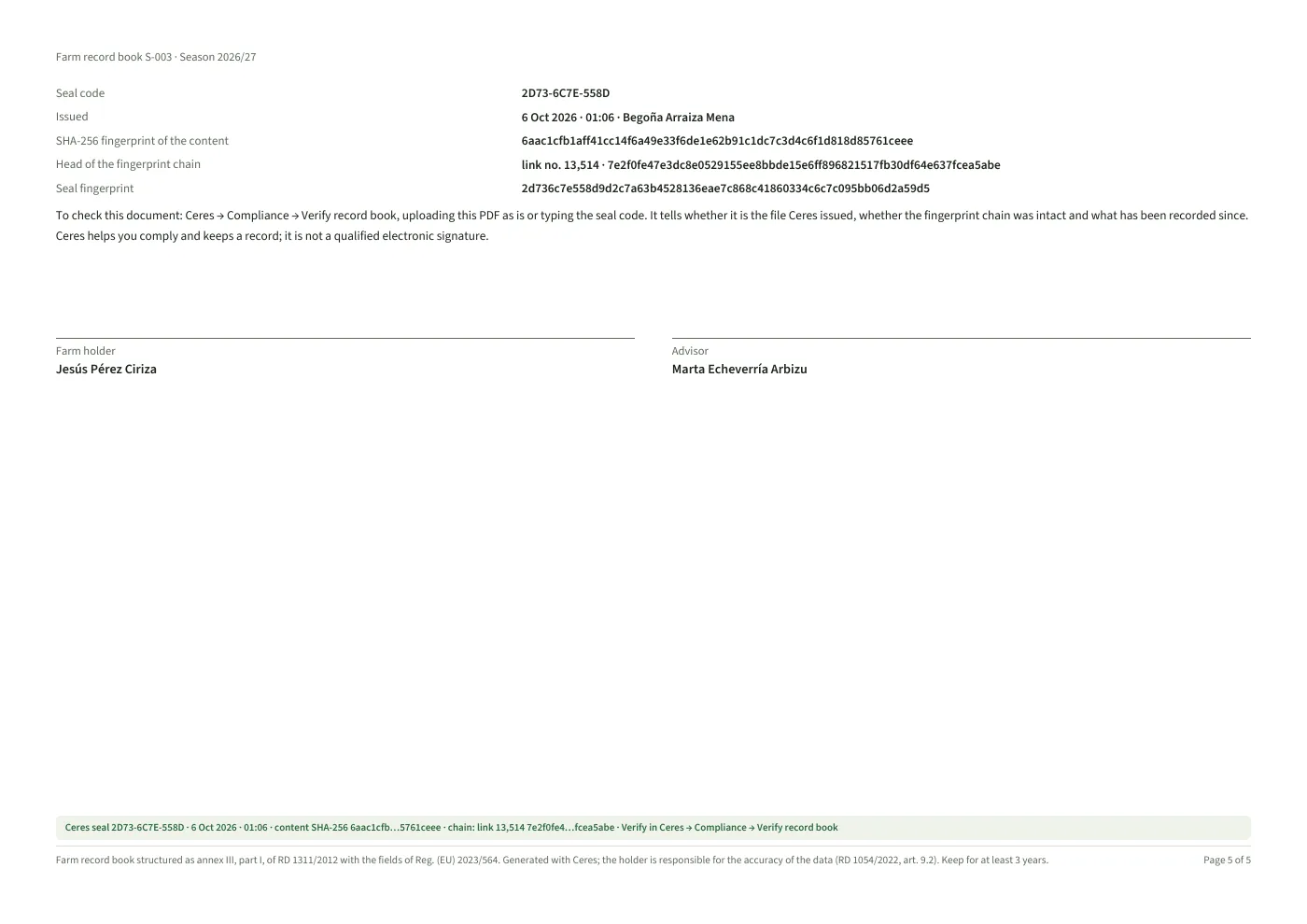 123
- 1The integrity seal of this export: the seal code, when and who issued it, the SHA-256 fingerprint of the content, the head of the fingerprint chain at that moment and the seal fingerprint.
- 2How to check it: in Ceres → Compliance → Verify record book, uploading the PDF as is or typing the code.
- 3The seal band at the foot of every page: the code, the date, the beginning of the fingerprint and the chain link.
What reaches the authorities in the CUE JSON is what the official format requires; the Ceres JSON also keeps everything Ceres knows about the record book (with the same data as the PDF), and is for taking it to other software.
#The seal of every export
Every time someone exports a record book (in any of the three formats), Ceres issues a seal and stores it:
- a 12-character code (for example, 81C9-CE2E-12DF), printed at the foot of the PDF and inside the JSON;
- who exported it, when, which farm and which season or period;
- the SHA-256 fingerprint of the content: a 64-character number that summarises the exported record book; if a single rate changes, the fingerprint changes completely;
- the head of the fingerprint chain at that moment (see below): the last link of everything recorded up to then;
- for the PDF, also the fingerprint of the file exactly as it was downloaded;
- and, if the cooperative has set it up, an RFC 3161 timestamp from an external authority.
With the file or its code, anyone who can see that farm can later check in Verify record book whether it is the one Ceres issued and whether it is intact.
#Verifying an exported record book
The Verify record book tab answers the question «is this record book I am being shown the one that came out of Ceres, and is it intact?». It has three parts: verifying a file or a code, the state of the fingerprint chain and the list of issued seals.
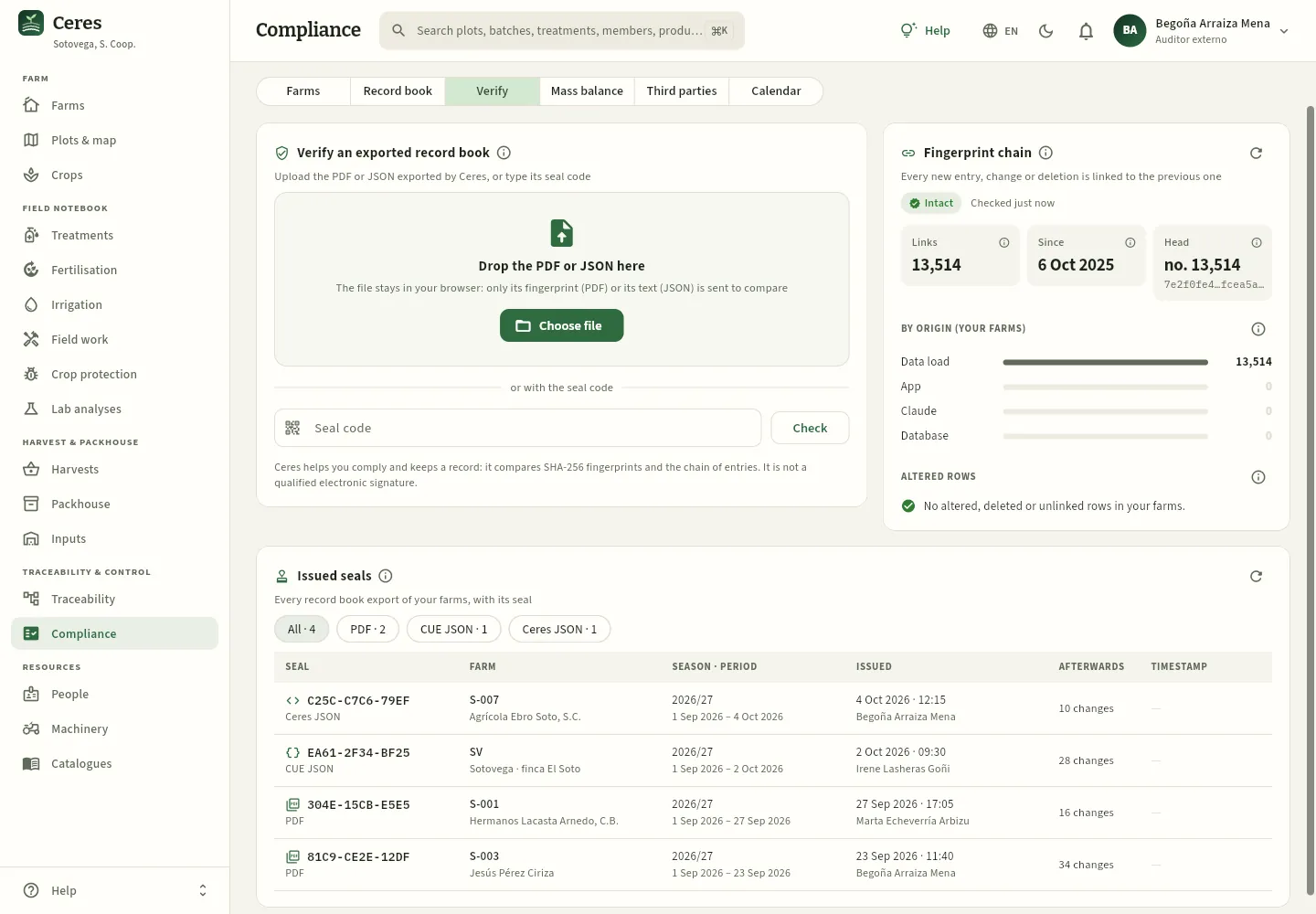 1234567
- 1Drop the PDF or JSON exported by Ceres here, or click Choose file. The file stays in your browser: only the PDF's fingerprint is sent, or the JSON's text to compare it.
- 2…or type the seal code (the one in the PDF footer) and click Check.
- 3The fingerprint chain: Intact in green, or With issues.
- 4How many links it has, since when, and its head (the last one), each with its ⓘ.
- 5By origin: where each change on your farms came from (data load, app, Claude or directly the database).
- 6Altered rows: entries that do not match the chain. Here, none.
- 7The issued seals, with filters by format: PDF, CUE JSON and Ceres JSON.
To check a record book, upload it as is or type its seal code. The result appears at the top, in large type:
| Result | What it means |
|---|---|
| Intact (green) | It is the file Ceres issued (for a PDF, byte for byte) or its content matches the sealed one, and the fingerprint chain was still intact up to the seal. |
| Modified (amber) | The seal exists, but the content does not match: someone has changed some data after exporting it. Or the file matches but the fingerprint chain is not intact up to the seal. |
| Unknown | It matches no Ceres export you can see: it belongs to another cooperative, to a farm you cannot see, or the file (or its seal) has been altered. |
| Seal found | The code only checks the seal: that it exists, whose it is and when it was issued. To check the content, upload the file. |
Below, the details: who sealed it and when, whether the content and the file match, whether the chain was intact up to the seal, how many entries on that farm have been made afterwards, and the timestamp, with the full fingerprints.
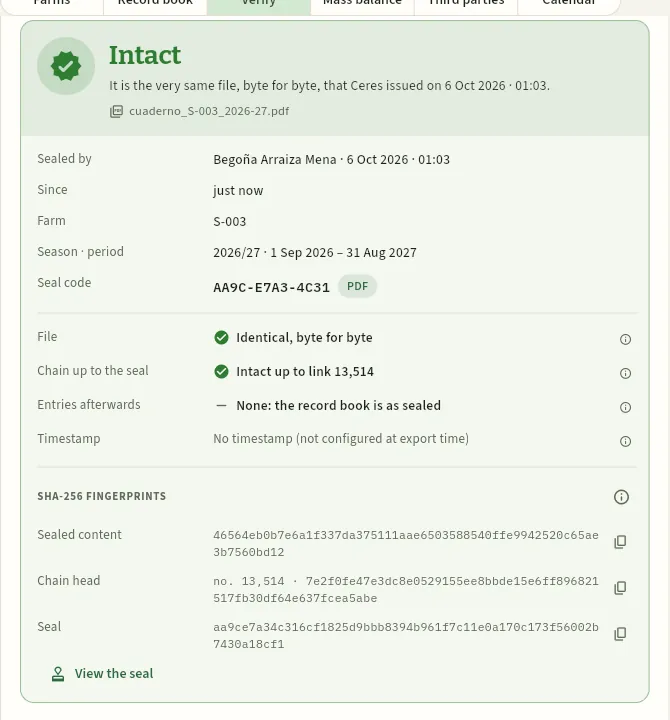 12345
- 1Intact: it is the very same file, byte for byte, that Ceres issued, with the date and the name of the uploaded file.
- 2Who sealed it and when, the farm, the season and the seal code.
- 3The file is identical, byte for byte, to the one downloaded.
- 4The chain up to the seal is intact and there are no entries afterwards: the record book is as sealed.
- 5The full SHA-256 fingerprints: of the sealed content, of the chain head and of the seal.
Open Compliance → Verify record book.
Drag the PDF or JSON onto the area at the top (or click Choose file). If you only have the paper copy, type the seal code from its footer and click Check.
Read the result: Intact, Modified, Unknown or, with the code, Seal found.
If it is Modified, see what does not match: the content (some data was changed) or the chain (someone tampered with the log). Ask for the original file or a new export.
Click View the seal to open the seal record with all its data.
If someone changes some data in the file after exporting it (in the example, a rate in S-003's CUE JSON), Ceres detects it: the seal exists, but the content is no longer the one that was sealed.
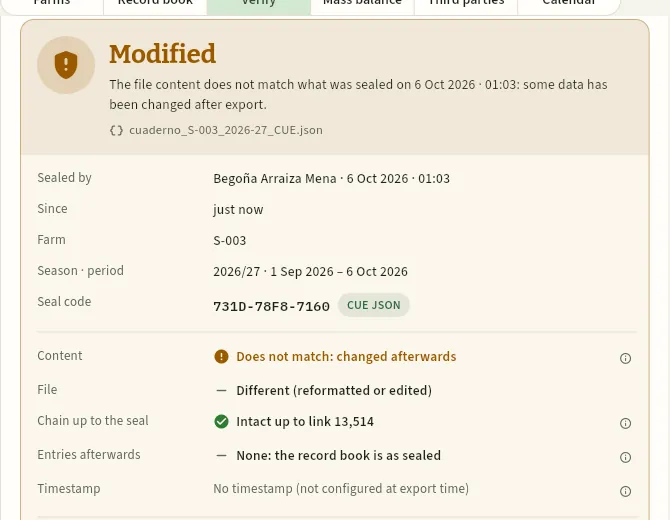 1234
- 1Modified: the file content does not match the sealed one; some data has been changed after exporting it.
- 2The seal does exist: who issued it and when, the farm and its code.
- 3Content: does not match, changed afterwards; nor is the file the one that was downloaded.
- 4The chain up to the seal is still intact: what has been tampered with is the file, not the Ceres log.
And a file carrying a seal you cannot see shows as Unknown. For example, Jesús (member S-003) only sees his own farm: if he uploads another member's record book, Ceres tells him nothing about it.
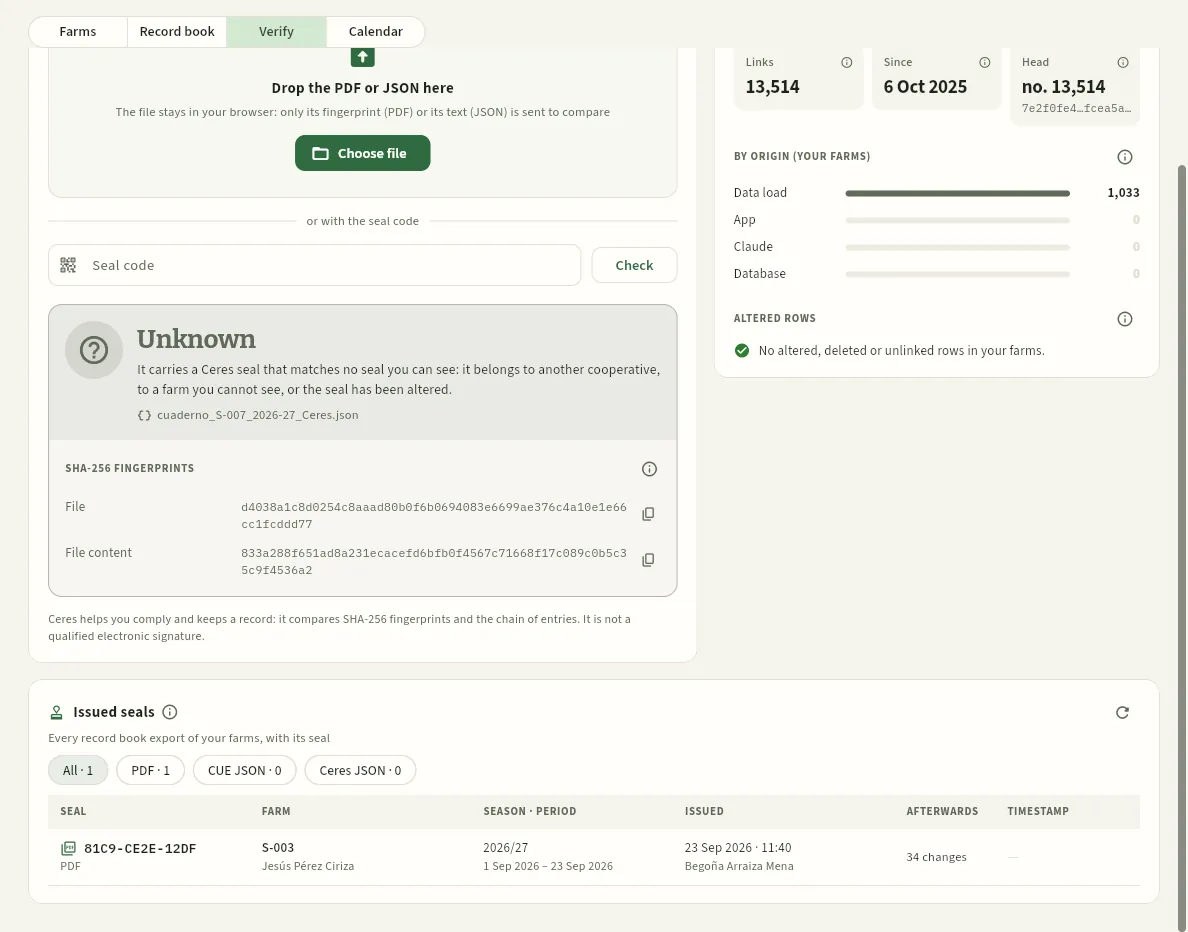 1234
- 1Unknown: it carries a Ceres seal that matches no seal he can see (from another cooperative, from a farm he cannot see, or altered).
- 2Only the fingerprints of the file and its content: nothing about the farm or who sealed it.
- 3The chain by origin counts only the entries of his farms.
- 4And among the issued seals, only those of his farm.
With the code you check the seal without the file: for example, 81C9-CE2E-12DF, the PDF of S-003's record book that Begoña exported on 23 September.
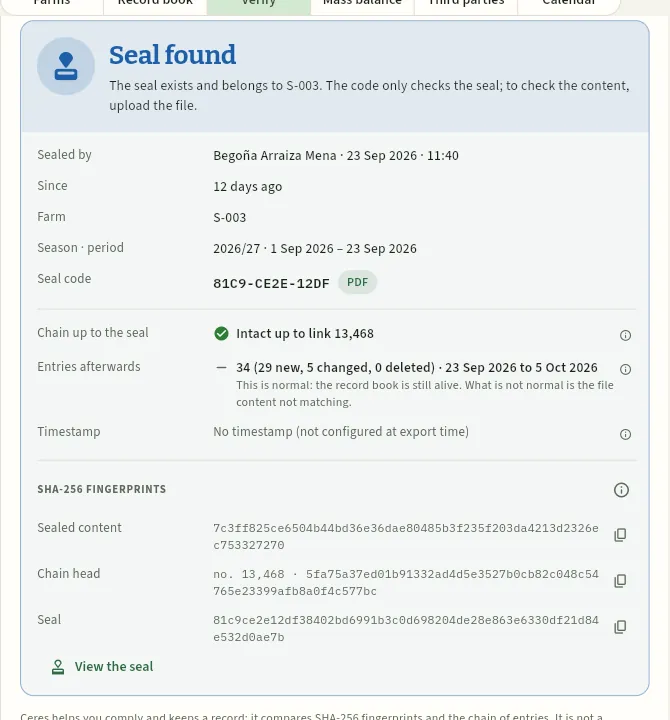 123456
- 1Seal found: the code only checks the seal; to check the content, upload the file.
- 2Who sealed it and when, how long ago, the farm, the season and the code with its format.
- 3The chain was intact up to the seal's link.
- 4Entries afterwards: new, changed and deleted entries on that farm since the seal. This is normal: the record book is still alive.
- 5The full SHA-256 fingerprints, with their copy button.
- 6View the seal opens its record.
#The fingerprint chain
Every new entry, change or deletion in the record book (plots, crops, treatments, fertilising, irrigation, field work, visits, analyses, harvests) and every line of the audit log adds a link to the chain: the fingerprint of the row and that of the previous link. So if someone tampered with some data directly in the database, bypassing the app and Claude, the chain would detect it: tampering with a link breaks all the following ones, and changing a row from outside leaves it «altered».
The Fingerprint chain card in Verify record book recomputes it in full when it opens (and with the reload button):
- Intact in green, or With issues and the link where it breaks;
- Links: how many there are (about 13,500 in the demo), Since: the first one, and Head: the last one, with its fingerprint;
- By origin: where each change on your farms came from: Data load (the initial load or, in the demo, the daily reload), App, Claude or Database (a change made from outside, without a user session: unless it was known maintenance, review it in the Audit log);
- Altered rows, Rows without a link and Rows deleted outside, with a link to their record. If everything is fine: «No altered, deleted or unlinked rows in your farms».
Every seal stores the chain head at the moment of export, so verifying a record book also checks that the Ceres log has not been touched since then.
#Issued seals and the seal record
Below, Issued seals lists every record book export of your farms, newest first: the code and format, the farm, the season and period, who and when, how many entries have changed afterwards and the timestamp. If someone shows you a record book, its code must be in this list. The demo comes with four: two PDFs, one CUE JSON and one Ceres JSON.
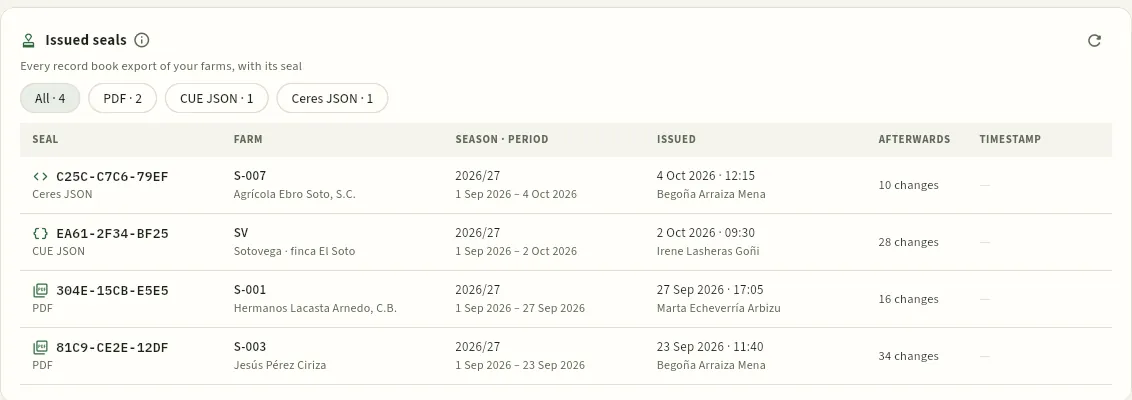 1234
- 1Filter by format: PDF, CUE JSON or Ceres JSON.
- 2The seal code and its format. Click the row to open its record.
- 3Afterwards: how many entries on that farm have changed since the seal.
- 4The timestamp, if one was requested (it is off in the demo).
Click a seal (or View the seal in the result) to open its record: the seal data, how many entries it holds, the chain link and whether the file fingerprint was registered (if not, it can only be verified with the code); the check now (the chain up to the seal and the entries afterwards) and the timestamp, with the full fingerprints.
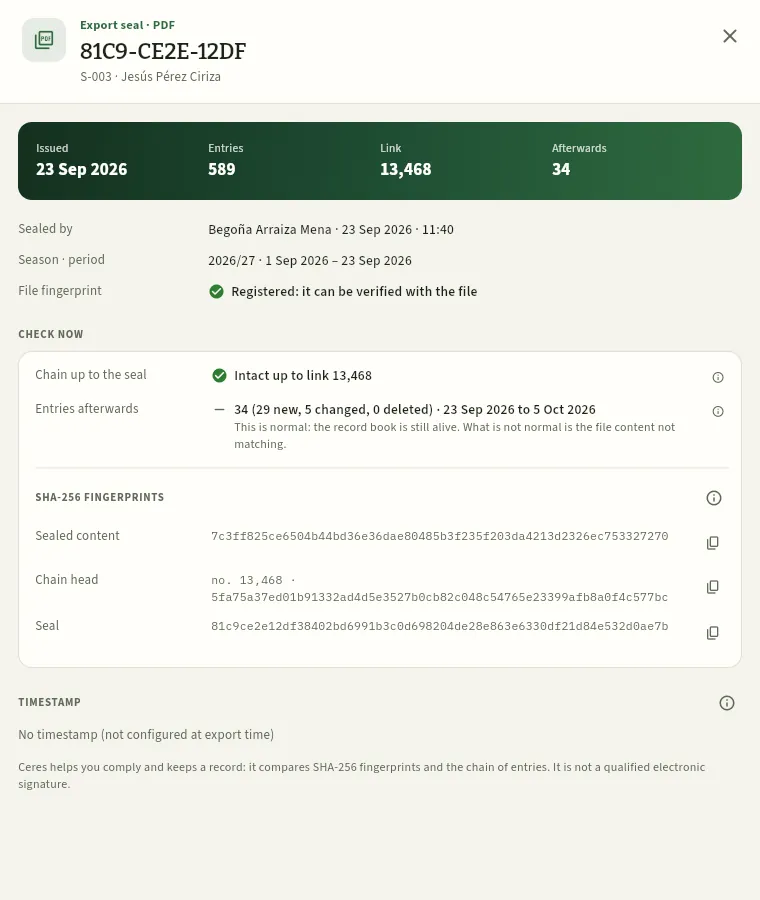 123456
- 1The seal code, its format and the farm.
- 2When it was issued, how many entries the exported record book holds, the chain link and how many there are afterwards.
- 3Who sealed it, the season and the period, and whether the file fingerprint was registered (if not, it can only be verified with the code).
- 4The check now: the chain up to the seal and the farm's entries afterwards.
- 5The SHA-256 fingerprints: of the sealed content, of the chain head and of the seal, with their copy button.
- 6The RFC 3161 timestamp, if one was requested: here it was not set up.
#Preparing the SIEX upload
SIEX (the Spanish farm information system) is where FEGA and the regions will receive digital record books. In the Farm record book tab, those who can also edit the field log have the Prepare the SIEX upload button (also in the download menu of the compliance record). Ceres builds the CUE for the season up to today, validates it against the FEGA schema, stores its fingerprint and shows what would be sent. Nothing is sent. This is how Irene prepares it for S-003:
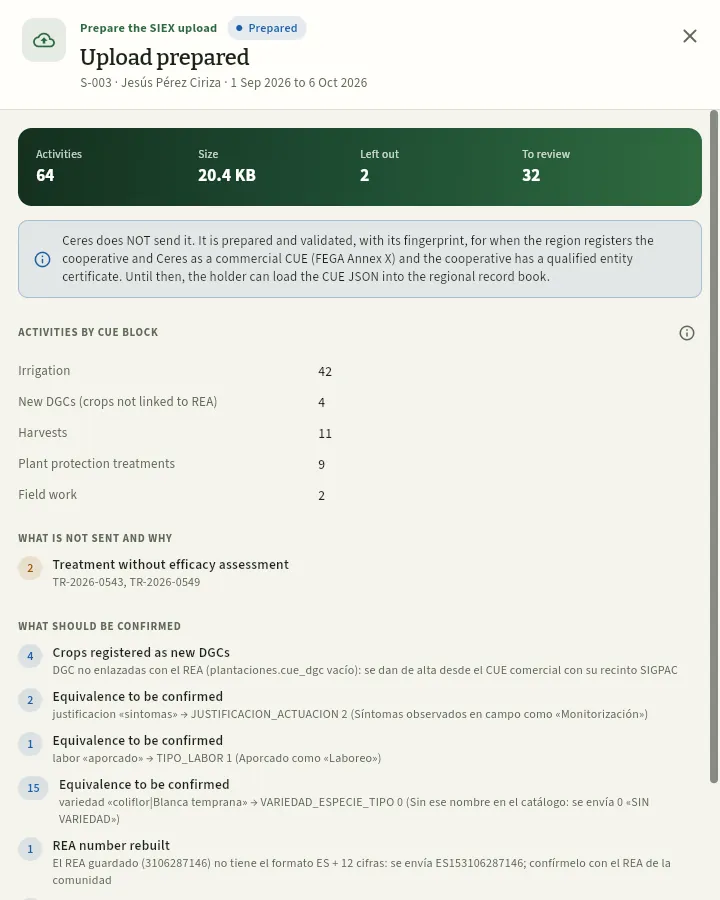 12345
- 1Upload prepared: the farm, the period and its status (Prepared).
- 2How many activities it holds, its size (the maximum per upload is 2 MB), how many are left out and how many are to review.
- 3Ceres does NOT send it: it stays prepared and validated, with its fingerprint, until the region authorises it.
- 4The activities by CUE block: irrigation, harvests, plant protection treatments, field work…
- 5What is not sent and why (here, two treatments without an efficacy assessment) and what should be confirmed with the advisor or the REA, each warning with how many activities it affects.
#Mass balance
The mass balance checks, product by product, that everything that came into the cooperative has gone out or is still in the cold room: the opening stock, plus what was harvested and bought, minus culls, losses and what was sold, must equal what is left. Organic produce has a row of its own, to show that no more was sold as organic than came in. It covers the whole cooperative, so only those who see all farms see it.
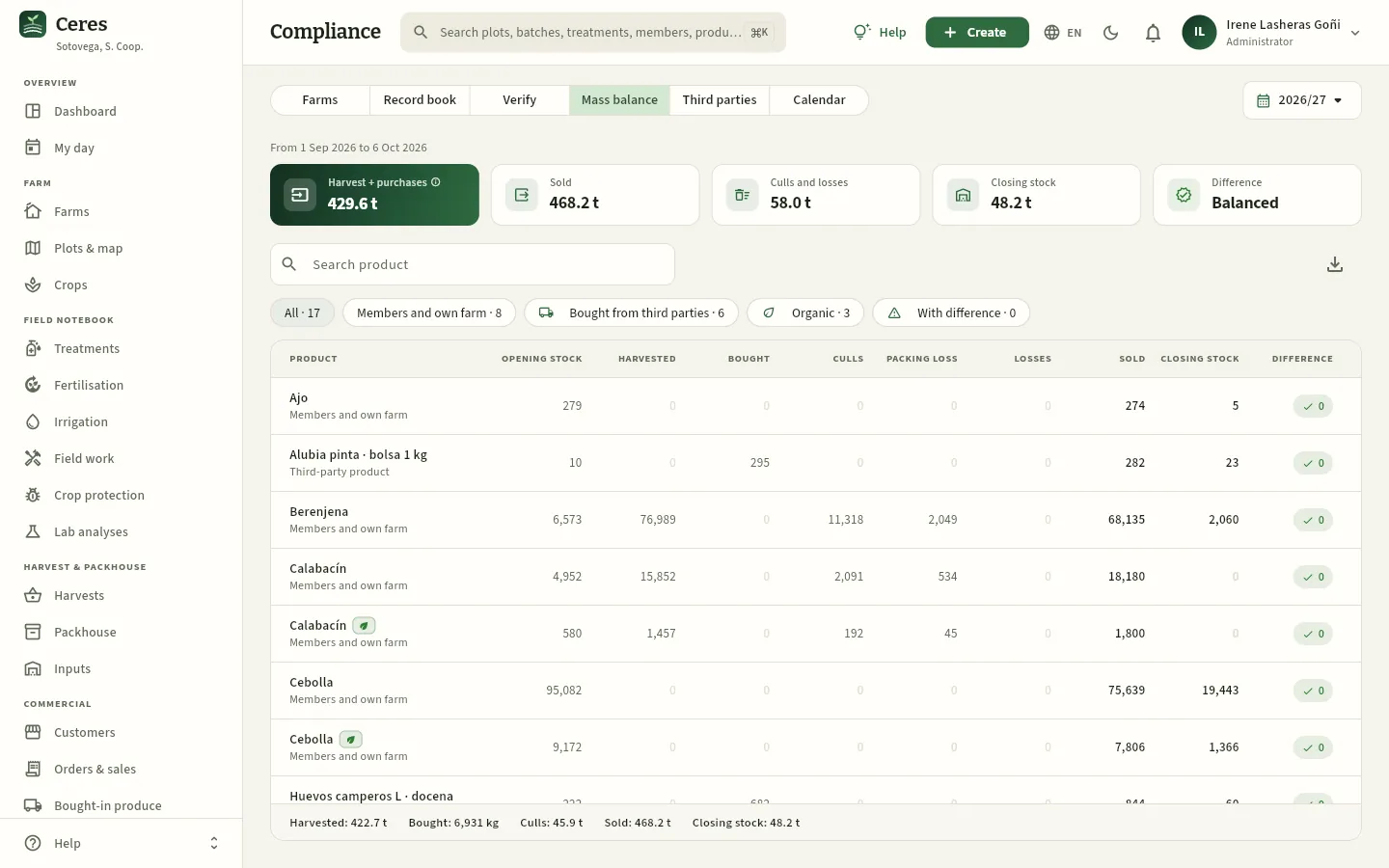 12345678
- 1The period: from the start of the chosen season to today (or to its end).
- 2What comes in: harvest + purchases, with the ⓘ that explains the balance.
- 3Sold, culls and losses and closing stock.
- 4The total difference: «Balanced» in green or the kilos missing or over, in red.
- 5Filters: Members and own farm, Bought from third parties, Organic and With difference.
- 6The balance columns: opening stock, harvested, bought, culls, packing loss, losses and recalls, sold and closing stock.
- 7Organic produce has its own row, with the green leaf.
- 8Each product's difference: 0 in green if it balances.
#Third-party trade
An agri-food cooperative can market produce bought from other growers (third parties), but within limits. This tab calculates two guideline indicators from the year's sales delivery notes, so that management and the tax advisor can watch them throughout the year.
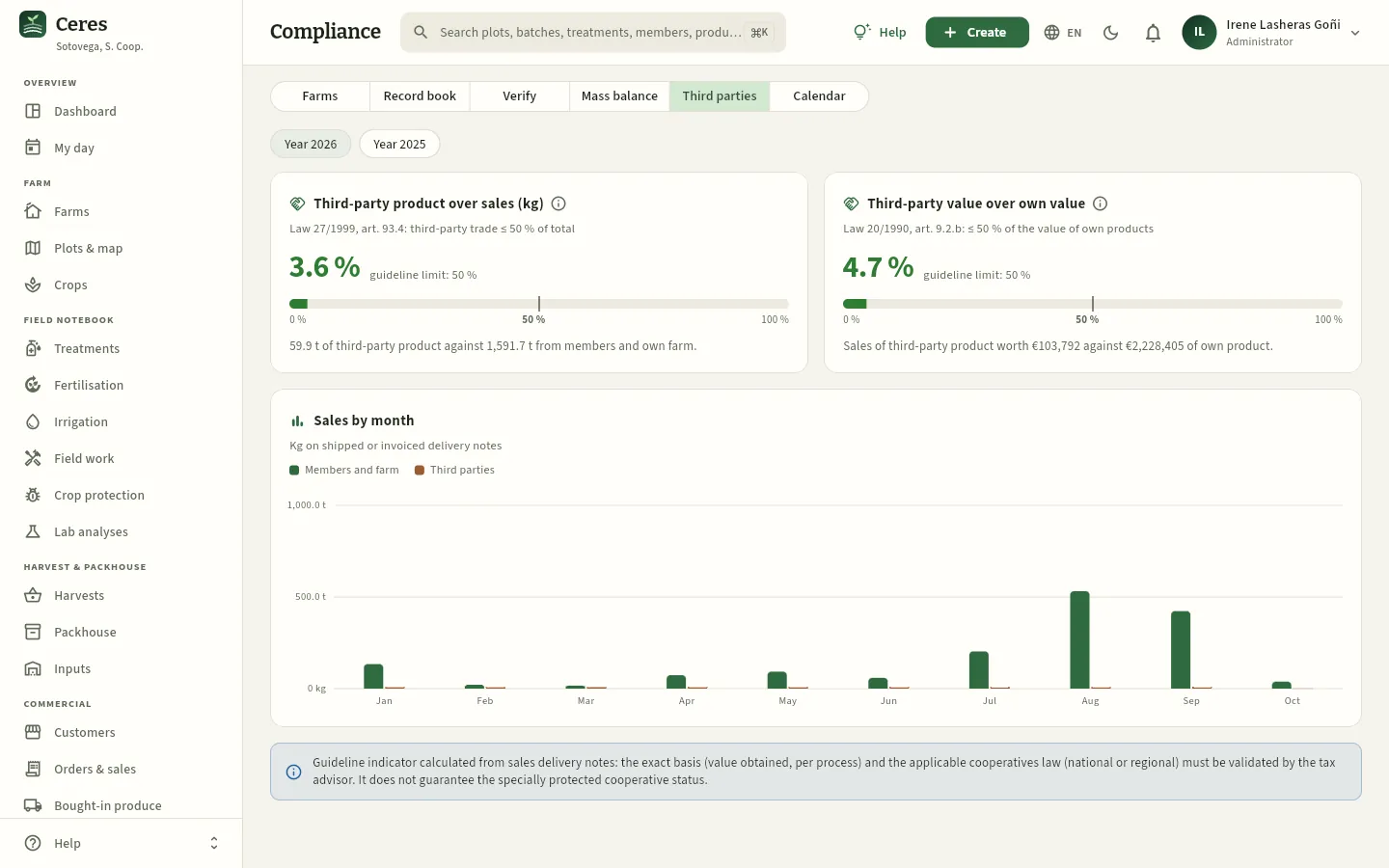 12345
- 1The financial year: the current year or the previous one.
- 2Third-party product over sales (kg): against the 50 % of Law 27/1999, with the bar and the limit mark.
- 3Third-party value over own value: the tax criterion of Law 20/1990, in euros (only with «See prices»).
- 4Sales by month: kilos from members and own farm against third parties.
- 5It is a guideline indicator: the exact basis and the applicable law are validated by the tax advisor.
#Regulatory calendar
The Regulatory calendar gathers the regulatory dates affecting the field log, fertilisation, water and traceability of a vegetable cooperative, reviewed on 05-10-2026, and under each one what Ceres does to help you comply.
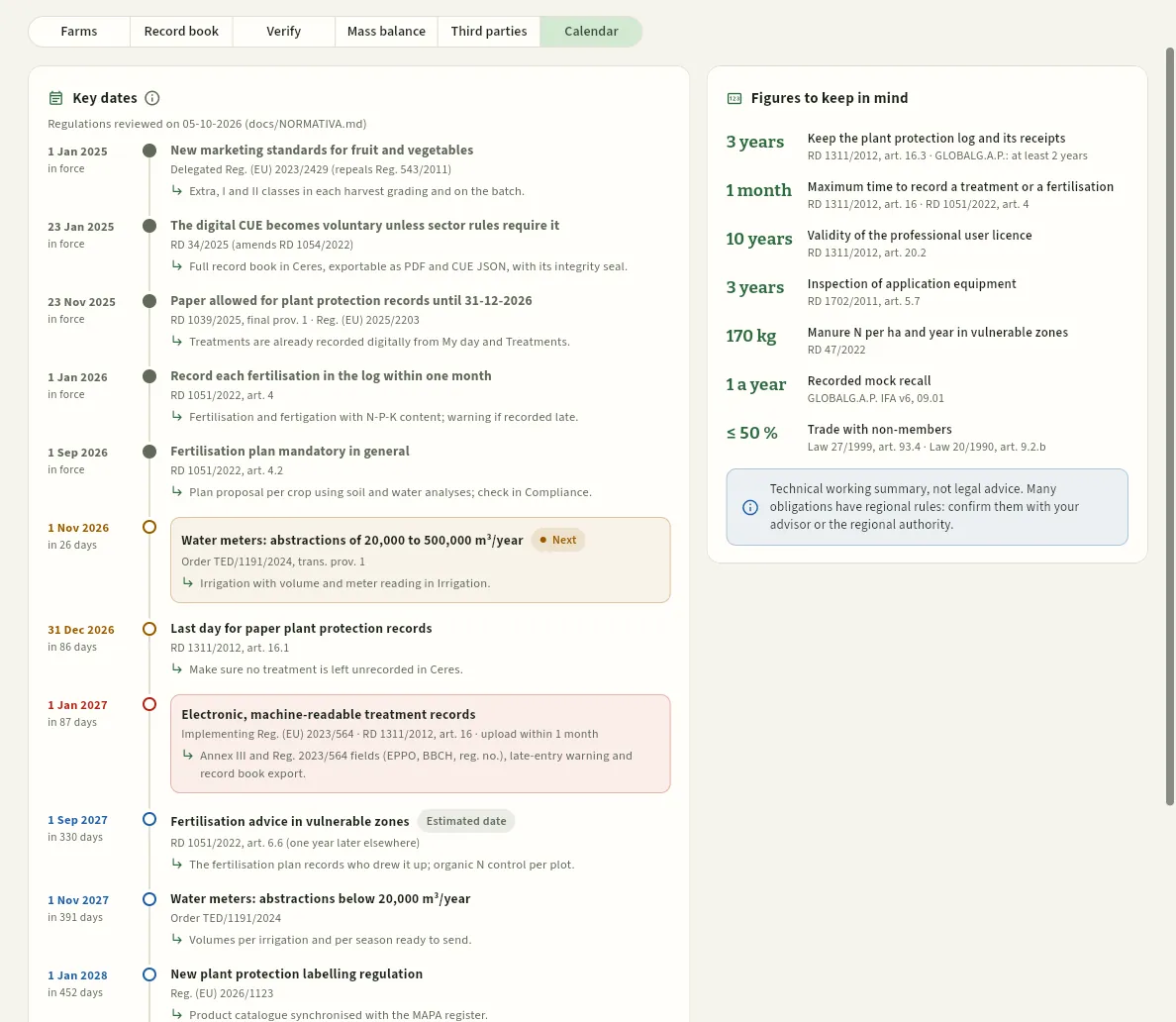 123456
- 1The ⓘ: where the dates come from and what an «estimated date» is.
- 2Each date: what happens, the regulation and, with the arrow, what Ceres does. Past ones say «in force».
- 3Next, highlighted, with the days remaining.
- 4Electronic treatment records from 1 January 2027, in red: the key date for the field log.
- 5Estimated date: calculated or not yet published.
- 6Figures to keep in mind: record keeping, recording deadlines, licence, ITEAF, nitrogen, mock recall and third parties.
It is a technical working summary, not legal advice: many obligations have regional rules. Confirm them with your advisor or the regional authority.
#What each profile sees
Each profile sees its farms. This is how Jesús Pérez Ciriza, member S-003, sees Compliance: only his farm, and only four tabs (the mass balance and third-party trade cover the whole cooperative).
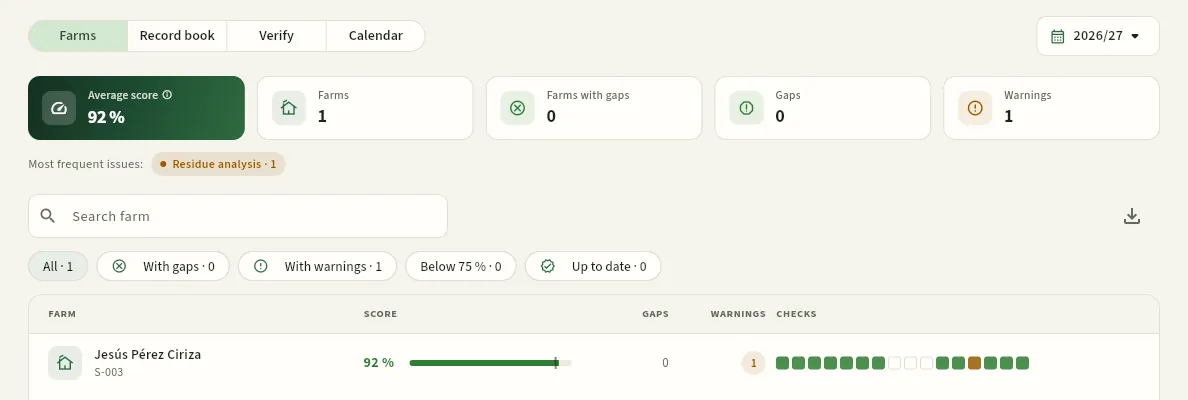 1234
- 1Only Farms, Farm record book, Verify record book (with his seals) and Regulatory calendar.
- 2His score: that of his only farm.
- 3What he is missing: here, one warning about the season's residue analysis.
- 4His farm: click it to see the checklist and download his record book PDF.
#Tips
Traceability & control
Reports
How the season has gone: yield per crop, deliveries per member, plant protection products and active substances per hectare, fertilisation, water, plant protection transactions, costs and margin, and sales, each one exportable to CSV; and the free analysis, a pivot table to cross your data however you like.
Reports answers the end-of-season (and end-of-month) questions: how much have we harvested and per hectare?, what has each member delivered and at what quality?, how much plant protection product and how much active substance have we used per hectare?, how much nitrogen and how much water?, how much does each crop cost and what margin does it leave?, who do we sell to? There is nothing to fill in: you choose the report and the period and read its blocks from top to bottom. Every figure and every chart has its ⓘ help with what it shows, where it comes from and how to read it.
For anything that is not in a fixed report there is the free analysis: a pivot table on your data (treatments, harvests, lots, sales, settlements…) in which you choose the rows, the columns and what is measured.
It is used above all by management (Javier, in the demo) and finance, with all the amounts; the field adviser (Marta) for the field-log reports; and sales for sales. Each person only sees the farms and the amounts their profile allows (see below).
#Choosing the report and the period
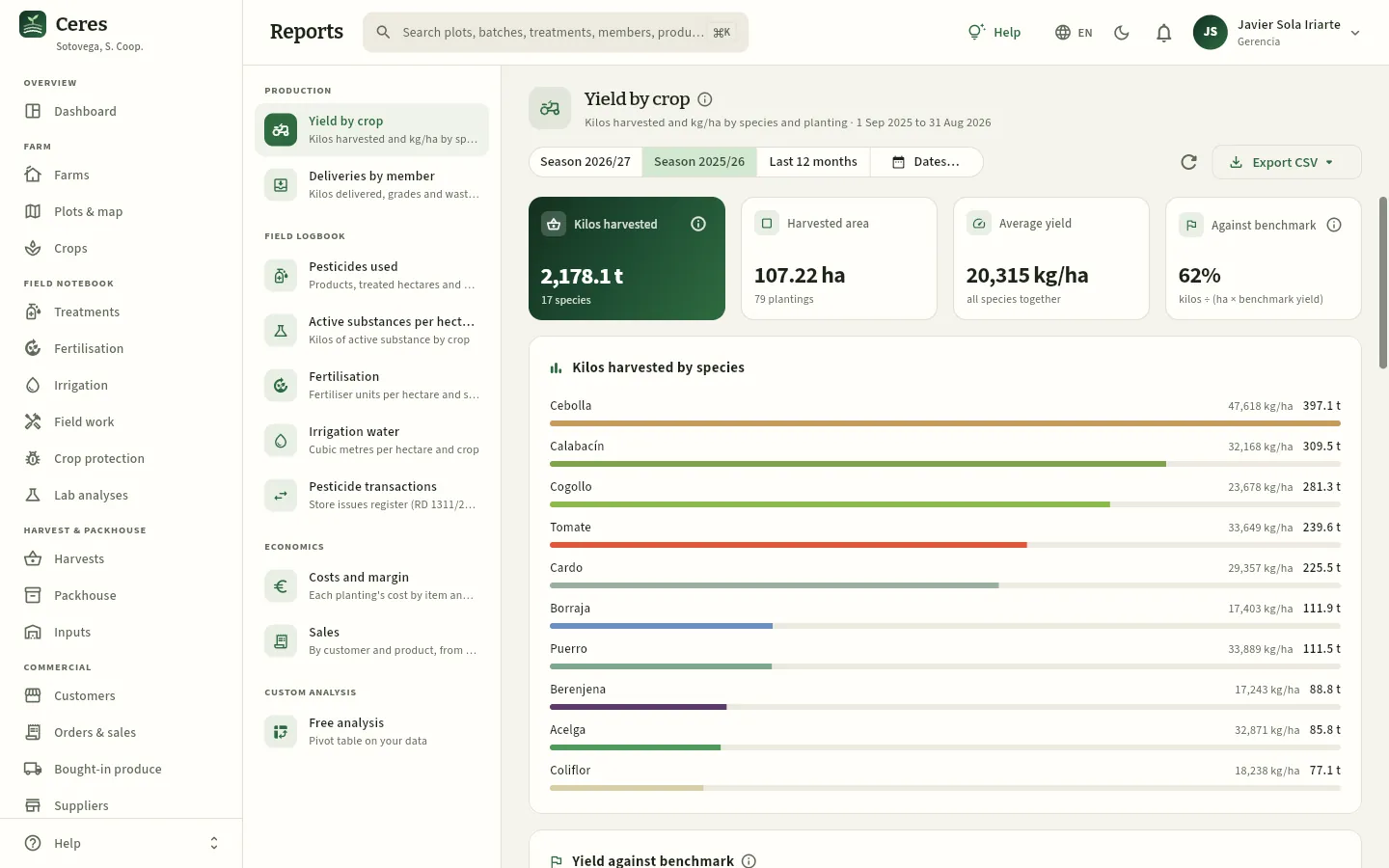 1234567
- 1The reports, by group: production, field log, economics and, at the end, the free analysis. One with a padlock needs a permission your profile does not have.
- 2The title with its ⓘ and, below, what it is about and the exact dates of the period.
- 3The period: the current season, the previous one, the Last 12 months or some Dates… you choose in the calendar. It applies to all reports.
- 4Refresh recalculates with the data as they are now.
- 5Export CSV: the report's tables, for a spreadsheet (if there are several, you choose which).
- 6At the top, the period's key figures. The one on the left, highlighted.
- 7Below, the charts and the tables. Hover over a chart to see the detail; press a row to open its record.
When you open it, the period is the current season (September to August, up to today); in its first three months, the whole previous season, which is the one you want to compare. Ceres remembers the last report and the last period you chose.
| Report | What it answers |
|---|---|
| Yield per crop | How many kilos have been harvested, on how many hectares and with what yield per species and per planting, against the reference. |
| Deliveries per member | What each member has delivered, in which classes (extra, I, II, culls) and how much they have been paid. |
| Plant protection products used | Which products have been applied, in how many treatments, over how many hectares and how much product. |
| Active substances per hectare | How many kilos of each active substance have been applied, per crop and per hectare. |
| Fertilisation | Fertiliser units (N, P₂O₅, K₂O) per hectare and species, against the fertilisation plan. |
| Irrigation water | The m³ applied per crop and farm and the allowance per hectare. |
| Plant protection transactions | Each issue of plant protection products from the cooperative's store to a farm. |
| Costs and margin | What each planting costs by item and the margin it leaves. |
| Sales | What has been sold per customer and per product, and how much is own produce. |
#Yield and deliveries
Yield per crop (the one in the previous screenshot) adds up the period's harvests: kilos harvested, area harvested, average yield in kg/ha and against the reference (what was obtained against the reference yield of each species in the catalogue). Below, the kilos per species, the yield against the reference and two tables: by species and by planting, with the split by class.
Deliveries per member looks at the same thing from the member's side: what each one has delivered to the cooperative.
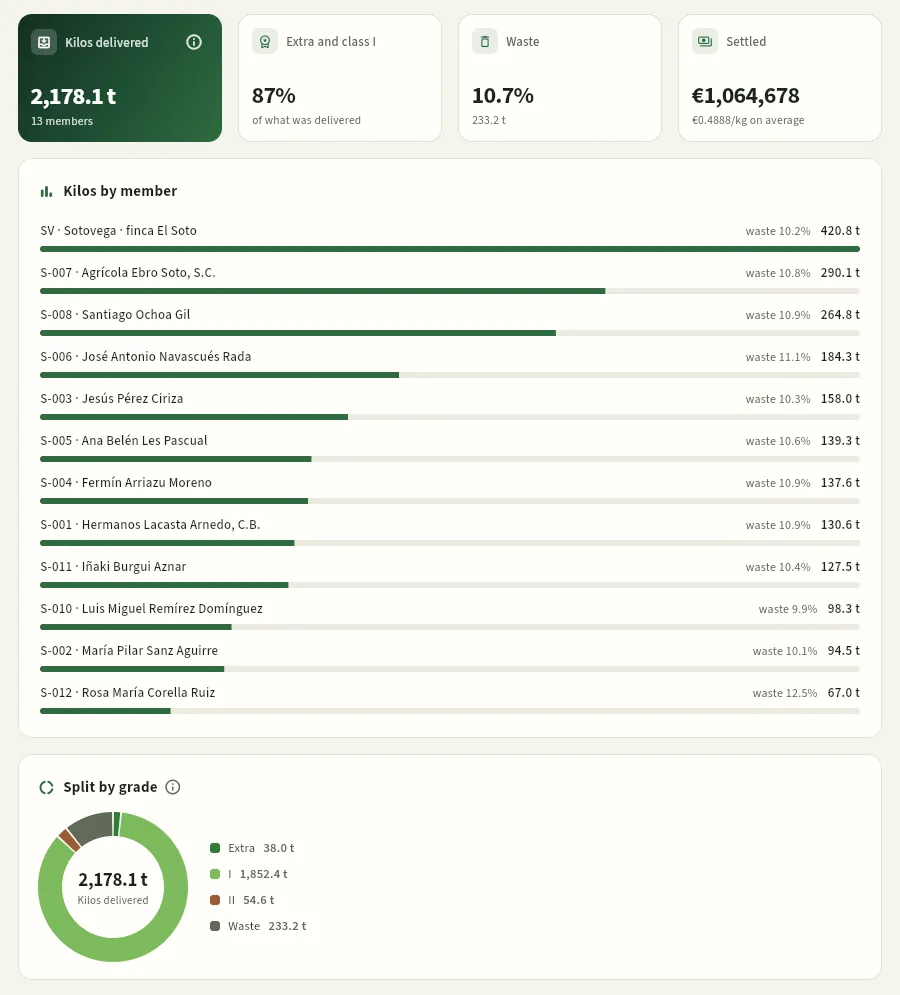 123456
- 1Kilos delivered and how many members (the own farm counts as one).
- 2Extra and class I: what share of what was delivered came out in the best classes.
- 3Culls in % and in kilos.
- 4Settled and the average price per kilo: only with the «See settlements» permission.
- 5Kilos per member, with their % of culls.
- 6Split by class of everything delivered. Below follows the table by member and species.
#Plant protection products and active substances per hectare
Plant protection products used lists the products applied in the period: in how many treatments, over how many treated hectares and how much commercial product (kg if solid, l if liquid), by function (fungicide, insecticide, acaricide…). It is used to review the protection strategy (rotation of modes of action, weight of biologicals) and to prepare the order for the next season.
Active substances per hectare goes one step further: it converts each application into kilos of active substance and splits them by crop. It is the basis for plant protection use indicators. This is how Marta, the field adviser, sees it for the farms she advises:
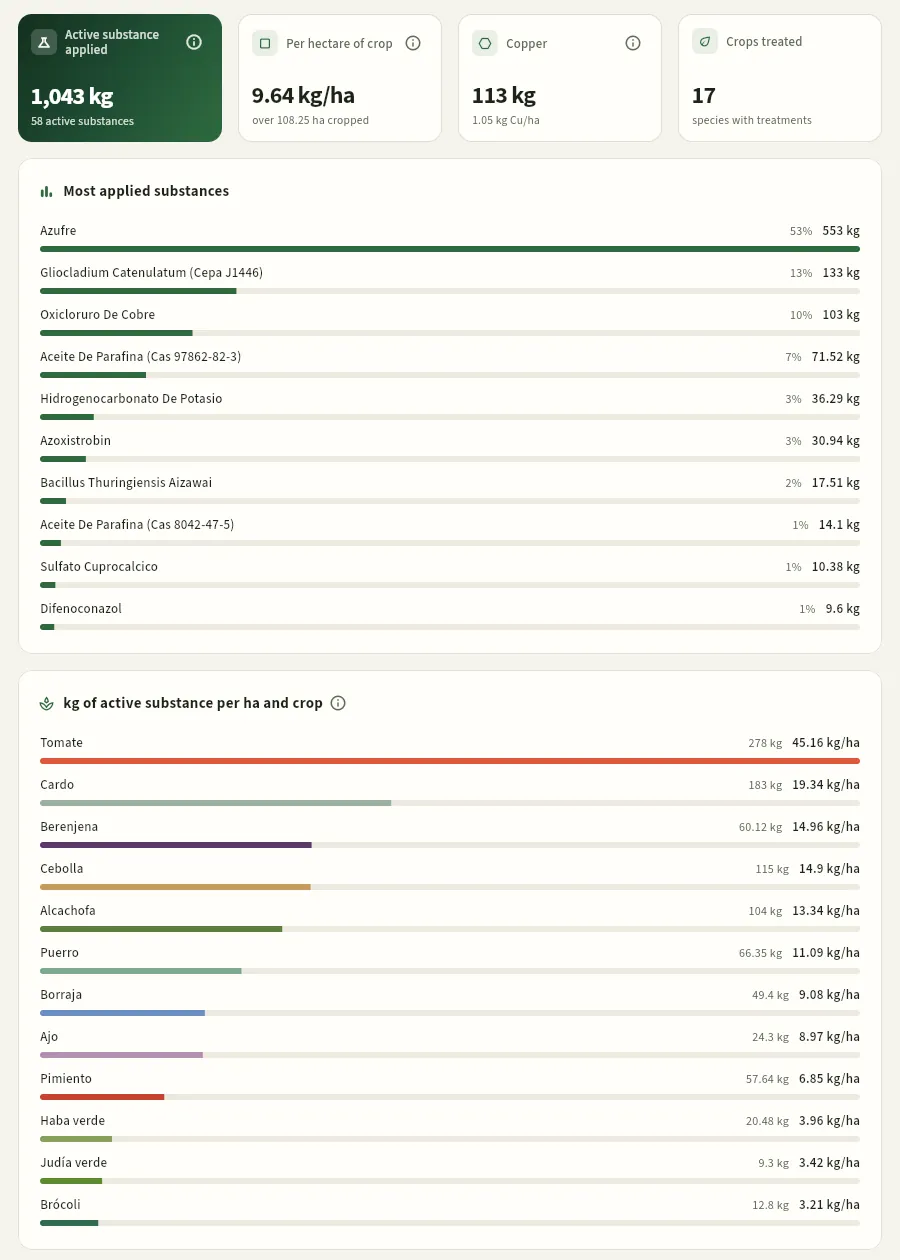 123456
- 1Active substance applied in kilos and how many different substances.
- 2Per hectare of crop: the kilos divided by the hectares cropped in the period.
- 3Copper applied, in kg and in kg of Cu per hectare.
- 4Crops treated: how many species have received treatments.
- 5Most applied substances, with their weight in the total.
- 6kg of active substance per ha and crop: compares crops and seasons on the same scale. Below follow the tables by substance and by crop and substance.
#Fertilisation, water and transactions
Fertilisation gives the fertiliser units (kilos of N, P₂O₅ and K₂O per hectare) applied in the period per species, the fertilised area and the organic N, against the plan N of each species' fertilisation plan; the table adds the N applied / plan column. Above the plan, nitrogen (and money) is lost; in a vulnerable zone, organic N must not exceed 170 kg/ha per year (see Fertilisation).
Irrigation water adds up the m³ of the period's irrigations (from the meter or calculated from hours and flow rate) per crop and farm, and the average allowance in m³/ha and in millimetres of water depth (10 m³/ha = 1 mm). Compare it with the period's ET₀ in Weather to see whether irrigation matches what the crop needs.
Plant protection transactions is the record of each issue from the cooperative's store to a farm:
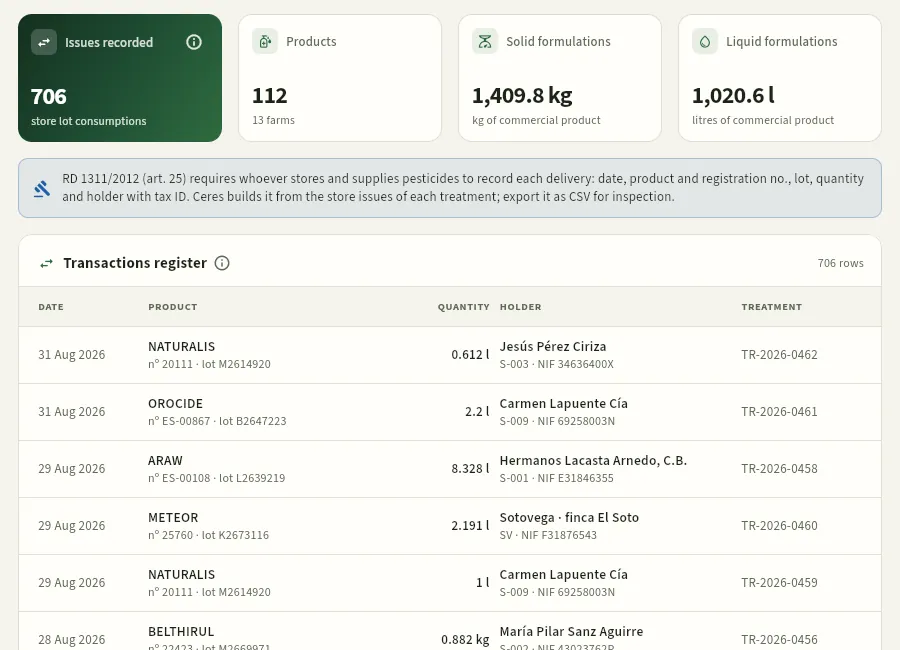 1234
- 1Issues recorded: uses of store batches linked to a treatment.
- 2How many products and farms, and the quantities of solid and liquid formulations.
- 3What the rule requires and how Ceres puts it together.
- 4Each issue: date, product with its registration number and batch, quantity, farm holder with their tax ID and the treatment.
#Costs and margin, and sales
Costs and margin splits what each planting active in the period costs and compares it with the value of what it has produced. It is only visible to those with the See costs permission.
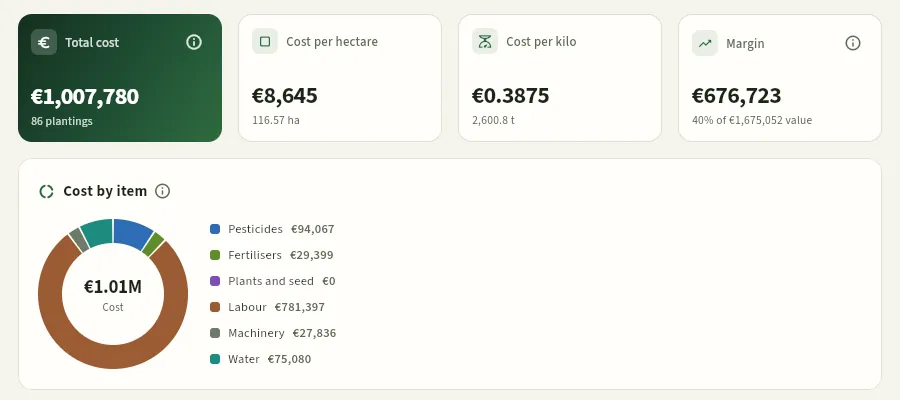 1234
- 1Total cost of the period's plantings.
- 2Cost per hectare and per kilo harvested.
- 3Margin: the value of production minus its cost (it also needs «See settlements»).
- 4Cost by item: plant protection products, fertilisers, plants and seed, labour, machinery and water. Below, the cost per hectare of each crop and the table by planting.
Sales adds up the lines of delivery notes dispatched or invoiced in the period: what was sold in euros (excluding VAT) with the average price per kilo, the kilos sold, the customers and what share is own produce (from the members and the farm) against what was bought from third parties; below, the customers by amount and by kilos, the split by customer type and the tables by customer and by product. The amount is only visible with See prices; sales uses it to prepare the season with each customer. The weight of bought-in produce against the legal limit is in Compliance.
#The free analysis
The free analysis is a pivot table: you choose a data source, how to group it into rows and columns and what to measure, and Ceres does the sums. It is for questions no fixed report answers: how many treatments has each crop had each month?, which member has the most culls in each species?, how many hours go into each field task?
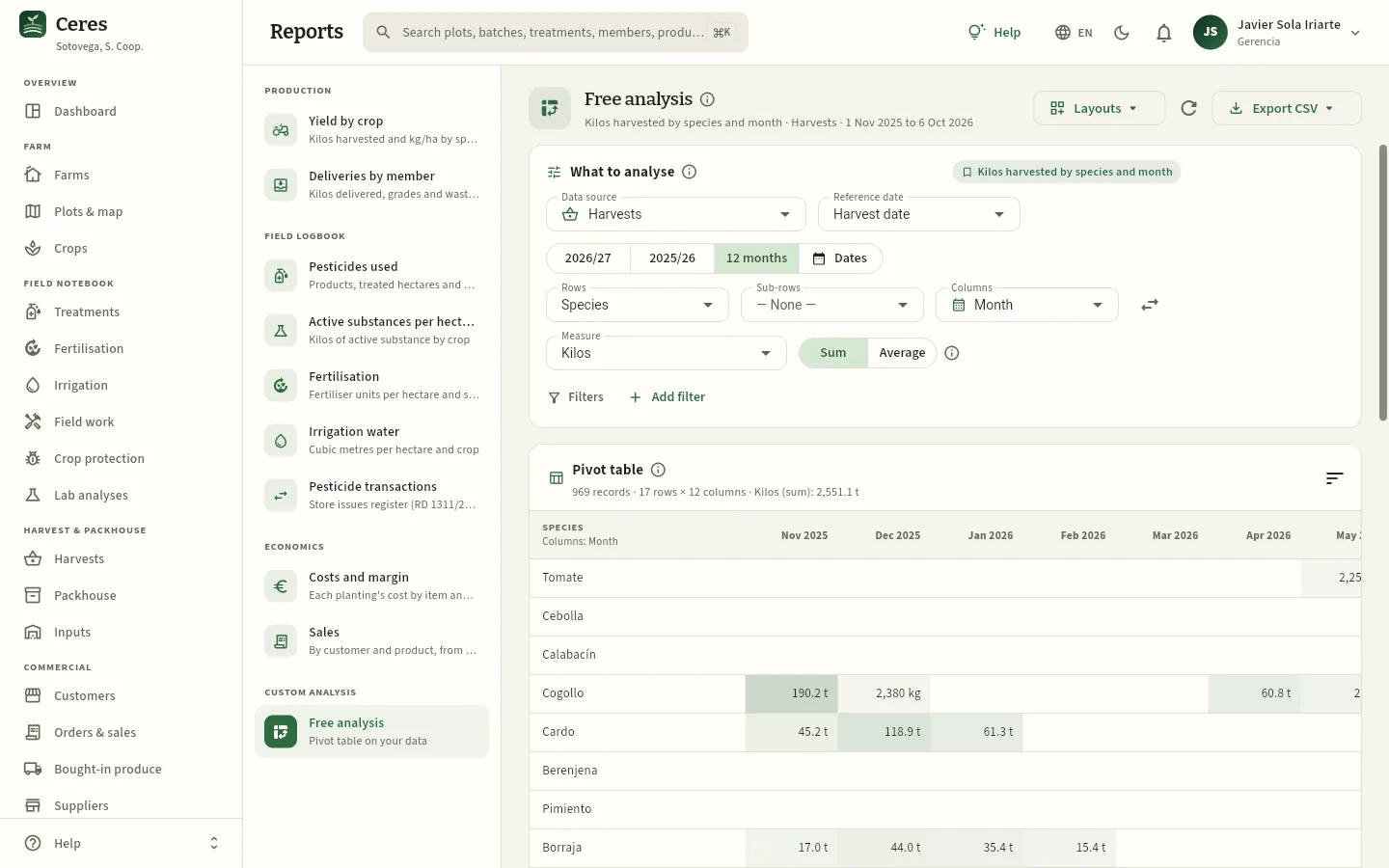 12345678
- 1Layouts: the predefined ones and your own (see below).
- 2The data source: what each record is (a treatment, a harvest, a delivery note line…).
- 3The reference date, which decides the period and the time columns, and the period: current season, previous one, 12 months or some dates.
- 4The rows, the sub-rows (optional, with their subtotal) and the columns (a month, a week, a customer… or none).
- 5Swap rows and columns.
- 6The measure: the number of records or a numeric field (kilos, hectares, hours, amount…), as a sum or average.
- 7Add filter: keep only some values (a farm, a species) or remove others.
- 8The pivot table: one row per species, one column per month and the totals. The shading is proportional to the value; press a header to sort and a cell to see its records.
The 11 data sources are: Treatments (one record per treatment), Products applied (one per product in each treatment), Pests observed (one per visit observation), Fertilisations, Irrigations, Field work, Plantings (one per crop in a season), Harvests, Lots (field, bought-in or packed), Sales (one per delivery note line) and Settlements (one per settlement line). Each has its dates, its dimensions (species, farm, operator, pest, customer, class, month, week…) and its measures. A source only appears if your profile sees its section.
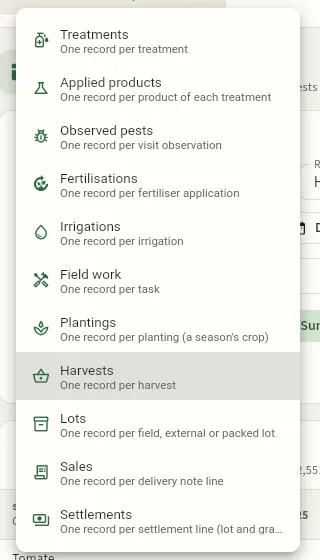 12
- 1Each source says what a record is.
- 2Sales and Settlements only appear for those who see those sections.
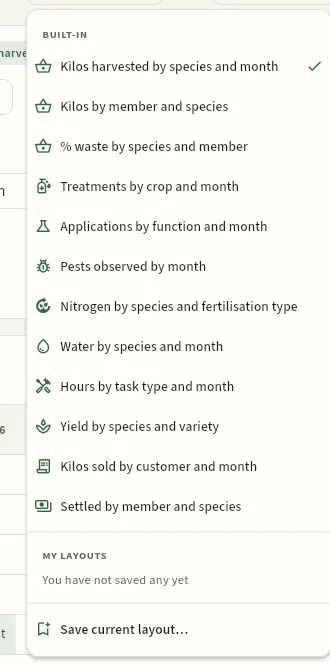 12
- 1Twelve predefined layouts: one click and the analysis builds itself.
- 2Save current layout… with a name: it appears in My layouts on any device.
Press any cell (or a total) to see the records that make it up in a side panel, with their record one click away. For example, the cell «Little gem · Nov 2025» (190.2 t) gathers the 25 little gem harvests of November:
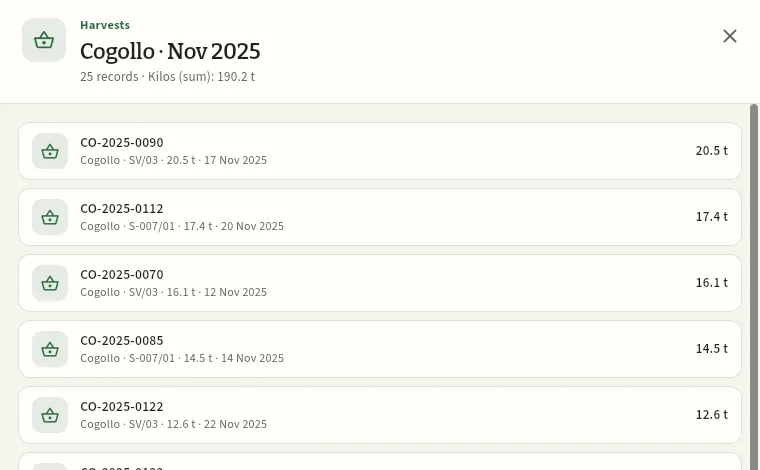 12
- 1The source, the cell (row · column) and its summary: how many records and the value of the measure.
- 2Each record with its number, its data and the value; press it to open its record (here, the harvest).
In Data source, choose Treatments; the reference date, Date (applied or planned); and the period, the previous season.
In Rows, choose Crops; in Columns, Month. Leave the measure as the number of records.
If you want one farm, press Add filter → Farm and tick it; Apply.
Sort by pressing the Total header (from most to least) and press a cell to see the specific treatments.
Save it with Layouts → Save current layout… and export it with Export CSV (the table or the records).
#What each profile sees
Reports respect each person's permissions, like the rest of Ceres. Compare what Javier (management) sees with what Marta (field adviser to the farm and members S-001 to S-010) sees:
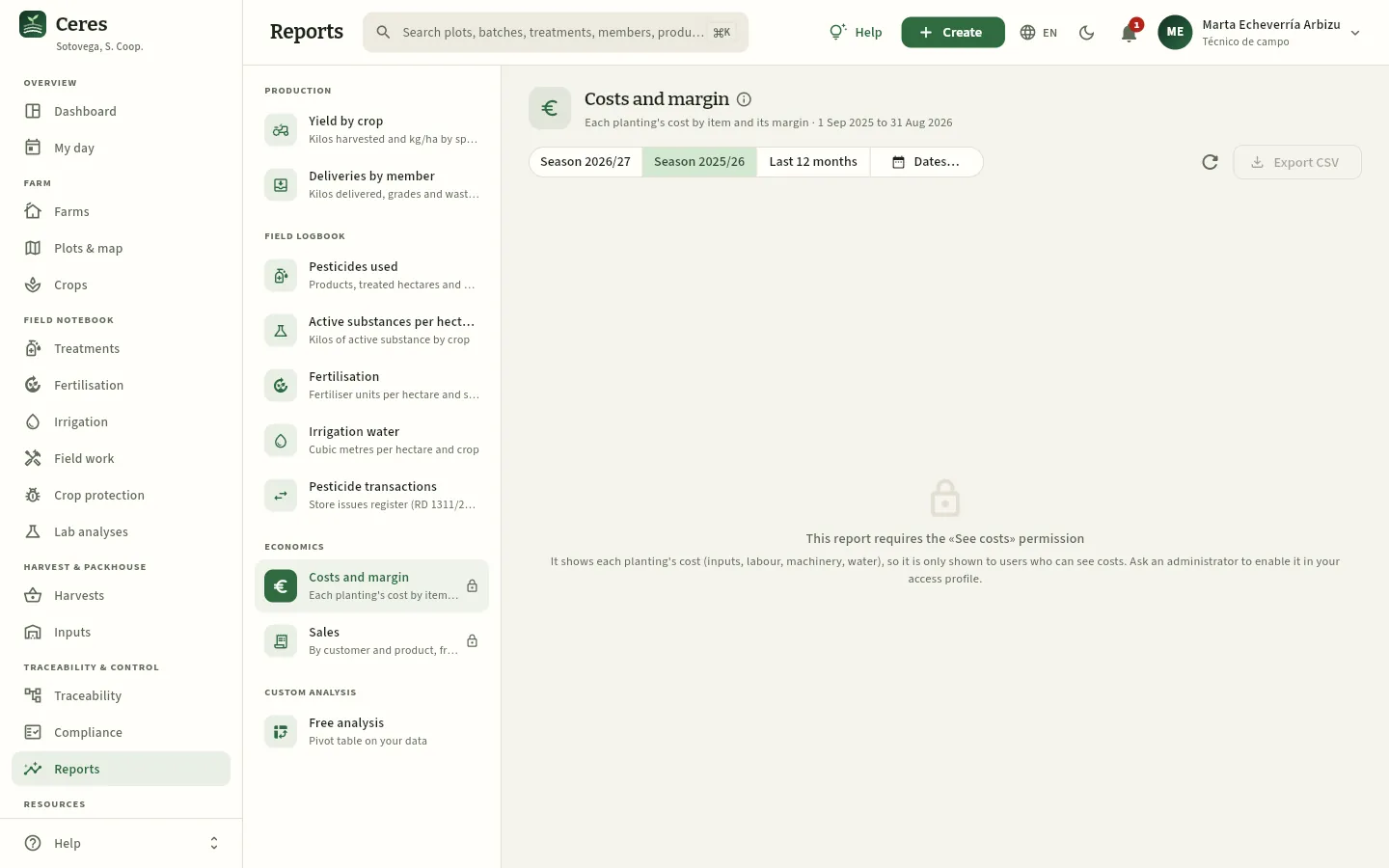 1234
- 1Costs and margin with a padlock: Marta does not have «See costs».
- 2Sales with a padlock: her profile does not see Orders & sales or Customers.
- 3When opened, the report explains which permission is missing and who to ask.
- 4Without data, there is nothing to export.
#Tips
Resources
People
The people who work on the farms and in the cooperative: their job, their plant protection spraying licence with its expiry, their ROPO registration, their hours and what they have done this season.
People is the list of the people who appear in the field log: the cooperative's workers (the own farm, the packhouse and the office), the advisers, and the members and their workers who spray on their own farms. For each person Ceres keeps:
- Their job (labourer, tractor driver, sprayer operator, foreman, adviser, IPM adviser, packhouse, member…) and, if they work for a member, their farm.
- Their professional user's licence for plant protection products: the level (basic, qualified, fumigator or pilot), the number and the expiry date. The licence is valid for 10 years and is issued by the region.
- Their ROPO number (official register of producers and operators of plant protection means): integrated pest management (IPM) advisers and some professional operators have one.
- Their hourly cost, used to calculate the labour of each crop, and their field-work hours.
What it is for day to day: when a treatment is recorded as applied, the database checks the operator's licence on the application date; if they have no licence or it has expired, it will not save it (see Treatments). That is why it pays to keep licences up to date and renew them in time. Trade terms are in the Glossary.
#The list of people
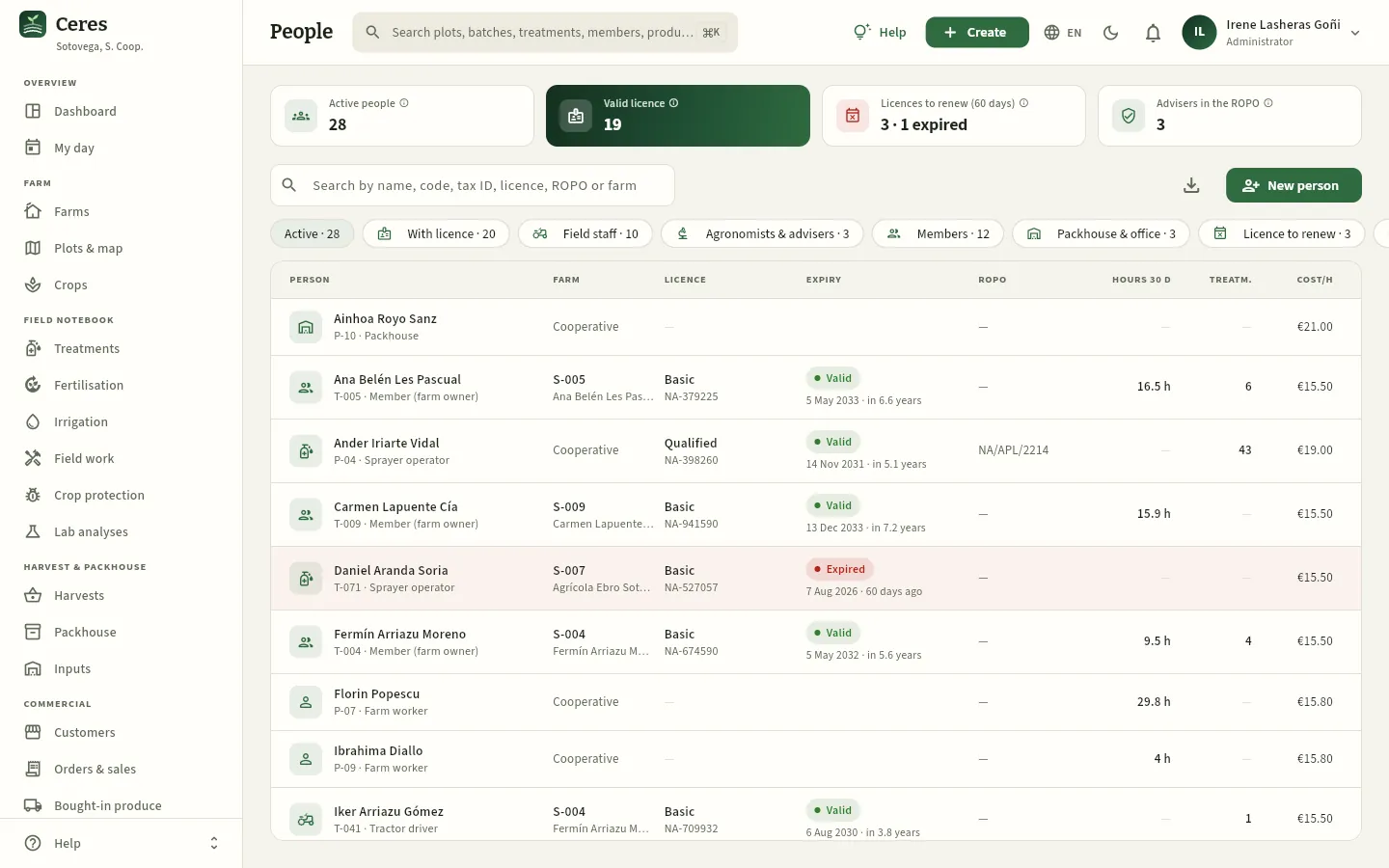 12345678
- 1With a valid licence: active people with an unexpired spraying licence. Each indicator's ⓘ explains where the figure comes from.
- 2Licences to renew (60 days): those expiring within the expiry warning set in Settings (60 days in the demo) or already expired («3 · 1 expired»). Press it to see which.
- 3Advisers with ROPO: field and IPM advisers with their ROPO registration number.
- 4The search box: by name, code (P-04, T-071), tax ID, licence number, ROPO or farm.
- 5The filters with their count: Active, With licence, by job, Licence to renew, Licence expired, In the ROPO and Inactive.
- 6The licence's expiry: Valid in green, Expiring soon in amber and Expired in red, with how long is left or how long ago. The row of an expired licence is light red.
- 7Hours 30 d: hours of field work in the last 30 days; Treat.: treatments they have applied this season.
- 8New person adds someone (with the «Edit resources» permission).
Each row shows the name with its code and job, the farm («Cooperative» if they work for the cooperative, or the member's code), the licence level and number, its expiry, the ROPO, the hours, the treatments and, if your profile sees costs, the hourly cost. Press a column header to sort by it (for example, by Expiry, to have the licences that expire first at the top) and the download button to export the list as CSV.
| Filter | What it shows |
|---|---|
| Active | Everyone currently active (the starting filter). |
| With licence | Those with a spraying licence, valid or not. |
| Field staff · Agronomists & advisers · Members · Packhouse & office | By job: labourers, tractor drivers, sprayer operators and foreman; field and IPM advisers; member holders; packhouse, sales, finance and management. |
| Licence to renew | Licences that expire within the warning set in Settings or have already expired. |
| Licence expired | Only the expired ones: these people cannot appear as the operator of an applied treatment. |
| In the ROPO | Those with a ROPO registration number. |
| Inactive | People who have left: they no longer appear in selectors, but keep their name in the field log. |
#Checking the licences that are expiring
Once a month, or when the Dashboard warns about a licence, check who has to renew. The Dashboard warning and the «Expiring soon» status in the list appear with the Expiry warning lead time set in Settings (60 days in the demo), and the indicator and the Licence to renew filter use it too: if you need more time to sign the person up for the refresher course, raise it.
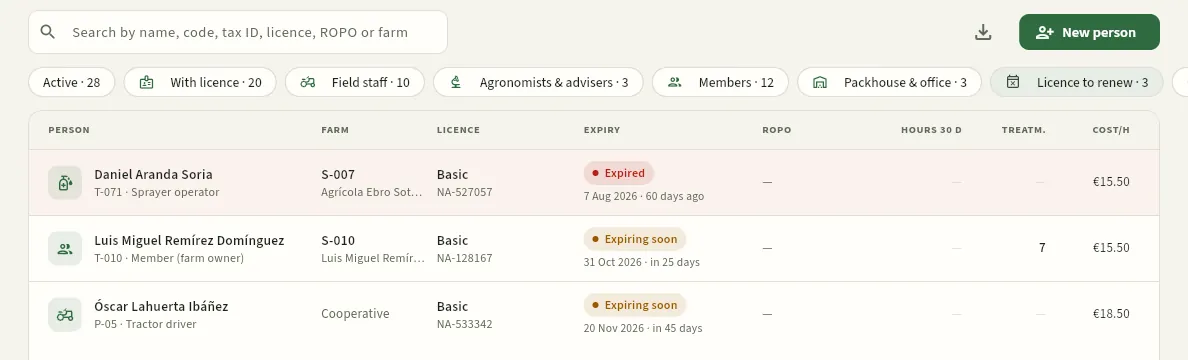 1234
- 1The Licence to renew filter, active.
- 2Daniel Aranda Soria, sprayer operator for farm S-007, with his basic licence expired on 7 August: he cannot apply until he renews it.
- 3The licences expiring soon: the member of S-010, at the end of October…
- 4…and Óscar Lahuerta, the farm's tractor driver, in November.
Open People and press the Licence to renew filter (or the Licences to renew (60 days) indicator).
Sort by Expiry and open each person to see their phone number (if your profile sees contact data).
Tell the person to sign up for the refresher course: renewal requires it.
When they have the new licence, open their record, press the pencil (Edit) and change the Licence no. and the Expires on date. Attach a copy in Documents.
#A person's record
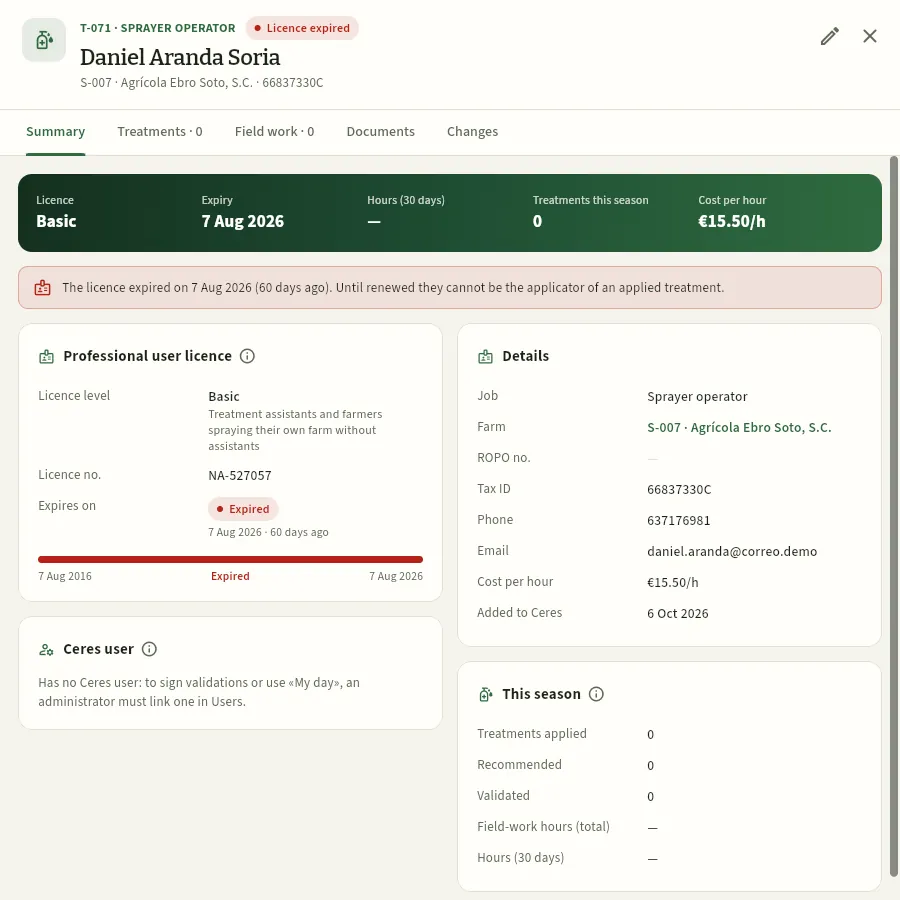 12345678
- 1Code and job, name and farm, and the licence status in a tag.
- 2The pencil (Edit) opens the person's form.
- 3The key figures: licence level and expiry, hours over 30 days, treatments this season and, with «See costs», the hourly cost.
- 4The warning: the licence expired 60 days ago and, until he renews it, he cannot be the operator of an applied treatment.
- 5Professional user's licence: level (and who it is for), number and expiry. The bar shows how much of its 10 years has passed.
- 6Ceres user: whether the person signs in to the app. Daniel has no user: he can appear in the field log, but not sign in.
- 7Details: job, farm, ROPO, tax ID, phone, email, hourly cost and start date.
- 8This season: treatments they have applied, recommended or validated and their field-work hours.
The record has five tabs:
- Summary: what is in the screenshot. If the person is an adviser, there is also an Advises n farms card with the farms that have them as IPM adviser.
- Treatments: those this season that they have applied, recommended or validated, with their role in each.
- Field work: the field tasks they have worked on, with their hours.
- Documents: the copy of the licence, the adviser qualification, training… It is the first thing an inspection or the certifier asks for (see The Ceres screen).
- Changes: who changed what on the record and when (with the «See the change audit» permission; see Audit log).
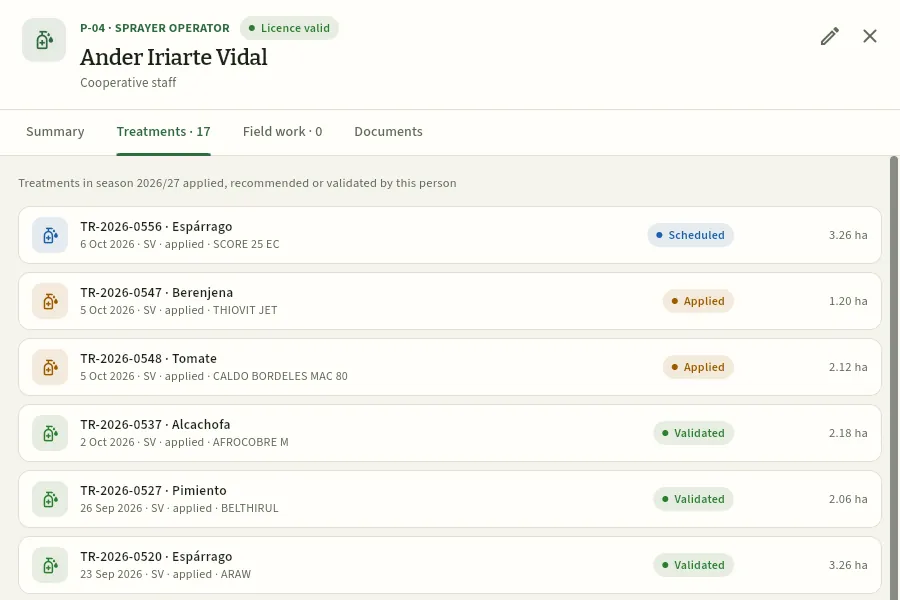 123
- 1Ander's licence, valid (qualified, until 2031).
- 2The Treatments tab, with how many there are this season.
- 3Each treatment with its number, crop, date, farm, his role (applied, recommended or validated), the product, the status and the area. Press it to open it.
#Adding or changing a person
With the «Edit resources» permission (by default, the farm foreman; and always the administrator), New person opens the empty form and the pencil on a record, that person's form. The form warns at once of anything missing or inconsistent: a sprayer operator without a licence, a licence without an expiry date, an expiry more than 10 years ahead (almost always a typing error) or a licence that expires soon.
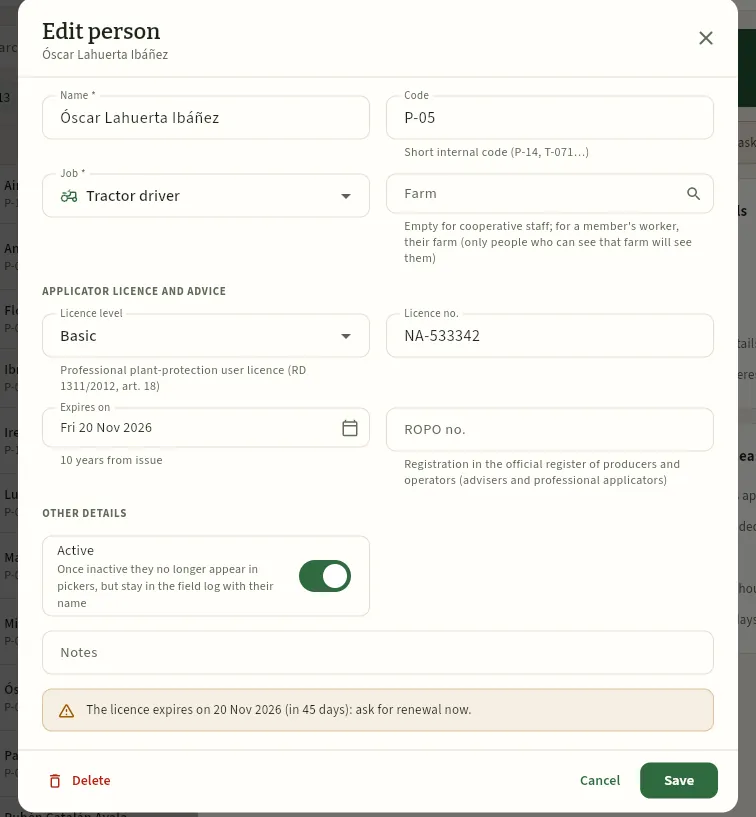 12345678
- 1The job. A sprayer operator needs a valid licence: if they do not have one, the form warns in red.
- 2Farm: empty if they work for the cooperative; if they work for a member, the member's farm (and only those who see that farm will see them).
- 3Licence level: basic, qualified, fumigator or pilot. When you open the list, each level says who it is for.
- 4Expires on: the licence date. Without it, Ceres cannot warn before it expires.
- 5ROPO no.: that of their registration as adviser or professional operator (NA/ASE/0412…), if they have one.
- 6Active: untick it when someone stops working. They no longer appear in selectors, but their name is kept in the field log.
- 7The form's warning: the licence expires in 45 days and it is time to apply for renewal.
- 8Save (not pressed in the screenshot).
The foreman does not see the contact data (tax ID, phone, email) or the hourly cost in the form, because his profile does not have «Contact data» or «See costs»: those fields are neither read nor touched. The administrator, who has everything, sees a Contact data block and the Hourly cost field.
Delete is only for a person added by mistake: if they already have treatments, field work or a linked user, Ceres will not let you delete them and asks you to mark them as inactive with Active.
In People, press New person.
Enter their Name and a short Code (for example, T-073) and choose the Job «Sprayer operator».
In Farm, find the farm of the member they work for (for example, S-007).
Under Spraying licence and advice, choose the Licence level, enter the Licence no. and the Expires on date.
Press Save and attach the copy of the licence in the Documents tab of their record.
#Tips
- Always enter the licence's expiry date: without it there is no warning.
- Mark as inactive, do not delete. When someone leaves the cooperative, untick Active: their name stays on the treatments they applied.
- Link each adviser to their user in Users: that way they sign validations with their name and ROPO, and the sprayer operator sees their tasks in My day.
- Members' workers count too. If a member sprays with an employee, add them with their farm and their licence: the operator of each treatment has to be here.
Resources
Machinery
The tractors, implements and plant protection application equipment of the cooperative and its members: their ROMA number, their technical inspection (ITEAF), their calibration and how much they have been used this season.
Machinery gathers the equipment that appears in the field log: tractors, implements (fertiliser spreader, cultivator, rotary tiller, planter, trailer…) and, above all, plant protection application equipment: sprayers, air-blast sprayers, dusters and knapsack sprayers. For each one Ceres keeps:
- Its holder: the cooperative or the farm of the member it belongs to.
- Its ROMA number (official register of agricultural machinery) and, if it has one, the registration plate.
- The ITEAF (technical inspection of plant protection application equipment): the date of the last inspection, its result and the date of the next one. Since 2020 it is done every 3 years; knapsacks and barrows of up to 100 l are exempt.
- The last calibration: checking the actual nozzle output so that the authorised dose is applied.
- The tank capacity, the working width and the hourly cost.
The database checks the equipment's ITEAF when a treatment is recorded as applied: with the inspection expired or unfavourable, it will not save it (see Treatments).
#The list of equipment
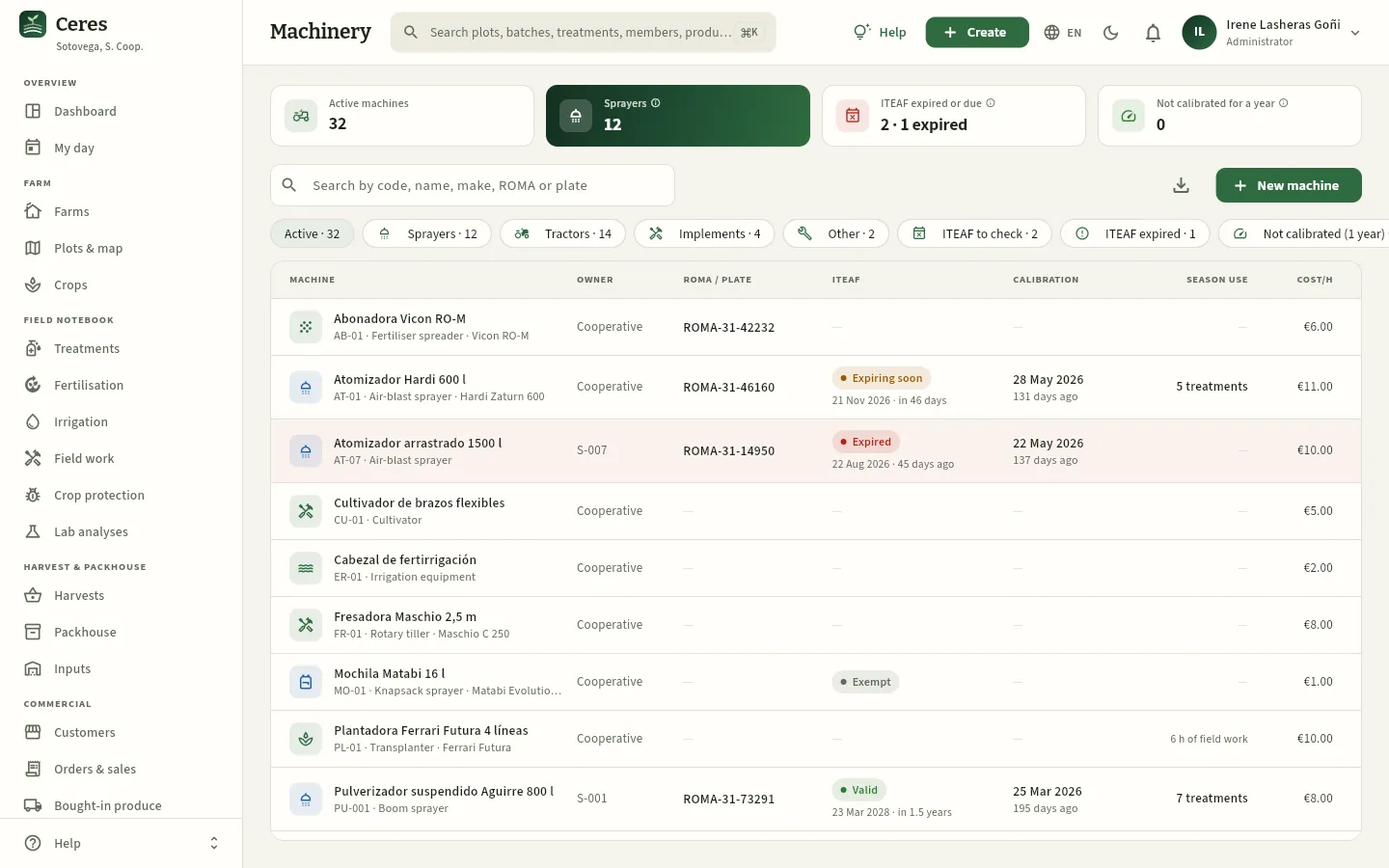 12345678
- 1Application equipment: active sprayers, air-blast sprayers, dusters and knapsacks.
- 2ITEAF expired or due: equipment with the inspection expired, unfavourable, undated or expiring within the expiry warning set in Settings (60 days in the demo).
- 3Not calibrated in a year: application equipment with no calibration recorded in the last 12 months.
- 4The search box: by code (AT-07), name, make, ROMA or registration plate.
- 5The filters by type (Sprayers, Tractors, Implements, Other) and by what needs attention: ITEAF to check, ITEAF expired, Not calibrated (1 year).
- 6Each machine's ITEAF: here, the AT-07 air-blast sprayer of member S-007, expired 45 days ago. Knapsacks appear as «Exempt».
- 7Calibration (the last one, with how long ago) and Use this season (treatments and field-work hours).
- 8New machine adds a tractor, an implement or a piece of application equipment (with «Edit resources»).
Each row shows the machine (name, code, type, make and model), the holder («Cooperative» or the member's code), the ROMA and registration plate, the ITEAF status with the date of the next one, the last calibration, the use this season and, if your profile sees costs, the hourly cost. The row of a machine with an expired ITEAF is light red.
| ITEAF status | What it means |
|---|---|
| Valid | The next inspection is more than 60 days away (the Expiry warning in Settings). |
| Expiring soon | The next inspection falls within those 60 days: book an appointment at an inspection station. |
| Expired | The date has passed, or the last inspection was unfavourable: it cannot be used for spraying. |
| Exempt | Knapsacks and barrows of up to 100 l. |
| — | Tractors and implements: they do not apply plant protection products and are not subject to ITEAF. |
#A machine's record
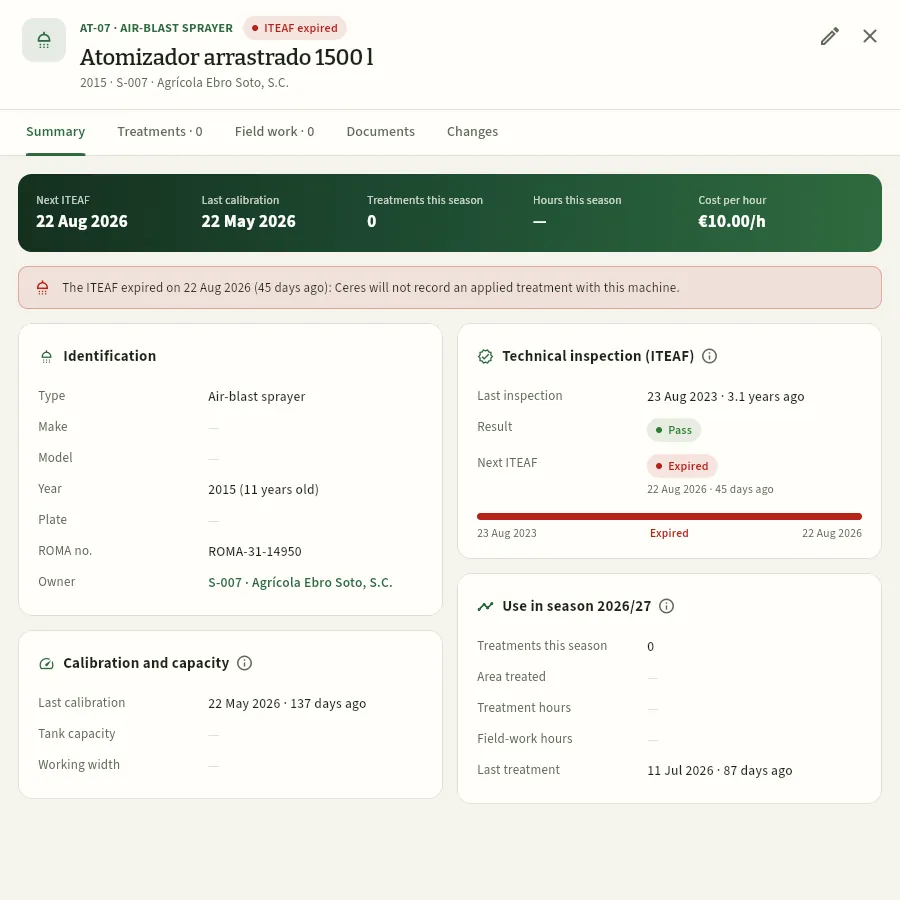 1234567
- 1Code and type, the ITEAF status, the name, the year and the holder.
- 2The key figures: next ITEAF, last calibration, treatments and hours this season and, with «See costs», the hourly cost.
- 3The warning: with the ITEAF expired, Ceres will not record a treatment with this machine as applied.
- 4Identification: type, make, model, year (with its age), registration plate, ROMA no. and holder.
- 5Technical inspection (ITEAF): the last one, its result and the next one. The bar runs from one inspection to the next and turns red when it expires.
- 6Calibration and capacity: the last calibration, the tank and the working width.
- 7Use this season: treatments, area treated, hours, last treatment and operators.
The Treatments and Field work tabs list what has been done with the machine (treatments, for this season); Documents keeps the ITEAF certificate, the ROMA card or the report of the last calibration; Changes, who changed what and when (with the «See the change audit» permission).
#Calibration and use this season
Calibration is not the ITEAF. The ITEAF is done every 3 years by an authorised inspection station; calibration is done by the operator or the foreman: measuring what the nozzles deliver at working pressure and speed so that the spray volume per hectare is as planned and the dose is the authorised one. Good practice guides recommend doing it at least once a year and whenever nozzles are changed; Ceres warns when the last one is more than a year old.
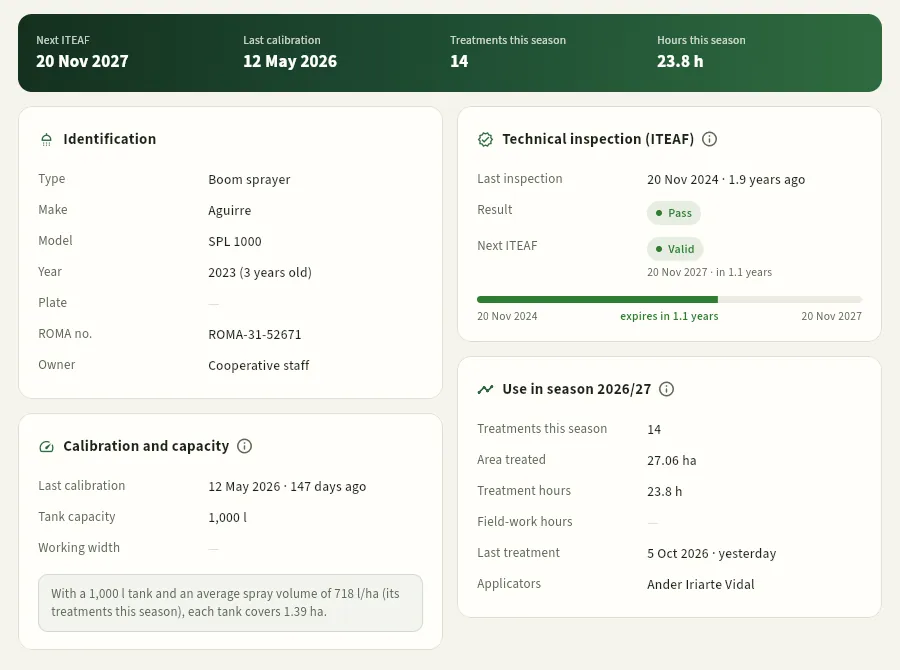 12345
- 1The foreman's key figures: without «See costs» the hourly cost does not appear.
- 2Last calibration (147 days ago) and tank capacity (1,000 l).
- 3The example: with the average spray volume of its treatments this season (718 l/ha), each tankful treats 1.39 ha. It helps to prepare the loads.
- 4The ITEAF, valid until November 2027.
- 5Use this season: 14 treatments, 27.06 ha treated, 23.8 hours of spraying, the last one yesterday and who has used it.
#Adding a machine or recording an inspection
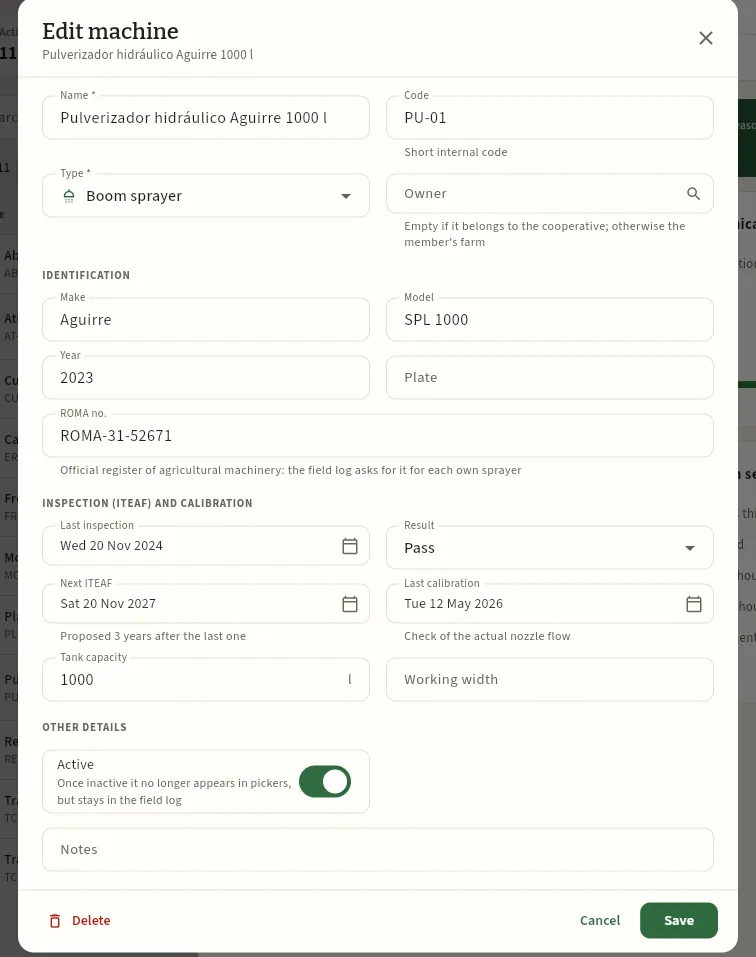 12345678
- 1The type decides whether the machine is subject to ITEAF: only sprayers, air-blast sprayers and dusters (knapsacks are exempt).
- 2Holder: empty if it belongs to the cooperative; otherwise, the member's farm.
- 3ROMA no.: the field log asks for it for each own piece of application equipment.
- 4The last inspection and its result (favourable or unfavourable).
- 5Next ITEAF: Ceres proposes it 3 years after the last one.
- 6Last calibration: the date the nozzle output was checked.
- 7Tank capacity and working width.
- 8Save (not pressed in the screenshot).
The form warns as you type: if the ROMA no. of a piece of application equipment is missing, if there are no inspection dates, if the ITEAF has expired or is expiring soon, if the last one was unfavourable (the machine cannot be used for spraying until it passes a new one) or if the calibration is more than a year old. If you choose a knapsack, it reminds you that it is exempt. The hourly cost only appears with «See costs».
The member takes the inspection at an authorised station and brings you the certificate.
Open Machinery, press the ITEAF expired filter and open the AT-07.
Press the pencil (Edit). In Last inspection enter the certificate date and in Result, «Favourable».
Check the Next ITEAF Ceres proposes (3 years later) and press Save.
In the record's Documents tab, attach the inspection certificate.
For a new machine, New machine opens the same empty form. New equipment must pass its first inspection within its first five years. If a machine already has treatments or field work, it cannot be deleted: mark it as inactive with Active and it will stay in the field log.
#Tips
- Record the members' equipment too. If a member sprays with their air-blast sprayer, the machine has to be here, with its ROMA and ITEAF, to be chosen in their treatments.
- Book the ITEAF appointment in good time: the alert appears 60 days before, and in autumn the stations are busy.
- Calibrate at the start of the season and every time you change nozzles, and record the date.
- Fill in the tank capacity: with it the record calculates how many hectares each tankful treats.
Resources
Catalogues
Ceres's reference data: the official MAPA Plant Protection Products Register with its authorised uses, pests and diseases, active substances with their mode of action and their EU maximum residue levels (MRL), fertilisers, beneficials, crops with their varieties and the products the cooperative sells.
Catalogues brings together the reference data the rest of Ceres uses. It has seven tabs:
| Tab | What it contains | Can it be edited? |
|---|---|---|
| Plant protection | The products in the MAPA Plant Protection Products Register with some use on the cooperative's crops, with their authorised uses, composition, status and stock. | No: they are the official data. |
| Pests | Pests, diseases, weeds and growth regulators from the Register, with their action thresholds and the products authorised against each. | No (the thresholds, in Crop protection). |
| Active substances | The active substances of the Register's products, with their mode of action (IRAC, FRAC and HRAC groups) and their EU MRLs on the cooperative's crops. | No: they are official data. |
| Fertilisers | Mineral and organic fertilisers, amendments, correctors and biostimulants with their analysis. | Yes |
| Biocontrol | Beneficials: predators, parasitoids and entomopathogens released into the crops. | Yes |
| Crops & varieties | The species grown, with their official codes, cycle, nutrient uptake and varieties. | Yes |
| Sales products | What the cooperative sells: formats, classes, price lists and VAT. | Yes |
The plant protection products are the real ones from the MAPA Register: Ceres loads them from the official export (in the demo, that of 2 October 2026) and does not let you change them by hand. Ceres helps you comply and keeps a record: the label on the container and the authorisation decision are the legal reference, and the adviser decides.
#The plant protection products of the MAPA Register
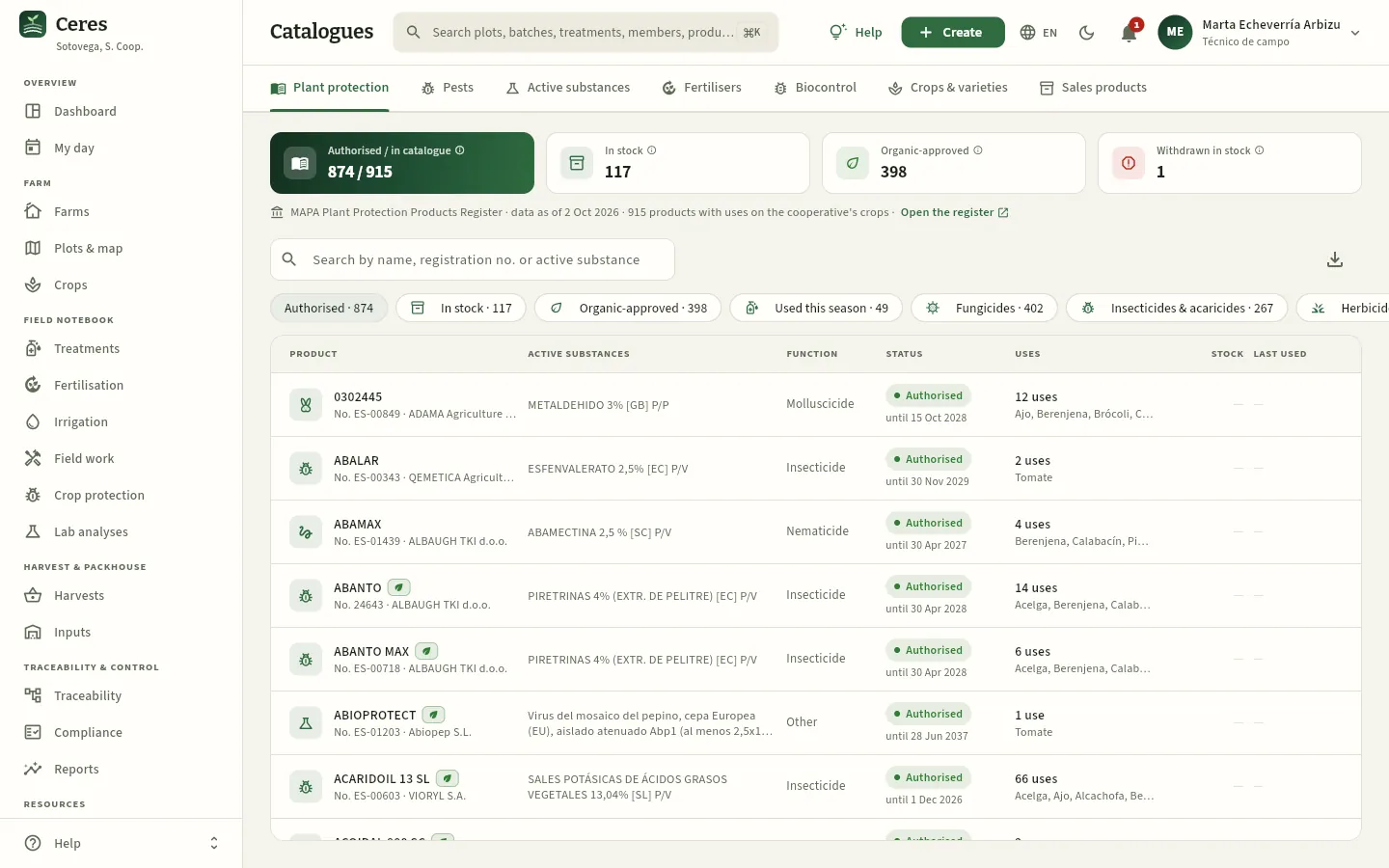 12345678
- 1The seven tabs of Catalogues.
- 2Authorised / in catalogue: products authorised today, out of those in the catalogue (cancelled ones are kept for the history).
- 3Withdrawn in stock: products whose authorisation has been cancelled and of which stock is still left. They must be used in time or handled as waste.
- 4The source: the date of the MAPA data and how many products there are. Open the register opens the official Register website.
- 5The search box: by trade name, registration number or active substance («azoxystrobin», «Bacillus»).
- 6The filters: Authorised, In stock, Organic-approved, Used this season, by function, Withdrawn and Withdrawn, in stock.
- 7Status: authorised until its expiry date, or cancelled (with the deadlines for selling and using up stock).
- 8Uses: how many authorised uses it has and on which of the cooperative's crops. On the right, the stock and the last use.
Each row is a product with its trade name, its registration number and its holder, the active substances with their concentration and the formulation type, the function (fungicide, insecticide, herbicide…), the status and the uses. The green leaf next to the name means it is suitable for organic farming: all its active substances are in annex I of Regulation (EU) 2021/1165.
The download button exports the filtered list as CSV. Press a product to open its record.
#A product's record
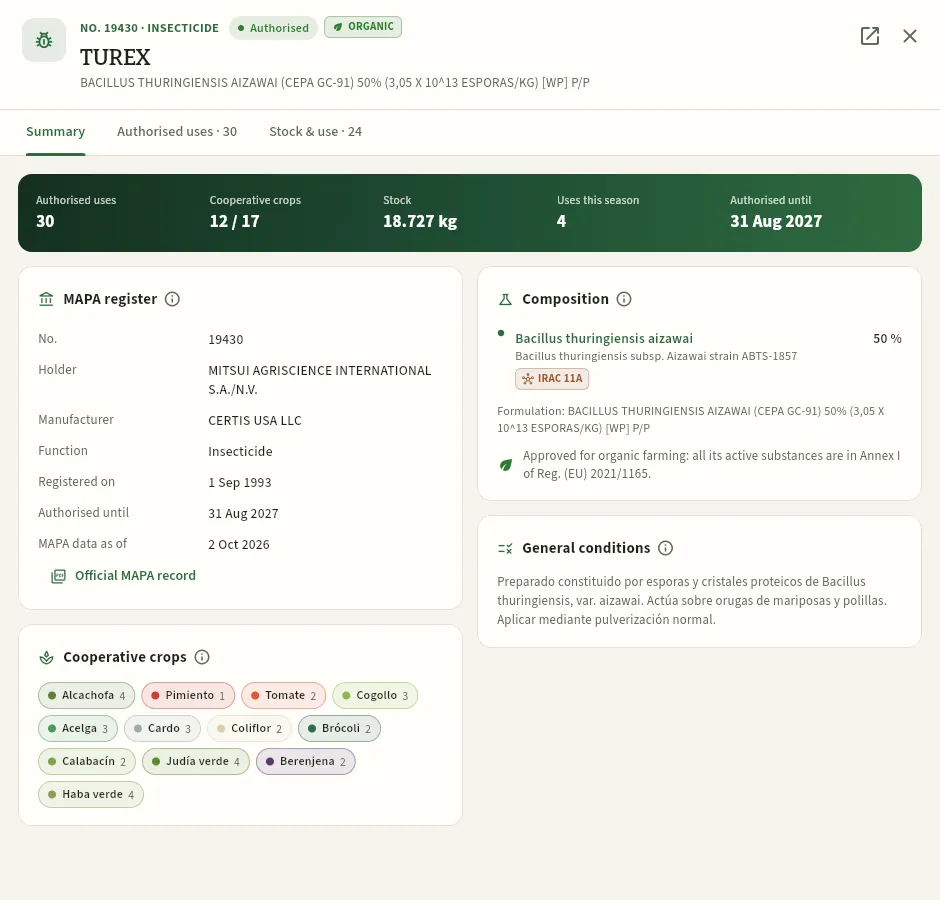 1234567
- 1Registration number and function, the status and the ORG tag; below, the name and the official composition.
- 2Opens the product's official record in the MAPA Register (a PDF generated by the register itself).
- 3The key figures: authorised uses, how many of the cooperative's crops it covers, the stock, uses this season and until when it is authorised.
- 4MAPA Register: number, holder, manufacturer, function, registration and expiry or cancellation dates, and the date of the data.
- 5Composition: the active substances with their concentration, their EU name and their mode-of-action group, and whether it is suitable for organic farming.
- 6The Register's general conditions: operator, environmental and bee protection, mixtures, re-entry period…
- 7The cooperative's crops for which it has a use, with how many uses on each (in each crop's colour).
If the product is cancelled, a warning says when it was cancelled and until when stocks can be sold and used (if the Register export does not include that date, it asks you to check the decision before applying). If it expires soon, it reminds you to check whether it has been renewed before buying more.
#Authorised uses and the crop hierarchy
An authorised use is the combination of a crop and an agent (the pest, disease or weed) for which the product is authorised, with its conditions: dose, pre-harvest interval (the days that must pass between treatment and harvest), maximum number of applications, interval between them, spray volume, growth stage (BBCH), scope (open field or greenhouse), type of user and application method.
The Register organises crops in a hierarchy: each crop has a 16-digit code read in pairs, from the general to the specific. A use authorised for a group applies to all the crops in the group:
| Register code | Crop or group |
|---|---|
| 0103010500000000 | Brassica vegetables |
| 0103010501010000 | Broccoli |
| 0103010501020000 | Cauliflower |
So a TUREX use on «Brassica vegetables» is valid for the cooperative's broccoli and cauliflower. The same happens with pests: a use against «Lepidoptera» is valid against tomato leafminer, which is a lepidopteran.
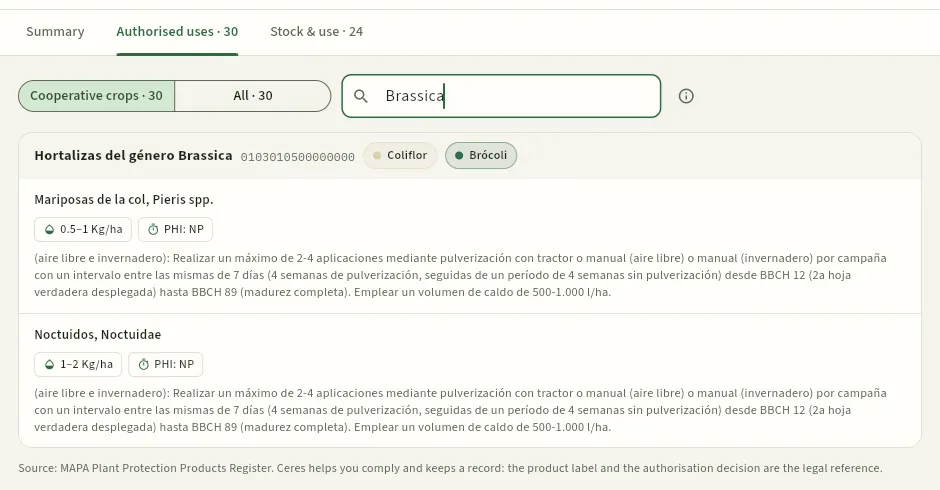 1234567
- 1Cooperative crops shows only the uses valid for one of the cooperative's crops; All, all those in the Register.
- 2Search for a pest or a crop: here, «Brassica».
- 3The crop or group in the Register, with its 16-digit code.
- 4The cooperative's crops to which the use applies through the hierarchy: cauliflower and broccoli.
- 5The agent: here, cabbage butterflies. Agents with the same conditions appear together.
- 6The dose (0.5–1 kg/ha) and the pre-harvest interval («NP»: not applicable).
- 7The use conditions as published by the Register: applications, interval, growth stage, spray volume…
When you record a treatment, Ceres only offers products with an authorised use for that crop and that pest (with both hierarchies) and the database checks the use's dose, number of applications, interval and pre-harvest interval. For the question «what can I use against this pest on this crop?», use the solution finder in Crop protection, which crosses the uses of all products.
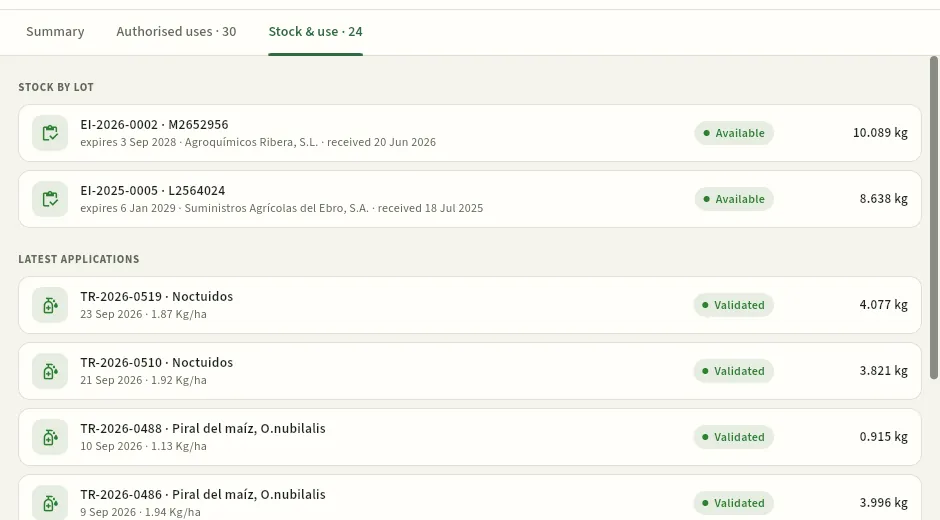 12
- 1Stock by lot: each Inputs batch with its number, the manufacturer's batch, its expiry, the supplier, the receipt date and what is left.
- 2Latest applications: the treatments with this product on the farms you see, with the pest, the date, the dose and the quantity used. Press one to open it.
#Pests and diseases
The Pests tab lists the Register's agents that appear in the uses of the catalogue's products: pests (mites and insects), diseases (fungi, bacteria, viruses), weeds and growth-regulator uses. Each carries its MAPA code, also hierarchical: 6 pests (6.1 mites, 6.2 insects), 8 fungi, 9 bacteria, 1 weeds, 12 regulators… The filters separate each type and Threshold exceeded shows the agents that have exceeded the action threshold in some field visit.
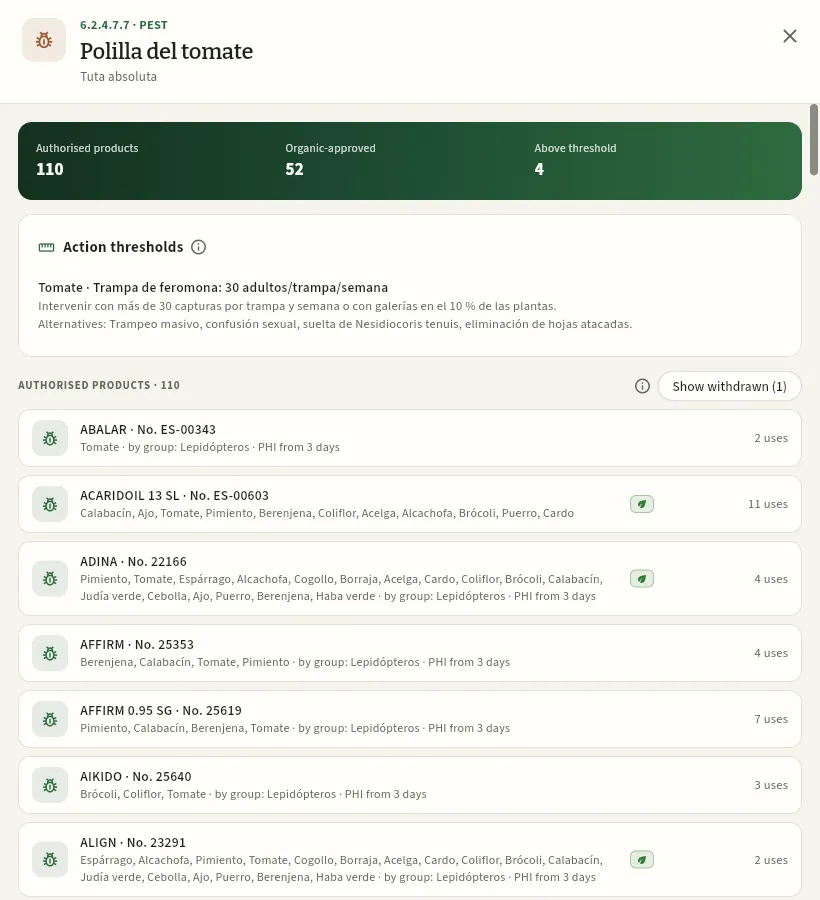 12345
- 1The agent's MAPA code (6.2.4.7.7), its type, its common name and its scientific name.
- 2Authorised products with some use against it, how many are suitable for organic farming and in how many visits it has exceeded the threshold.
- 3Action thresholds by crop and sampling method, with the non-chemical alternatives. The adviser adjusts them in Crop protection.
- 4Show withdrawn adds the cancelled products that had uses against it.
- 5Each authorised product: the cooperative's crops on which it can be used, the shortest pre-harvest interval and how many uses it has. «By group: Lepidoptera» means the use is for the group that includes the leafminer.
#Active substances: mode of action and MRL
The Active substances tab lists the substances of the Register's products with two pieces of data the rest of Ceres uses:
- their mode of action: how it acts on the pest, disease or weed. The international resistance management committees classify it into groups: IRAC for insecticides and acaricides, FRAC for fungicides and HRAC for herbicides (for example, difenoconazole is in group FRAC 3). Using the same group again and again on a crop makes the pest resistant: that is why Treatments warns when a treatment repeats a mode of action, and the solution finder in Crop protection puts first the products that alternate;
- their EU MRLs (maximum residue levels) on the cooperative's crops, from the EU pesticides database (Regulation (EC) 396/2005): with them, Lab analyses works out the % of the MRL of each residue and Customers checks each customer's specifications. Some substances are MRL-exempt (annex IV of the regulation: sulphur, oils, many micro-organisms…).
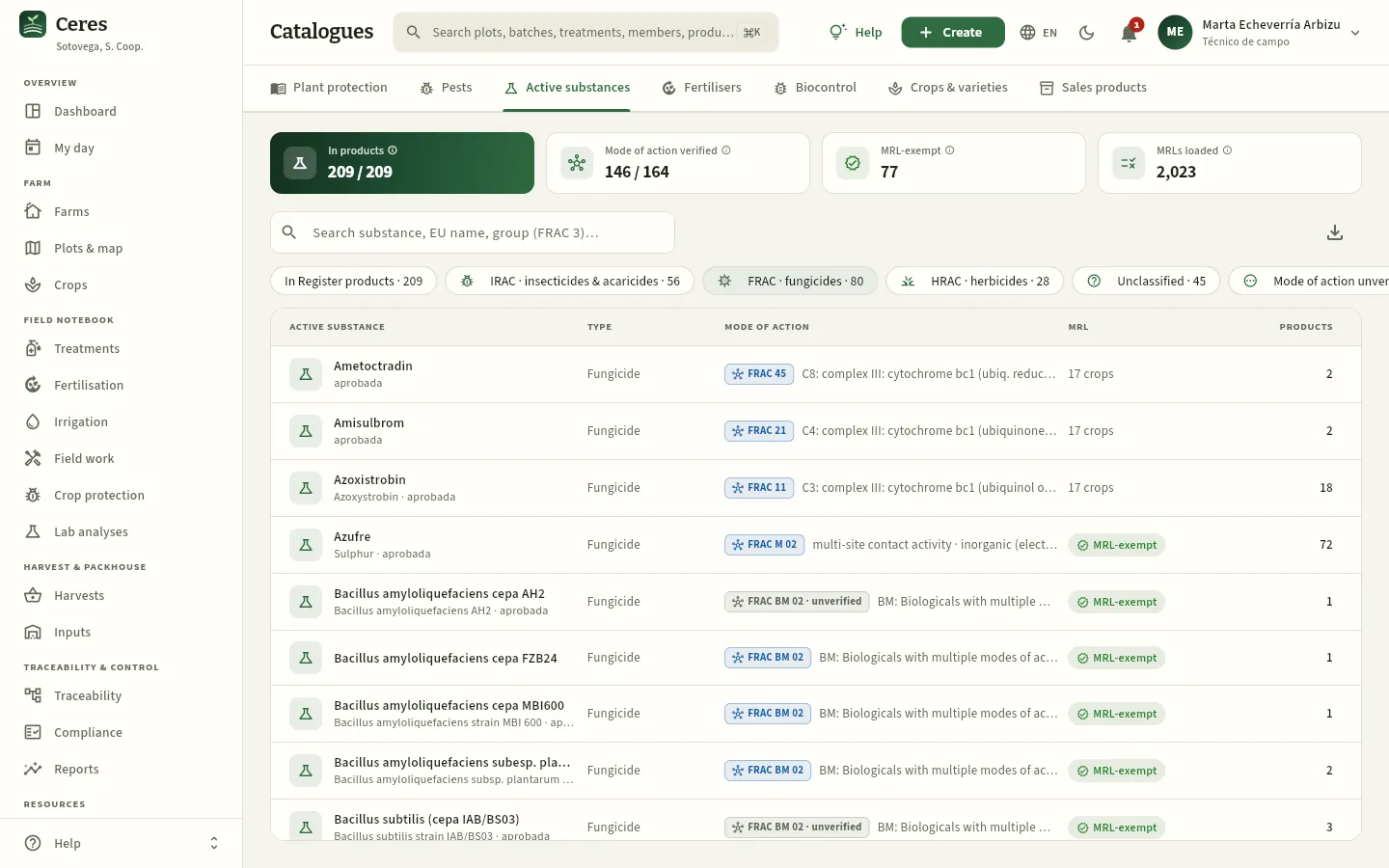 12345678
- 1The Active substances tab.
- 2In products: active substances of the Register's products in the catalogue.
- 3Mode of action verified: of those with an IRAC, FRAC or HRAC group, how many have been checked against their committee's official list.
- 4MRL-exempt and, to its right, how many EU MRLs are loaded for the cooperative's crops.
- 5Search by substance, its EU name or the group («FRAC 3»).
- 6The filters: by committee (IRAC, FRAC, HRAC), unclassified, with the mode of action unverified and MRL-exempt.
- 7The mode of action: the committee, the group and its description.
- 8On how many of the cooperative's crops it has an MRL and how many products contain it.
Click a substance to open its record: the mode of action with its committee, its group, the resistance risk and the source; the residues: whether it is MRL-exempt, the residue definition, its EU name and status; and the tabs MRLs per crop and Products. This is the record for difenoconazole, the fungicide Frutas Bidasoa does not accept:
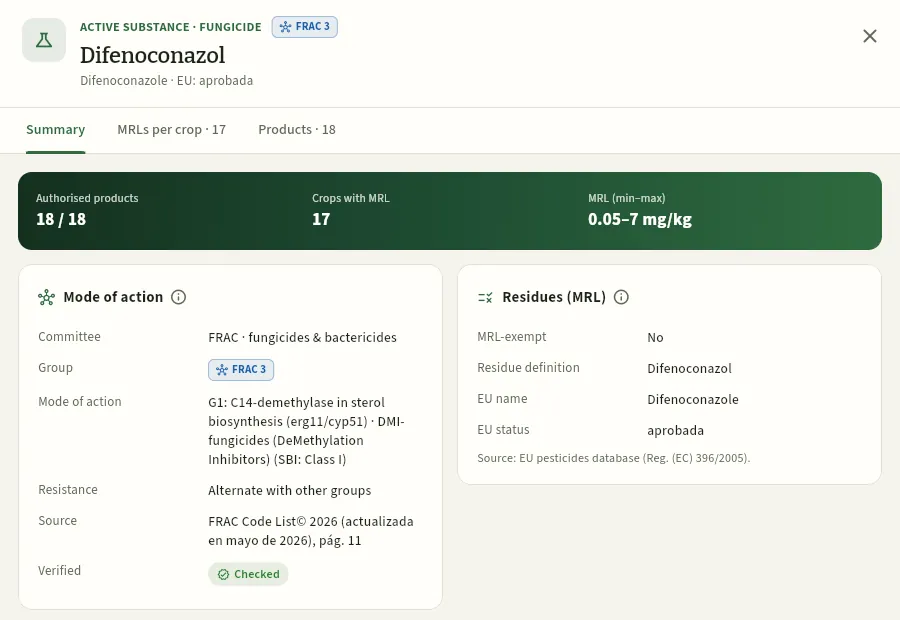 12345
- 1Type, mode-of-action group (FRAC 3), the name, its EU name and whether it is approved.
- 2The tabs MRLs per crop and Products (the products that contain it).
- 3Authorised products, crops with an MRL and the lowest and highest MRL.
- 4Mode of action: the committee, the group, how it works, the resistance risk («Alternate with other groups»), the source and whether it has been checked.
- 5Residues (MRL): whether it is exempt, the residue definition and its EU name and status, with the source.
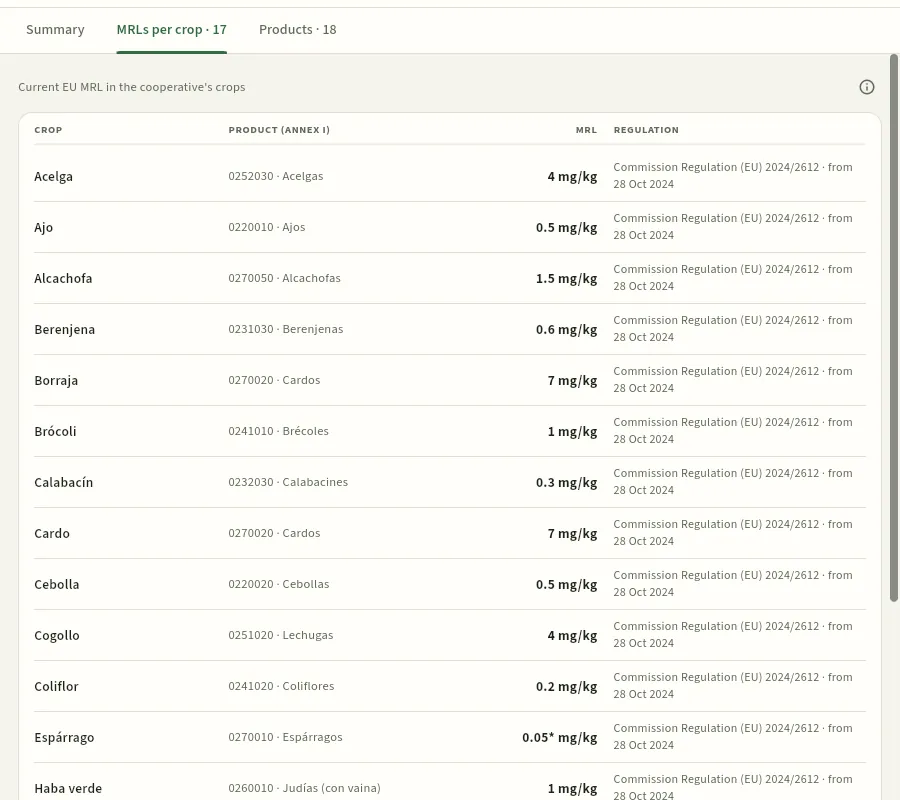 1234
- 1The cooperative's crop…
- 2…and the annex I product of Regulation (EC) 396/2005 it corresponds to.
- 3The current MRL in mg/kg. With an asterisk, the analytical limit of determination: for asparagus, 0.05* mg/kg.
- 4The regulation that sets it and since when it applies.
A different example: sulphur is MRL-exempt (it has no residue limit) and is in group FRAC M 02: a multi-site fungicide, with a low resistance risk, which does not count for rotation. And in the record of a plant protection product, the Composition card shows the group of each of its substances: in SCORE 25 EC, difenoconazole at 25 %, FRAC 3.
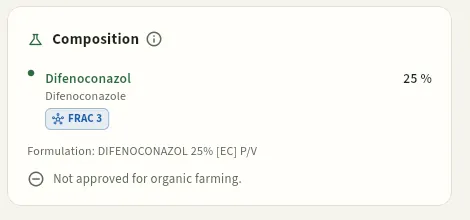 123
- 1The active substance, with its concentration. Click it to open its record.
- 2Its mode-of-action group: FRAC 3.
- 3Whether the product is suitable for organic farming.
#Fertilisers
The Fertilisers tab holds the fertilisers the cooperative uses with their analysis in % by weight: nitrogen (N), phosphorus (P₂O₅), potassium (K₂O), the part of the N that is of organic origin, other elements (CaO, MgO, SO₃), organic matter and, for liquids, density. The filters separate Mineral, Organic & amendments and Correctors & biostimulants, and Organic shows those that can be used in organic farming (annex II of Regulation (EU) 2021/1165). Fertilisation uses this analysis to calculate the fertiliser units of each application.
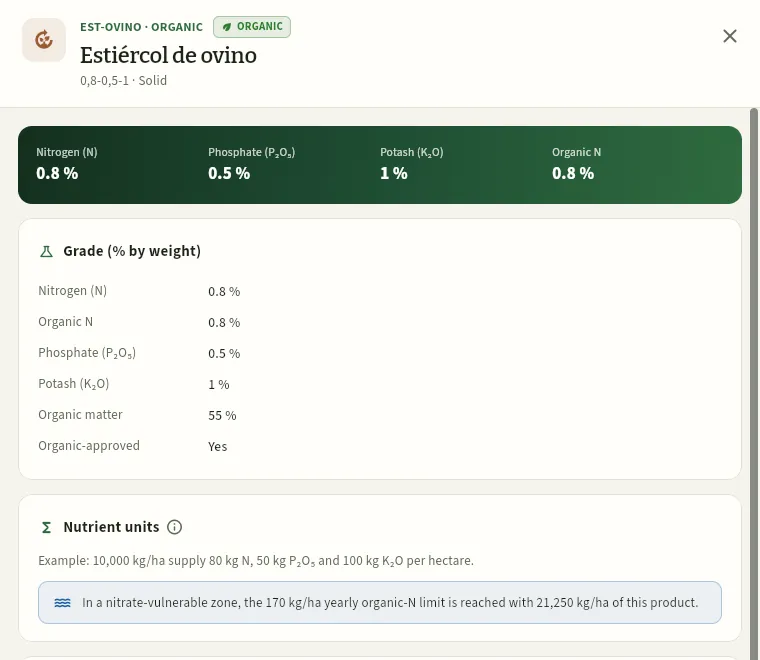 1234
- 1Code and type, the ORG tag, the name and its N-P₂O₅-K₂O analysis.
- 2The analysis in N, P₂O₅ and K₂O and how much N is of organic origin.
- 3Fertiliser units it supplies at a reference rate (10 t/ha for an organic one, 300 kg/ha for a mineral one).
- 4In a nitrate vulnerable zone, the rate at which the limit of 170 kg/ha of organic N per year is reached.
Below, Stock by lot shows the Inputs batches there are of this fertiliser. With «Edit catalogues», the record has a pencil and the list a New fertiliser button; the form will not let organic N exceed total N or N + P₂O₅ + K₂O exceed 100 %, and for liquids it asks for the density to convert litres to kilos.
#Biological control
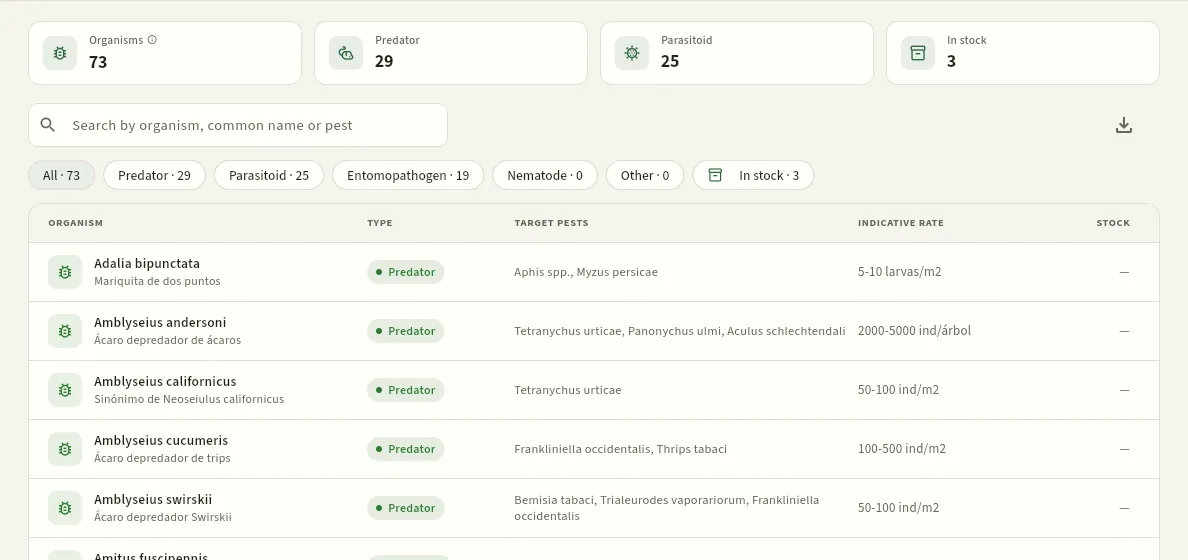 1234
- 1Organisms: the catalogue's biological control organisms (RD 951/2014).
- 2The filters by type: Predator, Parasitoid, Entomopathogen… and In stock.
- 3Each organism with its scientific and common name, its type, the target pests and the guide rate per m² or per ha.
- 4Stock: what there is in the inputs store.
Releases of beneficials are recorded in Treatments as one more product, with the «Release» method, and have no pre-harvest interval. Press an organism to see its record (or, with «Edit catalogues», to change it).
#Crops and varieties
The Crops and varieties tab has the species grown in the cooperative (17 in the demo). Almost the whole app uses their data: the Register code decides which authorised products apply to it; the EPPO code (five letters, such as LYPES for tomato) is required by the digital field log; the uptake per tonne is the basis of the fertilisation plan; the Kc coefficients, of the water balance in Irrigation; the shelf life, of the packhouse; and the colour, that of the map and the charts. The Fewest products indicator flags the crop with the fewest authorised products (borage): it is a «minor use», where it is worth planning non-chemical alternatives.
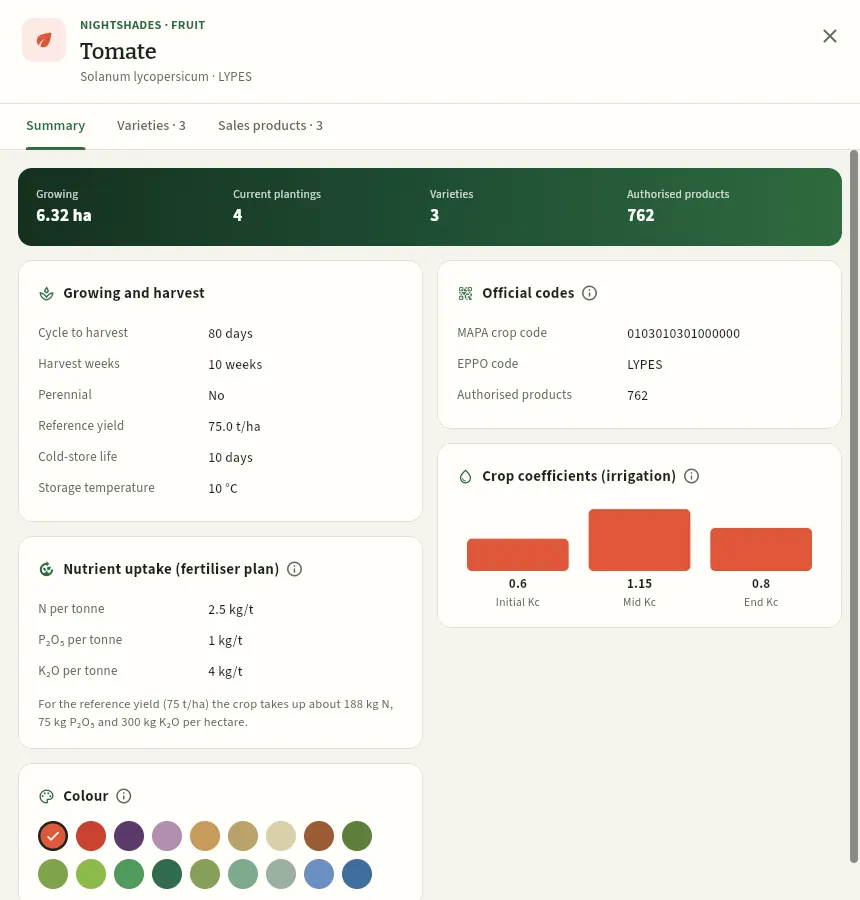 1234567
- 1Family and harvested part, the name, the scientific name and the EPPO code.
- 2The Varieties tabs (with their notes: earliness, resistances…) and Sales products for this crop.
- 3Hectares cropped now, current plantings, varieties and authorised plant protection products for tomato.
- 4Growing and harvest: cycle to harvest, harvest weeks, reference yield and storage.
- 5Official codes: the MAPA Register's (16 digits) and the EPPO one. Without the Register code, the crop would have no authorised products.
- 6Uptake: kg of N, P₂O₅ and K₂O per tonne harvested and, with the reference yield, per hectare.
- 7Crop coefficients (Kc) at the start, middle and end of the cycle: crop ET is Kc × ET₀.
Further down, Colour shows the crop's colour on the map and in the charts (with «Edit catalogues», it is changed by pressing another one). The administrator, who can edit the catalogues, also has a pencil to change the crop and New crop in the list. Varieties can also be added by those who edit crops (the adviser and the foreman), from the Varieties tab.
#Sales products
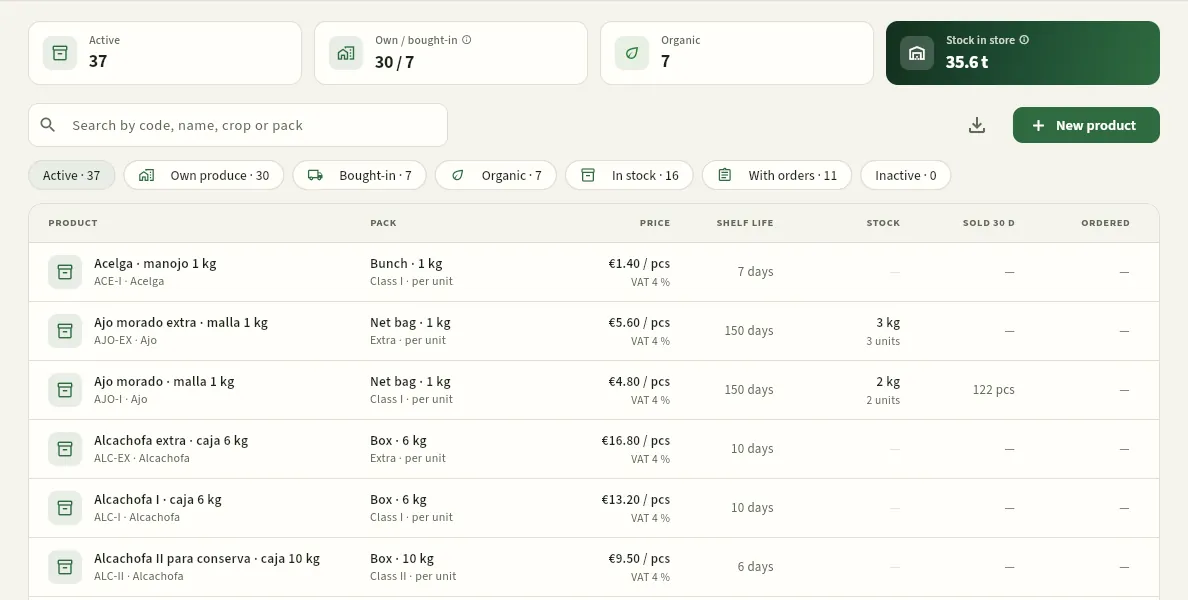 1234567
- 1Own / bought-in: the cooperative's products (from the farm and the members) and those bought from others to complete the range.
- 2Stock in store: kilos packed or assigned to a sales product, available.
- 3The filters: Own produce, Bought-in, Organic, In stock and With orders.
- 4Each product with its code (AJO-EX), the crop and the format (1 kg net bag) and the commercial class (extra, I or II).
- 5Price per sales unit, excluding VAT, with its VAT rate (only with «See prices»).
- 6Stock, what was sold in 30 days and what has been ordered and is still to be served.
- 7New product (with «Edit catalogues», «Edit sales» or «Edit warehouse»).
An organic product can only be served with organic lots (see Orders & sales), and the cooperative's own products need their crop for traceability. Bought-in products are purchased in Bought-in produce with their lot and certificate. Fresh vegetables carry the VAT set in Settings (4 % in the demo).
Open Catalogues → Plant protection and search for the product by name or registration number.
Look at its status: it has to be authorised (or cancelled but within the use-up period for stocks).
In the Authorised uses tab, look for the crop or the pest. Remember that a use for a group («Brassica vegetables», «Lepidoptera») is valid for what it includes.
Read the dose, the pre-harvest interval, the applications and the use conditions. And the label on the container: it is the legal reference.
#Tips
- Check the date of the Register data (the source line): if a product has been cancelled since, the official MAPA record will say so before Ceres does.
- Check Withdrawn, in stock at the start of the season and deal with that stock before its use period ends.
- For a specific pest, start with the Pests tab: you will see the threshold, the alternatives and all the products authorised against it.
- Check the Register code of a new crop: if it is missing or wrong, it will have no authorised products.
Resources
Weather
The weather at the cooperative, with real data and its source: the 7-day forecast, the good hours for spraying (wind, delta T and rain), the history with rainfall and evapotranspiration, and a crop's degree-days.
Weather answers two everyday questions: can we spray today, and at what time? and how is the season going for rain, heat and water? The screen has four parts, from top to bottom:
- The Open-Meteo 7-day forecast for the cooperative's location, with each day's hours suitable for spraying.
- The hour-by-hour spraying window for today, tomorrow and the day after.
- The history: rainfall, evapotranspiration, temperatures, humidity and wind for the period you choose.
- The accumulated degree-days from a date or from when a crop was planted, and the table of daily data.
The location comes from the coordinates of the Weather location in Settings (Tudela in the demo). The data are real and Ceres always says where they come from: at the top, the Real data from Open-Meteo box with its date ranges, and in the daily table, the Source column. The same data are used for the water balance in Irrigation, the «OK to spray» in the header of My day and the Dashboard, and the conditions proposed when a treatment is recorded. Your browser requests the 7-day forecast from Open-Meteo and it takes a few seconds to appear; without a connection, the hourly forecast stored in Ceres is used.
#Where the data come from
| Source | What it provides | What it is like |
|---|---|---|
| ERA5-Land / ERA5 reanalysis (Copernicus, via Open-Meteo) | Daily data up to about 5 or 6 days before today | A reconstruction of past weather on a grid of about 9 km (temperature and humidity) and 25 km (rain and wind). It is not a rain gauge: it smooths out storms. |
| ECMWF IFS 9 km model (via Open-Meteo) | The days still missing up to yesterday, the hourly data and the forecast | The European Centre's forecasting model, on a 9 km grid. |
| MAPA SiAR network | Data from real agro-weather stations, with their measured ET₀ | Prepared: its API requires a personal token, which is set in Settings → Weather and satellite. |
ET₀ (reference evapotranspiration) is FAO-56 Penman-Monteith. If a day had no real data, it would show as simulated and in italics in the table.
#The 7-day forecast
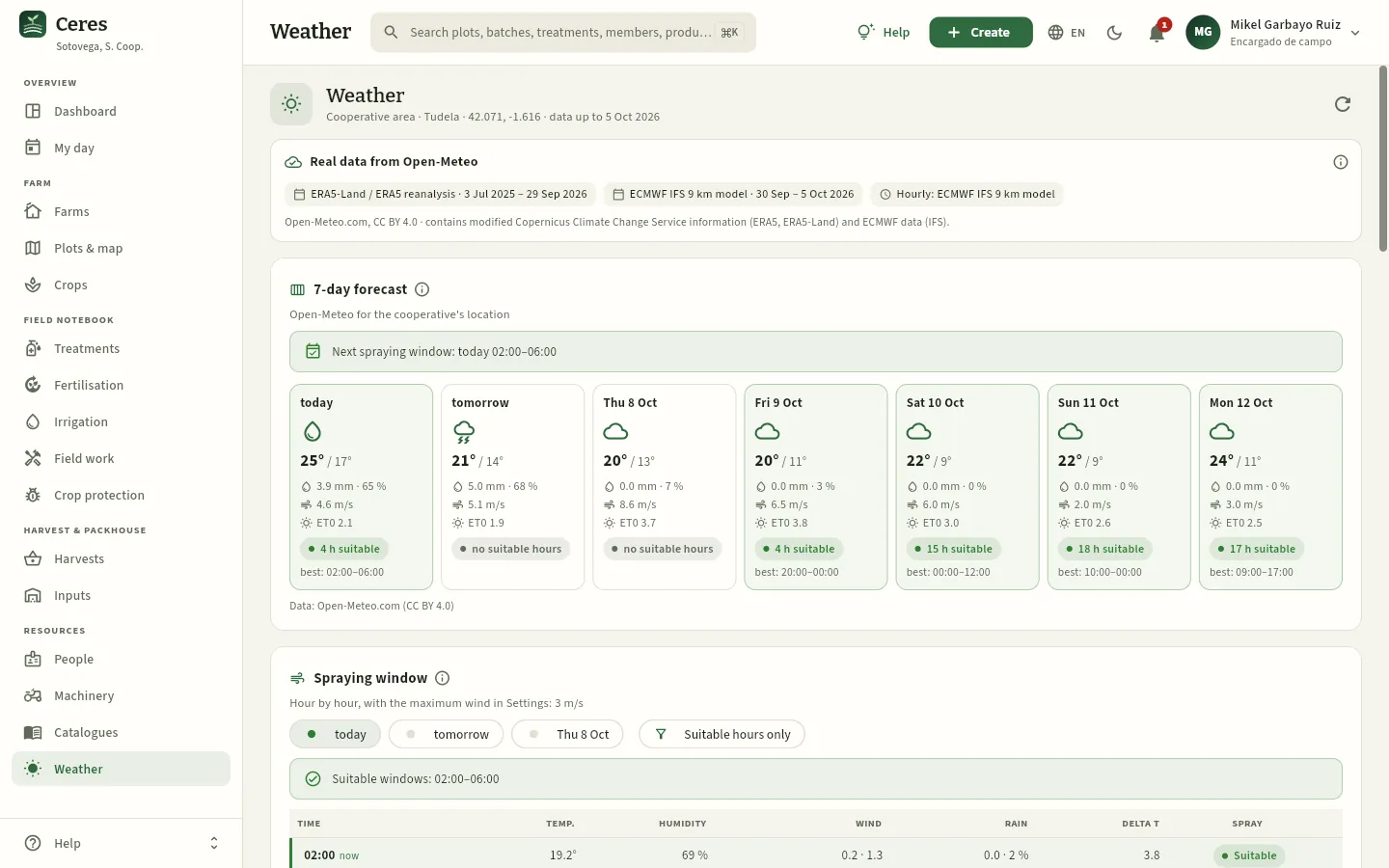 1234567
- 1The cooperative's area, its coordinates and the day up to which there are daily data (yesterday).
- 2Refresh requests the data and the forecast again.
- 3Real data from Open-Meteo: where the daily and hourly data come from, by date range (the ERA5 reanalysis and the ECMWF IFS model), with its licence. The ⓘ explains each source.
- 4The forecast's next spraying window: the first run of consecutive suitable hours from now on.
- 5Each day: the sky, the maximum and minimum temperatures, the rain and its probability, the wind, the ET₀, the suitable hours for spraying and the best slot. A day with no suitable hours appears blank.
- 6The forecast source: Open-Meteo.
- 7Below, the hour-by-hour spraying window, with the maximum wind from Settings.
The card's ⓘ explains how it is calculated. The criteria are the same as for the hour-by-hour window: no rain, wind not above the maximum and delta T between 2 and 8 °C. It is a forecast: before going out, what you see in the field prevails.
#The hour-by-hour spraying window
The Spraying window card says, for each hour today, tomorrow and the day after, whether it is suitable for spraying plant protection products. An hour is suitable if all three conditions are met:
| Condition | Why |
|---|---|
| No rain: less than 0.2 mm and a chance of rain below 40 % | Rain washes the product off the leaf. |
| Mean wind at or below the Maximum wind for spraying in Settings (3 m/s in the demo) | With more wind, the spray drifts off the plot. |
| Delta T between 2 and 8 °C | Delta T is the difference between the air temperature and the wet-bulb temperature: it measures how fast the droplet evaporates. Below 2 °C droplets do not dry and run off; above 8 °C they evaporate and drift. |
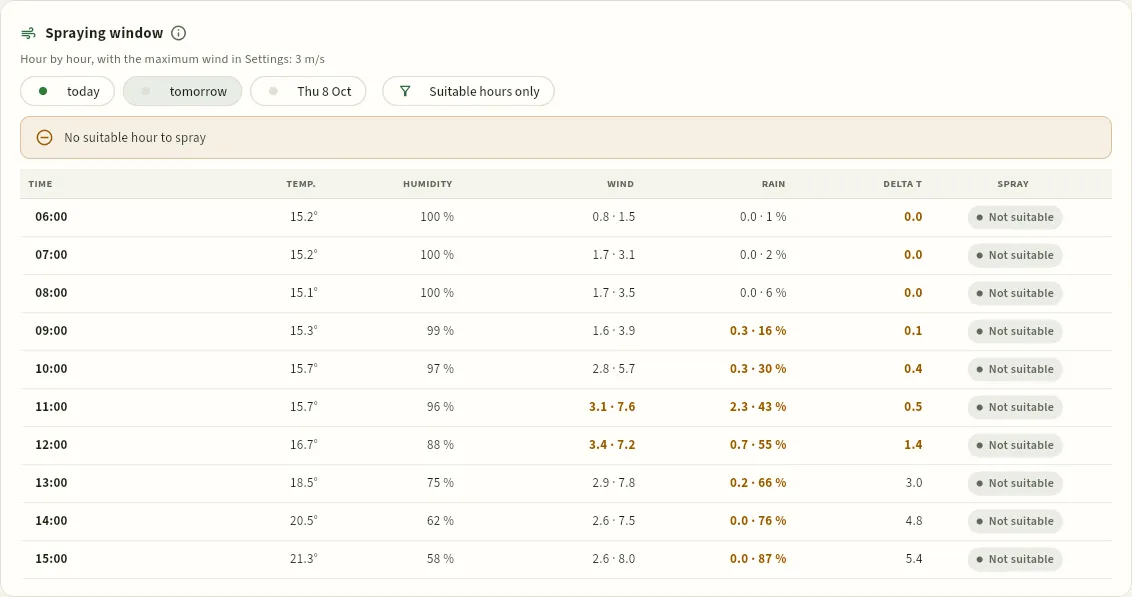 1234567
- 1The day: today, tomorrow or the day after. The green dot means that day has suitable hours.
- 2Suitable hours only hides the others.
- 3The day's suitable windows, in runs of consecutive hours, or the notice that there are none.
- 4Each hour's delta T; in amber, outside 2–8 °C: below 2 °C droplets would not dry.
- 5The mean wind · gust in m/s; in amber, above the maximum for spraying.
- 6The forecast rain (mm · probability); in amber, if it prevents spraying.
- 7Spray: Suitable or Not suitable. Hover over «Not suitable» to see the reason (rain, wind, low ΔT or high ΔT).
Open Weather and look at the next spraying window and the day's card.
In Spraying window, choose the day and press Suitable hours only to see the good slots.
Choose a slot with some margin: if the wind is right at the limit or delta T is close to 8 °C, better another time.
Schedule the order in Treatments for that slot. When the application is recorded, Ceres proposes that hour's conditions (temperature, humidity and wind).
#The history
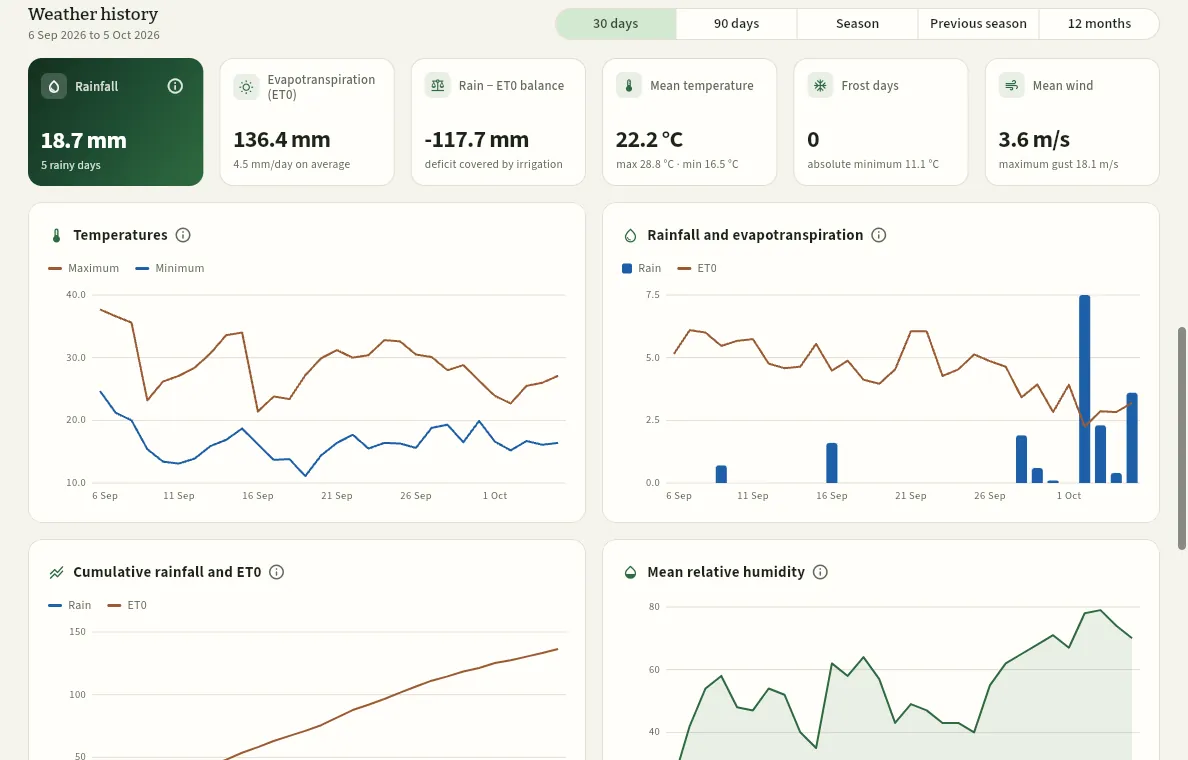 123456
- 1The period: 30 days, 90 days, the current season, the previous one or the last 12 months.
- 2Rainfall in the period and rainy days (1 mm or more).
- 3Reference evapotranspiration (ET₀): the water lost by a reference grass surface (FAO-56).
- 4Rain − ET₀ balance: if it is negative, it is the deficit that irrigation has to cover (multiplied by each crop's Kc).
- 5Frost days (minimum of 0 °C or less) and the absolute minimum.
- 6The charts: temperatures, rain and ET₀, their accumulated totals, humidity and wind. Hover to see each day.
For more than three months, rain and ET₀ are grouped by week. Each plot's water balance, with its crop's Kc, is in Irrigation; here you see the one for the cooperative's area.
#A crop's degree-days
Degree-days measure the heat a crop (or a pest) has received since a date. They are used to predict when it will reach a growth stage, when harvesting will start or when a new generation of an insect, such as tomato leafminer, will emerge. Each day adds its mean temperature minus a base temperature, below which the plant or the insect does not develop.
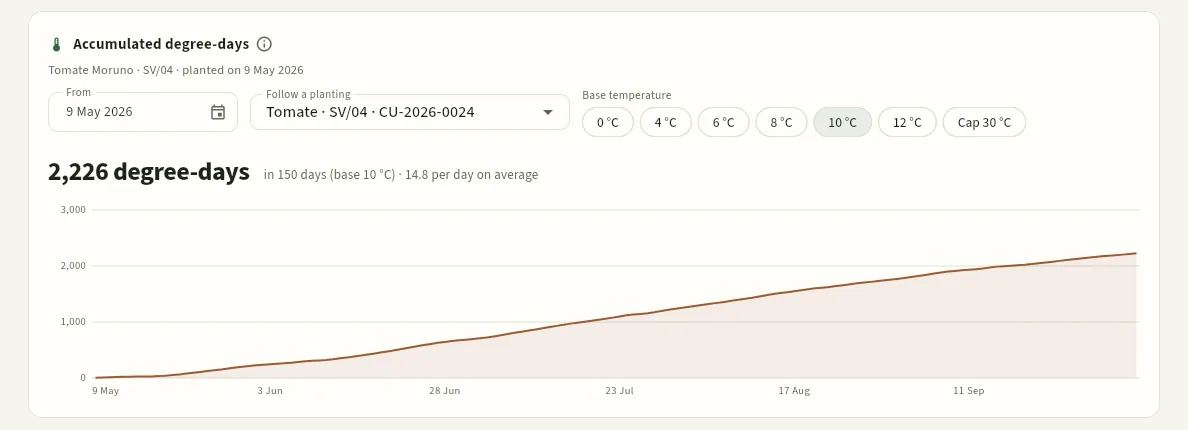 12345
- 1From: the starting date (by default, the start of the season).
- 2Follow a planting: counts from a crop's planting date (here, tomato CU-2026-0024).
- 3The base temperature (10 °C for tomato, pepper or beans; 4–6 °C for brassicas, lettuce or asparagus) and Cap 30 °C, which limits the maximum.
- 4The total degree-days, over how many days and the daily average.
- 5The accumulated curve, day by day.
Below is the Daily data table for the chosen period: maximum, minimum and mean, humidity, rain, ET₀, wind, gust, the day's degree-days at base 10 °C (DD 10) and each day's source. With the «Export CSV» permission you can download it.
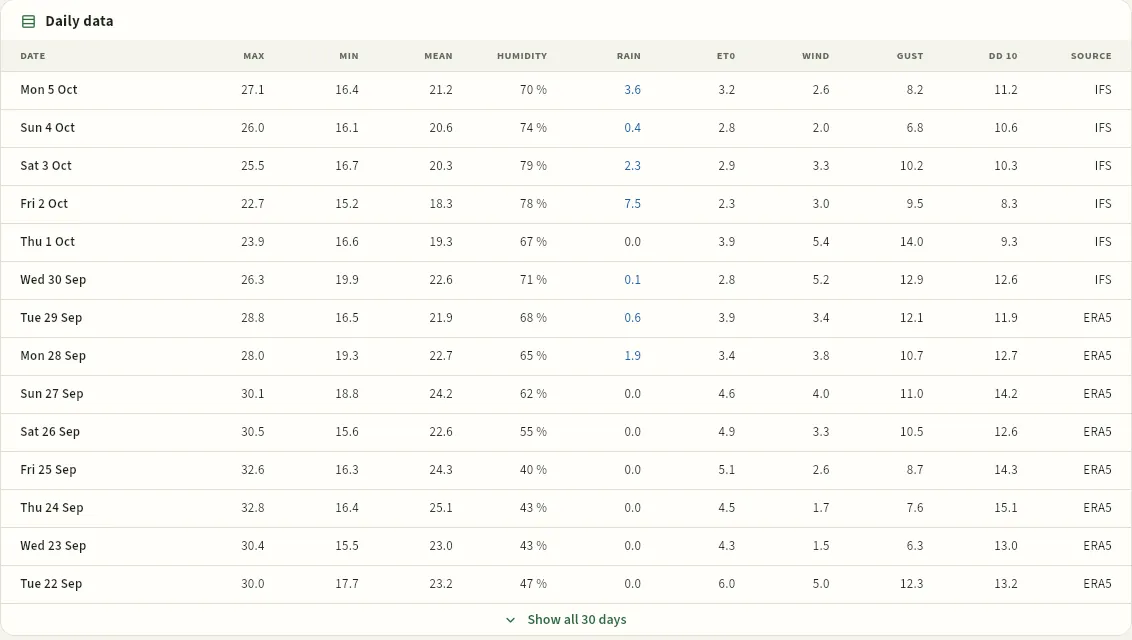 1234
- 1Each day's columns: maximum, minimum and mean, humidity, rain, ET₀, wind, gust and degree-days at base 10 °C.
- 2Each day's source: IFS (the ECMWF IFS model) for the most recent ones, not yet covered by the reanalysis…
- 3…and ERA5 (the reanalysis) for the earlier ones.
- 4Show all 30 days expands the rest of the period.
#Tips
- Look at the window before scheduling a treatment: the best slot is usually early in the day, when the wind is calm and delta T has already risen above 2 °C.
- Do not rely on a single number: if the wind is right at the limit, wait or choose another time.
- Use degree-days with tomato leafminer: each generation needs a certain amount of heat; from the first catch in the trap, it tells you when to expect the next one.
- Check the season's balance when planning irrigation: a very negative balance means a dry season.
Administration
Users
Who can sign in to Ceres and what each person sees: the accounts, their access profiles, the farms each one sees and their People record, each profile's permission matrix and the keys with which Claude connects.
Users is where you decide who signs in to Ceres and what each person sees. It has three views:
- Users: the accounts (name, email, job title and password) with their access profiles, the farms whose field data each one sees and the People person that corresponds to them. There is no open sign-up: only an administrator creates accounts.
- Profiles: the permission matrix. Each profile is a set of switches: which sections it sees, which sensitive data (costs, prices, settlements, contact details…), what it can do, which Dashboard blocks it gets and what it can do from Claude.
- Claude: the keys with which each user has connected Claude to Ceres and what Claude has done with them (see Connect to Claude).
It is a section for administrators only (in the demo, Irene Lasheras, the technical director). The ready-made profiles, the detail of each permission and how farms work are in the chapter Profiles, permissions and farms; here you will see the screen and the tasks.
#Where it is
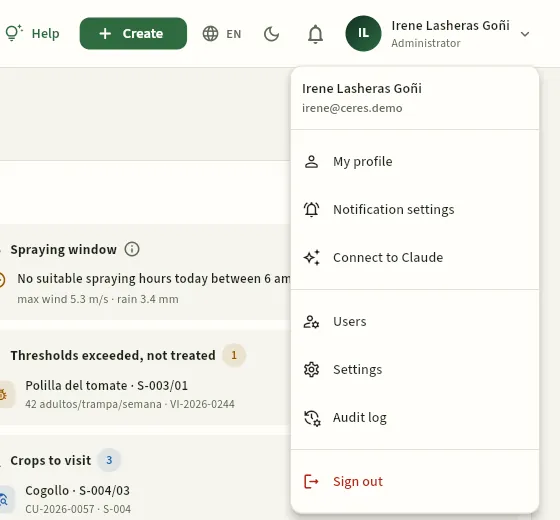 1234
On a phone they are at the end of the side menu (☰), in the Administration group. Users and Settings only appear for administrators; the Audit log, also for those with the «See the change audit» permission.
#The list of users
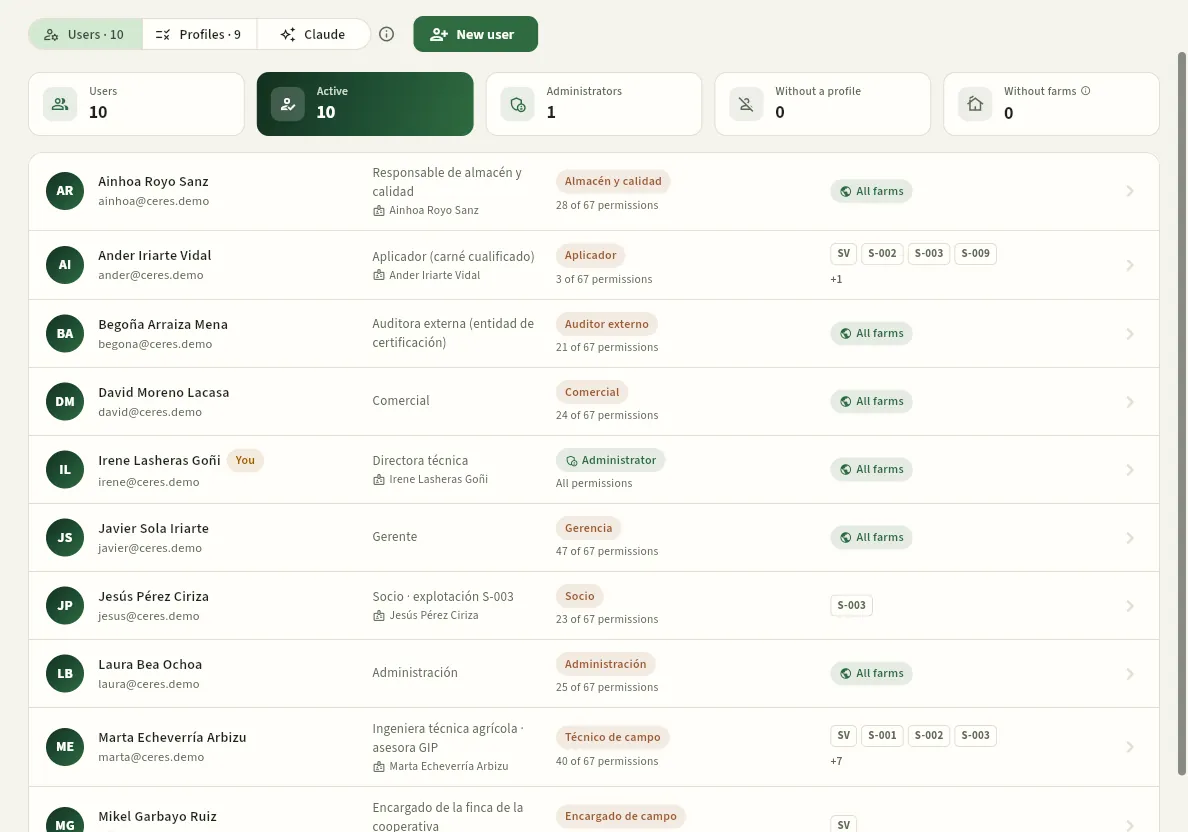 12345678
- 1Users, Profiles and Claude: the three views, with how many users and profiles there are. The ⓘ explains each one.
- 2New user creates an account.
- 3The indicators: users, active, administrators, Without a profile (they would see nothing) and Without farms (they would see no field data). Red if there are any.
- 4The job title and, with the record icon, the linked People person.
- 5Their access profiles and how many permissions they give («28 of 67 permissions»). The administrator, «All permissions».
- 6The farms whose field data they see: «All» if their profile has «All farms»; otherwise, the ones ticked.
- 7Your own account carries the You tag.
- 8Press any user to change their details, profiles, farms, person, status or password.
A disabled user carries the Inactive tag and cannot sign in, but their name is kept on the treatments they signed, the visits and the history. If someone shows Without a profile or Without farms in red, they will still see nothing (or no field data) when they sign in.
#Creating a user
The example: Pablo Ezcurra Lizarraga is the cooperative's other IPM adviser. He advises members S-011 and S-012 and is in People (P-02, with his ROPO), but does not sign in to Ceres yet. To recommend and validate his members' treatments, he needs a user with the Field adviser profile, those two farms and his person linked.
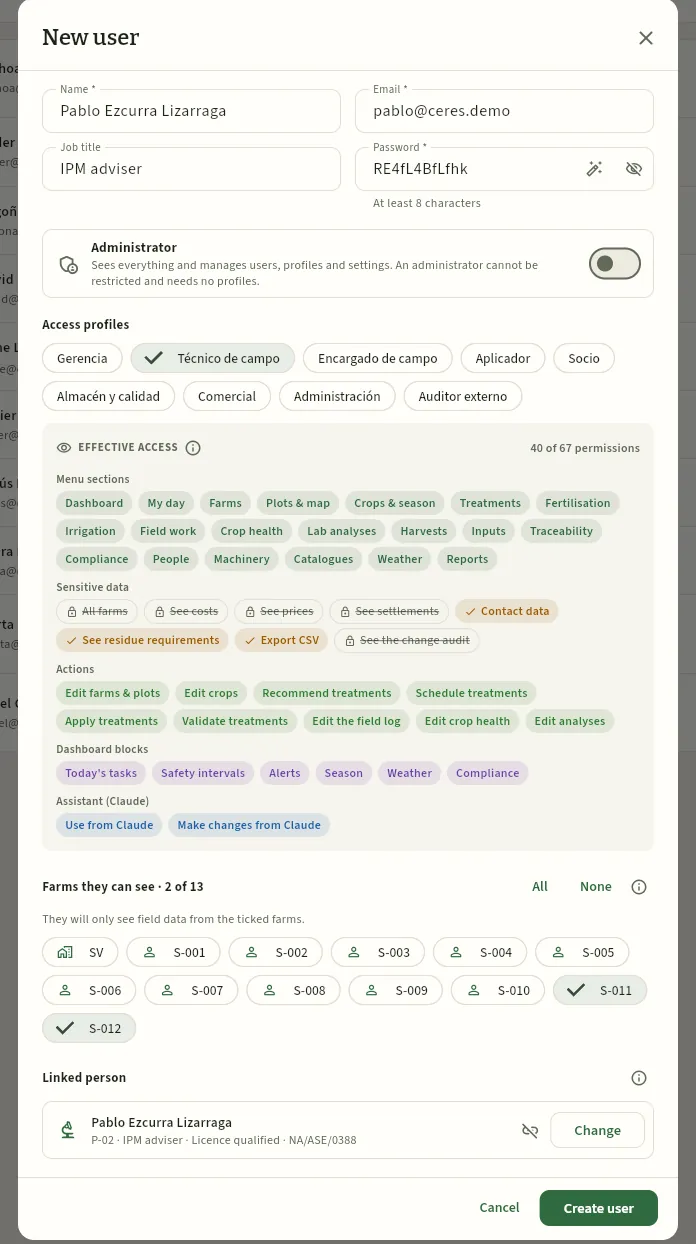 12345678
- 1Name, email (the one he will sign in with; it cannot be changed later) and job title.
- 2Password: the wand generates a secure one and the eye shows it so you can copy it. At least 8 characters.
- 3Administrator: sees everything and manages users, profiles and settings. If you turn it on, profiles and farms do not apply to them.
- 4The access profiles: press the ones you want to give (they show a ✓). Hover over one to read who it is for.
- 5Effective access: what they will have with those profiles and how many permissions that is. What they will not be able to see appears crossed out with a padlock.
- 6Farms they see: those of his members, S-011 and S-012. Without «All farms» in his profile, he will only see the field data of the ticked ones.
- 7Linked person: his People record, with his ROPO. Without it he could not validate treatments or use My day.
- 8Create user creates the account (not pressed in the screenshot).
Your user menu → Users → New user.
Enter their name, the email they will sign in with and their job title. Set a password or generate one with the wand.
Tick their access profile (or several) and review in Effective access what they will be able to see and do.
In Farms they see, tick theirs: a member, their own; an adviser, the ones they advise; the foreman, the farm (SV). If their profile has «All farms», it is not needed.
In Linked person, press Choose and find their People record (if they are an adviser, operator or foreman, Ceres warns you that they need one).
Press Create user and give them their email and password securely.
#Changing a user
Press a user in the list to open their record. It is the same form as for adding one: you can change the name, the job title, whether they are an administrator, their profiles, their farms and their person (the email cannot be changed: it is what they sign in with). At the end is the Account block, with their status and password, and at the bottom, Save changes.
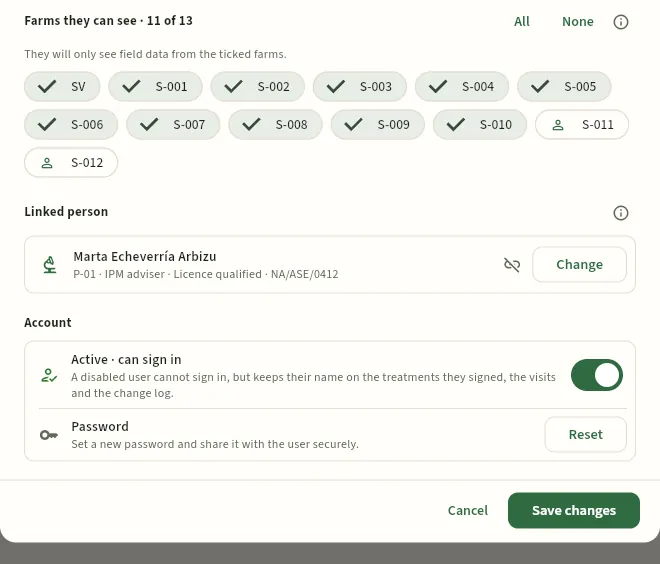 1234567
- 1Farms she sees · 11 of 13: the farm and members S-001 to S-010, the ones she advises.
- 2All and None tick or untick them all at once.
- 3The unticked farms (S-011 and S-012, Pablo Ezcurra's): Marta does not see their plots, crops or field log.
- 4Linked person: her record P-01, with her licence and ROPO. With it she signs validations and her visits recommend in her name.
- 5Change chooses another person; the icon next to it removes the link.
- 6Active · can sign in: turn it off to cut off her access at once. Her name is kept in the field log.
- 7Reset sets a new password (if she has forgotten it or someone else knows it).
#Access profiles
The Profiles view holds the permission matrix: each row is a permission, each column a profile, and the switch in each cell turns that permission on or off for that profile. The 67 permissions are in five groups: Menu sections (26), Sensitive data (8), Actions (21), Dashboard blocks (10) and Assistant (Claude) (2). The administrator does not appear because she has everything. With nine profiles, the matrix scrolls sideways.
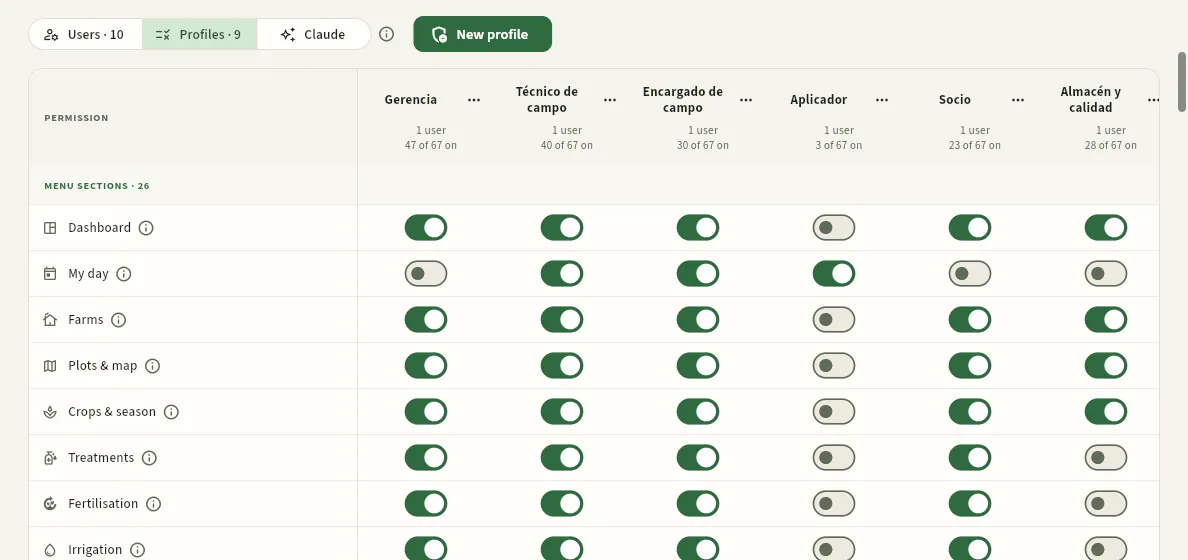 12345678
- 1The Profiles view.
- 2New profile creates an empty one or one copying another's switches.
- 3Each column is a profile, with how many users have it and how many permissions it turns on. Hover over the name to read its description.
- 4Each profile's ⋯ menu: edit its name, duplicate it or delete it.
- 5Permissions come in groups: first, the menu sections.
- 6Each permission's ⓘ explains what it allows, where it applies and what is left out.
- 7Each switch: green, the profile has the permission; grey, it does not. Here, the sprayer operator does not see the Dashboard: he only uses My day.
- 8And the foreman does not see the Lab analyses section. The change is saved as soon as you press the switch.
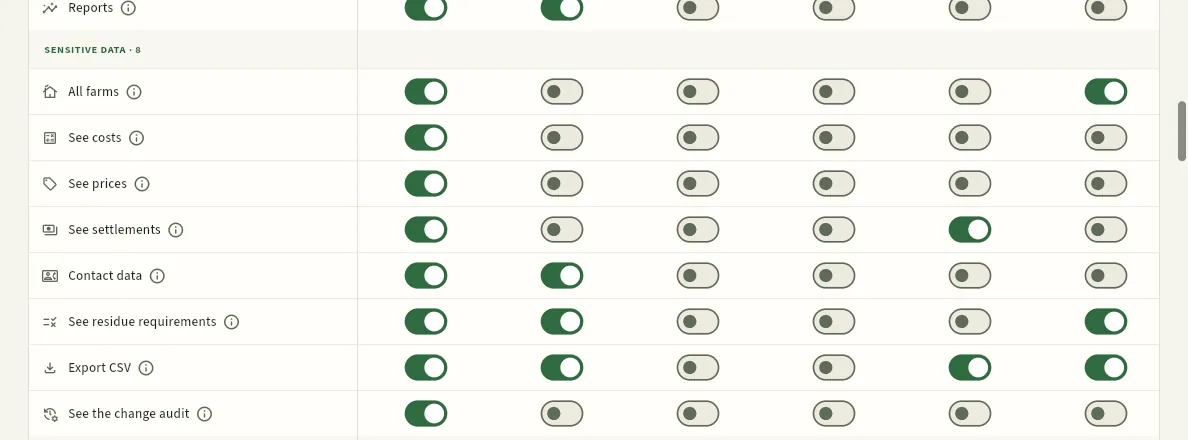 1234567
- 1Sensitive data: which figures and delicate data the profile sees, whether it can export and whether it sees the audit log.
- 2All farms: the packhouse sees everyone's harvests; without it, the user only sees the farms ticked in their record.
- 3The field adviser does not see costs or prices: they appear with a padlock.
- 4The member does see settlements: their own, because they only see their farm.
- 5Contact data: phone numbers, emails, tax IDs and IBANs. The foreman does not have it.
- 6See residue requirements: each customer's residue specifications and which lots and analyses do not qualify for them. By default, management, field adviser, packhouse, sales and the external auditor.
- 7See the change audit: by default, management and the external auditor (and the administrator).
Further down are the Actions (what it can create or change: schedule, apply or validate treatments, record harvests, invoice…), the Dashboard blocks (which cards it sees on its Dashboard) and the Assistant (Claude) group: «Use from Claude» and «Make changes from Claude». At the end of the matrix, a box reminds you that with several profiles the most restrictive wins, and Recent changes lists the last 20 access changes (profiles, switches, users, passwords and Claude keys) with who made them; in the freshly loaded demo it reads «Nothing has been changed yet».
Your user menu → Users → Profiles.
Find the permission's row (press its ⓘ if you are not sure what it does) and the profile's column; scroll the matrix sideways if it is not in view.
Press the switch. The change saves itself and applies to all users with that profile on their next query.
#Creating, duplicating, renaming and deleting profiles
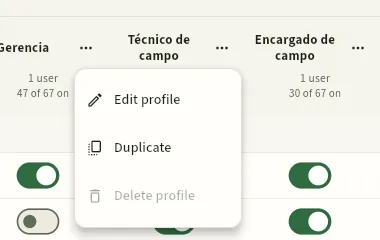 123
- 1Edit profile: change its name and description.
- 2Duplicate: create another with the same switches.
- 3Delete profile is only possible if nobody has it assigned; otherwise it is greyed out.
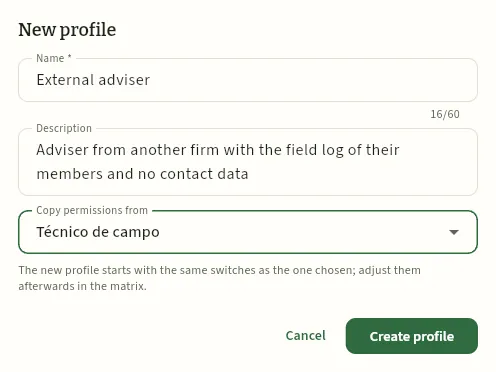 1234
- 1The profile's name (up to 60 characters): who it is for.
- 2The description: who it is for and what it leaves out. It appears when you hover over the column.
- 3Copy permissions from: the starting profile, or «Start with no permissions».
- 4Create profile; then you adjust its switches in the matrix (not pressed here).
- New profile opens this form: name, description and Copy permissions from (with «Start with no permissions», the profile starts with everything off).
- Duplicate opens the same form already filled in: the original's name with «(copy)» and itself as the starting profile.
- Edit profile changes only the name and the description; permissions are changed in the matrix.
- Delete profile asks for confirmation and deletes the profile with all its switches. First you have to remove it from its users.
#Everyone's Claude keys
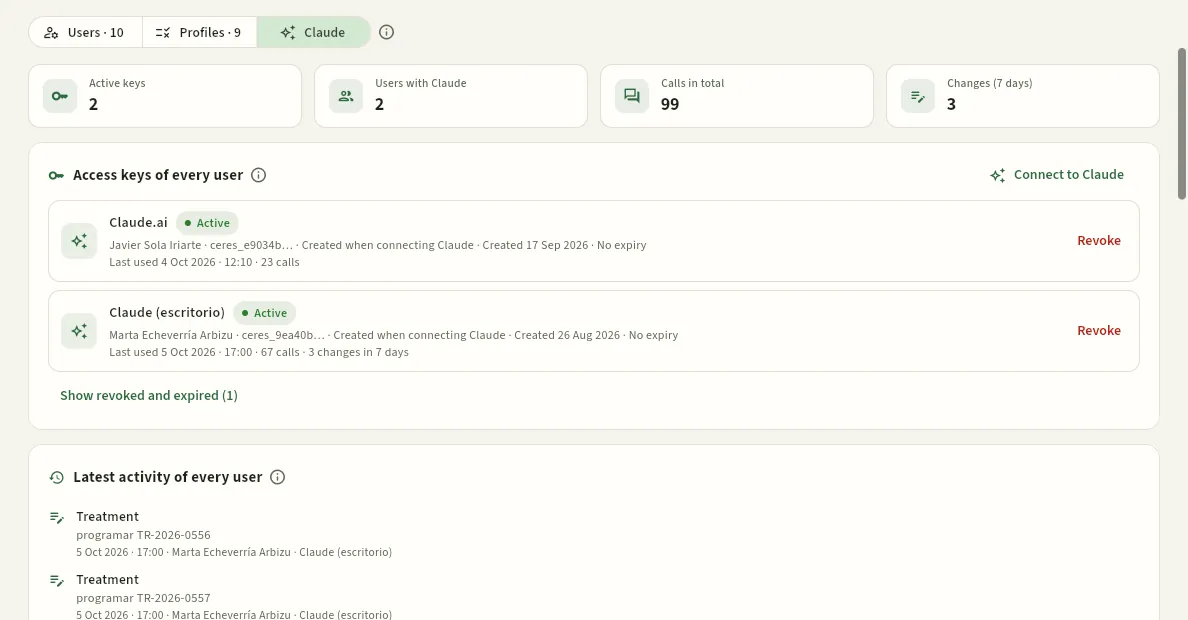 12345
- 1The Claude view.
- 2The indicators: active keys, users who use Claude, total calls and changes made from Claude in the last 7 days.
- 3Your own Connect to Claude panel, to create or revoke your keys.
- 4Access keys of every user: each with its owner, when it expires, its last use and its calls, and the Revoke button.
- 5Latest activity: what Claude has looked up or changed, when, for whom and with which key, and what the database has denied it.
Each user creates and revokes their keys in their Connect to Claude panel (their user menu; see Connect to Claude). Here the administrator sees everyone's and can revoke any of them, for example when someone leaves the cooperative or loses their laptop: Claude loses access with that key on its next request. Claude always acts as its owner, with their permissions and their farms, and only makes changes if their profile has «Make changes from Claude».
#Tips
- One profile per job, not per person. Use profiles like «Field adviser» or «Packhouse & quality»; the differences between two advisers go in their farms, not in a profile for each.
- To restrict, add a profile. A complementary profile (for example, one without prices) added to another can only remove permissions.
- Always link the person for advisers, the foreman and operators: without it they cannot validate or use My day.
- Disable instead of deleting. When someone leaves the cooperative, disable their user: they will not be able to sign in, their Claude keys stop working and their name is kept on everything they did.
- Always have two administrators, in case one is away: nobody can remove their own administrator rights.
Administration
Settings
The cooperative's details and the parameters that apply to everyone: document headers, official registrations, season and field-log deadlines, maximum wind for spraying, weather location and source, satellite vigour, residues and mode-of-action rotation, record book timestamp, VAT and settlements, labels, numbering, cold rooms and holidays.
Settings opens from the user menu → Settings (or ?seccion=configuracion). It is a single page made of
blocks; each one has its Edit button and its ⓘ, and many have a This is how it works out box showing, with an example,
the effect of what you enter. Changes apply to the whole cooperative from that moment and are recorded in the Audit log.
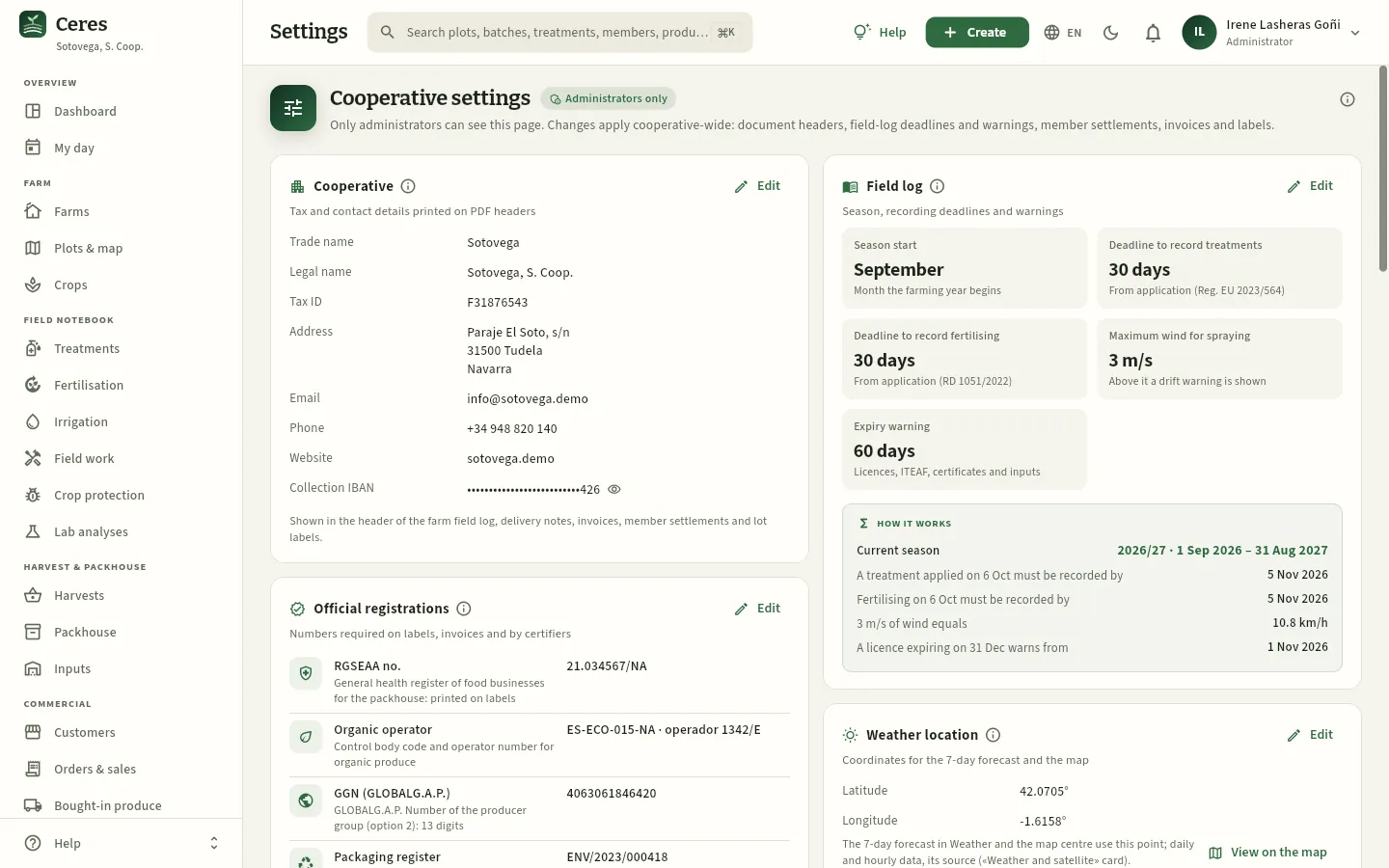 123456
- 1Only the administrator sees it.
- 2Cooperative: name, company name, tax ID, address and contact details, and the IBAN for collections. They appear in the header of the farm field log, delivery notes, invoices, settlements and labels.
- 3Official registrations: RGSEAA number of the packing centre (printed on the labels), organic operator code and GLOBALG.A.P. GGN.
- 4Field log: the month the season starts, the deadline to record treatments and fertilising, the maximum wind for spraying and how many days in advance an expiry is warned about.
- 5This is how it works out: the effect of those values with today's dates.
- 6Edit opens the form for each block.
| Parameter | What it is for | In the demo |
|---|---|---|
| Season start | Month the farming year begins: indicators, reports and the compliance score are counted per season | September (2026/27: 1-9-2026 to 31-8-2027) |
| Deadline to record treatments | Days from the application to record it; after that, Compliance flags it as late | 30 days |
| Deadline to record fertilising | The same for fertilisation (RD 1051/2022: one month) | 30 days |
| Maximum wind for spraying | Above it, the treatment check warns of drift risk and My day and Weather do not show it as suitable | 3 m/s |
| Expiry warning | How many days in advance the Dashboard warns about licences, ITEAF inspections, certificates and inputs that expire | 60 days |
#Weather location, VAT and settlements
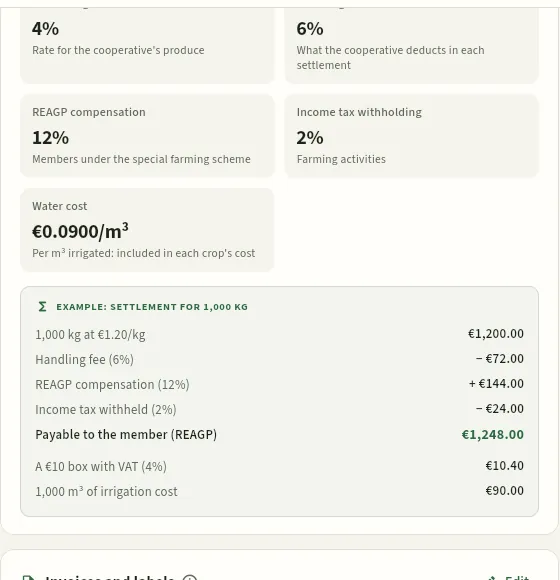 12345
- 1VAT on vegetables (4 %, super-reduced rate) charged on the invoices.
- 2Handling charges: what the cooperative deducts in each settlement.
- 3REAGP compensation (12 %) for members under the special farming VAT scheme, and income tax withholding (2 %).
- 4Water cost per m³: it goes into the cost of each crop (see Irrigation).
- 5The example: how a settlement for 1,000 kg works out with these values.
The weather location (latitude and longitude) is the point for which the weather data and forecast are requested: it is used to work out the spraying windows in Weather and My day and the ET₀ of the water balance in Irrigation. It is a single point: on a distant farm the actual weather may differ. Invoices and labels holds the invoice footer and the preview of a lot label, with its QR (see Packhouse).
#Numbering, cold rooms and holidays
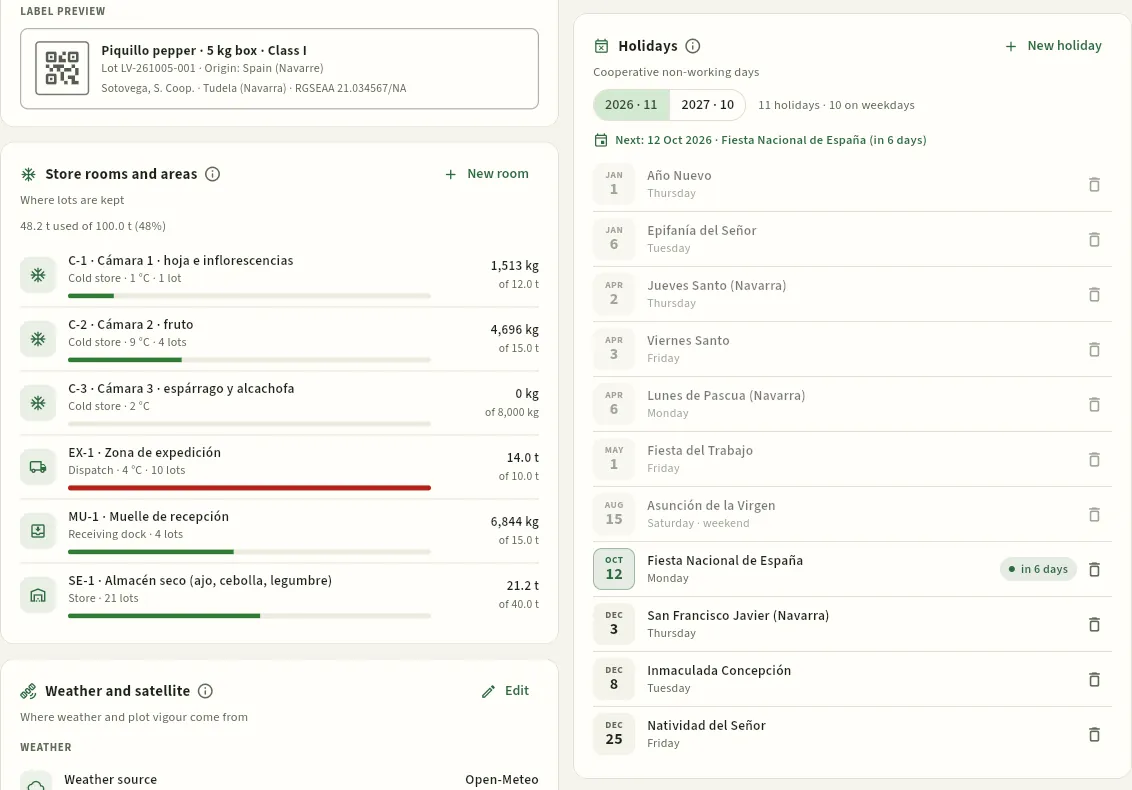 1234
- 1Cold rooms and packhouse areas (C-1, SE-1, EX-1…), with their temperature and capacity: New store adds another.
- 2Each room with the kilos and lots it holds and its occupancy; the bar turns red when it is full.
- 3Holidays: the days the packhouse and the office are closed (national, Navarre and local), for the current year and the next; New holiday adds one.
- 4Removes a holiday. Holidays are a reference for planning harvests, deliveries and dispatches; they do not block recording treatments or field work.
The document series set the prefix of each document (TR, FE, VI, AN, CO, PE, AL, FA, CE, LQ, SR, EI, LB…) in the format PREFIX-YEAR-NUMBER, with a counter per year that goes back to 1 every January. Changing a prefix only affects new documents. Lots are not configured: they use a fixed code per type and day (LC for field lots, LE for bought-in produce, LV for sales lots, as in LC-261005-014).
#Weather and satellite
The Weather and satellite card says where the weather data and plot vigour come from, and sets when Ceres warns of low vigour:
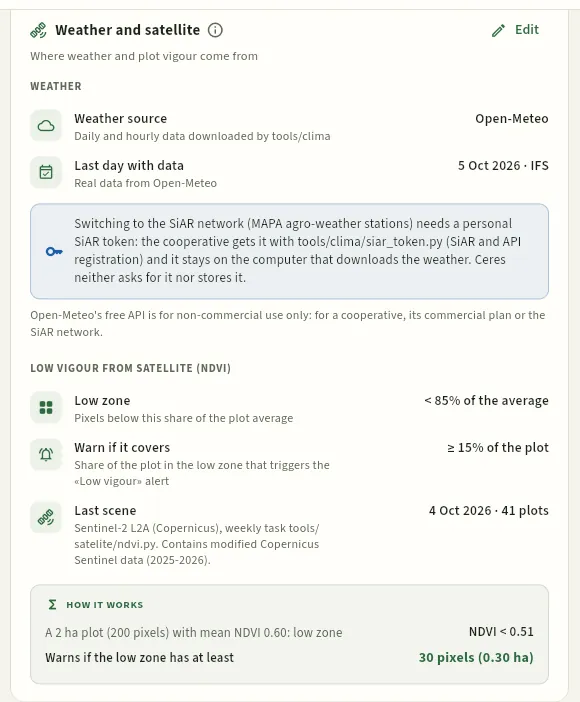 123456
- 1Weather source (Open-Meteo or the MAPA SiAR network) and the last day with data, with its source.
- 2The SiAR token notice: switching to its agro-weather stations needs a personal token, which Ceres neither asks for nor stores.
- 3Low satellite vigour (NDVI): what a plot's low zone is (the pixels below 85 % of its average) and how much of the plot it must cover for the warning to fire (15 %).
- 4The last Sentinel-2 scene and how many plots it covers.
- 5How it works: an example with a 2 ha plot.
- 6Edit opens the form.
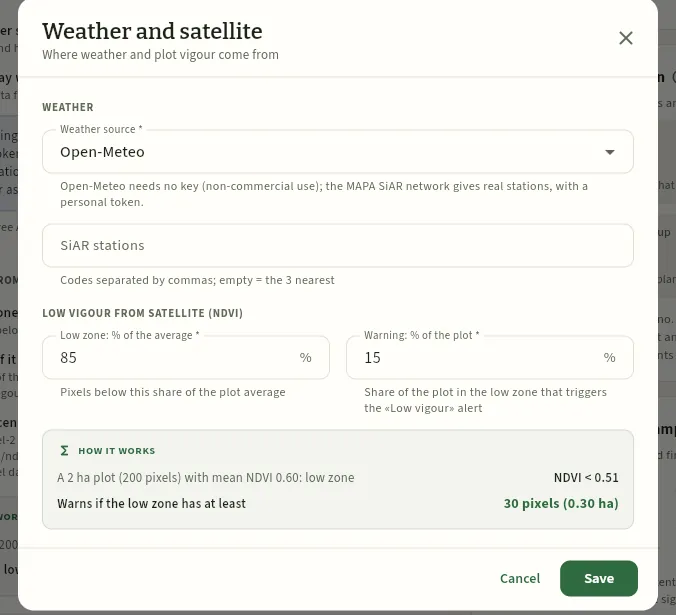 123
- 1The weather source: Open-Meteo or the SiAR network; with SiAR, the stations (empty: the 3 nearest).
- 2Low zone: below what % of the plot average a 10 m pixel is.
- 3Warning: what % of the plot in the low zone triggers the Low vigour alert on the Dashboard and in the plot record.
#Residues and rotation
Residues and rotation sets two things: the window used to count a lot's active substances for customers' residue specifications (see Customers) and when Ceres warns that a treatment repeats the mode of action (the IRAC, FRAC or HRAC group; see Catalogues).
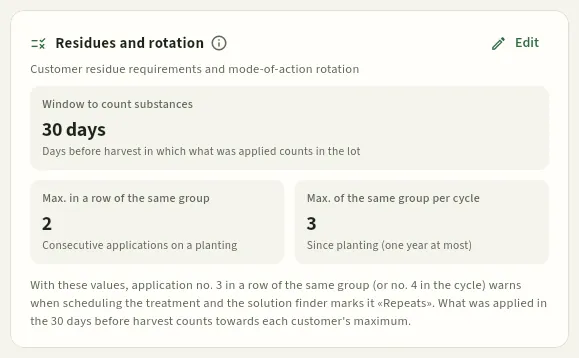 1234
- 1Window to count substances: what was applied in the days before harvest counts towards each customer's maximum number of active substances, if the lot has no analysis.
- 2Max. in a row of the same group: consecutive applications of the same mode of action on a planting.
- 3Max. of the same group per cycle: since planting (one year at most).
- 4What happens with these values: the third application in a row warns when the treatment is scheduled, and the solution finder marks it «Repeats».
#Integrity and timestamp
Every record book export carries its seal (the fingerprint of its content and the head of the fingerprint chain; see Compliance). In addition, if a time-stamping authority (TSA) is set up, every seal carries the date and time signed by a third party with the RFC 3161 standard: it proves to anyone that the seal already existed at that moment, without relying on Ceres's clock. It is optional: in the demo it is off.
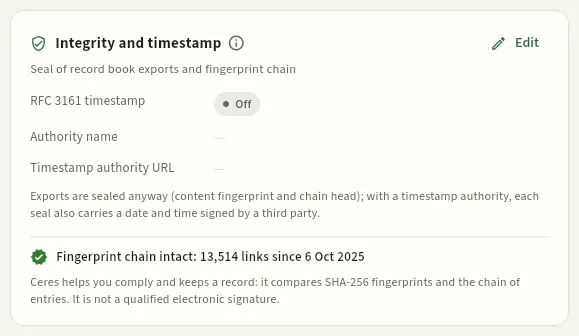 1234
- 1RFC 3161 timestamp: on or, as here, off.
- 2The name and the URL of the time-stamping authority.
- 3The state of the fingerprint chain: intact, with its links and since when.
- 4Edit to set the authority.
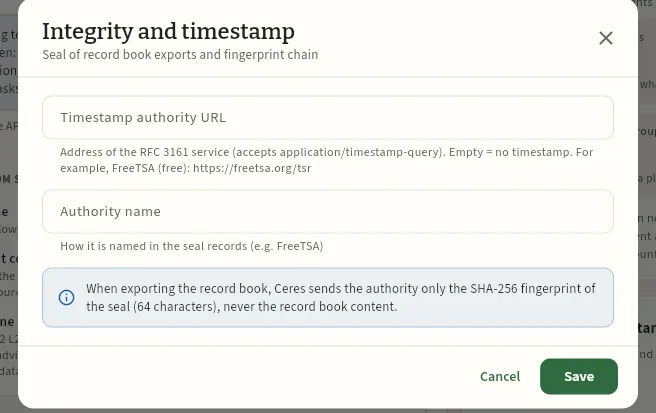 12
- 1The URL of the time-stamping authority (for example, FreeTSA's). Empty, the timestamp stays off.
- 2How the authority will be named in the seal records.
Open your user menu → Settings.
In the Field log block, press Edit.
Change Maximum wind for spraying (in m/s) and press Save.
Administration
Audit log
Who created, changed or deleted each thing, when and which fields, from the app or from Claude, plus every sign-in and sign-out: the trail the digital field log requires and the one you show to an inspection.
The audit log is written by the database itself at the moment of each change, so it cannot be skipped or modified from the app (nobody can edit it, not even the administrator). It records:
- every creation, change or deletion of records: farms, plots, crops, treatments, fertilising, irrigation, field work, visits, analyses, staff, machinery, catalogues, harvests, lots, sales, settlements, settings and documents, with the value of each field before and after;
- every sign-in and sign-out of the app;
- and whether the change came from Claude (see Connect to Claude).
It opens from the user menu → Audit log and shows the last 90 days. The changes to a specific record are also in its Changes tab (see The screen and what is common).
In addition, every line of the audit log goes into the record book's fingerprint chain: if someone deleted or changed it directly in the database, Verify record book, in Compliance, would detect it.
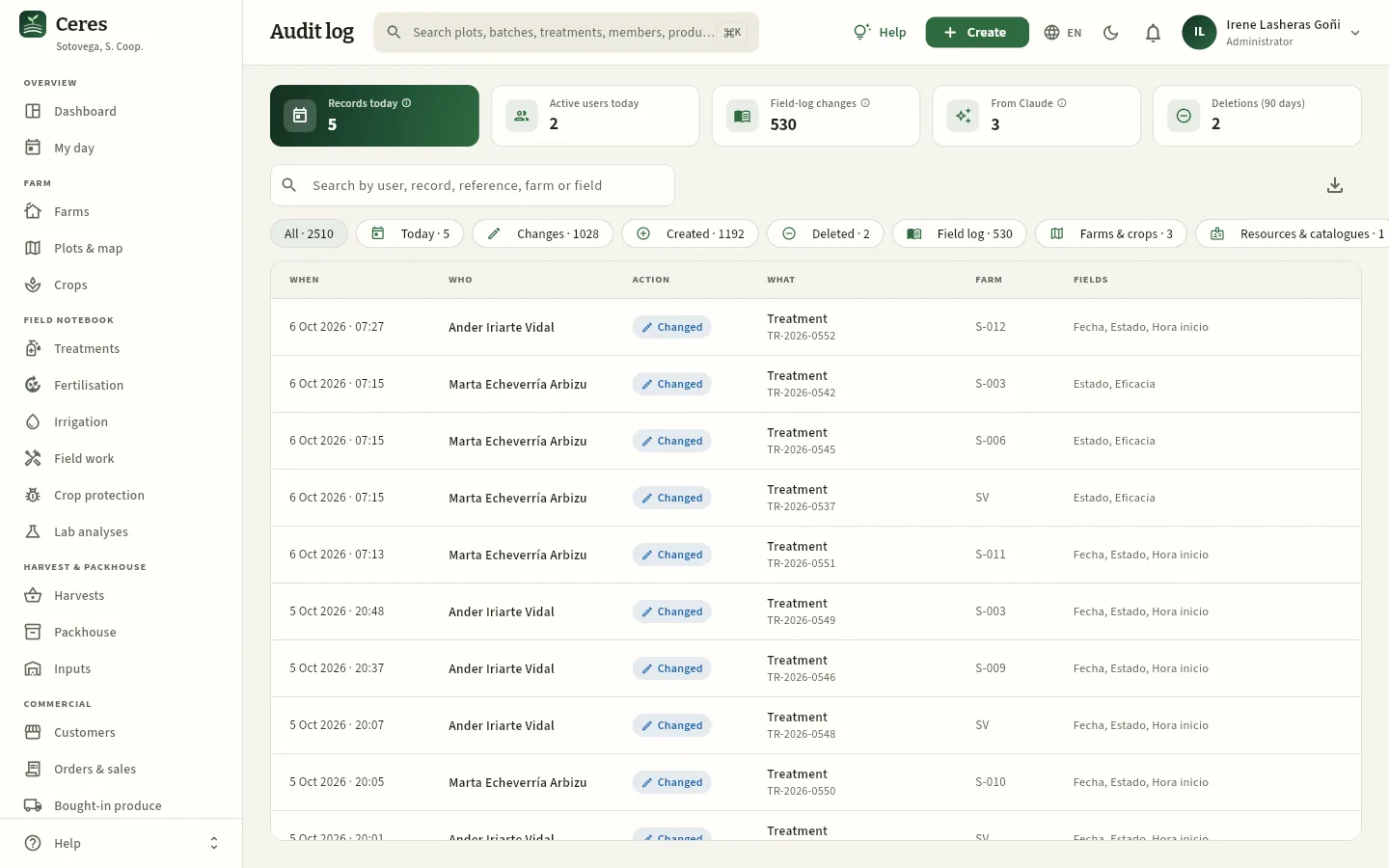 1234567
- 1Records today and active users.
- 2Field-log changes over the last 90 days: the trail of who recorded or corrected each entry.
- 3Changes made from Claude, flagged.
- 4Search by user, record, reference (TR-…, S-003…), farm or field.
- 5Export CSV of what you see, to hand it over.
- 6Filters: today, changes, created, deleted and by area (field log, farms and crops, resources and catalogues, packhouse and sales, settings, sign-ins and sign-outs).
- 7Each line: when, who, the action (created, changed, deleted, sign-in, sign-out), which record and its farm.
Press a line to see the detail: each field that changed with its value before and after. For example, if Marta corrects a treatment's dose from 1.5 to 1.2 l/ha, it reads «Dose: 1.5 → 1.2 · Marta Echeverría · today 10:42».
Open your user menu → Audit log.
Type the record's reference in the search box (for example, the treatment number) or the name of the plot.
Filter by Changes or by Field log if there are many lines.
Press the line to see each field before and after, and who did it.
If they ask for it in writing, press Export CSV.
Appendices
Profiles, permissions and farms
How Ceres decides what each person sees and can do: access profiles with their permissions, each user's farms, and the administrator. With what each demo profile has.
In a cooperative not everyone should see the same things: a member sees their own farm and settlements, but not those of the others; the agronomist sees the field notebook of the members she advises, but not the sale prices; the sales rep sees the price lists, but not what is paid to the members. Ceres solves this with three pieces, and all three are applied by the database, not just the screen:
- 1Access profileA set of switches: which sections, which sensitive data, which actions, which dashboard blocks and whether Claude can be used.
- 2FarmsWhich farms they see the data of: all of them, or only those assigned in their user record.
- 3Linked personWho they are in People: with their licence and their ROPO number, to sign recommendations and validations.
- 4AdministratorSees everything, with no restrictions, and manages users, profiles and settings.
#The demo profiles
The demo comes with nine profiles, one per job at the cooperative, and an administrator. Each company can change them or create others in Users → Profiles. Profile names are data, so they appear in Spanish, as in the app.
| Profile | For whom | In the demo |
|---|---|---|
| Administrator (not a profile: it is a flag on the user) | Technical director: sees everything and manages users, profiles and settings | Irene Lasheras |
| Gerencia (general management) | A complete view of the cooperative: every section and farm, costs, prices and settlements, reports. Does not edit the day-to-day work | Javier Sola |
| Técnico de campo (field agronomist) | Integrated pest management adviser: the farms they advise, their plots and crops and the whole field notebook. Recommends and validates treatments. No prices or settlements | Marta Echeverría |
| Encargado de campo (farm foreman) | The cooperative's own farm and work gangs: crops, field work, irrigation, harvests, treatment orders and recording, people and machinery. No costs or prices | Mikel Garbayo |
| Aplicador (sprayer operator) | Only «My day»: the treatments, field tasks and irrigations assigned to them, with the same checks as in the office | Ander Iriarte |
| Socio (member) | The member portal: their farm, their plots, their field notebook (read only), their deliveries and their settlements. They can record irrigation, field work and fertiliser applications | Jesús Pérez (S-003) |
| Almacén y calidad (packhouse and quality) | Harvests, receipt and grading, packhouse, packing, inputs, lab analyses and traceability, with mock recalls. No prices | Ainhoa Royo |
| Comercial (sales) | Customers, orders, delivery notes, harvest forecast, packhouse and purchases of bought-in produce. Sees sale prices, not costs or settlements | David Moreno |
| Administración (finance) | Invoices, member settlements, purchases, suppliers and reports with every amount | Laura Bea |
| Auditor externo (external auditor) | Read-only access to the field notebook, traceability and compliance of every farm, with export. For certification bodies and inspections | Begoña Arraiza |
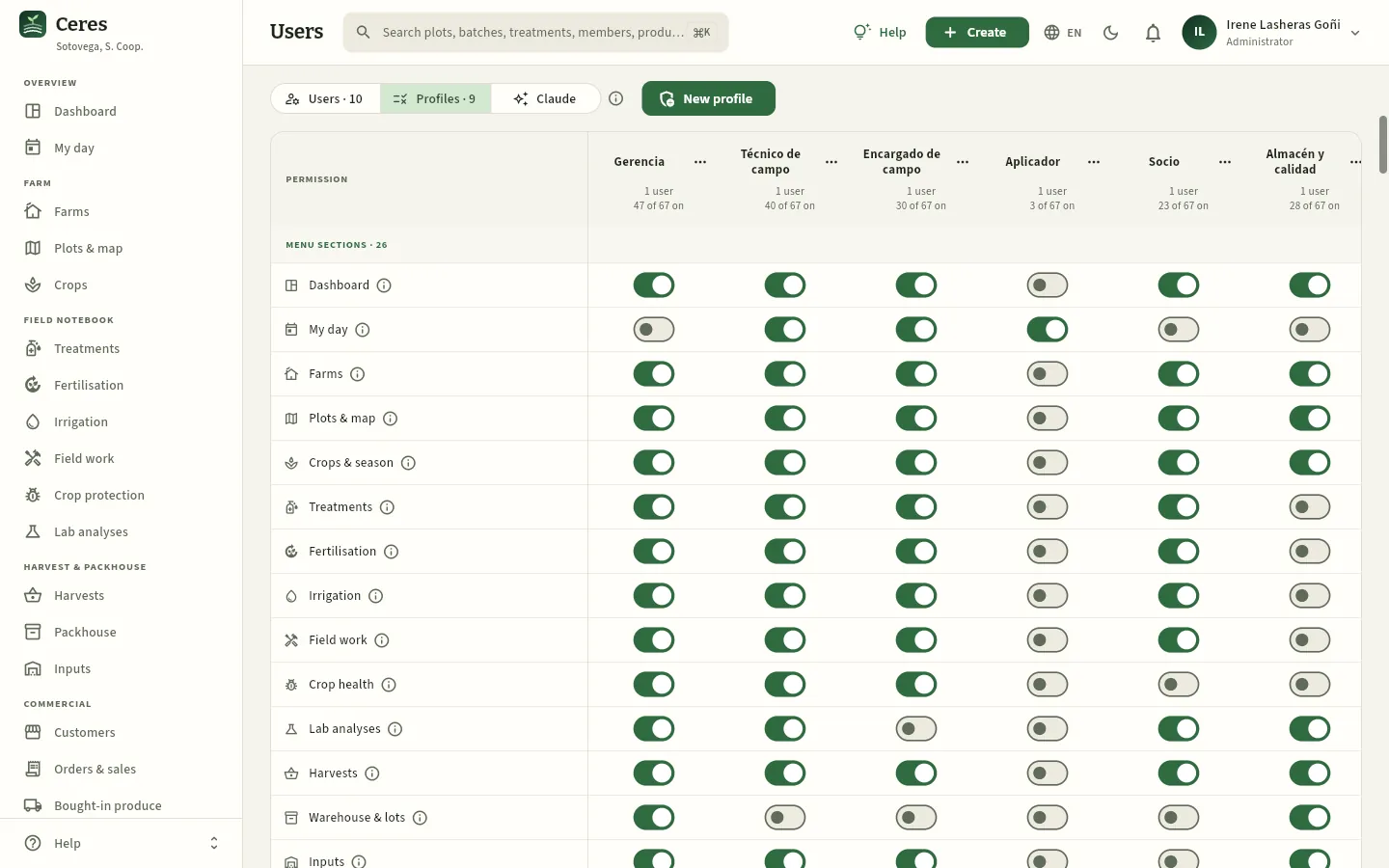 123456
- 1The Profiles view of the Users section (administrators only).
- 2New profile: creates an empty one or one copying the permissions of another.
- 3Each column is a profile, with how many users have it and how many permissions it turns on. The ⋯ menu edits it (name and description), duplicates it or deletes it.
- 4The permissions come in five groups: sections, sensitive data, actions, dashboard blocks and assistant (Claude).
- 5Each row is a permission; its ⓘ explains what it allows, where it applies and what is left out.
- 6One switch per permission and profile. The change is saved instantly and applies as soon as the people with that profile change section.
#The permissions, one by one
Menu sections (26). One per section of the sidebar, from Dashboard to Reports: without it, the section does not appear and cannot be opened, and its data does not arrive (not to Claude or the search either). Users and Settings have no switch: they are for the administrator only.
Sensitive data (8):
| Permission | What it allows | Without it |
|---|---|---|
| All farms | Seeing the data of every farm in the cooperative | Only sees the farms assigned in their user record (an agronomist, the members she advises; a member, their own). Catalogues, customers and suppliers do not depend on this |
| See costs | What things cost: purchases of inputs and bought-in produce, hourly cost of people and machinery, water, cost per crop and per kilo | Those figures are blank, with a padlock |
| See prices | Sale prices and amounts: price lists, orders, delivery notes, invoices, sales and customer balances | The same; it does not affect settlements |
| See settlements | Settlement prices and the amounts settled with members | The kilos delivered are shown, not the amounts |
| Contact data | Phone numbers, emails, addresses, tax IDs and IBANs of members, people, customers and suppliers | They are blank (personal data protection) |
| See residue requirements | Each customer's residue specifications (max. number of substances, max. % of the MRL, substances they do not accept, extra days on the pre-harvest interval) and which lots and analyses do not qualify for them; with Edit customers, changing them | The specifications and the customers' names are hidden: delivery notes still skip the lots that do not qualify and treatments only warn how many customers would be affected |
| Export CSV | Downloading lists as CSV and exporting the farm record book (PDF, CUE JSON and Ceres JSON) | The button does not appear; Claude receives at most 50 rows |
| See the change audit | The Changes tab of records and the Audit log section | Cannot see who changed what |
Actions (21): each one allows writing something, always on the permitted farms:
| Permission | What it allows |
|---|---|
| Edit farms & plots | Adding and changing farms, plots (SIGPAC, soil, irrigation, outline on the map) and certifications |
| Edit crops | Planning, establishing, changing and finishing crops; recording the growth stage |
| Recommend treatments | Writing the adviser's recommendation: justification, non-chemical alternatives, authorised products and rates |
| Schedule treatments | Scheduling the order with date, plots, products, sprayer operator and equipment (with all the checks) |
| Apply treatments | Recording the application: time, conditions, spray volume, lots. It deducts the stock and starts the pre-harvest interval |
| Validate treatments | Validating with a signature, recording efficacy and cancelling. Requires being linked to a person in People |
| Edit the field log | Fertilisations, fertilisation plans, irrigation and field work |
| Edit crop health | Field visits, pest observations and trap counts |
| Edit analyses | Lab analyses and their reports |
| Record harvests | Harvest receipts, which create the field lot (the database prevents harvesting within the pre-harvest interval) |
| Edit warehouse | Grading, packing, moving, adjusting, holding and releasing lots, and printing labels |
| Edit inputs | Input lot receipts, adjustments and holds |
| Edit customers · Edit suppliers | Adding and changing customers (and their requirements) and suppliers (approval and certificates) |
| Edit sales | Orders, delivery notes with their lots (FEFO), shipping and cancelling |
| Invoice | Issuing invoices for what has been shipped, marking them paid and cancelling them |
| Edit purchases | Ordering and receiving bought-in produce with its origin, lot and certificates |
| Edit settlements | Setting settlement prices and preparing, issuing and paying settlements |
| Edit resources | People (licence, ROPO), machinery (ITEAF, calibration) and cold stores |
| Edit catalogues | Own catalogues: fertilisers, species and varieties, sales products and price lists, thresholds. The MAPA Register is not edited |
| Run mock recalls | Opening and closing mock recalls (or real recalls) and putting the affected lots on hold |
Dashboard blocks (10): Today's tasks, Safety intervals, Alerts, Season, Harvest & forecast, Warehouse, Sales, Weather, Compliance and Settlements. They decide which blocks each person sees on their Dashboard; the amounts in the blocks still depend on the sensitive data permissions.
Assistant (Claude) (2): Use from Claude and Make changes from Claude (see Connect to Claude).
#What each demo profile has
This is how the demo profiles are set up (✓ = on). Ger. = Gerencia (general manager), Téc. = Técnico de campo (field agronomist), Enc. = Encargado de campo (farm foreman), Apl. = Aplicador (sprayer operator), Soc. = Socio (member), Alm. = Almacén y calidad (packhouse and quality), Com. = Comercial (sales), Adm. = Administración (finance), Aud. = Auditor externo (external auditor).
| Sections | Ger. | Téc. | Enc. | Apl. | Soc. | Alm. | Com. | Adm. | Aud. |
|---|---|---|---|---|---|---|---|---|---|
| Dashboard | ✓ | ✓ | ✓ | · | ✓ | ✓ | ✓ | ✓ | · |
| My day | · | ✓ | ✓ | ✓ | · | · | · | · | · |
| Farms · Plots | ✓ | ✓ | ✓ | · | ✓ | ✓ | · | Farms | ✓ |
| Crops | ✓ | ✓ | ✓ | · | ✓ | ✓ | ✓ | · | ✓ |
| Treatments · Fertilisation · Irrigation · Field work | ✓ | ✓ | ✓ | · | ✓ | · | · | · | ✓ |
| Crop protection | ✓ | ✓ | ✓ | · | · | · | · | · | ✓ |
| Lab analyses | ✓ | ✓ | · | · | ✓ | ✓ | · | · | ✓ |
| Harvests | ✓ | ✓ | ✓ | · | ✓ | ✓ | · | · | ✓ |
| Packhouse | ✓ | · | · | · | · | ✓ | ✓ | · | ✓ |
| Inputs | ✓ | ✓ | ✓ | · | · | ✓ | · | ✓ | ✓ |
| Customers · Orders & sales | ✓ | · | · | · | · | · | ✓ | ✓ | · |
| Bought-in produce · Suppliers | ✓ | · | · | · | · | ✓ | ✓ | ✓ | · |
| Member settlements | ✓ | · | · | · | ✓ | · | · | ✓ | · |
| Traceability | ✓ | ✓ | · | · | · | ✓ | ✓ | · | ✓ |
| Compliance | ✓ | ✓ | · | · | ✓ | ✓ | · | · | ✓ |
| People | ✓ | ✓ | ✓ | · | · | · | · | ✓ | ✓ |
| Machinery | ✓ | ✓ | ✓ | · | · | · | · | · | ✓ |
| Catalogues | ✓ | ✓ | ✓ | · | · | ✓ | · | · | ✓ |
| Weather | ✓ | ✓ | ✓ | · | ✓ | ✓ | · | · | · |
| Reports | ✓ | ✓ | · | · | · | · | ✓ | ✓ | · |
| Data and assistant | Ger. | Téc. | Enc. | Apl. | Soc. | Alm. | Com. | Adm. | Aud. |
|---|---|---|---|---|---|---|---|---|---|
| All farms | ✓ | · | · | · | · | ✓ | ✓ | ✓ | ✓ |
| See costs | ✓ | · | · | · | · | · | · | ✓ | · |
| See prices | ✓ | · | · | · | · | · | ✓ | ✓ | · |
| See settlements | ✓ | · | · | · | ✓ | · | · | ✓ | · |
| Contact data | ✓ | ✓ | · | · | · | · | ✓ | ✓ | · |
| See residue requirements | ✓ | ✓ | · | · | · | ✓ | ✓ | · | ✓ |
| Export CSV | ✓ | ✓ | · | · | ✓ | ✓ | ✓ | ✓ | ✓ |
| See the change audit | ✓ | · | · | · | · | · | · | · | ✓ |
| Use from Claude | ✓ | ✓ | ✓ | · | ✓ | ✓ | ✓ | ✓ | · |
| Make changes from Claude | ✓ | ✓ | ✓ | · | · | ✓ | ✓ | · | · |
| Actions | Ger. | Téc. | Enc. | Apl. | Soc. | Alm. | Com. | Adm. | Aud. |
|---|---|---|---|---|---|---|---|---|---|
| Edit farms & plots | · | ✓ | · | · | · | · | · | · | · |
| Edit crops | · | ✓ | ✓ | · | · | · | · | · | · |
| Recommend treatments | · | ✓ | · | · | · | · | · | · | · |
| Schedule treatments | · | ✓ | ✓ | · | · | · | · | · | · |
| Apply treatments | · | ✓ | ✓ | ✓ | · | · | · | · | · |
| Validate treatments | · | ✓ | · | · | · | · | · | · | · |
| Edit the field log | · | ✓ | ✓ | ✓ | ✓ | · | · | · | · |
| Edit crop health | · | ✓ | · | · | · | · | · | · | · |
| Edit analyses | · | ✓ | · | · | · | ✓ | · | · | · |
| Record harvests | · | · | ✓ | · | · | ✓ | · | · | · |
| Edit warehouse · Edit inputs | · | · | · | · | · | ✓ | · | · | · |
| Edit customers | · | · | · | · | · | · | ✓ | ✓ | · |
| Edit sales | · | · | · | · | · | · | ✓ | · | · |
| Invoice | · | · | · | · | · | · | · | ✓ | · |
| Edit purchases · Edit suppliers | · | · | · | · | · | · | ✓ | ✓ | · |
| Edit settlements | ✓ | · | · | · | · | · | · | ✓ | · |
| Edit resources | · | · | ✓ | · | · | · | · | · | · |
| Edit catalogues | · | · | · | · | · | · | · | · | · |
| Run mock recalls | ✓ | · | · | · | · | ✓ | · | · | · |
(«Farms»: Administración sees Farms, but not Plots & map.) Catalogues are edited only by the administrator; the auditor cannot change anything.
#Each user's farms
The second filter is the farms one. Whoever has All farms sees the data of all thirteen (the SV farm and the twelve members). Whoever does not have it only sees the ones the administrator ticks in their user record; everything else —plots, crops, field notebook, harvests, field lots, deliveries, settlements, compliance, the dashboard counts, the reports and what Claude answers— is calculated with those farms only. Catalogues, customers and suppliers are shared and do not depend on this.
| Demo user | Farms |
|---|---|
| Irene (administrator), Javier (general manager), Ainhoa (packhouse), David (sales), Laura (finance), Begoña (auditor) | All |
| Marta, field agronomist | The SV farm and members S-001 to S-010 (the ones she advises) |
| Mikel, foreman | The SV farm |
| Ander, sprayer operator | SV, S-002, S-003, S-009 and S-012 (where he sprays) |
| Jesús, member | His own farm, S-003 |
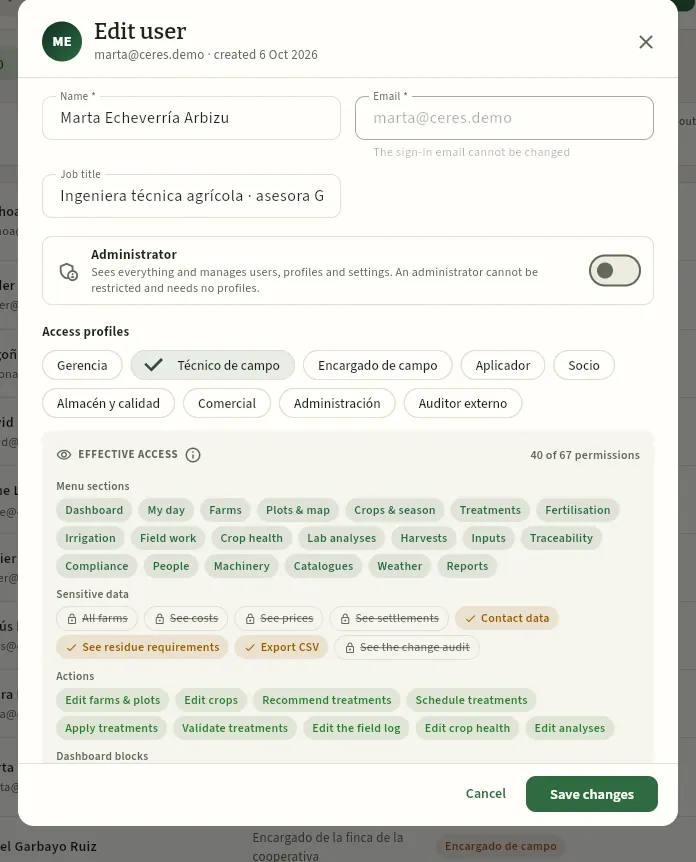 1234
- 1Administrator: if ticked, they see everything and profiles do not apply.
- 2Their access profiles (here, Técnico de campo). Hover over one to see the profile's description.
- 3Effective access: what remains with all their profiles together (40 of 67 permissions).
- 4What they do not have is crossed out and greyed: here, seeing costs, prices and settlements.
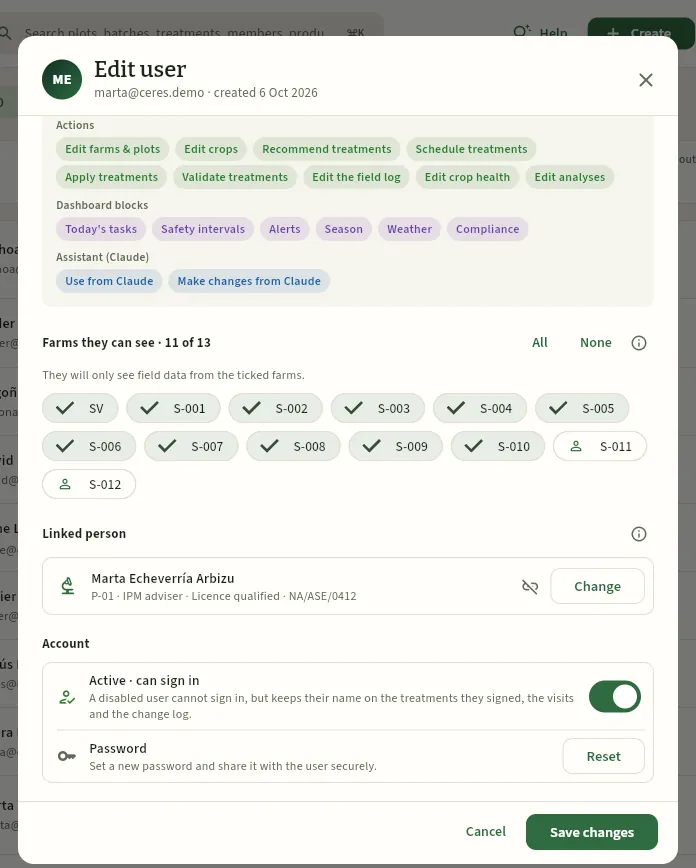 1234
- 1The farms she sees: one tick box per farm (without All farms in her profile).
- 2S-011 and S-012 unticked: Marta does not advise those members and sees nothing of them.
- 3Linked person: her People record, with her licence and her ROPO number. The recommendations and validations she signs are recorded in her name.
- 4Reset gives her a new password (if she has forgotten it).
As an administrator, open Users in your user menu and click New user.
Type their name, their email and a password (or generate one), and under Job title something like «Socio · explotación S-013».
Tick the Socio profile and, among the farms, only theirs.
If they are going to sign anything or hold a licence, link them to their People record.
Click Create user and give them their password securely.
Appendices
Glossary
The terms of the field notebook, crop protection, nutrition, irrigation, the packhouse, the cooperative and the regulations that Ceres uses, explained in one line and with the chapter where you will find them.
| Term | What it means in Ceres | Where |
|---|---|---|
| Access key | A personal code (it starts with «ceres_») that Claude uses to enter Ceres as you. Ceres only stores its fingerprint, so it is shown only once; it expires or is revoked with a button. | Connect to Claude |
| Action threshold (umbral de intervención) | The level of a pest (individuals per plant, per trap, % of plants…) above which treating is justified. Visits compare it with what was observed. | Crop protection |
| Active substance (materia activa) | The substance in a plant protection product that acts against the pest. A product can have one or several, each with its mode of action and its MRLs; reports count the kilos of each active substance per hectare. | Catalogues, Reports |
| Authorised use (uso autorizado) | Each combination of crop and pest for which a product is authorised in the Register, with its rate, its pre-harvest interval, its maximum number of applications and its interval. | Catalogues, Treatments |
| BBCH | The international scale of a crop's growth stage (from 00, seed, to 99, harvest and after). It goes in visits and in each treatment, because many uses are only authorised at certain stages. | Crops, Crop protection |
| Beneficials (fauna auxiliar) | Useful insects and mites that are released or protected to control pests (for example, predators of whitefly or Tuta). They are recorded in visits and bought as an input. | Crop protection, Inputs |
| Certification | What accredits a farm or a supplier: GLOBALG.A.P., organic production, integrated production… with its expiry date. Ceres warns you before it expires. | Farms, Suppliers |
| Claude | Anthropic's artificial intelligence assistant. With the Ceres connector it works with your data from a chat (claude.ai, the desktop and mobile apps, Claude Code), with your own permissions. | Connect to Claude |
| Connector (MCP) | The connection between Claude and Ceres. MCP (Model Context Protocol) is the open standard that AI assistants use to connect to other applications; the connector address ends in /mcp. | Connect to Claude |
| Crop (planting) (cultivo, plantación) | What is planted on a plot in a season (CU-…): species, variety, plant material, dates, area, status and expected yield. The whole field notebook hangs from it. | Crops |
| Crop hierarchy (jerarquía de cultivos) | In the plant protection products Register, crops sit in a tree of codes (vegetables → solanaceae → tomato…). A use authorised for a group applies to the crops that hang from it; the same goes for pests. | Catalogues, Crop protection |
| CUE | The Spanish digital farm record book (cuaderno digital de explotación agrícola): the official format (a JSON following the schema published by FEGA) in which the record book is sent to SIEX. Ceres exports the record book in that format, but it is not an official record book. | Compliance |
| Culls (destrío) | The part of the harvest that cannot be sold fresh. Together with extra, I and II, it is one of the grading categories. | Harvests |
| Degree-days (grados-día) | The heat accumulated above a base temperature since a given date. Used to forecast the development of a crop or a pest. | Weather |
| Delivery note (albarán) | The document for each delivery to a customer (AL-…): what is supplied, from which lots and how many kilos. When it is shipped, the stock leaves the packhouse; it is invoiced afterwards. | Orders & sales |
| Delta T | The difference between the dry-bulb and wet-bulb air temperatures. It tells you whether the spray droplets evaporate before reaching the plant: with a very high or very low delta T it is better not to spray. | Weather, My day |
| ET₀ | Reference evapotranspiration: the water lost by a reference grass through evaporation and transpiration, calculated from the day's weather. Multiplied by the crop's Kc, it gives what that crop needs. | Irrigation, Weather |
| Farm (explotación) | Each production unit with its holder: the cooperative's own farm (SV) and each member's (S-001…), with its REA, its adviser and its certifications. | Farms |
| Farm field log (cuaderno de explotación) | The record of everything done on a farm (treatments, fertilisation, irrigation, field work, analyses…). From 1-1-2027 the treatment record must be electronic. Ceres keeps it and exports it as PDF, as CUE JSON and as Ceres JSON, each export with its seal. | Compliance |
| Farm foreman (encargado) | The person who organises the work on the cooperative's farm: field work, irrigation, harvests, treatment orders, people and machinery. In the demo, Mikel Garbayo. | Field work |
| FEFO | First Expired, First Out: what expires first goes out first. This is how Ceres suggests the lots for each delivery note. | Orders & sales |
| Fertigation (fertirrigación) | Applying fertiliser dissolved in the irrigation water. It is recorded in the irrigation and also as a fertilisation. | Irrigation, Fertilisation |
| Fertilisation plan (plan de abonado) | The calculation of the nitrogen, phosphorus and potassium a crop needs for the expected yield, after deducting what the soil, the water and organic matter supply (RD 1051/2022). | Fertilisation |
| Fertiliser units (UF) (unidades fertilizantes) | The kilos of pure nutrient a fertiliser supplies: N (nitrogen), P₂O₅ (phosphorus) and K₂O (potassium). A 15-15-15 fertiliser supplies 15 kg of each per 100 kg. | Fertilisation |
| Field visit (visita) | The technician's field report (VI-…): crop stage (BBCH), pests and their level, beneficials, photos and, if needed, the treatment recommendation. | Crop protection |
| Fingerprint chain (cadena de huellas) | The chain with which Ceres keeps a record of every new entry, change or deletion in the record book and the audit log: each link stores the SHA-256 fingerprint of the row and that of the previous link. If someone touched data directly in the database, the chain would no longer match and Verify record book would say so. | Compliance |
| FRAC | The international committee on fungicide resistance. It places each fungicide in a mode-of-action group (for example, difenoconazole is FRAC 3 and sulphur FRAC M 02, multi-site). | Catalogues |
| GLOBALG.A.P. | A private standard of good agricultural practice (IFA v6) that many customers require. Ceres keeps each farm's and supplier's certificate and helps you have the records it asks for; it does not certify. | Farms, Compliance |
| Harvest from (cosechar desde) | The first day a crop can be harvested after a treatment: the application date plus its pre-harvest interval. | Treatments, Harvests |
| HRAC | The international committee on herbicide resistance, with its mode-of-action groups. | Catalogues |
| Input (insumo) | What is used up in the field: plant protection products, fertilisers, seeds and plants, beneficials. Managed by lot (EI-…), with its expiry date. | Inputs |
| IPM (GIP) | Integrated pest management (gestión integrada de plagas): monitoring crops, treating only when a pest exceeds its threshold and preferring non-chemical methods. Every treatment recommendation carries its IPM justification and its alternatives. | Crop protection, Treatments |
| IPM adviser (asesor GIP) | An accredited technician, registered in the ROPO, who advises the farm on integrated pest management and signs the treatment recommendations. In the demo, Marta Echeverría. | Farms, Crop protection |
| IRAC | The international committee on insecticide and acaricide resistance, with its mode-of-action groups (for example, Bacillus thuringiensis aizawai is IRAC 11A). | Catalogues |
| ITEAF | Inspección técnica de equipos de aplicación de fitosanitarios: the technical inspection of plant protection application equipment, mandatory every 3 years for sprayers and air-blast sprayers. With the ITEAF expired, the equipment cannot be used in a treatment. | Machinery |
| Kc | Crop coefficient: how much a crop uses compared with ET₀ depending on its stage (low at transplanting, highest in full production). | Irrigation |
| Lot (lote) | A quantity of produce tracked as a unit: field lot (LC-…, what comes in from a harvest), bought-in lot (LE-…, produce from third parties) or sales lot (LV-…, the packed one). Its code goes on the label and on the delivery note. | Packhouse, Traceability |
| Low vigour (vigor bajo) | The warning that part of a plot has an NDVI clearly below its average (with the demo values, at least 15 % of the plot below 85 % of its average): it is worth going to look at it. | Plots & map |
| Mass balance (balance de masas) | The tally of the kilos: what comes in (harvests and purchases) against what goes out (sales, losses, culls) and what remains in the packhouse. If it does not add up, something has not been recorded. | Compliance, Reports |
| Member (socio) | A farmer who belongs to the cooperative and delivers their harvest to it. They have their farm (S-001…), their field notebook and their settlements, and can sign in to Ceres to see their own data. | Farms |
| Member settlement (liquidación) | What the cooperative pays a member for what they have delivered (LQ-…): kilos per grade and week at their price, minus handling charges, plus the REAGP compensation if applicable, minus the withholding. | Member settlements |
| Mock recall (simulacro de retirada) | A timed rehearsal of how a lot would be withdrawn: from that lot, which customers it reached and which other lots share its origin. Ceres times it and produces the report. At least one a year is recommended. | Traceability |
| Mode of action (modo de acción) | How an active substance acts on the pest, disease or weed, sorted into the IRAC, FRAC and HRAC groups. Repeating the same group encourages resistance: that is why Ceres warns when a treatment repeats it and suggests alternating. | Catalogues, Treatments |
| Mode-of-action rotation (rotación de modos de acción) | Alternating mode-of-action groups (IRAC, FRAC, HRAC) in a crop's treatments so that the pest does not become resistant. Settings sets how many applications in a row, and per cycle, are allowed before the warning. | Treatments, Crop protection |
| MRL (LMR) | Maximum residue level (Regulation (EC) 396/2005): the most of an active substance that may remain in a food, in mg/kg, for each product. Without a specific MRL, 0.01 mg/kg applies. Ceres loads the real MRLs from the EU pesticides database for the cooperative's crops; it is checked with a residue analysis. | Catalogues, Lab analyses |
| MRL-exempt (exenta de LMR) | An active substance with no residue limit because it is in annex IV of Regulation (EC) 396/2005 (for example, sulphur or many micro-organisms). | Catalogues |
| My day (Mi jornada) | Ceres's field mode: on a phone or tablet, what each person has to do today, with the spraying weather and a button to record it. | My day |
| NDVI | Normalised difference vegetation index: it measures, from the red and infrared light the crop reflects, how much green, active vegetation there is. Ceres calculates it from Sentinel-2 images on each plot and warns of low vigour. | Plots & map |
| Nitrate vulnerable zone (zona vulnerable) | An area declared vulnerable to nitrate pollution: it limits nitrogen of organic origin to 170 kg per hectare per year. Ceres warns you if you exceed it. | Fertilisation, Plots & map |
| Notifications (avisos) | What reaches each person in the bell on the top bar: an order assigned to the sprayer operator, a settlement issued to the member, a licence, ITEAF or certificate about to expire, a threshold exceeded to the adviser, a lot put on hold or a mock recall to the packhouse. Each person chooses in their preferences whether they want them in the app and by email. | Dashboard |
| Open-Meteo | The weather data service from which Ceres takes the real weather for the area: Copernicus's ERA5 reanalysis for past days and the ECMWF IFS model for the latest days, the hourly data and the forecast. Its free API is for non-commercial use only. | Weather |
| Organic (ecológico) | Organic production (Regulation (EU) 2018/848): it only allows products approved for organic farming, and organic lots are not mixed with conventional ones or supplied as organic to whoever should not get them. | Plots & map, Packhouse |
| Packing (confección) | Preparing produce for sale: one or more field lots (or bought-in produce) become a packed and labelled sales lot (LV-…). Organic and conventional are never mixed. | Packhouse |
| Plant passport (pasaporte fitosanitario) | The official label that accompanies certain plants and seeds and guarantees they are free of quarantine pests. It is recorded with the crop's plant material. | Crops |
| Plant Protection Products Register (Registro de Productos Fitosanitarios) | The official register of the Ministry of Agriculture (MAPA) with every authorised product, its number (ES-…), its composition, its status and its uses. Ceres brings it in full and does not let you use what is not authorised. | Catalogues |
| Plot (SIGPAC enclosure) (parcela, recinto SIGPAC) | The field unit Ceres works with: a SIGPAC enclosure (or part of one), with its area, its land use, its irrigation, its soil and its zones. | Plots & map |
| PNOA | Plan Nacional de Ortofotografía Aérea: the aerial photographs of Spain's National Geographic Institute on which the plot map is drawn. | Plots & map |
| Pre-harvest interval (PS / PHI) (plazo de seguridad) | The days that must pass between a treatment and harvesting, according to the product's authorised use. Applied on day D with a PHI of N days, you can harvest from D+N; Ceres blocks the harvest before then. A PHI of 0 days does not block. | Treatments, Harvests |
| Public lot page (ficha pública del lote) | The page that opens when you scan the QR code on a label: the product, its origin and its dates, with no private data and no user account needed. | Packhouse, Traceability |
| REA | Registro autonómico de explotaciones agrícolas: the regional register of farms, which gives each farm its official code. | Farms |
| REAGP | Régimen especial de la agricultura, ganadería y pesca: the special VAT scheme for agriculture, livestock and fishing. A member under it does not charge VAT: the cooperative pays them a flat-rate compensation (12 % in agriculture, art. 130 of the VAT Act) in their settlement. | Member settlements, Settings |
| Recommendation (recomendación) | The adviser's treatment proposal, with the IPM justification, the non-chemical alternatives, the products and the rates. The order is scheduled afterwards. | Treatments, Crop protection |
| Residue analysis (análisis de residuos) | A lab analysis of a harvest sample that measures how much of each active substance remains. Ceres stores the report, gives each substance its real EU MRL, works out the % of the MRL it reaches and says which customers with residue specifications it does not qualify for; Ceres itself analyses nothing. | Lab analyses |
| Residue specifications (pliego de residuos) | A customer's requirements on the residues in what they buy, stricter than the law: max. number of active substances, max. % of the MRL, substances they do not accept and extra days on the pre-harvest interval. Ceres says which lots do not qualify for them and the FEFO delivery note skips them. | Customers, Packhouse, Orders & sales |
| ROMA | Registro oficial de maquinaria agrícola: the official register of agricultural machinery, which gives each tractor and piece of equipment its registration number. | Machinery |
| ROPO | Registro oficial de productores y operadores de medios de defensa fitosanitaria: the official register of producers and operators of plant protection means, where advisers (and distributors) are registered. The adviser's ROPO number goes on every recommendation. | People, Farms |
| Seal (of an export) (sello) | What Ceres stores every time someone exports a record book: a code (such as 81C9-CE2E-12DF), who and when, the SHA-256 fingerprint of the content and the head of the fingerprint chain. With the file or the code you can later check whether it is intact. | Compliance |
| Season (campaña) | The cooperative's farming year: from 1 September to 31 August (2026/27 began on 1-9-2026). Indicators and reports are counted by season. | Dashboard, Settings |
| Sentinel-2 | The satellites of the European Copernicus programme that photograph the land every few days at 10 m resolution. Ceres uses their cloud-free scenes for each plot's NDVI. | Plots & map |
| SHA-256 (fingerprint) (huella) | A 64-character number that summarises a content: if a single letter changes, the fingerprint changes completely, and the content cannot be rebuilt from it. Ceres uses it in seals and in the fingerprint chain. | Compliance |
| SiAR | The Agroclimatic Information System for Irrigation of the Spanish Ministry of Agriculture: a network of real agro-weather stations. Ceres is ready to take the weather from it, pending the personal token its API requires. | Weather, Settings |
| SIEX | The Spanish farm information system (sistema de información de explotaciones agrícolas): where FEGA and the regions will receive digital record books (CUE). Ceres leaves the upload prepared, but does not send it. | Compliance |
| SIGFITO | The most widespread collection scheme for empty plant protection product containers. Ceres records each container return and keeps its receipt, which is what RD 1311/2012 (art. 41) requires. | Inputs |
| SIGPAC | Sistema de información geográfica de parcelas agrícolas: the official map of enclosures used to declare CAP aid. Each enclosure has a reference (province:municipality:aggregate:zone:polygon:parcel:enclosure). | Plots & map |
| Specific zone (art. 34) (zona específica) | Areas where the use of plant protection products is restricted (near built-up areas, protected areas, water abstraction points…), under art. 34 of RD 1311/2012. The plot shows it and the treatment takes it into account. | Plots & map |
| Sprayer licence (carné de aplicador) | The professional user's licence for plant protection products (basic, qualified, fumigator or pilot), valid for 10 years. Ceres does not let you assign a treatment to someone whose licence has expired. | People |
| Sprayer operator (aplicador) | The person who carries out the treatment with the equipment. They need a valid licence; in Ceres they work from My day. | People, Treatments |
| Third-party trade (operaciones con terceros) | What the cooperative buys from and sells to non-members. Cooperative law limits it to 50 % (and there is a similar tax limit); Ceres calculates its share so you can keep an eye on it. | Bought-in produce, Compliance |
| Timestamp (RFC 3161) (sello de tiempo) | A seal from an external authority (TSA) that signs the fingerprint of a Ceres seal with the date and time: it proves to third parties that it already existed at that moment. RFC 3161 is the standard; in Ceres it is optional. | Settings, Compliance |
| Traceability | Being able to follow a product one step back (where it comes from) and one step forward (whom it was supplied to), as Regulation (EC) 178/2002 requires. | Traceability |
| Trap (trampa) | A pheromone or colour trap placed on a plot; its regular counts warn you when a pest is building up. | Crop protection |
| Treatment check (comprobación del tratamiento) | What the database checks before saving a recommendation, an order or an application: authorised use, rate, number of applications, interval, product still authorised, organic, specific zones, licence, ITEAF, wind, stock and pre-harvest interval. It gives errors (which prevent recording) and warnings. | Treatments |
| Treatment order (orden de tratamiento) | The treatment scheduled for a date, with plots, products and rates, sprayer operator and equipment, already checked. The sprayer operator sees it in My day; once recorded, it becomes applied. | Treatments |
| Validation with signature | The closing of an applied treatment by the adviser, with their handwritten signature on screen and the efficacy observed. It is kept in the record's PDF. | Treatments |
| Water balance (balance hídrico) | The tally of a crop's water: what it needs (ET₀ × Kc) against what it receives from rain and irrigation. Ceres recommends how much to irrigate. | Irrigation |
| Your day (Tu día) | The top block of the Dashboard with what each profile has to do today: what to visit, thresholds not yet treated, intervals ending, orders, deliveries… | Dashboard |
Appendices
Frequently asked questions
Quick answers to the most common questions, with a link to the chapter where each thing is explained in detail.
#Access and permissions
I cannot see a section, a button or a figure that a colleague can see
It is decided by your access profile: each profile turns on some sections, some data (costs, prices, settlements, contact details), some actions (scheduling, applying or validating treatments, recording harvests, invoicing…) and some Dashboard blocks. If you need something more, ask an administrator. See Profiles, permissions and farms.
I cannot see a member's plots or field notebook
You only see the farms assigned to you (unless your profile has «All farms»). The agronomist sees those of the members she advises; each member, only their own. If one is missing, the administrator ticks it in your user record. See Profiles, permissions and farms.
Instead of an amount I see a padlock
It is a piece of data your profile is not allowed to see (for example, costs for the foreman, sale prices for the agronomist or a member's IBAN). If you hover over it, it says so. It is not an error: the database itself does not send it to you.
An administrator has given me a new permission and I cannot see it
Permissions are reloaded when you change section: click any section in the sidebar (or sign in again) and the sidebar, the buttons and the figures adjust.
I have forgotten my password
Ask an administrator to give you a new one from Users (Reset); then you can sign in with it. Ceres does not send recovery emails.
When I sign in it says I have no access profile
Your user exists but has no profile assigned yet, so it cannot see anything. An administrator has to assign you one in Users.
#Treatments and pre-harvest intervals
The product I want to use is not in the list
Ceres only offers the products that the official MAPA Register authorises for that crop (or its crop group) and that pest, and that are still authorised. If it does not appear, it is not authorised for that use, or it has been cancelled. Check it in the solution finder in Crop protection or in the product's record in Catalogues.
The treatment check shows red and will not let me record it
Errors (in red) prevent the application from being recorded: use not authorised, rate above the maximum, more applications than allowed, interval too short, product cancelled, sprayer licence expired or equipment ITEAF expired. Fix what the message says (another rate, another sprayer operator, other equipment). Warnings (in amber), such as high wind, are recorded, but you should review them. See Treatments.
When can I harvest after a treatment?
From the day of application plus the pre-harvest interval of the authorised use: applied on day D with an interval of N days, you can harvest from D+N. Ceres calculates it when the application is recorded («harvest from…»), shows it on the Dashboard, on the plot and on the crop, and does not let you record a harvest before then («Pre-harvest interval running: harvesting is not allowed yet»). With several treatments, the one that ends latest wins. An interval of 0 days does not block.
The sprayer operator cannot see their treatment in My day
My day shows the orders scheduled for today and the next few days (and the overdue ones) in which that person is the sprayer operator, on the farms assigned to them. Check the date and the sprayer operator in the order, and that their user is linked to their People record: that is how Ceres knows who they are. See My day.
Can I delete a treatment that was recorded wrongly?
An applied treatment is not deleted: it is part of the field notebook. Whoever has «Validate treatments» can cancel it, and it stays in the history as cancelled. Then it is recorded correctly.
Who has to validate treatments?
The adviser (a technician with a ROPO number) validates them with their signature on screen and records the efficacy. The Dashboard warns of those that have gone more than seven days without validation. Validation cannot be done from Claude.
#Harvest, packhouse and sales
When I record a harvest it says the crop is within its pre-harvest interval
That is correct: one of that crop's treatments has not yet completed its pre-harvest interval. The message says until when; record the harvest from that day on. See Harvests.
I cannot pack an organic lot and a conventional lot together
Ceres never mixes organic and conventional produce in a packing run: the sales lot would be conventional and would lose the traceability of the organic produce. Pack them separately. See Packhouse.
It will not let me ship a delivery note to a customer
If the customer requires organic (in the demo, La Cesta, Ekoizpena or La Rueda Ecológica), it does not accept conventional lots: «Cannot dispatch: the customer is organic only and batch… is not organic». If they have residue specifications, they do not accept a lot that does not meet them either. And lots on hold are not shipped. Change the lot on the delivery note. See Orders & sales.
Why does a lot not appear on a customer's delivery note?
Because FEFO (first expired, first out) has skipped it: the lot does not meet the customer's residue specifications (a substance they do not accept, more active substances than they allow, a residue above the % of the MRL they ask for or a harvest too close to the pre-harvest interval), or it is on hold, used up or past its best-before date. When the delivery note is prepared, Ceres shows the lots it skipped and why; in the Packhouse, each lot says which customers it qualifies for. See Orders & sales.
What does someone who scans the QR code on a label see?
The public page of the lot: the product, its origin (the area, not the member), its dates, whether it is organic, whether it was harvested respecting the pre-harvest intervals and the latest residue analysis, with the cooperative's contact details. No user account needed and no private data (no members, no customers, no prices). If the lot has been withdrawn, the page only identifies it and says how to get in touch. See Packhouse.
A customer complains about a consignment: how do I know where it came from?
In Traceability, search for the lot (it is on the label and on the delivery note): one step back, the plot, the farm, the treatments with their interval and the lab analyses; one step forward, which other customers got the same consignment and how many kilos. If it has to be withdrawn, the mock recall times everything and produces the report.
#Compliance and regulations
Does Ceres certify that I comply with the regulations?
No. Ceres helps you comply and keeps a record: it keeps the record book, checks what can be checked against the official Register, the EU MRLs and each customer's specifications, and warns you of what is missing. It is not an official record book or a qualified electronic signature: the product label, the adviser's judgement and the inspection or the certification body have the final say.
Is Ceres valid for the mandatory digital field notebook from 2027?
From 1 January 2027 plant protection treatment records must be electronic and uploaded within one month. Ceres keeps them that way and exports the farm record book as PDF, as CUE JSON (the official FEGA format) and as Ceres JSON, each export with its seal. See Compliance.
Does Ceres send the record book to SIEX?
No. Ceres prepares the upload: it builds the CUE for the season, validates it against the FEGA schema, stores its fingerprint and shows what would be sent and what is left out; but it sends nothing. Sending it requires the region to register the cooperative and Ceres as a commercial CUE and a qualified certificate of the cooperative. Meanwhile, the holder can load the CUE JSON into their region's digital record book. See Compliance.
How do I get a farm's record book for an inspection?
In Compliance, Farm record book tab, choose the farm and the season and download the record book as PDF, as CUE JSON or as Ceres JSON (with the «Export CSV» permission). Every export carries its seal. An external auditor can view and export it with their own read-only user.
How do I know whether a record book I am given is the one that came out of Ceres?
Upload it to Compliance → Verify record book (or type the seal code from its footer). Ceres says whether it is Intact, Modified (someone changed some data after exporting it) or Unknown (not from Ceres or you cannot see that farm), who sealed it and when, and what has been recorded since. See Compliance.
What happens if someone touches the database outside Ceres?
Every new entry, change or deletion in the record book and in the audit log is linked in the fingerprint chain. If someone changed or deleted data directly in the database, the chain would no longer match: Verify record book flags it (the chain «With issues», the altered, unlinked or deleted rows) and later seals no longer come out intact. It does not prevent it, but it keeps a record. See Compliance.
What does the compliance score mean?
It is the result of a checklist per farm and season: entries recorded in time, validation, IPM justification, adviser, sprayer licences, ITEAF, fertilisation plan, nitrate vulnerable zone, lab analyses, certificates, pre-harvest intervals, annual mock recall and empty containers. Each item says what is missing and takes you to where it is fixed.
#Residues and weather
Where do each substance's MRLs and mode of action come from?
The MRLs are the real ones from the EU pesticides database (Regulation (EC) 396/2005) for the cooperative's crops, and the mode of action comes from the official lists of the IRAC, FRAC and HRAC committees. You can see them in Catalogues → Active substances.
An analysis is below the MRL but does not qualify for a customer
Because that customer asks for less than the law in their residue specifications: for example, Frutas Bidasoa accepts at most 33 % of the MRL of each substance. The analysis says which customers it does not qualify for and why. See Customers and Lab analyses.
Is the weather in Ceres real?
Yes: the daily and hourly data come from Open-Meteo (the ERA5 reanalysis and the ECMWF IFS model) for the cooperative's location, and Ceres always shows their source. The MAPA SiAR network is ready, pending the personal token it requires. See Weather.
#The application
Does it work on a phone or a tablet?
Yes, in the browser on a phone or a tablet, with the screen adapted; My day is designed for that. It needs a connection: the version that works without coverage will come later. See The screen and what is common.
Can I use Ceres in English or Galician?
Yes: the globe in the top bar (or My profile on a phone) switches the whole application to English or Galician. The data (names of plots, members, products) is not translated. This manual is also in English and Galician (the EN and GL buttons, at the bottom left).
The demo data has changed from one day to the next
The public demo goes back to its initial data every day at 08:00, with that day's dates: whatever you have tried is deleted and the numbers (kilos, amounts, days remaining) change, but the story is the same.
Can I ask Claude instead of searching the screens?
Yes, if your profile has «Use from Claude». Connect Claude from your user menu and ask it in your own words («which plots are within a pre-harvest interval?»). It sees the same as you. See Connect to Claude.
How do I print this manual?
With Print or save as PDF, at the bottom left of the manual: each chapter starts on a new page and the frequently asked questions are shown expanded.